
 TL;DR:
Correct a fixed audio-video sync issue by either adjusting the temporary playback delay in a media player or permanently detaching and realigning the audio track in a video editor for a new export.
● Use VLC 3.0 to adjust desktop viewing timing in 50-millisecond steps (keys K/J on Windows, G/F on Mac) without altering or saving changes to the source file.
● To create a permanently corrected file, detach the audio track and shift it manually using iMovie on Mac or Microsoft Clipchamp on supported desktop versions of Edge and Chrome.
● Manual alignment will not resolve progressive drift where the timing gap continuously changes; if the file also freezes or refuses to open, use Wondershare Recoverit's Corrupted Video Repair instead of a timing adjustment.
Ask AI for a summary
 ChatGPT
 Perplexity
 Gemini
 Claude
 Grok
Grok
To fix audio and video out of sync, first check whether the delay stays the same or grows during playback. A fixed offset can be adjusted in VLC for watching, or corrected in a video editor and exported as a new file. If the gap keeps changing, investigate the source recording and editing workflow. File repair is relevant when the video is damaged, not simply because the sound is early or late.
This guide covers desktop playback on Windows and Mac, a browser editing option, and iMovie. Keep your original video and export changes under a different filename so you can compare the result.
In This Article
Part 1. Identify Why the Sound and Video Are Out of Sync
The same symptom can come from the file, the player, or the output device. These checks help you choose between a playback adjustment and a change that must be saved into a new video.
Check the File Against the Playback Setup
Compare the same scene using a second player and your computer's built-in speakers or wired headphones. If a local copy plays correctly but a browser preview or one audio device does not, investigate that playback setup before editing the file.
| What you observe | Best next step | What the result tells you |
| The same early or late sound throughout the video | Use VLC for playback, or an editor for a corrected export | A single timing offset may be enough |
| Sound starts aligned, then falls further behind or moves ahead | Compare the original recording, editing timeline, and export | A fixed offset will not solve progressive drift |
| Only a browser preview or wireless listening setup has the problem | Compare a local copy in another player and with another audio output | The original file may already be synchronized |
| The timeline is correct but the exported file is not | Check export settings and test a short section from the project | The mismatch may have entered during export |
| The video also freezes, shows broken frames, or cannot be opened | Check for an intact original or backup; consider file repair for a damaged copy | Timing adjustment alone may be insufficient |
These are diagnostic branches, not proof of a particular fault. For example, a video that fails in two players is not automatically corrupt; the players may share a format limitation.
Tell a Fixed Offset from Progressive Drift
Use an obvious event, such as a hand clap, a door closing, or a visible spoken consonant. Compare an event near the start with another near the end. The following examples illustrate the distinction; they are not measurements from your file.
- Fixed offset: A clap is heard about half a second before it is seen at both points. Delay the audio by roughly half a second, then refine the adjustment.
- Progressive drift: A clap lines up near the start but the sound is two seconds late near the end. Moving the whole audio track changes both points equally, so it cannot align them both.
- A sudden jump: The tracks align until one cut or glitch, then separate. Inspect that edit or damaged section rather than changing the timing of the entire recording.
For a constant offset, the direction is straightforward: early sound needs to play later; late sound needs to play earlier. Player delay values and an editor's timeline positions express that adjustment differently.
Part 2. Sync Sound and Video with the Right Tool
Choose VLC if you only need to watch the file in sync. Choose a video editor if you need a corrected file to upload, send, or play elsewhere; an editing project must be exported before those changes travel with the video.
Adjust Playback Timing in VLC
Use this for: A constant offset during desktop playback. The controls below apply to VLC 3.0; custom keyboard shortcuts can differ.
Step 1. Open the video in VLC. On Windows, choose "Tools > Track Synchronization". On Mac, choose "Window > Track Synchronization".
Step 2. Find "Audio track synchronization". The Windows dialog is shown below.
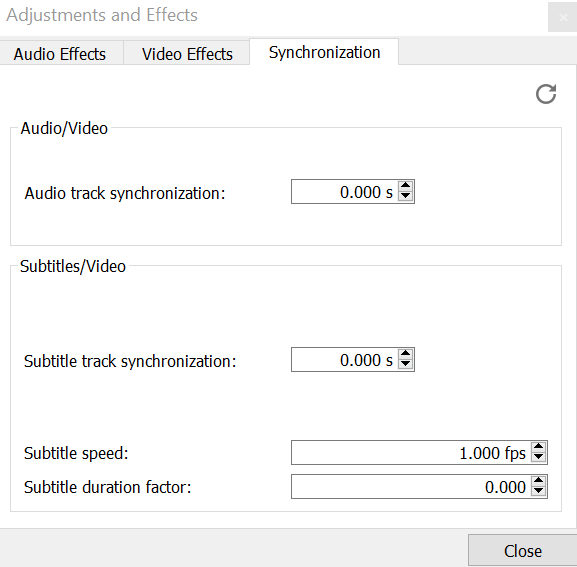
Screenshot: VideoLAN Documentation Team, VLC User Documentation, CC BY-SA 4.0; unmodified.
Step 3. Adjust the audio delay while replaying the same short scene. In VLC 3.0, a positive value delays audio; a negative value advances it. For example, if sound is 0.5 seconds early, try +0.500 s.
| Symptom | Windows shortcut | Mac shortcut | Adjustment |
| You hear the sound before the action | K | G | Increase audio delay |
| You see the action before hearing the sound | J | F | Decrease audio delay |
The default shortcuts change the delay in 50-millisecond steps. Check VLC's displayed delay and test the beginning, middle, and end. VideoLAN documents the synchronization controls; the shortcut directions and delay signs are also defined in its VLC 3.0 source release.
Result and limit: This changes playback timing, not the source file. Do not assume a normal conversion or a saved playlist includes this adjustment. If you need a permanent correction, use one of the editing methods below. If alignment changes during playback, continue to Part 3.
Sync Audio and Video Online with Microsoft Clipchamp
Use this for: A video with a fixed offset that you want to correct and export in a desktop browser. Microsoft Clipchamp supports current desktop versions of Edge and Chrome on compatible computers. For the personal version, sign in with a Microsoft account; see Microsoft's device and browser requirements.
Step 1. Open Microsoft Clipchamp, create a video project, import your clip, and add it to the timeline.
Step 2. Select the video on the timeline. Open "Audio" in the property panel and choose "Detach audio". The sound becomes a separate timeline clip, as described in Microsoft's audio separation instructions.
Step 3. Select the separate audio clip and check that its volume is audible in the "Audio" panel. The example below shows those controls in an audio-only project; keep the video track in your own project. Synchronization does not require increasing the volume above its original level or enabling noise suppression.
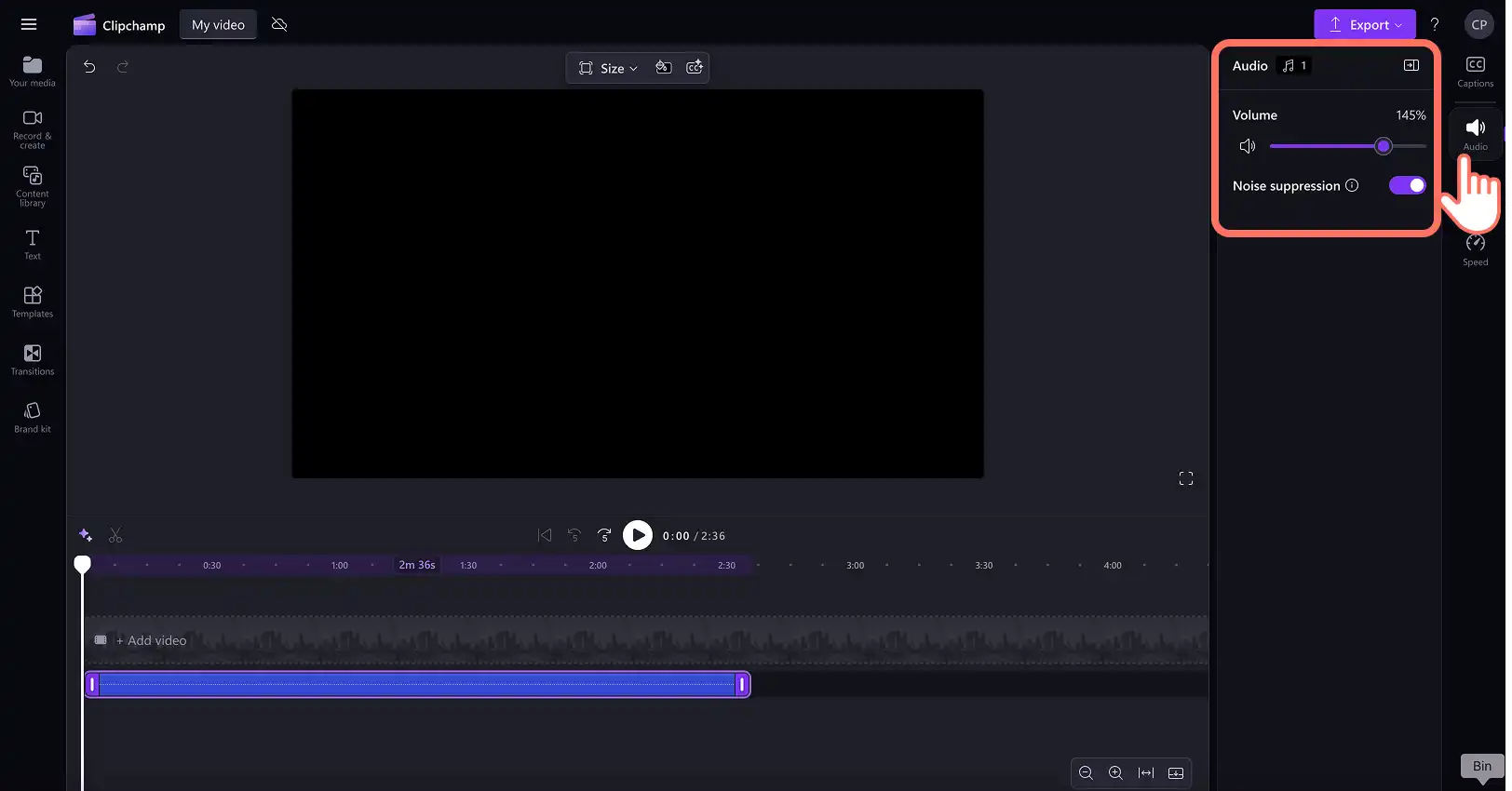
Microsoft Clipchamp screenshot. Used with permission from Microsoft.
Step 4. Zoom into the timeline and move the audio relative to the video. Move early audio to the right so it plays later; move late audio to the left so it plays earlier. Match a clear sound to its visible event, then compare another event near the end.
Note: An audio clip cannot start before the beginning of the project. If you need to advance it further, either trim only an unwanted leading portion or leave room by moving the video later. Review any resulting silent or blank opening; do not cut wanted speech just to make the first event line up.
Step 5. Preview the result, choose "Export", select a suitable video resolution, and save the completed video. Microsoft explains the difference between saving a project and exporting a playable video.
Result and limit: This is manual alignment of existing audio, followed by a new export. It does not automatically diagnose drift or restore missing sound. If a clip cannot be imported, use a supported source copy rather than repeatedly changing its extension.
Realign Audio in iMovie on Mac
Use this for: A constant audio offset in a file that iMovie can import. This is useful when an MP4 video's audio is out of sync on Mac and you need a corrected export.
Step 1. Add the video to an iMovie movie project and select it in the timeline.
Step 2. Choose "Modify > Detach Audio", or press "Option-Command-B". The screenshot shows the equivalent "Detach Audio" command in the clip's shortcut menu.
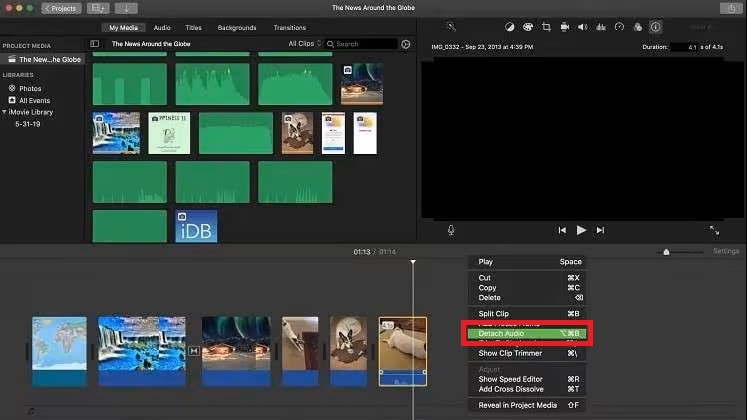
Step 3. Move the detached green audio clip relative to the video. Move early audio later, or late audio earlier, and preview clear events at more than one point. Apple confirms that detached audio can be moved and trimmed independently.
Step 4. Choose "File > Share > File". Set "Format" to "Video and Audio", select the export settings, click "Next", and save under a new name. Follow Apple's file export workflow.
Result and limit: The exported file contains the timeline adjustment. Saving changes to the project alone does not produce that file. If one point aligns but another does not, return to the drift diagnosis instead of repeatedly shifting the entire audio clip.
Part 3. Handle Audio That Keeps Drifting
If audio and video are not syncing consistently across the recording, first locate where the mismatch appears. Compare the original capture, the editing timeline, and the exported file. This narrows the investigation more effectively than trying a larger delay value.
- Only the edited timeline drifts: Investigate how the editor handles that source format and its timing. Variable frame rate footage is one possible compatibility issue, not a diagnosis by itself.
- Only the export drifts: Review the project's export configuration and compare a short exported section with the same timeline section before rendering the entire video again.
- The original already drifts: A constant shift will not fix a changing timing relationship. Separate recordings may need duration adjustment in an editor; a sudden discontinuity may need correction at that specific point.
Do not assume every variable frame rate video is faulty. HandBrake's frame rate documentation explains the distinction between variable and constant frame rate output. A constant frame rate copy can be useful for an editing compatibility requirement, but it is not a universal repair for recording clock differences, missing frames, or every sync problem.
If the video will not play at all, follow the separate video playback troubleshooting guide for Mac. If it plays with persistent visual damage or errors, consider the file repair branch below.
Part 4. Repair a Damaged Video When Timing Is Not the Only Problem
A damaged or incomplete video needs a different approach from a healthy file with a timing offset. First check for an intact source or backup. Replacing a broken transfer with a good copy may solve the problem without editing or repair.
If the only accessible copy is corrupted, Wondershare Recoverit includes "Corrupted Video Repair" within "File Repair", as shown in the current Recoverit Windows guide. Use this branch for a damaged file; ordinary player latency and manual audio alignment are different tasks.
Step 1. Open Recoverit and select "File Repair > Corrupted Video Repair". The screenshots below show the Windows workflow.
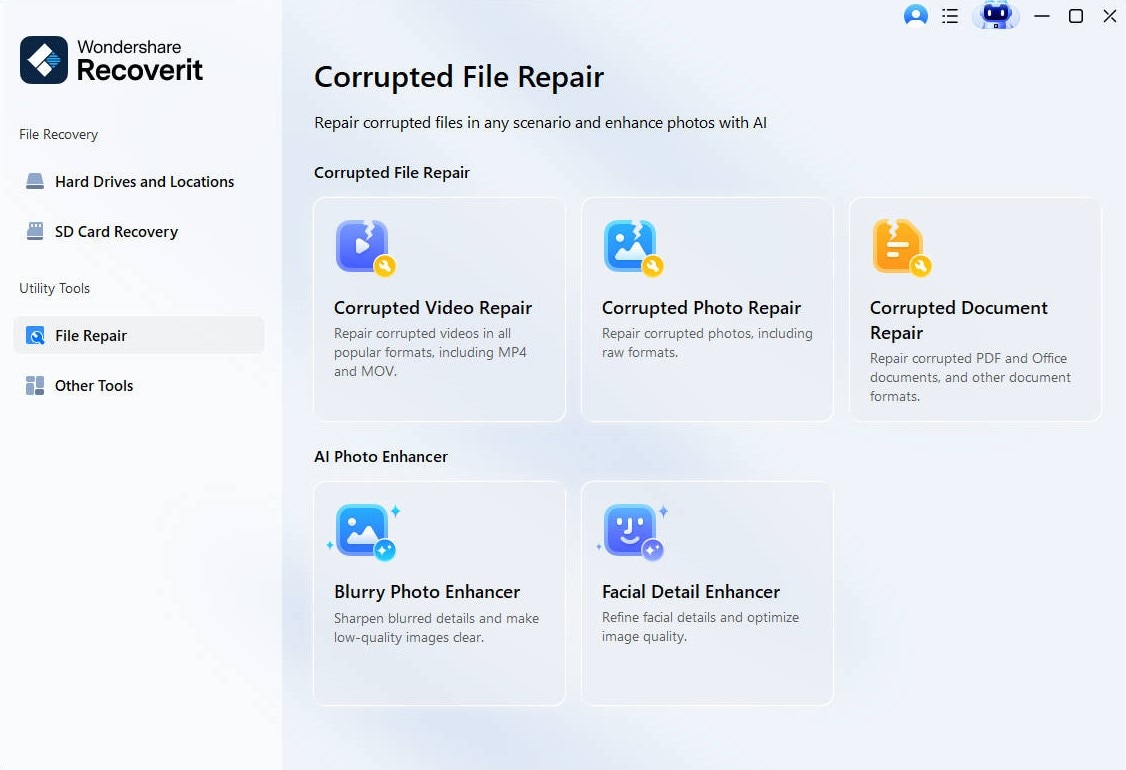
Step 2. Add the damaged video, review the file list, and click "Repair".
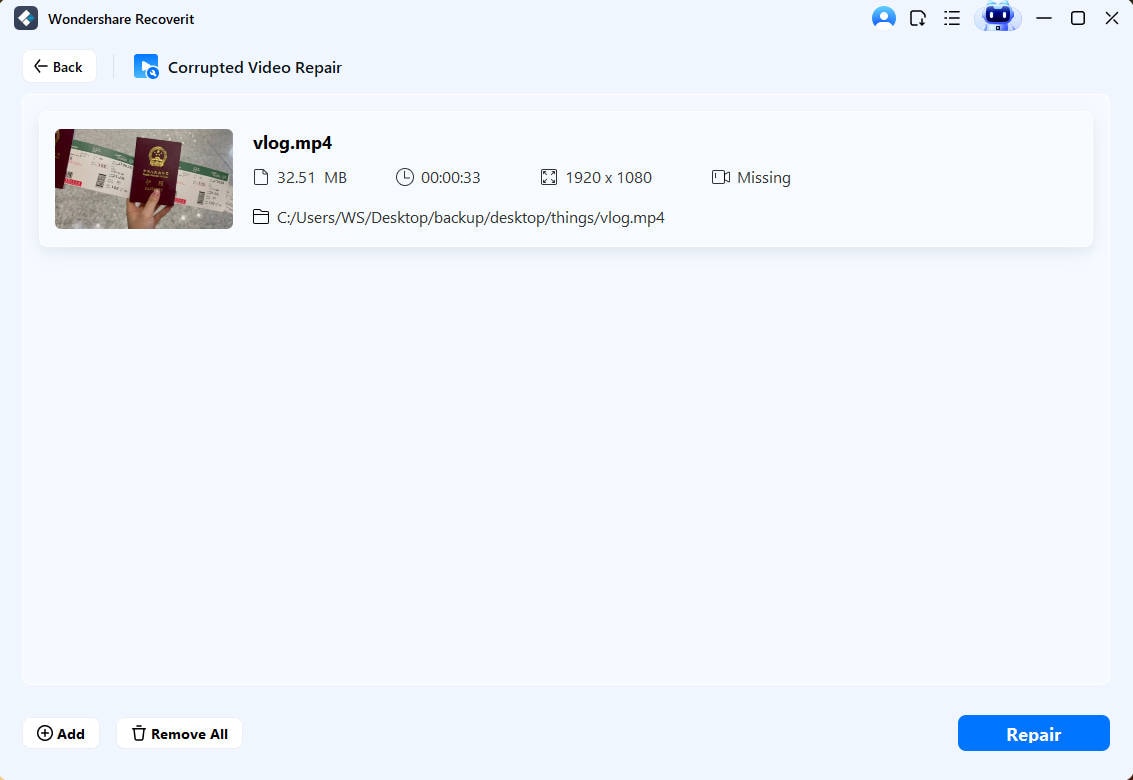
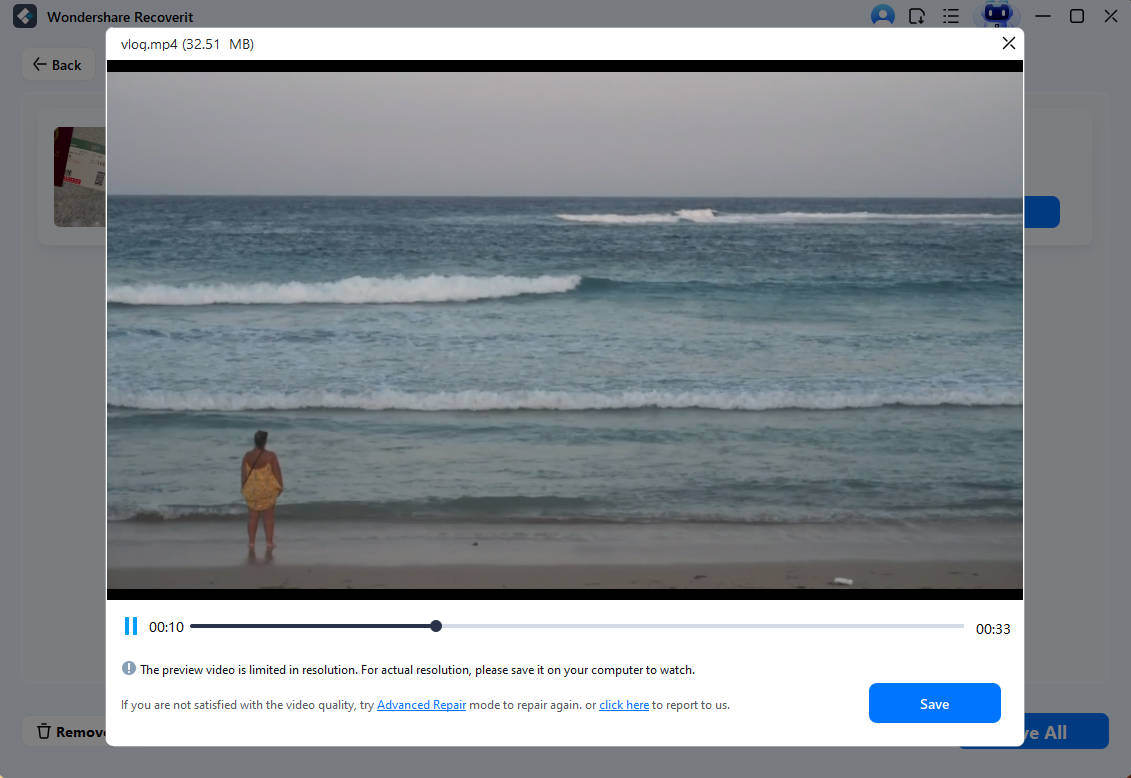
Step 3. Preview the result before saving. If standard repair is insufficient, the guide's "Advanced Repair" workflow uses an intact sample in the same format, preferably from the same recording device.
Step 4. Save the repaired output to a different location and check the saved file, including its sound, at the beginning, middle, and end.
Before you download: Choose Recoverit when you have a corrupted file to evaluate. A repair attempt does not guarantee synchronization, and a free installer does not mean every repair or saving feature is free. Check the current feature and license requirements.
For a damaged MP4, see the dedicated corrupt MP4 repair guide. If the video is missing or deleted instead, video file recovery is a separate task: stop writing to the source storage and save recovered files to another healthy location.

Out of Sync and Glitching? Your Video May Need Repair
Audio delay alone needs a timing adjustment. But if your video also freezes, shows broken frames, or won't open, Recoverit's Corrupted Video Repair can help repair supported damaged files. Preview the result before saving a repaired copy.
Part 5. Check the Saved Video Before Sharing
Judge the final file, not just the editor's preview. Reset any manual audio delay or track synchronization in the player to 0 before checking a corrected export, so an old playback adjustment is not applied on top of the edit. Open the new file in a second player and compare it with the original using the same audio output.
- Beginning, middle, and end: Check at least one clear sound-and-action event in each section. A good first few seconds do not establish that the whole video is synchronized.
- Important edits: Check cuts where a timing jump was previously visible. Confirm that no wanted words or actions were trimmed away.
- Start and finish: Check for an unintended silent opening, black gap, or missing ending after moving clips.
- Sharing destination: Compare the saved file with its uploaded preview. If only the preview differs, investigate that service or playback environment.
For future separate audio and video recordings, capture a visible and audible reference event near the start. For a long recording, another reference near the end makes progressive drift easier to identify.
Conclusion
The right way to sync sound and video depends on where the timing goes wrong. Use VLC for a playback offset, Microsoft Clipchamp or iMovie for a corrected export, and a separate investigation when the gap changes over time. Consider Recoverit's file repair workflow when the video is actually damaged, then verify the saved result before sharing it.
FAQ
-
Why is a Dropbox video's audio out of sync in the preview?
Dropbox's web player is a preview, and playback can be affected by the file and viewing environment. Download the original and compare it in a local player before changing its timing. If the downloaded file is synchronized, focus on preview playback. This is a diagnostic inference from Dropbox's audio and video playback guidance, not proof that every Dropbox sync issue has the same cause. -
Does syncing audio and video online upload my files to a server?
It depends on the editor and account type. Microsoft says Clipchamp processes media locally for editing and exporting. Its personal version can upload media through backup or sharing features; the work version backs up media to OneDrive or SharePoint. Review Microsoft's media storage explanation before choosing a workflow for private footage. -
Can I use this Clipchamp browser method on an iPhone or Android phone?
Microsoft's desktop Clipchamp editor is not supported in mobile browsers on iPhone, iPad, or Android. Use a supported desktop browser for the steps in this article; a phone app may have a different workflow. -
Can synchronization restore audio that was never recorded?
Synchronization moves existing audio relative to video. It cannot retrieve sound that was never captured. Check for a separate audio recording or an earlier complete copy. If neither exists, a new voiceover or replacement track is an editing choice, not recovery of the original sound.


