

 TL;DR:
VLC media player can resolve minor to moderate MP4 file corruption by renaming the file to trigger its automatic AVI repair mechanism or by utilizing its conversion features to rebuild the video container.
● Always create a backup copy before proceeding, then manually change the .mp4 extension to .avi and open the file in VLC to prompt the built-in repair tool, which effectively fixes broken file indexes and header corruption.
● To bypass corrupted metadata and recover playable content, use VLC's "Convert/Save" function to transcode the damaged video into a new file using the "Video - H.264 + MP3 (MP4)" profile.
● VLC's capabilities are limited to basic fixes; it cannot repair completely destroyed file headers, severe multi-track desynchronization, hardware-related damage, or very large files, which require specialized tools like Wondershare Recoverit.
Ask AI for a summary
 ChatGPT
 Perplexity
 Gemini
 Claude
 Grok
Grok
MP4 files can get corrupted. This happens often. When this occurs, you need a quick fix. VLC media player offers built-in tools to help. Many users don't know about these features. This guide shows you how to repair MP4 in VLC effectively.
VLC is more than just a media player. It has powerful repair capabilities. You can use VLC to fix MP4 files without extra software. This article explains every method step by step. You'll learn when VLC works and when you need video repair alternatives.
Table of Contents
Part 1: Preliminary Checks Before You Proceed with VLC Repair MP4
Before you try to repair video file with VLC, do some checks first. These checks save time. They help you understand the problem better. You might find simple solutions before using repair tools. These preliminary steps are crucial for success.
- Understanding File Corruption: Check if the file is truly corrupted. Try opening it in VLC first. Note the exact error message. This tells you what's wrong. Different errors need different fixes.
- Checking File Size and Format: Verify the file size looks normal. Compare it with similar videos. A zero-byte file means complete corruption. Check if the extension is actually .mp4. Sometimes files get mislabeled.
- Verifying System Requirements: Ensure your VLC version is current. Outdated versions cause problems. Check if your system has enough RAM. Low memory affects playback and repair.
- Testing with Other Players: Open the file in different media players. Try Windows Media Player or QuickTime. If it plays elsewhere, VLC settings might be wrong. This helps isolate the issue.
- Creating Backup Copies: Always make a copy before repairs. Keep the original file safe. Repair attempts can make things worse. You need a backup to try again.
- Checking Storage Device Health: Test your hard drive for errors. Bad sectors corrupt files. Run disk check utilities. Move the file to a different drive.
- Reviewing Download Completion: If you downloaded the file, verify it completed. Incomplete downloads look corrupted. Check the file hash if available. Re-download if needed.
- Examining File Properties: Right-click and check file properties. Look at the creation date and size. Compare with source information. This reveals hidden issues.
Part 2: How to Repair an MP4 in VLC?
VLC offers three main methods to fix corrupted videos. Each method targets different types of corruption. Understanding when to use each approach is important. These techniques work for minor to moderate corruption issues.
The methods range from simple to advanced. Start with the easiest method first. If one doesn't work, try the next. Patience is key when you use VLC to fix video files.
Method 1: Rename MP4 to AVI and Use VLC's Built-in Repair Tool
This method exploits VLC's automatic AVI repair function. VLC automatically attempts to fix AVI files on opening. By renaming your MP4, you trigger this repair mechanism. This is the simplest way to repair MP4 by VLC.
The technique works because VLC treats AVI files differently. When it detects a damaged AVI, it offers to repair it. The repair process rebuilds the file index. This fixes many common playback issues.
How This Method Helps:
- Fixes broken file indexes quickly
- Repairs header corruption automatically
- Restores playback for partially damaged files
- Locate your corrupted MP4 file in File Explorer. Right-click on the file and select "Rename." Change the extension from .mp4 to .avi. Windows will warn you about changing extensions. Click "Yes" to confirm the change.

- Open VLC media player on your computer. Drag the renamed AVI file into VLC. VLC will detect corruption and show a prompt. Click "Repair" when asked. VLC will attempt to fix the file automatically. After repair, rename the file back to .mp4. Test playback to confirm it works.
Method 2: Convert the MP4 File Using VLC
Converting forces VLC to read and rewrite the file. This process can bypass corrupted sections. The conversion creates a new file from readable data. This is another reliable way to use VLC to fix MP4 files.
During conversion, VLC decodes the video stream. It then encodes it into a new container. This strips away corrupted metadata. The result is often a playable file.
How This Method Helps:
- Removes corrupted metadata from files
- Rebuilds the video container structure
- Recovers playable content from damaged files
- Launch VLC and click "Media" in the top menu. Select "Convert/Save" from the dropdown. Click the "Add" button to browse for your file. Select your corrupted MP4 and click "Open." Then click the "Convert/Save" button at the bottom.

- In the Convert window, choose a profile. Select "Video - H.264 + MP3 (MP4)" from the dropdown. Click the "Browse" button to choose the destination. Name your output file differently from the original. Click "Start" to begin the conversion process. Wait for the conversion to complete. Open the new file to check if it plays correctly.

Method 3: Use VLC Logging to Diagnose Issues
This advanced method helps identify specific problems. VLC logging records detailed error information. You can use this data to understand corruption. This is useful when you fix corrupted MP4 with VLC and need details.
Logging reveals which part of the file is damaged. It shows codec errors and stream problems. With this information, you can make informed decisions. You'll know if VLC can help or if you need other tools.
How This Method Helps:
- Identifies the exact corruption location
- Shows which codecs are failing
- Helps determine if repair is possible
- Open VLC and click "Tools" in the menu. Select "Messages" or press Ctrl+M. This opens the message window. Change the verbosity level to "Debug" or "2." This provides detailed information. Keep this window open.

- With the messages window open, try playing your file. Watch the messages that appear in real-time. Look for error codes and warnings. These messages tell you what's wrong. Copy important error messages for reference. Use this information to decide on next steps. If errors mention specific codecs, those sections are damaged.
Part 3: Limitations of VLC Repair
VLC is powerful but not perfect. It has limitations you should understand. Knowing these helps set realistic expectations. Not every file can be saved with VLC alone.
VLC works best with minor corruption issues. Severe damage requires specialized tools. Understanding these limits saves you time and frustration.
- Complex Corruption Issues: VLC cannot fix severely corrupted files. When multiple parts are damaged, VLC fails. The tool works only on minor issues. Deep corruption needs professional software.
- Header Damage Problems: If the file header is completely destroyed, VLC cannot help. Headers contain critical file information. Without this data, VLC cannot process the file. This is a common limitation when you use VLC media player to repair video files.
- Multiple Track Corruption: Files with both audio and video corruption pose challenges. VLC might fix one but not both. Synchronized repair isn't VLC's strength. This creates audio-video sync issues.
- Encoding Errors: VLC cannot fix codec-level problems. If the video was encoded incorrectly, VLC won't help. These issues require re-encoding from source. VLC reads data but doesn't fix bad encoding.
- Hardware-Related Damage: Physical storage damage causes permanent corruption. VLC cannot recover data from bad sectors. No software can fix hardware problems. You need data recovery services instead.
- Large File Limitations: Very large files strain VLC's repair capabilities. Files over several gigabytes may fail. Memory constraints affect the repair process. VLC works best with smaller files.
- Audio-Video Sync Issues: VLC might not fix desynchronization problems. When audio and video don't match, repairs are tricky. This requires precise timing adjustments. VLC's tools aren't designed for this.
- Metadata Corruption: Damaged metadata can prevent VLC from reading files. Even if video data is intact, VLC needs metadata. Without it, the file appears completely broken. This requires specialized metadata repair tools.
Part 4: Alternative Tools for MP4 Repair: Use Recoverit
When VLC methods fail, you need stronger tools. Wondershare Recoverit offers advanced video repair. This software handles severe corruption that VLC cannot. It's designed specifically for video file recovery.
Recoverit uses advanced algorithms for repair. It can reconstruct heavily damaged files. The software supports multiple video formats. It works where basic tools fail. This makes it ideal when you cannot use VLC player to repair video successfully.
The tool provides both quick and advanced repair modes. Quick repair handles common issues fast. Advanced repair tackles complex corruption. The interface is user-friendly and straightforward. Even beginners can navigate it easily.
Try Recoverit to Recover Permanently Deleted/Lost Data
 Security Verified. Over 7,302,189 people have downloaded it.
How to use Recoverit for Video Repair:
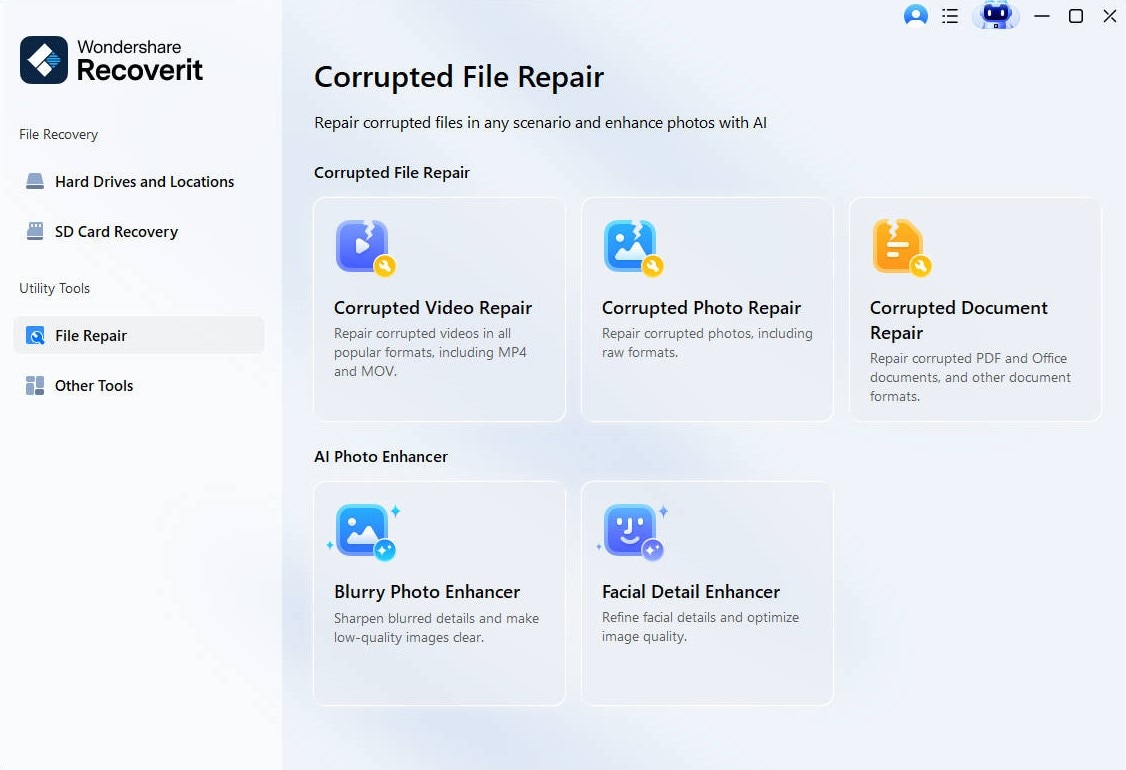
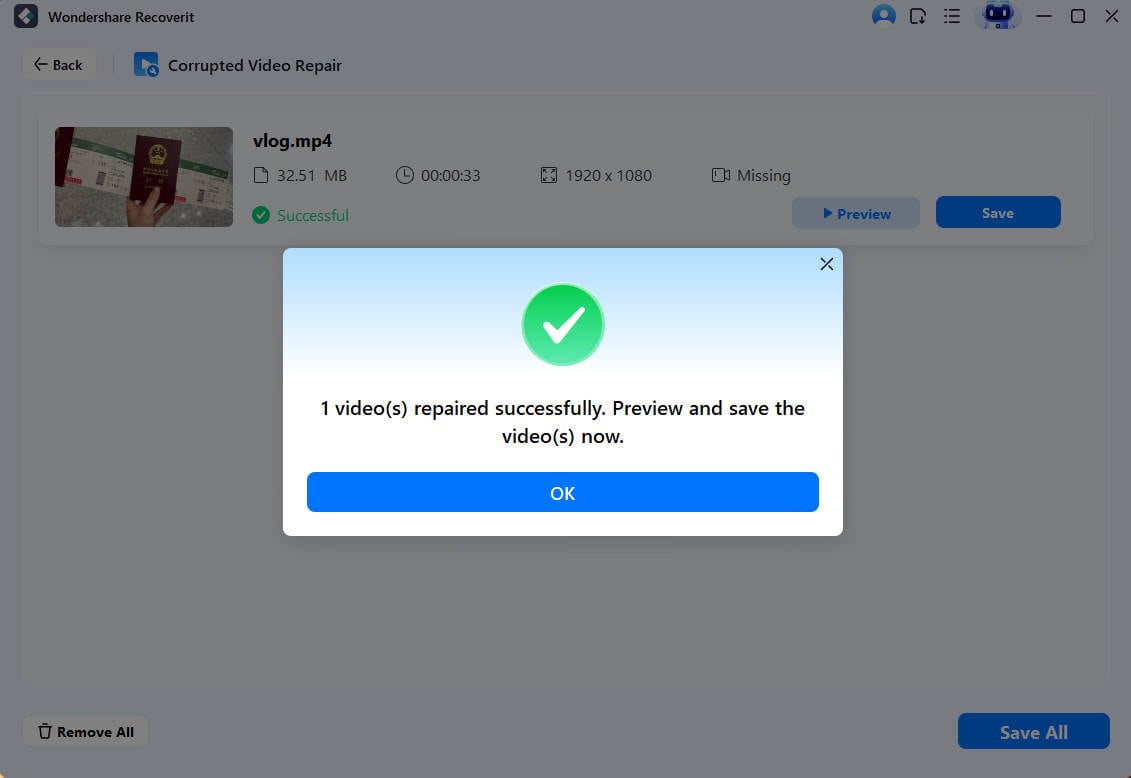
- Download and Install Recoverit Download Recoverit. Install the software on your computer. Launch the application after installation. On the main screen, select "Corrupted Video Repair" option. This opens the video repair interface. Click "Add Video" to select your corrupted files. You can add multiple files at once. The software displays all added files in a list.
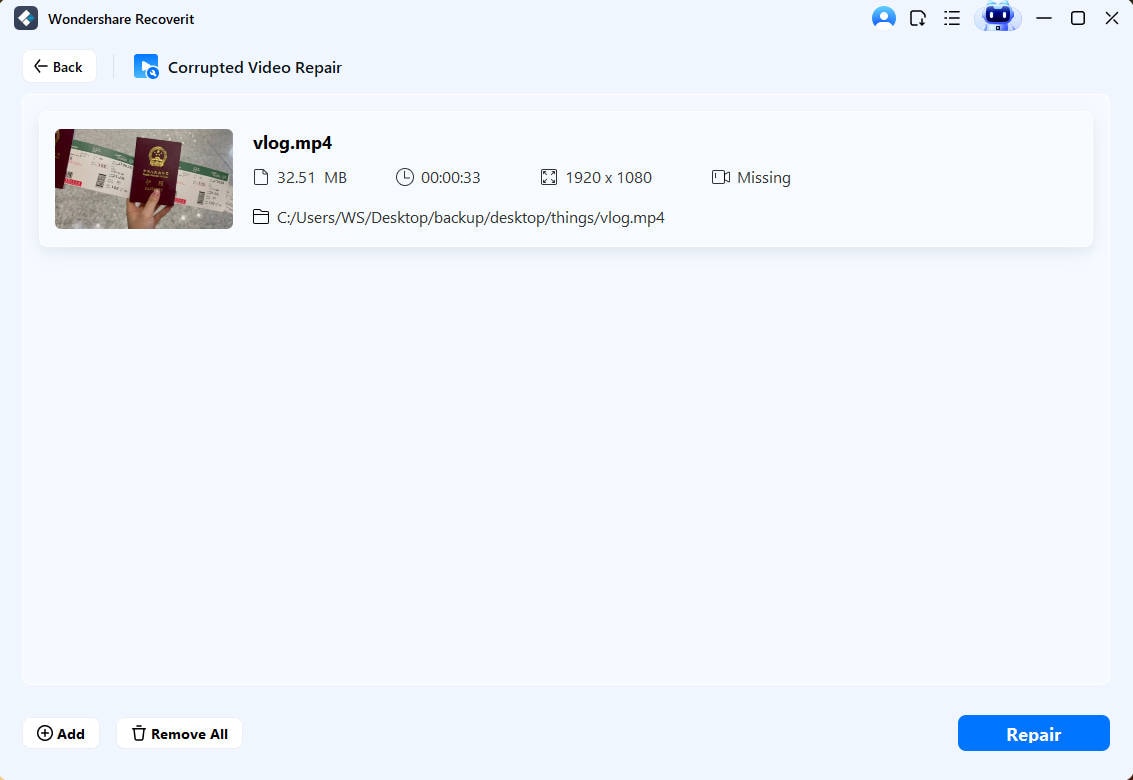
- Perform Quick Repair After adding files, click the "Repair" button. Recoverit will analyze each file automatically. The quick repair process begins immediately. Wait for the repair to complete. This usually takes a few minutes.
- Use Advanced Repair if Needed After completion, preview and save your repaired files. Choose a safe location for saving.
Related Video >>: How to Resolve Video Not Playing in VLC?

Part 5: Tips to Prevent MP4 Corruption
Prevention is better than repair. Simple habits protect your video files. Following these tips reduces corruption risk significantly. You won't need to repair MP4 in VLC as often.
- Use Reliable Software: Record, edit, and convert MP4 files using trusted applications to avoid glitches or improper encoding.
- Safely Eject Devices: Always eject USB drives, SD cards, and external hard disks properly before disconnecting them to prevent data loss.
- Avoid Interruptions During Transfers: Ensure stable power and avoid shutting down or unplugging devices while copying or saving MP4 files.
- Keep Storage Healthy: Regularly scan and defragment hard drives, and avoid filling them to capacity to reduce write errors.
- Backup Regularly: Maintain multiple backups of important MP4 files on different devices or cloud platforms to safeguard against corruption.
- Update Codecs and Players: Use the latest versions of media players and video codecs to ensure compatibility and reduce playback issues.
- Protect Against Malware: Run antivirus software and avoid downloading MP4s from suspicious sources to prevent infection and corruption.
- Don’t Rename Extensions Improperly: Avoid changing file extensions manually (e.g., .mp4 to .avi) unless using proper conversion tools.
Conclusion
Learning to repair MP4 by VLC is valuable. The methods we covered handle most minor corruption. VLC's built-in tools are free and accessible. You can fix many issues without extra software.
Remember that VLC has its limits. Severe corruption needs specialized tools like Recoverit. Prevention remains the best strategy overall. Follow the tips we shared to avoid corruption. Back up your important videos regularly. With these skills and practices, you'll handle video file problems confidently. Whether you use VLC to fix video files or need advanced tools, you now have the knowledge to succeed.
FAQs
-
Q1: Can VLC repair all types of corrupted MP4 files?
No, VLC cannot repair all corrupted MP4 files. It works best with minor corruption like broken indexes or metadata issues. Severely damaged files with header corruption or multiple damaged sections need specialized repair software. VLC is effective for simple problems but has limitations with complex corruption. -
Q2: Is it safe to rename MP4 to AVI for repair?
Yes, renaming MP4 to AVI is safe and reversible. This trick simply changes the file extension, not the actual content. VLC uses the AVI extension to trigger its built-in repair feature. After repair, you can rename it back to MP4 without any problems. Always work on a copy of the original file for extra safety. -
Q3: Why does my MP4 file get corrupted frequently?
MP4 files corrupt frequently due to improper handling, interrupted transfers, sudden power loss during recording or editing, bad storage sectors, or faulty memory cards. Using low-quality storage devices and not safely ejecting external drives also cause corruption. Prevent this by following proper file handling practices and maintaining your storage devices regularly.


