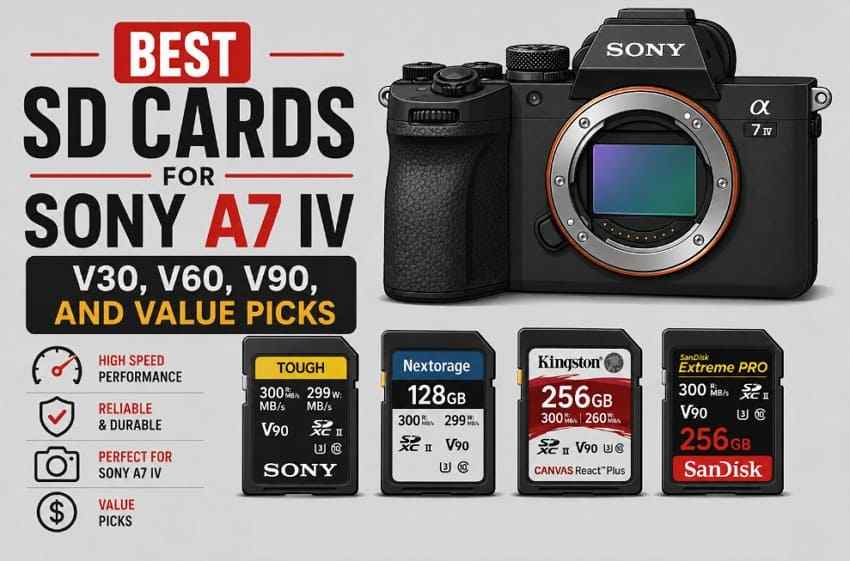
 TL;DR:
The ideal memory card for your Sony A7 IV depends on your recording format: standard XAVC S and XAVC HS 4K up to 200Mbps require only an affordable V30 card, whereas demanding XAVC S-I 4K strictly dictates a V90 SDXC or CFexpress Type A card.
● Slot 1 accepts CFexpress Type A, SD UHS-II, and SD UHS-I media, while Slot 2 is restricted strictly to SD cards; neither slot can physically accept or support CFexpress Type B cards.
● Choose the Kingston Canvas React Plus UHS-II V90 for a cost-effective high-speed solution, the Lexar Professional 1800X for intermediate S&Q workflows, or the Sony SF-G TOUGH UHS-II V90 for maximum ruggedness in professional environments.
● For simultaneous dual-card video recording, both inserted cards must meet the minimum speed rating of your selected mode and utilize the exact same file system, as the camera cannot operate with a mixed exFAT and FAT32 setup.
Ask AI for a summary
 ChatGPT
 Perplexity
 Gemini
 Claude
 Grok
Grok
The best SD card for Sony A7 IV is not always the fastest V90 card on the shelf. The right choice depends on your recording format, which card slot you use, whether you need dual-card backup, and how much storage you can afford while memory prices are rising.
For most Sony A7 IV owners, a good V30 card is enough for standard XAVC S 4K and XAVC HS 4K. A V60 card is a smarter value pick for some S&Q workflows. A V90 SDXC card is needed for XAVC S-I 4K on SD media, while one specific slow-motion S-I workflow requires CFexpress Type A instead. This guide maps those needs to real card picks, capacity choices, value alternatives, and recovery steps if photos or videos disappear from a card.
Try Wondershare Recoverit to Perform Data Recovery
 Security Verified. Over 7,302,189 people have downloaded it.
In this article
-
- Problem 1. Unable to Read Memory Card
- Problem 2. Card Is Not Detected
- Problem 3. Recording Stops Unexpectedly
- Problem 4. Card Is Too Slow for the Selected Recording Mode
- Problem 5. Memory Card Error Appears During Shooting
- Problem 6. Photos or Videos Are Missing
- Problem 7. Files Become Corrupted
- Problem 8. Transfer Speeds Are Slower Than Advertised
-
- Stop Recording New Photos or Videos
- Do Not Format, Repair, or Initialize the Card
- Recover Sony A7 IV Files With Wondershare Recoverit
- Recover RAW Photos and Fragmented Camera Videos
- Save Recovered Files to a Different Storage Device
- When Professional Recovery Is Required
- How to Recover Your A7 IV Card Using Recoverit
Part 1. What SD Card Does the Sony A7 IV Need?
The Sony A7 IV uses two memory-card slots, but the slots are not identical. Sony's ILCE-7M4 memory card guide confirms support for CFexpress Type A cards and SD memory cards compatible with UHS-I and UHS-II. It also lists which recording formats need V30, V60, V90, or CFexpress Type A VPG200 media.
Slot 1 vs Slot 2 Compatibility
Slot choice matters before card brand. Slot 1 is the flexible slot. Slot 2 is SD-only. If you plan to record to both cards at the same time, the slower card and the stricter slot rule control what the camera can do.
| Slot | Accepts | Does Not Accept |
| Slot 1 | CFexpress Type A, SD UHS-II, and SD UHS-I | CFexpress Type B |
| Slot 2 | SD UHS-II and SD UHS-I | Any CFexpress card |
SD UHS-I, SD UHS-II, and CFexpress Type A Support
UHS-I cards can work for standard 4K modes when they meet the required V rating. UHS-II cards add a second row of contacts and are better for V60/V90 video, burst clearing, and fast offloading. CFexpress Type A is needed only for specific high-speed modes and faster professional workflows.
Sony's inserting and removing memory card guide also notes that Slot 1 supports both CFexpress Type A and SD cards, while Slot 2 supports SD cards only.
Why CFexpress Type B Is Not Supported
CFexpress Type B is physically larger than Type A and cannot fit into the A7 IV. No adapter or firmware update can turn the A7 IV into a Type B camera. If a listing says "CFexpress" without "Type A," check it carefully before buying.
V30, V60, V90, and VPG200 Requirements
The SD Association defines Video Speed Class ratings such as V30, V60, and V90 by minimum sustained write speed. VPG200 is a CFexpress video performance guarantee class. In practical terms, V30 means a 30MB/s floor, V60 means 60MB/s, V90 means 90MB/s, and VPG200 means a 200MB/s sustained video floor for compatible CFexpress media.
Part 2. Quick Picks: Best Sony A7 IV Memory Cards
If you want the short version, start with your heaviest routine shooting mode. The best memory card for Sony A7 IV photographers is the cheapest reliable card that meets that mode without blocking your dual-card workflow.
| Category | Pick | Why It Fits |
| Best overall SD card for Sony A7 IV | Sony SF-G TOUGH V90 | Top-tier speed, rugged design, and direct Sony ecosystem fit. |
| Best value V90 card | Kingston Canvas React Plus | Strong V90 performance at a more practical price. |
| Best V30 card for standard 4K | Reputable SDXC U3/V30 card | Covers XAVC S 4K and XAVC HS 4K when you do not shoot S-I. |
| Best V60 card for selected S&Q workflows | Lexar Professional 1800X | Good middle ground for users who need more than V30 but less than V90. |
| Best large-capacity card | ProGrade Iridium V90 | Useful for long shoots and buyers who want fewer card swaps. |
| Best CFexpress Type A alternative | Sony CEA-G TOUGH | Unlocks workflows that SD cards cannot cover on the A7 IV. |
Best Overall SD Card for Sony A7 IV
The Sony SF-G TOUGH UHS-II V90 is the easiest premium recommendation because it covers demanding SD workflows and matches the camera brand. It is expensive, so it makes the most sense for users who actually shoot XAVC S-I, dual-card video, or paid work.
Best Value V90 Card
Kingston Canvas React Plus UHS-II V90 is the more value-focused V90 pick. It is a better fit when you need V90 performance but do not want to pay the Sony TOUGH premium.
Best V30 Card for Standard 4K
If you mostly shoot XAVC S 4K or XAVC HS 4K at normal settings, a reputable SDXC U3/V30 card is enough. This is where many buyers can save money during storage price increases.
Best V60 Card for Selected S&Q Workflows
V60 is the middle option for users who sometimes shoot slow and quick motion but do not need XAVC S-I 4K on SD. It gives more headroom than V30 and usually costs much less than V90.
Best Large-Capacity Card
ProGrade Digital Iridium UHS-II V90 is strongest when capacity is the main pain point. If you shoot long events, interviews, or travel projects, capacity can matter more than tiny speed differences between premium cards.
Best CFexpress Type A Alternative
Choose CFexpress Type A only when the A7 IV mode requires it or when your workflow benefits from faster media. It is not the default best value for ordinary 4K recording.
Part 3. Match the Card to Your Sony A7 IV Recording Mode
This is the most important section for avoiding wasted money. A V90 card does not improve image quality in a mode that only needs V30. It only removes recording limits in modes that require the extra sustained write speed.
XAVC S 4K and XAVC HS 4K
For normal XAVC S 4K and XAVC HS 4K recording up to 200Mbps, Sony lists SDHC/SDXC U3/V30 or higher as supported. A V60 or V90 card may transfer faster afterward, but it is not required just to record these standard 4K modes.
XAVC S-I 4K
XAVC S-I 4K reaches 600Mbps, which is about 75MB/s before overhead. That exceeds V60's guaranteed floor, so use SDXC V90 or CFexpress Type A VPG200 or higher.
Slow and Quick Motion Recording
S&Q mode is where many buying mistakes happen. Some XAVC HS 4K and XAVC S 4K S&Q settings need SDXC V60 or CFexpress Type A VPG200. Some XAVC S-I slow-motion settings need V90, and one slow-motion condition listed by Sony requires CFexpress Type A VPG200 rather than SD.
RAW and JPEG Photography
For stills, the A7 IV can use CFexpress Type A and SD/SDHC/SDXC cards. Fast UHS-II cards help the buffer clear sooner during long bursts, but stills-only users do not always need V90. A V60 or strong UHS-II card can be a more practical balance.
Dual-Card Movie Recording
Dual-card movie recording needs both cards to support the selected recording mode and the same file-system family. Sony notes that simultaneous movie recording cannot use a mixed exFAT and FAT32 setup. For reliable dual recording, use two SDXC cards of the same speed class and format them in-camera after your files are backed up.
Recording Mode, Bitrate, Minimum Rating, and Recommended Card Type
| Recording Mode | Maximum Bitrate | Minimum Card Type | Best Practical Pick |
| XAVC S 4K | Up to 200Mbps | SDHC/SDXC U3/V30 or higher, or CFexpress Type A | V30 SDXC for value, V60 if you also shoot bursts. |
| XAVC HS 4K | Up to 200Mbps | SDHC/SDXC U3/V30 or higher, or CFexpress Type A | V30 SDXC for standard recording. |
| XAVC S-I 4K | Up to 600Mbps | SDXC V90 or CFexpress Type A VPG200 or higher | V90 SDXC unless you need Type A for specific S&Q modes. |
| XAVC S-I HD | Up to 222Mbps | SDXC V90 or CFexpress Type A VPG200 or higher | V90 SDXC. |
| S&Q XAVC HS 4K or XAVC S 4K | Up to 200Mbps | SDXC V60 or CFexpress Type A VPG200 or higher | V60 if you want a lower-cost middle ground. |
| S&Q XAVC S-I 4K | Mode dependent | SDXC V90 or CFexpress Type A VPG200; one slow-motion condition requires Type A | Check the exact menu setting before buying. |
| RAW and JPEG stills | Not a video bitrate issue | CFexpress Type A or SD/SDHC/SDXC | UHS-II V60 or V90 for heavy bursts; V30 for casual stills. |
Part 4. Best SD Cards for Sony A7 IV
The best SD cards for Sony A7 IV below are weighted toward reliable V90 choices because V90 is where expensive mistakes happen. If you never shoot V90-required modes, skip to the value alternatives in Part 5.
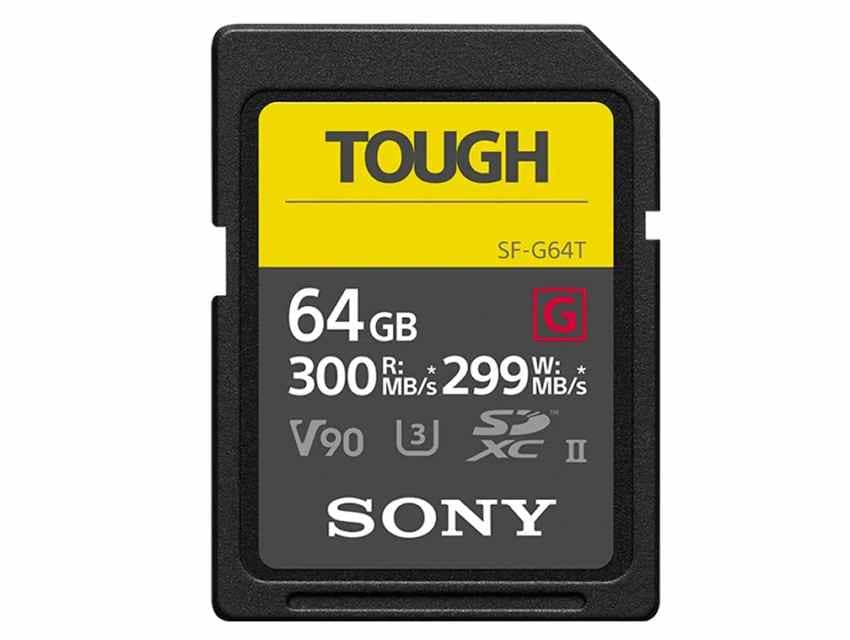
Card 1. Sony SF-G TOUGH UHS-II V90
Best for: Maximum performance, rugged construction, and demanding Sony workflows.
Sony SF-G TOUGH UHS-II V90 is the premium safe pick. It is built for high read/write speed, has a one-piece TOUGH design, and removes common weak points such as ribs and the write-protect switch. The tradeoff is price, so buy it when you truly need V90 or rugged confidence.
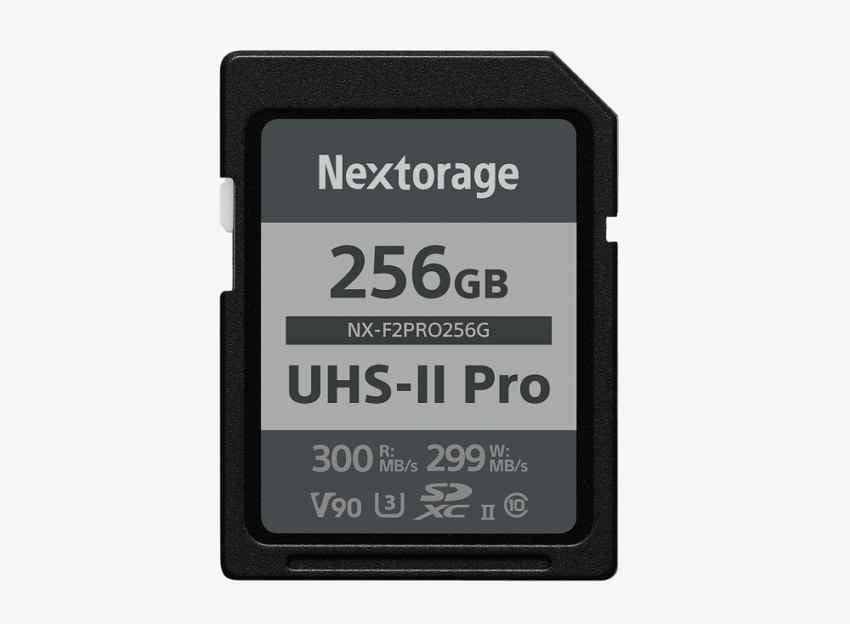
Card 2. Nextorage NX-F2PRO UHS-II V90
Best for: Sony-focused users who want premium speed and rugged protection without defaulting to Sony's own card.
Nextorage NX-F2PRO UHS-II V90 is a strong alternative for A7 IV users who need high sustained performance. Its V90 rating makes it suitable for XAVC S-I 4K on SD media, and its rugged claims suit field shooting.
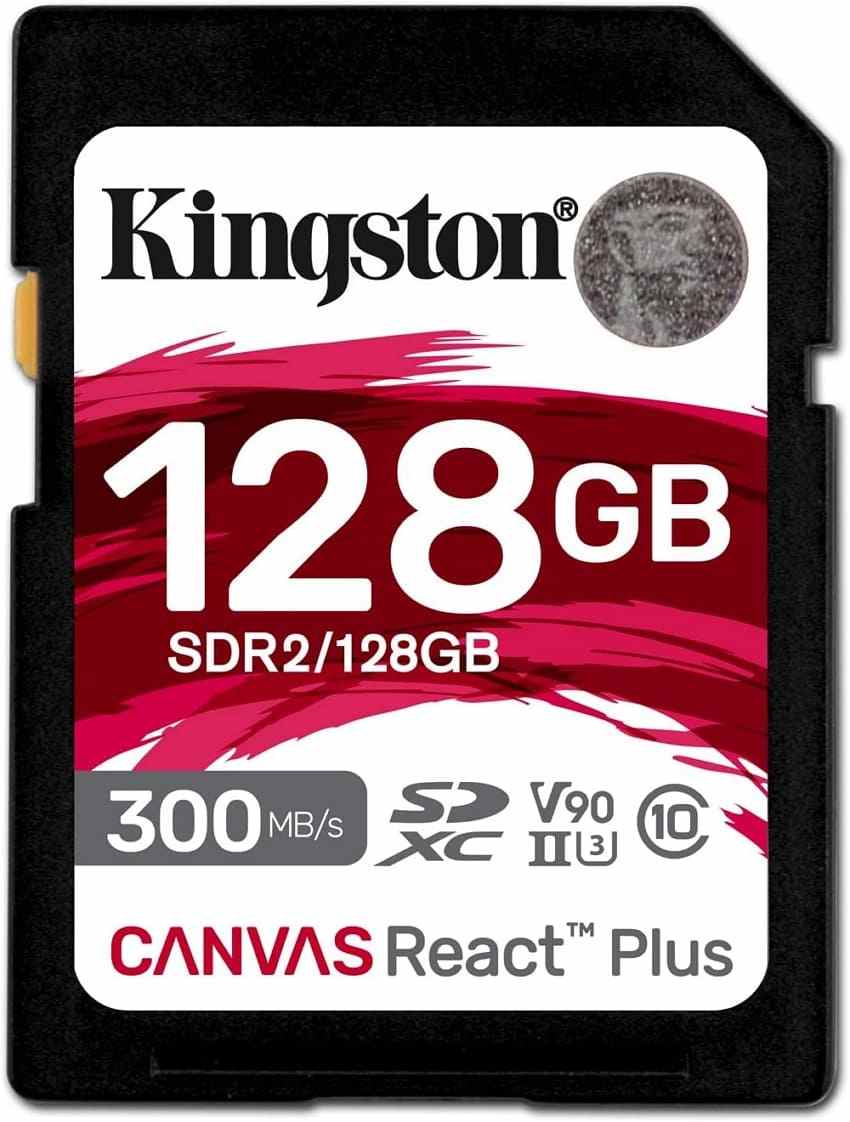
Card 3. Kingston Canvas React Plus UHS-II V90
Best for: Strong V90 performance at a lower price than many premium camera-brand cards.
Kingston Canvas React Plus UHS-II V90 is one of the better value choices for users who actually need V90. Avoid buying too small a capacity, since the capacity gap can matter more than the small price difference during a full-day shoot.
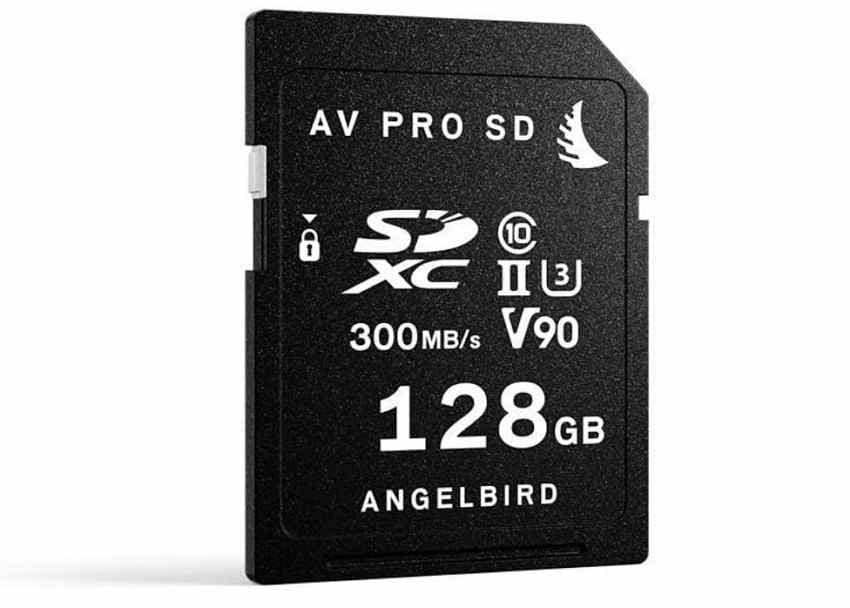
Card 4. Angelbird AV PRO SD V90 MK2
Best for: Professional video work and matched dual-card sets.
Angelbird AV PRO SD V90 MK2 focuses on sustained performance and production workflow reliability. It is a good pick when you want two matching V90 cards for simultaneous recording or organized multi-card shoots.
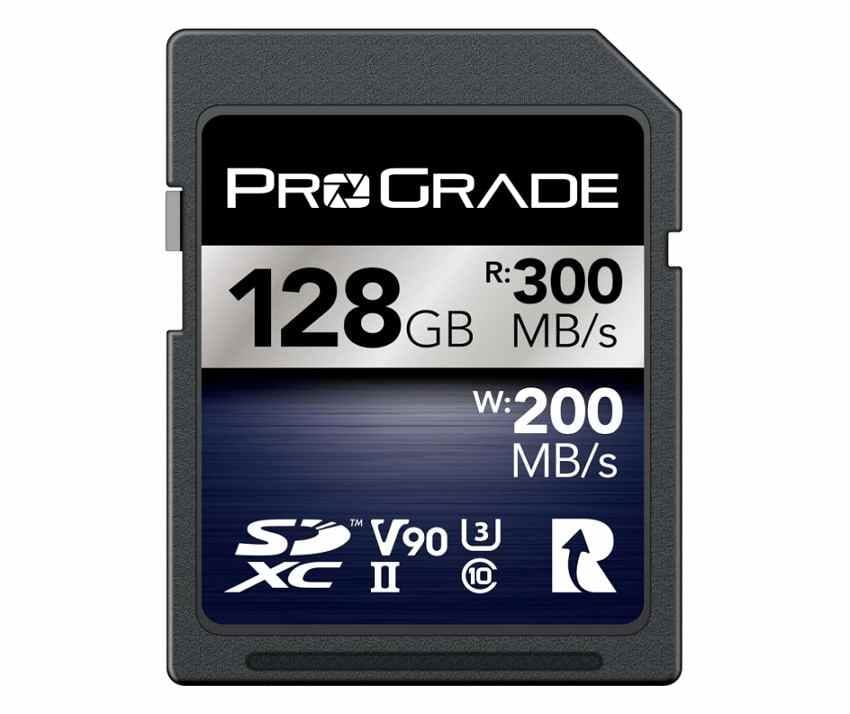
Card 5. ProGrade Digital Iridium UHS-II V90
Best for: Large-capacity recording during long shoots and extended productions.
ProGrade Digital Iridium UHS-II V90 is strongest when you want a premium V90 card in larger capacities. It fits event, interview, travel, and documentary work where stopping to swap cards is a risk.
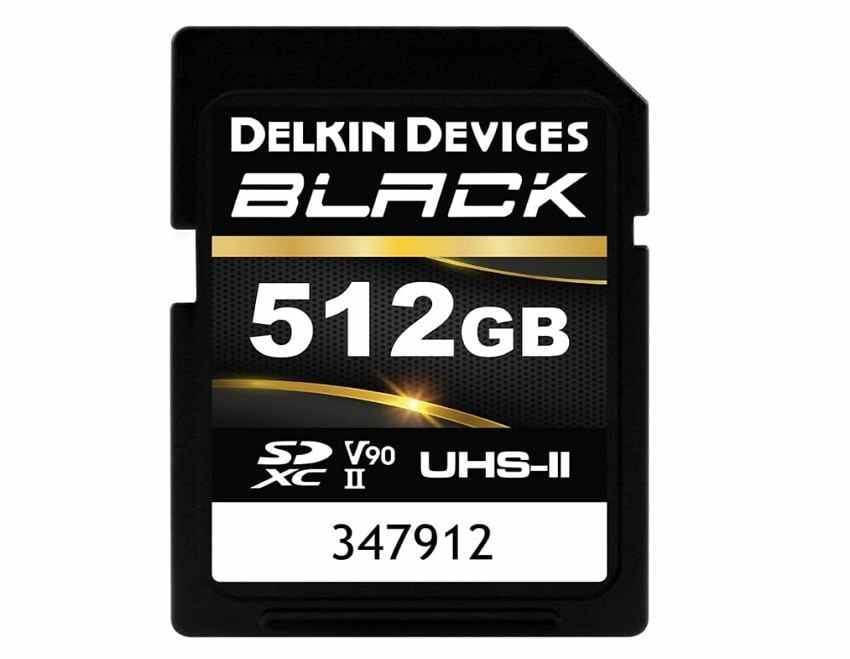
Card 6. Delkin BLACK UHS-II V90
Best for: Rugged shooting and users who value replacement support.
Delkin BLACK UHS-II V90 is a practical professional option when ruggedness, clear card labeling, and replacement support matter. Check the exact model before buying, because older or similarly named cards may not have the same speed rating.
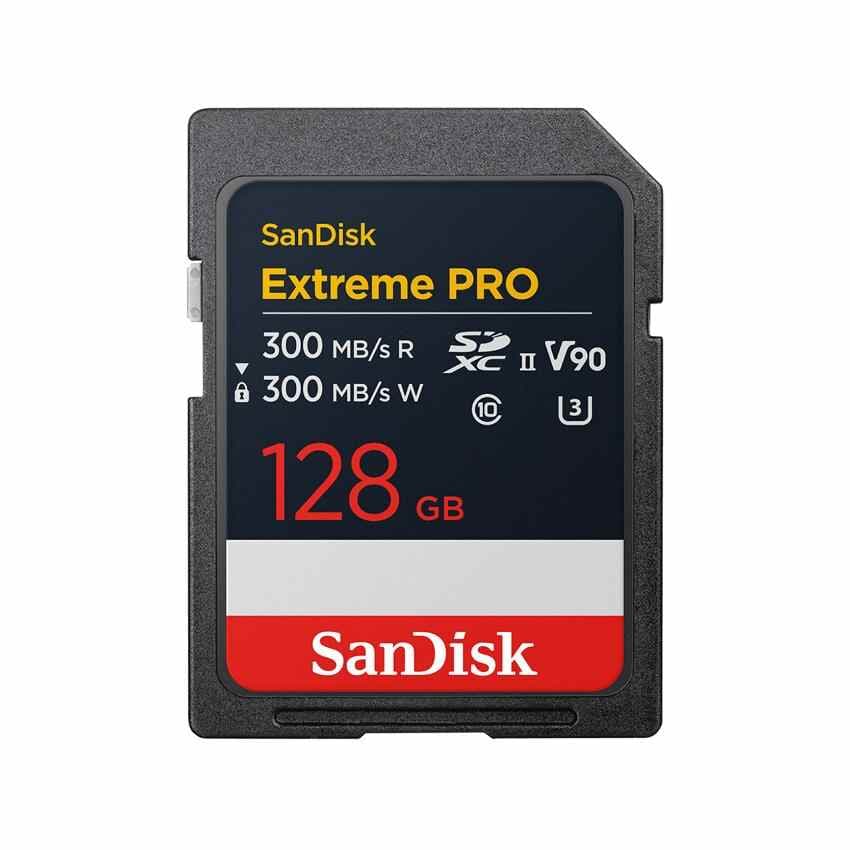
Card 7. SanDisk Extreme PRO SD UHS-II V90
Best for: Wide retail availability, fast offloading, and dependable everyday professional use.
SanDisk Extreme PRO SD UHS-II V90 is easy to find and easy to compare across retailers. It is a strong option when you need V90 but also want broad availability, simple returns, and a familiar brand.
Part 5. Best Value Alternatives for Sony A7 IV
Not every Sony A7 IV owner should buy V90. The best value comes from matching the card to your actual recording modes, then spending the savings on capacity, a second backup card, or a better reader.
V30 Cards for Standard Recording Modes
V30 cards are the value route for XAVC S 4K and XAVC HS 4K standard recording. They are also useful as backup stills cards. Buy a reputable SDXC U3/V30 card from a trusted seller, not the cheapest marketplace listing with unclear packaging.
V60 Cards for Supported S&Q Modes
V60 is the practical middle tier. It is faster than V30, cheaper than V90, and suitable for several S&Q workflows that do not require V90 or CFexpress Type A. For hybrid shooters, a V60 primary card plus a V30 backup card can be more useful than one expensive V90 card.
CFexpress Type A for Specific High-Speed Needs
CFexpress Type A is the answer when the A7 IV mode requires VPG200 media. It is also helpful for fast offloading and demanding stills/video workflows. It is not the best budget choice if you mostly shoot normal XAVC S or XAVC HS 4K.
One Premium Card Plus One Cheaper Backup Card
A good buying strategy is one premium V90 or CFexpress Type A card for demanding video, plus one cheaper V30 or V60 card for stills, backup, and less demanding modes. This setup often delivers better real-world flexibility than spending the whole budget on one large premium card.
When Two Smaller Cards Are Safer Than One Large Card
For paid shoots, two smaller cards can reduce risk. If one card fails, you do not lose an entire day of work. For travel and long-form video, one larger card may be more convenient. Choose based on risk, not only price per GB.
Part 6. Choose Capacity and Speed as Storage Prices Rise
Storage-price pressure has made Sony A7 IV card buying more complicated. TrendForce reported on July 3, 2026 that NAND Flash contract prices were expected to rise 10-15% QoQ in 3Q26, driven mainly by AI inference and large-scale data center demand. That does not mean every SD card listing rises at the same time, but it does mean buyers should compare capacity and value more carefully.
64GB, 128GB, 256GB, and 512GB
Capacity should follow your shooting style. Stills shooters can often work safely with multiple 128GB cards. Video shooters should look harder at 256GB or 512GB because XAVC S-I 4K consumes space quickly.
Estimated Photo Counts and Recording Time
The estimates below are planning numbers. Real counts vary by compression, scene detail, frame rate, audio, proxy recording, and file-management settings.
| Capacity | Estimated Compressed RAW Frames | Estimated XAVC S-I 4K Runtime | Best Use |
| 64GB | Around 1,400 | About 10-14 minutes | Short stills sessions, emergency backup, or low-risk casual use. |
| 128GB | Around 2,800 | About 25-28 minutes | Hybrid photo/video users with moderate recording needs. |
| 256GB | Around 5,600 | About 50-57 minutes | Most video users and travel shooters. |
| 512GB | Around 11,200 | About 100-114 minutes | Events, interviews, documentary work, and long shoots. |
Price per GB and Price per Recording Hour
Use two calculations before buying. First, divide final checkout price by capacity for price per GB. Second, divide final checkout price by estimated recording time for price per recording hour. Video shooters often find that a 256GB or 512GB card is cheaper in practice, even when the sticker price is higher.
Avoid Paying for Performance You Will Not Use
A V90 card in standard XAVC HS 4K does not make the footage look better. It mainly helps if the selected mode requires V90, if you want faster offloads with a UHS-II reader, or if you want extra headroom for paid work. If your heaviest routine mode only needs V30, put the budget toward capacity or a second card.
Retailer, Country, Currency, and Price-Check Date
Price-check date for this review: August 3, 2026. Before checkout, record the retailer, seller type, country, currency, tax, shipping, return window, and the final price for at least one V30, one V60, and one V90 option. Rising storage prices make stale price advice less useful than a clear comparison method.
Part 7. Set Up Two Cards for Photo and Video Workflows
The best memory cards for Sony A7 IV work even better when both slots are configured intentionally. Your setup should match whether you care most about backup safety, capacity, speed, or file organization.
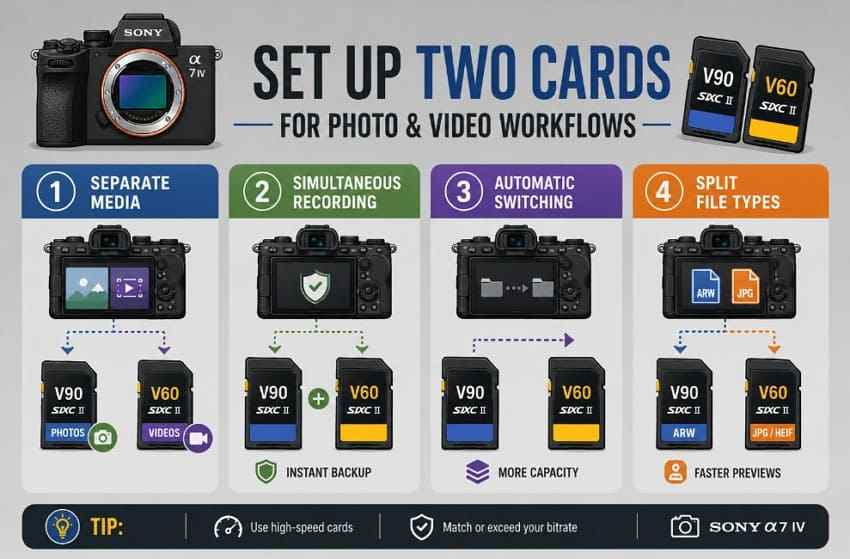
One Card for Photos and One Card for Video
Use one card for stills and one card for video if you want a clean folder structure and easier imports. This is useful for hybrid shooters who deliver photos and video separately.
Simultaneous Recording for Immediate Backup
Use simultaneous recording when the shoot is important and you need immediate redundancy. Both cards should meet the selected recording mode, and both should be healthy, genuine, and formatted in-camera.
Automatic Media Switching
Automatic switching fills one card and then continues on the other. It maximizes recording time, but it is not the same as backup because only one card receives each file.
RAW Files on One Card and JPEG or HEIF on the Other
Splitting RAW and JPEG or HEIF files can speed up culling and client previews. It also keeps large ARW files away from quick-share files.
Format Each Card Inside the Sony A7 IV
Format new cards in the A7 IV before first use. After a shoot, reformat only after confirming that the files are backed up and readable elsewhere. Do not format a card that contains missing or inaccessible files you still need.
Part 8. Sony A7 IV SD Card Problems and Solutions
Wrong card ratings, wrong slot selection, reader limits, file-system mismatch, counterfeit cards, and card failure can all look like a camera problem. Start with the low-risk checks below and secure important files before formatting.
| Problem | Likely Cause | Immediate Action | Recommended Fix |
| Unable to read memory card | Card database, file-system, or index damage. | Power off, remove the card, and avoid formatting. | Recover files first, then format in the camera. |
| Card is not detected | Dirty contacts, bad reader, slot issue, or failed card. | Try the other slot and a second reader. | Clean contacts gently, test another card, and replace failing media. |
| Recording stops unexpectedly | Card rating is below the selected recording mode. | Note the exact format, frame rate, and bitrate. | Use V60, V90, or CFexpress Type A as required by the mode. |
| Card is too slow for the selected recording mode | S-I, S&Q, proxy, or dual recording exceeds the card's sustained write speed. | Switch to a lower bitrate mode if the shoot must continue. | Match the card to Sony's mode requirements. |
| Memory card error appears during shooting | Loose media, low battery, corruption, overheating, or card failure. | Stop recording and do not keep forcing writes. | Copy or recover files, then test the card before reuse. |
| Photos or videos are missing | Deleted files, damaged index, interrupted write, or file-system corruption. | Set the card aside and do not record new media. | Scan the readable card with Recoverit. |
| Files become corrupted | Interrupted write, unsafe removal, failing flash, or fake capacity. | Copy what still opens to another drive. | Recover missing files, test capacity, and replace the card if it repeats. |
| Transfer speeds are slower than advertised | UHS-I reader, slow USB port, weak cable, or thermal throttling. | Check the reader and USB connection. | Use a proper UHS-II reader for UHS-II card speeds. |
Problem 1. Unable to Read Memory Card
Likely cause: The camera database or file system may be damaged. Fix: Stop using the card, recover important files first, then format it in the Sony A7 IV only after your files are safe.
Problem 2. Card Is Not Detected
Likely cause: The issue may be contacts, slot seating, reader failure, or a dead card. Fix: Try another slot, another reader, and another computer. If no device detects it, consider professional recovery.
Problem 3. Recording Stops Unexpectedly
Likely cause: The selected mode needs more sustained write speed than the card can provide. Fix: Lower the bitrate or switch to a card that matches Sony's requirement for that format.
Problem 4. Card Is Too Slow for the Selected Recording Mode
Likely cause: S-I, S&Q, proxy, or dual recording can push beyond V30 or V60. Fix: Use V90 SDXC for S-I 4K on SD, or CFexpress Type A VPG200 for modes that require Type A.
Problem 5. Memory Card Error Appears During Shooting
Likely cause: Low battery, loose contact, heat, corruption, or failing media. Fix: Stop recording, power down safely, and copy or recover files before any format or repair attempt.
Problem 6. Photos or Videos Are Missing
Likely cause: The files may be deleted or the camera index may be damaged. Fix: Do not take new photos or videos. Scan the card before formatting or rebuilding anything.
Problem 7. Files Become Corrupted
Likely cause: The write may have been interrupted, or the card may be counterfeit or failing. Fix: Copy readable files, recover missing ones, then test the card's real capacity and replace it if the issue repeats.
Problem 8. Transfer Speeds Are Slower Than Advertised
Likely cause: A UHS-II V90 card will not show UHS-II speeds in a UHS-I reader. Fix: Use a proper UHS-II reader, a good USB 3.x port, and a healthy cable before blaming the card.
Part 9. Rescue Sony A7 IV Photos and Videos Before Reformatting
A format prompt does not always mean your Sony A7 IV photos and videos are gone. The safest sequence is to stop writing, avoid formatting, scan the readable card, and save recovered files to another storage device.
Stop Recording New Photos or Videos
Power off the camera and remove the card. Do not keep testing it in the camera with new shots. New photos or videos can overwrite the blocks that still contain recoverable ARW files or XAVC clips.
Do Not Format, Repair, or Initialize the Card
Do not format, initialize, rebuild, or repair the card before the files are secured. Those actions may make the card usable again, but they can also reduce the recovery path for missing media.
Recover Sony A7 IV Files With Wondershare Recoverit
Recoverit Memory Card Recovery can help recover files from a readable SD card or CFexpress Type A card used in a Sony A7 IV after deletion, formatting, RAW file-system issues, or camera card corruption. It does not repair the camera, fix a physically failed card, or restore overwritten files.
Recover RAW Photos and Fragmented Camera Videos
Recoverit can scan for Sony RAW photos, common image formats, and camera video files when the storage is still readable by the computer. Long or interrupted video clips may recover only partially if the camera did not close the file cleanly or new data has overwritten parts of the clip.
Save Recovered Files to a Different Storage Device
Save recovered files to your computer, an external drive, or another healthy card. Do not save recovered files back to the problem card, because that can overwrite other files you still need.
When Professional Recovery Is Required
Use professional recovery if no reader detects the card, the connector is damaged, the card is bent, or the media was exposed to water, heat, or impact. Repeated software scans on failing flash can make the situation worse.
How to Recover Your A7 IV Card Using Recoverit
Follow these steps to scan your Sony A7 IV card before formatting it.
Step 1. Insert and Choose the Card
Connect the card reader to your PC, open SD Card Recovery, select the Sony A7 IV card, and click Start Scan.

Step 2. Review Files During Scanning
Check detected photos and videos while the scan runs. Use filters to narrow the list by file type, size, or location.

Step 3. Preview and Save Files to Another Location
Preview files, click Recover, and save them to another drive instead of the problem card.

Important note: Recoverit can help recover what remains readable. It cannot reconstruct overwritten frames, repair a physically damaged card, or guarantee complete recovery from an interrupted camera write.
Try Wondershare Recoverit to Perform Data Recovery
Security Verified. Over 7,302,189 people have downloaded it.
Conclusion
The best memory card for Sony A7 IV depends on your actual recording format. Sony SF-G TOUGH is the strongest premium SD pick, Kingston Canvas React Plus is the best value V90 option, Angelbird AV PRO SD V90 MK2 suits matched professional video sets, and ProGrade Digital Iridium is a strong large-capacity choice. SanDisk Extreme PRO SD UHS-II V90 is also a safe pick when availability matters.
Do not pay for V90 unless you need XAVC S-I 4K on SD, faster offloads, or professional headroom. V30 is enough for many standard 4K shooters, V60 covers several middle workflows, and CFexpress Type A is necessary only for specific high-speed needs. As storage prices rise, compare price per GB, price per recording hour, capacity, dual-slot safety, and the current checkout price before buying.
FAQ
-
Does the Sony A7 IV really need a V90 card?
Only for SD recording modes that require it, especially XAVC S-I 4K at up to 600Mbps. Standard XAVC S 4K and XAVC HS 4K can use SDHC/SDXC U3/V30 or higher according to Sony's memory card guide. -
Does Slot 2 accept CFexpress Type A cards?
No. Slot 1 supports CFexpress Type A and SD cards, while Slot 2 supports SD cards only. This is important for simultaneous recording because both cards must support the selected recording mode. -
Is V30 enough for Sony A7 IV 4K video?
Yes, V30 is enough for many standard XAVC S 4K and XAVC HS 4K modes. It is not enough for XAVC S-I 4K on SD, and some S&Q workflows require V60, V90, or CFexpress Type A. -
Should I buy one large card or two smaller cards for Sony A7 IV?
For paid shoots and travel, two cards can reduce risk because one failure does not hold the whole shoot. For long video sessions, one larger card may reduce interruptions. Compare price per GB and the value of backup safety before deciding. -
Why are my Sony A7 IV card transfers slower than advertised?
The reader is often the bottleneck. A UHS-II V90 card needs a UHS-II reader and a fast USB connection to approach advertised transfer speeds. In a UHS-I reader, it will run much slower. -
Can Recoverit recover deleted Sony A7 IV photos and videos?
Recoverit can scan a readable card for deleted or lost Sony A7 IV photos and videos when the data has not been overwritten. Save recovered files to another drive, not back to the same card.



