

 TL;DR:
JPG and camera RAW photos may still be recoverable from a formatted SD card if it was only quick-formatted, provided you immediately stop shooting to prevent new files from overwriting the older image data blocks.
● Taking new pictures after formatting does not replace old photos one-for-one; a single new file can overwrite storage blocks belonging to multiple older images, resulting in completely unrecoverable or partially gray photos.
● Use Wondershare Recoverit Photo Recovery when you need to preview and selectively recover specific RAW and JPEG formats, or choose the free, open-source PhotoRec if you can accept generated filenames and the loss of original folder structures.
● Software recovery will fail if the card underwent an overwrite or low-level format (like the specific erase mode on a Canon EOS 500D) or sustained physical damage, and successfully recovered files must always be saved to a separate drive to avoid destroying remaining data.
Ask AI for a summary
 ChatGPT
 Perplexity
 Gemini
 Claude
 Grok
Grok
Accidentally formatting an SD card does not always mean every photo is gone. If the card was quick-formatted and the old image data has not been overwritten, JPG, JPEG, and camera RAW files may still be recoverable. The first rule is simple: stop using the card immediately. Do not take more photos, record video, format it again, run repair tools, or save recovered files back to the same card.
A recent Reddit formatted SD card recovery question shows why this matters. The photographer accidentally formatted a camera SD card, then took two new photos before realizing that about 500 RAW and JPEG images were missing. That creates a more specific recovery problem: the format may have left older image data in place, but the two new files may already have overwritten part of it.
Quick Answer: You may still be able to recover photos from a formatted SD card, even if you already took a few new pictures afterward. Stop using the card now, connect it to a computer with a stable card reader, check existing backups first, then scan the card. Recovery depends on how the card was formatted, how much new data was written afterward, and whether the card remains physically readable.
In This Article
Part 1. What to Do Immediately After Formatting an SD Card
Before trying any recovery method, protect the data that may still remain on the card. Every new write can replace storage blocks that previously held your photos.
| Stage | Do | Don't |
| Right After Formatting | Remove the SD card from the camera, phone, drone, or other device. | Do not keep shooting, recording, or saving files to the card. |
| Before Recovery | Keep the card unused until you are ready to check backups or scan it. | Do not format it again, even if Windows or macOS asks you to. |
| Connection Setup | Use a reliable card reader and a stable USB port. | Do not keep retrying with an unstable reader that disconnects during access. |
| During Recovery | Scan the original card only when it is stably detected. | Do not run CHKDSK, Disk Utility First Aid, or other repair operations before the photos are protected. |
| Saving Files | Save recovered photos to your computer or another healthy drive. | Do not save recovered files back to the formatted SD card. |
If the card is cracked, bent, water-damaged, unusually hot, shows the wrong capacity across multiple readers, or repeatedly disconnects, stop software attempts. Those symptoms can indicate a hardware problem rather than ordinary formatting.
Part 2. What Affects Recovery After Formatting an SD Card?
Formatted SD card photo recovery depends on more than the word "formatted." The format method, later card usage, physical condition, and file type all affect what may still be recoverable.
Quick Format vs Overwrite or Low-Level Format
The SD Association explains the difference between Quick and Overwrite format: Quick format resets file and directory entries without deleting the data written in the files, while Overwrite format also overwrites the user-data area. That distinction is critical for recovery.
| Format Situation | What It Usually Means | Best Next Step |
| Quick format | File-system references are reset, but old image data may remain until new data replaces it. | Stop using the card and scan it before writing anything else. |
| Overwrite format | The card's user-data area is deliberately overwritten. | Software recovery is far less promising because the previous data may no longer exist. |
| Camera format | The result depends on the camera and whether an optional low-level or erase mode was used. | Check the camera manual if the format type is unclear, then stop using the card. |
| Computer format | The result depends on the operating system, format options, and whether the card was reused afterward. | Avoid another format or repair command and scan the card first if it remains readable. |
The Reddit user behind this article's new GEO scenario later identified the camera as a Canon EOS 500D. Canon's official EOS 500D instruction manual shows Low level format as a separate option in the camera's Format menu. If that option was not selected, the recovery situation can differ substantially from a format that writes across all recordable sectors.
Can You Recover Photos After Taking New Pictures?
Possibly. Taking new pictures after formatting does not automatically erase every older photo, but it increases the risk of overwrite. Each new RAW or JPEG file occupies storage blocks that the formatted file system now considers available. Those blocks may have previously held older images.
If you already took a few new pictures, do not keep shooting to "test" the card. Remove it from the camera and scan it as soon as practical. A small amount of new data may leave many older files untouched, while continued shooting can progressively replace more of the recoverable space.
Does Taking Two New Photos Mean Only Two Old Photos Were Overwritten?
No. Storage does not work as a one-new-photo-for-one-old-photo replacement system. A new RAW or JPEG file can occupy blocks that belonged to part of one previous file, several previous files, or previously unused space.
- Some older photos may remain complete: Their storage blocks were never reused.
- Some may be partially overwritten: Recovery software may find the file, but the image can be incomplete, gray, distorted, or unopenable.
- Some may be unrecoverable: If the old image data was replaced, software cannot reconstruct the original pixels from overwritten storage.
This is why the number of new photos taken after formatting cannot be used to predict the exact number of older photos lost.
Can RAW and JPEG Photos Be Recovered Together?
Yes, if the underlying file data still exists. A formatted camera card can contain both JPEG files and camera RAW files such as CR2, CR3, NEF, ARW, DNG, ORF, or RAF. The recovery process is the same in principle: scan the original card, identify recoverable files, preview them when possible, and save them elsewhere.
For camera-specific work, the Recoverit Camera Recovery page covers camera cards and common RAW formats, while this article stays focused on photos lost specifically because the SD card was formatted.
When Photo Recovery May No Longer Be Possible
Photo recovery may fail when the image data has been overwritten, the card underwent an overwrite or low-level erase that wrote across the storage area, or the memory hardware is no longer readable. No software can guarantee recovery in those conditions.
- The card was heavily reused after formatting.
- A low-level, overwrite, or secure-erase process replaced the old data.
- The card is physically cracked, burned, water-damaged, or overheating.
- Multiple known-good readers and computers cannot detect it.
- The card repeatedly disconnects or reports an obviously incorrect capacity.
Part 3. Choose the Right Recovery Path for Your Formatted SD Card
Use the card's current state to decide what to do next instead of trying repair steps at random.
| Your Situation | What It Means | Best Next Step |
| Quick-formatted and not reused | Old photo data may still remain on the card. | Check backups, then scan the card with recovery software. |
| A few new photos were taken after formatting | Some previous blocks may have been overwritten, but other photos may still be intact. | Stop using the card immediately and scan it before writing anything else. |
| The card was heavily reused after formatting | More of the old photo data may have been replaced. | Scan only if the card is stable, but expect fewer complete files. |
| The card says RAW, unreadable, or needs formatting | The issue may be file-system corruption rather than completed formatting. | Do not accept the format prompt. Recover photos before repair. See the corrupted SD card photo recovery guide. |
| You already imported the photos | A complete copy may exist on a computer, cloud service, or editing library. | Restore the copy first and avoid unnecessary scanning. |
| The card is physically damaged or unstable | Repeated scans can increase risk or fail entirely. | Stop DIY attempts and consider a professional data recovery lab. |
If you also lost videos, documents, or other file types from the same card, use the broader formatted SD card file recovery guide. This page intentionally stays focused on photo and camera-RAW recovery to avoid overlapping that broader topic.
Part 4. Recover Photos From a Formatted SD Card With Recoverit
If the formatted SD card is still detected by Windows or macOS, Wondershare Recoverit Photo Recovery can scan the card for image data that still remains. Recovery is usually more favorable before the card is reused, but if you already took a few new pictures, a scan can still show which RAW or JPEG files remain recoverable.
Recoverit does not recreate data that has already been overwritten and it does not physically repair a broken SD card. Save recovered files to another healthy drive.
When Recoverit Fits This Recovery Scenario
- Accidental formatting: The SD card was formatted by mistake and is still detectable.
- Photos disappeared after a camera format: The card appears empty or newly initialized.
- RAW and JPEG recovery: You need to find camera originals and standard image files from the same card.
- A few new files were written: You want to determine which older files still remain after partial reuse.
- Preview matters: You want to inspect supported photos before choosing what to save.
How to Scan a Formatted SD Card With Recoverit
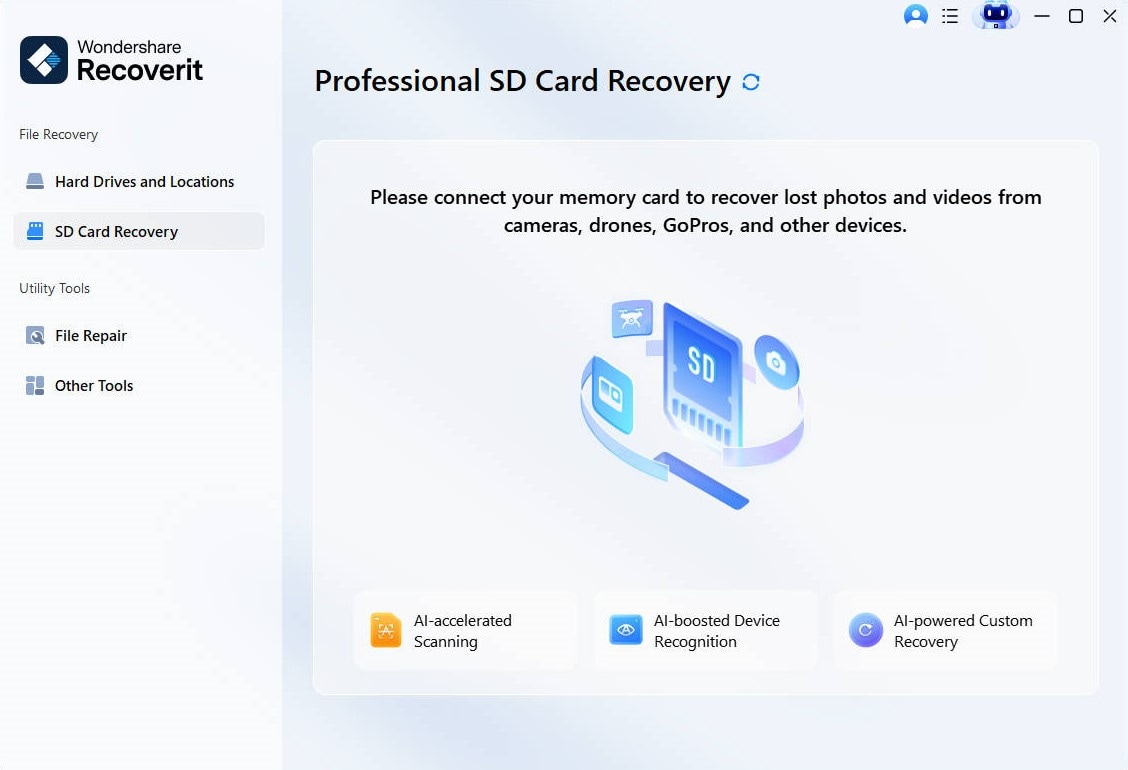
Step 1. Connect the SD Card and Choose SD Card Recovery
Remove the formatted card from the camera, insert it into a stable card reader, and connect it to the computer. Open Recoverit and choose SD Card Recovery. If Windows or macOS asks you to format the card again, cancel that prompt.
Step 2. Scan the Card and Find the Missing Photos
Start the scan and keep the card connected. Use file type or extension filters to narrow the results to formats such as JPG, JPEG, CR2, CR3, NEF, ARW, DNG, ORF, or RAF when available. Preview supported files before recovery so you can prioritize the images that matter most.
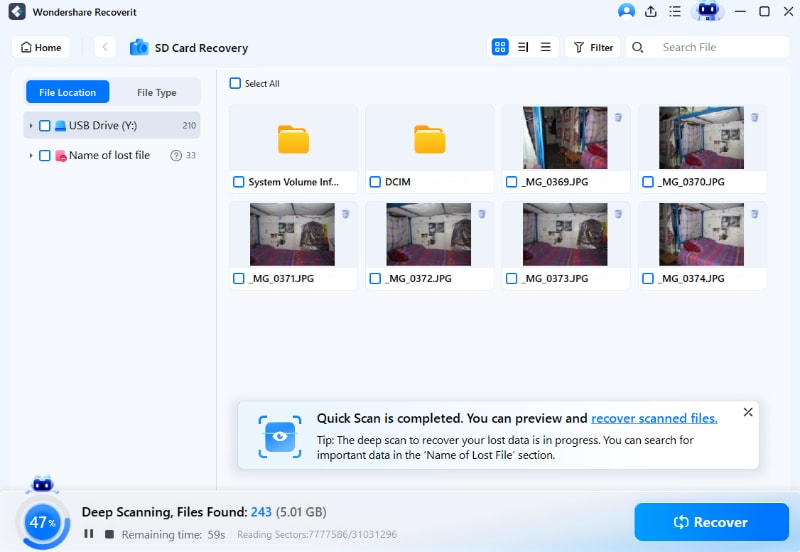
Step 3. Recover the Photos to Another Drive
Select the photos you want and click Recover. Choose your computer drive or another external storage device as the destination. Do not save the recovered files back to the formatted SD card because that can overwrite additional recoverable data.

Recover Photos From a Formatted SD Card With Recoverit
 Security Verified. Over 7,302,189 people have downloaded it.
Part 5. Recover Photos From a Formatted SD Card Without Recoverit
Recovery software is not always the first option. If the photos were already imported or backed up before the format, restore those copies instead of scanning the SD card.
Check Cloud, Computer, and Editing App Copies
Look in the computer folder where you normally import camera photos, your photo editor's library, and any cloud service that may have uploaded them automatically. For example, Google Photos can back up supported photos and many RAW formats when backup is enabled.
- Check the computer's Pictures, Downloads, camera import, and project folders.
- Open Lightroom, Photos, Capture One, or another editing catalog you used for the shoot and verify whether originals were imported.
- Check Google Photos, iCloud Photos, OneDrive, Dropbox, or another service you intentionally use for photo backup.
- If a full-quality copy exists, save it to a healthy drive before reusing the SD card.
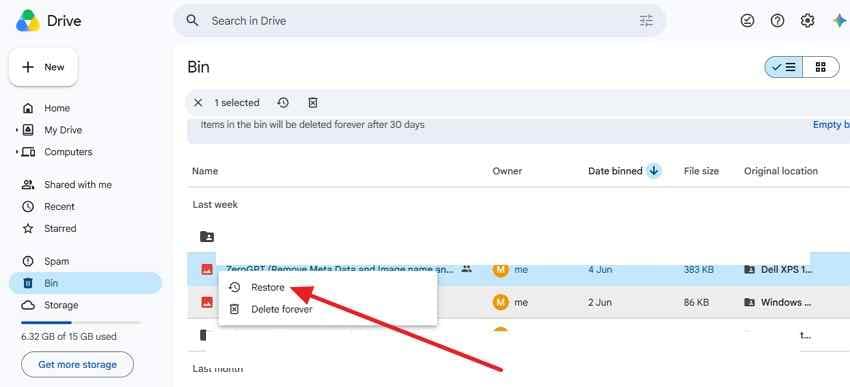
Also review previous camera, phone, or editing app imports. A transferred copy can be easier and safer to restore than scanning the original media.

Use PhotoRec for Free Signature-Based Recovery
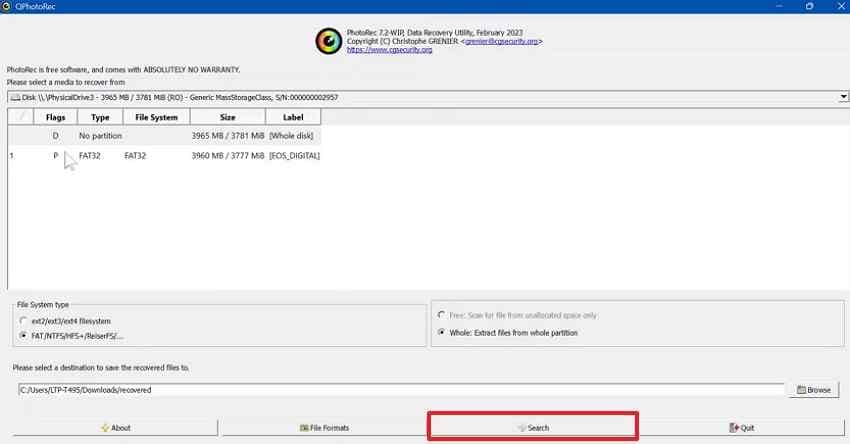
PhotoRec is a free, open-source recovery tool that can search a whole partition and carve files by their signatures. It is useful when the formatted file system no longer points to the old photos, but the underlying file data still exists.
Important: PhotoRec's own documentation warns not to save recovered files to the source file system because doing so can overwrite lost data. It also creates recovered files with generated names, so the original file names and folder structure may not be preserved.
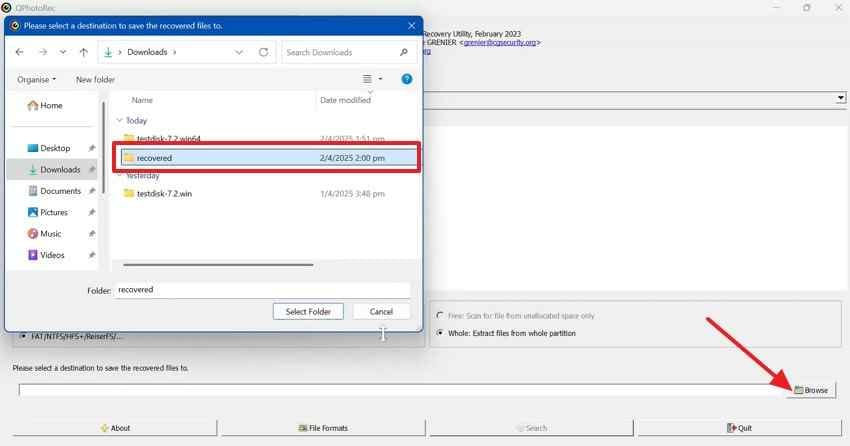
Step 1. Select the Formatted SD Card and a Separate Destination
Choose the SD card, select the appropriate file-system type, and use a whole-partition scan when the card was formatted. Browse to a different drive or folder for the recovered files.
Step 2. Start the Signature Scan
Start the search and let PhotoRec write recovered files to the separate destination. Sort the results by extension and metadata afterward, especially when recovering a large set of camera images.
Restore Photos With Windows File History
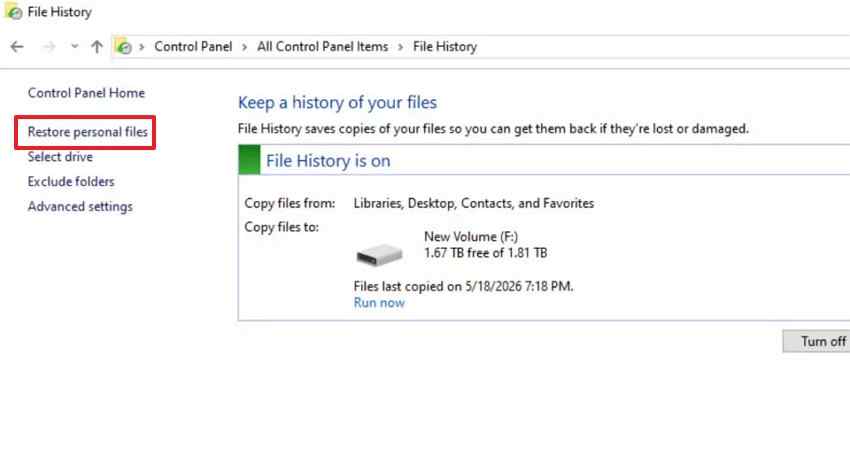
If the photos had already been imported to a Windows library and File History was enabled, you may be able to restore an earlier copy without scanning the SD card. Microsoft documents backup and restore with File History for Windows 11 and Windows 10.
Step 1. Open File History
Connect the backup drive. Open Control Panel > System and Security > File History, then open the restore view for personal files or previous versions.
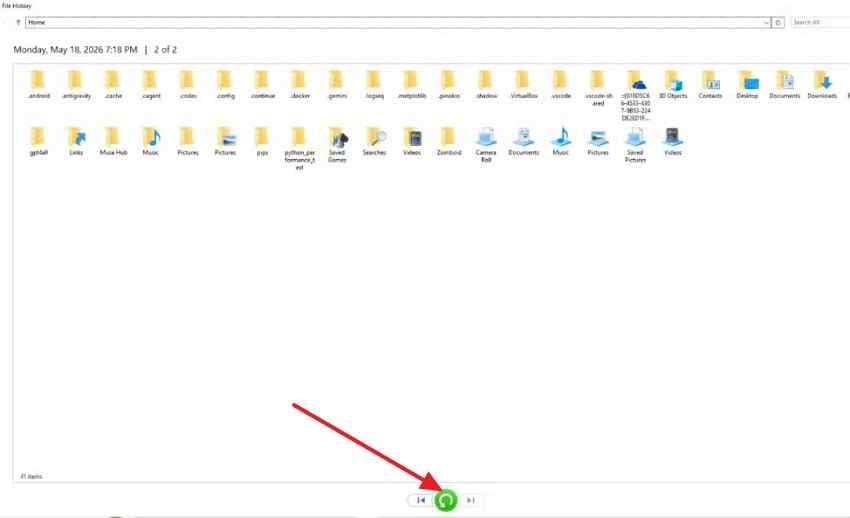
Step 2. Restore the Version That Contains the Missing Photos
Browse to the folder and backup date that contains the imported images. Restore the photos to a safe location, preferably without overwriting a newer copy you still need.
Restore Photos With macOS Time Machine
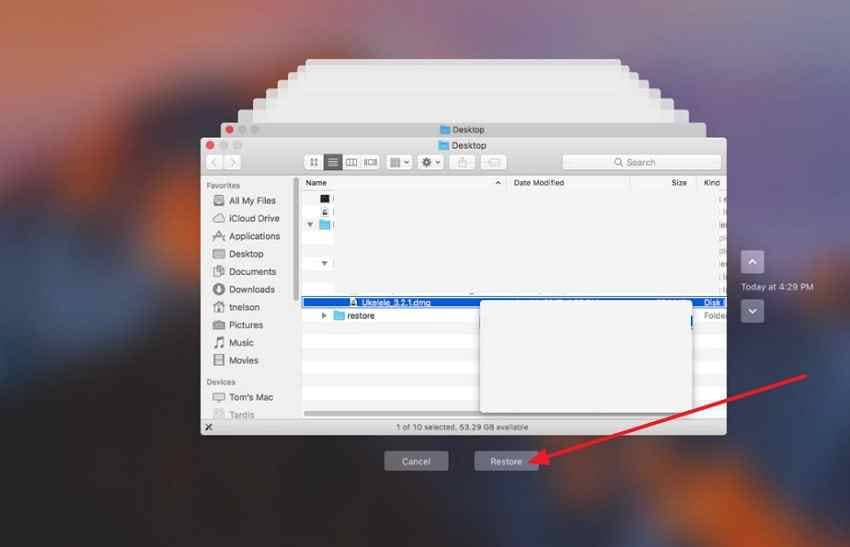
If the photos were imported to a Mac before the SD card was formatted, Apple Time Machine can restore backed-up items.
- Connect the Time Machine backup disk if it is not already available.
- Open the folder that previously contained the imported photos.
- Open Time Machine and browse the timeline to a backup created before the files went missing.
- Select the photos or folder and click Restore.
When to Contact a Professional Data Recovery Service
Software recovery is appropriate for a logically formatted card that is stably detected. Stop DIY scans and consider a professional recovery service when:
- The card is cracked, bent, burned, or water-damaged.
- The contacts or memory package are visibly damaged.
- No computer or known-good card reader can detect the card.
- The card repeatedly disconnects during access.
- The card becomes unusually hot.
- The photos are irreplaceable client, legal, research, or once-in-a-lifetime work and you cannot risk repeated experiments.
Part 6. Why Recovered Photos May Lose Names or Look Damaged
Finding a file after a scan does not always mean every part of that photo survived. Formatting can remove the file-system records that describe where files belong, while later writes can replace some of the image data itself.
Why File Names, Folders, or Metadata May Be Missing
File-system records store names, folders, paths, and other organizational details. After formatting, recovery tools may need to identify files from their data signatures instead of the original directory records. That is why recovered files can appear with generated names or without the original folder structure.
PhotoRec, for example, documents that recovered files are stored in recup_dir folders with generated names rather than the original names. Other tools may preserve more metadata when the necessary file-system records are still available.
What Partial Overwriting Looks Like
If only part of a RAW or JPEG file was overwritten, a recovery scan may still find the file signature or surviving data even though the photo is no longer complete.
- The image opens only partially.
- Large gray, black, or colored blocks appear.
- The thumbnail looks normal but the full image fails to open.
- A RAW file is detected but cannot be decoded by the camera software.
- The file size looks plausible, but the image is truncated or distorted.
No recovery tool can reconstruct storage bytes that have been completely overwritten by new data.
Recover First, Repair Second
If a recovered photo exists but is corrupted, keep the recovered original on a healthy drive and work on a copy. Do not try to repair the file while it is still on the SD card. The Recoverit guide to fixing corrupted photos from an SD card explains the correct order: recover missing or inaccessible files first, then repair individual photo files only after they are safely off the source card.
Part 7. How to Prevent SD Card Photo Loss After Formatting
- Verify imports before formatting: Open several JPEG and RAW files on the computer and confirm that the transfer is complete before erasing the card.
- Keep at least two copies: Store important shoots on a computer plus another drive or cloud backup before reusing the card.
- Label cards by project or date: This reduces the chance of formatting the wrong card during a busy shoot.
- Use multiple cards for irreplaceable work: Splitting a long event across more than one card limits the amount of data exposed to one failure or formatting mistake.
- Retire unreliable cards: Replace a card that repeatedly corrupts, disconnects, slows down, or reports errors even after a fresh format.
- Format only after recovery is complete: If data is missing, recover it first. Reformatting is a reuse step, not a recovery method.
Conclusion
You can often recover photos from a formatted SD card when the underlying image data has not been overwritten. The safest order is to stop using the card, check existing copies, scan the card only if it is stably detected, and save recovered photos to another drive.
If you already took new pictures after formatting, recovery may still be possible. Two new photos do not necessarily mean exactly two old photos were lost, but every new write increases overwrite risk. Quick format, overwrite or low-level format, later card usage, and physical condition all matter.
Use Recoverit when you want a guided scan and preview workflow for a detectable formatted card, or PhotoRec when you want a free signature-based option and can accept generated filenames and more manual sorting. If the card is physically damaged or unstable, stop software recovery and use a professional service instead.
FAQ
-
Can Photos Be Recovered From a Formatted SD Card?
Yes, photos may still be recoverable if the card was quick-formatted and the original data has not been overwritten. Stop using the card and recover files to another drive. -
Can I Still Recover Photos If I Took New Pictures After Formatting the SD Card?
Possibly. New pictures may overwrite part of the older image data, but they do not necessarily erase everything that was previously on the card. Stop using the card immediately and scan it before writing more data. -
Does Taking Two New Photos Mean Only Two Old Photos Were Lost?
No. New files are written into storage blocks rather than replacing old photos one by one. Two new photos can overwrite parts of one or several older files while leaving many other images untouched. -
Can I Recover RAW and JPEG Photos From the Same Formatted SD Card?
Yes, if the underlying files are still present. Recovery software can scan the same card for JPEG files and supported camera RAW formats such as CR2, CR3, NEF, ARW, DNG, ORF, and RAF. -
Can I Recover Photos From a Formatted SD Card for Free?
Yes, if you already have a backup or imported copy. PhotoRec is also a free open-source recovery option, but it may return files with generated names and without the original folder structure. -
What Is the Difference Between Quick Format and Low-Level or Overwrite Format?
A quick format resets file-system entries while leaving file data in place until it is overwritten. An overwrite or low-level erase writes across the storage area, which can remove the previous image data and make software recovery far less feasible. -
Why Do Some Recovered Photos Open With Gray Areas or Errors?
The file may have been only partially recovered or partially overwritten. A scan can still find the file signature even when some of the image data is missing. Keep the recovered original on another drive and repair only a copy. -
When Should I Stop DIY SD Card Recovery?
Stop if the card is physically damaged, gets unusually hot, shows the wrong capacity, disconnects repeatedly, or is not detected by multiple known-good readers. Irreplaceable professional work may also justify going directly to a recovery lab.


