 TL;DR:
You can recover deleted photos from a camera memory card by immediately stopping all shooting to prevent new files from overwriting the image data, removing the card, and scanning it through a reliable computer card reader.
● Select Recoverit to preview and recover specific camera RAW formats like Canon CR2/CR3, Nikon NEF, and Sony ARW, try Recuva for simple Windows-based deletions, or use PhotoRec to bypass corrupted file systems at the cost of losing original folder structures and filenames.
● Do not format the card if prompted by your operating system, and strictly save all recovered JPEG or RAW files to a separate computer or external drive to avoid permanently overwriting the remaining hidden data on the camera card.
● Software recovery is impossible if the card's memory chip is physically damaged or fully overwritten; if the card is bent, cracked, completely undetectable by multiple card readers, or continuously disconnects, you must use a professional data recovery service.
Ask AI for a summary
 ChatGPT
 Perplexity
 Gemini
 Claude
 Grok
Grok
"I accidentally deleted photos from my digital camera. It uses an SD card. Can I still get them back?"
If you need to know how to recover deleted photos from a camera memory card, stop using the card first. Deleted photos are often still on the SD card until new photos, videos, or camera writes overwrite the same space. The sooner you remove and scan the card, the better your recovery chances are.
This guide explains what to do immediately after deletion, when recovery is still possible, how to recover deleted photos from a camera SD card with Recoverit, free tools, backups, and professional help, and what to check for Canon, Nikon, Sony, GoPro, RAW, JPEG, and HEIF photos.
In this article
Part 1. Can Deleted Photos Be Recovered from a Camera SD Card?
Yes, deleted photos can often be recovered from a camera SD card if they have not been overwritten and the card is still readable. Accidental deletion, quick formatting, transfer interruption, and file system errors usually leave a recovery window. Physical damage and heavy reuse reduce that window.
How Photo Deletion Works on Camera Memory Cards
When you delete a photo in a camera or format the SD card, the camera usually removes file references from the card's file system. The photo data may remain in the storage area until the camera writes new files over it. That is why the first rule is simple: stop shooting, remove the card, and scan it from a computer.
When Deleted Camera Photos Are Still Recoverable
- No new photos or videos were saved to the card after deletion or formatting.
- The photos were lost because of deletion, quick format, transfer interruption, or file system corruption.
- The SD card is detected by a computer through a reliable card reader.
- The card has not been reformatted and reused several times.
- The recovery tool supports the photo formats your camera uses, such as JPEG, HEIF, CR2, CR3, NEF, ARW, RAF, or ORF.
When Recovery Is No Longer Possible
- New photos or videos have overwritten the deleted image data.
- The card's memory chip or connector is physically damaged.
- The SD card is not detected by any computer, camera, or card reader.
- The recovered files are only fragments because the original data blocks were damaged or overwritten.
- The card was encrypted or used in a device-specific storage mode that blocks normal computer access.
Does the Camera Brand Affect Photo Recovery?
The recovery process is similar for Canon, Nikon, Sony, Fujifilm, Olympus/OM System, Panasonic, GoPro, DJI, and other cameras. The brand mainly affects the photo format. For example, Canon may use CR2 or CR3, Nikon may use NEF or NRW, and Sony may use ARW. Choose a recovery tool that can scan both standard image files and your camera's RAW formats.
Part 2. Before You Recover Deleted Camera Photos
What you do before scanning the card matters. Follow these steps before you try to recover deleted photos from a camera memory card.
| Step | What to do | Why it matters |
| Stop taking new photos | Turn off the camera or switch to another card. | Every new file can overwrite deleted photo data. |
| Remove the SD card | Take the card out of the camera and recover from a computer instead. | Scanning through a card reader is safer and more complete than using the camera as a USB bridge. |
| Lock the SD card if possible | Slide the physical write-protect switch to the locked position. | This helps prevent accidental writes while you prepare recovery. |
| Use a reliable card reader | Connect the SD card or microSD card through a stable reader. | Poor adapters can cause failed scans, disconnects, or false "card not readable" errors. |
| Do not format the card | If Windows or macOS asks to format it, cancel the prompt. | Formatting can make the card harder to recover and may overwrite metadata. |
| Recover to another drive | Save recovered photos to your computer or an external drive, not the same card. | Writing recovered files back to the card can overwrite photos you still need to restore. |
Part 3. Why Photos Get Deleted or Lost from a Camera SD Card
Knowing the cause helps you choose the right recovery method and avoid making the problem worse.
| Cause | What happened | Best response |
| Accidental deletion | Photos were deleted from the playback menu or "delete all" was selected by mistake. | Stop using the card and scan it as soon as possible. |
| Quick format | The camera removed the file index but may not have erased all image data. | Do not shoot again; run a deep scan. |
| Card removed during writing | The camera was still saving images or video when the card was removed. | Scan the card and avoid repair/format prompts first. |
| Transfer interruption | The card or cable disconnected while photos were being copied. | Check the computer copy, then scan the card for missing or damaged files. |
| File system corruption | The card shows RAW, asks to be formatted, or displays empty folders. | Scan before formatting or running repair commands. |
| Aging or counterfeit card | Bad sectors or unstable flash memory made files unreadable. | Recover important files first, then replace the card. |
Part 4. How to Recover Deleted Photos from a Camera SD Card
After protecting the card, choose a recovery method. Start with Recoverit if you want guided scanning, photo previews, and RAW format support. Try free tools if the deletion is simple and you are comfortable with their limits. Use a lab only when the card has physical or severe detection problems.
Method 1. Recover Deleted Camera Photos with Recoverit
Recoverit Photo Recovery can help recover deleted photos from readable camera memory cards, including SD, microSD, CF, CFexpress, XQD, and other storage used in cameras, drones, and action cameras. It is a good fit when photos were deleted, the card was quick formatted, or the card is readable but photos are missing.
Key advantages:
- Photo preview before recovery: Check recoverable images before saving them.
- Camera RAW support: Scan for RAW formats used by Canon, Nikon, Sony, Fujifilm, Olympus/OM System, Panasonic, GoPro, and more.
- Deep scanning: Look for deleted and lost files beyond a quick file index scan.
- Card recovery scenarios: Recover from deletion, quick formatting, card corruption, RAW cards, interrupted transfer, and inaccessible folders when the card is still detected.
Important: Recoverit cannot guarantee recovery, repair a physically dead memory chip, or recover photos that have already been overwritten. If the card is making the reader disconnect repeatedly or is not detected anywhere, use a professional service instead of repeated software scans.
Step 1. Select the camera memory card. Insert the SD card into a card reader, launch Recoverit, choose the camera card, and click Start Scan.

Step 2. Review the scan results. Wait for the scan to finish. Use file type filters, file path view, or preview to find deleted JPEG, RAW, HEIF, and video files.

Step 3. Preview and recover to another location. Select the photos you want, click Recover, and save them to your computer or another drive instead of the same camera SD card.

Method 2. Recover Photos with Recuva for Free
Recuva is a free Windows option for simple deleted-photo cases when the SD card mounts normally. It is less suitable for badly corrupted, reformatted, or RAW-heavy professional cards, but it can be worth trying for recent deletions.
Step 1. Open Recuva, choose Pictures as the file type, select the camera SD card, and click Next.
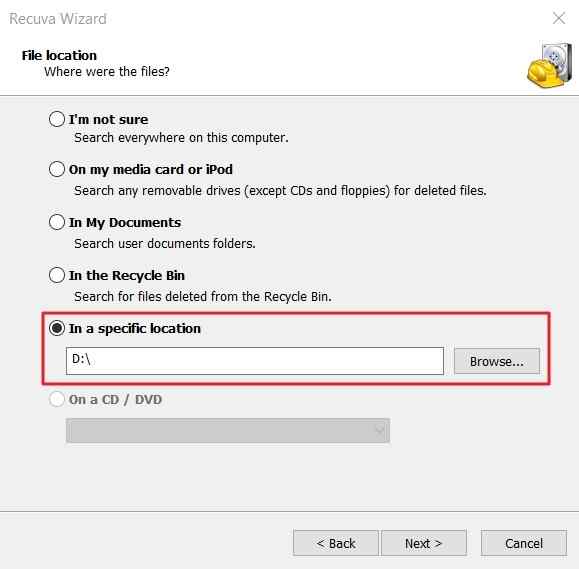
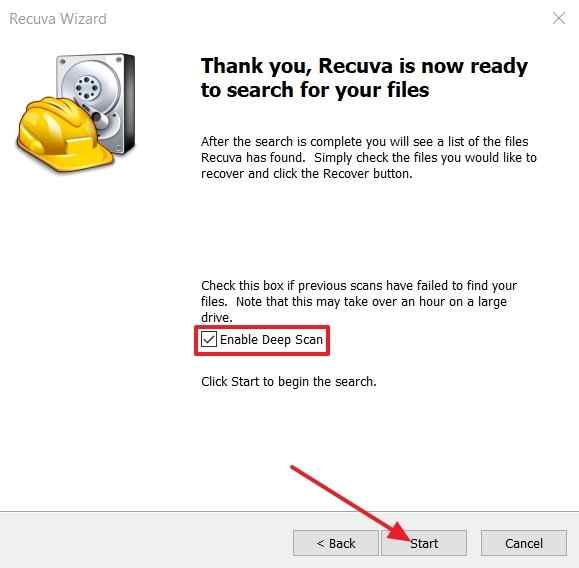
Step 2. Enable Deep Scan if the first scan does not find the deleted photos, then click Start.
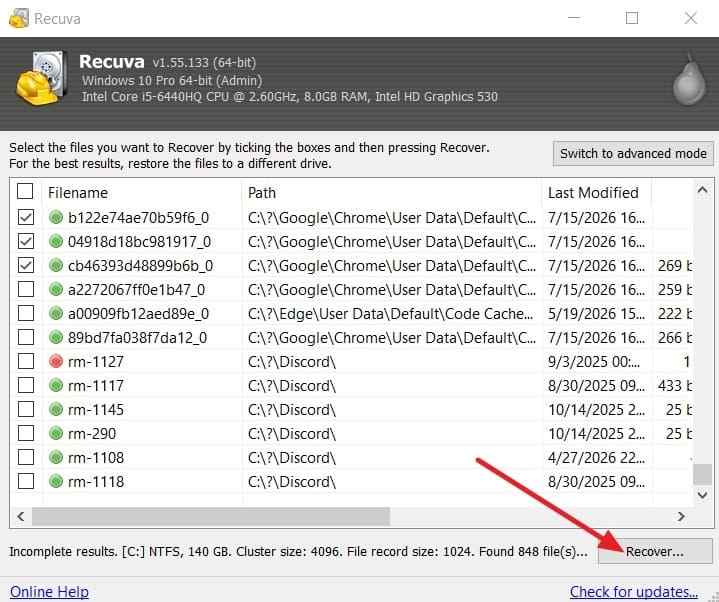
Step 3. Review the found photos, choose the ones you need, click Recover, and save them to your computer.
Method 3. Recover Photos with PhotoRec or QPhotoRec for Free
PhotoRec is a free, open-source recovery tool that scans file signatures instead of relying only on the file system. It can help when a card is formatted or the file system is damaged. The tradeoff is that original filenames and folder structure are often lost.
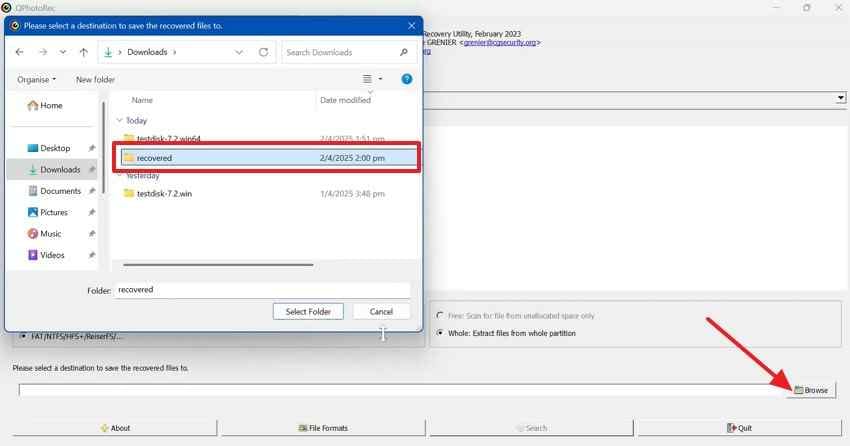
Step 1. Open QPhotoRec, select the camera memory card and partition, click Browse, and choose a recovery folder on your computer.
Step 2. Choose the file types you want to recover, then click Search to start signature-based scanning.
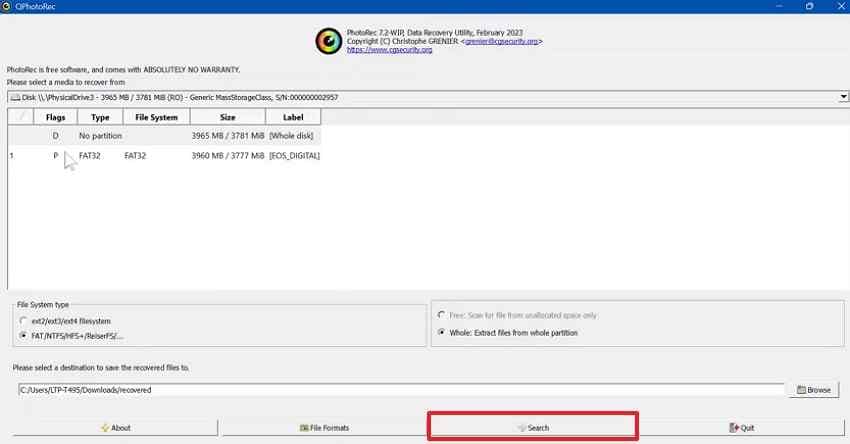
Step 3. Check the recovery folder. Sort files by type, size, or date because filenames may not match the original camera names.
Method 4. Restore Photos from a Camera, Cloud, or Computer Backup
Sometimes the best answer to how to recover deleted photos from a camera SD card is not scanning the card. Check whether a copy already exists in a camera app, computer import folder, phone gallery, external drive, or cloud backup.
- Check your computer's Pictures, Photos app library, Lightroom catalog, Capture One session, or import folder.
- Check external drives, NAS folders, and backup software used after previous shoots.
- Check Google Photos, iCloud Photos, OneDrive, Dropbox, or other cloud folders if photos were imported through a phone or computer.
- Check camera brand apps such as Canon Camera Connect, Nikon SnapBridge, Sony Creators' App or Imaging Edge Mobile, DJI apps, or GoPro Quik if you transferred copies before deletion.
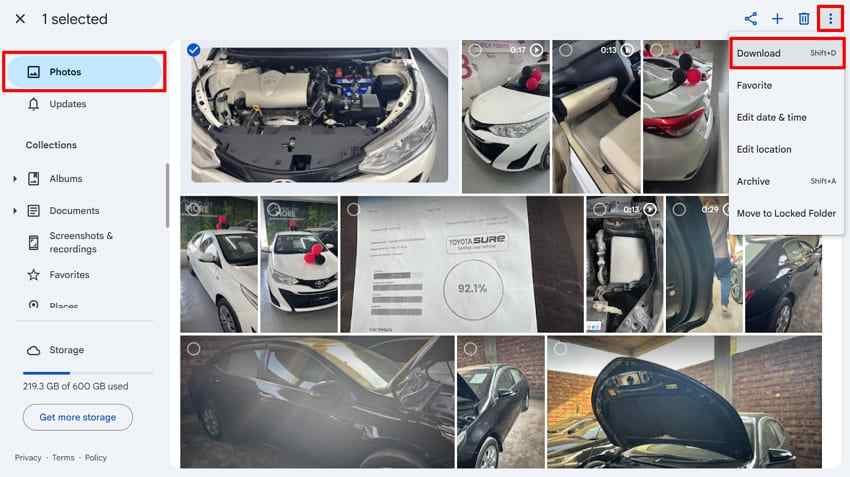
Example: In Google Photos, open Photos, select the backed-up images, click the three-dot menu, and choose Download.
Method 5. Use a Professional Data Recovery Service
Use a professional data recovery service if the memory card is bent, cracked, water-damaged, burned, not detected by multiple readers, or disconnects during every scan. Software recovery works on readable storage; physical chip or controller failure needs lab equipment.
Before sending the card out, do not format it, do not keep trying unstable adapters, and do not attempt DIY repairs on the card casing or connector. Tell the service what camera model was used, what happened before the loss, and whether the deleted photos are JPEG, RAW, or video files.
Part 5. Recover Photos from Canon, Nikon, Sony, GoPro, and Other Cameras
The steps above work for most camera brands. The practical difference is file type support. If you shoot RAW, confirm that your tool can detect your camera's RAW format before scanning.
Canon Camera SD Card Photo Recovery
If you need to know how to recover deleted photos from a Canon camera SD card, remove the card immediately and scan it with a tool that supports Canon RAW files. Canon DSLRs commonly use CR2, while many newer mirrorless cameras use CR3. JPEG photos follow the same recovery process as other brands.
Nikon Camera SD Card Photo Recovery
Nikon cameras commonly save RAW photos as NEF, and some older models use NRW. A deep scan is useful after accidental deletion, quick format, or folder corruption, especially when the card still appears in a reader but the camera shows no images.
Sony Camera SD Card Photo Recovery
Sony cameras usually store RAW photos as ARW. If ARW files disappear after deletion, formatting, or a transfer interruption, scan the card before using it again. Do not reformat the card in the camera until recovery is complete.
GoPro or Action Camera SD Card Photo Recovery
GoPro and action cameras often use microSD cards heavily for both photos and video. If files are deleted or the card becomes corrupted, remove the microSD card, use a stable card reader, and scan for JPEG, GPR, MP4, and other camera media. Save recovered files to a computer, not back to the action camera card.
RAW, JPEG, HEIF, and Other Photo Formats to Scan For
| Format | Commonly used by | Notes |
| CR2, CR3 | Canon | Common Canon RAW formats for DSLR and mirrorless cameras. |
| NEF, NRW | Nikon | Nikon RAW formats. |
| ARW, SR2 | Sony | Sony RAW formats. |
| RAF | Fujifilm | Fujifilm RAW format. |
| ORF | Olympus/OM System | Olympus and OM System RAW format. |
| RW2 | Panasonic | Panasonic RAW format. |
| GPR | GoPro | GoPro RAW photo format. |
| JPEG, HEIF | Most cameras and phones | Common finished-image formats. |
Part 6. What If Recovered Camera Photos Are Corrupted?
Recovering a file and opening it successfully are not always the same thing. If recovered photos appear gray, show half an image, or will not open, try these checks before giving up.
- Open the photo in another viewer: Test the image in another photo app, RAW viewer, or editing tool. Sometimes the viewer, not the file, is the issue.
- Run a deeper scan: A quick scan may find a partial file. A full scan may locate a more complete version.
- Recover from a different source: Check backups, import folders, cloud copies, and camera app transfers for a clean copy.
- Repair damaged photos after recovery: If the file is recovered but structurally damaged, use a dedicated photo repair tool such as Wondershare Repairit Photo Repair after saving the recovered file to another drive.
- Use a lab for severe card damage: If many files are corrupted and the card is unstable, stop scanning and ask a professional service.
Part 7. How to Prevent Losing Photos on a Camera Memory Card
After you recover deleted photos from a camera memory card, change the workflow that caused the loss. These habits reduce future recovery risk.
- Back up after every shoot: Copy photos to a computer, external drive, or cloud backup before reusing the card.
- Use the 3-2-1 backup rule for important work: Keep three copies, on two different storage types, with one copy off-site or in the cloud.
- Format cards in the camera after backup: Once files are safely copied, format the card in the camera that will use it.
- Wait for the activity light to stop: Do not remove the card while the camera is writing photos or videos.
- Use reliable, genuine cards: Avoid counterfeit or very old cards, especially for weddings, travel, wildlife, sports, or paid work.
- Rotate multiple cards: Spread important shoots across more than one card so one failure does not affect every image.
- Label and retire risky cards: Replace cards that repeatedly show write errors, missing files, slow saves, or formatting prompts.
Conclusion
Learning how to recover deleted photos from a camera memory card starts with protecting the card from new writes. Stop shooting, remove the SD card, avoid formatting prompts, and save recovered files to another drive. Recoverit is a strong first option for readable camera memory cards because it supports photo preview, deep scanning, and many camera RAW formats. Free tools such as Recuva and PhotoRec may help in simpler cases, while physically damaged or undetected cards should go to a professional recovery service.
FAQ
-
Can I recover deleted photos from a camera SD card for free?
Yes. Free tools such as Recuva and PhotoRec can recover recently deleted photos if the SD card is readable and the data has not been overwritten. Paid software may be easier for previewing photos, scanning RAW formats, and handling formatted or corrupted cards. -
How do I recover deleted photos from a camera memory card safely?
Stop using the card, remove it from the camera, lock the write-protect switch if available, connect it through a reliable card reader, scan it with recovery software, and save recovered photos to your computer or another drive. -
Can Recoverit recover deleted photos from a camera SD card?
Yes, Recoverit can help recover deleted, formatted, and lost photos from readable camera SD cards and other memory cards. Recovery depends on card condition, overwriting, file damage, and whether the card can still be detected by a computer. -
How do I recover deleted photos from a Canon camera SD card?
Remove the Canon SD card immediately, avoid taking new photos, connect it to a computer with a card reader, and scan it with recovery software that supports Canon CR2 or CR3 RAW files if you shoot RAW. -
Can deleted photos be recovered after formatting a camera SD card?
Often yes, if it was a quick format and the card has not been reused. Do not save new photos or videos to the card. Run a deep scan and recover found files to another storage location. -
Why are some recovered camera photos broken or not opening?
Recovered photos may be incomplete if part of the data was overwritten, the SD card has bad sectors, or the scan found only a file fragment. Try a deeper scan, check backups, or repair the recovered photo with a dedicated photo repair tool.



