

Want to delete duplicate photos in Google Photos without losing the only good copy? Repeated imports, phone transfers, shared downloads, and saved edits can leave a library full of matching or nearly identical pictures. Some are genuinely redundant, while others preserve the highest resolution, a useful edit, or a different moment from the same shoot. Deleting the wrong one can also affect photos synced to your phone.
Google Photos offers Photo Stacks and some limited similar-photo cleanup suggestions, but no universal one-click tool for finding every duplicate. This guide covers safe manual selection on the website, Photo Stacks on Android and iPhone, and optional third-party browser extensions. You'll also learn how to recover accidental deletions and prevent repeat uploads.
In This Article
Part 1. Work Out Which Photos Are Actually Duplicates
Two images that look identical in a small thumbnail can have different values. You may be looking at a true second upload, a slightly different frame, an edited export, or one library item displayed in several albums. Diagnose the situation before selecting anything for deletion.
1. Compare Exact Duplicates, Similar Shots, and Edited Versions
Google Photos does not provide a universal report that proves which items are byte-for-byte duplicates. Visually comparing images and their file details is a sensible starting point, especially when the library contains renamed or resized copies.
| What you see | What it may mean | Safest choice |
| Two apparently identical images | Separate copies of the same capture, or one saved at a different quality | Compare dimensions, edits, and file details before keeping just one |
| A burst or quick series | Different moments of the same subject, perhaps with different expressions or focus | Inspect every frame; keep more than one if the differences matter |
| Original plus a cropped or filtered version | An intentional edited copy or exported version | Retain the original and any edit you may want again |
| The same image in two albums | Often one library item referenced by two album collections | Remove it from an album, not from the whole library |
Practical example: A 12-megapixel JPEG and a smaller photo shared through a messaging app might look the same in the grid. If the original contains more detail, deleting it in favor of the compressed version would be a poor tradeoff, even if you save storage.
2. Recognize the Same Library Item in Different Albums
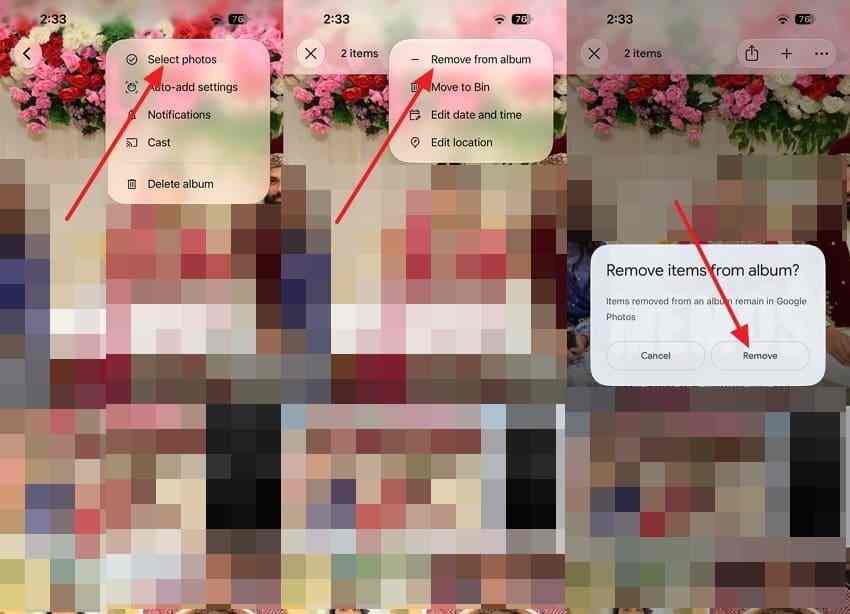
A photo appearing in both a holiday album and a family album is often one library item, not two files occupying extra storage. Removing it from one album changes that album's contents; deleting the item from the library can remove it from every album where it appears.
Instructions. Open the album in the Google Photos app or on the website. Choose the album's edit controls and select Remove for the unwanted album entry. Do not choose Move to Trash if your goal is only to tidy the album. Google's album editing guidance confirms that removing an item from an album does not remove it from the Google Photos library.
3. Understand What Photo Stacks Can and Cannot Identify
Photo Stacks groups similar backed-up pictures taken close together and suggests a top pick. It is a viewing and organization feature available in the Android and iPhone Google Photos apps, not a desktop duplicate scan. A stack may contain useful alternative shots, and edited exports or copies imported much later may remain outside the stack.
- What it does: Groups some near-identical photos and lets you inspect them as a set.
- What it does not do: Identify every duplicate across all dates, albums, imports, or file formats.
- Storage impact: Stacking changes the display only; it does not delete photos or reduce account storage.
Google's Photo Stacks instructions also note that recently added photos may take time to group. Absence from a stack is not evidence that two files are unique.
Part 2. Preserve the Originals Before Deleting
The cost of a cleanup mistake can be greater than the storage it saves. Protect the photos you cannot replace, and make sure you understand what will happen to the phone copies linked to your account.
1. Keep an Independent Copy of Important Photos
Before a large cleanup, export your favorite and irreplaceable images to storage that will not automatically mirror deletions from Google Photos. Do not rely on another album inside the same Google Photos account as an independent backup.
Step 1. On a computer, open photos.google.com, select an important photo, open its three-dot menu, and choose Download. Google's download instructions describe this workflow.
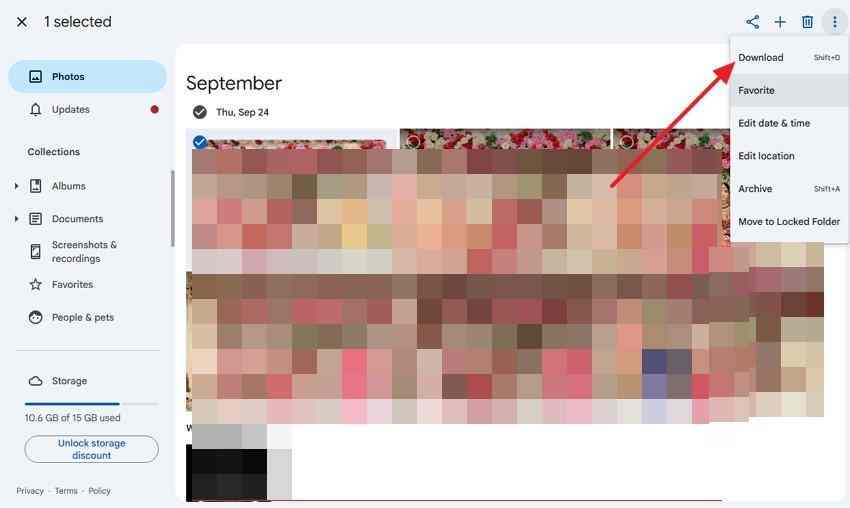
Step 2. Save the downloaded file in an independent computer folder or external drive, then open it to confirm that it is complete and has the expected resolution. For a very large library, Google Takeout can export a broader archive. Keep in mind that an export does not recover items already permanently deleted from Google.
2. Compare Resolution, Edits, and Capture Details
For each likely duplicate, open the picture and review its available Info or details panel. Look at dimensions, date, file size, backup quality, and any evidence of edits. Matching timestamps or filenames help narrow the candidates but do not establish that two files are identical.
- Original quality: Prefer the file with the detail you need, not automatically the one with the larger filename or earlier upload date.
- Edited copies: If one image contains an important crop, annotation, or retouch, keep it alongside the unedited original.
- Capture context: A group of burst shots can include several genuinely different moments even when thumbnails look identical.
When in doubt, preserve both versions until you can compare them on a larger screen.
3. Check How Library Deletion Affects Synced Devices
Deleting from the Google Photos app is not always a cloud-only operation. It can also remove the corresponding photo from your phone and other devices using Google Photos backup. Google documents these outcomes in its deletion and sync guidance.
| Cleanup action | What else may change | Precaution |
| Delete in Google Photos on Android or iPhone | The device photo and backed-up copies on other devices may be deleted | Keep an independent local original first |
| Delete on photos.google.com | Cloud library, albums, and backup-enabled connected devices can be affected | Verify backup settings on any phone where a copy must stay |
| Remove from an album | Only the album association changes | Use this when the photo itself should remain |
| Move to Archive | The image is hidden from the main photo grid but remains in the account | Use for decluttering, not for storage savings |
Important: If the goal is to remove a Google Photos cloud copy while keeping the device original, turn off backup on the relevant devices first and follow Google's dedicated cloud-removal steps. Re-enabling backup later can upload that item again or alter its device copy. Verify the result on the phone before removing additional photos.
Part 3. Review Photo Stacks on Android and iPhone
Use Photo Stacks when the Google Photos mobile app has already grouped several similar, backed-up shots. Do not delete a whole stack from the main grid until you understand which images it contains.
1. Open a Stack and Inspect Every Photo
Step 1. Open the Google Photos app, go to the Photos view, and look for a stacked-photo indicator. If stacks are hidden, use the view's More menu and review Stack similar photos. The exact placement can vary by app version.
Step 2. Tap a stack and swipe through its filmstrip. Zoom in on faces, moving subjects, small text, and fine detail. Select a preferred frame and, if useful, choose Set as top pick from that photo's thumbnail menu. A top pick is only the cover of the stack; it does not delete the other frames.
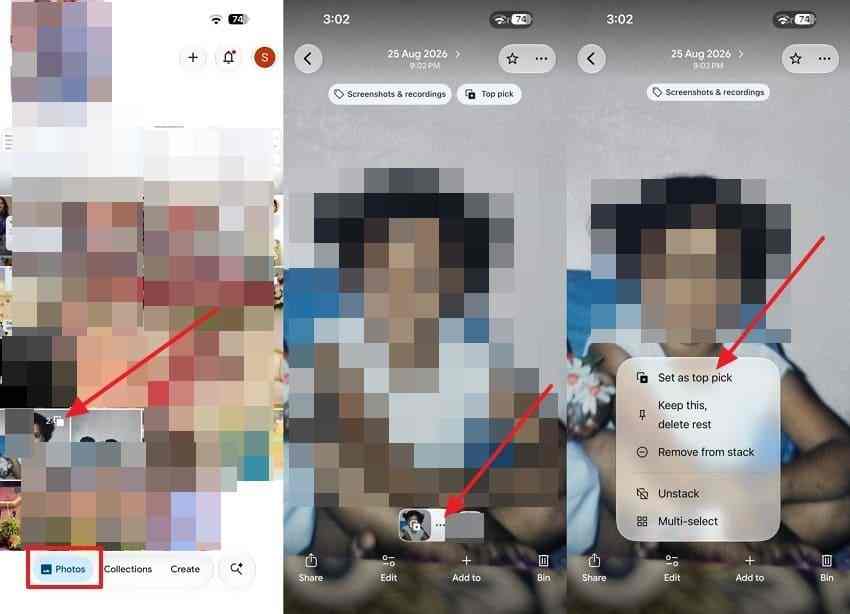
If the photos represent different expressions or moments, keep multiple frames instead of forcing the stack down to a single picture.
2. Choose a Keeper Before Deleting the Rest
Step 1. Open the relevant stack, select the frame you definitely want to retain, and open its thumbnail menu. When the option is available, choose Keep this, delete rest.
Step 2. Examine the confirmation prompt carefully. On current Google Photos mobile interfaces, confirm the move to Trash only if all other photos in that stack are unwanted. This is a deletion operation, not the same as merely choosing a top pick.
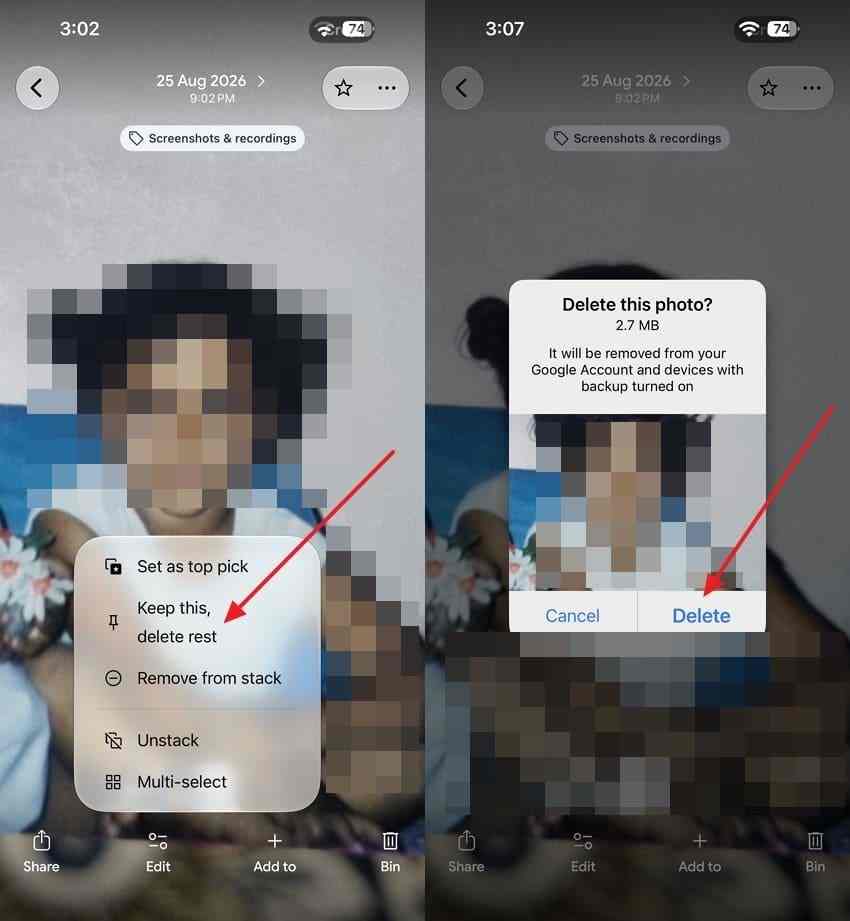
The iPhone Photo Stacks guide documents this action separately from selecting a top pick. Review your phone's backed-up and local copies before proceeding.
3. Review Unstacked Photos and Limited Cleanup Suggestions
Photo Stacks does not catch every edited export, messaging-app copy, re-upload, or similar shot from another date. After checking stacks, use the normal Photos search and timeline to review remaining duplicates manually. Search by person, place, subject, or a remembered date, then compare the candidates.
Eligible iPhone and iPad users who run out of storage may also see Review similar photos. Google's storage cleanup help says this feature preselects suggested deletions, which users can change. Do not assume it is available to every account or that its initial selections are always the best choice.
Part 4. Remove Duplicate Photos on the Google Photos Website
For large libraries, a desktop screen can make side-by-side review easier. Google Photos on the web lets you search, inspect, select, and trash photos, but it does not offer the mobile Photo Stacks interface or a universal built-in Find All Duplicates button.
1. Find Candidates by Date or Available Search Details
Step 1. Open photos.google.com on a computer and sign in to the correct account. Start with a recent import date, a familiar subject, or another search detail that narrows the library.
Step 2. Look for groups of photos with the same subject but different file sizes, edits, or upload histories. Open each likely match individually rather than selecting everything that looks alike in the grid. For an archive of thousands of photos, work through one month, trip, or import batch at a time.
Tip: If two albums show the same picture, first verify whether they link to the same library item. Album appearances do not by themselves mean there are two storage-consuming files.
2. Compare Each Candidate and Check Extension Permissions
Open each possible duplicate, click Info, and compare the dimensions, backed-up quality, file size, and capture date. The details panel can help distinguish an original-quality upload from a lower-resolution shared copy.
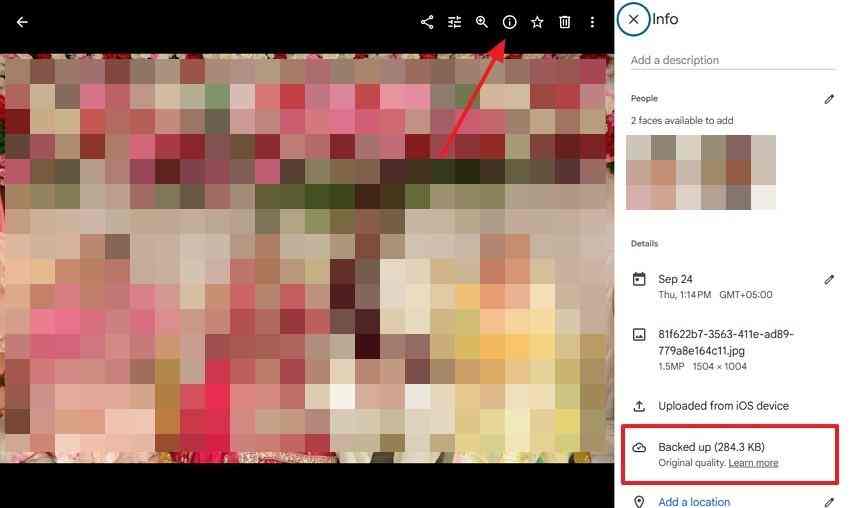
For broader detection, the third-party Google Photos Duplicate Remover Chrome extension advertises exact and similar-photo matching. It is not a Google Photos feature or an official Google recommendation. Its Chrome Web Store listing discloses that it handles personally identifiable information, so review the developer's privacy policy, required permissions, and recent feedback before granting access to a private photo library.
Even when an extension finds matching images, manually review each proposed deletion and test a small group first. If access is no longer needed, remove or restrict the extension's site permissions according to Google Chrome's extension-permission instructions.
3. Delete a Small Batch and Verify the Photos You Kept
Step 1. Hover over each unwanted copy, choose its selection checkmark, and verify that the better-quality image remains unselected. Use Move to Trash to delete only the reviewed group.
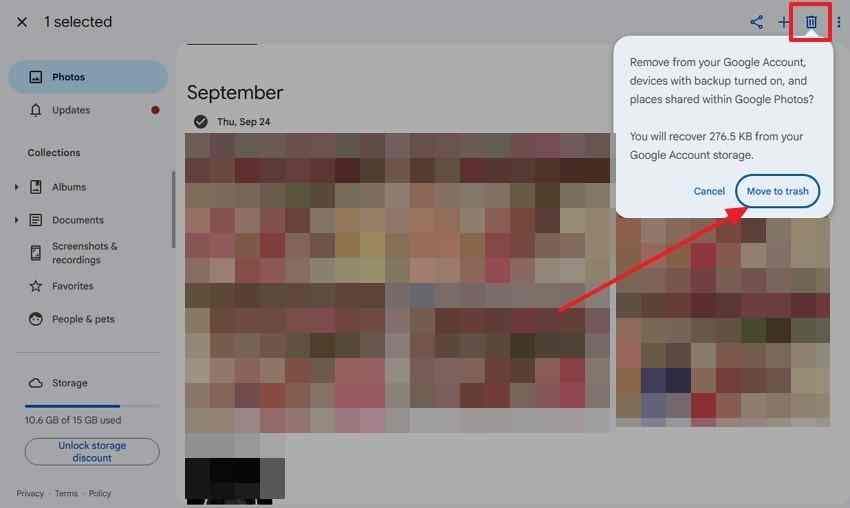
Step 2. If you notice a mistake immediately, use Undo while the on-screen option is available. Otherwise, open Trash and restore the photo while it is still eligible.
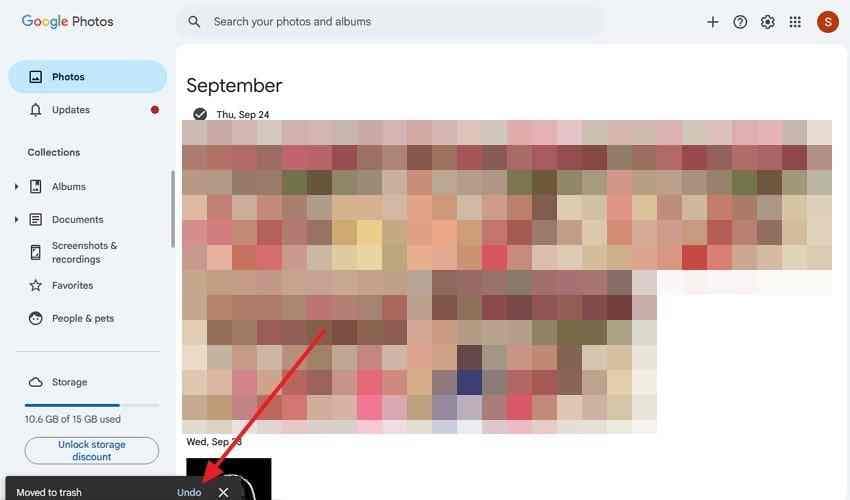
Step 3. Return to your library, open the kept images at full size, and confirm that their edits, metadata, and expected quality are still present. Do not empty Trash as part of a routine cleanup; retaining that recovery window provides a chance to correct errors.
Part 5. Restore Photos Deleted by Mistake
If you deleted a valuable original, stop making additional changes and look for a recoverable copy. The correct route depends on whether the picture is still in Google Photos Trash, exists in an independent backup, or was also saved on local storage.
1. Restore Eligible Items From Google Photos Trash
Google's current help pages state that deleted photos and videos remain in Trash for 30 days before permanent deletion, unless removed earlier. This is the currently documented policy checked in October 2026; older tutorials describing a blanket 60-day period should not override the live Google Photos instructions. Items that have already been permanently deleted are not recoverable through Google Photos Trash.
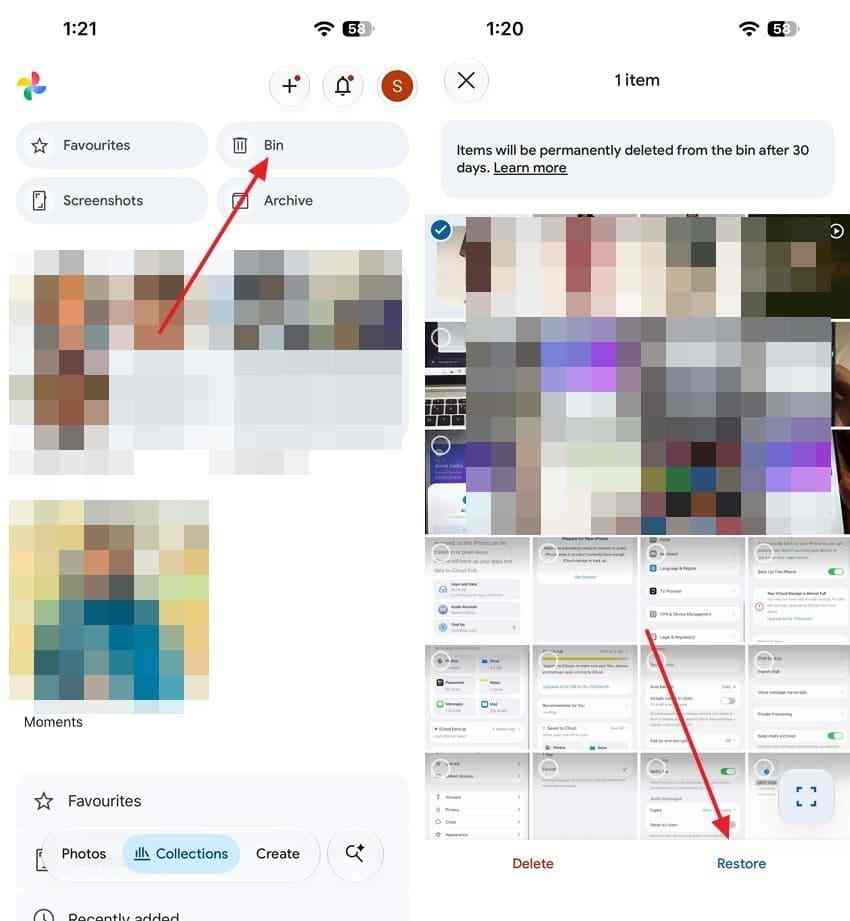
On Android or iPhone: Open Google Photos, navigate to Collections > Trash (called Bin in some regions), choose the photo, and select Restore.
On a computer: Open photos.google.com, choose Trash in the sidebar, select the missing items, and click Restore. Google's current computer deletion and restoration guide confirms this route and its retention warning.
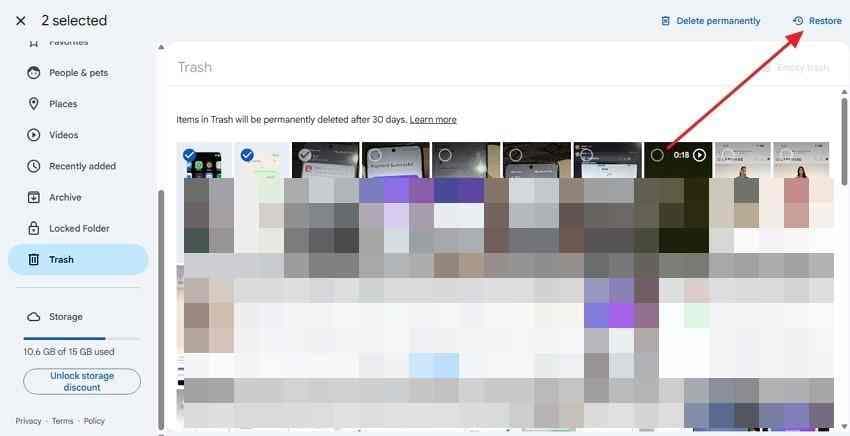
Do not empty Trash until you have verified that all important originals are still present and backed up elsewhere.
2. Check Independent Originals After Permanent Cloud Deletion
If the photo is no longer restorable in Google Photos, look for copies that are independent of that cloud library: an exported archive, a camera SD card, a disconnected external drive, another photo service, or an email attachment. Google Photos deletion does not automatically delete independent copies that were separately saved in Google Drive or Gmail.
- Apple Photos: If there is a separate iPhone library copy, check the Apple Photos Recently Deleted collection. Availability depends on the deletion and synchronization history.
- Memory cards: Check the original camera card before reusing or formatting it. For more details, see recovering deleted photos from an SD card.
- Other archives: Open previous computer exports, disconnected backup drives, shared attachments, or independent cloud accounts.
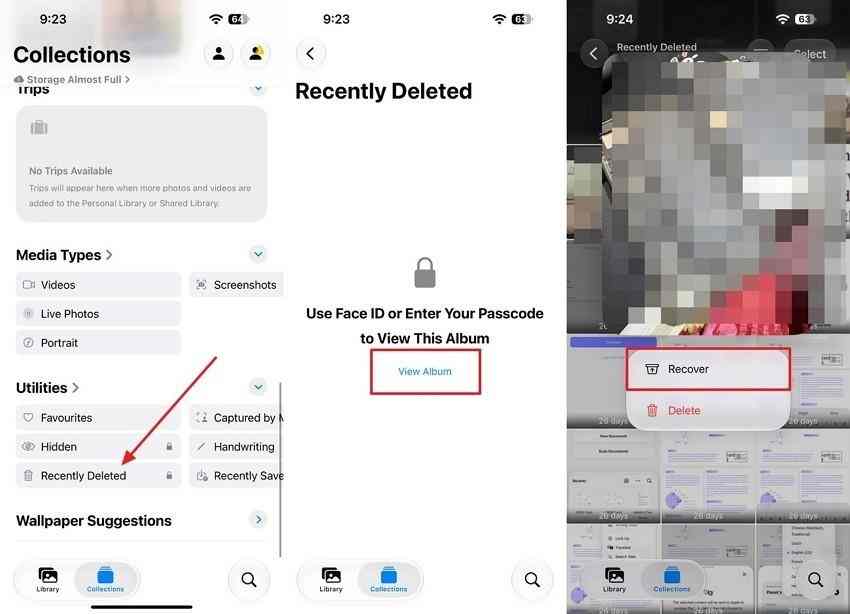
Important: Permanently deleted cloud-only pictures cannot be reconstructed merely by installing recovery software on a computer that never stored their full data.
3. Recover Eligible Deleted Local Copies With Recoverit

When an important picture once existed on a readable computer drive, USB drive, or removable memory card and was deleted from that storage, Recoverit may be able to find a surviving local copy. It does not scan Google's cloud servers, reverse cloud Trash expiration, or guarantee recovery from overwritten storage or a phone's encrypted internal memory.
Stop writing new files to the affected drive, and use a different healthy destination for any recovered photos.
Step 1. Select the original storage device. Open Recoverit on a computer and choose the detected disk or memory card that held the missing photo. Avoid scanning an unrelated drive just because it is available.

Step 2. Scan and inspect results. Start the scan and use available photo-type filters or search tools to narrow the results. Preview likely matches whenever supported to confirm that the actual image content survived.
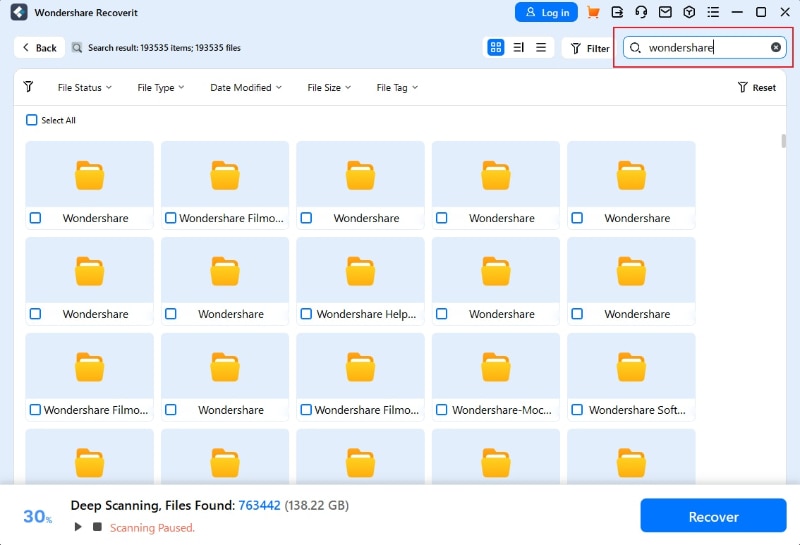
Step 3. Recover to another drive. Select the confirmed photos, click Recover, and choose a different storage location so the recovery process does not overwrite other deleted files.

Limit: A free download is not a promise of unlimited free recovery. Check the current version's trial and recovery terms before relying on a paid recovery outcome.
Part 6. Reduce Repeat Uploads and Future Cleanup
A cleaner Google Photos library starts with controlled imports, not repeated rounds of deletion. Once you have confirmed which originals to keep, review the workflows that can reintroduce extra copies.
1. Review Overlapping Upload and Import Workflows
Repeated manual imports, saved messaging-app files, and different backup folders can create additional versions. On Android, selected non-camera folders may also be included in Google Photos backup; check whether downloaded or edited photos are being uploaded again through an enabled folder.
| Likely source | What to check | Practical prevention |
| Android device folders | Backup settings for Downloads, edited photos, and messaging-app folders | Back up only folders you actually need |
| Repeated computer imports | Whether a folder or exported batch has already been uploaded | Use a consistent naming and import routine |
| Saved or shared pictures | Whether a separately saved item already exists in the library | Check the library before saving another copy |
| Editing and re-exporting | Original file versus exported versions | Keep distinct versions only when their edits matter |
Current desktop change: Google says Drive for desktop ended Google Photos backup support on August 10, 2026. For ongoing computer-folder uploads, follow the current Google Photos website options instead of following old Drive for desktop menus. Google's computer backup instructions cover the transition.
2. Keep Edited Versions That Serve a Separate Purpose
An edited file is not automatically a duplicate you should remove. A cropped social post, repaired archival scan, or marked-up reference photo may each justify a separate copy. If you want to experiment with a photo, preserve the original before you replace or export edits, and label intentional versions clearly.
For near-identical imports, compare the original resolution and file details before deleting the larger file. Deleting a high-quality original just because an edited or compressed copy appears more recently can leave you with no way to make a clean new edit.
3. Check Actual Storage Usage Instead of Relying on Stacks
Grouping photos into a stack changes their appearance in your library but does not reduce the storage used by the account. Use the Google Photos Storage or Manage storage view to see which items actually count and which cleanup categories are available. Google's storage management guidance explains that some older backed-up items may not count toward current storage at all.
After cleanup, verify the remaining library and check storage usage again rather than assuming every deleted file creates an equal amount of free space. Keep a second, independent backup before repeating large deletions.
Conclusion
To delete duplicate photos in Google Photos safely, first check whether the images are true copies, useful edits, or one item displayed in different albums. Review Photo Stacks on Android and iPhone, use manual selections on the website, and treat third-party duplicate removers as optional tools whose permissions and results need careful review. Avoid bulk deletion until your important originals are backed up independently. If an accidental cleanup removes a photo, try Google Photos Trash first; Recoverit is relevant only when a recoverable local copy existed on readable storage.
FAQ
-
Can Google Photos automatically delete all duplicate pictures at once?
No. Google Photos does not offer a universal built-in button that detects and removes every duplicate. Photo Stacks groups some similar backed-up shots on mobile, and eligible iPhone users may see limited similar-photo cleanup suggestions when storage is full. Review each proposed deletion. -
Why does Google Photos still show duplicate pictures after backup?
Separate edited exports, resized images, downloaded copies, and repeated imports can leave visually similar files in the library. Photos taken on different dates might not be stacked. Two albums can also display the same library item without creating a second copy. -
Does deleting duplicate photos from Google Photos also delete them from my phone?
It can. Deleting through the Google Photos mobile app removes corresponding device copies, and backed-up items may be removed from other connected devices. If you need the phone original, make an independent backup and follow Google's guidance for deleting cloud items without removing local copies. -
Can I remove duplicate photos from Google Photos without downloading them?
Yes. You can review and delete duplicates within the mobile app or on photos.google.com without downloading your library first. However, for irreplaceable originals, saving an independent copy before bulk cleanup is the safer approach.


