


If you accidentally emptied Google Photos Trash, figuring out how to recover permanently deleted photos from Google Photos can be stressful, especially when the missing files include family pictures or videos. Google Photos can restore items still in Trash, but its normal restore feature cannot bring back cloud items after permanent deletion. The next step is to identify whether another copy survived.
This guide separates temporarily deleted photos from genuinely missing cloud content. It shows you where to check Google accounts, Archive, Locked Folder, phone galleries, downloaded images, shared copies, and older exports. If the originals lived on a readable computer drive or removable memory card, Recoverit may help recover deleted local copies without claiming access to Google Photos servers.
In This Article
Part 1. Understand Permanent Deletion and the Recovery Limit
Recovery depends on where the photo existed, not only how long ago it disappeared. A photo that is absent from the main Google Photos grid is not necessarily deleted; a photo erased from Trash is different from a file still present on an SD card.
1. Check Whether the Photo Is Truly Permanently Deleted
Google's current photo deletion guidance distinguishes removing a photo from your library, placing it in Trash, and permanently deleting it. Use the table to choose the right next step rather than immediately paying for recovery software.
| What happened | Can Google Photos restore it? | Next step |
| Photo is only in Archive, Locked Folder, or a different account | The item may not be deleted at all | Find it in the correct account or collection |
| Photo is still in Trash | Yes, while it remains available | Select the item and choose Restore |
| Trash was emptied or item was permanently deleted | No ordinary Trash restore is available | Check independently saved copies; do not assume cloud recovery |
| A different copy was deleted from a laptop or memory card | Google Photos cannot restore that local deletion directly | Check local bins or backups; consider a local scan if readable |
Note: Deleting a photo in Google Photos can also remove the corresponding item from phones and tablets that have backup enabled. However, an independently saved file in another cloud service, email attachment, or disconnected disk may remain available.
2. Understand the Current 30-Day Trash Retention Period
Google's latest public restore instructions state that photos and videos stay in Trash for 30 days before permanent deletion. Older articles may mention 60 days for backed-up media, but do not rely on those older figures when deciding whether to act. An item deleted permanently from Trash does not receive a fresh 30-day recovery window.
Some Google Photos Help Community replies have described a narrow best-effort request for photos that were backed up and permanently deleted only a few days earlier. However, Google's current public help still says permanently deleted items cannot be restored, and no generally accessible request route could be verified. Do not treat community reports as a dependable method or a guaranteed recovery window.
3. Identify Whether an Independent Copy May Still Exist
Think back to the photo's source. Camera originals may be on an SD card; screenshots may have been downloaded to a laptop; a shared image may have been saved by the recipient. An old Google Takeout archive is useful only if it was created while the files were still part of the account.
- Original source: Check the camera card, phone gallery, computer folder, or USB drive that held the photo before upload.
- Separately saved copy: Look for a download, exported album, email attachment, or shared file someone actually saved.
- Synced duplicate: Do not assume that the phone copy survived a Google Photos deletion; verify it in the device's native gallery.
Part 2. Rule Out a Missing Photo Before Searching for Other Copies
Before treating photos as permanently deleted, check the locations where Google Photos can keep a file out of the main grid. These built-in checks are safer and faster than scanning unrelated drives.
1. Check the Correct Account, Archive, and Locked Folder
Google's missing photos troubleshooting guide recommends confirming the backup account and checking for photos placed under a different date. Start by tapping your profile picture in the app and verifying the email address.
Instructions. Open Google Photos, tap your profile picture to check the account, then open Collections > Archive and Collections > Locked if available on your device. Unlock Locked Folder with the required credentials. Items in Locked Folder do not appear in ordinary search or albums; Google's Locked Folder help explains that deleting items there is permanent and does not send them to Trash.
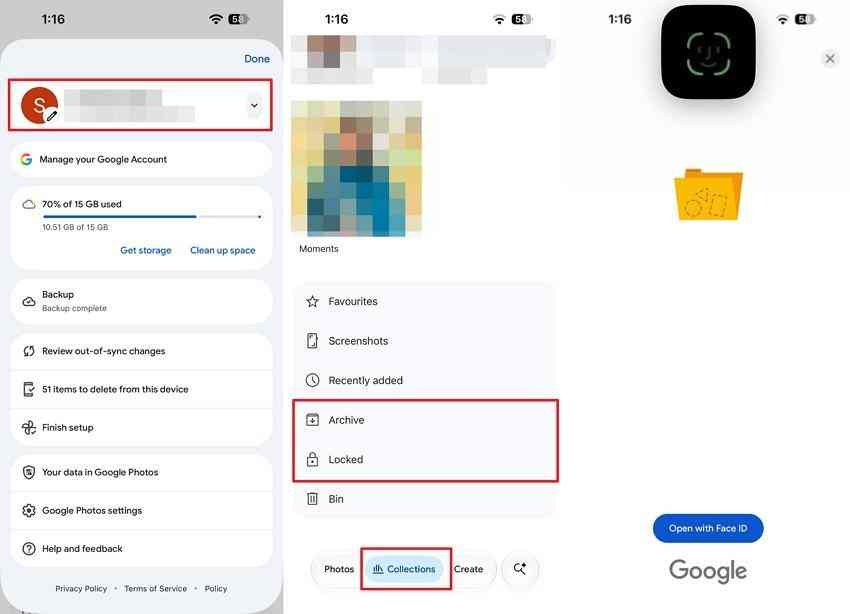
If you have multiple Google accounts, repeat this check in the account that originally received the backup. An archived image is still part of the library; it is not a second copy.
2. Look in Trash and Restore Eligible Photos or Videos
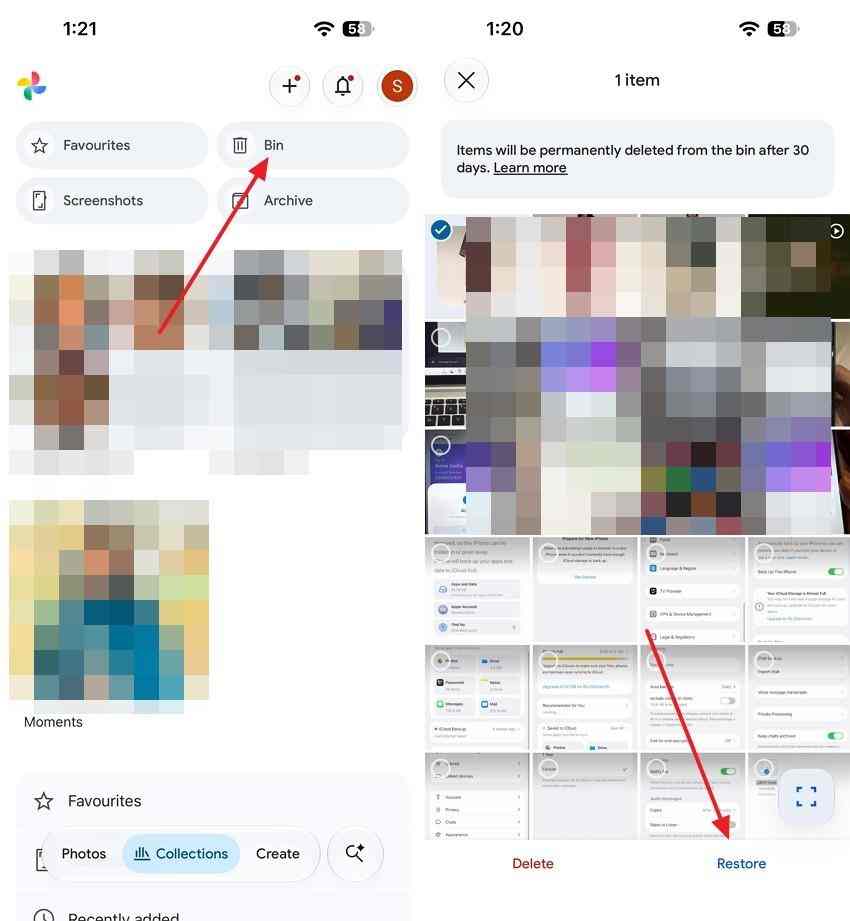
Only photos still in Trash can be restored through the ordinary Google Photos interface. Check promptly rather than waiting for the retention window to end.
On Android or iPhone: Open Google Photos, go to Collections > Trash (sometimes labeled Bin), press and hold the photo or video, and tap Restore. The restored item returns to the library and may return to its previous albums or device gallery where applicable.
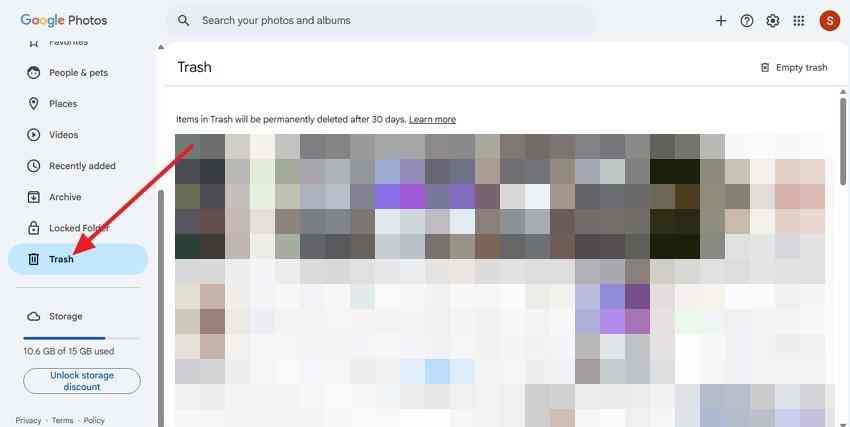
On a computer - Step 1. Open Google Photos on the web, sign in to the correct account, and open Trash in the left navigation.
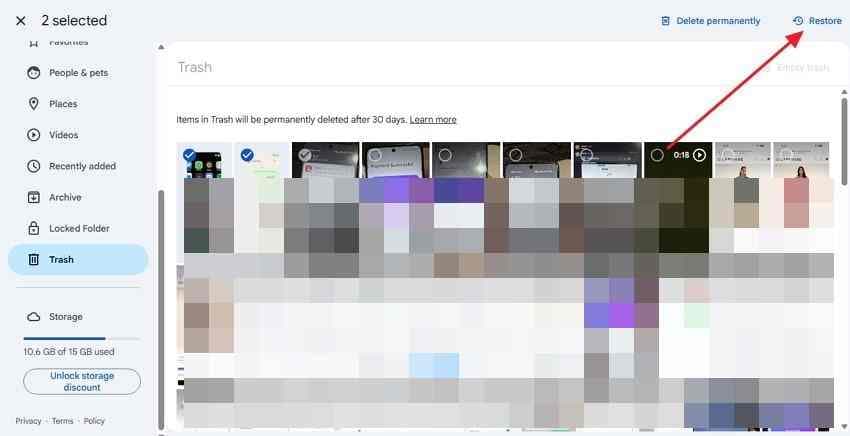
Step 2. Select one or more items that are still present, click Restore, then verify them in the normal Photos view.
If the items are absent and you have confirmed the correct account, do not install apps that claim to scan Google's servers. Proceed to other copies.
3. Review Device Folders and Photo Stacks That May Hide an Item
On Android, check Collections > On this device for camera folders, screenshots, Downloads, and messaging-app images; Google's device-folder help explains why some files are visible only on the phone. A photo can also be hidden inside a stack of similar backed-up images rather than deleted.
Open the stack and inspect its individual frames. Google's Photos view guidance explains grouping features; stacking changes how photos appear, not whether they remain stored. Search by other dates or check Recently Added when incorrect capture metadata changes the timeline position.
Part 3. Find Copies Outside the Deleted Google Photos Library
If the original cloud item is gone, the practical objective changes from cloud restoration to locating a surviving independent photo or video file. Check places where the files were stored before or separately from Google Photos.
1. Check Original Files on Phones, Computers, and Memory Cards
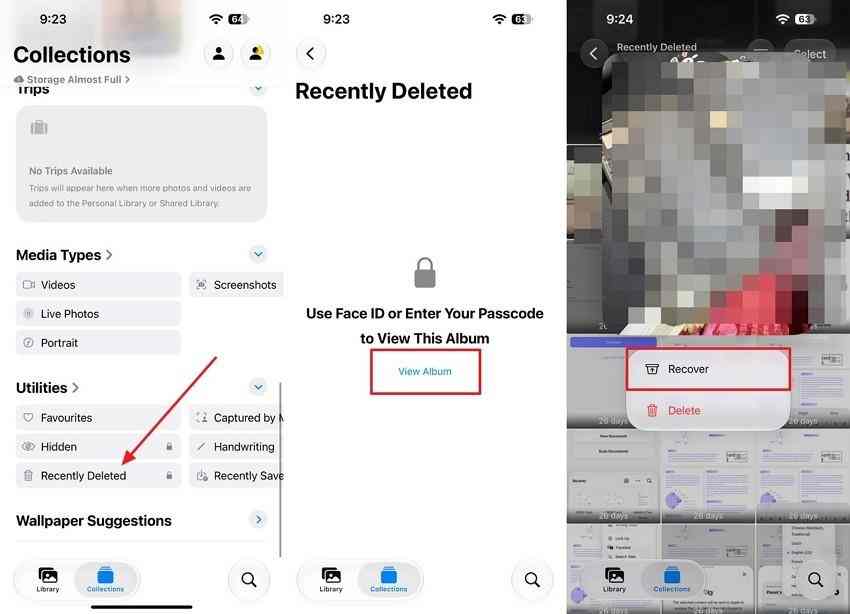
iPhone or iPad: Open Apple's Photos app and navigate to Recently Deleted under Utilities. Unlock the album, select the missing photos, and choose Recover if available. Apple generally keeps eligible deleted items for 30 days in that album; see Apple's recovery instructions. Check carefully because deleting in Google Photos may also remove the iPhone's local copy.
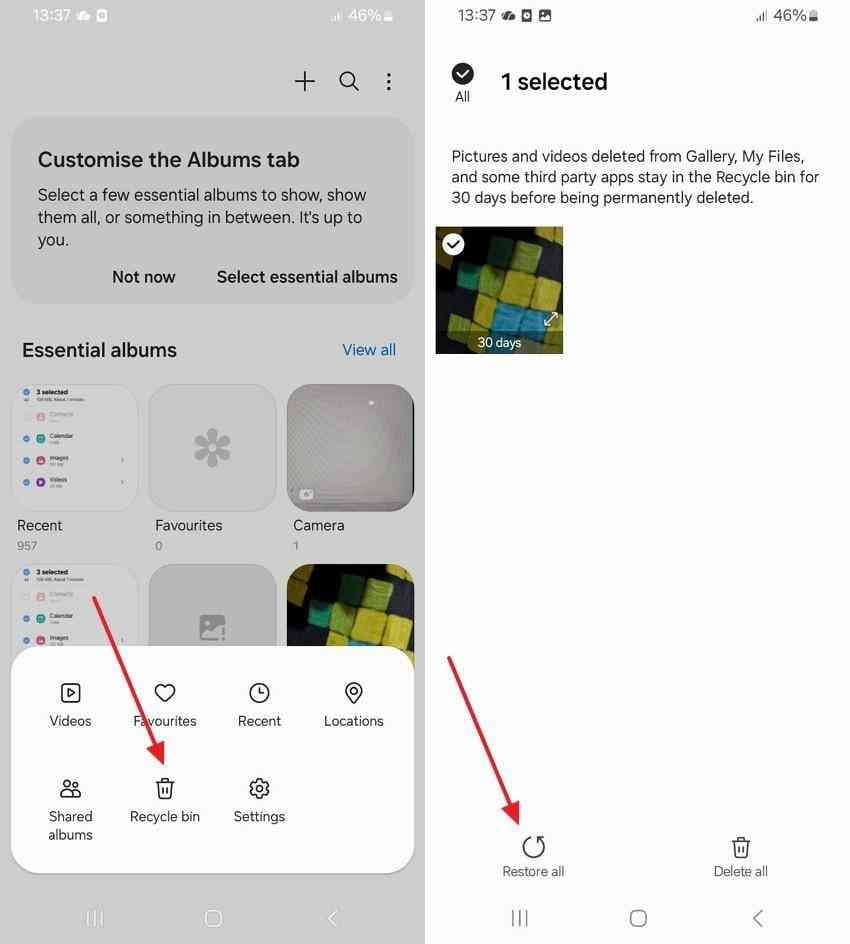
Samsung Galaxy: Open Samsung Gallery, find Menu > Recycle bin or Trash, select the photo, and tap Restore. Menu names vary by One UI version. Samsung documents the retention and steps in its Gallery Trash instructions.
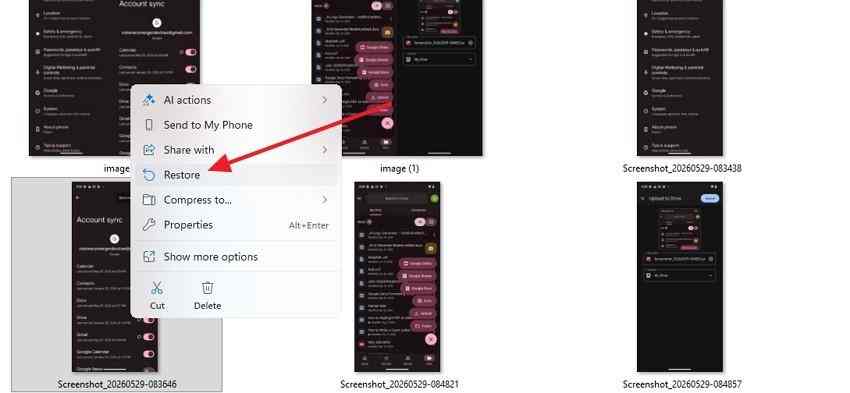
Windows computer: Check Pictures, Downloads, DCIM exports, and Recycle Bin. If a missing local copy is in Recycle Bin, right-click it and choose Restore.
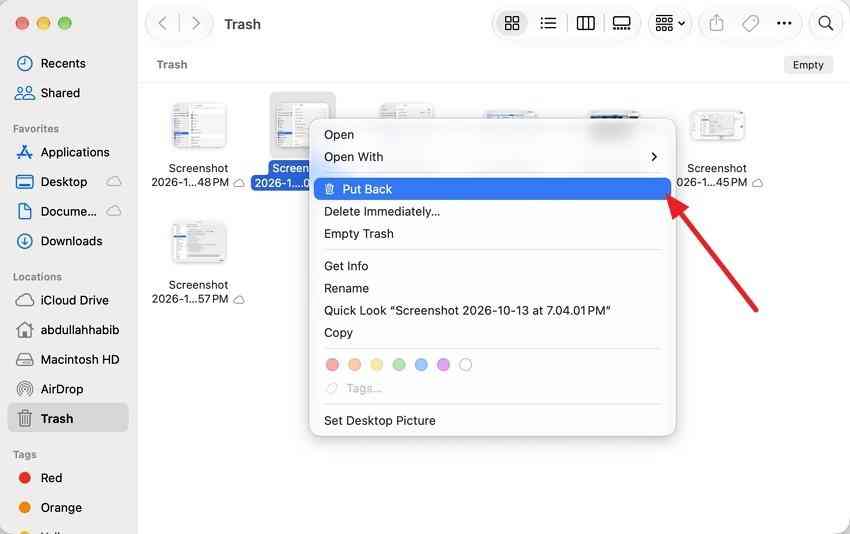
Mac: Check Pictures, Downloads, exported Photos libraries, and Finder Trash. For an eligible local file in Trash, right-click and choose Put Back.
SD and microSD cards: Inspect the DCIM and camera folders using a card reader. If the files are missing, stop taking photos or writing new files to the card. A separate deleted photos from memory card guide covers the card-specific recovery workflow.
2. Look in Independent Cloud Backups and Previously Shared Copies
Search separately stored copies in Google Drive, OneDrive, Dropbox, Gmail attachments, exported messaging chats, and files another person downloaded. Google Photos deletion does not automatically remove independently stored Google Drive or Gmail files, as Google's current deletion documentation explains.
- Shared photos: Ask recipients if they downloaded or saved the photo rather than relying on a now-broken sharing link. Google's photo-sharing guidance covers saved recipient copies.
- Partner Sharing: A partner may still have an item if it was saved into their library before deletion. Google's Partner Sharing guide explains how saved photos can remain available after the original owner deletes them.
- Other cloud storage: Check independent accounts and their recycle bins. Do not expect a shared link to preserve a photo after its owner deletes the underlying item.
3. Search Older Downloads and Existing Google Takeout Archives
Look on computers, external drives, and existing cloud storage for downloaded album folders, ZIP exports, or files beginning with takeout-. Open existing archives and inspect the Google Photos folders for images and videos saved before the deletion.
Google's Google Takeout documentation describes exporting account content, but Takeout is not a recycle bin. If the cloud files have already been permanently deleted, a new export does not recreate them. Avoid paying third parties that advertise Google Takeout as a way to reverse permanent deletion.
Part 4. Recover Deleted Local Photo Copies With Recoverit
When a photo was previously stored on a Windows PC, Mac, external drive, USB device, or removable camera card, local recovery software may find data that remains on that specific storage device. This is different from recovering an already-purged Google Photos cloud object.
1. Locate the Readable Drive or Card That Stored the Originals
Identify the original source before scanning: a DSLR SD card, a computer's Downloads folder, an exported photo directory, or a USB drive used for backups. The source must appear in the operating system or recovery software's device list. Modern phones often use encrypted internal storage that ordinary desktop scanning tools cannot treat as a removable disk.
Recoverit can help with supported logical deletions on detectable local drives and removable cards, but success depends on whether data remains intact. SSD TRIM, overwriting, encryption, or hardware failure can make the missing photo unrecoverable. If a card disconnects repeatedly or the drive makes unusual noises, stop scanning and consider specialist help.
2. Stop Avoidable Writes and Scan the Correct Source
Do not install recovery software onto the drive that lost the files if you can avoid it. Stop writing new photos to the SD card, pause unnecessary downloads to the affected disk, and keep any recoverable source stable. The workflow below is for a detected local storage device, not Google Photos servers.

Step 1. Select the original storage. Connect the SD card or external drive to the computer. Launch Recoverit and choose the appropriate device under Hard Drives and Locations or SD Card Recovery, depending on the build and media.

Step 2. Scan and narrow the results. Start scanning the selected source. Filter by picture or video file type, search for available filenames, and examine likely results. Advanced search options vary by version.
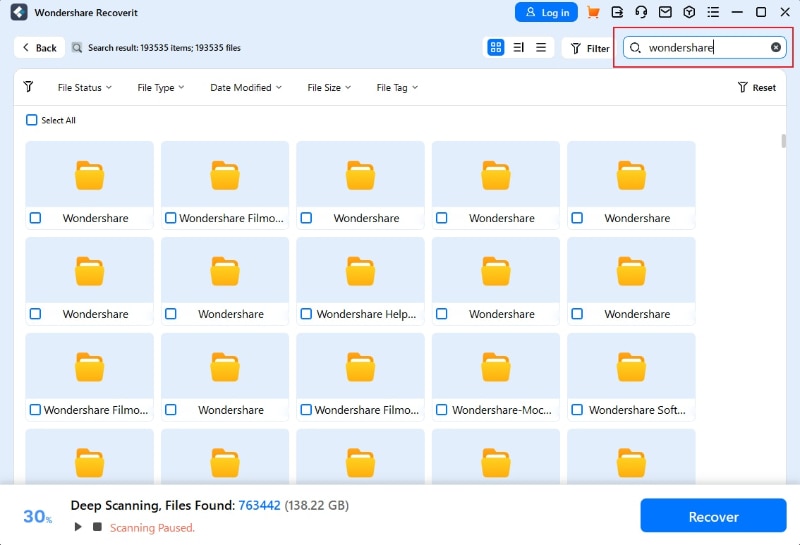
3. Preview Recoverable Photos and Save Them to Separate Storage
Step 3. Preview and recover. Open supported image previews and verify that the content matches the missing photo. Choose the items you need, select Recover, and save them to a different healthy disk or storage location - never back onto the source card or drive.

Important: A thumbnail does not prove the whole file is intact. Open exported photos at full size and play recovered videos from beginning to end. Recoverit cannot restore data erased from Google's servers, reconstruct overwritten bytes, or guarantee recovery from encrypted or physically unreadable devices.
Part 5. Protect the Photos That Remain
After finding a surviving copy, protect it before doing any further cloud cleanup. Accidental deletion often spreads through a synced library; an independent backup is the best protection against repeating the same loss.
1. Verify Recovered Copies Before Deleting Anything Else
Step 1. Open each recovered photo at full resolution and inspect important details rather than trusting a thumbnail.
Step 2. Play recovered videos through the end and check that audio and image remain synchronized.
Step 3. Copy the verified files to a second independent storage location before editing, deleting, or reusing the original source.
2. Keep an Independent Archive Outside the Synced Library
- Disconnected external disk: Keep an archive of original photos and videos on a drive that is disconnected after the backup completes.
- Independent cloud copy: Use a second service or account with a distinct retention policy; verify that a Google Photos deletion does not propagate to it.
- Periodic exports: Download and store exports while the files still exist, then check that the archive can be opened.
Before enabling Google Photos backup again, review which devices sync to the account. A deletion in the app can propagate to synced devices, so changing backup settings should be deliberate and tested on nonessential photos first.
3. Understand Why a New Takeout Export Cannot Retrieve Deleted Items
Google Takeout exports information currently associated with your account. It is useful for preparing a backup before something goes wrong; it is not a tool that scans Google's deleted cloud data. After permanent deletion, a brand-new archive cannot resurrect files that are no longer retained.
Keep older downloaded Takeout archives and other original copies labeled with their creation dates. They can be the only surviving versions of photographs that no longer exist in the current online library.
Conclusion
To recover permanently deleted photos from Google Photos, first check whether the items are truly gone. Trash, another account, Archive, Locked Folder, and Photo Stacks can reveal files that are still available. After confirmed permanent cloud deletion, search device galleries, independent backups, shared copies, and older downloads. Recoverit may help recover eligible photos or videos previously deleted from a readable local drive or memory card, but it cannot restore purged Google Photos cloud data. Preserve every verified copy in an independent backup.
FAQ
-
Can Google Support recover permanently deleted Google Photos?
Google's public help says permanently deleted cloud items cannot be restored through the normal Google Photos process. Reports of a limited request for recently purged backed-up media exist in Google Photos Help Community discussions, but availability and success are not confirmed. Do not assume Google Support offers a general or guaranteed 21-day recovery service. -
How can I recover permanently deleted photos from Google Photos after 30 days?
The current public Trash retention period is 30 days. If the photo has already been permanently deleted, look for separate files in your phone gallery, another Google account, an external backup, a recipient's saved copy, or an older Takeout download. A local recovery scan only helps if recoverable source data once existed on a readable drive or memory card. -
Can I recover permanently deleted videos from Google Photos?
Google Photos applies the same Trash and permanent-deletion limits to videos. Check the Trash and surviving copies first. Recoverit may scan a detectable SD card or computer drive that previously held the video, but it cannot retrieve a video solely from purged cloud storage or rebuild overwritten data. -
Is it possible to recover permanently deleted Google Photos without a backup?
Sometimes, but only if another recoverable file remains outside the deleted cloud library, such as deleted data on a readable memory card or computer drive. If the item existed only in Google Photos and was permanently deleted, ordinary local recovery software cannot bring it back.


