
 TL;DR:
To successfully recover deleted photos from a Fujifilm instax Pal 2, you must first identify the original storage location, as removable microSD cards can be scanned via a computer card reader, whereas the camera's internal memory cannot be accessed or recovered by desktop software.
● Internal memory photos lost without a prior app transfer cannot be retrieved using standard PC undelete tools, and performing an app-based firmware update will permanently erase any images still stored on this internal flash.
● Check the instax Pal smartphone app for existing copies before attempting storage recovery, but note that Bluetooth transfers only save a 1280 × 960 pixel version, while a direct USB-C connection is required to preserve the full 3776 × 2832 pixel 10MP original.
● If the missing JPEG was saved to a microSD, microSDHC, or microSDXC card, immediately power off the camera, remove the card, and use a reliable card reader to scan the storage independently before any new camera shots overwrite the data blocks.
Ask AI for a summary
 ChatGPT
 Perplexity
 Gemini
 Claude
 Grok
Grok
Fujifilm's instax Pal 2 reached its Singapore release date on September 29, 2026, after being announced earlier in the month. Unlike a camera that stores everything in one place, Pal 2 can involve several copies of the same photo: one in the camera's internal memory, one on a removable microSD card, another inside the instax Pal smartphone app, and possibly another in the phone's camera roll or cloud library. That makes recovery less about finding one universal undelete button and more about identifying which copy is actually missing. Fujifilm confirmed the September 29 availability in its Singapore Pal 2 launch announcement.
The distinction matters because the recovery options are not interchangeable. A deleted JPEG on a removable microSD card can sometimes be scanned at the storage level if the card is still detected by a computer. Pal 2 internal memory is different: Fujifilm documents access through the camera and instax Pal app, not as a normal computer-mounted disk. If a photo was already transferred to the app or exported to the phone, the safest path is usually to preserve or restore that existing copy before attempting anything on the camera or card.
In This Article
Part 1. Know Where instax Pal 2 Stores Your Photos
Start with storage location, not recovery software. Fujifilm lists internal memory plus microSD, microSDHC, and microSDXC cards up to 2 TB as Pal 2 storage media. In 10MP mode, the internal memory holds approximately 100 images, while a memory card stores about 400 10MP images per 1 GB. Pal 2 records still photos as JPEG files. These limits and formats are listed on Fujifilm's current instax Pal 2 specification page.
| Where the Photo Was Stored | What "Deleted" May Mean | Best First Action |
| Pal 2 internal memory | The camera no longer shows the original, or an operation removed it before it was transferred | Stop shooting. Check whether a copy already reached the instax Pal app. Do not assume a desktop recovery program can directly scan the internal memory. |
| microSD / microSDHC / microSDXC | The JPEG was deleted, the card was formatted, or the file system became inaccessible | Power off the camera, remove the card, stop writing to it, and use a card reader to determine whether the computer still detects it. |
| instax Pal app | The camera copy may have been transferred, while the app copy is missing or the user changed phones | Check whether an existing Pal app backup or another exported copy is available before touching the original storage. |
| Phone camera roll or cloud library | The photo was exported from the app and later deleted from the phone | Use the phone or cloud service's native deleted-photo recovery first. |
Internal Memory
Pal 2's internal memory is part of the camera, but Fujifilm does not document it as a removable disk that appears in Windows File Explorer or macOS Finder for sector-level scanning. The supported workflow is to view and transfer images through the camera and instax Pal app. That limitation changes what is realistic after deletion: if the original existed only in internal memory and no other copy was created, you should preserve the camera state rather than repeatedly shooting, resetting, updating firmware, or experimenting with unsupported computer scans.
microSD, microSDHC, and microSDXC
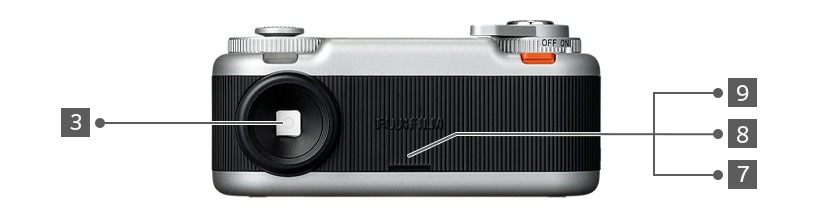
The removable card is the storage path with the clearest software-recovery route. Fujifilm recommends microSD, microSDHC, or microSDXC media and recommends UHS Speed Class 1 or higher. Because the card can be removed and connected directly to a computer, it can be assessed independently of the camera. The rear of the Pal 2 places the microSD slot behind a dedicated cover.
instax Pal App and Smartphone Copies
Photos transferred from Pal 2 are stored in the instax Pal app's gallery. From there, they can be edited, shared, or saved onward to a smartphone. If you already exported an image, you may have a usable copy even if the camera original is gone. This is why the first recovery check should always be "Do I still have any copy?" rather than "Can I undelete the camera immediately?"
Part 2. Before Recovery, Identify Which Copy Is Missing
The 10MP vs 1MP Transfer Difference
This is the Pal 2 detail most likely to cause confusion. Fujifilm specifies different transfer data sizes depending on the connection: USB transfer uses 3776 × 2832 pixels, while Bluetooth transfer uses 1280 × 960 pixels. In other words, you can still see a photo in the app and yet no longer have the original 10MP version that was on the camera or microSD card.
Before doing anything destructive, compare what you still have:
- A full-resolution USB-transferred copy exists: Preserve it in at least two locations before attempting any other recovery.
- Only a 1MP Bluetooth-transferred copy exists: Keep it. It is still a valid photo copy, but it is not equivalent to the 10MP original.
- The app shows no copy, but the camera still previews the image: Transfer it immediately before shooting more photos or changing storage.
- The camera and app both lack the photo, but it was on microSD: Stop using the card and move to card-level recovery.
What Not to Do After Photos Disappear
When a photo goes missing, protect the source before troubleshooting. New camera shots, app operations that modify media, formatting, and firmware changes can all make recovery harder or remove the last remaining copy.
- Do not keep shooting to the affected microSD card.
- Do not initialize or format the card just because Pal 2 reports a storage problem.
- Do not run CHKDSK, Disk Utility First Aid, or other write-capable repair tools before recovering important files.
- Do not perform a firmware update while untransferred internal-memory photos are still important. Fujifilm warns that an app-based firmware update deletes images stored in Pal 2 internal memory.
- Do not assume a lower-resolution app copy means the original 10MP JPEG still exists somewhere else.
Part 3. Recover a Copy That Still Exists
Before undeleting anything, try to rescue a copy that is still accessible. Fujifilm's current Pal 2 support instructions cover direct USB-C and Bluetooth transfer, app data backup, and a setting that can keep camera data after transfer. The same official Pal 2 FAQ also warns users to transfer internal-memory or card images before certain storage swaps and firmware operations.
Transfer Photos That Are Still on the Pal 2
If the missing photo still appears in Pal 2 playback, treat it as recoverable without recovery software.
Step 1. Pair the Pal 2 with the instax Pal app over Bluetooth.
Step 2. For the full-resolution transfer path documented by Fujifilm, connect Pal 2 directly to the smartphone through the camera's USB Type-C connector.

Step 3. When the app displays the USB transfer prompt, start the transfer and wait until the required images appear in the app gallery.
Step 4. Export important images to the smartphone camera roll or another independent location. Do not treat the camera and app as your only two copies if the photos matter.
Check the App Backup or Smartphone Copy
If you changed phones, Fujifilm provides a Pal app Data backup and Restore data workflow. A backup creates a QR code that must be scanned on the destination phone within 48 hours. This is useful only when a suitable backup was created before the data became unavailable; it is not a general undelete service for photos that were never backed up.
If you previously downloaded or shared the photo from the Pal app, check the resulting smartphone copy before doing anything to the camera. The Pal 2 app provides a download/share interface for images already present in its gallery.

For photos that were already saved to an iPhone Photos library, Apple's current guidance allows recovery from Recently Deleted for up to 30 days; see Apple's deleted-photo recovery instructions. If the exported copy was backed up in Google Photos, check its Trash before trying lower-level recovery; Google's current restore recently deleted photos guide explains the service's current recovery rules.
Part 4. Recover Deleted Photos from a Pal 2 microSD Card
When Card-Level Recovery Makes Sense
Move to file recovery only after you have confirmed that the missing original was stored on the removable microSD card and no intact copy is available elsewhere. The card should still be detected by the operating system with a stable capacity, even if its files are missing or the file system is damaged.
This is the strongest software-recovery case for Pal 2 because the card is removable and the camera records still images as JPEG. Deleted or quick-formatted files may remain recoverable until their storage blocks are overwritten, but no software can guarantee recovery. Stop using the card as soon as loss is noticed. For the underlying card-recovery logic and limitations, see the Recoverit guide to microSD data recovery.
Recover Deleted Pal 2 JPEGs from the microSD Card
If the Pal 2 microSD card is readable by a computer and the loss is logical rather than physical, this is the point where Recoverit is relevant. It should be used on the removable card, not presented as a way to scan Pal 2 internal memory through the camera.
Step 1. Remove and connect the microSD card
Power off Pal 2, remove the card, and connect it to the computer through a stable card reader. Open Recoverit 15 and choose SD Card Recovery. Confirm the detected card by capacity before scanning.

Step 2. Scan the card without writing to it
Select the Pal 2 card and start the scan. Because Pal 2 still photos are JPEG, prioritize photo results and JPEG/JPG filters. If the original folder structure survives, also inspect camera folders such as DCIM rather than relying only on file names.

Step 3. Preview the photos you actually need
Preview found JPEGs before saving them. A preview confirms that the candidate file is readable, but it does not guarantee that every byte or metadata field is intact. If you are specifically trying to recover the missing 10MP original, compare dimensions with the 3776 × 2832 Pal 2 high-resolution specification rather than assuming any thumbnail or 1MP copy is the original.
For a broader file-type explanation, the Recoverit article on recovering deleted JPEG photos covers how overwrite affects deleted JPG/JPEG recovery.
Step 4. Save recovered files somewhere else
Recover selected photos to the computer, an external drive, or another healthy storage device. Never save them back to the same Pal 2 microSD card during recovery because that can overwrite data you have not yet restored.

The current Recoverit SD Card Recovery guide documents the same connect, scan, preview, and recover sequence.
When to Stop DIY Recovery
Do not keep scanning a card that repeatedly disconnects, becomes unusually hot, has cracked contacts, shows signs of liquid damage, or is not detected by any reliable reader. Software recovery normally requires stable detection. If the card contains irreplaceable photos and hardware symptoms are present, a professional data-recovery lab is safer than repeated power cycles, formatting attempts, or adapter swaps.

Part 5. What If the Photo Was Deleted from Pal 2 Internal Memory?
This is the branch where it is most important not to overpromise. Fujifilm documents Pal 2's USB Type-C connection as a smartphone/app transfer interface, and the company's support workflow for stored photos is built around camera playback plus the instax Pal app. Fujifilm does not document a PC mass-storage mode that exposes the internal flash as a normal disk for block-level scanning.
If an internal-memory photo disappears, work through these checks in order:
- Check Pal 2 playback: If the image is still visible, transfer it immediately rather than attempting recovery.
- Check the instax Pal app gallery: If the image was already transferred, preserve the app copy and export it to another location.
- Check any existing Pal app migration backup: Use it only if you created the backup before the loss and still have the valid restore QR code.
- Check the smartphone camera roll and cloud library: A previously downloaded or shared copy may exist even if the Pal 2 original does not.
- If no copy exists: Stop shooting and avoid reset, initialization, or firmware updates. Contact Fujifilm support rather than assuming that connecting the camera to a desktop recovery tool will expose the internal flash.
Important limitation: If the only surviving version is a 1280 × 960 Bluetooth-transferred copy, preserving that copy is still better than risking further loss. A missing 3776 × 2832 internal-memory original cannot be recreated simply by enlarging the 1MP copy, and there is no honest way to guarantee recovery from internal flash that is not exposed for storage-level access.
Part 6. Photos Lost During Transfer: Which Copy Should You Recover?
A failed or interrupted transfer does not automatically mean the original photo was erased. First establish what happened on both ends.
| What You See | Most Likely Safe Next Step |
| Photo still appears in Pal 2 playback but not in the app | Reconnect the app and transfer again. Prefer USB if you need the full-resolution 10MP transfer. |
| Photo appears in the app and camera | Export the app copy, verify it, and keep the camera copy until you have another backup. |
| Photo appears only in the app | Preserve and export the app copy. Check its pixel dimensions before assuming it is the 10MP original. |
| Photo is missing from the app and was stored on microSD | Stop writing to the card and assess it with a card reader. If it is detected stably, card-level recovery may be appropriate. |
| Photo is missing from internal memory and there is no app, phone, or backup copy | Stop using the camera and seek Fujifilm guidance. Do not format or update firmware in an attempt to make the photo reappear. |
Also check the Pal 2 setting named Automatically Delete Data from Camera After Transfer. Fujifilm lets you choose Keep After Transfer so photos remain on the camera or inserted microSD card after transfer. Enabling that setting creates a useful second copy, but it does not replace an independent backup.
Part 7. Prevent Future Pal 2 Photo Loss
Pal 2's multi-location workflow is convenient, but it also makes it easy to assume a photo is safely duplicated when it is not. A simple routine prevents most of the confusing recovery cases.
- Keep after transfer: Enable the Pal 2 option that retains camera/card data after transfer until you have verified another copy.
- Use USB for important 10MP originals: Fujifilm specifies full 3776 × 2832 transfer data over USB, while Bluetooth transfer is 1280 × 960.
- Export important app photos: Do not leave your only usable copy inside the Pal app. Save important images to the smartphone library, computer, or another backup destination.
- Back up before changing phones: If you use the Pal app's migration backup, complete the restore while the QR code is still valid.
- Transfer before firmware updates: Fujifilm warns that app-based firmware updates delete images stored in Pal 2 internal memory, so move important photos first.
- Protect microSD cards before repair or format: If a card becomes unreadable, recover or copy important files before formatting, initialization, or file-system repair.
Conclusion
Recovering a deleted instax Pal 2 photo starts by separating three very different storage situations. If the photo still exists on the camera or in the instax Pal app, preserve that copy first. If it was exported to the smartphone, use the phone or cloud library's native recovery path. If the missing original was on a removable microSD card, stop using the card and consider storage-level recovery only while it remains stably detectable. Internal-memory loss is the strictest case because Fujifilm does not document that storage as a normal computer-mounted disk.
The most important Pal 2-specific detail is resolution: a Bluetooth app copy can be 1280 × 960 even when the original was shot at 3776 × 2832. Verify which version you still have before deleting, formatting, updating firmware, or reusing the card. Preserving one known-good copy is always safer than turning a recoverable loss into an overwritten one.
FAQ
-
Can I recover deleted photos directly from instax Pal 2 internal memory with a PC?
Fujifilm documents Pal 2 photo access through camera playback and the instax Pal smartphone app, not as a normal PC-mounted storage volume. If an internal-memory photo is gone and no transferred or backed-up copy exists, stop using the camera and contact Fujifilm support rather than assuming a desktop scanner can access the internal flash. -
Can deleted photos be recovered from an instax Pal 2 microSD card?
Potentially, yes, when the loss is logical and the card is still detected stably by a computer. Stop using the card immediately, avoid formatting or repair writes, connect it through a reliable reader, and recover files to a different device. Recovery is not guaranteed after overwrite. -
Why is my transferred Pal 2 photo only 1280 × 960?
Fujifilm specifies Bluetooth transfer data at 1280 × 960 pixels, while USB transfer data is 3776 × 2832 pixels. A Bluetooth-transferred app copy can therefore be lower resolution than the original 10MP photo. -
Does transferring a Pal 2 photo guarantee the camera keeps the original?
No. Pal 2 includes an Automatically Delete Data from Camera After Transfer setting. If you want the camera or microSD card to retain a second copy after transfer, choose Keep After Transfer and still maintain an independent backup elsewhere. -
Can a firmware update delete Pal 2 photos?
Yes. Fujifilm warns that an app-based Pal 2 firmware update deletes images stored in internal memory. Transfer or copy important images before updating firmware.


