 TL;DR:
You can often recover deleted or quick-formatted photos from a camera SD card by immediately stopping all use of the card to prevent overwriting, and scanning it on a computer with dedicated data recovery software.
● When using tools like Recoverit Photo Recovery, Windows File Recovery, or PhotoRec, always save the retrieved files to a completely different drive, as writing data back to the original card will permanently destroy the missing photos.
● Do not accept camera prompts to format the storage or run file-system repair utilities like CHKDSK prior to scanning, because these actions rebuild data structures and significantly lower your recovery chances.
● Standard consumer software generally cannot recover deleted photos from a camera's internal memory because MTP or PTP connection modes block access to raw storage sectors, making professional lab recovery necessary if backups do not exist.
Ask AI for a summary
 ChatGPT
 Perplexity
 Gemini
 Claude
 Grok
Grok
If you need to know how to recover deleted photos from camera storage, stop using the camera or SD card first. Deleted photos are often not erased immediately. The camera usually removes the file reference and marks that space as reusable, so every new photo, video, format, or repair action can overwrite what you want to recover.
This guide explains how to recover deleted camera photos from a digital camera, camera SD card, formatted memory card, corrupted card, imported computer folder, backup, or camera internal memory. It also shows when Recoverit Photo Recovery, Windows File Recovery, PhotoRec, or a professional lab is the safer choice.
In this article
-
- Method 1. Check Recycle Bin, Trash, and Imported Photo Folders
- Method 2. Restore Camera Photos from Cloud or Local Backups
- Method 3. Recover Deleted Camera or SD Card Photos Using Recoverit
- Method 4. Recover Camera SD Card Photos with Windows File Recovery
- Method 5. Recover Deleted Camera Photos with PhotoRec or QPhotoRec
- Method 6. Contact a Professional Recovery Service
Part 1. Can Deleted Photos Be Recovered from a Camera?
Yes, deleted photos can often be recovered from a camera or camera SD card if the image data has not been overwritten and the storage is still readable. The most important rule is to stop using the card or camera as soon as you notice the deletion.
How Camera Photo Deletion Works
When you delete a picture in a camera, the camera usually removes the file entry from the file system. The actual JPEG, HEIF, or RAW image data may remain on the memory card until new files overwrite that same space. That is why you should remove the SD card and scan it from a computer instead of continuing to shoot.
When Deleted Camera Photos Can Be Recovered
- No new photos or videos were saved after deletion.
- The card was quick-formatted rather than fully overwritten.
- The SD card is detected by a camera, computer, or card reader.
- The lost files were stored on the camera SD card or portable memory card.
- The recovery tool supports your image formats, such as JPG, HEIF, CR2, CR3, NEF, ARW, ORF, RW2, RAF, or DNG.
When Camera Photo Recovery May Be Impossible
- New photos or videos have overwritten the deleted photo data.
- The card was securely erased or fully overwritten.
- The SD card is physically cracked, overheats, or is not detected by any device.
- The photos were stored in encrypted storage that cannot be accessed with the valid key or device.
- The recovered files are only fragments because the original data blocks were already damaged.
Does the Camera Brand or Model Affect Recovery?
The brand does not usually change the basic recovery process. Canon, Nikon, Sony, Fujifilm, Panasonic, Olympus/OM System, GoPro, DJI, and other cameras mainly differ in file formats and how they manage storage. The recovery tool must support the card file system and the camera's photo formats.
| Camera type | Common photo formats | Recovery note |
| Canon DSLR or mirrorless | JPG, CR2, CR3 | Choose a tool that supports Canon RAW formats. |
| Nikon DSLR or mirrorless | JPG, NEF, NRW | Recover from the card before importing or editing more files. |
| Sony mirrorless or compact camera | JPG, HEIF, ARW | Check both SD card files and Sony import folders on your computer. |
| GoPro, DJI, or action camera | JPG, DNG, MP4, MOV | Recover both photos and related video files if the card was formatted. |
Part 2. Identify Where the Deleted Camera Photos Were Lost
Before trying to recover deleted camera photos, identify where the photos were deleted. Recovery from a camera SD card is different from recovery after import to a computer, phone, or cloud app.
| Situation | What it means | Best first move |
| Photos deleted directly from the camera | The image records were removed from the camera card. | Turn off the camera, remove the card, and scan it from a computer. |
| Photos lost from a camera SD card | The card may be deleted, formatted, corrupted, or unreadable. | Do not format the card. Recover files first. |
| Photos deleted after transfer to a computer | The camera card may no longer be the primary source. | Check Recycle Bin, Trash, import folders, and backups. |
| Camera SD card was formatted | A quick format may leave recoverable image data behind. | Stop using the card and run deep scan or signature recovery. |
| SD card became RAW, corrupted, or unreadable | The file system is damaged, but photo data may still exist. | Recover before CHKDSK, repair, or formatting. |
| Camera or SD card has physical damage | The hardware may be failing. | A professional recovery lab is safer than repeated software scans. |
Part 3. What to Do Before Recovering Camera Photos
Your first actions can decide whether the missing photos remain recoverable. Follow these checks before running recovery software or accepting any camera format prompt.
| Step | What to do | Why it matters |
| Stop taking new photos immediately | Turn off the camera or switch to another card. | New photos may overwrite deleted image data. |
| Remove the SD card safely | Power down the camera before removing the card. | Removing a card during writing can cause more corruption. |
| Do not format the card | Cancel camera or Windows format prompts. | Formatting can reduce recovery chances. |
| Do not run repair tools first | Wait before using CHKDSK, camera repair, or file-system repair. | Repair tools may rewrite file-system structures before recovery. |
| Use a reliable card reader | Connect the SD card to a computer through a stable reader. | Bad adapters can interrupt scans and cause incomplete results. |
| Save recovered files elsewhere | Use your computer drive or another external drive. | Saving to the same card may overwrite more photos. |
Microsoft gives similar overwrite guidance for deleted files: the space can be marked free while the data may still exist, but further use can overwrite it. That same principle applies to camera SD cards.
Part 4. How to Recover Deleted Photos from a Camera
Start with backups and imported folders, then move to dedicated recovery tools. This sequence protects the card and avoids unnecessary scans when another copy already exists.
Method 1. Check Recycle Bin, Trash, and Imported Photo Folders
This method helps only if the photos were deleted after being imported to a computer. Photos deleted directly in the camera do not go through Windows Recycle Bin or Mac Trash.
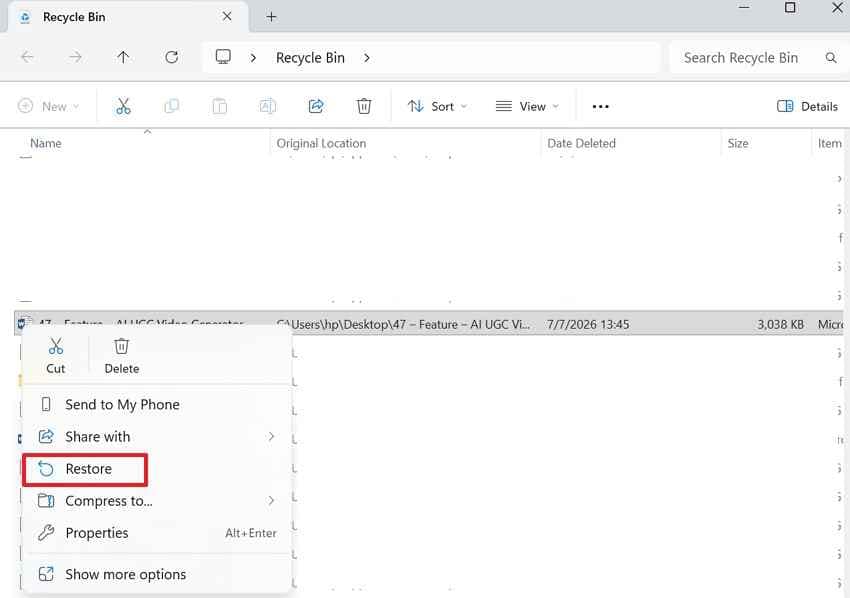
For Windows Recycle Bin: Open Recycle Bin, select the deleted photo, right-click it, and choose Restore.
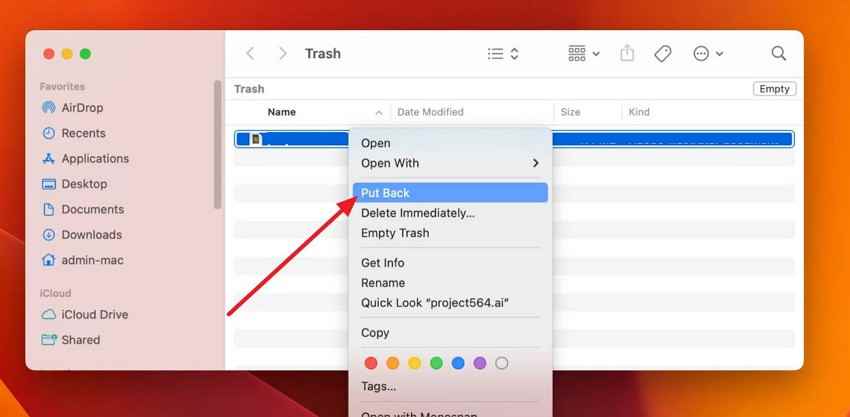
For Mac Trash: Open Trash, Control-click the photo, and choose Put Back.
Also check the folders used by Lightroom, Photos, Image Capture, Sony Imaging Edge, Canon EOS Utility, Nikon NX Studio, GoPro Quik, DJI apps, and other import tools. The missing camera photos may already be in the original import location.
Method 2. Restore Camera Photos from Cloud or Local Backups
Check backups before scanning the camera card. Many users already have copies in a computer folder, phone gallery, Google Photos, iCloud Photos, OneDrive, Dropbox, Adobe Lightroom, or a camera companion app.
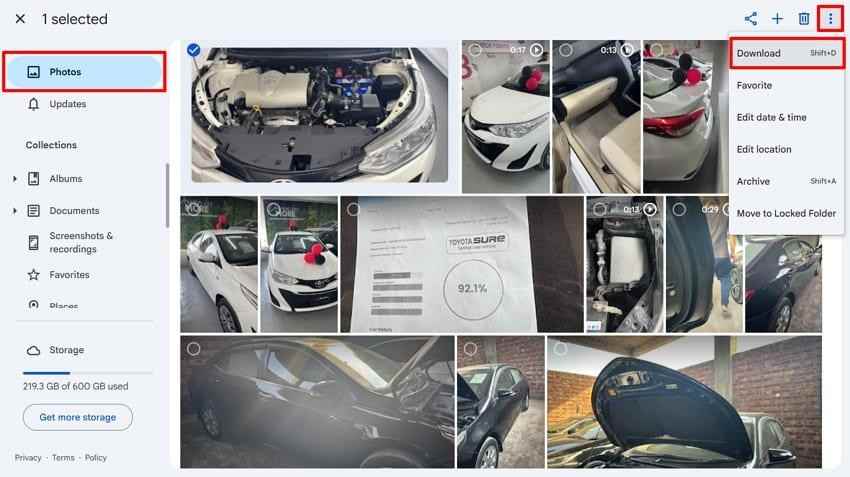
Example for Google Photos: Open Google Photos, select the photos, click the three-dot menu, and choose Download.
Method 3. Recover Deleted Camera or SD Card Photos Using Recoverit
If backups do not contain the missing photos, use Recoverit to scan the camera SD card. It can help recover deleted, formatted, RAW, or corrupted camera photos from readable storage and supports common photo formats such as JPG, HEIF, CR2, CR3, NEF, ARW, ORF, RW2, RAF, and DNG.
Recoverit cannot guarantee recovery, repair a physically failed card, or recover overwritten photos. It is best used before formatting, CHKDSK, camera repair actions, or reuse of the SD card.
- Deep scan for deleted or formatted cards: search beyond normal file records when quick scan is not enough.
- Preview before recovery: check recoverable photos before saving them.
- Read-only recovery workflow: scan the source card and save recovered files to another location.
- Camera format support: scan common camera photo formats from Canon, Nikon, Sony, Fujifilm, GoPro, DJI, and other devices.
To learn how to recover deleted photos from a camera SD card, connect the SD card through a reader and follow these steps.
Step 1. Choose your camera SD card and scan. Open Recoverit, select SD Card Recovery, choose the detected camera card, and click Start Scan.

Step 2. Let Recoverit scan the card. Allow the scan to finish. Filter results by Photos, file extension, name, size, or date to find the deleted camera photos faster.

Step 3. Preview and recover to another location. Select the photos, click Recover, and choose a different drive or folder. Do not save recovered photos back to the same SD card.

Method 4. Recover Camera SD Card Photos with Windows File Recovery
Windows File Recovery is Microsoft's command-line recovery app for local storage devices. It can be useful if you want a free Microsoft tool and are comfortable typing commands. Microsoft notes that source and destination drives must be different, and non-NTFS devices such as many SD cards need Extensive mode.
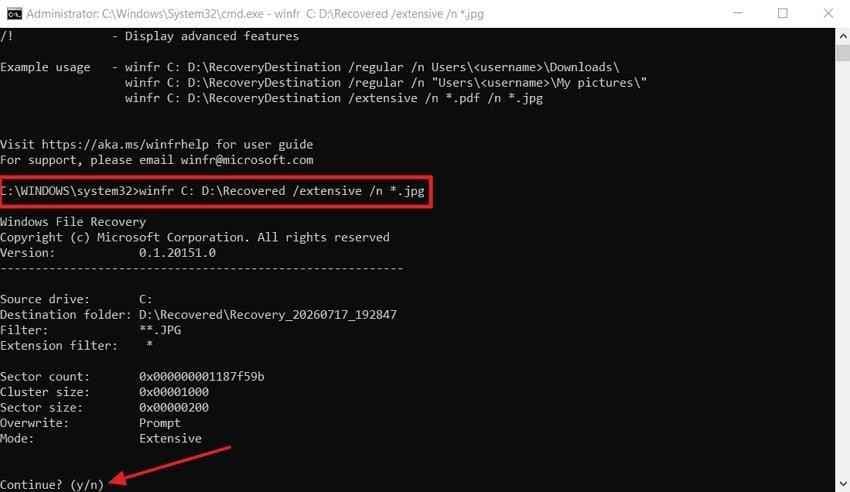
Install Windows File Recovery from the Microsoft Store. Then open it and run a command like this, replacing E: with your camera card letter and D: with a different destination drive:
winfr E: D: /extensive /n *.jpg /n *.jpeg /n *.png /n *.heic /n *.cr2 /n *.cr3 /n *.nef /n *.arwPress Y to start. When the scan ends, check the recovery folder created on the destination drive.
Method 5. Recover Deleted Camera Photos with PhotoRec or QPhotoRec
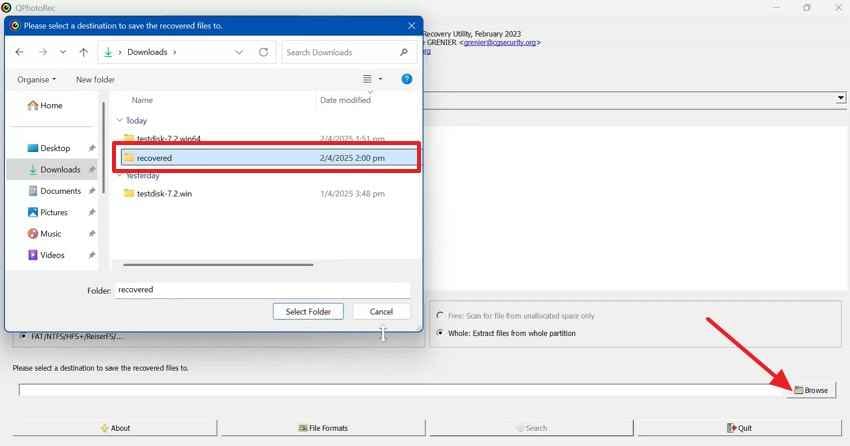
PhotoRec is a free, open-source recovery tool from CGSecurity. It ignores the file system and scans raw data for known file signatures, which makes it useful for formatted, RAW, or badly corrupted camera cards. The tradeoff is that original filenames and folders may not be preserved.
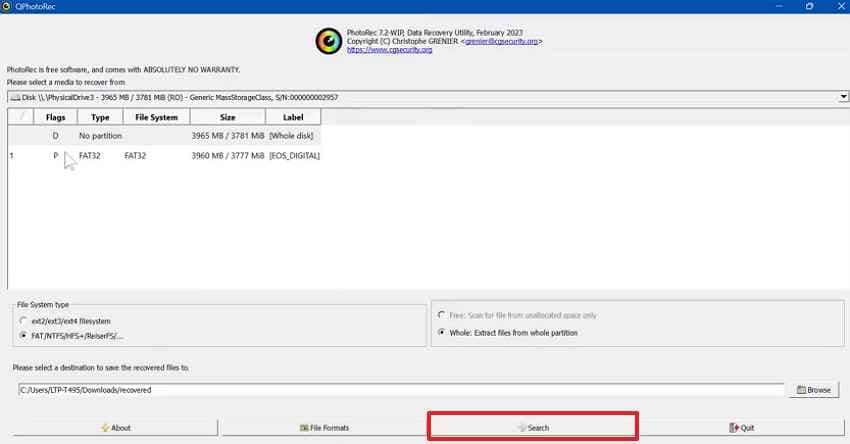
Step 1. Choose the SD card and destination. In QPhotoRec, select the camera SD card, partition type, and partition. Click Browse and choose a separate drive for recovered files.
Step 2. Start the search. Click Search to recover files by signature, then review the recovered output folder.
Method 6. Contact a Professional Recovery Service
Use a professional data recovery service if the SD card is cracked, bent, hot, not detected by any reader, or repeatedly disconnects during scans. Consumer recovery software needs readable storage. A lab is safer when hardware damage is suspected.
Part 5. How to Recover Photos from a Formatted Camera SD Card
Formatting is one of the most common reasons camera photos disappear. Recovery depends on what kind of format happened and whether the card was reused afterward.
Quick Format vs. Full Format
A quick format usually rebuilds file-system records and makes the card look empty, but the old photo data may still be present until overwritten. A full format or overwrite format writes through more of the card and may permanently remove the photo data.
Recovery Chances After Formatting
| Format or action | Recovery chance | What to do |
| Quick format in camera | Often recoverable if the card was not reused. | Stop using the card and scan it with Recoverit or PhotoRec. |
| Quick format in Windows or macOS | Often recoverable if no new data was written. | Recover files to another drive before repairing the card. |
| Full format or overwrite | Low recovery chance. | Try deep scan, but expect incomplete or no results. |
| Formatted and reused for new photos | Lower with each new file written. | Stop immediately and recover before taking more photos. |
Why New Photos Can Overwrite Deleted Files
After formatting, the camera treats the card as empty. Each new shot may be written over the old photo data. This is why one quick test photo after formatting can damage recovery chances, especially on smaller cards.
Best Recovery Method for a Formatted Camera SD Card
Use Recoverit first if you want preview, filters, and a guided photo recovery workflow. Use PhotoRec or QPhotoRec if you want a free signature-based option and can accept losing original filenames. If the card is unstable, create a disk image first where possible, then scan the image instead of repeatedly scanning the original card.
Part 6. What to Do with a Corrupted or Undetected Camera SD Card
How to retrieve deleted camera photos depends on whether the card is corrupted but readable, or physically undetected. Use this table to choose the safer next step.
| Symptom | Likely meaning | Safer action |
| Card appears but will not open | The file system may be damaged. | Recover files before CHKDSK or formatting. |
| Card shows as RAW | Windows cannot read the file system. | Use deep scan or signature recovery before repair. |
| Camera asks to format the card | The camera cannot mount the file system. | Cancel the prompt and scan the card on a computer. |
| Card is not detected by one reader | The reader or adapter may be faulty. | Try another reader, USB port, or computer. |
| Card is not detected anywhere | Hardware failure is possible. | Stop DIY attempts and consider a recovery lab. |
| Card is cracked, bent, or overheating | Physical damage is likely. | Do not keep scanning it with consumer software. |
Some Sony cameras also include image database repair options for display problems, but that is different from recovering deleted photo data. Use recovery first when files are missing.
Part 7. Can You Recover Photos from Camera Internal Memory?
Some compact digital cameras include internal storage, but recovery is more limited than SD card recovery. The result depends on how the camera exposes its storage to a computer.
When Camera Internal Memory Can Be Accessed
If the camera supports USB Mass Storage mode and appears as a drive letter on Windows or a mounted volume on macOS, recovery software may be able to scan it like a small storage device. Recover to another drive, not back to the camera.
Why Most Camera Internal Memory Cannot Be Scanned Directly
Many cameras use MTP or PTP connection modes. These modes let your computer browse and import visible photos, but they do not expose raw storage sectors. Normal recovery software usually cannot scan deleted internal-memory data through MTP or PTP.
When Professional Internal-Memory Recovery Is Required
If internal camera storage is not exposed as a drive and no backup exists, contact the camera maker or a data recovery lab. Professional work may involve direct access to internal memory chips, which consumer tools are not designed to handle.
Part 8. What If Recovered Camera Photos Will Not Open?
Some recovered photos may not open because they are incomplete, fragmented, mislabeled, or partially overwritten. Try these checks before deleting them.
- Check the file extension: make sure the recovered file extension matches your camera format, such as JPG, HEIF, CR2, CR3, NEF, ARW, RAF, ORF, RW2, or DNG.
- Try another viewer: camera RAW files may need updated software, manufacturer tools, Adobe apps, or a RAW-compatible viewer.
- Run a deeper scan: a quick scan may find partial records, while a deep scan may locate a more complete photo.
- Recover from a disk image: if the card is unstable, scan an image copy instead of repeatedly reading the card.
- Use photo repair after recovery: repair tools may help with corrupted headers or incomplete metadata, but they cannot recreate photo data that was overwritten.
Part 9. Tips to Prevent Camera Photo Loss
Recovery is useful after accidental deletion, but prevention is still safer. Use these habits to reduce future photo loss.
- Back up before formatting: copy photos to a computer and another backup location before reusing the card.
- Use genuine memory cards: counterfeit cards can fake capacity and corrupt files silently.
- Avoid removing the card during writes: wait for the camera write light to turn off.
- Safely eject the card from computers: avoid pulling the reader during transfer.
- Format the card in the camera after backup: this keeps the file system aligned with the camera's expectations.
- Rotate cards on important shoots: using more than one card reduces the impact of a single card failure.
- Keep multiple copies: store important photos on the card, a computer, and cloud or external backup.
Conclusion
Knowing how to recover deleted photos from camera storage starts with one rule: stop using the camera or SD card immediately. Deleted photos, quick-formatted photos, and many corrupted-card cases remain recoverable only until new data overwrites them.
Check Recycle Bin, Trash, import folders, and backups first. If no copy exists, scan the readable camera SD card with Recoverit Photo Recovery, Windows File Recovery, or PhotoRec, depending on your comfort level and the card condition. If the card is physically damaged or not detected anywhere, use a professional recovery service instead of repeated DIY scans.
FAQ
-
Can I recover deleted photos from a camera without a computer?
Sometimes, but a computer with a card reader and dedicated recovery software usually gives better results. If the photos were deleted from a camera SD card, remove the card and recover from a computer to reduce overwriting risk. -
How do I recover deleted photos from a camera SD card?
Stop using the card, connect it to a computer with a reliable card reader, scan it with photo recovery software, preview the found photos, and save recovered files to another drive instead of the same SD card. -
Will formatting my camera SD card delete photos permanently?
A quick format may still leave recoverable photo data behind until new files overwrite it. A full overwrite format or continued card use can make recovery much harder or impossible. -
Can I recover RAW photos like CR2, CR3, NEF, or ARW after deletion?
Yes, RAW photos can often be recovered if the storage has not been overwritten and the recovery tool supports your camera's RAW format. Use a deep scan if quick scan does not find the files. -
Why will my recovered camera photos not open?
The recovered files may be incomplete, partially overwritten, fragmented, or opened with software that does not support the camera format. Try a deeper scan, another RAW viewer, or photo repair after recovery.



