 TL;DR:
Press F12 repeatedly during startup to open the Acer Nitro 5 one-time boot menu, or press F2 to access the BIOS where you must first enable the F12 Boot Menu option under the Main tab if the key is unresponsive.
● Booting from a USB drive requires the media to contain a valid UEFI-compatible environment, such as one created by the Microsoft Media Creation Tool, which completely erases the flash drive during setup.
● The F12 menu displays bootable entries containing compatible startup files rather than raw hardware, meaning a healthy system drive will appear as Windows Boot Manager instead of its physical SSD model name.
● Permanently altering the saved BIOS Boot Priority or changing storage controller modes to troubleshoot a missing entry can make the operating system unbootable, so limit persistent firmware changes unless a specific recovery task requires them.
Ask AI for a summary
 ChatGPT
 Perplexity
 Gemini
 Claude
 Grok
Grok
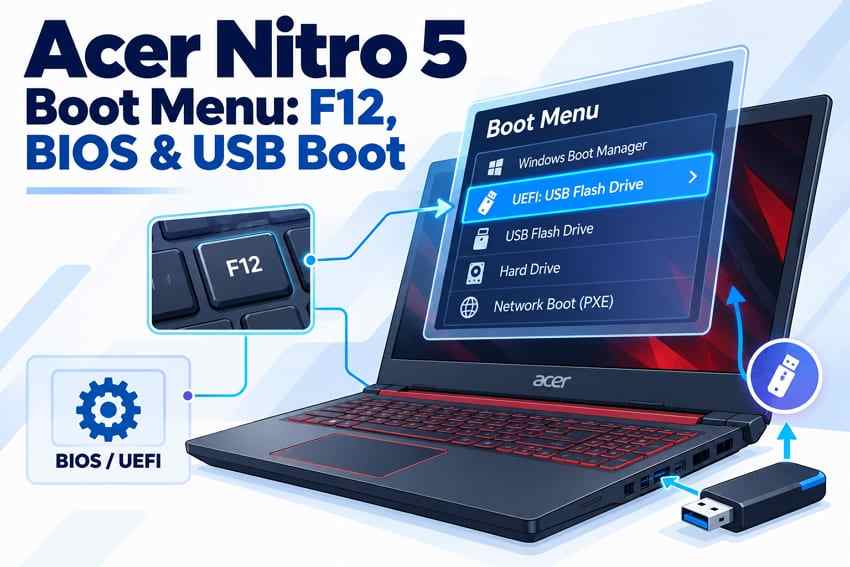
On most supported Acer Nitro 5 notebooks, F12 opens the one-time boot menu and F2 opens BIOS or UEFI Setup. The F12 menu may be disabled in firmware, so if F12 does nothing, enter BIOS with F2 and look for F12 Boot Menu under the Main tab. Use F12 when you want to start once from a USB or another bootable device; change BIOS Boot Priority only when you need a persistent startup order.
USB boot also depends on the media itself. A flash drive must contain a valid UEFI-compatible boot environment, and Windows Boot Manager may appear in the menu instead of the SSD model name. This guide keeps those cases separate, explains when Secure Boot matters, and places backup or file recovery before reinstalling Windows or changing partitions.
In this article
Part 1. Acer Nitro 5 Boot Menu and BIOS Keys
The Acer Nitro 5 uses different startup keys for one-time boot selection and firmware settings. Acer's current notebook guidance confirms that F12 can open the one-time boot menu when the feature is supported and enabled, while F2 is used to enter BIOS Setup. The exact screen layout can still vary by Nitro 5 generation and firmware version.
| Key | Primary Use | When to Use It |
| F12 | One-time Boot Menu | Choose Windows Boot Manager, a UEFI USB, or another bootable entry for the current startup. |
| F2 | BIOS or UEFI Setup | Enable F12 Boot Menu, review boot priority, Secure Boot, and other firmware settings. |
| F10 | Save and Exit | Save supported BIOS changes and restart. |
| F9 | Load Setup Defaults | Restore Acer firmware defaults when earlier BIOS changes are the likely cause of a boot problem. |
Why the Exact Nitro 5 Model and BIOS Version Matter
Nitro 5 systems span multiple AN515 and AN517 generations. Menu names, available storage-controller options, and BIOS releases are model-specific. Before downloading firmware or following a model-specific setting path, identify the exact model, Serial Number, or SNID and use Acer's Drivers and Manuals page. Acer's BIOS version guide also directs users to model-specific downloads rather than a generic Nitro 5 BIOS package.
Acer Predator Boot Menu Key: Verify the Exact Model
The related Acer Predator boot menu key depends on whether the device is a notebook or desktop and on its firmware. Acer's general boot-order guidance uses F2 for notebooks and Delete for desktops, while F12 is the one-time boot-menu key when the feature is enabled. That makes F12/F2 a common pattern on Predator notebooks, but do not apply Nitro 5 firmware instructions to every Predator model. Check the exact Predator manual if the expected key or menu item is absent.
Part 2. Open the Acer Nitro 5 Boot Menu
Start From a Full Shutdown and Tap F12
Use the F12 menu when you only need to start from another device once. It does not permanently rewrite the saved boot order.
Step 1. Shut down the Acer Nitro 5 completely. Connect the bootable USB first if you plan to use one.
Step 2. Power on the laptop and repeatedly tap F12 when the Acer logo appears.
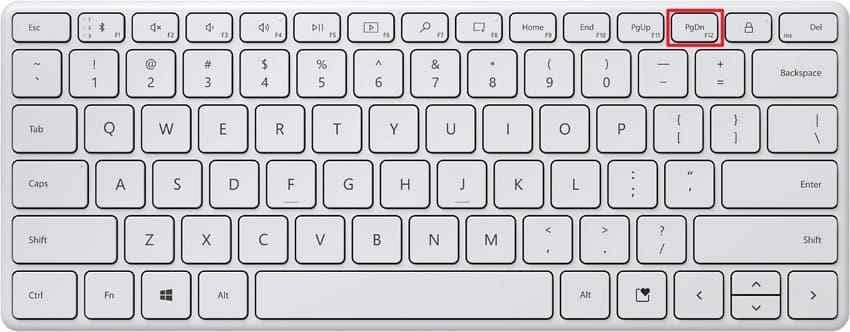
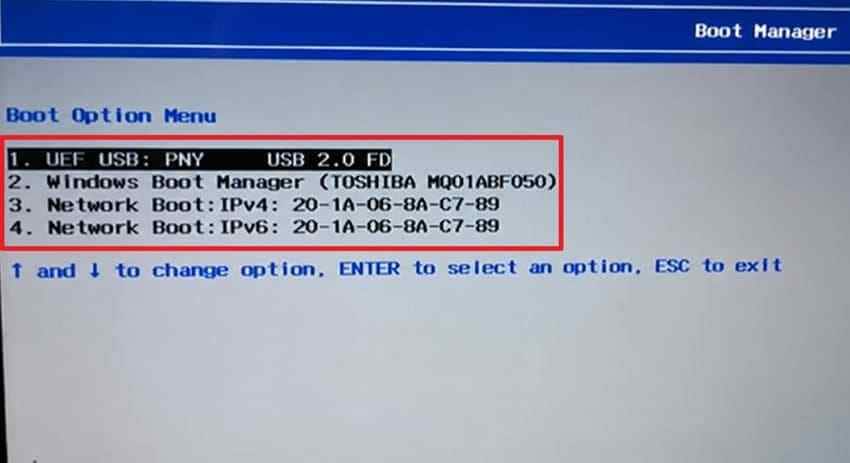
Step 3. Use the arrow keys to highlight the required boot entry, then press Enter. If the USB is UEFI-compatible, it may appear as a UEFI USB entry rather than only by the flash-drive brand name.
Use the One-Time Menu Without Changing Boot Priority
Acer distinguishes the F12 menu from the saved BIOS Boot Order. Its current boot-order guidance explains that the BIOS sequence applies to future starts, while F12 selects a device for one startup only.
| Setting | F12 Boot Menu | BIOS Boot Priority |
| Duration | Current startup only | Remains until changed again |
| Best Use | USB installer, recovery media, diagnostics, or a second bootable drive | A repeated alternate startup order |
| Effect on Saved Order | No permanent change | Changes the saved priority |
Part 3. Enable F12 Boot Menu in Nitro 5 BIOS
Enable F12 Boot Menu Under the Main Tab
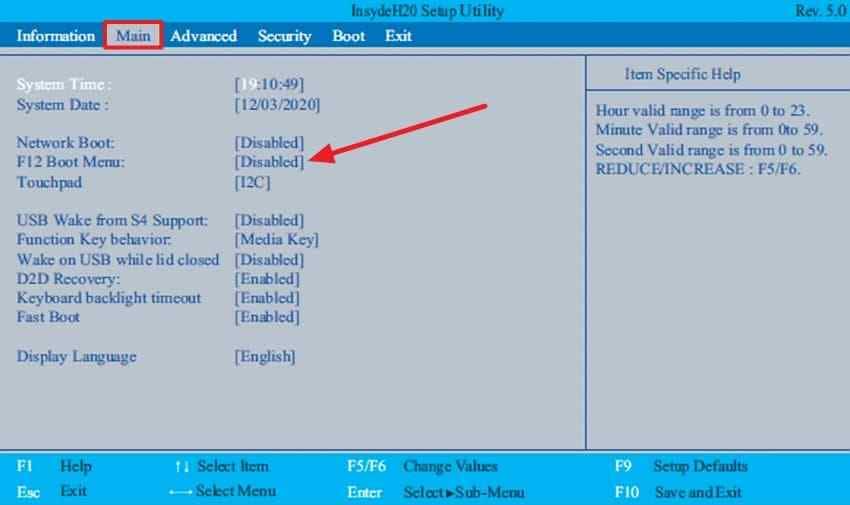
If F12 does nothing, the option may be disabled. Acer's current F12 Boot Menu guidance says some notebooks ship with the feature disabled and documents the F2 > Main > F12 Boot Menu path.
Instructions. Restart the Nitro 5 and tap F2 at the Acer logo. Open the Main tab, highlight F12 Boot Menu, press Enter, choose Enabled, then press F10 and confirm to save and restart.
Check the Exact Nitro 5 Manual if the Option Is Missing
Not every Acer notebook exposes an F12 Boot Menu switch. Acer explicitly notes that some notebook and netbook models do not provide the feature at all. If the option is absent, do not use undocumented key combinations or modified BIOS files. Check the exact Nitro 5 manual and firmware page first. When Windows still starts, Windows Advanced Startup may also expose UEFI Firmware Settings or Use a device on supported systems, but the available options depend on the Windows and firmware configuration.
Part 4. Understand the Devices Shown in the Nitro 5 Boot Menu
The Acer Nitro 5 boot menu does not list every physical drive simply because the BIOS detects it. Firmware shows bootable entries - devices or boot managers that contain compatible startup files.
| Boot Entry | What It Starts | Why It Appears |
| Windows Boot Manager | The installed Windows boot environment | A valid Windows UEFI boot entry exists on the EFI System Partition. |
| UEFI USB | Windows Setup, Windows Recovery, diagnostics, or another bootable environment | The connected USB contains compatible UEFI boot files. |
| Second SSD or Bootloader Entry | Another operating system or boot environment | The drive contains a compatible bootloader or registered firmware entry. |
| Network or PXE | A network-delivered startup image | PXE or network boot is enabled and configured. |
Why a Detected SSD May Not Be a Bootable Entry
A storage drive can be visible in BIOS or Windows but still be absent from the F12 list. A game or data SSD with no bootloader is not expected to appear as a Windows startup choice. On a normal UEFI Windows installation, look for Windows Boot Manager before assuming the internal SSD is missing.
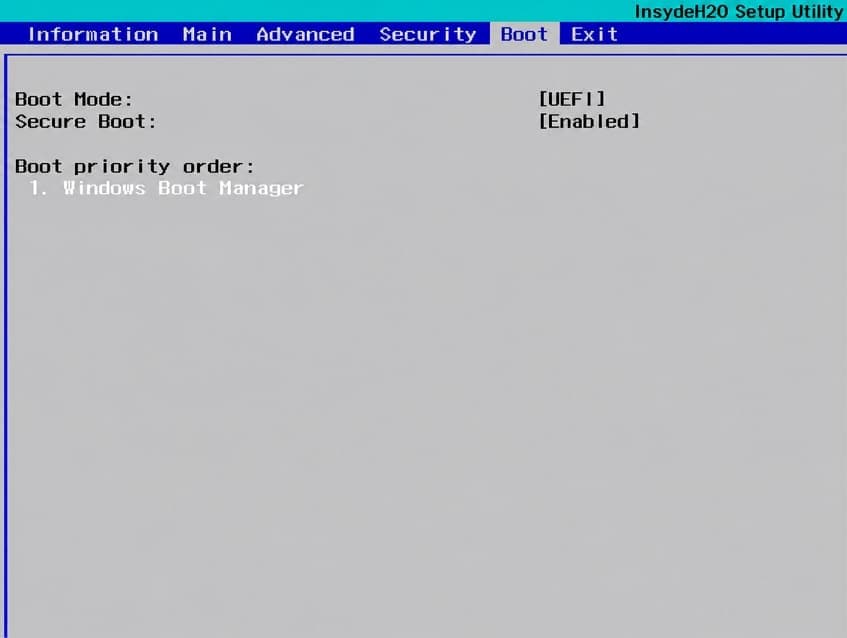
If Windows Boot Manager used to exist but has disappeared, treat that as a boot-repair problem rather than a normal F12-menu problem. Part 6 covers the safer recovery order.
Part 5. Boot an Acer Nitro 5 From USB Safely
Create UEFI-Compatible Installation or Recovery Media
A flash drive does not become bootable just because an ISO file is copied onto it. For Windows 11, use Microsoft's Media Creation Tool or follow Microsoft's current installation-media instructions. Microsoft currently requires a blank USB flash drive with at least 8 GB for Windows installation media, and the creation process erases the selected USB.
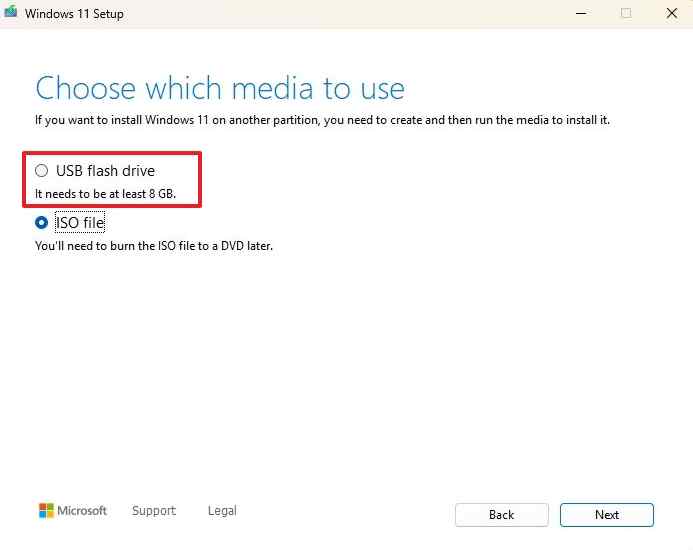
For Windows recovery media created with the built-in Recovery Drive tool, use an empty USB and let Windows report the required capacity for that PC. Microsoft's current Recovery Drive guidance also warns that creating the drive erases its existing contents.
Select the UEFI USB Entry and Verify the Target Drive
Connect the prepared USB while the Nitro 5 is off, start the laptop, tap F12, and select the UEFI USB entry. For a broader Acer USB-startup walkthrough, see Recoverit's Acer boot from USB guide.
Important: Booting from a USB by itself does not erase the internal SSD. The risk begins when you choose installation, reset, formatting, partition deletion, or another operation that writes to the internal drive. If Windows Setup shows multiple internal SSDs, verify the target by capacity and partition layout before deleting or formatting anything.
Restore Windows Boot Manager After the USB Task
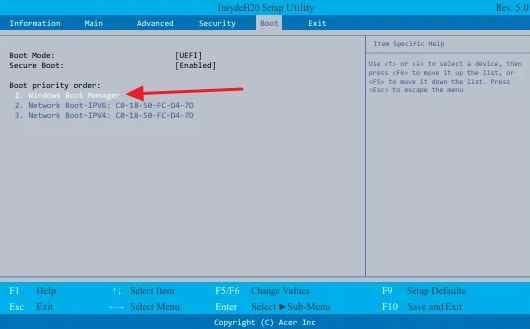
If you used F12 only, the saved boot order normally remains unchanged. If you changed the permanent Boot Priority in BIOS, restore Windows Boot Manager to the preferred position after finishing the USB task.
Instructions. Enter BIOS with F2, open the Boot section, highlight Windows Boot Manager, use the move controls shown by your BIOS to place it first, then press F10 to save.
Part 6. Fix a Missing USB, SSD, or F12 Boot Option
A missing entry does not always mean the drive has failed. Start with the device and boot-media layer, then move into Windows recovery or BIOS only when the symptom points there.
Check the USB and F12 Path Before Changing BIOS
- Try another USB port: Connect the flash drive directly to the laptop instead of through a hub or dock.
- Test known-good media: Confirm the USB boots on another compatible computer if possible.
- Recreate the media: If the USB was made by copying an ISO as a normal file, rebuild it with the official tool for that operating system or recovery environment.
- Confirm F12 is enabled: If F12 never opens a menu, recheck the Main tab in BIOS before changing unrelated settings.
Look for Windows Boot Manager Before Assuming the SSD Is Missing
On a UEFI Windows installation, the F12 menu can show Windows Boot Manager instead of the SSD's model name. If the physical SSD is visible in BIOS but Windows Boot Manager is missing and Windows no longer starts, use Windows Recovery Environment before experimenting with storage modes.
Microsoft's current Startup Repair is designed for boot-level problems such as damaged boot configuration data or startup files. Start there before command-line repair unless you already know the boot structure and have protected important data.
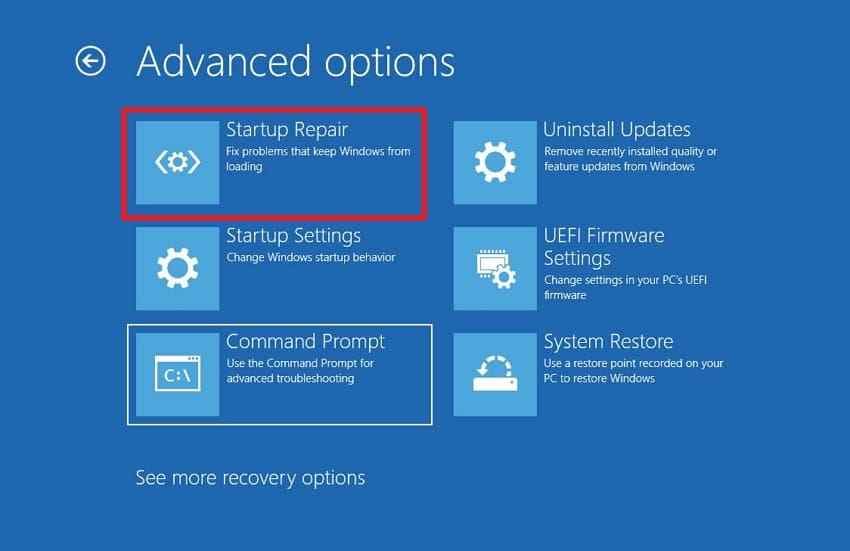
Advanced note: Microsoft's BCDBoot documentation confirms that BCDBoot can set up or repair the Windows boot environment. It is an advanced repair step: drive letters can differ in WinRE, so verify the Windows and EFI partitions before using commands.
Check UEFI and Secure Boot Without Disabling Security by Default
For a current Windows 11 installer, recreate the Microsoft media and confirm the UEFI USB entry before disabling Secure Boot. If a trusted third-party recovery or diagnostic environment specifically requires a Secure Boot change, use Acer's current Secure Boot guidance for notebooks and record the original setting first. Some Acer notebooks require a Supervisor Password before Secure Boot can be changed; store that password safely and remove it afterward if it was created only for this task.
BitLocker warning: Firmware and Secure Boot changes can trigger BitLocker recovery. Before changing those settings, make sure you can access the legitimate BitLocker recovery key. Recoverit does not bypass BitLocker or decrypt a locked drive without the valid key.
Load BIOS Defaults Only When Earlier Changes Broke Booting
If the boot problem started immediately after manual BIOS changes, loading setup defaults can restore a known Acer baseline. This can also reset custom boot, Secure Boot, virtualization, or storage-controller settings, so do not use it casually.
Instructions. In BIOS Setup, press F9 when supported and confirm the default configuration. Press F10 to save and restart. Then recheck F12 Boot Menu, Windows Boot Manager, Secure Boot, and any storage setting that your Windows installation depended on.
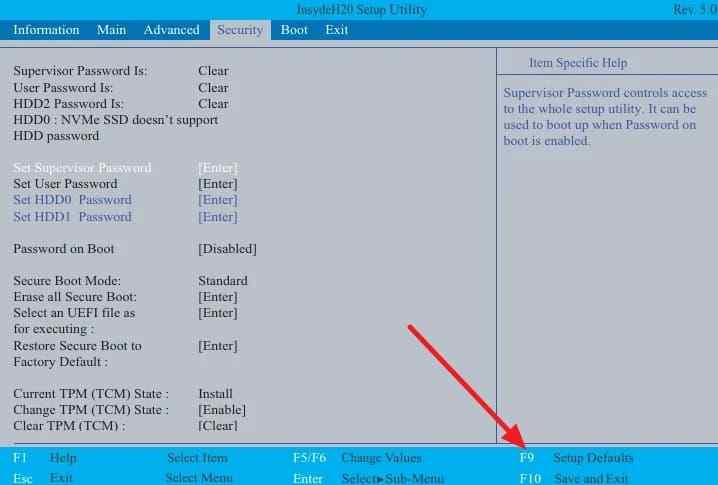
Note: Do not guess between AHCI, RAID, VMD, or another controller mode. Switching away from the mode Windows was installed with can make the operating system unbootable even when the SSD itself is healthy.
Update BIOS Only for the Exact Nitro 5 Model When Needed
A BIOS update is not a general fix for every missing USB or boot-menu problem. Acer's current notebook BIOS update guide says BIOS updates are appropriate when a released version addresses a specific issue or improvement. Use the exact Nitro 5 model page, not firmware for another AN515 or AN517 variant.
Before updating, check the installed version, connect AC power, close work, and follow the package instructions. Do not interrupt the update. Acer's original latest BIOS version guidance and its Drivers and Manuals page are the correct starting points.
After a firmware update, if the Nitro 5 shows No Bootable Device, compare boot priority, F12 Boot Menu, boot mode, and the previous storage-controller configuration. Acer's current No Bootable Device after BIOS update guide specifically calls out those settings. Protect files before any reinstall, partition change, or destructive repair.
Part 7. Protect Files Before Recovery or Reinstallation
Back Up Accessible Files Before Destructive Changes
If Windows still starts, copy important files to another physical drive or cloud storage before resetting Windows, deleting partitions, formatting an SSD, or changing a storage layout. A boot-menu problem by itself does not require data-recovery software.
If Windows does not start, first consider Windows recovery tools that do not erase data. Recoverit's existing Windows System Recovery guide explains the data-protection scenario around an unbootable PC, while the computer won't boot guide covers broader startup diagnosis.
Recover Inaccessible Files With Recoverit Before Reinstalling Windows
Use Recoverit only when important stored files are already missing, deleted, or inaccessible, or when Windows is unbootable and you need to protect files before a reset or clean installation. The drive must remain detectable and readable by the recovery environment. Recovery depends on drive condition, overwriting, encryption, and whether the source can still be accessed.
Step 1. Create the Recoverit Bootable USB
On a working Windows computer, open Recoverit, choose Other Tools > System Crashed Computer, and start the bootable-media workflow. Select a blank USB that the current Recoverit interface accepts and create the recovery media.

Step 2. Start the Nitro 5 From the Recovery USB
Connect the prepared USB to the affected Nitro 5. Power it on, tap F12, choose the USB entry, and press Enter. If F12 is unavailable, use the firmware method from Part 3 rather than changing unrelated BIOS settings.

Step 3. Scan the Detectable Internal Drive and Save Elsewhere
Inside the Recoverit environment, choose Data Recovery, scan the affected drive, preview recoverable files when available, and save selected data to a different healthy drive. Do not save recovered files back to the source SSD.

Recoverit is a data-recovery tool. It does not repair the Nitro 5 BIOS, rebuild firmware settings, fix a failed SSD controller, or bypass BitLocker without the valid recovery key.
Stop Software Recovery When the Drive Is Physically Unstable
If the internal SSD repeatedly disappears from BIOS, disconnects during reads, reports persistent hardware errors, or the laptop shows signs of physical storage failure, stop repeated scans and power cycles. Software recovery is not the right path for an undetectable or physically unstable drive. Use a professional data-recovery service before further repair when the files are valuable.

Conclusion
For the Acer Nitro 5 boot menu, F12 is the one-time startup key on supported systems and F2 opens BIOS or UEFI Setup. If F12 does not work, enable F12 Boot Menu under Main when the option exists. A USB must contain valid boot files, and Windows Boot Manager may appear instead of the SSD model on UEFI systems.
Keep the troubleshooting order conservative: verify the boot media and menu first, use Startup Repair for a missing Windows boot path, change Secure Boot or storage settings only when the exact task requires it, and update BIOS only for the exact model. Before reset, reinstall, formatting, or partition deletion, back up accessible files or recover inaccessible files to another drive.
FAQ
-
What Is the Acer Nitro 5 Boot Menu Key?
F12 is the Acer Nitro 5 boot menu key on supported models. Press it repeatedly when the Acer logo appears. If nothing opens, press F2 to enter BIOS and check whether F12 Boot Menu is enabled under Main. -
How Do I Enter BIOS on an Acer Nitro 5?
Power on or restart the Nitro 5 and repeatedly press F2 when the Acer logo appears. Use BIOS only for settings that need a persistent firmware change, such as enabling F12 Boot Menu or reviewing boot priority. -
Why Does F12 Not Open the Boot Menu on Acer Nitro 5?
The F12 Boot Menu may be disabled, the model may not expose the option, or the keypress may be missed during startup. Enter BIOS with F2, check Main for F12 Boot Menu, enable it if available, save with F10, and retry from a full shutdown. -
What Is the Acer Predator Boot Menu Key?
F12 is commonly used for the one-time boot menu on supported Acer notebooks, while F2 is Acer's standard notebook BIOS key. Predator desktops can differ, so confirm the exact Predator model manual instead of assuming Nitro 5 instructions apply to every Predator system.


