

 TL;DR:
A Dell laptop that powers on with a black screen usually suffers from a stuck power state, a crashed display driver, or misconfigured outputs, which can often be resolved with quick keyboard shortcuts or a hard reset.
● Force a graphics driver restart by pressing Windows + Ctrl + Shift + B, or clear residual power by unplugging the AC adapter and holding the Power button for 15 to 20 seconds.
● Isolate hardware failures by connecting an external monitor, or test the built-in panel directly by holding the D key while pressing the Power button to trigger the Dell LCD Built-In Self-Test.
● Recover important files using a bootable USB drive before attempting a Windows Reset, OS reinstallation, or SSD replacement, because these advanced repair steps risk permanent data removal.
Ask AI for a summary
 ChatGPT
 Perplexity
 Gemini
 Claude
 Grok
Grok
When your Dell laptop turns on but the screen is black, the problem can feel serious. The power light may be on, the keyboard may light up, and the fan may run, but nothing appears on the built-in screen. In some cases, the laptop is still running in the background. In others, it may be stuck before Windows can load.
This issue does not always mean the screen is broken. A Dell laptop power on but no display problem can be caused by a stuck power state, wrong display output, low brightness, an external monitor setting, a graphics driver issue, Windows startup failure, RAM problems, SSD errors, BIOS issues, or LCD hardware damage.
Start with the safest checks first. Confirm that the laptop is actually powered on, test an external monitor, refresh the graphics driver, and try Dell’s built-in screen diagnostics. If Windows is involved, use Safe Mode, driver repair, Startup Repair, or System Restore. If the laptop remains inaccessible and you plan to reset, reinstall, replace the SSD, or send it for repair, recover important files first.
In this article
Part 1. Why Your Dell Laptop is On, But the Screen Is Black
To proceed, look at the main reasons behind the Dell laptop on, but black screen situation for a better fix:
- Display Output Is Sent to the Wrong Screen: Windows sometimes thinks your main display is an external monitor or docked screen that is not in use. In that case, the Dell laptop is running, but it is sending the picture somewhere else.
- Stuck Power State or Sleep/Hibernation Issue: The laptop can get stuck halfway between sleep and fully on, but the fans or light work without the display. Inside, Windows thinks it is still sleeping, leaving you with a black screen, though the Power button is pressed.
- Graphics Driver or Windows Display Stack Failure: An incompatible graphics driver can load during startup and then fail, so nothing is drawn. You may hear sounds with a Dell laptop screen that is black, but the keyboard is lit up.
- Windows Startup, Explorer, or Login Problem: When Windows cannot reach the login screen, you may only see a black screen with or without a cursor. Even after login, the Explorer process (desktop, icons, or taskbar) might crash or fail to start.
- RAM, SSD, GPU, BIOS, or Motherboard Issue: Deeper hardware faults, such as faulty RAM or a damaged GPU, can stop Windows from loading. At this point, the black screen is a sign of hardware failure, not just a simple setting problem.
Part 2. Quick Checks Before You Start
Review the quick checks discussed in this section to navigate the Dell laptop on, but black screen situation smartly:
- Confirm Power, Charger, and Battery Status: Make sure the charger is firmly plugged into both the wall and the laptop, with the charger light on. Check for signs of power, such as fan noise, keyboard lights, or the power LED, to ensure they aren't blinking abnormally.
- Check Brightness and Keyboard Backlight: Press the brightness-up key (usually “Fn + Brightness Up”) several times to be sure it isn’t at minimum. Look at the keyboard backlight (if available); it shows the system is responding even with a black screen.
- Check Keyboard Backlight and System Response: Hold the Caps Lock or Num Lock key and watch the tiny indicator lights to confirm the system is alive. Try pressing “Ctrl + Alt + Del” once; if a blue or different screen appears, it indicates the problem is with the desktop.
- Test With an External Monitor or Display Cable: Connect your Dell to an external monitor via HDMI, then turn on the external screen and select the correct output. Once you get the picture on the external display but not on the laptop panel, the issue is likely linked to the built-in screen.
Part 3. Try Basic Fixes for a Dell Laptop Black Screen
After quick checks, try out these basic fixes for a laptop that is on but screen is black, Dell, if caused by display errors:
Fix 1. Force a Shutdown and Do a Fresh Power-On
Force shutdown helps completely stop all processes and gives the system a clean start. Hold the Power button on your Dell for 10-15 seconds and wait until the system shuts off. Press the Power button again to turn it back on and look for the Dell logo.
Fix 2. Hard Reset the Laptop to Clear Residual Power
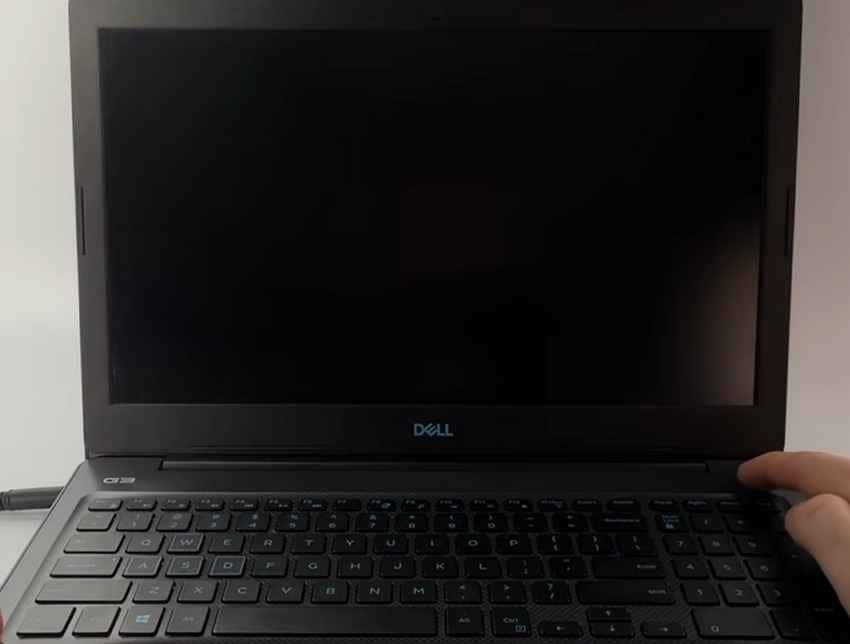
Turn off the laptop completely with the Power button, then unplug the AC adapter and long-press the Power button for 15-20 seconds. Once the leftover (residual) power from the system is drained, reconnect and turn on the Dell.
Important: If your Dell laptop has a built-in battery, do not force it open or remove the battery unless the model is designed for user service. Use the power-button reset instead or follow Dell’s service manual.
Fix 3. Wake the Screen and Refresh the Graphics Driver
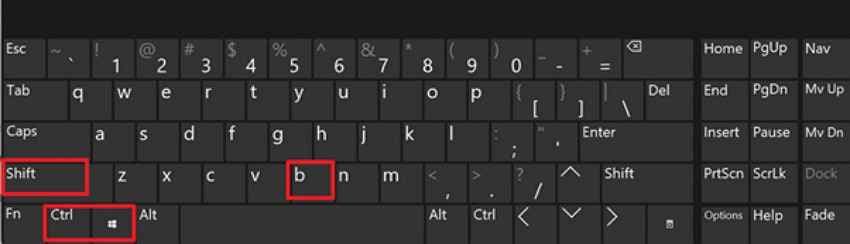
The graphics driver, when refreshed, forces Windows to restart the system without needing to reboot Dell. When the display driver becomes unresponsive, follow the guidelines and get sorted with a Dell laptop on, but with a black screen:
- Move the mouse > Press “Windows + Ctrl + Shift + B” > Wait for graphics driver restart.
Fix 4. Cycle Display Modes with Windows + P
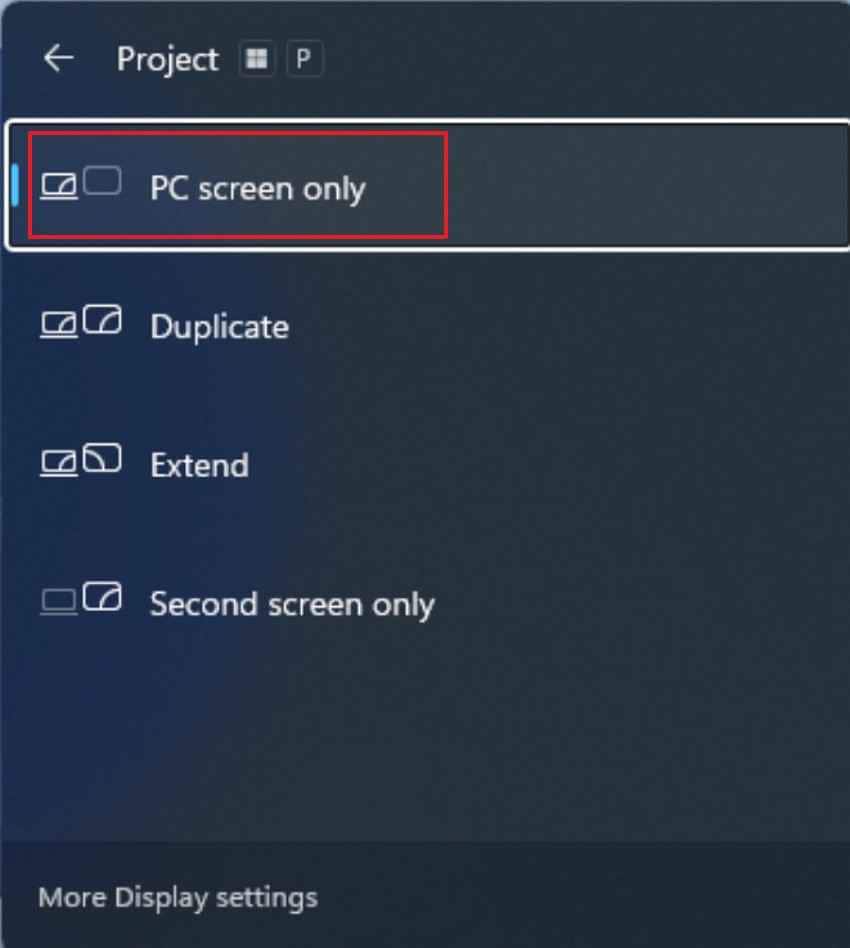
Your Dell might be sending output to the wrong display mode, especially after using an external monitor. To cycle between Display Modes, follow the tutorial and redirect the screen back to Dell:
- Press “Windows + P” keys > Switch between Display Modes (PC Screen Only or Duplicate).
Fix 5. Disconnect Peripherals and the Docking Station
External interference, such as USB drives or docking stations, can disrupt startup display detection. Unplug everything from the laptop, connect only the charger, then press the Power button to start Dell.
Part 4. Fixes When the Dell Laptop is On, But No Display
Moving forward, we now focus on deeper system-level fixes when a Dell laptop powers on but no display occurs:
Fix 1. Use Ctrl + Alt + Del or Restart Windows Explorer
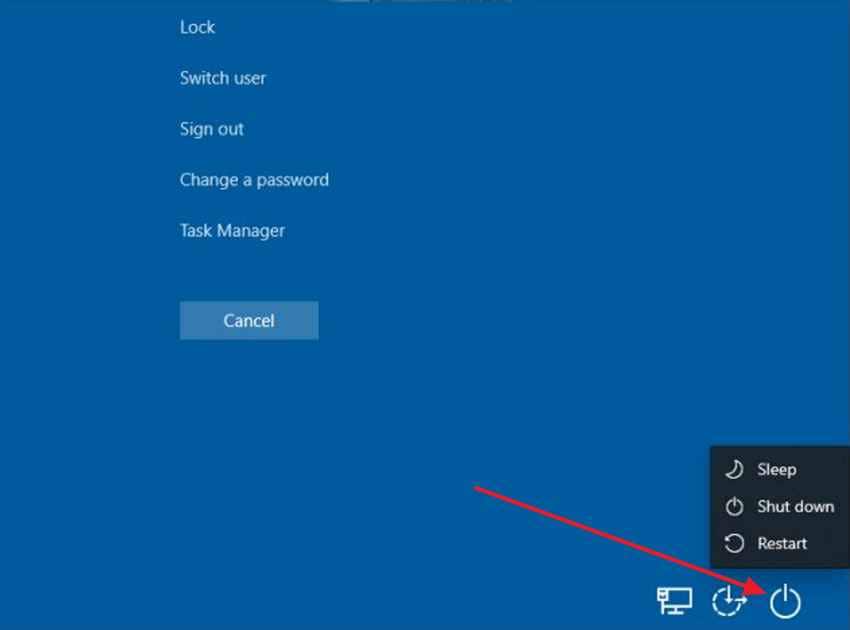
Once you restart Windows Explorer, it refreshes the desktop or taskbar, bringing back the display immediately. Adhere to the tutorial and perform this quick fix when the operating system is responsive, but the visuals are not:
- Hold “Ctrl + Alt + Delete” > Press “Power” > Tap “Shift” > Choose “Restart.”
Use this method when the black screen appears after login, especially if you can see a cursor.
- Press Ctrl + Shift + Esc to open Task Manager.
- Click More details if needed.
- Find Windows Explorer.
- Right-click it and choose Restart.
If Windows Explorer is not listed:
- Click File.
- Choose Run new task.
- Type explorer.exe.
- Click OK.
If the desktop appears, the issue was likely related to the Windows shell, Explorer, startup apps, or user profile.
Fix 2. Boot Into Safe Mode in Windows 10 or Windows 11
Safe Mode helps determine whether the black screen is being caused by a third-party application or a corrupted driver. To address the Dell laptop screen black but still running problem, boot your Windows in Safe Mode with only essential services:
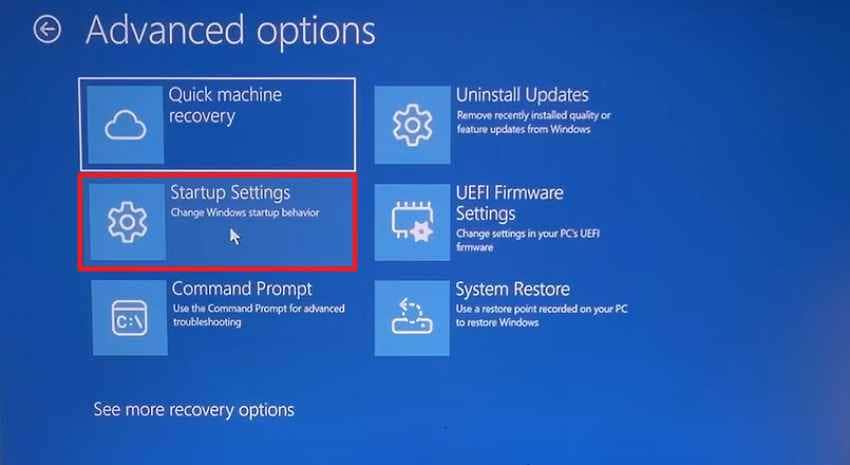
Step 1. Interrupt computer startup for 3 times > Recovery Screen > “Troubleshoot” > “Advanced Options” > “Startup Settings” > “Restart.”
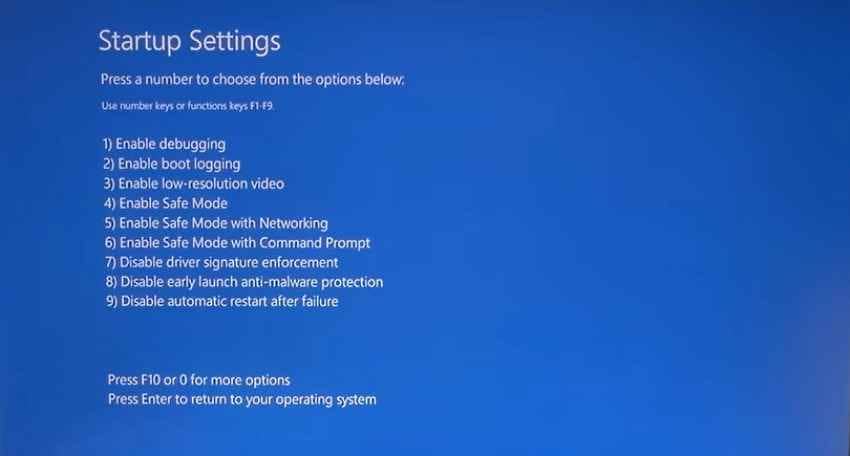
Step 2. Press the "4” or “5" key to choose the Safe Mode preference.
Fix 3. Update, Roll Back, or Reinstall Graphics Drivers
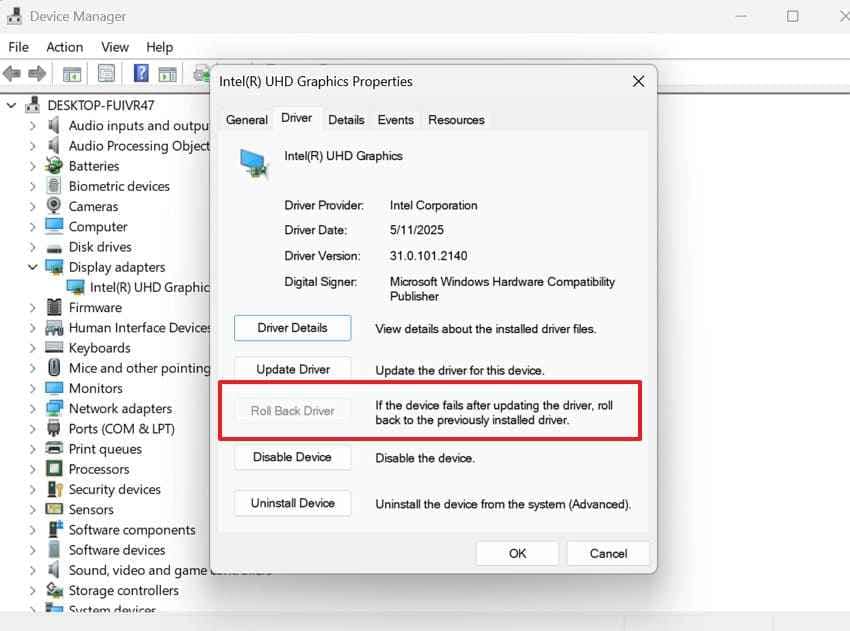
With a corrupted or incompatible graphics driver, the communication between Windows and your display hardware is disturbed. Learn how to roll back the graphics driver to its previous working state and restore the Dell display:
Option 1. Update the graphics driver
- Boot into Safe Mode if normal Windows is hard to use.
- Right-click Start and open Device Manager.
- Expand Display adapters.
- Right-click the graphics device.
- Choose Update driver.
- Select Search automatically for drivers.
- Restart the laptop.
You can also download the correct driver from Dell Support using your Service Tag, or from Intel, NVIDIA, or AMD if needed.
Option 2. Roll back the graphics driver
- In Safe Mode, hit “Windows + Q” > “Device Manager” > Expand “Display Adapter” > Right-click driver > “Properties” > “Drivers” tab > “Roll Back Driver.”
Option 3. Reinstall the graphics driver
Use this if the driver may be corrupted or rollback is not available.
- Open Device Manager.
- Expand Display adapters.
- Right-click the graphics device.
- Choose Uninstall device.
- Select Delete the driver software for this device if available.
- Restart the laptop.
- Install the Dell-recommended graphics driver.
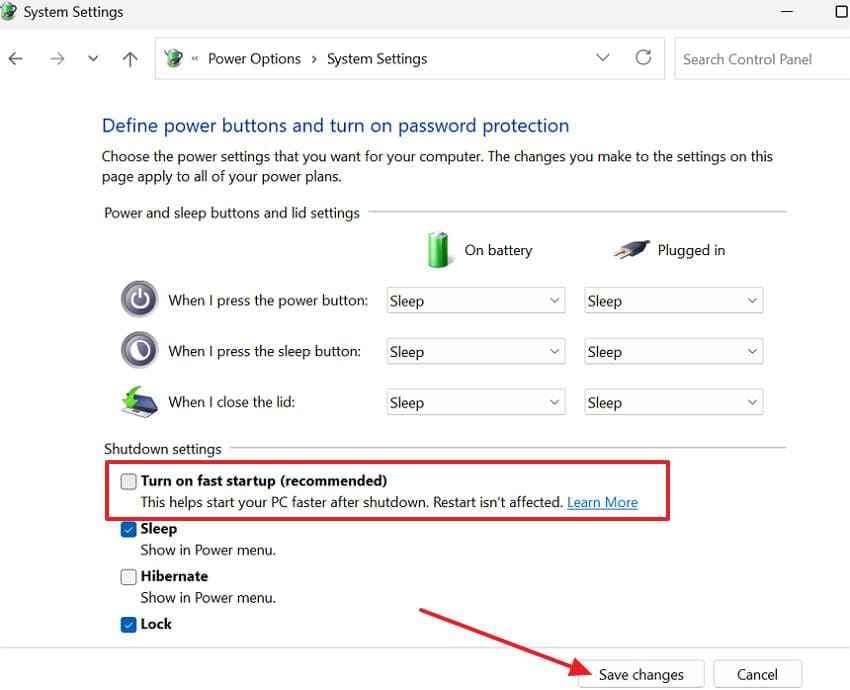
Fix 4. Disable Fast Startup
Fast Startup reduces boot times, but it can sometimes cause display drivers and system services to load incorrectly. To disable it, follow the guidelines and allow Windows to perform a cleaner startup for the Dell laptop on, but with a black screen:
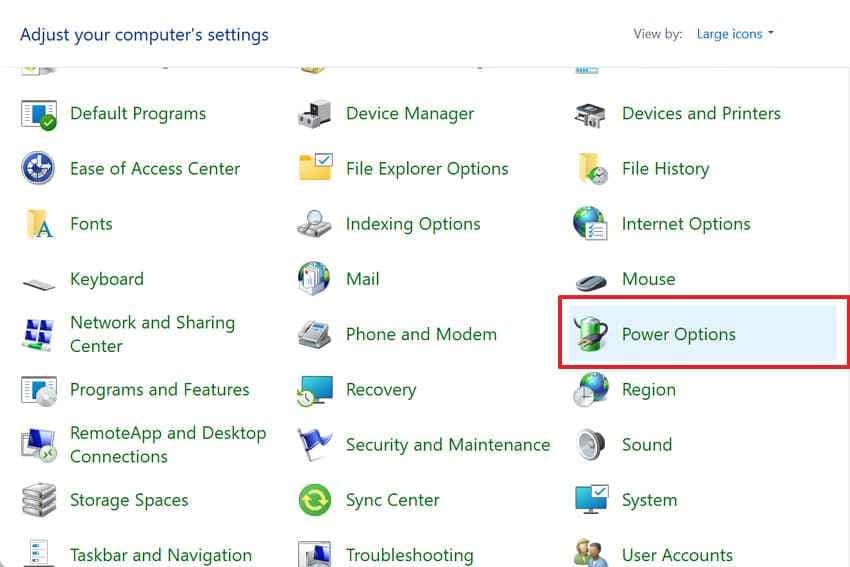
Step 1. Restart PC in Safe Mode > “Control Panel” > “Power Options” > “Choose What Power Buttons Do.”
Step 2. Next, press “Change Settings” > Uncheck “Turn on Fast Startup” > “Save Changes.”
Fix 5. Uninstall Recent Windows or Dell Utility Updates
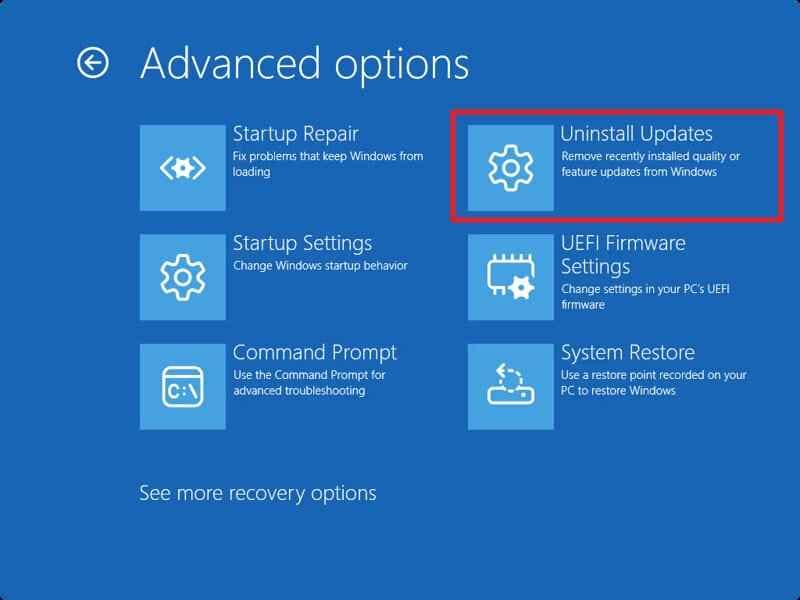
Whenever a Dell laptop turns on but the screen is black right after an update, remove the latest installation to restore stability. When Windows updates create compatibility issues with display drivers, follow the step-by-step tutorial:
Step 1. Boot into WinRE > “Troubleshoot” > “Advanced Option” > Click “Uninstall Updates.”
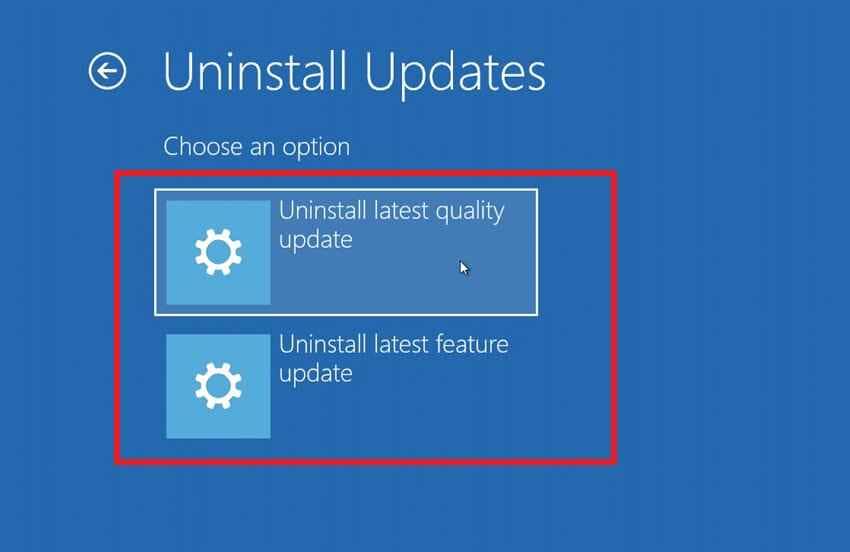
Step 2. Press the “Uninstall Latest Quality Update” or “Uninstall Latest Feature Update” option.
Part 5. Dell-Specific Display and Hardware Diagnostics
If software-related fixes weren’t able to solve the Dell laptop on, but it's a black screen, let’s move to hardware faults:
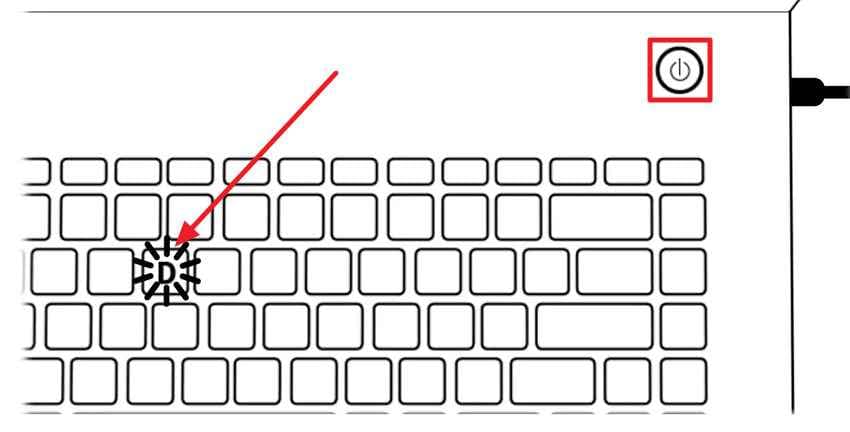
Fix 1. Run Dell LCD Built-In Self-Test
During this test, the display shows a series of solid colors independent of Windows or other software components. To proceed, read the guidelines and ensure colors appear normally and the LED panel is likely working:
- Disconnect external devices > Press “D + “Power” > Hold “D” again until color appears.
Fix 2. Run Dell Pre-Boot Diagnostics
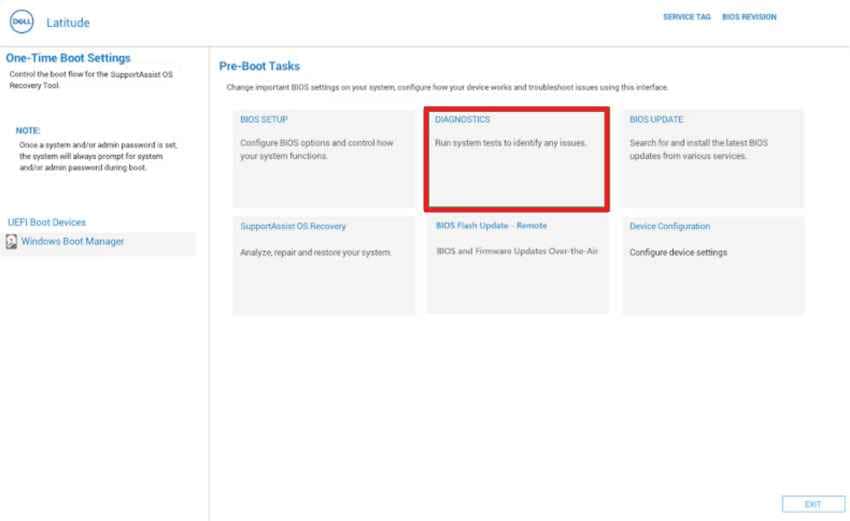
Dell Pre-Boot Diagnostics, also known as ePSA Diagnostics, performs a detailed hardware scan before Windows loads. Run this test to identify whether a hardware failure is preventing the display from working, as guided:
- Press “F12” multiple times > Enter One Time Boot Menu > “Diagnostic” > Diagnosis begins.
Part 6. Advanced Windows Repairs When the Dell Screen Stays Black
After everything, if the Dell laptop is on, but the screen is black, Dell continues, you’ll need to follow the given advanced repair steps:
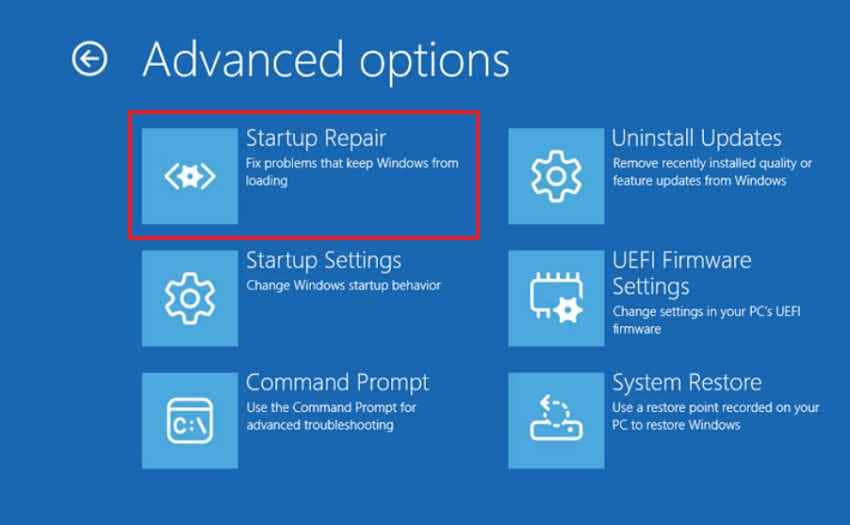
Fix 1. Run Startup Repair from Windows Recovery
Once your essential system boot files go missing or misconfigured, the system may be stuck on a black screen. In this state, run the Startup Repair from Windows Recovery to resolve the problem without affecting your personal files:
- Start PC in WinRe > “Troubleshoot” > “Advanced Options” > Choose “Startup Repair.”
Fix 2. Scan and Repair System Files with SFC and DISM
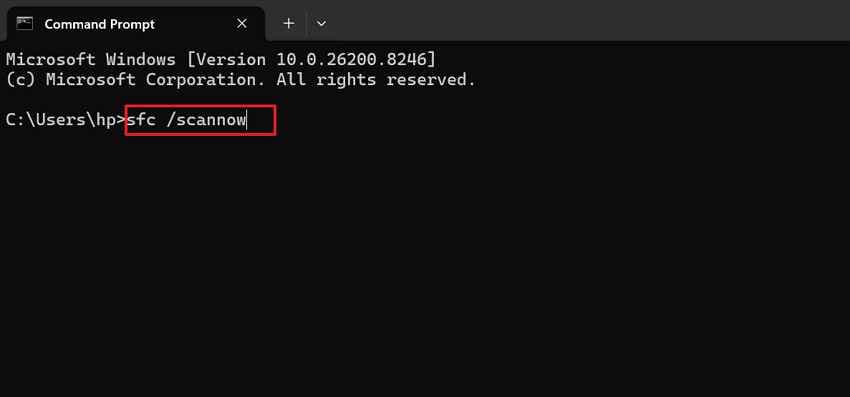
The System File Checker (SFC) and Deployment Image Servicing and Management (DISM) tools work to repair damaged Windows components. For the Dell laptop is on, but screen is black, run both scans to fix any failure:
- In WinRE > Open “Command Prompt” (Admin) > Type “DISM /Online /Cleanup-Image /RestoreHealth” > Press Enter > After completion, type “sfc /scannow” > Press Enter.
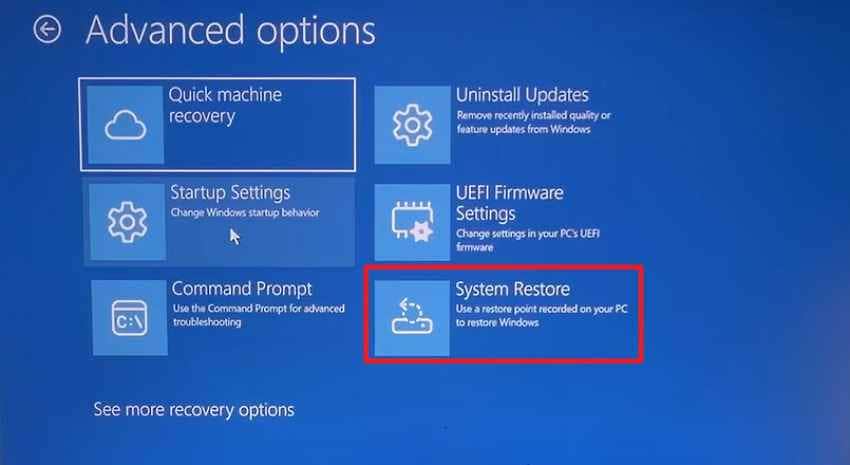
Fix 3. Use System Restore
System Restore throws your Windows back to an earlier state when the laptop was functioning properly. If your Dell laptop is on, but shows a black screen after a software installation or system change, follow this manual for assistance:
- In WinRE > “Troubleshoot” > “Advanced Options” > Select “System Restore” and follow on-screen instructions.
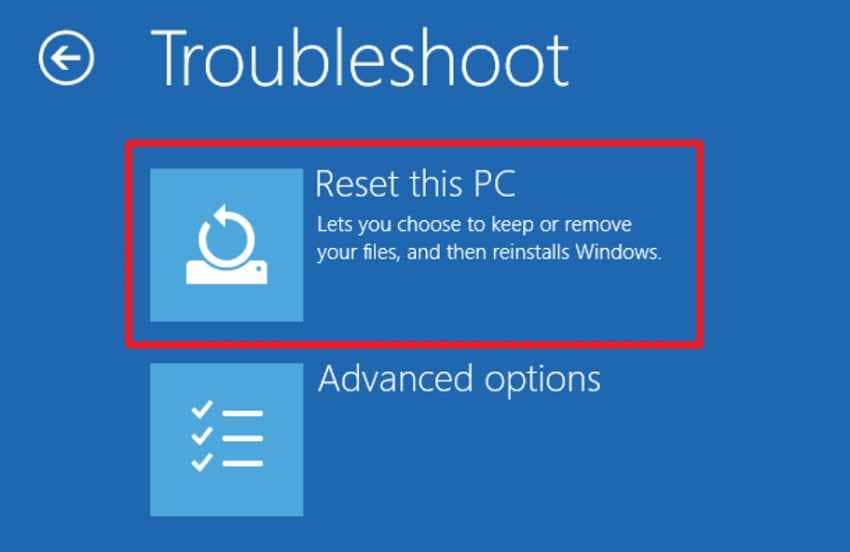
Fix 4. Reset This PC or Reinstall Windows 10/11
Once for all, perform a complete reset of the PC to replace all damaged system files and restore the operating system. Review this last software-based fix tutorial before you go for a full hardware repair:
- Start system in WinRE > “Troubleshoot” > Press “Reset This PC” > Select “Keep My Files” and complete the process.
Part 7. Recover Files with Recoverit Before Resetting or Repairing
You do not need to recover files before every black screen fix. Many checks are safe, including hard reset, brightness keys, external monitor testing, display mode switching, and LCD BIST.
Recover files first if Windows is inaccessible, Safe Mode does not work, both internal and external displays fail, or you plan to reset Windows, reinstall the system, replace the SSD, or send the laptop for repair.
Why Recover Files First
Major repair steps can affect file access. Resetting Windows, reinstalling the system, replacing storage, repairing disk errors, or sending the laptop for service may change or remove data. Recovering important files first gives you a safer backup before deeper troubleshooting.
Recommended Tool: Recoverit Data Recovery
Recoverit Data Recovery can help recover files from a Dell laptop when normal Windows access is not available. It is not a black screen repair tool. Its role is to help protect files before reset, reinstall, SSD replacement, disk repair, or hardware service.
Key Features
- Works with Multiple Storage Devices: You can recover data from devices other than Dell’s internal SSD, such as USB sticks.
- Preview Files Before Recovery: After the scan, the program enables users to preview files before the restore process.
- Handles Many Data-Loss Situations: Recoverit helps when files are deleted by mistake, Windows is corrupted, or the drive is formatted.
How to Recover Files from a Dell Laptop with Black Screen
If your Dell laptop is on but the screen is black, follow the instructions below to recover your files before proceeding with repairs.
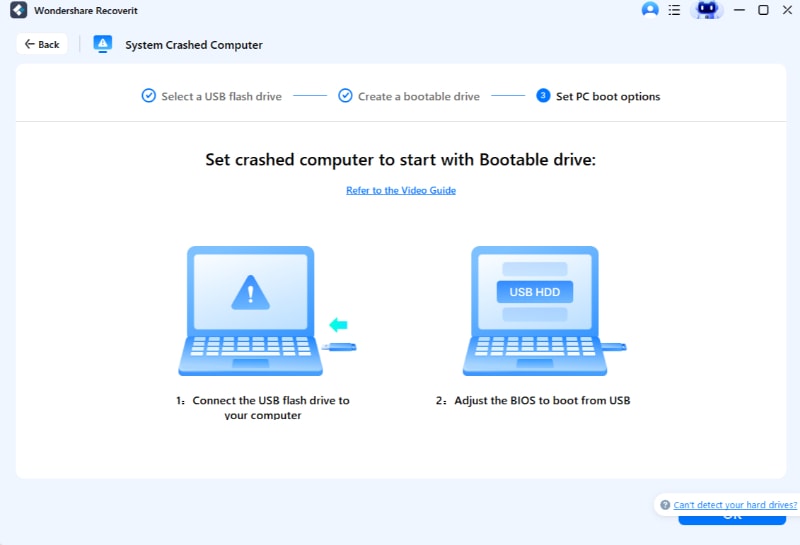
Step 1. Select the USB Flash Drive
Open “System Crashed Computer” on another PC > Connect > Choose unused USB drive > “Start” > Create bootable media drive.

Step 2. Pair the USB to Black Screen Dell
Connect USB to Dell > Enter BIOS > Choose “USB HDD” as boot device.
Step 3. Recover Files from Black-Screen Dell
Select “Data Recovery” > Scan Dell > Secure files to external storage.

Part 8. How to Prevent Dell Laptop No Display Problems
If you want to avoid the Dell laptop power on but no display situation, the following table covers some effective measures:
| Preventive Measures | What to Do |
|---|---|
| Keep Windows and Dell Drivers Updated | Install Windows and Dell display/graphics regularly. |
| Handle Power, Sleep, and Shutdown | Use normal shutdown/restart; avoid force power-off. |
| Use Quality Cables and Avoid Rough Handling | Connect good HDMI/USB‑C cables and avoid twisting the lid |
| Cleans Vents and Keeps Laptop Cool | Place the laptop on a hard surface and clean the vents. |
Conclusion
In summary, anyone who faces a Dell laptop turning on but screen is black should start with recovering files first with Recoverit. After that, you can proceed with repairs confidently without any stress through the discussed basic and advanced fixes.
FAQs
-
Why does my Dell laptop turn on but the screen is black?
Your Dell laptop may turn on but show a black screen because of wrong display output, low brightness, a stuck power state, a frozen graphics driver, Windows startup failure, faulty LCD panel, bad display cable, RAM issue, SSD problem, GPU issue, BIOS problem, or motherboard fault. -
What should I do if my Dell laptop screen is black but the keyboard is lit up?
Hold the Power button to shut it down, disconnect external devices, perform a hard reset, increase brightness, press Windows + Ctrl + Shift + B, use Windows + P, and test with an external monitor. If the external monitor works, the built-in screen or display cable may be faulty. -
How do I fix a Dell laptop that is on but has no display?
Start with a hard reset, disconnect peripherals, check brightness, refresh the graphics driver, cycle display modes, and connect an external monitor. Then try Safe Mode, graphics driver repair, Dell LCD Built-In Self-Test, and Dell Pre-Boot Diagnostics. -
Why is my Dell laptop screen black but still running?
If the laptop is still running, Windows may be active while the display output has failed. The cause may be wrong projection mode, stuck graphics driver, external display setting, black screen after login, or internal LCD/backlight failure. -
How do I fix Dell laptop black screen after login?
Press Ctrl + Shift + Esc to open Task Manager. Restart Windows Explorer or run explorer.exe manually. If the desktop still does not appear, boot into Safe Mode, disable startup apps, roll back the display driver, or create a new Windows user profile. -
How can I tell if my Dell laptop screen is broken?
Connect the laptop to an external monitor and run Dell LCD Built-In Self-Test. If the external monitor works but the built-in screen stays black or fails the LCD test, the LCD panel, backlight, or display cable may need repair. -
How do I run Dell diagnostics when my laptop has a black screen?
Turn off the laptop, turn it on, and repeatedly press F12 when the Dell logo appears. Select Diagnostics from the One-Time Boot Menu. Record any error code, validation code, or failed component for Dell Support. -
Can I recover files from a Dell laptop that turns on but has a black screen?
Yes. If Windows is inaccessible, a bootable recovery tool such as Recoverit can help scan the internal drive and recover important files to external storage before reset, reinstall, SSD replacement, or repair service. -
Does this guide work for Dell laptop black screen on Windows 11?
Yes. The main checks apply to both Windows 10 and Windows 11, including hard reset, external monitor testing, Safe Mode, graphics driver repair, Startup Repair, System Restore, and Reset this PC.


