
 TL;DR:
A USB drive missing from Windows Disk Management indicates a fundamental connection, enumeration, or hardware failure rather than a simple missing drive letter, requiring you to isolate the issue using direct ports, refresh Device Manager controllers, and secure data before attempting destructive fixes like formatting or using DiskPart.
● Identify the specific storage status once the drive is detected: missing drive letters can be safely assigned without data loss, but drives showing as RAW or Unallocated require scanning with tools like Wondershare Recoverit before you rebuild the file system or create a new volume.
● Recovery software is strictly limited to readable storage conditions; if the USB drive reports No Media, shows 0 bytes, or remains completely invisible across multiple computers, no software can access the sectors and professional lab repair is the only option for vital files.
● Avoid permanent data destruction by refusing Windows prompts to format RAW partitions, resolving Code 43 errors by uninstalling USB Root Hub entries in Device Manager rather than using third-party driver bundles, and always saving recovered files to a completely separate disk.
Ask AI for a summary
 ChatGPT
 Perplexity
 Gemini
 Claude
 Grok
Grok
A USB drive not showing in Disk Management is different from a USB drive missing only in File Explorer. File Explorer shows mounted volumes with drive letters. Disk Management is the Windows tool that should show detected disks, partitions, RAW volumes, offline disks, and unallocated space. When the USB is missing there too, the problem is usually connection, enumeration, driver, controller, or hardware failure.
Do not format, initialize, create a new volume, run DiskPart clean, or keep reconnecting a failing pen drive until you know whether the files matter. If Windows later detects the device as a readable disk, Recoverit USB Flash Drive Recovery can help scan it before destructive fixes. If the USB shows No Media, reports 0 bytes, disappears repeatedly, or is not detected on any computer, software usually cannot scan it.
Try Wondershare Recoverit to Recover USB Files Before Formatting
 Security Verified. Over 7,302,189 people have downloaded it.
In this article
-
- Fix 1. Use Rescan Disks in Disk Management
- Fix 2. Scan for Hardware Changes in Device Manager
- Fix 3. Enable the USB Device and Check Device Manager Errors
- Fix 4. Update or Reinstall the USB Mass Storage Driver
- Fix 5. Reinstall USB Controllers
- Fix 6. Update Windows, Chipset, and USB Controller Drivers
Part 1. What Does It Mean When a USB Drive Is Missing From Disk Management?
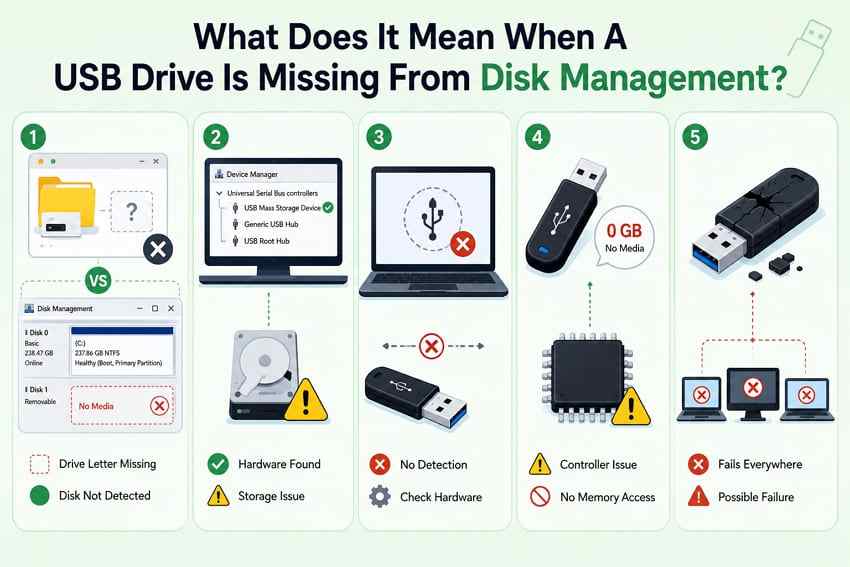
Users often say "not showing" for several different states. Before you fix a flash drive not showing in Disk Management, identify which state you have.
USB Missing From File Explorer vs Disk Management
File Explorer only shows usable volumes that have drive letters. A USB can disappear from File Explorer because it has no drive letter, is offline, is RAW, or is unallocated. Disk Management in Windows is broader: Microsoft describes it as the built-in tool for managing disks and volumes, including creating and formatting volumes and changing drive letters. If the drive appears in Disk Management, you have detection. If it does not, start with connection and driver checks.
USB Visible in Device Manager but Not Disk Management
This state means Windows can see some USB hardware but cannot expose it as a storage disk. Device Manager may show a USB Mass Storage Device, a Disk drive entry, an Unknown USB Device, or a warning icon. This can be a driver issue, a stale enumeration state, a power problem, or a controller that is not reporting capacity correctly.
USB Not Detected Anywhere in Windows
If there is no connection sound, no Device Manager entry, and no Disk Management entry, Windows has not enumerated the USB device at all. Test direct ports and another computer before you change Windows storage settings. A drive that is invisible everywhere is not a Disk Management problem anymore.
USB Shows No Media
A USB shown as No Media or 0 bytes is detected at controller level but not as readable flash storage. A Microsoft Q&A example shows this same "disk but no media" pattern. In practical recovery terms, No Media usually means normal software has no sectors to scan. Recoverit and other software need Windows to expose readable storage.
When the Problem May Indicate Hardware Failure
Treat these as hardware warning signs: the USB fails on several computers, disconnects during transfers, heats up unusually, reports No Media, shows 0 bytes, has a broken connector, or works only when held at one angle. Stop repeated plug-in attempts if the data is important. Every unstable connection can make a failing device worse.
Part 2. Why Is Your USB Drive Not Showing in Disk Management?
A pen drive not showing in Disk Management can fail at several layers: physical connection, USB enumeration, mass-storage driver, disk list refresh, partition structure, or flash hardware. Use the table before you choose a fix.
| Cause | Common Sign | Detection Status |
| Faulty USB port, hub, adapter, or connection | Nothing happens, or the drive appears only when the cable is moved | Not detected at all or disconnects repeatedly |
| Windows did not refresh the disk list | The drive worked moments ago, but the Disk Management view is stale | Detected after Rescan Disks |
| USB Mass Storage or controller driver problem | Device Manager shows a warning icon or unknown USB device | Detected as hardware, not exposed as a disk |
| Windows power management disabled the USB device | The drive drops out after idle time or sleep | Detected, then removed |
| Damaged partition, controller, or firmware | The USB appears as RAW, unallocated, no size, or a wrong capacity | Detected, but unreadable or unsafe to format before recovery |
| Physical failure of the flash drive | No Media, 0 bytes, overheating, or the same failure on every PC | Detected without readable capacity or not detected anywhere |
Microsoft's Disk Management troubleshooting recommends reconnecting an external disk, using Action > Rescan Disks, trying a direct USB port instead of a hub, trying another cable, checking Device Manager, and testing another PC. SanDisk also recommends connection checks before treating an undetected storage device as a data recovery or warranty case.
Part 3. Basic Fixes When the USB Is Not Detected
Start with non-destructive checks. These do not format the USB or change its partition table.
- Reconnect the USB drive and try another port: Unplug it, wait a few seconds, then connect it to a different port. Try ports on different sides of the laptop or the rear I/O of a desktop.
- Avoid loose hubs and use a direct USB port: Unpowered hubs and front-panel extensions can cause power or signal problems. Connect the drive directly to the PC while troubleshooting.
- Restart the computer and reconnect the drive: A restart clears some controller states after sleep, failed removal, or a previous device crash.
- Test the USB drive on another computer: If another PC detects it in Disk Management, focus on your Windows installation, ports, drivers, or chipset. If no PC detects it, the drive is the likely fault.
- Check for USB Device Manager error codes: Open Device Manager, double-click the problem device, and read the Device status. Microsoft's Device Manager error code page explains that Code 43 means Windows stopped the device because it reported a problem. Driver reinstall may help, but hardware failure is also possible.
- Replace or professionally repair the drive if it is still undetected: If the USB stays invisible on multiple PCs and ports, software cannot force Windows to scan storage it cannot see. Use a recovery lab only if the files are worth the cost.
Part 4. Windows Fixes for USB Detection Problems
If the hardware checks do not solve the usb not showing up in Disk Management problem, refresh Windows detection and drivers next.
Fix 1. Use Rescan Disks in Disk Management
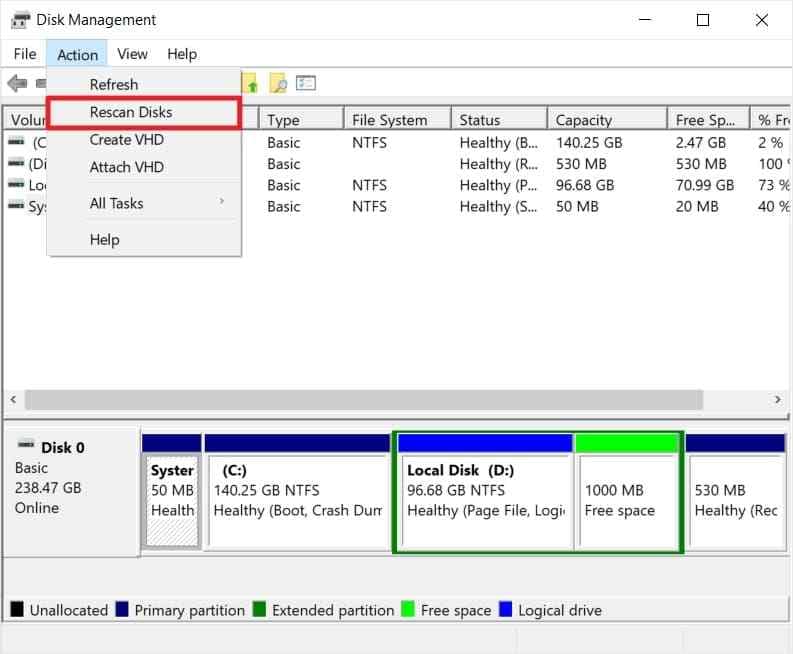
Rescan Disks asks Windows to refresh its view of connected storage. It reads the disk list; it does not format or erase the USB.
Press Windows + X and choose Disk Management. Open Action > Rescan Disks, then wait for the lower disk list to refresh. If the USB has a power switch or adapter, reconnect it and rescan again.
Fix 2. Scan for Hardware Changes in Device Manager
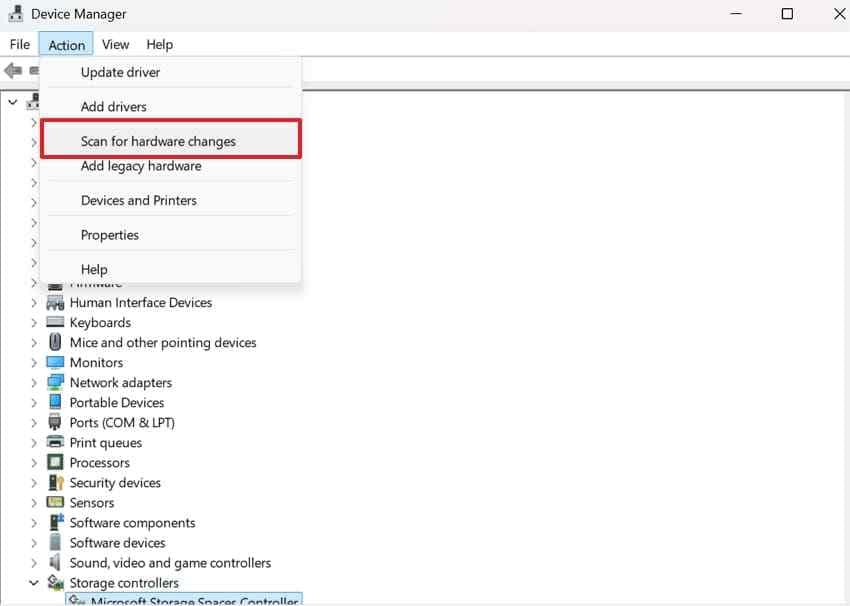
Device Manager can refresh hardware enumeration when Windows missed the drive during the first connection.
Open Device Manager. Select the computer name at the top or open Action, then choose Scan for hardware changes. Check Disk drives and Universal Serial Bus controllers again.
Fix 3. Enable the USB Device and Check Device Manager Errors
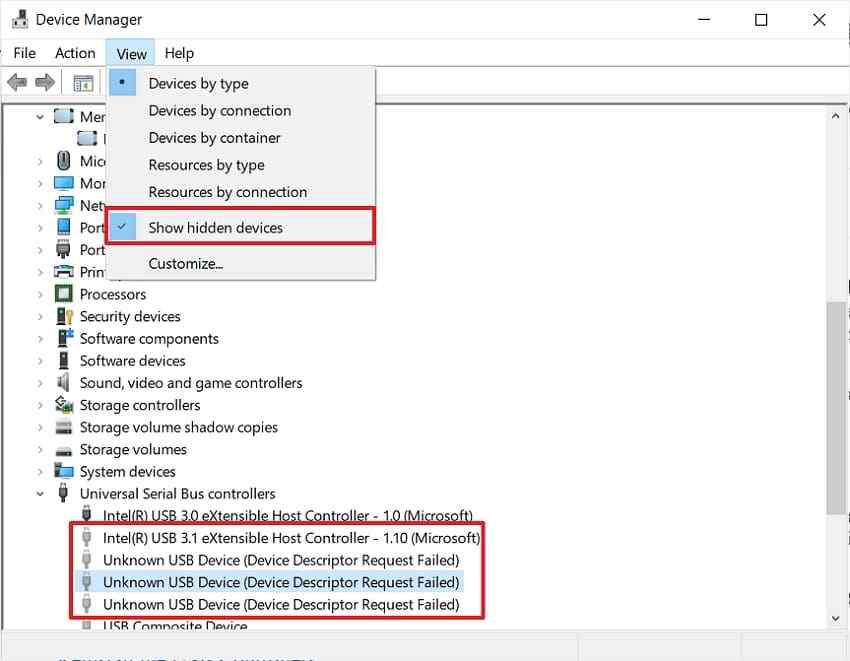
A disabled device can show a downward arrow. Hidden entries can also keep stale device configurations around. Remove only greyed-out old entries or entries that clearly belong to the problem USB device.
Step 1. In Device Manager, open View > Show hidden devices. Expand Disk drives and Universal Serial Bus controllers. If greyed-out duplicate USB entries are clearly inactive, uninstall those old entries.
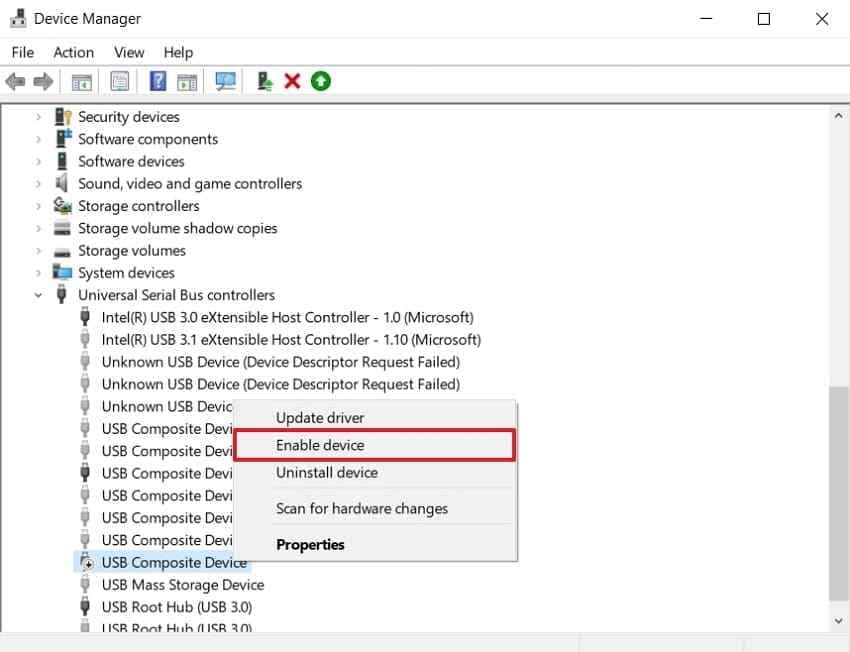
Step 2. If the current device has a downward arrow, right-click it and choose Enable device. If it has a warning icon, open Properties and note the code before you uninstall anything.
Fix 4. Update or Reinstall the USB Mass Storage Driver
A damaged USB Mass Storage driver can leave a usb flash drive not showing in Disk Management even though Device Manager sees hardware.
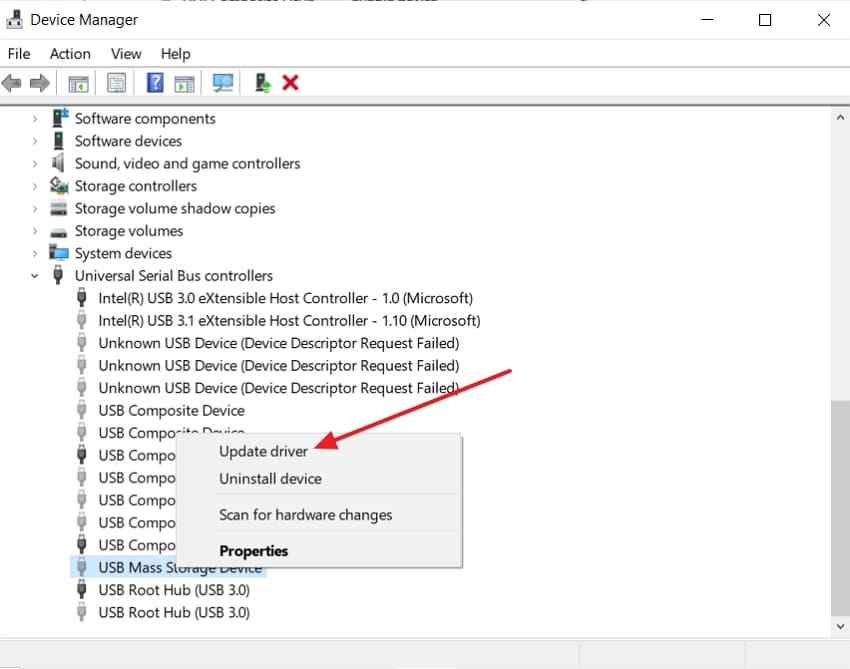
Step 1. In Device Manager, expand Universal Serial Bus controllers. Right-click USB Mass Storage Device or the relevant USB storage entry, then choose Update driver.
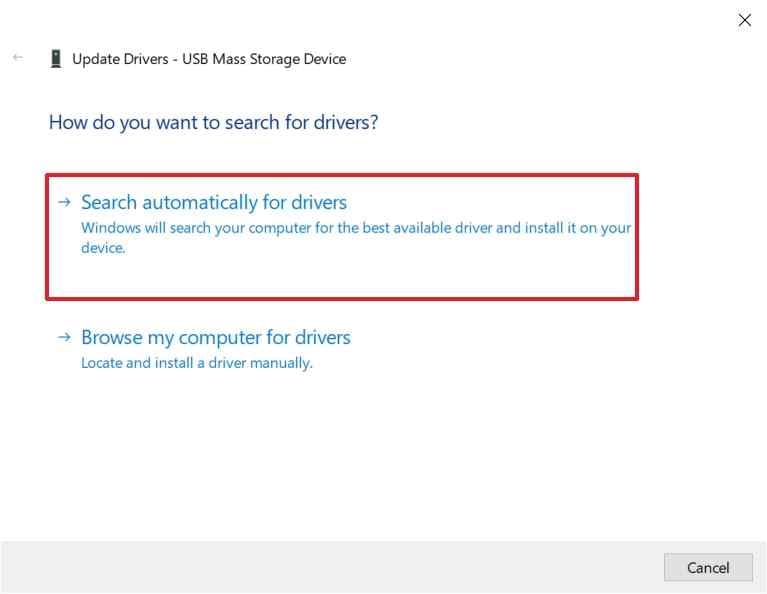
Step 2. Choose Search automatically for drivers. If that does not help, right-click the same device, choose Uninstall device, restart Windows, and reconnect the USB. Do not install random driver packs.
Fix 5. Reinstall USB Controllers
If several USB storage devices fail on the same PC, the USB controller stack may need a rebuild. This can temporarily disconnect USB mouse, keyboard, or docks, so save open work first.
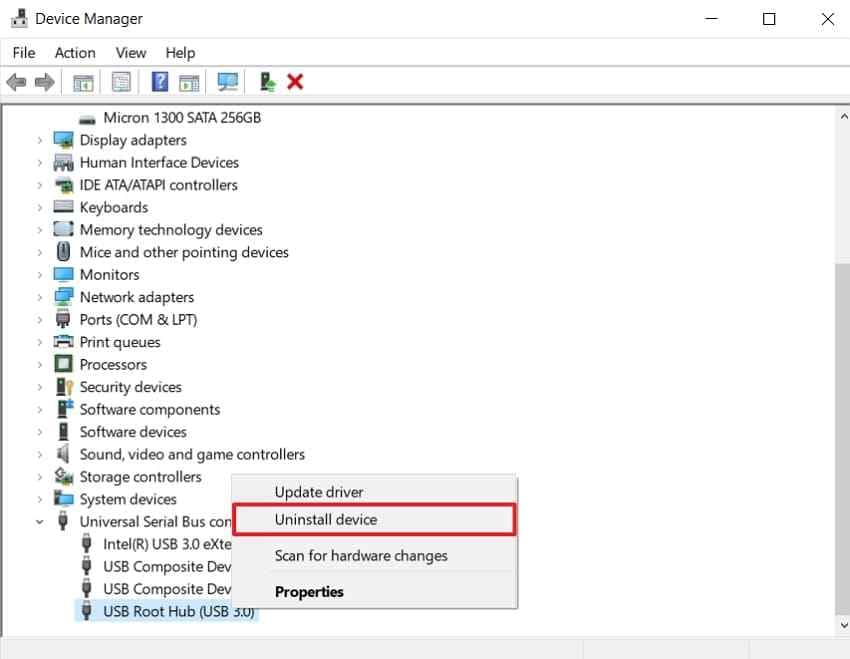
In Device Manager, expand Universal Serial Bus controllers. Uninstall USB Root Hub and host-controller entries one at a time, then restart the PC. Windows will reinstall controllers during startup. Reconnect the USB drive after the desktop loads.
Fix 6. Update Windows, Chipset, and USB Controller Drivers
USB ports depend on chipset and controller drivers. Use Windows Update, optional driver updates, and the PC maker's support page. Avoid third-party "driver updater" bundles.
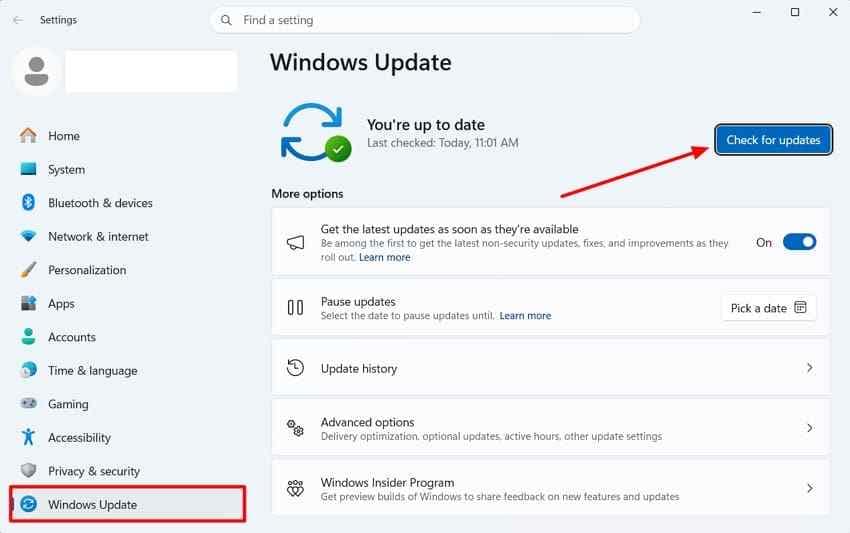
For Windows. Open Settings > Windows Update and choose Check for updates. Install offered updates, then restart if required.
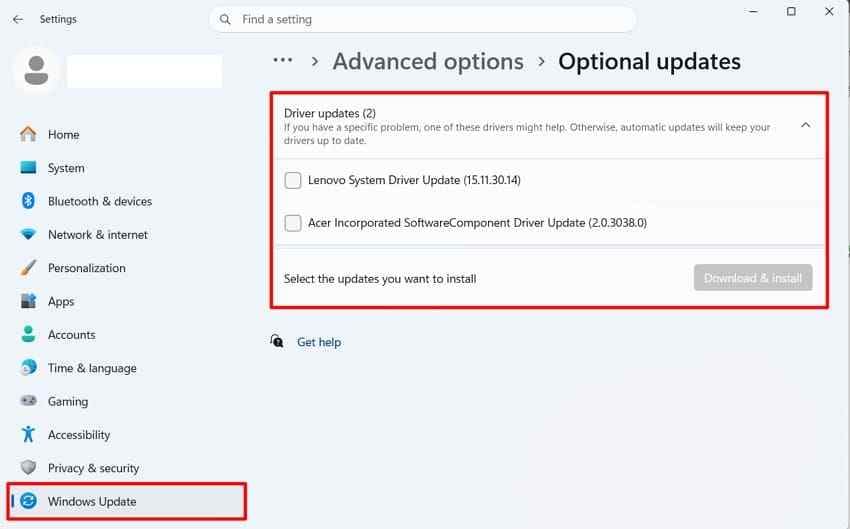
For optional drivers. Open Advanced options > Optional updates > Driver updates. Install only relevant chipset, storage, or USB controller drivers.
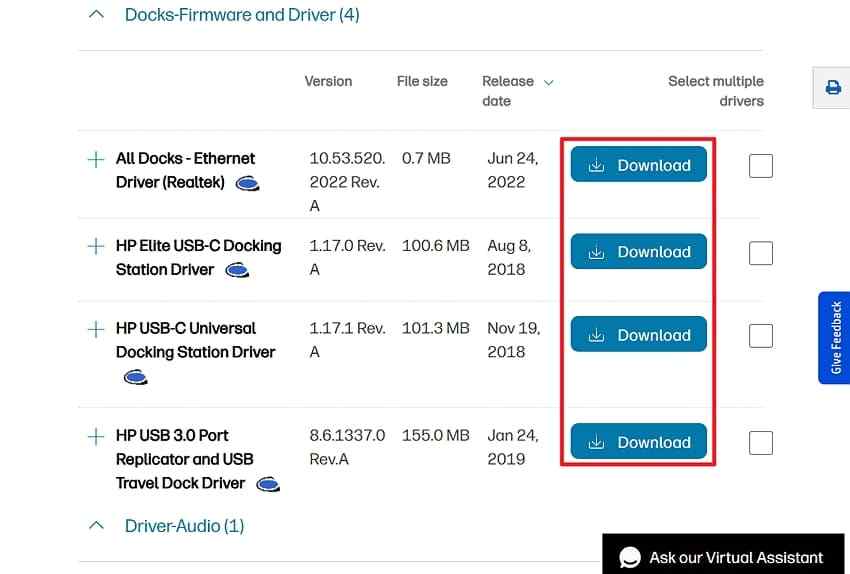
For manufacturer drivers. If Windows does not offer a driver, visit the official support page for your Dell, HP, Lenovo, ASUS, Acer, Microsoft Surface, Intel, AMD, or motherboard model. Download the chipset and USB controller package that matches your PC.
Part 5. What to Do Once the USB Appears in Disk Management
When the USB finally appears, stop and read its status. Detection is progress, but some next actions can erase the only recoverable metadata.
USB Shows as Unallocated
Unallocated space means Windows does not see a usable partition record. The file data may still exist. If the USB held important files, recover first. Creating a new volume makes the USB usable again, but it writes new partition information.
USB Shows as RAW
RAW means the file system cannot be parsed. Windows may ask you to format the drive. Decline the prompt until you recover needed files. Formatting builds a new file system and can overwrite structures that help recovery.
USB Shows as Offline
Offline means Windows detected a disk but has not mounted it. Bringing it online is usually non-destructive. If the disk immediately goes offline again or reports I/O errors, copy or recover files before more repair attempts.
USB Has No Drive Letter
A healthy volume without a drive letter can be visible in Disk Management but hidden from File Explorer. Assigning a letter is a low-risk fix when the file system is healthy.
USB Shows No Media
No Media or 0 bytes means Windows has the USB controller but no readable storage. Software scans normally cannot run because there are no addressable sectors. If the files matter, stop using the drive and consider a lab. If the files do not matter, replacement is usually more practical than repair.
Disk Management Status, Data Risk, and Next Action
| Disk Management Status | What It Means | Data Risk | Next Action |
| Unallocated | The partition record is missing or damaged | Data may still remain | Recover first, then create a new volume only after files are safe |
| RAW | The file system is unreadable | High if you format | Scan or recover files before formatting |
| Offline | Windows has not mounted the disk | Low if the disk is otherwise healthy | Bring online, then back up data immediately |
| No drive letter | The volume exists but is hidden from File Explorer | Low | Assign or change the drive letter |
| No Media, 0 bytes | The controller cannot expose readable flash memory | Software cannot scan normal sectors | Use a recovery lab for important data or replace the USB |
Part 6. Recover USB Files Before Formatting or Repartitioning
This is the safety step before Part 7. If the USB appears in Disk Management as RAW, unallocated, inaccessible, or asking to be formatted, recover files before you write a new file system.
When USB File Recovery Is Possible
USB recovery is possible when Windows exposes readable storage sectors. Examples include a RAW USB, a deleted partition, an unallocated flash drive, a formatted drive, or a drive that appears in Disk Management but will not open in File Explorer. Recovery depends on detectability, physical condition, overwriting, encryption, and whether the flash controller can still read the memory.
Recover USB Files With Wondershare Recoverit
Wondershare Recoverit USB Flash Drive Recovery can help recover files from readable USB flash drives, pen drives, memory sticks, external drives, and other supported removable storage. Use it before formatting, repartitioning, or running DiskPart clean. It cannot repair a broken connector, force Windows to detect a dead device, bypass BitLocker, or recover overwritten data.
- Readable-device scanning: Scans USB storage that Windows can expose as a disk even if File Explorer cannot open it.
- RAW and formatted USB recovery: Searches remaining file data when directory records or file-system metadata are damaged.
- Lost partition scanning: Looks for files after a partition record disappears, as long as the device is still readable.
- Preview before recovery: Lets you check found files before saving them.
- Separate-save workflow: Saves recovered files to another disk so the source USB is not overwritten.
Scan Pen Drives, USB Flash Drives, External Drives, and Supported USB Storage
Step 1. Connect and select the USB drive.
Connect the USB directly to the PC. Open Recoverit and choose the USB drive from Hard Drives and Locations. If the USB does not appear as a readable device to Windows or Recoverit, stop and return to the detection checks or consider professional recovery.

Step 2. Scan the USB drive.
Start the scan and let it finish when the drive is stable. Use filters for file type, size, or path to narrow the results, especially on large external USB drives.

Step 3. Preview and recover your files.
Preview the files you need, select them, and choose Recover. If the USB disconnects during scanning, do not keep retrying for hours. Intermittent detection points to hardware instability.

Try Wondershare Recoverit to Recover USB Files Before Formatting
Security Verified. Over 7,302,189 people have downloaded it.
Save Recovered Files to Another Drive
Save recovered files to an internal disk, external hard drive, or another USB drive. Never save results back to the same failing USB. Writing recovered files to the source can overwrite other recoverable data and reduce your chances if you need a second scan.
When Recovery Software Cannot Scan the USB Drive
Recovery software cannot scan a USB drive that Windows cannot expose as readable storage. No Media, 0 bytes, a broken connector, severe physical damage, controller failure, or constant disconnection can block software access. If the files are valuable, stop troubleshooting and contact a recovery lab. If the files are not valuable, replace the USB instead of trusting it again.
Part 7. When the USB Appears but Still Cannot Be Used
Use these fixes only after you recover important files or confirm there is nothing you need. Several of them write new storage structures.
Fix 1. Assign or Change the Drive Letter
A missing drive letter can keep a healthy USB hidden from File Explorer while it remains visible in Disk Management.
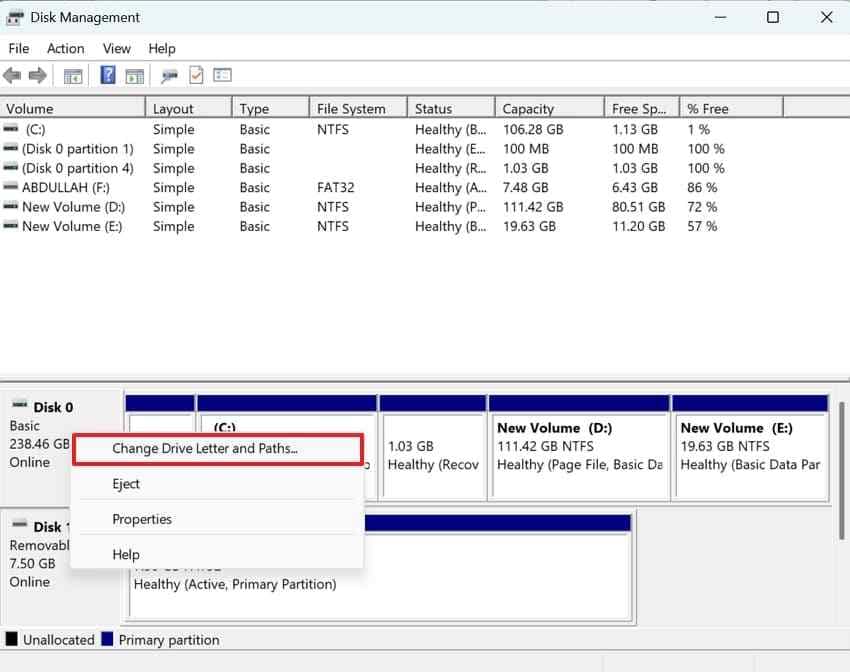
Step 1. In Disk Management, right-click the USB volume and choose Change Drive Letter and Paths.
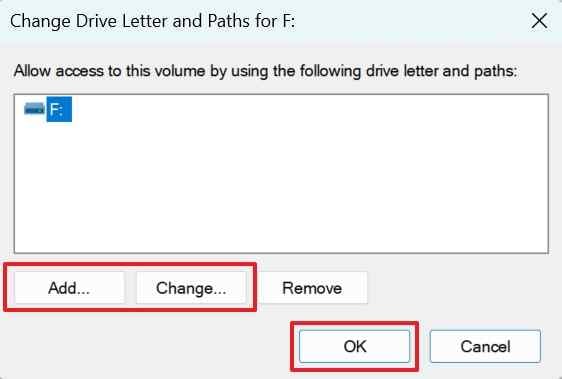
Step 2. Click Add or Change, pick an unused letter, and click OK. Reopen File Explorer.
Fix 2. Bring an Offline Disk Online
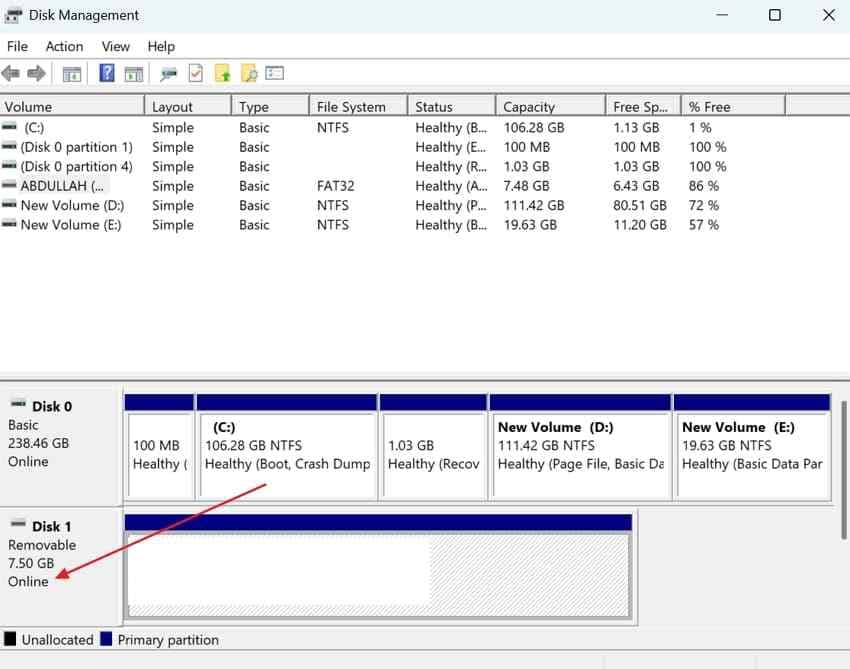
If Disk Management marks the USB as Offline, bring it online before formatting or creating volumes.
Right-click the disk label on the left side of the USB entry and choose Online if the option appears. If it goes offline again or shows errors, back up or recover files before further repair attempts.
Fix 3. Create a New Volume From Unallocated Space
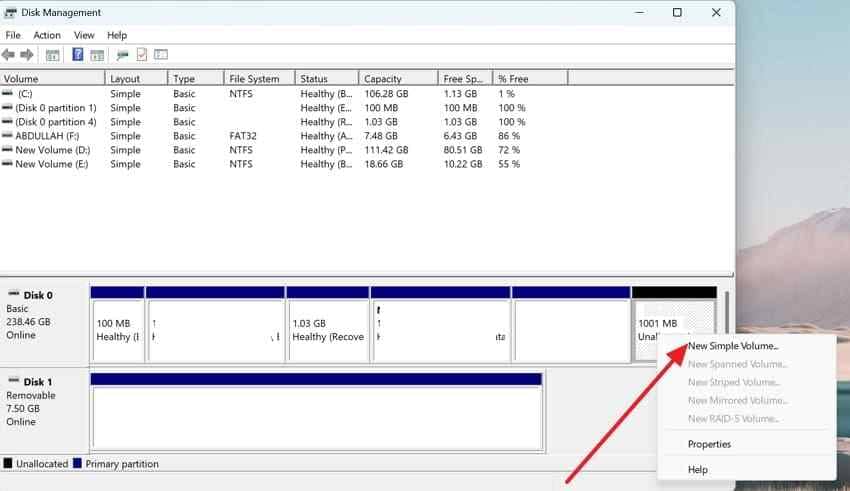
Creating a new volume makes unallocated space usable again. It also writes new partition information, so do this only after recovery or when the USB is empty.
Right-click the Unallocated space and choose New Simple Volume. Follow the wizard, assign a drive letter, and choose a file system such as exFAT for broad modern-device compatibility.
Fix 4. Format a RAW USB Drive After Data Recovery
Formatting a RAW USB rebuilds the file system. It is not a recovery step. It is a reuse step after your files are safe.
Step 1. In Disk Management, right-click the RAW volume and choose Format.
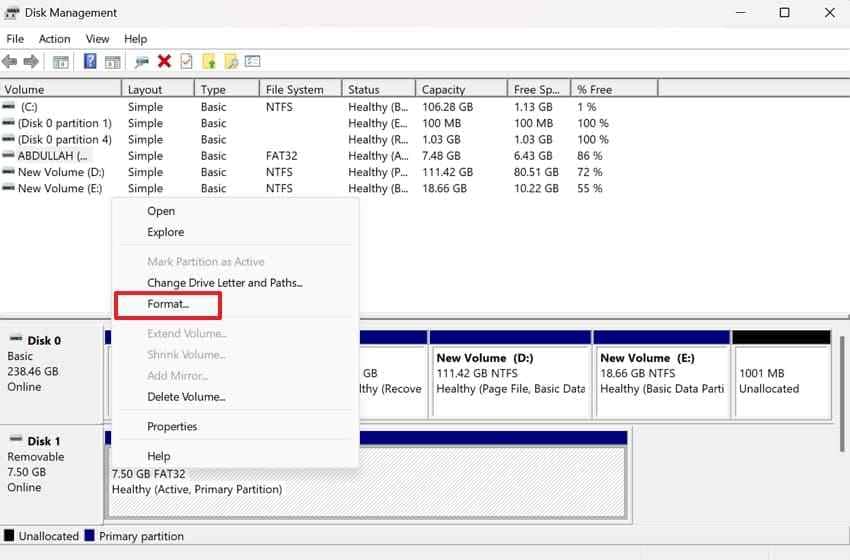
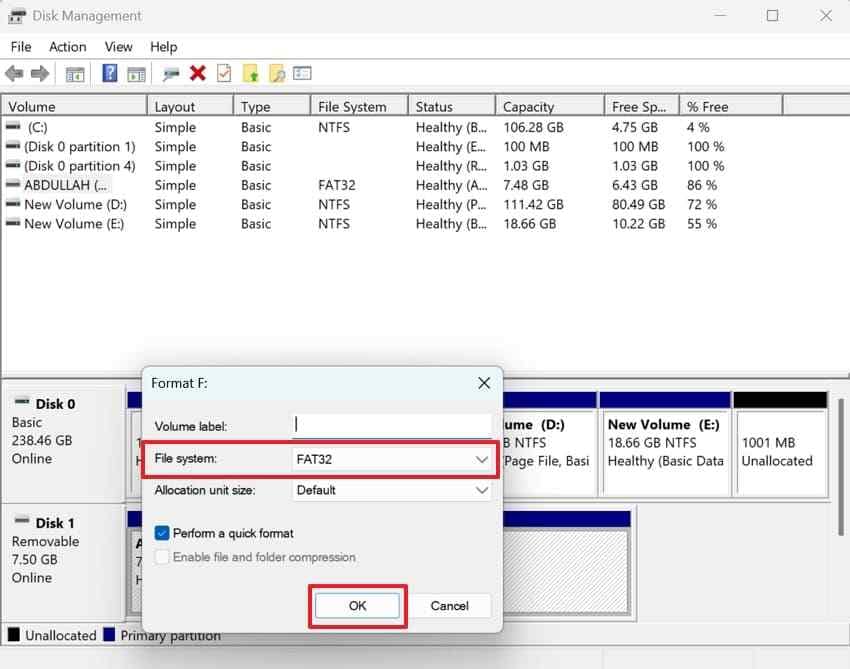
Step 2. Choose exFAT for most modern USB drives, or FAT32 when an older device specifically requires it. Keep Quick Format for a working flash drive. If formatting fails repeatedly, replace the drive.
Fix 5. Recreate the USB Partition
DiskPart is a last resort for rebuilding a USB that Disk Management cannot fix. Microsoft's clean command removes all partition or volume formatting from the selected disk. The clean all parameter writes zeros to every sector and deletes data more thoroughly. Check the disk number twice.
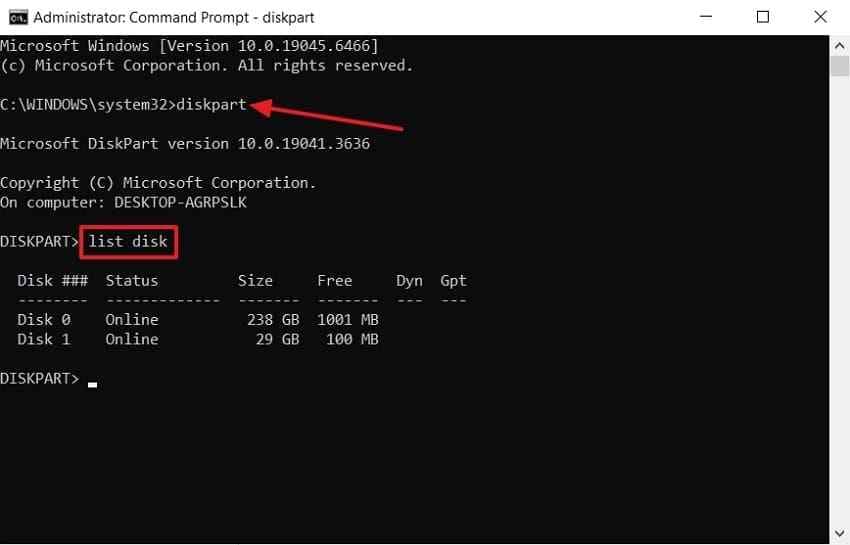
Step 1. Open Command Prompt as administrator and run diskpart, then list disk. Identify the USB by capacity. If you are unsure, stop.
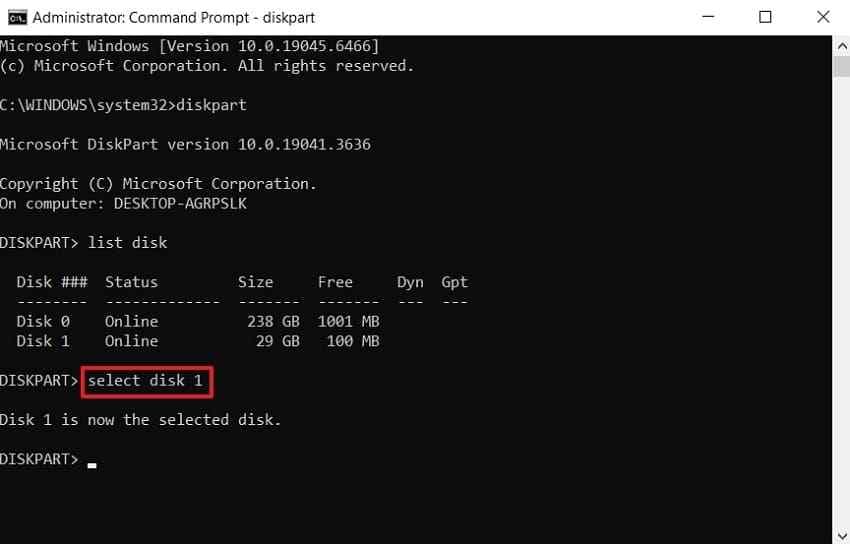
Step 2. Run select disk N, replacing N with the USB disk number. Then run clean and create partition primary. Format and assign a letter only after confirming the correct disk was selected.
Fix 6. Replace the Drive if Errors Keep Returning
A USB that keeps vanishing, becoming RAW, reporting No Media, or failing formats is not reliable working storage. Replace it. If it held important files, recover first; if it did not, do not keep using it for anything important.
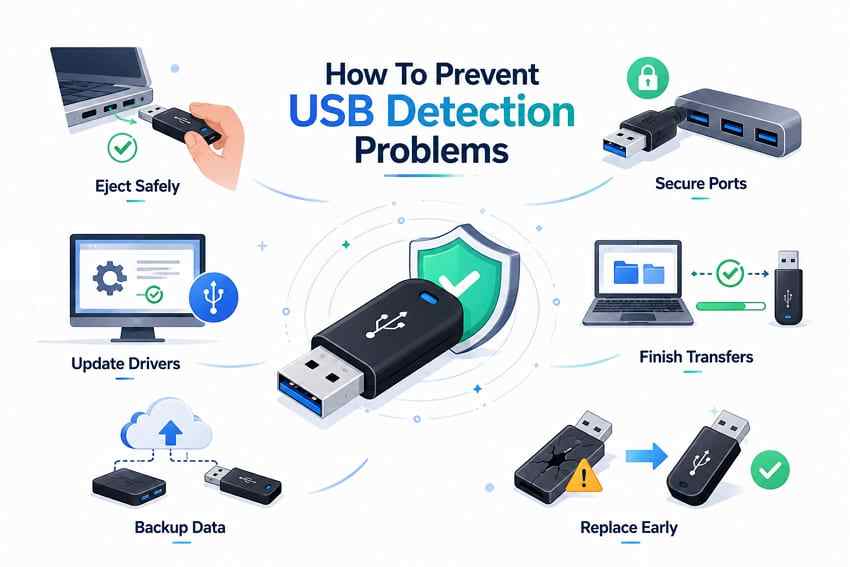
Part 8. How to Prevent USB Detection Problems
USB detection problems are not always preventable, but good handling reduces corruption and early failure.
- Safely eject the USB drive before removing it: Microsoft says to safely remove hardware before disconnecting USB flash drives or external drives to avoid data loss.
- Avoid loose hubs, adapters, and damaged USB ports: Unstable power and signal interruptions can corrupt transfers and make a drive appear and disappear.
- Keep Windows and USB controller drivers updated: Use Windows Update and the PC maker's support page for chipset and controller packages.
- Avoid removing the drive during file transfers: Even one interrupted write can damage the file system and make the next connection show RAW or unallocated.
- Keep important USB files backed up elsewhere: A flash drive is convenient transport storage, not a single-copy archive.
- Replace flash drives that repeatedly disconnect or disappear: Intermittent detection is a warning sign. Do not wait for the device to fail completely.
Conclusion
A USB drive not showing in Disk Management means Windows is not seeing the flash drive as normal storage. Start with direct ports, another computer, Device Manager, Rescan Disks, and official driver updates. If the USB later appears as RAW, unallocated, offline, or without a drive letter, read the status before you act.
Recover files before formatting, creating a new volume, or using DiskPart. Recoverit can help only when the USB is detected as readable storage that software can scan. It cannot repair a broken connector, revive a dead controller, bypass encryption, or recover overwritten data. For No Media, 0 bytes, or complete non-detection, professional recovery or replacement is the practical path.
FAQ
-
Does USB 2.0 vs USB 3.x affect whether a drive appears in Disk Management?
Usually no. The USB version itself does not decide whether Disk Management can list the drive. The port, controller, cable, hub, power delivery, and driver do. A USB 3.x flash drive may still appear through a USB 2.0 port, just at lower speed. Testing another direct port is more useful than focusing only on the version number. -
Can BitLocker stop a USB drive from appearing in Disk Management?
BitLocker normally blocks access to the files, not basic disk detection. A BitLocker-encrypted USB should still appear as a disk or volume if Windows can detect the hardware. You need the correct password or recovery key to unlock it. Recovery software cannot bypass BitLocker encryption. -
Can data be recovered from a USB drive with a broken connector?
Not with normal software unless the drive can stay connected and expose readable storage. A recovery lab may repair or bypass a broken connector, or work directly with flash memory in some cases. Stop plugging it in repeatedly if the connector is loose and the files are important. -
Why does Windows play the USB connection sound but show no drive?
The sound means Windows noticed USB hardware. It does not mean Windows received a usable storage volume. The drive may be visible in Device Manager but fail to appear in Disk Management because of driver issues, controller problems, missing capacity, or No Media. Check Device Manager status first, then test another direct USB port and another computer.



