

 TL;DR:
To migrate virtual machines from VMware to Microsoft Hyper-V, you must convert the VMware-native VMDK virtual disk into a Hyper-V-compatible VHD file using dedicated conversion tools.
● VMware's VMDK format supports virtual disk sizes up to 62 TB, whereas Microsoft's VHD format is limited to a maximum of 2 TB, requiring size compatibility verification before migrating large enterprise deployments.
● Enterprise environments can automate the conversion directly from the VMware infrastructure using Microsoft Virtual Machine Converter (MVMC), while users preferring a simpler graphical interface can use StarWind V2V Converter for local and remote disk conversions.
● Before executing the conversion, you must verify the source disk for file system errors to prevent post-conversion boot failures and ensure the destination drive has sufficient free storage capacity to accommodate the newly generated VHD file.
Ask AI for a summary
 ChatGPT
 Perplexity
 Gemini
 Claude
 Grok
Grok
Virtual machines are used in almost every modern IT setup. Companies often work with different virtualization platforms at the same time. Because of this, disk format compatibility becomes very important. When moving a virtual machine from VMware to Hyper-V, users must understand how to convert VMDK to VHD correctly.
Each virtualization platform uses its own virtual disk format. VMware uses VMDK files. Microsoft Hyper-V uses VHD files. These formats are not directly compatible. That is why proper VMDK to VHD conversion is required when switching platforms.
Before explaining the methods, it is important to understand what is VMDK and what is VHD in simple terms.
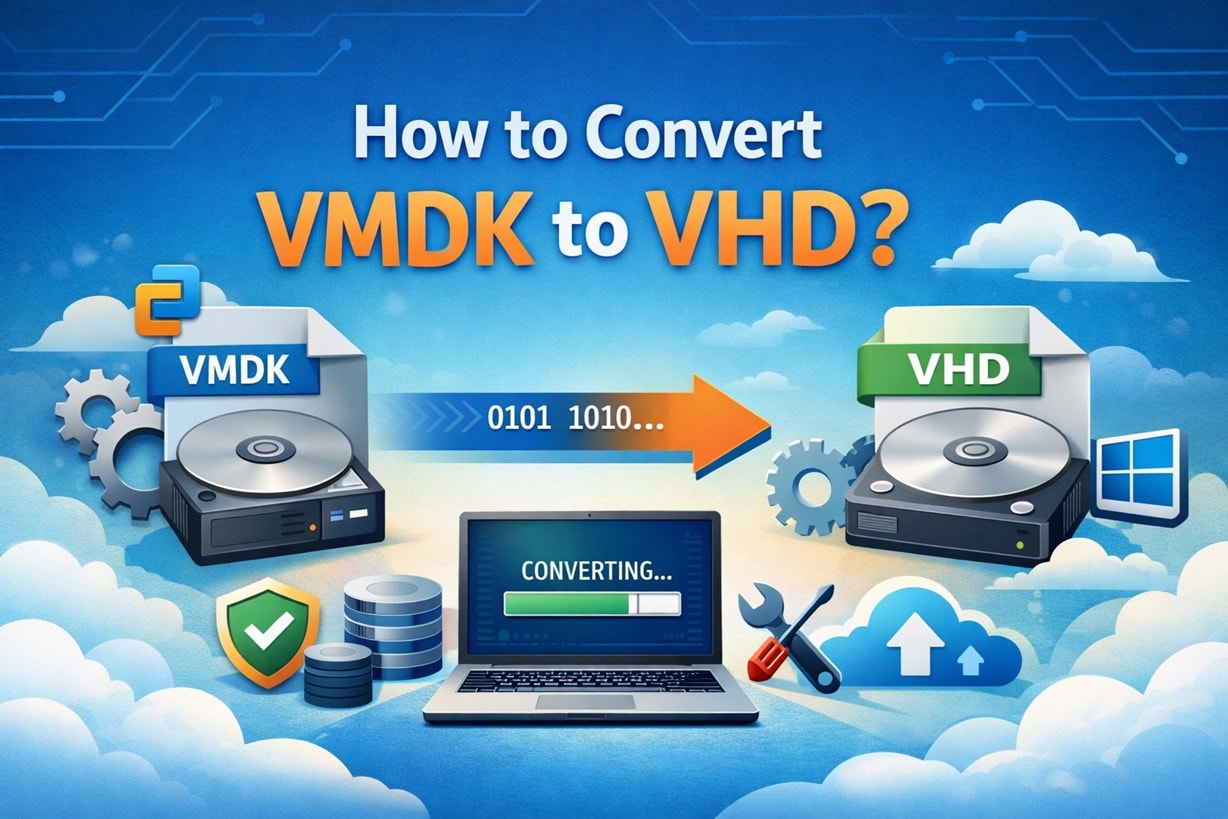
Table of Contents
Part 1: What is VMDK?
Many users search what is VMDK when they first work with VMware. VMDK stands for Virtual Machine Disk. It is the standard disk format used by VMware products such as Workstation, ESXi, and Fusion. This file acts as a virtual hard drive for a virtual machine.
To better understand what is VMDK, think of it as a file that contains everything stored inside a virtual computer. It holds the operating system, installed software, configuration files, and user data. When a virtual machine runs, it reads and writes data to the VMDK file just like a physical computer writes data to a real hard disk.
A VMDK file can be configured as a fixed disk or a dynamic disk. A fixed disk uses the full allocated size immediately. A dynamic disk grows as data is added. This flexibility makes VMDK files suitable for both small test environments and large enterprise systems.
If you want to know how to open VMDK in VMDK workstation, the process is simple. You open VMware Workstation, choose “Open a Virtual Machine,” and select the VMDK or associated VMX file. The software then attaches the virtual disk automatically. This allows you to boot the system and access stored data.
You may also be interested in: What is VHDX, and how to open it?
Part 2: What is VHD?
Now, let us understand what is VHD. VHD stands for Virtual Hard Disk. It is a disk image format developed by Microsoft. It is mainly used with Microsoft Hyper-V, which is included in Windows Server and some versions of Windows.
When someone asks what is VHD, the simplest explanation is that it is a file that behaves like a physical hard drive. It stores an entire operating system and its related data inside one file. Like VMDK, it supports partitions and file systems.
There are two main types of VHD disks. One is a fixed size. The other is dynamically expanding. A fixed VHD allocates the entire space when it is created. A dynamic VHD grows in size as data is written. This makes storage management easier in many scenarios.
Understanding what VHD is helps when planning migration from VMware to Hyper-V. Since Hyper-V cannot directly use VMDK files, VMDK to VHD conversion becomes necessary for smooth platform migration.
Part 3: VMDK vs VHD – Key Differences
Before starting any VMDK to VHD conversion, it is important to understand VMDK vs VHD in detail. Both formats serve the same purpose. However, they are optimized for different platforms. Choosing the right format depends on your virtualization environment and long-term goals.
Detailed Comparison Table
| Feature | VMDK | VHD |
| Developed By | VMware | Microsoft |
| Main Platform | VMware products | Hyper-V |
| Maximum Size | Up to 62 TB (varies by version) | Up to 2 TB (VHD) |
| Disk Types | Fixed and dynamic | Fixed and dynamic |
| Snapshot Support | Yes | Yes |
| Enterprise Usage | Common in VMware data centers | Common in Windows server environments |
#1 Platform Compatibility (VMware vs Microsoft Hyper-V)
The biggest difference in VMDK vs VHD is platform compatibility. VMDK works best with VMware products such as Workstation and ESXi. VHD is built mainly for Microsoft Hyper-V environments.
If you are using VMware, you can easily load the disk without extra tools. Users often ask how to open VMDK in VMDK workstation. The answer is straightforward. Open VMware Workstation and load the associated virtual machine file.
However, Hyper-V does not natively open VMDK files. This is where the VMDK to VHD conversion becomes essential. It ensures that the virtual disk becomes compatible with the Microsoft platform.
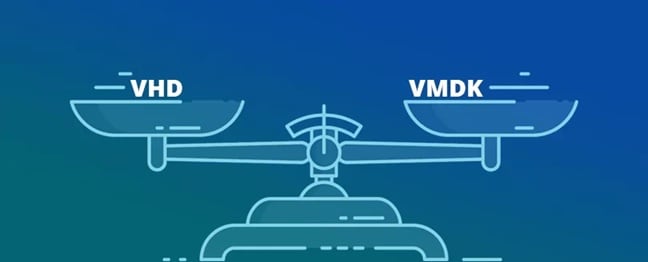
Performance depends on the hypervisor being used. In a VMDK vs VHD comparison, each format is optimized for its own system. VMDK performs efficiently inside VMware environments. VHD performs best within Hyper-V.
Scalability is another important factor. VMware systems often support larger virtual disk sizes depending on configuration. Traditional VHD files have size limitations. This may affect large enterprise deployments.
When planning how to convert VMDK to VHD, always check disk size compatibility. This avoids errors during migration.
#3 File Size and Storage Efficiency
Both disk formats support dynamic expansion. This helps save space when the disk is not fully used. In the VMDK vs VHD comparison, storage efficiency depends on disk configuration.
Improper configuration may lead to wasted space. During VMDK to VHD conversion, selecting the correct disk type is important. Fixed disks offer stable performance. Dynamic disks save initial storage space.
#4 Use Cases for Each Format
VMDK is commonly used in organizations running VMware infrastructure. It is ideal for testing labs, enterprise data centers, and cloud setups based on VMware.
VHD is widely used in Microsoft-based IT environments. Businesses running Windows Server and Hyper-V prefer this format. Understanding VMDK vs VHD helps system administrators choose the right platform for their needs.
Part 4: VMDK to VHD Conversion Methods
There are multiple ways to perform VMDK to VHD conversion. Some tools offer graphical interfaces. Others use command-line utilities. The best method depends on system complexity and user experience.
Learning how to convert VMDK to VHD safely reduces the risk of data corruption. Always create a backup before starting the conversion.
Method 1: Using Microsoft Virtual Machine Converter (MVMC)
Microsoft Virtual Machine Converter is a free tool provided by Microsoft. It helps migrate VMware machines to Hyper-V. It supports automated VMDK to VHD conversion.
This tool connects directly to the VMware infrastructure. It converts both virtual machines and disk files. It is useful in enterprise environments.
To learn how to convert VMDK to VHD using MVMC, follow these steps:
Steps:
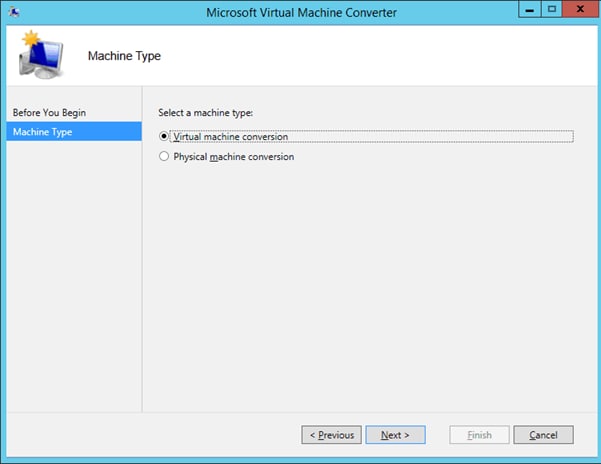
- Install MVMC on a Windows system. Launch the program. Select the machine type. Choose the option to convert a VMware virtual machine.
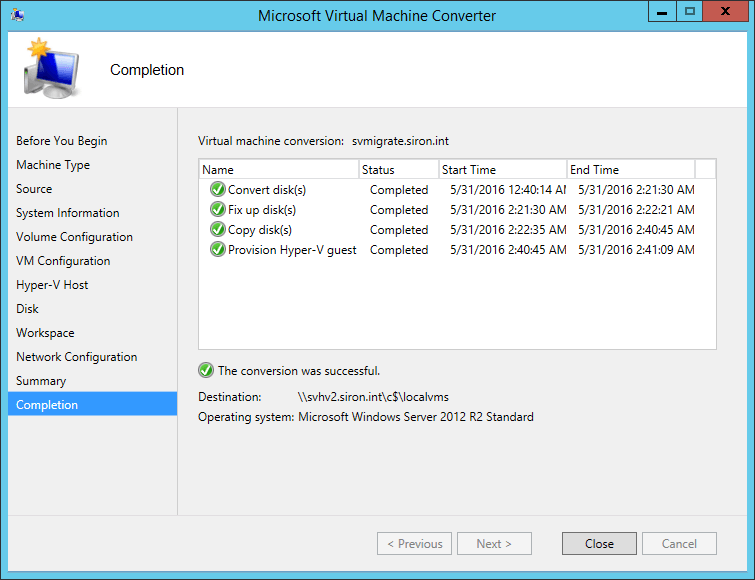
- Enter VMware server details. Select the target virtual machine. Choose VHD as the output format and start the conversion process.
Method 2: Using StarWind V2V Converter
StarWind V2V Converter is a free conversion tool. It supports many disk formats, including VMDK and VHD. It provides a simple interface for disk conversion.
This method is suitable for users who prefer a graphical tool. It does not require complex configuration. It supports local file conversion as well as remote server connections.
For VMDK to VHD conversion using StarWind V2V Converter, follow these steps:
Steps:
- Install and open StarWind V2V Converter. Select the local VMDK file as the source disk.
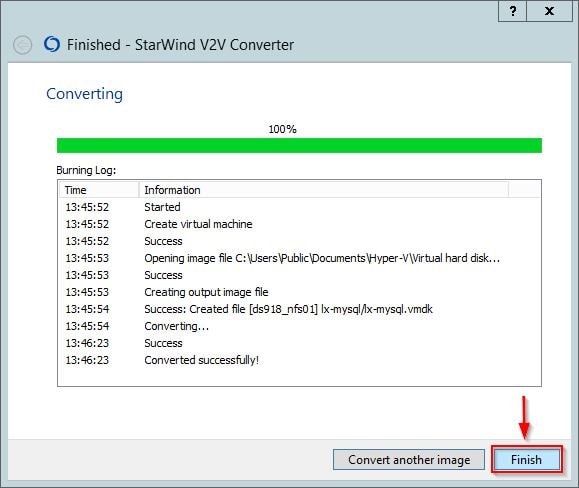
- Choose Microsoft VHD as the target format. Select the destination folder and begin the conversion process.
Part 5: How to Recover Lost/Deleted VMDK File
Sometimes, during migration, a sudden shutdown, or a system failure, the VMDK file may become deleted, corrupted, or inaccessible. This can happen due to storage errors, accidental formatting, or improper VMDK to VHD conversion attempts. In such situations, many users start searching for how to recover lost/deleted VMDK files safely without causing further damage.
Recoverit is professional data recovery software designed to handle complex data loss cases. It supports virtual disk recovery and can detect missing or damaged VMDK files. The software works with internal hard drives, SSDs, external drives, and even formatted partitions. It performs a deep scan of the selected storage device to locate traces of deleted virtual disk files.
If you are concerned about how to recover lost/deleted VMDK file, this tool offers a practical solution. It carefully scans sectors to rebuild lost file structures whenever possible. The software is especially helpful after accidental deletion, disk corruption, partition loss, virus attacks, or unexpected system crashes. Scanning at a deeper level, it increases the chances of restoring the original VMDK file in a usable state.
Why Use Recoverit
- Supports recovery of virtual disk files
- Deep scan technology
- User-friendly interface
- Preview before recovery
- Works on multiple storage devices
- High success rate
Recovery Steps
Step 1: Install Recoverit on a healthy system drive. Select the location where the VMDK file was stored and start scanning.

Step 2: After the scan completes, preview the found files.

Step 3: Select the required VMDK file and save it to a different storage location.

Part 6: Pro Tips for VMDK to VHD Conversion
Before starting VMDK to VHD conversion, follow best practices. Proper planning reduces failure risk and downtime.
- Always create a full backup before conversion. A backup protects your data if the process fails or the new file becomes corrupted. Save the copy on a separate drive for better safety.
- Verify disk integrity before starting. Check the source disk for file system errors. Converting a damaged disk can cause boot or data issues later.
- Ensure enough free storage space. Conversion needs extra space for the new VHD file. Make sure the destination drive has enough free capacity.
- Check platform compatibility versions. Confirm that your VMware, Hyper-V, and conversion tool versions support each other. This reduces format and boot errors.
- Convert during low usage hours. Run the process during maintenance time. This avoids performance issues and allows easier troubleshooting.
- Choose the correct disk type settings. Select a fixed or dynamic disk carefully. Fixed offers stable performance. Dynamic saves space at the start.
- Test the converted disk in a test environment. Attach the new disk to a test virtual machine. Make sure the system boots and runs properly.
- Document all configuration changes. Record disk size, type, and tool details. This helps if you need to repeat or troubleshoot the process.
Conclusion
Understanding how to convert VMDK to VHD is important for IT professionals managing mixed virtualization environments. Proper conversion ensures compatibility and smooth migration between VMware and Hyper-V systems.
Before starting any VMDK to VHD conversion, understand what is VMDK, what is VHD, and the differences in VMDK vs VHD. Always follow safe conversion methods and keep backups ready. If data loss occurs, knowing how to recover lost/deleted VMDK file can prevent serious downtime.
FAQs
-
Can Hyper-V directly use a VMDK file?
No, Microsoft Hyper-V cannot use a VMDK file in its original format. VMDK is designed for VMware platforms, while Hyper-V works with VHD or VHDX files. To use the virtual disk in Hyper-V, you must first complete a proper VMDK to VHD conversion and then attach the converted disk to the virtual machine. -
Is data lost during disk conversion?
In most cases, data is not lost if the conversion process is performed correctly and finishes without interruption. Problems may occur if the system shuts down, storage runs out of space, or the source file is already damaged. It is always recommended to create a full backup before starting how to convert VMDK to VHD to avoid unexpected data loss. -
Can I convert VMDK to VHD without third-party tools?
Yes, you can convert the file without using graphical third-party software by using command-line utilities such as qemu-img. This method works well for users who are comfortable with terminal commands. However, beginners often find dedicated conversion tools easier to use because they provide step-by-step guidance through a visual interface.


