 TL;DR:
Recovering lost data from NAND flash drives requires isolating hardware faults by testing different ports, repairing logical errors via command-line tools, or utilizing dedicated scanning software before any new data overwrites the missing files.
● Software tools like Recoverit support restoring deleted or formatted partitions across FAT32, NTFS, and exFAT file systems, allowing file preview before executing the final recovery.
● Unreadable drives caused by file system corruption can often be fixed by executing the `chkdsk X: /f /r` command in an administrator Command Prompt to repair bad sectors.
● To maximize drive lifespan and minimize future data loss risks, always maintain 10–20% free storage capacity and avoid unnecessary rewriting that depletes limited write cycles.
Ask AI for a summary
 ChatGPT
 Perplexity
 Gemini
 Claude
 Grok
Grok
Digital devices today depend heavily on NAND drives for storing and transferring data. These compact flash-based drives power USB drives, SSDs, and memory cards. Their high speed, durability, and portability make them a preferred choice for modern storage needs. However, when they stop working or data goes missing, recovering files can feel like a serious challenge.
Losing data from NAND drives is not uncommon. Corruption, power failure, or accidental deletion can make files disappear instantly. Many users think such data is gone forever. But the good news is, there are practical methods for NAND recovery. With the right tools and care, you can successfully recover data from NAND flash memory and bring your lost files back.
Table of Contents
Part 1: What is a NAND Drive?
NAND drives are non-volatile flash memory storage devices. This means they can keep data even when power is off. They are widely used in SSDs, USB flash drives, memory cards, and mobile phones. A NAND drive stores information using memory cells arranged in blocks. These blocks record data as electrical charges. The design allows fast read and write operations while using less power.
NAND flash has replaced older storage types like hard disks in many uses. It is faster, smaller, and less prone to mechanical failure since it has no moving parts. However, it has limited write cycles. Over time, repeated usage can cause wear, leading to data loss. When that happens, users often look for effective NAND recovery options to get their files back.
Key Features
- Fast Performance – NAND flash can read and write data faster than most traditional drives.
- Compact Design – Small in size, making it ideal for portable devices and embedded systems.
- Low Power Use – Consumes less energy, improving battery life for laptops and handheld devices.
- Durable Storage – No moving parts, making it more resistant to shock and vibration.
- Data Retention – Retains information even without power supply.
- Multiple Variants – Comes in SLC, MLC, TLC, and QLC versions, each with different endurance and cost levels.
- Flexible Use – Works in many devices from digital cameras to solid-state drives.
- Upgradeable – Often compatible with firmware updates and recovery tools.
These features make NAND flash memory essential for today’s devices. But when errors or corruption occur, users must understand how to recover data from NAND drives using the right techniques.
Part 2: How to Recover Data from NAND Drives?
Losing files from NAND drives can happen for many reasons—formatting errors, sudden removal, or logical damage. Thankfully, several methods can help you recover lost data from NAND drives. Below are practical ways to perform NAND flash recovery safely and effectively.
Method 1: Use Recoverit Software
One of the easiest and most effective ways to recover data from NAND flash memory is by using professional recovery software like Recoverit. It is designed for both beginners and advanced users. The program supports USB drives, SSDs, and memory cards built with NAND technology. It can restore deleted, formatted, or corrupted files in minutes.
Recoverit scans the drive deeply to locate missing files and provides a preview before recovery. It supports photos, videos, documents, and other file types. This makes it one of the best NAND recovery tools available.
How it helps:
- Detects lost or deleted files from NAND drives.
- Works on formatted or corrupted partitions.
- Supports many file systems like FAT32, NTFS, and exFAT.
- Allows preview before final recovery.
Steps:
Step 1. Install and open Recoverit on your computer. Connect your NAND drive.

Step 2. Select the drive and click Scan.

Step 3. After scanning, preview the files and restore the needed ones.

Method 2: Check for Logical Errors Using CHKDSK
Sometimes the issue is not deleted files but file system corruption. Windows has a built-in tool called CHKDSK that checks and repairs logical errors on storage drives. This can fix bad sectors or minor corruption that prevents the drive from being read.
Running CHKDSK can also help in NAND flash recovery by fixing the logical structure of the drive, allowing files to appear again. However, it should be used carefully to avoid further damage.
How it helps:
- Scans and repairs file system errors.
- Restores access to unreadable drives.
- Prevents future data loss by fixing bad sectors.
- Improves drive performance and stability.
Steps:
Step 1. Open Command Prompt as administrator.
Step 2. Type chkdsk X: /f /r (replace X with your drive letter) and press Enter. Wait for the process to finish, then check if the data appears.
Method 3: Restore from Backup or Cloud Drive
If you have cloud storage or backup enabled, this is often the easiest way to recover lost data from NAND drives. Many users sync their files with services like Google Drive, OneDrive, or Dropbox. This helps restore deleted or overwritten files without using recovery tools.
Keeping regular backups saves you from complicated NAND recovery steps later. Syncing your important files also ensures that you can access them from anywhere.
How it helps:
- Quick and safe file restoration.
- Avoids deep scanning or driving stress.
- Recovers even overwritten files if version history is enabled.
- Ensures long-term protection from accidental loss.
Steps:
Step 1. Open your backup or cloud account like Google Drive or Dropbox.
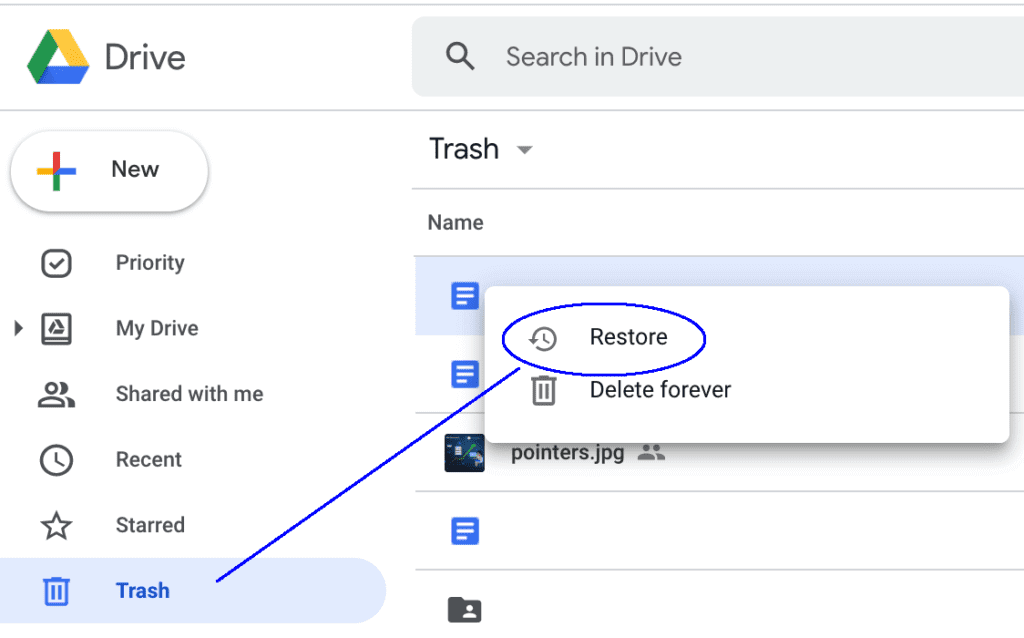
Step 2. Locate and download the lost files to your computer or NAND drive again.
Method 4: Check the Recycle Bin
Before trying advanced recovery options, check your system’s Recycle Bin. Many deleted files from connected NAND drives can be found there if they were removed through normal deletion. This simple check often saves time and effort.
It might sound too basic, but many users overlook this step. Files deleted from external NAND flash drives sometimes stay temporarily in the Bin unless permanently erased.
How it helps:
- The fastest way to bring back recently deleted files.
- No extra tools needed.
- Works for many file types.
- Prevents unnecessary deep scanning.
Steps:
Step 1. Open the Recycle Bin on your desktop.
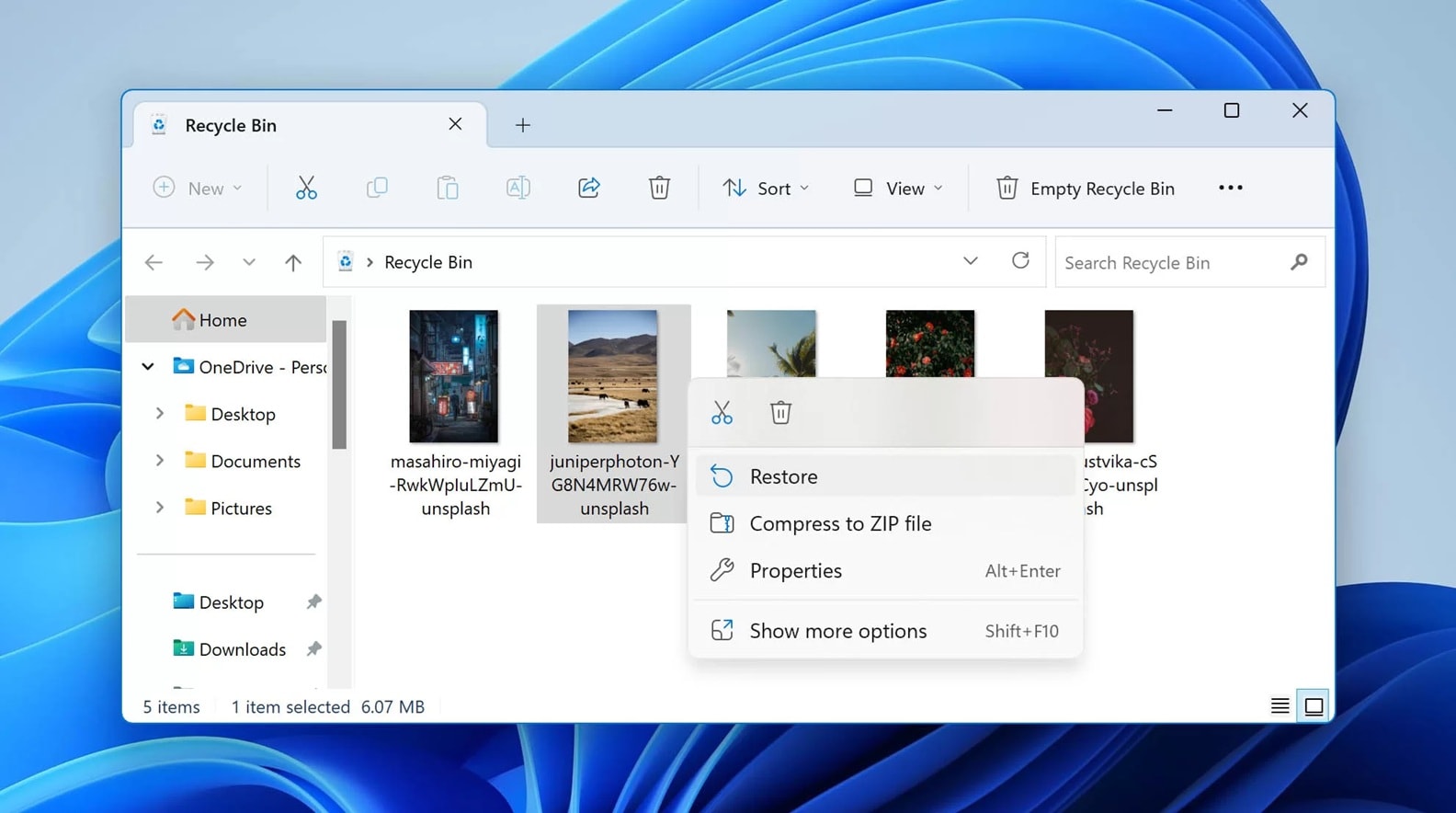
Step 2. Search for the lost files, right-click, and choose Restore.
Method 5: Try Plugging the Drive into Another Port or Device
Sometimes, the problem is not the NAND drive but the port or device reading it. A faulty USB port or outdated driver can prevent proper detection. Trying another port or connecting to a different computer can quickly solve this.
This method is simple but often effective, especially when drives seem dead but still have intact data. It helps confirm if the issue is hardware-related.
How it helps:
- Detects drive connection issues.
- Works without installing software.
- Helps isolate the cause of data loss.
- Prevents unnecessary formatting.
Steps:
Step 1. Safely remove the NAND drive and plug it into another USB port or device.
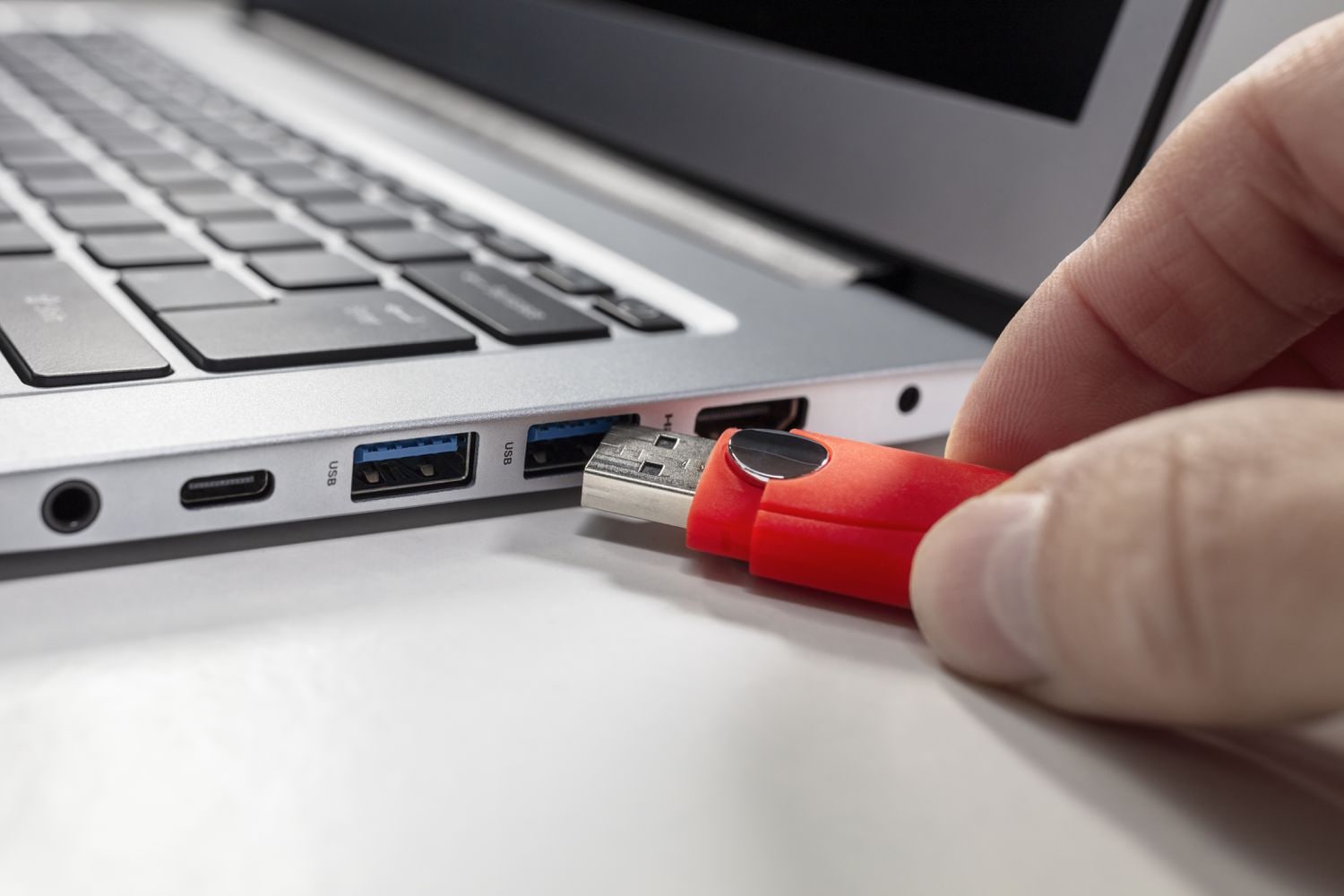
Step 2. Wait for the system to recognize it. If detected, copy the files immediately.
Part 3: Simple Tips to Keep NAND Data Safe
Even though NAND recovery is possible, prevention is always better. Protecting your data reduces the risk of loss and keeps your drive healthy. Here are some simple habits that can make a difference.
Tips:
- Back Up Regularly: Use external drives or cloud services to back up your files weekly.
- Avoid Sudden Removal: Always eject your NAND drive safely to prevent corruption.
- Keep the Drive Clean: Dust or moisture can damage connectors. Store it in a dry, clean case.
- Update Firmware: Some NAND drives offer firmware updates that fix known bugs or stability issues.
- Use Antivirus Protection: Malware can corrupt flash memory. Run regular scans.
- Avoid Overfilling: Keep at least 10–20% free space to allow stable operation.
- Limit Write Cycles: Avoid unnecessary rewriting. It reduces drive lifespan.
- Monitor Drive Health: Use software tools to check wear level and bad sectors early.
Following these measures helps reduce data loss and keeps the drive performing smoothly for years.
Conclusion
NAND drives have become an essential part of our digital world. From smartphones to solid-state drives, they store valuable personal and business data every day. But like any technology, they are not immune to failures. Files can be lost due to corruption, wear, or accidental deletion.
Fortunately, NAND recovery is possible. With the right approach, you can recover data from NAND flash memory using trusted tools like Recoverit or simple built-in system commands. Always start with the easiest solutions, such as checking the Recycle Bin or using a different port. If those do not work, software-based NAND recovery tools offer a reliable way to bring lost data back.
Keeping regular backups and taking preventive care is equally important. With smart habits and a bit of patience, you can avoid future losses and ensure your data stays secure.
FAQs
-
What causes NAND drive failure?
NAND drives may fail due to power surges, excessive write cycles, improper ejection, or file system corruption. Sometimes, physical damage or aging memory cells can also trigger errors. Regular backups and careful handling can reduce the chances of failure. -
Is it safe to perform NAND recovery on your own?
Yes, it is generally safe if you use trusted NAND recovery tools and avoid writing new data to the affected drive. Avoid reformatting or using unverified programs. For severe physical damage, professional help is recommended. -
Can deleted files be fully restored from NAND flash drives?
Yes, deleted files can often be recovered, especially if no new data has replaced them. Using recovery software early increases the success rate. However, results depend on how the files were lost and the drive’s condition.



