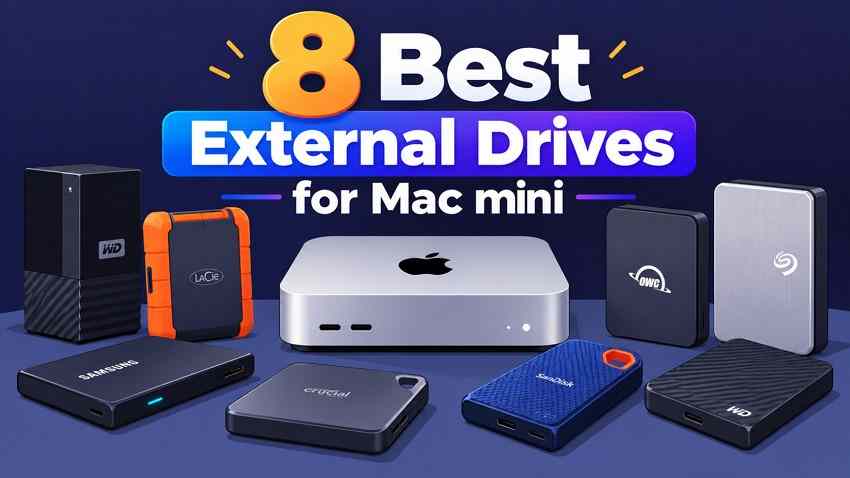
An external SSD for Mac mini is a practical way to expand storage for photo libraries, video projects, and everyday files without replacing your computer. External hard drives remain attractive for large archives and Time Machine backups because they generally offer more capacity for the money. The right choice depends not just on the drive but also on which Mac mini you own and the port you connect it to.
This guide compares eight named SSDs and HDDs, including portable USB models, Thunderbolt drives, and desktop backup disks. You will find a quick use-case comparison before the detailed reviews, a verified Mac mini port guide, safe setup instructions, and advice for recovering files from a readable external drive. Performance figures are manufacturer claims, not independent tests conducted for this article.
| External drive | Type | Most suitable use |
| Samsung T7 Shield | SSD | Everyday files and portable photo libraries |
| Crucial X9 Pro for Mac | SSD | Mac-ready portable storage with APFS formatting |
| OWC Envoy Pro FX | SSD | Thunderbolt creative workflows with USB fallback |
| LaCie Rugged SSD Pro5 | SSD | Heavy 6K/8K work on M4 Pro or M5 Pro Mac mini |
| WD My Passport for Mac | HDD | Portable backups and media archives |
| Seagate Expansion Desktop | HDD | High-capacity, desk-based storage |
| WD My Book | HDD | Large Time Machine history and home archives |
| LaCie Rugged Mini | HDD | Protected portable storage for travel |
In this article
-
- Samsung T7 Shield: Portable SSD for Everyday Mac mini Storage
- Crucial X9 Pro for Mac: Compact SSD for General Storage
- OWC Envoy Pro FX: Thunderbolt SSD for Creative Workflows
- LaCie Rugged SSD Pro5: Thunderbolt 5 SSD for M4 Pro and M5 Pro Mac mini
- WD My Passport for Mac: Portable HDD for Backup and File Storage
- Seagate Expansion Desktop: High-Capacity Desktop HDD
- WD My Book: Desktop HDD for Time Machine Backups
- LaCie Rugged Mini: Portable HDD for Travel
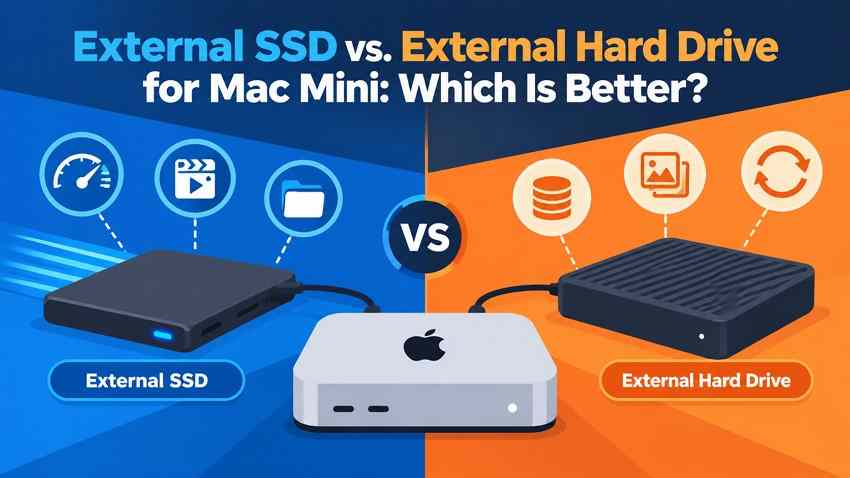
Part 1. External SSD vs. External Hard Drive for Mac mini: Which Is Better?
Choose an SSD when you regularly edit media, run large libraries, or move files between workstations. Choose an HDD when inexpensive capacity matters more than responsiveness, particularly for backup history and infrequently opened archives. For important work, neither drive type replaces a separate backup.
SSD Versus HDD: Speed, Capacity, Cost, and Backup Role
| Decision factor | External SSD | External HDD |
| File editing and transfer | Responsive for active projects and large transfers | Best suited to sequential backup and archive jobs |
| Capacity per dollar | Usually higher cost per TB | Often lower cost per TB at large capacities |
| Portability | No moving parts and generally lighter | Mechanical movement means extra care in transit |
| Mac backup use | Works with Time Machine when correctly formatted | Good for Time Machine when correctly formatted |
| Recoverability | Deletion may become unrecoverable quickly because of TRIM | Logical recovery varies with overwriting and drive health |
Mac mini M6/M5 Pro Versus Earlier Models: Port Compatibility
Apple identifies the 2026 Mac mini as either M6 or M5 Pro. The M6 model has three rear Thunderbolt 4 ports; the M5 Pro has three rear Thunderbolt 5 ports. Both have two front USB-C ports rated up to 10Gb/s. Thunderbolt is backward compatible within supported cabling and device limits, but the top transfer rate is determined by the slowest effective part of the connection.
| Mac mini model | Relevant ports | Practical buying implication |
| M6 (2026) | Three rear Thunderbolt 4 (40Gb/s); two front USB-C (10Gb/s) | USB-C SSDs work; Thunderbolt 5 drive cannot achieve full TB5 performance |
| M5 Pro (2026) | Three rear Thunderbolt 5; two front USB-C (10Gb/s) | Supports faster compatible Thunderbolt 5 SSDs on rear ports |
| M4 (2024) | Three rear Thunderbolt 4; two front USB-C (10Gb/s) | Good for USB 10Gb/s or Thunderbolt 4 SSDs |
| M4 Pro (2024) | Three rear Thunderbolt 5; two front USB-C (10Gb/s) | Can benefit from Thunderbolt 5 SSDs |
| M2 / M2 Pro (2023) | Rear Thunderbolt 4 plus USB-A (5Gb/s) | May need USB-A cable/adapter for some HDDs |
| M1 (2020) | Rear Thunderbolt 3/USB4 and USB-A | Match cable and enclosure capabilities before buying |
Verify the exact model in Apple menu > About This Mac. Apple lists current port details in Mac mini specifications and earlier configurations in 2024 Mac mini specifications.
USB 3.2 Gen 2x2 and Thunderbolt Performance Limits
A USB-C plug is only a connector shape, not a speed guarantee. A USB 3.2 Gen 2 SSD can advertise 10Gb/s; a USB 3.2 Gen 2x2 SSD may advertise 20Gb/s, but you should not assume a Mac mini can run that USB-specific mode at 20Gb/s. Thunderbolt 4 has up to 40Gb/s link bandwidth, while Thunderbolt 5 can provide higher bandwidth to suitable drives on the M4 Pro and M5 Pro. Actual storage throughput is lower than interface bandwidth and depends on the controller, cable, file sizes, temperature, and SSD write cache.
Part 2. 8 External SSDs and Hard Drives for Mac mini
These eight drives are use-case selections based on publicly documented specifications, not products ranked by hands-on benchmarks. Capacity options, retailer stock, accessories, and warranty terms vary by region. Check the exact SKU and included cable before ordering.
Samsung T7 Shield: Portable SSD for Everyday Mac mini Storage
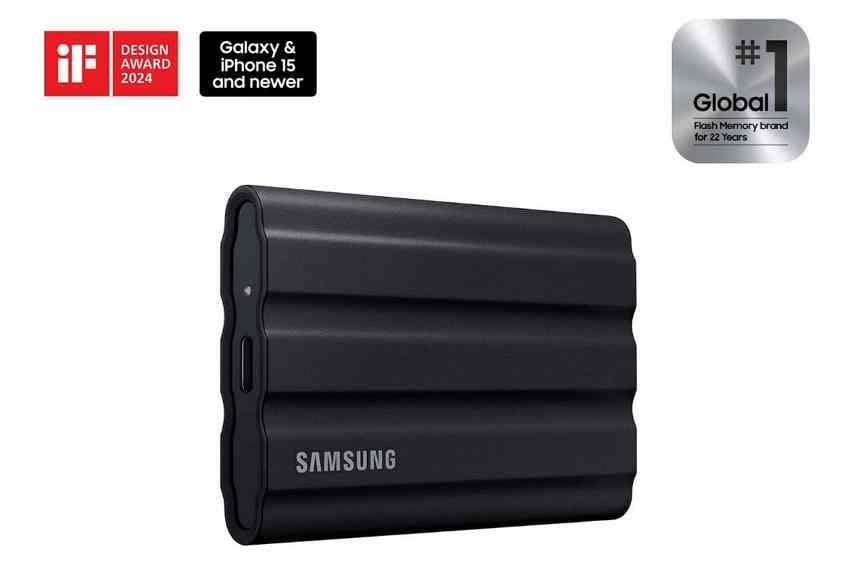
The T7 Shield suits a Mac mini desk where compact, sturdy USB storage is more valuable than maximum Thunderbolt bandwidth. Connect it to a compatible front USB-C port on M4/M6 models or a rear USB-C port on earlier models.
Best for: Daily projects, portable photos, and document libraries.
Key Features
- USB 3.2 Gen 2 (10Gb/s); Samsung specifies up to 1,050MB/s read and 1,000MB/s write.
- 1TB, 2TB, and 4TB variants; IP65 dust/water resistance and up-to-3-meter rated drop protection.
- Hardware AES 256-bit encryption and both USB-C and USB-A connection options with compatible cables.
Pros
- Lightweight, portable, and easy to connect to modern Mac mini ports.
- Rugged enclosure suits moving between desk and studio.
Con: The 10Gb/s interface does not use the higher bandwidth of a Thunderbolt 4/5 port.
Source: official product specifications or manufacturer reference.
Crucial X9 Pro for Mac: Compact SSD for General Storage
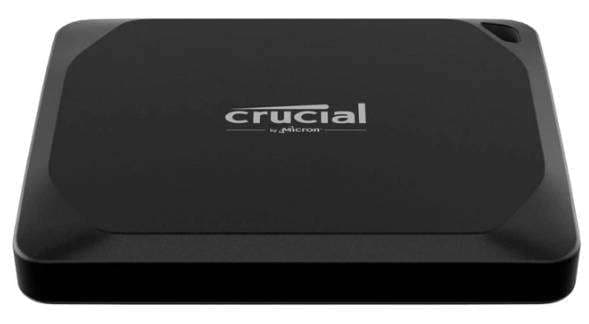
Crucial positions this Mac edition as a plug-and-play portable SSD with APFS formatting. It is a practical alternative when you want to use the drive with your Mac mini without initially erasing it just to switch file systems.
Best for: Mac-first portable storage, photo libraries, and frequent transfers.
Key Features
- USB 3.2 Gen 2 (10Gb/s); specified sequential reads and writes up to 1,050MB/s.
- Available 1TB, 2TB and 4TB models with APFS preformatting for Apple devices.
- IP55 dust/water resistance and compact aluminum design with a USB-C cable.
Pros
- Useful Mac-oriented formatting reduces initial setup for Mac-only use.
- Small, bus-powered design is well suited to limited desk space.
Con: A 10Gb/s interface means no Thunderbolt-level transfer speeds.
Source: official product specifications or manufacturer reference.
OWC Envoy Pro FX: Thunderbolt SSD for Creative Workflows
OWC combines Thunderbolt speed with USB connectivity, making the Envoy Pro FX attractive if your Mac mini shares a drive with other computers. Its fanless metal housing makes more sense for frequent large transfers than an HDD.
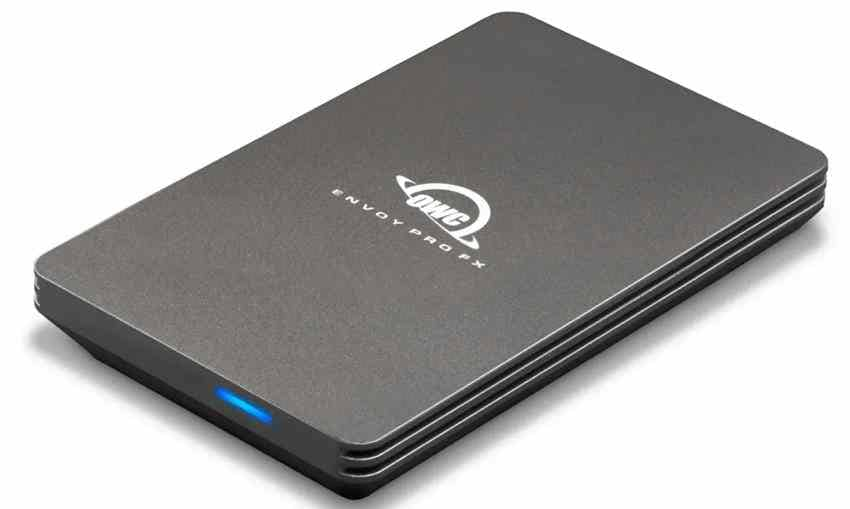
Best for: Video projects, large creative libraries, and mixed-device workflow.
Key Features
- Thunderbolt/USB-compatible enclosure with OWC-advertised performance up to 2,800MB/s on suitable hosts.
- IP67-rated rugged housing, grooved aluminum heat dissipation, and bus power.
- Included Thunderbolt cable and USB-A adapter for compatible older computers.
Pros
- Can use Thunderbolt performance and connect through USB as a fallback.
- No external power brick is required.
Con: Higher cost per terabyte than everyday 10Gb/s portable SSDs.
Source: official product specifications or manufacturer reference.
LaCie Rugged SSD Pro5: Thunderbolt 5 SSD for M4 Pro and M5 Pro Mac mini
This is the performance-oriented pick for a Thunderbolt 5-equipped M4 Pro or M5 Pro Mac mini. Do not purchase it expecting the same speeds from an M4 or M6 model with Thunderbolt 4.
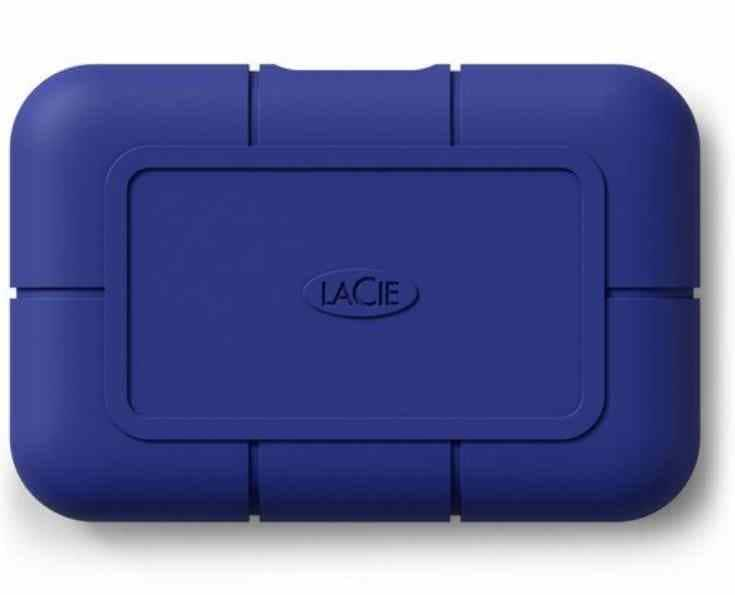
Best for: Large 6K/8K media projects and frequent heavy transfers.
Key Features
- Manufacturer-claimed speeds up to 6,700MB/s read and 5,300MB/s write with its 50GB cache.
- 2TB or 4TB configurations, IP68-rated protection, and a bundled Thunderbolt 5 cable.
- LaCie states post-cache writes can fall to up to 1,800MB/s; speed depends on Mac and workload.
Pros
- Takes advantage of Thunderbolt 5 on supported Pro Mac mini models.
- A robust enclosure suits professional on-location work.
Con: Expensive for ordinary storage, and sustained writes are below peak cache speeds.
Source: official product specifications or manufacturer reference.
WD My Passport for Mac: Portable HDD for Backup and File Storage
The Mac-oriented version of My Passport provides more capacity for the money than a portable SSD. It is well suited to occasional backups or archives, rather than actively editing large video timelines from the drive.
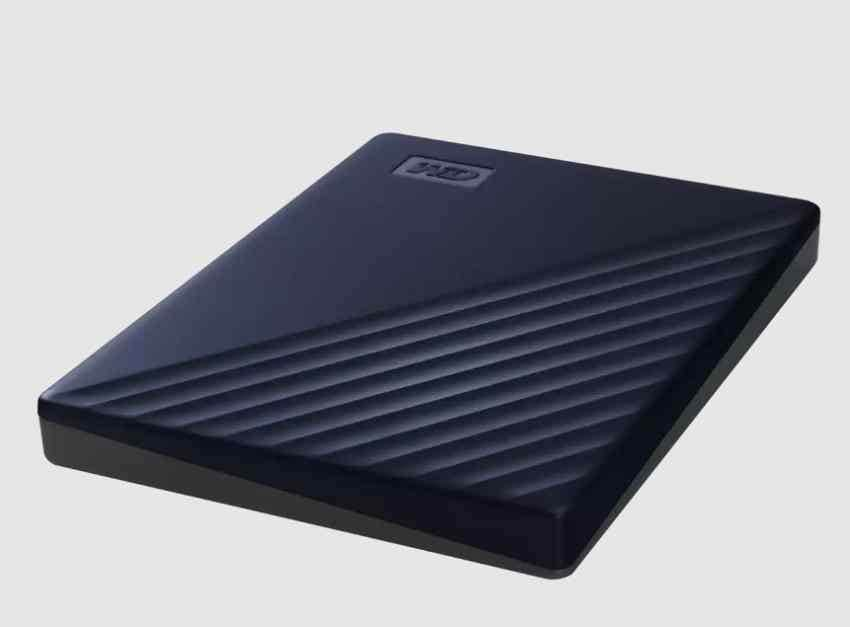
Best for: Portable backup sets and offline media libraries.
Key Features
- 2TB, 4TB, 5TB and 6TB models documented by Western Digital.
- USB 3.2 Gen 1 (5Gb/s); manufacturer lists a USB-A cable and USB-C adapter.
- Mac-oriented drive formatting and password-protection features, with compatibility varying by OS.
Pros
- Portable capacity without a desktop power adapter.
- Suitable for incremental backups when set up correctly in Time Machine.
Con: Mechanical speeds are substantially slower than SSDs for active projects.
Source: official product specifications or manufacturer reference.
Seagate Expansion Desktop: High-Capacity Desktop HDD
Seagate Expansion Desktop is designed for a desk rather than travel. Its large-capacity offerings make it useful as a main archival target when you have room for a power adapter and do not need SSD-level performance.
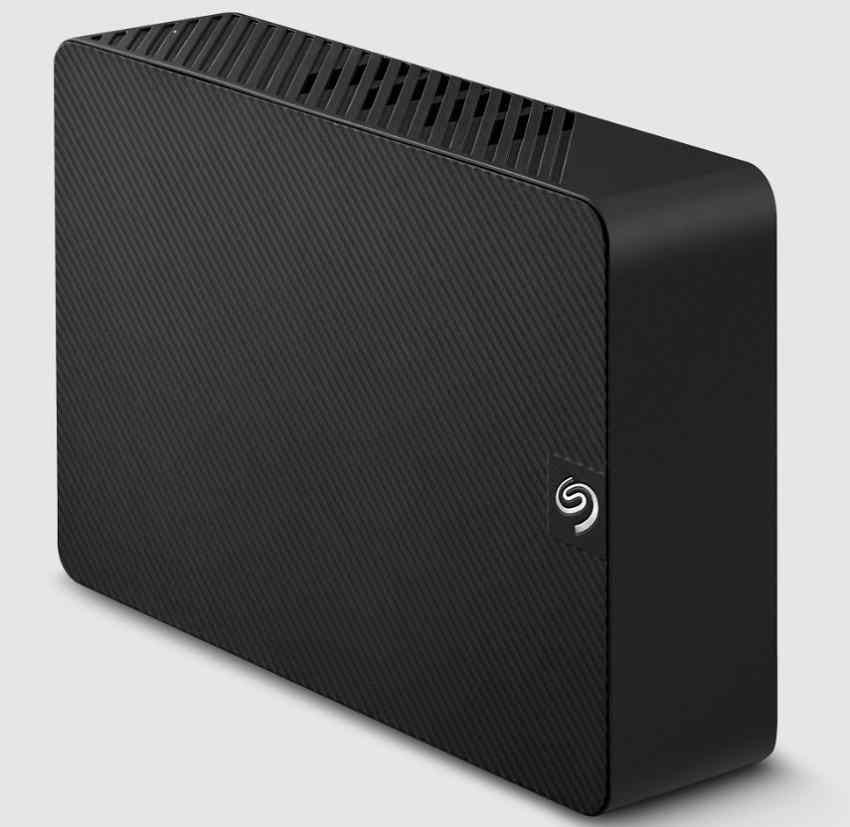
Best for: Large home media libraries and long-term archives.
Key Features
- Seagate lists models up to 30TB, with availability depending on configuration and market.
- USB-C host connectivity with a cable and separate external power adapter.
- Designed for everyday file storage, backups, and large media collections.
Pros
- Very high single-drive capacity relative to portable SSDs.
- Practical dedicated disk for bulk archives and local backups.
Con: Requires mains power and is not suitable for mobile editing or transport.
Source: official product specifications or manufacturer reference.
WD My Book: Desktop HDD for Time Machine Backups
WD My Book fits a Mac mini workstation that stays in one place. The current product documentation lists high capacities and out-of-box cross-platform file access, but new Time Machine backups generally require APFS setup, not simply using the original exFAT format.
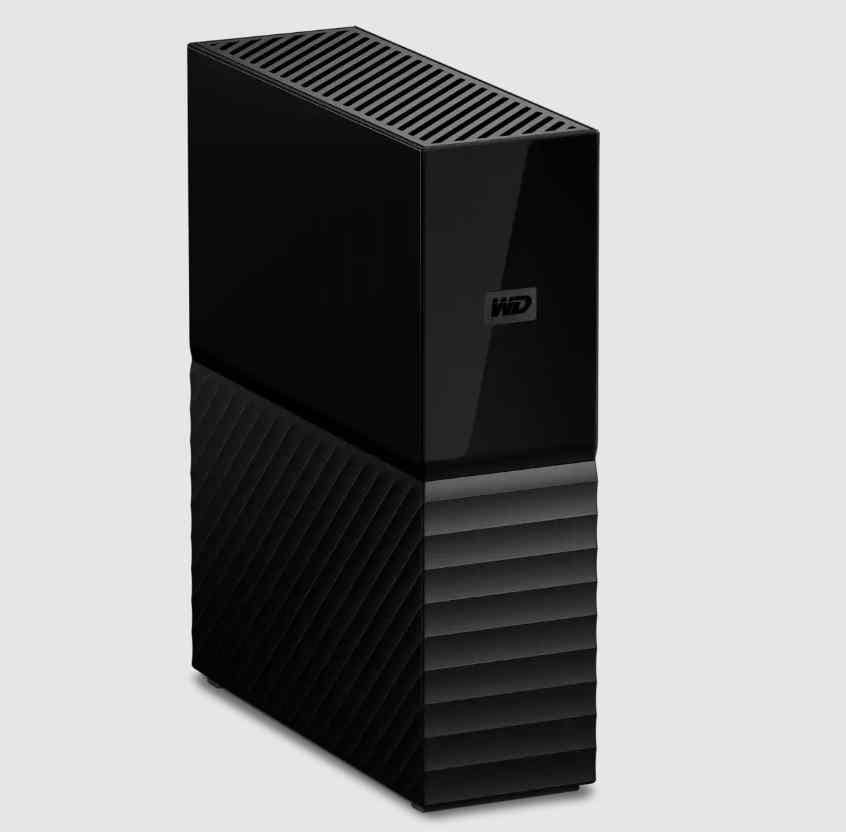
Best for: A permanent backup desk setup and large file archives.
Key Features
- Available capacities up to 26TB in current WD documentation.
- USB 3.2 Gen 1/USB 3.0 interface; the included cable may need a USB-C adapter on newer Mac mini models.
- Includes an AC adapter; drive ships formatted exFAT in the documented configuration.
Pros
- Good large-capacity choice for a desk-based Time Machine destination.
- A narrow upright design saves horizontal desk space.
Con: Requires power and usually requires reformatting for a new Time Machine backup disk.
Source: official product specifications or manufacturer reference.
LaCie Rugged Mini: Portable HDD for Travel
LaCie Rugged Mini is a protective-sleeve portable HDD, rather than a fast NVMe SSD. It suits a traveling Mac mini setup if you value economical offline storage and careful handling more than fast edits. Check the exact SKU and included USB cable: different Rugged Mini generations use different connector implementations.
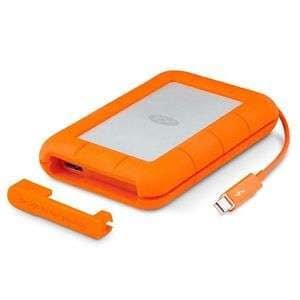
Best for: Travel and location backups when large SSD speed is not essential.
Key Features
- Seagate lists capacities up to 5TB in the Rugged Mini family.
- A rugged protective enclosure with manufacturer-stated resistance to drops and rain.
- USB 3.0 family; choose a compatible cable or adapter for the Mac mini model.
Pros
- Protective shell is useful for transporting backup copies.
- Portable HDD capacity at a lower class of cost than fast SSDs.
Con: Mechanical performance is limited and stock or generation-specific accessories may vary.
Source: official product specifications or manufacturer reference.
Part 3. Comparison of the 8 Best External Drives for Mac mini
The following figures are manufacturer interface classes and capacity offerings, not measured Mac mini benchmark results. Actual throughput and available sizes depend on the exact SKU, host, cable, file system, and workload.
| Drive | Connection | Capacity | Most useful workload | Limitation |
| Samsung T7 Shield | USB 3.2 Gen 2, 10Gb/s | 1TB-4TB | Daily projects, portable photos, and document libraries | 10Gb/s, not Thunderbolt |
| Crucial X9 Pro for Mac | USB 3.2 Gen 2, 10Gb/s | 1TB-4TB | Mac-first portable storage, photo libraries, and frequent transfers | Mac APFS format less convenient for Windows sharing |
| OWC Envoy Pro FX | Thunderbolt (40Gb/s class), USB fallback | Capacity varies by current SKU | Video projects, large creative libraries, and mixed-device workflow | Not a Thunderbolt 5-speed SSD |
| LaCie Rugged SSD Pro5 | Thunderbolt 5 | 2TB or 4TB | Large 6K/8K media projects and frequent heavy transfers | Full performance requires TB5, speeds are cache-dependent |
| WD My Passport for Mac | USB 3.2 Gen 1, 5Gb/s | 2TB-6TB | Portable backup sets and offline media libraries | Mechanical HDD speed |
| Seagate Expansion Desktop | USB-C (USB storage), desktop HDD | Up to 30TB | Large home media libraries and long-term archives | AC power and HDD speeds |
| WD My Book | USB 3.2 Gen 1, 5Gb/s | Up to 26TB | A permanent backup desk setup and large file archives | AC power; reformat for Time Machine |
| LaCie Rugged Mini | USB 3.0 (5Gb/s class; verify SKU) | Up to 5TB | Travel and location backups when large SSD speed is not essential | Availability and cable vary by generation |
Part 4. How to Connect and Set Up an External SSD or Hard Drive on Mac mini
These steps are for a functioning drive. If the disk already contains files you cannot afford to lose, skip Erase, inspect its existing contents first, and create a verified backup. An external drive usually works without reformatting when its current format is supported by macOS.
Step 1. Connect the External Drive to Your Mac mini
Step 1. Check the drive connector and Mac mini model. Connect a 10Gb/s USB-C SSD to a front USB-C port on a supported 2024/2026 Mac mini, or a suitable rear port. Connect Thunderbolt drives to a rear Thunderbolt port. HDDs with USB-A leads may require a compliant USB-C adapter; desktop HDDs also need their power adapter.
Step 2. Open Finder and check the sidebar under Locations. If you want the disk on the desktop, open Finder > Settings > General and enable External disks. Do not conclude the disk is faulty simply because its desktop icon is hidden.
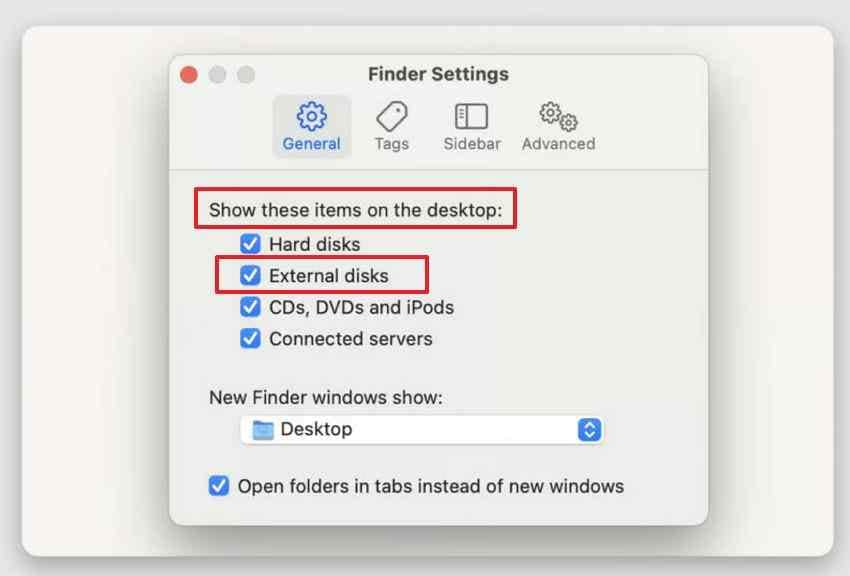
Expected result: The external drive appears in Finder or in Disk Utility. If it does not, inspect cable, port, power, and System Information before considering file-system repairs.
Step 2. Format the External Drive Using Disk Utility
Important: Erase permanently removes data on the selected disk. If the drive contains photos, backups, or any lost files you are trying to recover, do not proceed. Back up readable data first; if data is missing, use a non-destructive recovery path before formatting.
Step 1. Open Disk Utility and choose View > Show All Devices. Select the correct top-level external device; double-check its capacity and manufacturer so you do not erase the Mac mini internal SSD.
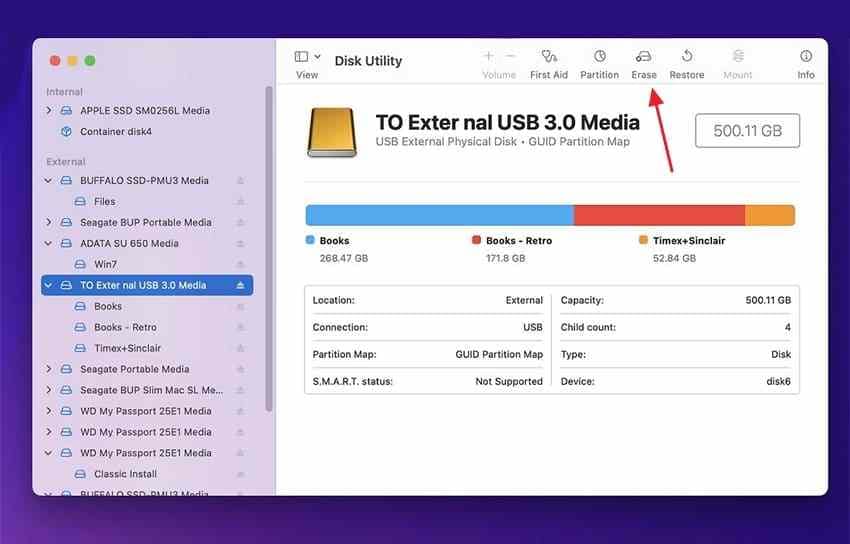
Step 2. Only after verifying that the target disk is empty or fully backed up, click Erase, set Scheme to GUID Partition Map, and choose APFS for Mac-only use, or exFAT for frequent file exchange with Windows. Then click Erase to confirm.
Expected result: Disk Utility reports completion and the newly formatted volume mounts in Finder. For a new Time Machine backup volume, use APFS or APFS Encrypted as Apple recommends. For an existing Time Machine disk, do not erase it simply to change formatting.
Step 3. Configure the Drive for Storage or Time Machine
For general storage: Open Finder, create sensible project or archive folders, then eject the drive using Finder before unplugging it. For demanding editing work, consider a separate APFS volume rather than using a Time Machine volume for active project files.
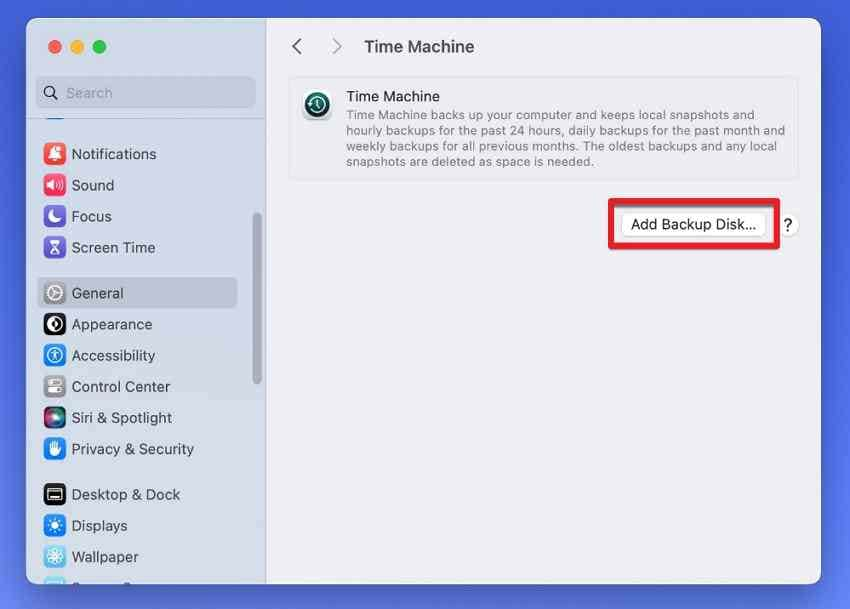
For Time Machine: Open Apple menu > System Settings > General > Time Machine, select Add Backup Disk, choose the intended device, and follow the prompts. Apple recommends a backup disk with at least twice your Mac internal storage capacity.
When the setup dialog offers Encrypt Backup and storage limits, set them according to your backup policy. Store the encryption password securely: losing it can make encrypted backups inaccessible.
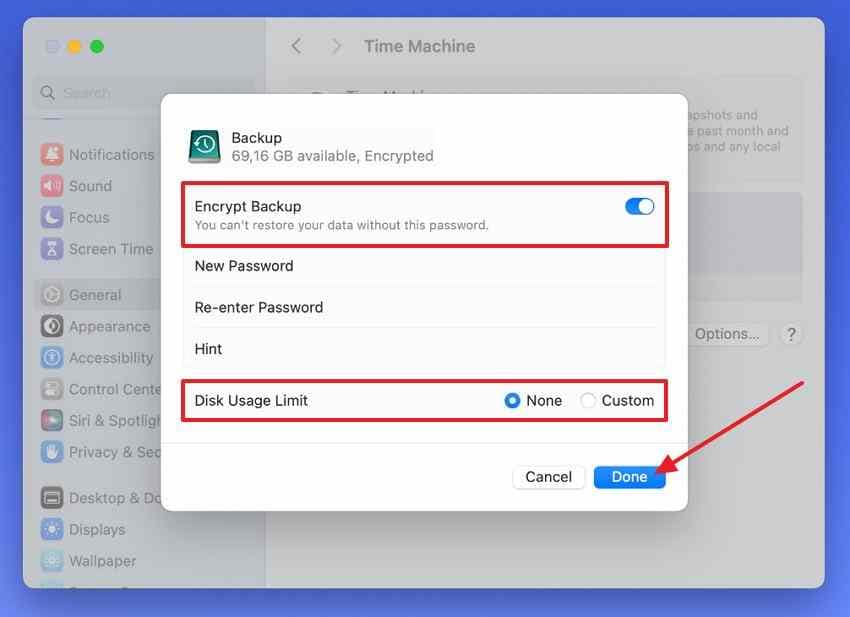
Expected result: Time Machine shows the backup disk and begins the first backup. If macOS asks to erase the drive, confirm there is no existing data you need before allowing the change.
Part 5. What to Consider When Buying an External SSD or HDD for Mac mini
Match Drive Capacity, Sustained Speed, Thermal Behavior, and Price
Capacity: Keep enough headroom for growing photo/video libraries. For Time Machine, Apple recommends a backup disk of at least twice the Mac storage capacity. Sustained speed: A peak sequential read figure does not describe how fast a disk writes a 500GB project after the cache fills; the LaCie Pro5, for example, has a published post-cache write limitation.
Thermals and power: All bus-powered SSDs still depend on their cables and enclosure cooling. A desktop HDD needs power and a safe stationary position. Price: Compare current cost per usable terabyte, available warranty support, and any extra adapters instead of copying a price that may change by the time the article is published.
When Thunderbolt 5 Adds Value on an M5 Pro or M4 Pro Mac mini
A compatible Thunderbolt 5 SSD can be worthwhile for frequent transfers of large video libraries, high-resolution camera originals, or media scratch work on M5 Pro (2026) and M4 Pro (2024) Mac mini models. It usually provides little practical value for routine Time Machine backups to a mechanical HDD. A standard M6 or M4 Mac mini has Thunderbolt 4, so purchasing an expensive Thunderbolt 5 SSD solely for its headline speeds may not be cost-effective.
Part 6. Can You Use an External DVD Drive With Mac mini?
External DVD Drive Support and USB Power Considerations
Yes. A compatible external USB optical drive can read supported CDs and DVDs on a Mac mini even though the computer has no built-in optical drive. Check macOS compatibility, any USB-A-to-USB-C adapter needs, and the drive's power draw. If a bus-powered DVD drive repeatedly ejects or disconnects through an unpowered hub, try a direct compatible port or an appropriate powered hub.
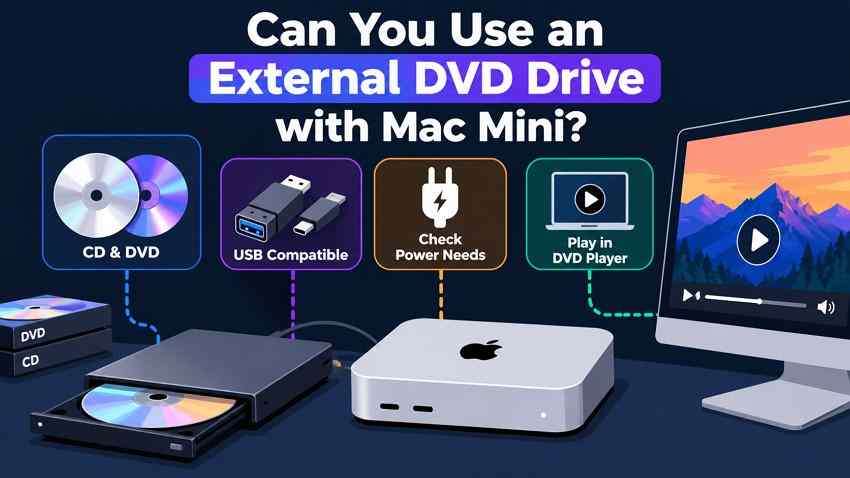
For movie discs, the macOS DVD Player app may work with compatible hardware and supported disc formats. Blu-ray playback, region restrictions, and copy-protected media can require separate software or hardware; do not assume all discs will work.
Part 7. Recover Lost External SSD or Hard Drive Data on Mac Using Wondershare Recoverit
This section is for file loss on storage that your Mac can still detect; it is not a fix for slow Thunderbolt speeds, incompatible cables, unreadable physical hardware, or a disk that is missing even from Disk Utility. Before a recovery attempt, check Trash and any existing Time Machine backups. Stop writing to the affected drive, particularly after accidental deletion or formatting.
When Local File Recovery Is Appropriate
If the external drive is detected and the problem involves deleted files or a logical loss scenario, Wondershare Recoverit for Mac may help scan for recoverable documents, photos, and other supported files. Mac SSD recovery after TRIM or overwriting may be impossible. An undetected, clicking, or physically failing drive is a reason to stop DIY attempts and consult a specialist.
Recover Files to a Different Healthy Drive
Step 1. Connect the affected external HDD or SSD to your Mac mini and launch Recoverit. Under the available drives or locations, select the affected external device to scan. If the drive is absent, do not force repeated scans.
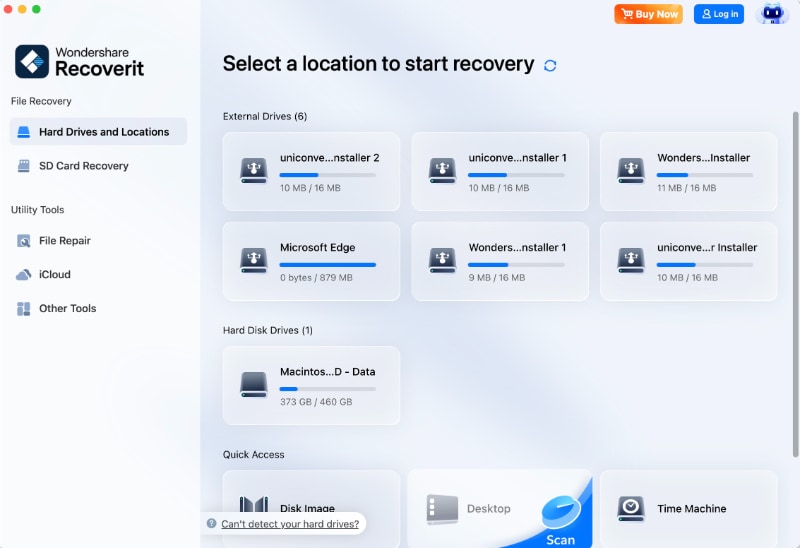
Step 2. Let the scan identify available files. Use file types, names, or other search/filter options to narrow down the results. Preview supported files to assess which items appear usable.
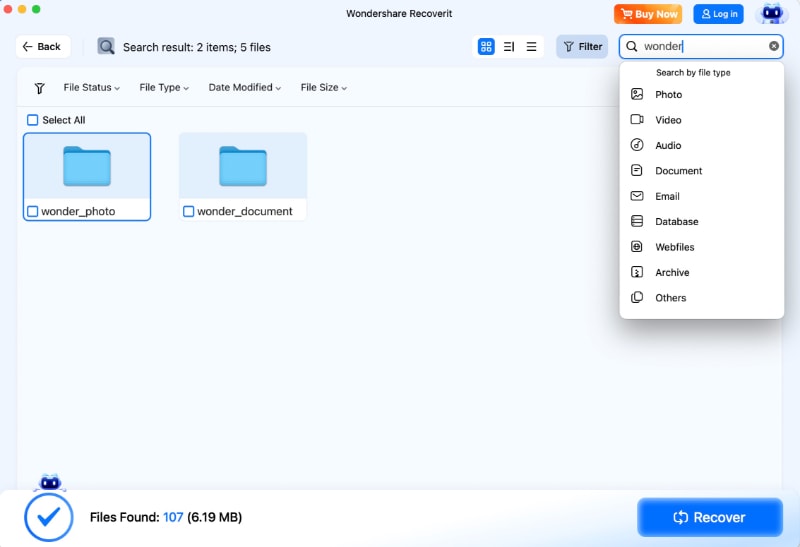
Step 3. Select the items you want and click Recover. Choose a different healthy drive as the destination. Do not save recovered data to the problem drive, and confirm the saved files actually open before considering any reformatting.
Recoverit Limitations and Unsupported Scenarios
Recoverit is file-recovery software, not a USB controller, SSD firmware, hardware repair, or Time Machine setup tool. Recovery depends on whether the drive is accessible, whether files have been overwritten, and whether encryption keys are available. It cannot reconstruct overwritten files or retrieve data from a storage device with serious physical damage that is not readable. Check the official Recoverit Mac guide for current operation details.
Conclusion
The best external SSD for Mac mini depends on the ports you have and the work you do. Portable USB SSDs cover everyday projects, while Thunderbolt drives suit frequent large transfers on compatible Pro models. Mechanical HDDs remain practical for high-capacity storage and Time Machine backups. Confirm the cable, format, power requirements, and actual drive SKU before buying. Keep a separate backup, and if an accessible external drive loses files, consider Recoverit only after checking your existing recovery options.
FAQ
-
Can I use an external SSD as the main storage drive for a Mac mini?
You can use an external SSD for apps, project libraries, and files. You can also install a compatible version of macOS on an external drive, but Apple silicon Macs still depend on a functioning built-in startup disk for external boot. An external drive does not replace damaged internal boot hardware. -
Is Thunderbolt 5 worth it for an external SSD on Mac mini?
It can be worthwhile on M4 Pro and M5 Pro Mac mini models for frequent high-volume creative workloads. Standard M4 and M6 models have Thunderbolt 4, so they cannot deliver a Thunderbolt 5 drive's top advertised rates. HDD backups rarely need this bandwidth. -
What is the best external drive format for Mac mini?
Use APFS for Mac-only SSD storage and APFS or APFS Encrypted for new Time Machine backup volumes. Use exFAT when you regularly exchange files with Windows. Erasing to change formats deletes the files already on that drive; back them up first. -
Can I connect multiple external hard drives to a Mac mini?
Yes. Mac mini can use multiple USB or Thunderbolt external drives at once. Make sure your model has enough ports, use a suitable powered hub or dock when needed, and consider bandwidth sharing and power requirements. Desktop HDDs normally require their own power adapters.


