 TL;DR:
There is no verified most reliable consumer external hard drive brand in 2026; buyers must instead select specific models based on connector types, operating system compatibility, and warranty features while prioritizing multiple independent backups over a single hardware enclosure.
● For portable use, the WD My Passport provides hardware encryption, the Seagate One Touch includes time-limited eligible Rescue Data Recovery Services, and the Toshiba Canvio Flex offers out-of-the-box exFAT formatting with both USB-A and USB-C cables for mixed Mac and Windows environments.
● Desktop models like the WD Elements Desktop provide straightforward bulk storage while the Seagate Expansion Desktop scales up to 30TB, whereas travel scenarios favor the LaCie Rugged Mini for its physical protection claims, though an external SSD remains mechanically safer for continuous movement and direct editing.
● You must verify the exact product SKU before purchasing to confirm regional warranty rules and supplied cables, keeping in mind that software like Wondershare Recoverit is a fallback that can only retrieve lost files if the drive remains physically stable and detectable by the computer.
Ask AI for a summary
 ChatGPT
 Perplexity
 Gemini
 Claude
 Grok
Grok
A warranty may replace a failed external hard drive, but it cannot restore your only copy of a family photo. Finding the most reliable external hard drive in 2026 is not a brand contest. For backups, travel, and video libraries, start with drive type, capacity, connector, and support. Specifications cannot show how often complete consumer enclosures fail.
This guide compares eight external HDD families from WD, Seagate, Toshiba, and LaCie. It explains the evidence behind each practical pick, the trade-offs that product listings often hide, and why independent backup copies matter more than any single warranty. If files later disappear from a detectable drive, we also explain when recovery software may help.
In This Article
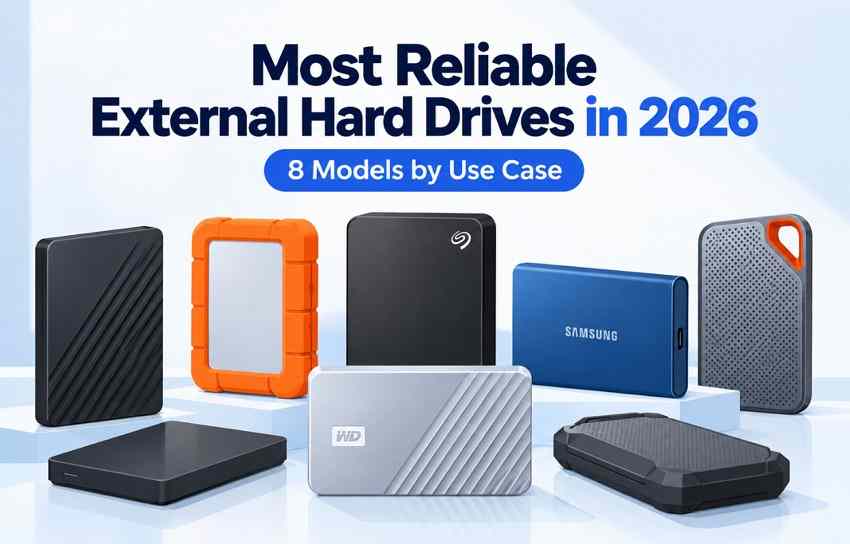
Part 1. Quick Picks: Eight External HDDs for Different Backup Jobs
First choose the physical form factor: portable 2.5-inch HDDs run from a USB port, while desktop models require wall power and leave more room for large-capacity storage. The table lists product families rather than a universal reliability ranking; each official link should be checked against the exact SKU, region, and included cable before checkout.
A real 2026 external-HDD question asks which current models can be trusted instead of relying on years-old recommendations. The useful answer is a specific use-case fit and a recovery plan, not an unsupported brand failure-rate chart.
Model, Power, Connection, and Capacity Compared
| Model family | Type | Power | Interface / cable | Listed range | Practical use | Official product / example SKU |
| WD My Passport | Portable | USB bus | USB 3.2 Gen 1; USB-A cable | 1–6TB | Protected laptop backups | 6TB: WDBR9S0060BBK-WESN |
| Seagate One Touch HDD | Portable | USB bus | USB 3.0; USB-A cable | 1–5TB | Scheduled backup + eligible Rescue | 1TB: STKY1000400 |
| Toshiba Canvio Flex | Portable | USB bus | USB 3.2 Gen 1; USB-A + USB-C cables | 1–4TB | Mixed PC/Mac/mobile use | 4TB: HDTX140XSCCA family |
| Toshiba Canvio Advance | Portable | USB bus | USB 3.2 Gen 1; USB-A cable | 1–4TB | Windows-focused backup | 4TB Advance family |
| WD Elements Desktop | Desktop | AC adapter | USB 3.2 Gen 1; USB-A cable | 4–26TB | Simple bulk storage | 4TB: WDBWLG0040HBK-NESN |
| Seagate Expansion Desktop | Desktop | AC adapter | USB-C host cable; model-dependent | 4–30TB | Very large media libraries | 30TB: STNP30000400 |
| WD My Book | Desktop | AC adapter | USB 3.2 Gen 1; USB-A cable | 4–26TB | Password-protected desk archives | 26TB: WDBBGB0260HBK-EESN |
| LaCie Rugged Mini HDD | Portable | USB bus | USB 3.0; check supplied cable | 1–5TB | Field and travel backups | 5TB: STJJ5000400 |
SKU caution: The model codes are examples, not interchangeable part numbers across capacities or regions. Seagate One Touch password-enabled variants and newer Expansion Desktop versions also have different feature and cable combinations. An official family page can change the selected capacity when opened.
Why No Model Is Proven the Most Reliable
None of these eight is proven to have the lowest failure rate among complete consumer external hard drives. Manufacturers publish capacities, warranties, interfaces, and selected protection tests, but there is no like-for-like public study tracking these exact retail enclosures over the same years, workloads, and sample sizes. Treat “most reliable” in a shopping query as a request for the least risky fit for a particular job, not an independently verified league table.
External HDDs Compared with Faster, Costlier SSDs
An external SSD usually transfers data faster and has no spinning platter or moving read head, which is appealing for repeated travel and rough handling. The trade-off is typically higher cost per terabyte and lower practical capacity at a given price. An HDD still makes sense for large, versioned backup sets; an SSD may be better for editing directly from the device. Neither storage type replaces a second independent backup.
Part 2. What Actually Predicts a Safer Purchase?
Reliability depends on more than the disk inside the case. A USB bridge, cable, external power adapter, or software dependency can stop the whole package from working even when the underlying drive is intact. The following checks are more actionable than an unexplained five-star rating.
What Warranty, Enclosure, and Support Actually Tell You
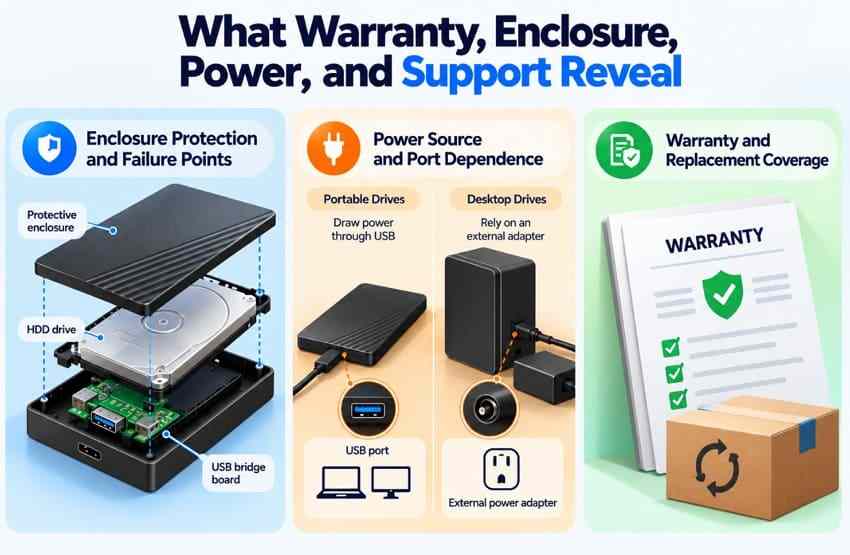
- Warranty: Check duration and country-specific replacement rules. A replacement drive is not equivalent to recovering data from the broken one.
- Enclosure and connector: Look for a protected USB socket and an available replacement cable. Repeated disconnects may come from either the connection or internal hardware.
- Power: Portable bus-powered HDDs favor mobility; desktop units need the correct adapter and a stable outlet.
- Data services: Some Seagate SKUs include Rescue Data Recovery Services for a defined term. Check eligibility and exclusions rather than treating it as a recovery guarantee.
For a drive used by two computers, cross-platform format and encryption software are equally important. A robust enclosure is not useful if the required files can only be opened with unsupported software on the next computer.
Why Backblaze Drive Stats Cannot Rank Retail Enclosures
The Backblaze Q2 2026 Drive Stats report analyzed 354,415 data-center HDDs and reported a quarterly annualized failure rate of 1.73%. That dataset covers enterprise and data-center deployments, not WD My Passport, One Touch, or other complete USB retail enclosures. Differences in workloads, drive ages, cooling, enclosure controllers, and sample populations prevent using it to declare a winning retail brand.
Even within data centers, failure rates are model- and population-specific. The useful lesson is that drives can fail and should be monitored; it is not that one of the eight products here inherits the manufacturer-wide statistic. We therefore do not assign untested “reliability scores.”
Choose Capacity for the Backup Job First
Decide whether the drive will be a rotating backup, an always-connected desktop archive, a travel shuttle, or the second copy of critical project files. Choose a capacity that can hold multiple versions, not just today’s folders. If the drive will be used daily for editing or high write activity, compare the cost of an SSD or another workflow before choosing a large HDD solely because its price per terabyte is attractive.
Part 3. Everyday Portable HDDs for Backup
For a laptop owner, the important differences among these four bus-powered drives are cables, usable software, passwords, and device compatibility—not an unverified promise that one brand lasts longer. Pick the one whose extras you will actually use.
WD My Passport Compared with Seagate One Touch HDD
WD My Passport: The current 1–6TB family is a practical pick when hardware encryption and a three-year limited warranty matter. The official My Passport product specification lists a USB-A cable, so a USB-C-only laptop may need the correct adapter. Software availability has changed across generations; confirm that the current management and password tools support your exact SKU before making them part of a backup routine.
Seagate One Touch HDD: The 1–5TB line suits someone who values Toolkit backup options and eligible Seagate Rescue coverage. The official STKY1000400 product page identifies a password-enabled variant with USB Type-A cable; Seagate’s SKU-level support list is the right place to check the applicable warranty. Do not assume every One Touch-branded product has the same encryption or connector.
Decision: Choose My Passport if its supported password workflow and longer published warranty fit your usage. Consider a qualifying One Touch SKU if its backup software and time-limited Rescue benefits matter more. Neither prevents loss from deletion, ransomware, a dropped laptop bag, or a missing second copy.
Toshiba Canvio Flex Compared with Canvio Advance
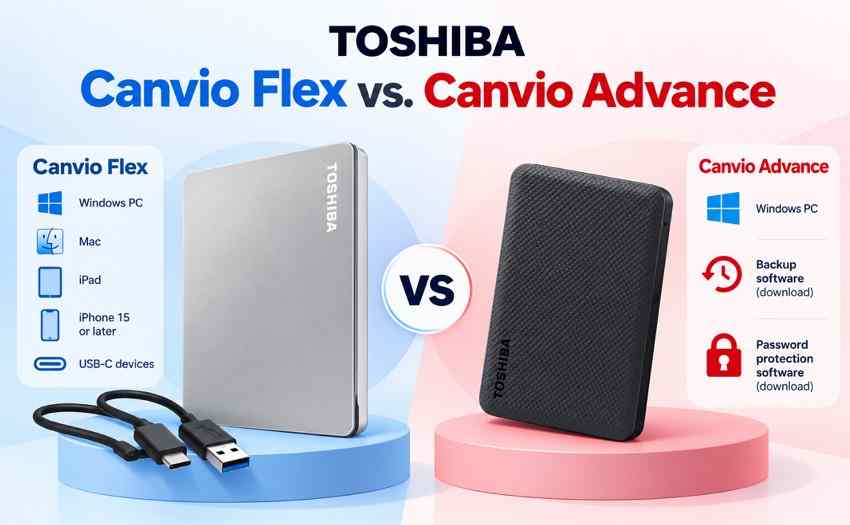
Canvio Flex: Toshiba formats the 1–4TB family in exFAT and supplies both USB-A-to-Micro-B and USB-C-to-Micro-B cables. That lowers friction when moving ordinary files among supported Windows PCs, Macs, and USB-C mobile devices. The official Flex specifications list a three-year limited warranty. Trade-off: it does not bundle the Windows backup/password software offered by Advance.
Canvio Advance: Its 1–4TB Windows-oriented family offers downloadable Toshiba Storage Backup and Storage Security tools and a two-year limited warranty in the referenced US listing. The official Advance specifications describe USB 3.2 Gen 1 and USB bus power. A Mac workflow may need reformatting or another compatible format, and the bundled tools are intended for supported Windows systems.
Decision: Select Flex for mixed-device file handoffs without an adapter, and Advance for Windows-based scheduled backups or password-software needs. Buying the “more reliable” one cannot be settled by these features alone: none is a published comparative failure-rate result.
Part 4. Desktop Drives for Larger Libraries
If your photo library, editing projects, or periodic full-system backups have outgrown portable capacities, desktop HDDs offer larger volumes. Their trade-off is a power brick, less portability, and more data concentrated in one physical enclosure.
WD Elements Desktop Compared with Seagate Expansion Desktop
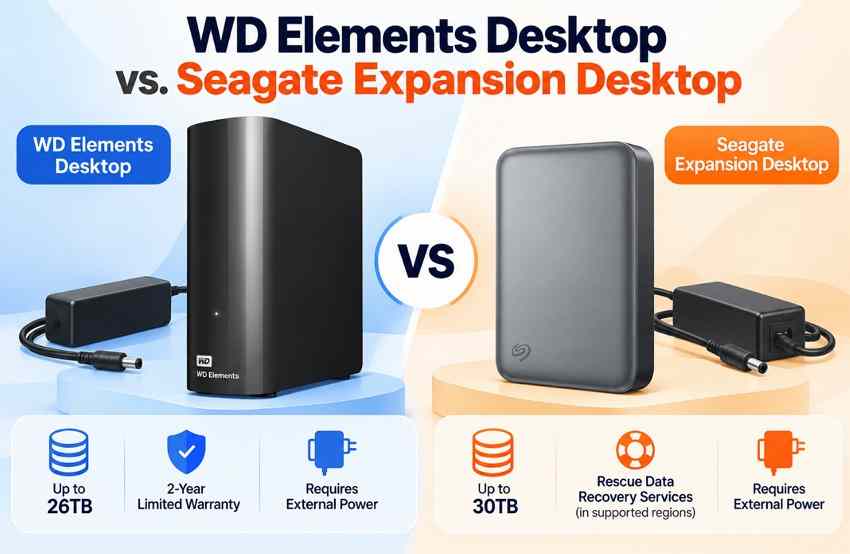
WD Elements Desktop is a straightforward plug-and-play choice for large Windows backup folders. WD lists capacities through 26TB, USB 3.2 Gen 1 connectivity, a USB-A cable, a separate AC adapter, and a two-year limited warranty for the referenced family. Its appeal is a simple enclosure rather than a bundled security ecosystem.
Seagate Expansion Desktop offers capacities through 30TB on the currently listed Expansion Desktop product family. The current STNP generation uses a USB Micro-B-to-Type-C cable for host connectivity and needs an AC adapter. Seagate lists one-year limited warranty and one-year Rescue services in some regions; do not apply those terms automatically to older Expansion products or every country.
Decision: Elements is appealing when straightforward bulk storage and a two-year published warranty are the priority. Expansion is worth checking for a larger 30TB ceiling and a current USB-C-host cable. On either, the loss of one drive can affect an enormous library, so keep another independent copy.
When WD My Book Security Features Are Worth It
WD My Book has a different proposition: an external desktop HDD with password protection, hardware encryption on supported models, backup-management software, and a published three-year limited warranty. The official My Book product page lists capacities to 26TB, AC power, and Windows/Mac compatibility for the referenced generation, including exFAT out-of-box formatting. Do not assume that the same software or factory format applies to an older My Book enclosure.
An encrypted drive also creates a responsibility: securely record its unlock credentials, and check how the enclosure implements encryption before considering any hardware replacement. A drive that cannot be unlocked or whose USB bridge fails may require a different recovery path than an ordinary unencrypted HDD.
Desk Space, Power, and the Cost of One Big Drive
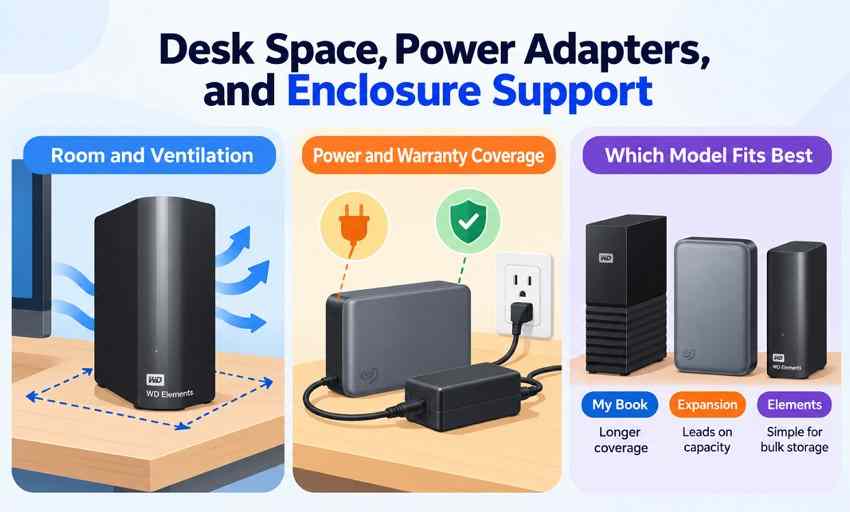
Leave ventilation space around the case, put it on a stable surface, and use the correct supplied power adapter. Check cable routing before setting a high-capacity drive near a desk edge. For a large archive, calculate the cost of two independent backup destinations rather than placing the whole budget into the largest single enclosure. Manufacturer replacement support is useful, but a warranty never substitutes for a tested restore.
Part 5. Travel and Rough-Handling Scenarios
Travel introduces a different risk: a good HDD can still be damaged by drops, bending connectors, or unplugging during a transfer. Rugged designs reduce some physical exposure, but they are not a permission slip to carry the only copy of a project.
LaCie Rugged Mini HDD: Protection and Its Limits
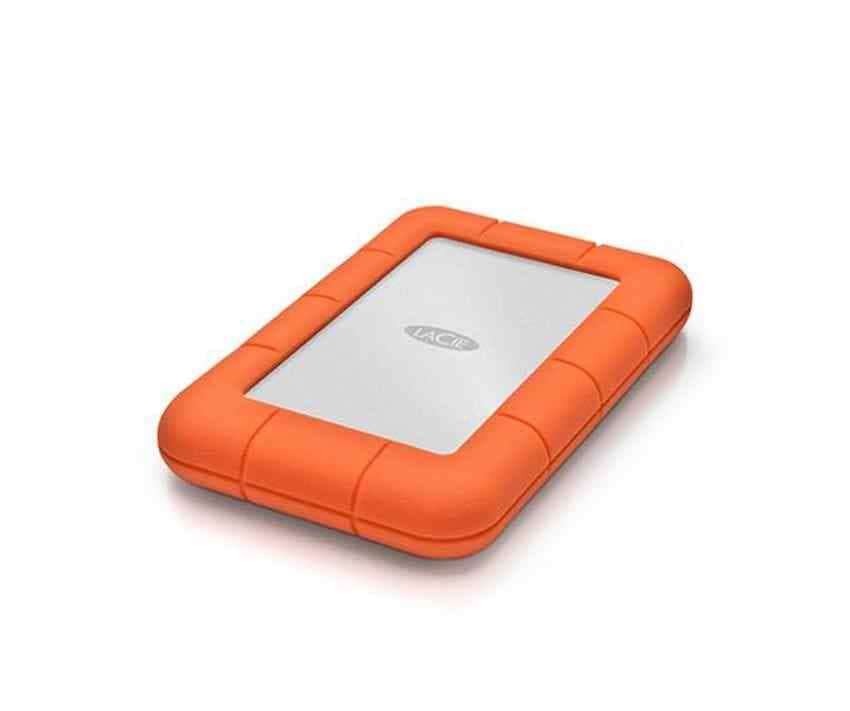
LaCie Rugged Mini HDD is the specialist pick here for field backups. The official Rugged Mini product page lists 1–5TB variants and protection claims including a drop rating up to 4 feet (1.2m), rain resistance, and approximately one-ton pressure resistance under stated test conditions. The 5TB example is STJJ5000400; exact supplied cables and warranty eligibility must be checked at the SKU level.
These are limited test and design claims, not proof of zero failure under real-world handling. Rain resistance does not mean a waterproof/IP-rated enclosure, and a survived impact does not certify the integrity of every file. Use it for transport of copies, not as the only storage of originals.
When an External SSD Makes More Sense
A portable SSD can be the better category when a drive is repeatedly moved while working, edited from directly, or exposed to vibration. No moving heads means less mechanical shock vulnerability, but flash storage still fails, can corrupt data, and may be damaged by heat or connectors. For static archival backups at large capacities, an HDD may remain more economical. Match the medium to the workload, not a blanket “SSD always lasts longer” claim.
A Safer Travel Backup Routine
- Before a trip: Make a verified backup at home and carry only the working copy that is needed.
- During transfer: Place the HDD on a stable surface and avoid moving or unplugging it while activity continues.
- After transfer: Use the operating system’s Eject function, protect the cable and port, and check representative files at the destination.
- When returning: Copy changes to an independent location and run a quick restore test before wiping camera cards or field copies.
Part 6. Check the Exact SKU Before Buying
Product family names hide important differences. For these eight picks, the same marketing name may cover multiple capacities, bundle versions, ports, warranty periods, and regional part numbers. Do this short audit before paying for a drive.
Five Checks to Make Against the Exact Product SKU
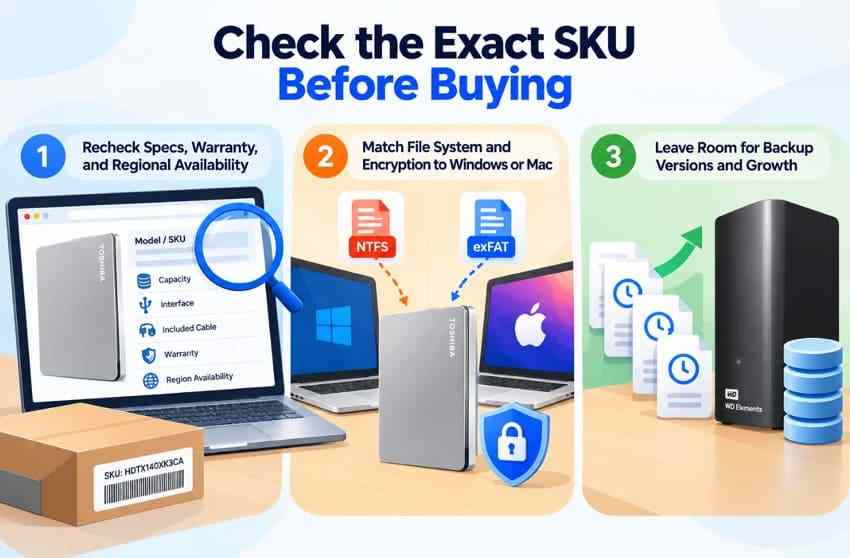
- Full part number: Compare the manufacturer SKU from the invoice, box, and official specification page. For example, WD My Passport 1TB WDBYVG0010BBK-WESN is not the 6TB WDBR9S0060BBK-WESN.
- Connector at both ends: A product advertised as “USB-C compatible” might still have a Micro-B socket on the drive and a USB-C cable at the computer end.
- Warranty region: Find the actual warranty for the purchased country and model, including the beginning date and any service eligibility.
- Included extras: Check whether backup software, password support, cables, and data-recovery services apply to this exact variant.
- Capacity and stock: Verify the exact capacity currently offered. A family page listing a 30TB maximum does not mean a particular retailer has that SKU.
Cross-Platform File Systems and Encryption
Canvio Flex is an easy cross-platform example because Toshiba ships it formatted in exFAT. WD Elements Desktop is generally Windows-ready and may require reformatting for Mac use. Newer My Book models may ship exFAT; older generations can differ. Before reformatting any drive, copy its existing data elsewhere and verify it. If Time Machine is the goal, follow Apple’s current disk-format requirements rather than assuming every cross-platform format is suitable.
Encryption also has an ecosystem cost. Check that the password utility supports every computer that must access the files, and store recovery information separately. Mac-only and Windows-only workflows need different choices; a supported USB port alone does not guarantee software compatibility.
Allow Enough Space for Multiple Backup Versions
Aim for capacity that allows backups to retain several past versions instead of constantly deleting older snapshots. For a Mac Time Machine disk, Apple recommends at least twice the Mac’s storage capacity. For a growing photo or video library, estimate today’s used space, an expected growth interval, and the number of copies you intend to retain. Splitting backups across independent disks can reduce the consequence of one hardware loss.
Part 7. Protect the Data After Purchase
The purchase is only the first decision. The strongest data-safety improvement comes after setup: keep additional copies, confirm they can be restored, and treat unusual drive behavior as a warning to protect the files rather than a reason to keep testing the hardware.
Create Independent Backups and Test Restores
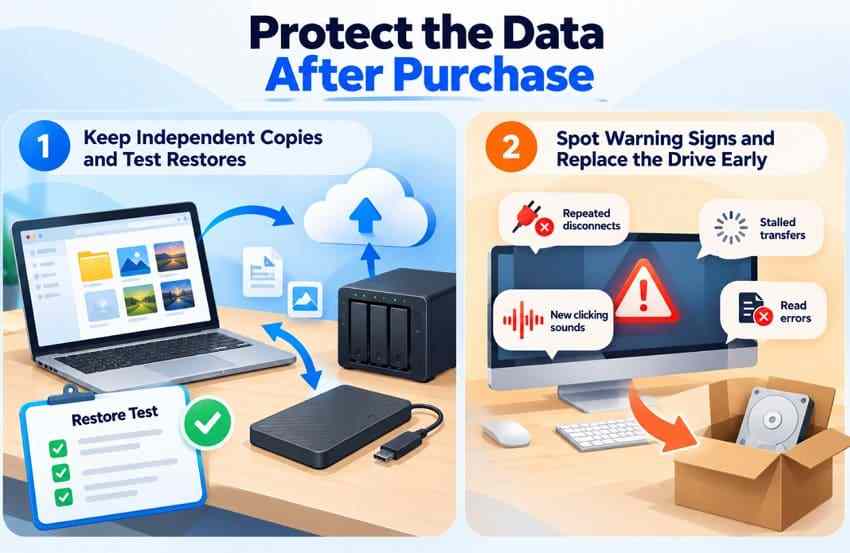
Keep a working copy plus another independent local or cloud copy, with at least one copy stored separately from the original. The Library of Congress digital-preservation guidance recommends multiple copies on different media and in different places, plus integrity checks and planned refreshes. A second folder on the same external HDD cannot protect you from a failed enclosure or stolen drive.
Test a restore: retrieve a few photos, a large video, a document, and an archive to a separate location. Confirm that they open from the restored copy, not just from the source. For a business or creative archive, record when the check happened and which backup completed.
Recognize Warning Signs Before the Drive Fails
Repeated USB disconnects, unusually slow reads, new clicking or grinding sounds, and file-system errors justify immediate caution. If the disk is still working normally, copy irreplaceable files to another healthy destination. If it is clicking, dropping offline repeatedly, or no longer detected, stop repeated scans or experiments and seek professional data-recovery help. See Recoverit’s guide to corrupted external drives for the recovery-versus-hardware boundary.
When Recoverit Is a Data-Recovery Fallback
If files are deleted, accidentally formatted, or inaccessible on a stable, detectable external HDD, Wondershare Recoverit Hard Drive Recovery can scan for eligible files and let you preview results before saving them to a separate healthy drive. It is a recovery fallback, not a health rating for WD, Seagate, Toshiba, or LaCie hardware. Recovery cannot guarantee results after overwriting, and it cannot fix a broken controller or failed mechanical disk.
Step 1. Select the correct external HDD. Install Recoverit on a healthy computer drive, connect the affected HDD, and choose its entry under Hard Drives and Locations. Match the device name and capacity.

Step 2. Scan for recoverable files. Allow the scan to progress while the source remains stable, then use the current search and filter options to narrow results.

Step 3. Preview and recover safely. Preview representative files, select only what you need, and save recovered copies to another physical drive. Do not keep writing new data to the affected HDD.

For other recovery conditions and limits, consult the dedicated external hard drive recovery tutorial.
Conclusion
There is no verified single most reliable external hard drive across these eight retail families. WD My Passport, Seagate One Touch, Toshiba Canvio Flex and Advance suit different portable needs; WD Elements, Seagate Expansion, and WD My Book serve larger desktop libraries; LaCie Rugged Mini targets travel. Compare the precise SKU, capacity, cable, warranty, and security requirements before buying. More importantly, maintain independent backups and test actual restores. If a detectable HDD later loses files, Recoverit may help retrieve recoverable data before new writes reduce that possibility.
FAQ
-
Which external hard drive brand has the lowest failure rate?
No brand has a demonstrated lowest failure rate across complete consumer external HDD enclosures in this comparison. Backblaze publishes valuable model-specific data-center statistics, but those results are not retail USB-enclosure failure tests. Compare specific model coverage and keep independent backups. -
How long can an external hard drive last in long-term storage?
There is no guaranteed shelf or service lifespan. Temperature, handling, usage, enclosure electronics, and unknown individual defects all matter. Check the contents periodically, keep other copies, and refresh the storage as formats and hardware age instead of assuming an HDD will remain readable indefinitely. -
Are external HDDs more reliable than external SSDs?
Neither type is universally more reliable. SSDs resist many mechanical shocks because they have no spinning platters, whereas HDDs often offer much more capacity per dollar. Failure patterns and long-term data retention depend on the particular hardware and environment, so a backup plan matters for both. -
Is it safe to store important data on an external hard drive for 10 years?
It is risky to keep the only copy on a single external HDD for a decade, even if it is rarely used. Maintain independent copies in different locations, check file integrity and restore samples, and migrate data to supported media before the original drive or its connections become obsolete.



