 TL;DR:
To securely clone a working Windows installation to a new Samsung SSD, use the Data Migration feature integrated into Samsung Magician 9 for Windows, ensuring your source drive contains the OS and the destination is an eligible retail model.
● The migration tool explicitly excludes macOS, data-only source disks, and encrypted drives, requiring you to fully turn off BitLocker and decrypt the source before initiating the transfer.
● The cloning process overwrites all existing destination data and transfers a maximum of the C: drive plus two additional assigned volumes, leaving out OEM recovery partitions and any extra storage drives.
● Protect your rollback option by keeping the original source drive unmodified and disconnected until the new Samsung SSD successfully passes multiple boot tests via the UEFI/BIOS menu and all files are verified.
Ask AI for a summary
 ChatGPT
 Perplexity
 Gemini
 Claude
 Grok
Grok
Samsung SSD data migration lets you move a working Windows installation, applications, settings, and eligible personal files from an existing HDD or SSD to a compatible Samsung SSD. Instead of reinstalling everything, you can use the Data Migration feature built into Samsung Magician. The destination is overwritten, so choose carefully.
This guide uses Samsung's current Magician documentation to check supported drives, encryption, volumes, and connections before you copy anything. It then walks through cloning, confirming that Windows boots from the new SSD, and diagnosing a missing target, a stalled transfer, or missing files. If separate file loss has already happened, it also explains when SSD data recovery is appropriate and why TRIM can limit results.
In This Article
Part 1. Find the Official Samsung Migration Feature
Samsung combines its SSD management and migration functions in Magician. Use the official download rather than searching for an older standalone Data Migration installer, which may have outdated prerequisites or interface instructions.
Download the Current Windows Magician and Installation Guide
Open Samsung's Tools & Software download page. On October 27, 2026, the global listing identifies Magician 9.0.1 for Windows and a separate Magician 9.0.0 installation guide. Samsung can update these versions, so check the numbers shown on the page when you download.
Step 1. Under Samsung Magician Software, choose For Windows and download the application from the Samsung page.
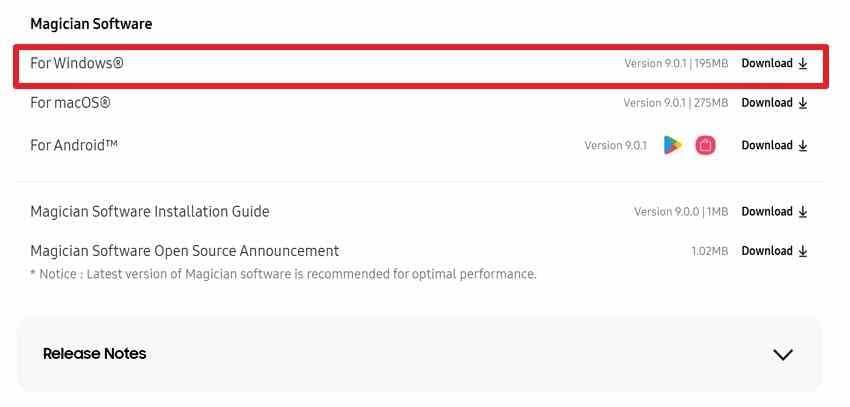
Step 2. On the same page, open the official Magician 9 installation guide and check the supported models and Data Migration limitations before installing. Finish the installation, launch Magician, and use its update check if offered.
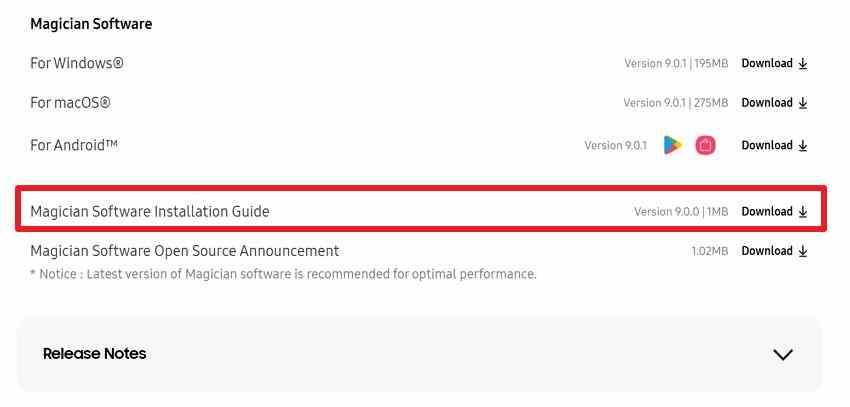
Do not confuse the Windows and macOS downloads. Both platforms have a Magician application, but this does not mean every feature is available on both platforms.
Locate Data Migration Without Using an Outdated Tutorial
Samsung confirms that Data Migration is integrated into Magician, alongside storage management. On some earlier versions it appears in a left navigation panel beneath Data Management; Magician 9 introduced a redesigned interface. Locate the function named Data Migration in the installed program rather than relying on the position shown in a screenshot from an older release. See the official Samsung Magician overview and FAQ for the current feature description.
Why Magician for Mac Is Not a Mac Cloning Tool
The Samsung Magician installer guide lists macOS Catalina 10.15 or newer for the general application. Its Data Migration limitations, however, say Data Migration supports Windows operating systems only; for compatible portable Samsung SSD targets, Windows 10 or later is specified. To move a Mac installation, use a separately supported Mac migration or backup method, not Samsung Data Migration.
Part 2. Check Compatibility Before Connecting the Destination
A clone can finish only when the source, destination, and selected data fit the tool's documented scope. Treat this as a short preflight checklist; it is much safer than discovering an incompatibility after clicking Start.
Use an OS-Bearing Source and a Supported Samsung Target
Samsung Data Migration requires a source drive with an installed operating system and a supported Samsung SSD as the destination. The source may be a different brand of HDD or SSD, but this is not a general-purpose data-only disk cloning feature. Samsung excludes some OEM storage supplied through PC manufacturers. Examples of listed retail targets include the 870 EVO, 990 PRO, and 9100 PRO, subject to the exact version and feature matrix in the guide.
| Check | Samsung documentation says | What to do before Start |
| Source | A drive containing an installed Windows OS | Identify the Windows system disk, not a storage-only volume |
| Destination | An eligible Samsung SSD; OEM models may be excluded | Read exact model name and capacity in Windows and Magician |
| Volume scope | C: plus up to two additional assigned volumes; system reserved partition is handled automatically | Separately back up other data volumes and check recovery/OEM partitions |
| Filesystem | NTFS and FAT are documented for Data Migration | Copy unsupported filesystem data separately |
| Security | Encrypted source drives are not supported in the documented migration workflow | Back up the key and data; resolve encryption under your own policy |
| Connection | Some USB adapters, RAID/SCSI controllers, and dynamic disks can cause failures | Use a supported, stable connection and confirm detection |
| Destination contents | Cloning replaces existing destination data | Copy anything valuable off the new SSD first |
The details above come from the Samsung Magician installation guide, Data Migration limitations; confirm the current guide before acting on a special disk configuration.
Verify Capacity, Encryption, and Every Included Volume
Compare the space needed by the selected Windows volumes and system partitions with the destination's usable capacity. A smaller destination is not automatically impossible, but it must accommodate the required data and layout, and the tool must accept the selection. If the target is too small, free or move nonessential files only after a separate backup; never delete your only copy just to force a clone.
Check encryption from Windows with manage-bde -status C: when BitLocker is in use. The official Samsung guide does not support cloning an encrypted source. On a healthy, backed-up, personally managed system, Microsoft documents the decryption procedure using manage-bde -off C:; wait until the decryption is complete before retrying. On a managed or work device, ask the administrator before changing security controls.
Note: Simply suspending BitLocker protectors is not necessarily the same as decrypting the source. Keep the recovery key and a readable backup before making any encryption change.
Protect Your Original Drive Before Any Scan or Clone
Make an independent backup of irreplaceable documents, photos, license files, and important app data. Verify several files open from that backup, and disconnect the backup disk during cloning so it cannot be selected as the target by mistake.
Inspect the source disk for disconnects, read errors, or signs of serious wear. Samsung warns that bad sectors can prevent a reliable clone. If the source drive is unstable or data is already missing, prioritize recovery or specialist imaging over repeated clone attempts. For a healthy NTFS source, Windows also provides chkdsk C: /scan as an optional online file-system check; it does not replace a backup and should not be used to stress an unstable device.
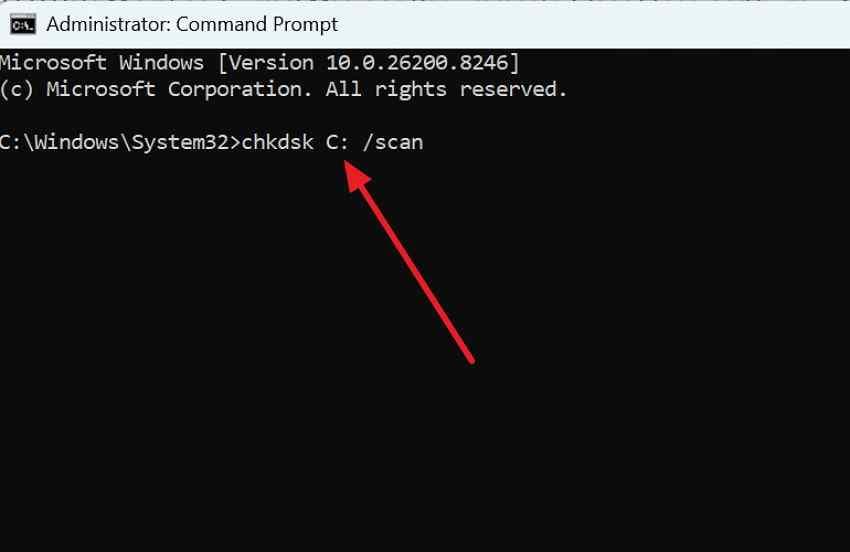
Microsoft explains the scan and repair flags in its CHKDSK command reference. Avoid /f, /r, and other repair operations on a failing or data-loss source before the valuable files are protected.
Confirm the Interface and Adapter Will Work
For a SATA destination, use a securely seated internal connection or a USB-to-SATA adapter supported by your hardware and Magician. For an NVMe M.2 SSD, ensure the slot or enclosure supports NVMe rather than SATA-only M.2. If a drive is visible in Windows but not Magician, check the adapter and controller before concluding that the SSD is defective. Samsung specifically cautions that some USB adapters and RAID/SCSI connections can interfere with detection or migration.
Part 3. Clone Windows to the Samsung SSD
With backups verified and the destination empty, proceed through four checkpoints. Each checkpoint should have an observable result before moving on, especially when your PC contains several similar-size drives.
Identify the Exact Source and Target Disks
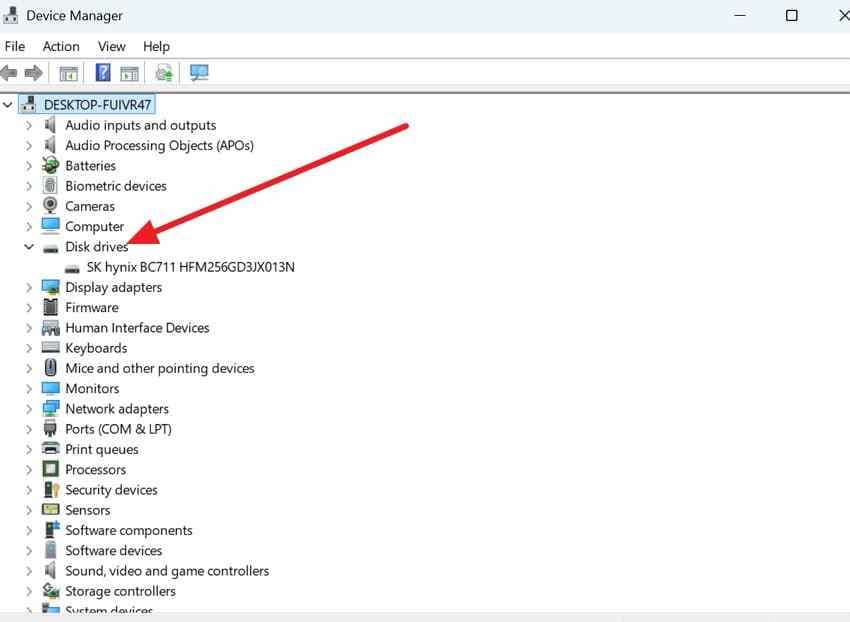
Step 1. Connect the Samsung SSD. In Windows, open Disk Management and, where available, Device Manager > Disk drives to compare the physical model and capacity. Do not initialize or format the original system disk if Windows offers a prompt.
Step 2. In Magician, open Data Migration. Confirm the Windows OS disk is listed as the source and select the new Samsung SSD as the target. Compare the model and size a second time; the target will be overwritten.
Note: The Magician interface pictured is from an earlier version. In Magician 9, look for the function and the source/target labels rather than assuming the same menu positions.
Review Which Partitions the Tool Will Copy
Inspect the volume list before starting. Samsung says it can clone the Windows C: volume and two more volumes when present. The Windows System Reserved partition is handled automatically, whereas a PC maker's OEM recovery partition may be excluded except for specific Samsung recovery configurations. Files located on another disk or on additional excluded volumes will not appear on the clone.
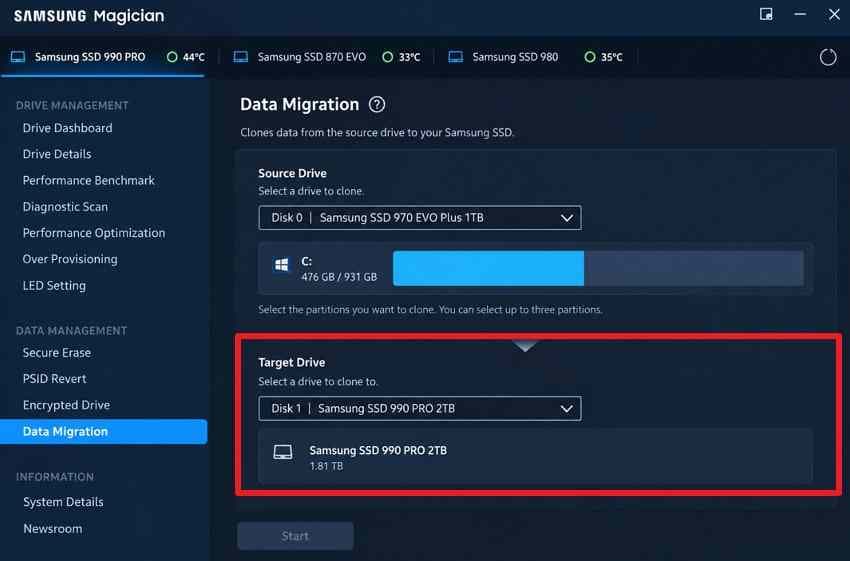
If the planned layout excludes a needed data partition, back it up and copy its files separately after migration. Never assume a successful clone message proves that every physical drive or every recovery partition was migrated.
Start the Clone Without Interrupting Power
Step 1. Close applications that actively write to disk and disconnect unrelated storage devices after checking which disks Magician needs. On a laptop, connect power and prevent sleep.
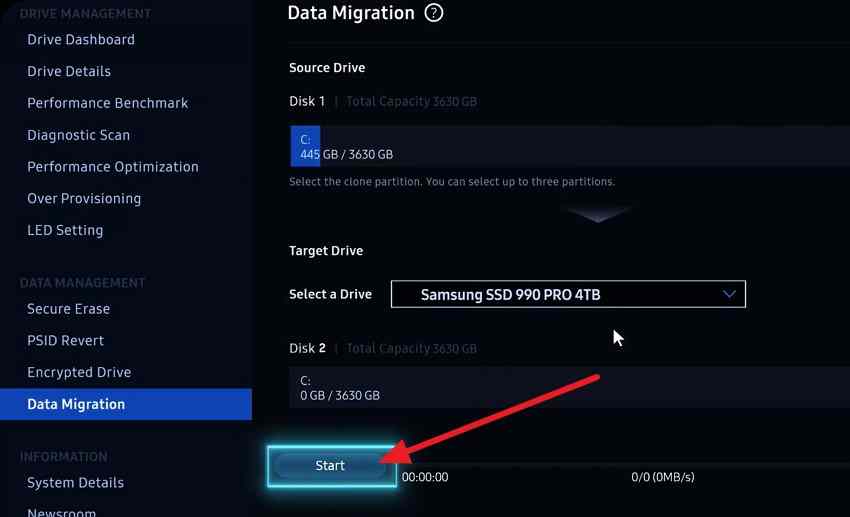
Step 2. Select Start only after reviewing both disks and the included volumes. Keep the destination connection stable and let the process finish. Do not remove the SSD, stop Magician abnormally, or power off the PC during the transfer.
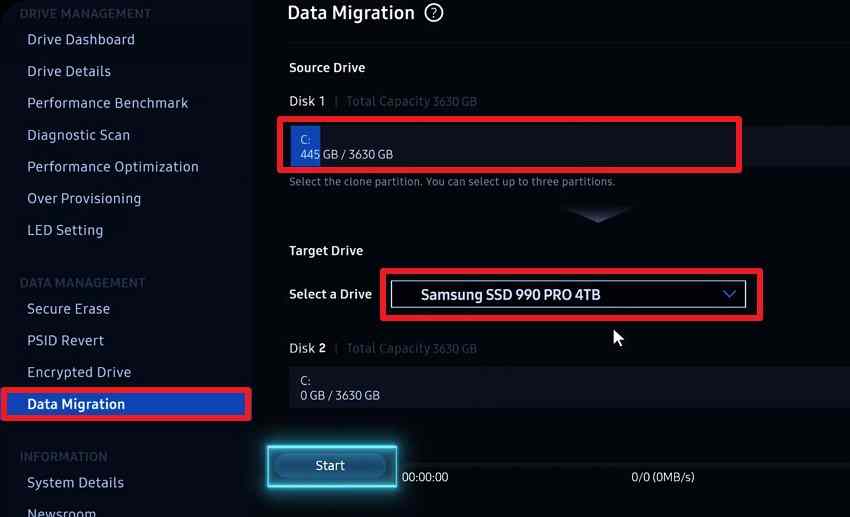
Magician may take additional time to prepare and copy data. The progress indicator alone does not establish an error. If an error message appears, record its exact wording and return to the matching check in Part 4 instead of repeatedly restarting.
Boot From the New Samsung SSD and Check the Copy
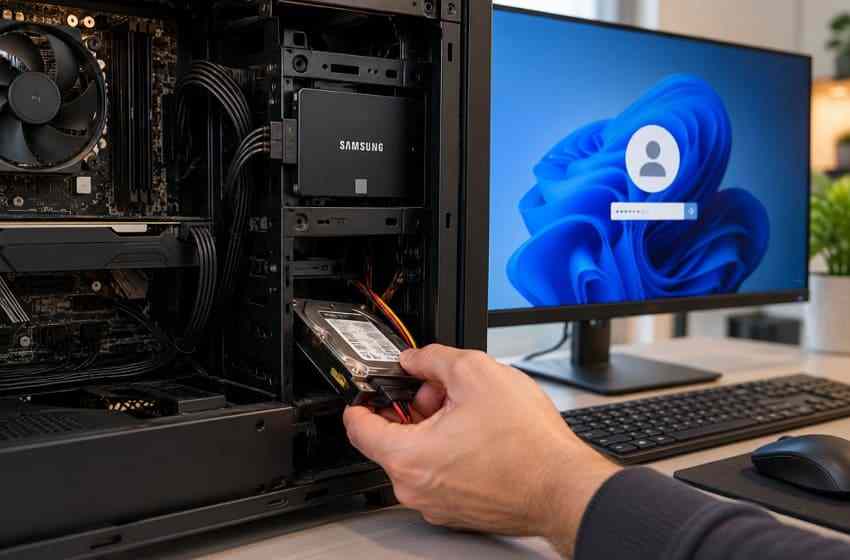
Step 1. Once Magician confirms completion, shut down the computer. Where your hardware allows it safely, disconnect the original system drive for the first boot so Windows cannot silently start from the old disk. If replacing a single-slot laptop SSD, install the new SSD in the normal internal slot according to the laptop manufacturer's instructions.
Step 2. Start the PC and choose the new SSD's Windows Boot Manager entry in the UEFI/BIOS boot menu if needed. Boot menus differ by manufacturer, so follow the PC's own documentation.
Step 3. Sign in, launch the applications you actually need, open representative documents and photos, and inspect Disk Management for expected Windows and recovery partitions. Verify the disk identity rather than relying only on the C: drive letter.
Keep the original disk unplugged or otherwise protected until the new SSD passes multiple normal boots and these file checks. A clone is not a tested backup until its contents are validated.
Part 4. Fix a Migration Failure at the Stage Where It Happens
A missing target, a stalled clone, a startup failure, and missing documents are different problems. Use the current symptom to choose the next safe test, rather than reformatting a disk or changing firmware settings at random.
Samsung Magician Does Not List the Target SSD
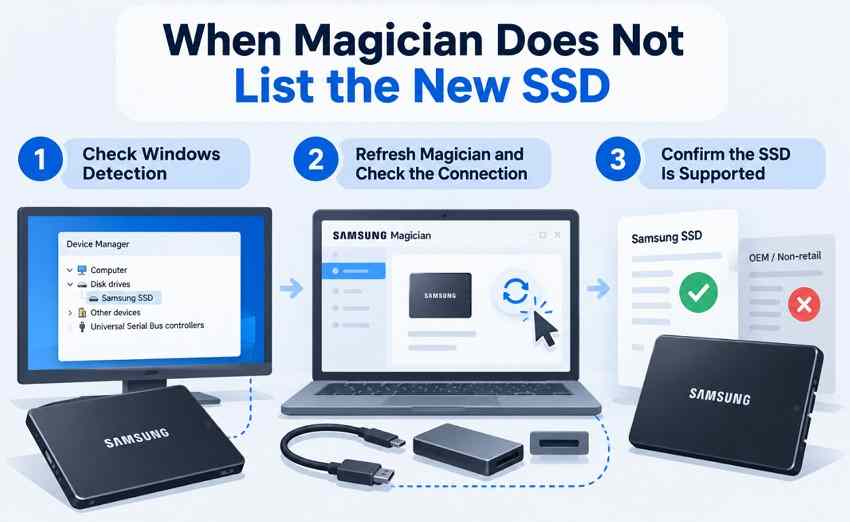
First check whether Windows itself detects the Samsung SSD with the correct capacity. If not, power down safely and check the slot, SATA data and power cables, compatible enclosure, or USB connection. If Windows sees the drive but Magician does not, refresh Magician, reopen it, and review its compatibility information. Samsung notes that unsupported adapters, outdated storage drivers, RAID/SCSI controllers, or OEM drives may explain the mismatch.
Do not initialize, format, or erase the source drive to address a missing target. If several unrelated connections fail and the SSD is still not detected at the hardware level, consult Samsung or the device manufacturer before continuing.
Clone Will Not Start or Remains at 0%
Check the destination capacity, included volume count, encryption status, and source-drive health against Part 2. Samsung also recommends closing other programs and keeping chipset drivers current. If you are on a laptop with a USB adapter, try a known compatible connection rather than cycling the drive repeatedly.
A real Samsung 850 EVO to 870 EVO migration report on Reddit described a 0% stall on a nearly full 250 GB source SSD. In a follow-up, the poster said the clone started after freeing several gigabytes. That is one user report, not a Samsung-prescribed minimum free-space rule. Protect the files first, then consider reclaiming space if your drive is close to full.
If the source returns read errors or repeatedly disappears, stop retrying. A long clone is not the right diagnostic tool for a physically unstable SSD.
Clone Completes but Windows Does Not Boot
Power off, verify the cloned SSD is connected to its intended internal interface, and confirm the firmware is trying to boot its Windows Boot Manager entry. Check whether the source Windows installation used UEFI/GPT or legacy BIOS/MBR; changing boot mode blindly can prevent a valid system from starting. Restore the original boot arrangement if you cannot confirm the clone layout.
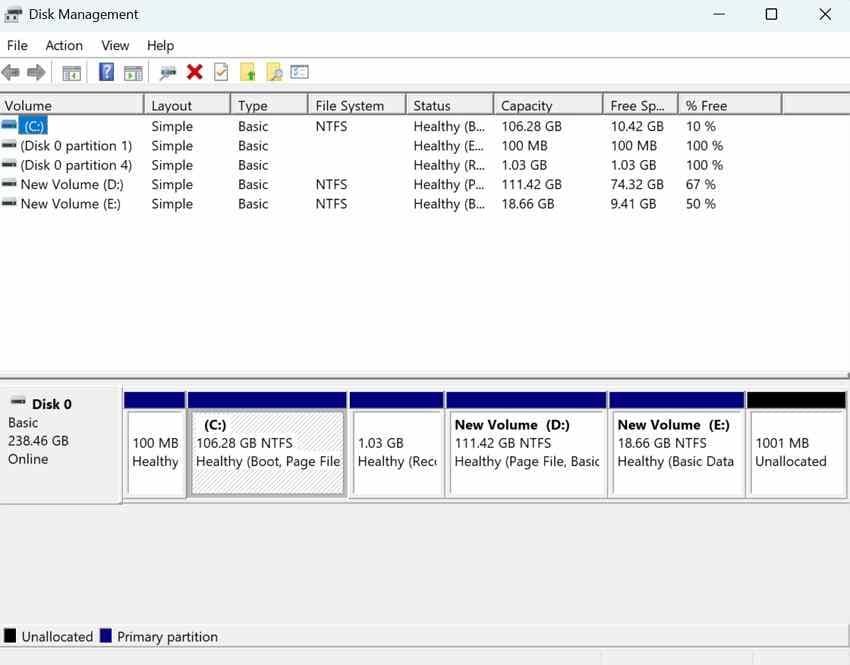
In Disk Management or a controlled recovery environment, the expected EFI System Partition or System Reserved partition should be present according to the original Windows boot layout. The image below illustrates an EFI partition on a disk; it does not prove the pictured disk is your cloned Samsung SSD.
Avoid deleting partitions or using repair commands such as bootrec without a verified backup and a problem-specific diagnosis. If necessary, ask a qualified technician to assess the boot configuration.
Windows Boots but Files Seem to Be Missing
Check the old source drive, the profile account currently signed in, redirected folders, and any volumes excluded from Data Migration. Samsung documents that the C: volume plus at most two extra volumes are copied, while some OEM partitions are not. Windows-managed page files and hibernation files are also deliberately omitted and can account for size differences.
Compare a representative folder and a few recent files on the original drive against the cloned SSD. Do not wipe or format the original drive until you know whether the apparently missing files were never in the cloning scope or are genuinely lost.
The following video is an optional visual reference for SSD troubleshooting; Samsung's official documentation above remains the authority for the current Magician interface and requirements.

Part 5. Finish the Migration Without Losing Your Rollback
The safest finishing step is not deleting the old drive; it is proving that the new system works. Only after you have tested Windows, applications, partitions, and important files should you decide how to reuse spare space or retire the source disk.
Keep the Source Drive Until You Have a Working Replacement
Run the cloned Windows installation through normal restarts and daily tasks. Confirm the correct SSD model is being used, verify the most important files, and check that installed programs launch. Keep the original Windows drive unmodified as a rollback option while you do this. If you later repurpose it, first create a separate verified backup and wipe it only after you are certain the clone is complete.
Expand C: Only When the Free Space Is in the Right Place
In Windows Disk Management, a basic NTFS system volume can be extended when unallocated space lies immediately to its right on the same disk. If a recovery or data partition separates C: from the free space, Microsoft's Extend Volume guidance explains why the button may be unavailable. Do not delete recovery partitions simply to make the command clickable.
The screenshot above illustrates a disabled Extend Volume option with other partitions between the Windows volume and unallocated space. It is intentionally a counterexample, not an instruction to click that button.
If the target exceeds 2 TB but uses an MBR layout that cannot address all available storage, verify UEFI support, the existing backup, and a supported migration plan before considering any GPT conversion. Do not run partition conversions casually on a newly migrated system.
Use Recoverit Only for Separate, Real SSD Data Loss
Samsung Magician Data Migration handles system cloning; it is not a deleted-file recovery tool. If important files were accidentally deleted, formatted, or lost from a stable, detectable Samsung SSD and no intact copy exists, Wondershare Recoverit Hard Drive Recovery can scan for potentially recoverable files. Recovery may fail when TRIM, wear leveling, or overwriting has removed the deleted contents. It cannot repair an SSD controller or recover sanitized data.
Before scanning, stop installing software or saving files on the affected SSD, and use a separate healthy destination for recovered files. Follow this short recovery sequence only after checking backups and verifying that the SSD remains readable:
- Select the source: Open Recoverit, go to Hard Drives and Locations, and choose the detectable Samsung SSD or affected volume.
- Scan and review: Let the scan run and use available file filters and supported previews to locate the required files.
- Recover elsewhere: Select the files and save them to a different physical drive, never back to the SSD being scanned.
For the complete workflow, see the official Recoverit Windows guide and the dedicated Samsung SSD data recovery guide. If the drive repeatedly disconnects, reports the wrong capacity, or is no longer physically detected, stop software scans and consult a specialist.
Conclusion
Samsung SSD data migration works best when you first confirm the supported Magician version, the exact Samsung destination, Windows source-drive eligibility, capacity, encryption, and partition scope. Follow the clone with a real boot test and file checks, keeping the original disk intact as a rollback option. If migration stalls or Windows will not boot, diagnose that stage before changing partitions. For unrelated deleted or formatted SSD files, Recoverit may help on readable drives, but TRIM and overwriting can prevent recovery.
FAQ
-
Can Samsung Data Migration clone to a smaller SSD?
Sometimes, if the selected system volumes and required partitions fit within the destination's usable capacity and Magician supports the planned layout. Confirm the tool's target-capacity check first. Do not assume any smaller target will work merely because the used C: space is small. -
How long does Samsung SSD data migration take?
There is no dependable fixed duration. The amount of data, source and destination speeds, SATA or NVMe interface, USB adapter, and source-drive health all affect progress. Maintain stable power and record an actual error rather than interpreting a short pause as definite failure. -
Can I use Samsung Data Migration on Mac?
Not with the Windows Data Migration feature documented in Samsung Magician 9. Samsung offers Magician for macOS, but its current guide restricts Data Migration to Windows. Use a supported Mac backup or migration workflow instead. -
Does Samsung Data Migration delete data from the original drive?
The documented process copies selected data from the original Windows source; it does not intentionally wipe that source. Existing files on the chosen Samsung destination are overwritten. Keep the original source untouched until the new SSD boots and your data has been checked.



