 TL;DR:
Successfully recovering NTFS data requires immediately halting all write operations to the affected disk and matching your software choice to whether the system shows recently deleted files, an unreadable RAW volume, or a completely missing partition.
● Use the free command-line Windows File Recovery or the Recuva graphical wizard for standard deleted files, but opt for Wondershare Recoverit, Disk Drill, or the open-source TestDisk when extracting files from unreadable RAW volumes or missing partitions.
● You must save all recovered files to a completely different healthy physical drive before accepting Windows prompts to format a RAW disk, running CHKDSK, or using TestDisk's Write option to alter the partition table.
● Software scans cannot reconstruct overwritten file clusters, reverse completed SSD TRIM operations, bypass locked BitLocker encryption without credentials, or fix physically failing drives that click or repeatedly disconnect.
Ask AI for a summary
 ChatGPT
 Perplexity
 Gemini
 Claude
 Grok
Grok
Deleted files, RAW volumes, and missing NTFS partitions require different recovery approaches. NTFS data recovery software should be chosen according to what Windows can still detect, whether the original file system is readable, and whether the storage device is physically stable. The wrong repair command can make a recoverable problem harder to solve.
This guide compares Windows File Recovery, Recuva, Wondershare Recoverit, Disk Drill, and TestDisk for three distinct scenarios: deleted files, formatted or RAW volumes, and lost partitions. You'll learn which tools offer a graphical interface, which ones are genuinely free, and when to work from a disk image instead. Before installing anything, protect the affected drive and prepare a different destination for recovered files.
In This Article
Part 1. Which NTFS Recovery Software Fits Your Loss?
Start with the state of the disk, not a product ranking. A missing Word document on an otherwise normal C: drive calls for a different first move than a drive shown as RAW or an entire partition replaced by unallocated space.
Match the Tool to What Windows Actually Shows
Open Disk Management (right-click Start > Disk Management) and observe the physical disk, its capacity, existing volumes, and file-system labels. This is an inspection step; do not accept prompts to initialize or format a disk containing needed data.
| Loss state | Clue in Windows | Safest next action | Tools to consider |
| Recently deleted NTFS file | Volume mounts normally; individual files are absent | Check Recycle Bin and existing backups; then attempt undelete | Windows File Recovery (Regular), Recuva, Recoverit, Disk Drill |
| Formatted NTFS volume | Volume may be empty or have a newly created file system | Stop writes; scan for remaining files before reuse | Windows File Recovery (Extensive), Recoverit, Disk Drill; Recuva for supported cases |
| Former NTFS volume now RAW | Windows cannot read the file system or asks to format | Dismiss the format prompt and recover from a stable disk or image | Recoverit, Disk Drill; Windows File Recovery only where its mode can access the source |
| Lost NTFS partition | Previous partition is absent, possibly shown as Unallocated | Inspect the physical disk; search for files or partition entries without writing changes | TestDisk, Recoverit, Disk Drill |
| Drive disconnects, clicks, or is absent | Physical disk not reliably accessible | Stop prolonged DIY scans and obtain a hardware assessment | Specialist recovery or imaging, not ordinary undelete utilities |
Important distinction: A RAW label describes the current unreadable state; it does not prove that the underlying data still belongs to a recoverable NTFS volume. Likewise, an Unallocated label does not prove a partition was deleted. Identify the actual device before interpreting either symptom.
Compare Five NTFS Tools by Interface, Purpose, and Free Terms
These are documented capabilities, not head-to-head recovery-rate test results. Current vendor editions and offers can change; always use the linked official download page rather than a third-party installer.
| Tool / official link | Interface and best-fit task | Platform | Free use / main trade-off |
| Windows File Recovery | Command line; NTFS deleted-file scans (Regular), older deletions and supported formatted/corrupt conditions (Extensive) | Windows 10/11; Microsoft Store distribution | Free; no graphical preview and source/destination must differ |
| Recuva | Windows wizard and file list; deleted files, with some damaged or formatted-volume support | Windows; check supported OS and edition on the download page | Free home-use edition; not a complete RAW-partition repair solution |
| Wondershare Recoverit | Graphical scan, file filters and preview; deleted files, formatted/RAW volumes and files from lost partitions | Windows and macOS | Current free page lists up to 500 MB; check installation terms and never expect hardware repair |
| Disk Drill | Graphical scanning, previews and disk images for several logical loss conditions | Windows and macOS; version requirements differ | Windows free recovery up to 100 MB; Mac free terms differ |
| TestDisk | Text interface; searches missing partitions, lists/copies files and offers advanced partition repairs | Windows, macOS, Linux and others | Free, open source; writing a partition table is a separate high-risk action |
At the time of this review, CCleaner's official site lists Recuva v1.55.133 (June 2026); CGSecurity lists TestDisk 7.2 as stable and 7.3 as a work-in-progress build. Disk Drill's official documentation states a 100 MB free recovery allowance for Windows, while Recoverit's free page lists up to 500 MB. Those limits describe current offers, not guarantees that a given file can be recovered.
A File-Recovery Scan Is Not a Partition Repair
File recovery aims to extract available documents, photos, archives, and other contents to separate storage. Partition restoration changes the disk's metadata so Windows may recognize a previous volume again. Finding files in TestDisk does not mean you should immediately select Write. Save critical files first, then evaluate whether rewriting the partition table is necessary and safe.
For a general comparison of recovery approaches, the following older Recoverit video illustrates software choices. Use the updated official tables above for current editions, supported platforms, and free allowances.

Part 2. Check Whether Software Can Safely Scan the Drive
Before trying several NTFS recovery tools, preserve what is still readable. A software scan is most appropriate for stable, detectable media with a logical problem, not a drive that is failing mechanically or vanishing from Windows.
Stop New Writes and Prepare a Separate Recovery Destination
Do not download tools, install software, save files or create partitions on the affected NTFS volume. If the files were deleted from the running Windows C: drive, the operating system may continue writing temporary files and updates. Where practical, use another healthy computer or recovery environment; avoid unsafe DIY disassembly.
- Source: Record its physical disk model, approximate capacity and affected partition or letter.
- Destination: Prepare a different healthy physical drive with sufficient space. Separate partitions on the same failing device do not provide equivalent protection.
- Backup: If an existing backup includes the files, restore it to another destination rather than scanning the original disk.
Check Physical Detection, BitLocker, TRIM and Drive Health
Look for the disk in Disk Management before choosing a tool. For an encrypted volume, run manage-bde -status in an elevated terminal to inspect BitLocker status; a locked drive requires authorized credentials, not an encryption bypass. For an SSD, fsutil behavior query DisableDeleteNotify reports whether Windows enables delete notifications. It does not reveal whether specific deleted sectors have already been trimmed.
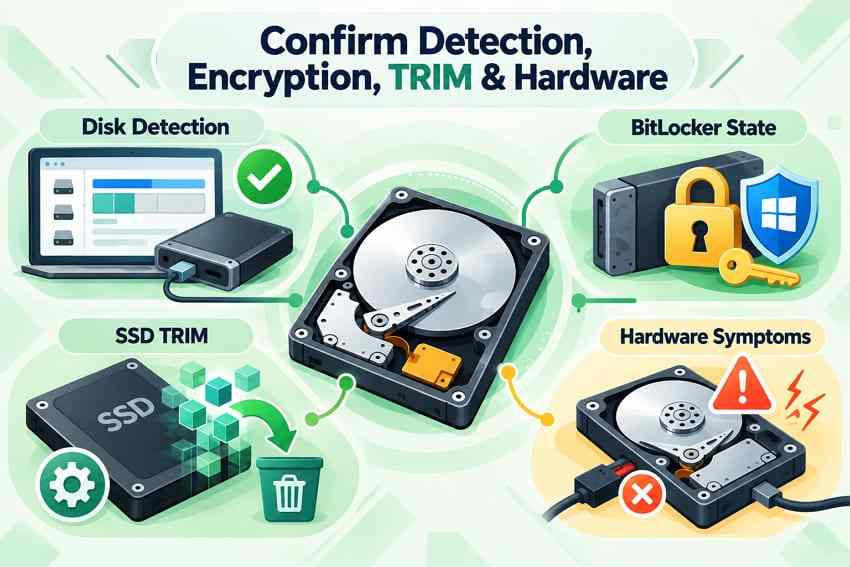
Clicking, new grinding noises, repeated disconnects or extreme slowness change the plan. Do not run several full scans back-to-back. For valuable data, consider professional imaging or a specialist instead of stressing the original device.
Avoid CHKDSK, Formatting, and Initialization Until Files Are Safe
Windows may ask to format a RAW partition or initialize a disk with an unreadable partition table. Cancel those prompts. CHKDSK with repair switches can change file-system metadata, and formatting creates new structures. These operations belong after critical files have been copied or recovered, not at the start of a recovery attempt.
Part 3. Recover Recently Deleted Files From a Mounted NTFS Volume
If File Explorer opens the NTFS partition normally but some files have disappeared, begin with existing restore sources. Then choose a command-line or graphical undelete tool, depending on the file age and how comfortable you are identifying the correct source and destination.
Look in the Recycle Bin and Existing File History Backups
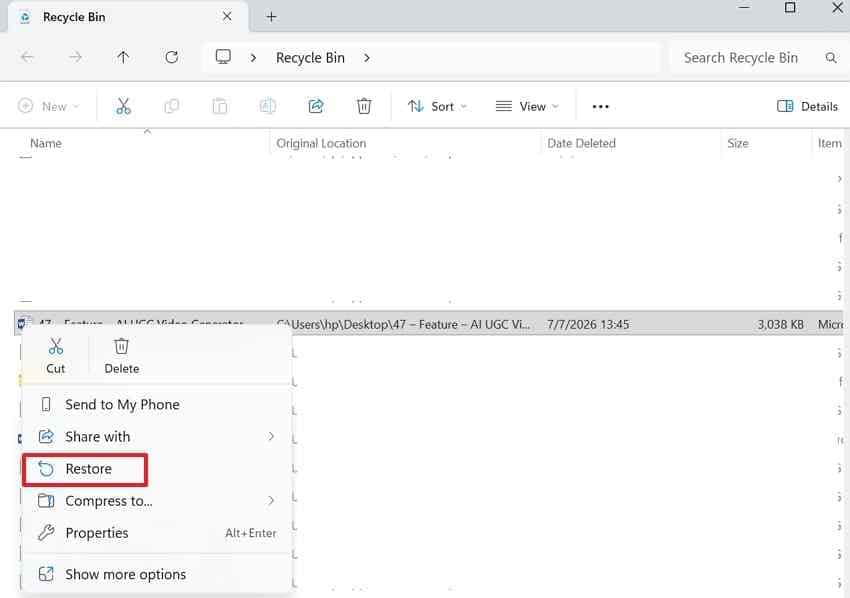
Open the Recycle Bin, locate the lost file and choose Restore if it is available. Do not assume files deleted from every external drive or network location will appear there. If a backup was configured before deletion, inspect available versions using Microsoft's File History instructions.
Step 1. On a PC where File History was already enabled, open Control Panel > System and Security > File History and choose Restore personal files, or inspect the original folder's Previous Versions tab.
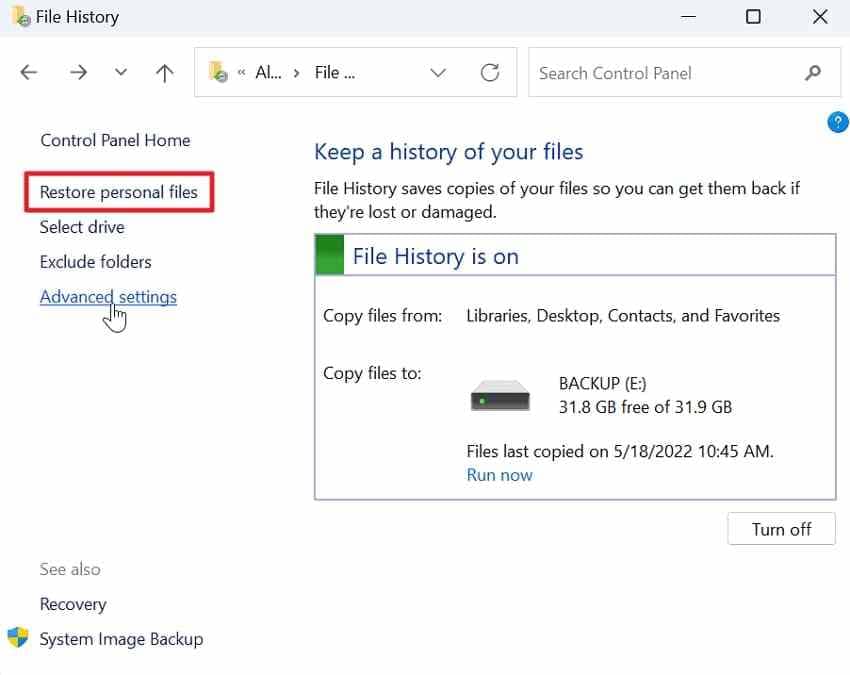
Step 2. Browse available saved versions, select the correct file and restore it. When offered a choice, restore to another location to avoid replacing a newer valid copy.
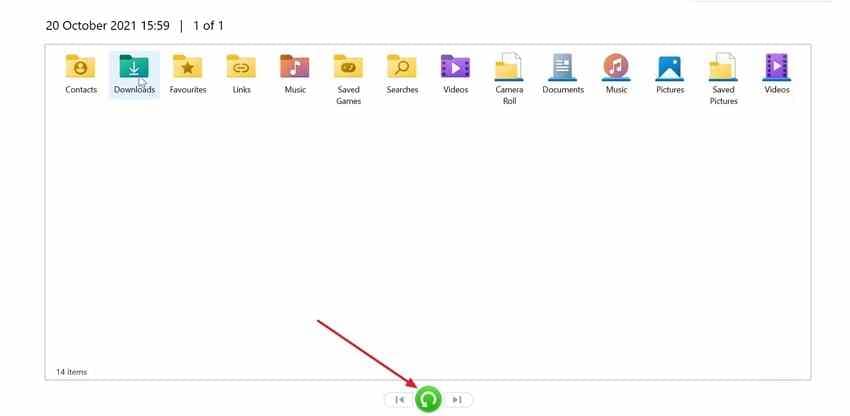
If File History was never enabled or the folder was not covered, its interface cannot create a missing backup retroactively. Move on to an undelete scan instead.
Use Windows File Recovery for Recently Deleted NTFS Files
Microsoft's Windows File Recovery is free and command-line based. Its Regular mode is intended for recently deleted files on a healthy NTFS volume; use Extensive mode for older deletions, supported formatted volumes, or damaged file systems. Download the app through the official Microsoft Store listing if needed.
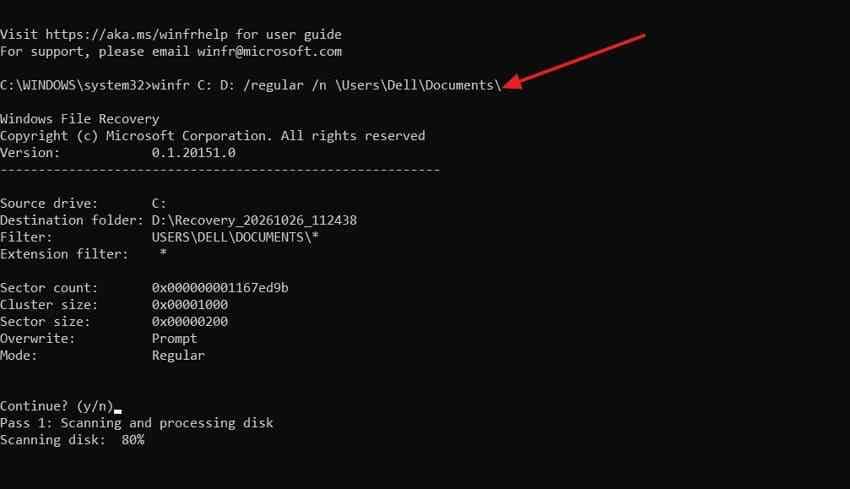
Example: If the affected source is C: and a separate recovery disk is E:, run the following command, replacing YourName and the source folder to match your system:
winfr C: E: /regular /n \Users\YourName\Documents\Confirm the prompt, then inspect the new Recovery_ folder on E:. Do not use this example unchanged if E: contains the files you lost. If Regular mode finds nothing, try Extensive mode according to Microsoft's instructions; do not interpret one empty scan as proof that recovery is impossible.
Choose Recuva for a Simple Windows File-List Workflow
For a mounted NTFS volume, Recuva provides a familiar wizard and recoverable-file list. Its official documentation describes recovery from deleted files and some newly formatted or damaged drives, but a completely unreadable RAW source may not appear as a normal scan target. Use it for file retrieval, not partition-table reconstruction.
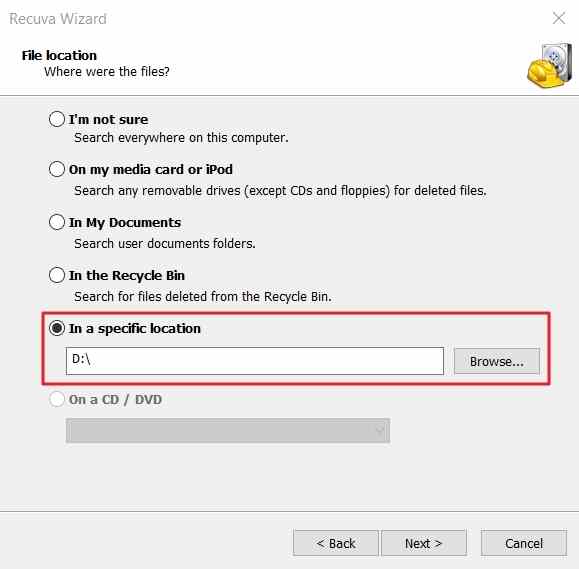
Step 1. Download Recuva from the official CCleaner page onto a healthy disk. In the wizard, identify the old file location when known, or choose an appropriately broader search.
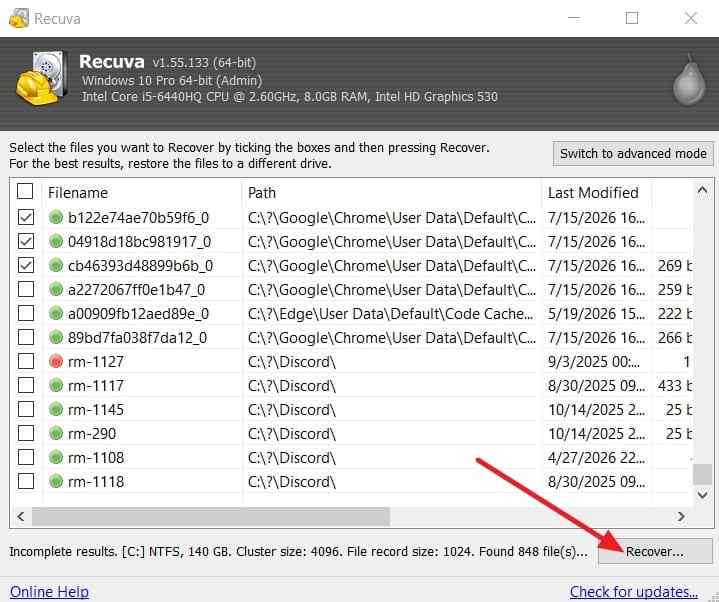
Step 2. Review results and recovery condition indicators, select what you need and choose Recover. Save to another physical disk, not back to the NTFS source. A file listed as recoverable can still be corrupted or incomplete.
Use Recoverit for Visual NTFS Scanning and File Previews
Wondershare Recoverit Hard Drive Recovery can scan stable, detectable NTFS disks for deleted files and accessible data from formatted, RAW, or missing-partition situations. Its file previews and filters are helpful when you need to distinguish recovered content from similar filenames. It does not repair failed hardware, decrypt without authorization or guarantee a complete recovery.
Step 1. Select the source. Install Recoverit on a healthy drive, open Hard Drives and Locations, and choose the affected NTFS disk or available partition based on its size and identity.

Step 2. Scan and filter. Allow the scan to search for remaining file records and content, then use file-type filters and available search to narrow the results. Damaged NTFS metadata may mean some recovered files no longer have their original names or folder paths.

Step 3. Preview, recover, and validate. Preview supported files, select those you need, click Recover, and save them to a different healthy physical drive. Then open representative files from that destination before attempting any NTFS repair.

Recoverit Free currently advertises up to 500 MB of recovery on its official free edition page. Check the offer in the version you install; scanning and previewing do not mean unlimited recovery is free.
Part 4. Recover Files From a Formatted or RAW NTFS Volume
Formatting and RAW status should not be treated as the same condition. After a quick format, Windows may mount an apparently empty new file system; a RAW volume is currently unreadable and may trigger a format prompt. Either can still contain retrievable files, but not every underlying disk is safe for a lengthy scan.
Record the Current State Without Creating a New File System
Take a screenshot of Disk Management showing the correct disk number, full capacity, partitions and the RAW or formatted label. Check whether the physical disk remains consistently detected. Do not initialize, change the partition style, allocate new space, run full format or install recovery software on that device.
If this is specifically a RAW volume, the dedicated Recoverit guide to recovering data from a RAW hard drive explains that narrower scenario in more detail.
Image an Unstable Disk Only When It Can Be Read Safely
When a drive is unusually slow or returns read errors, repeated scans of the original may increase stress. Advanced users sometimes create a sector-level image with GNU ddrescue, which keeps a mapfile so work can be resumed. That workflow requires correct source and destination identification, adequate destination capacity and suitable hardware. A mistake can overwrite the only copy of the data. See CGSecurity's disk-image guidance for additional source and destination cautions.
Stop condition: If the drive clicks, repeatedly powers down, smells hot, or cannot be detected reliably, avoid further scanning and contact a qualified recovery specialist. Imaging is not a guaranteed fix for physical damage.
Extract and Open Files Before Reformatting or Repairing
Scan a readable RAW or formatted volume with a tool that supports its current state, such as Recoverit or Disk Drill, or use Windows File Recovery Extensive mode when its source requirements are met. Save results to another disk. Open a few documents, play recovered videos and test archives from that destination to determine whether their contents survived.
Only after you have secured the files should you consider a new NTFS format or file-system repair. If a file is absent from every scan, a backup, disk image or professional service may still be more appropriate than repeated repairs.
Part 5. Investigate a Missing NTFS Partition
A partition can disappear from File Explorer while the physical disk still exists. The safe initial objective is to see whether its old boundaries and files can be located, not to force the disk to look normal as quickly as possible.
Inspect the Full Disk Layout, Preferably From an Image
In Disk Management, note the physical disk size, whether the disk uses GPT or MBR, the neighboring partitions and any unallocated space. A missing drive letter alone is different from a deleted partition. If the disk is unstable or the data is irreplaceable, work from a verified image prepared by an experienced operator when possible.
Recoverit provides file extraction from some lost partitions, while the separate NTFS partition recovery guide covers additional partition-specific scenarios.
Search, List and Copy Files Using TestDisk
TestDisk can scan a physical disk or supported image for lost partitions. These inspection steps follow the developer's partition recovery documentation.
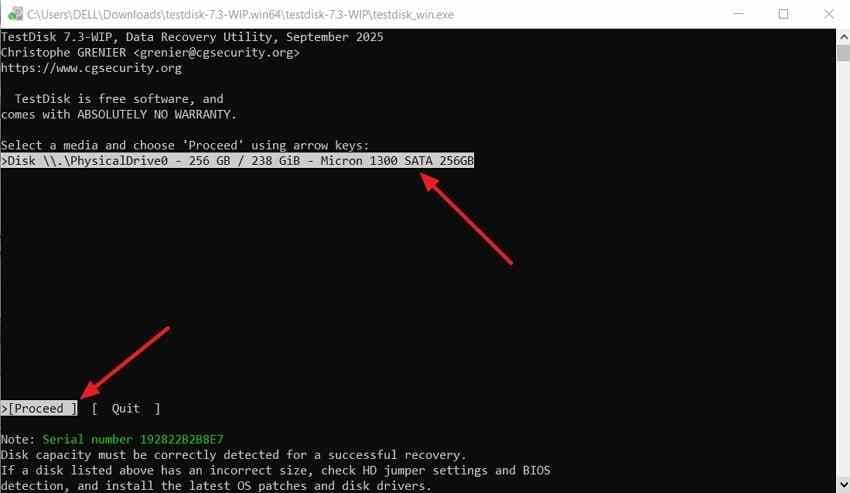
Step 1. Launch TestDisk from a healthy location, create a log if appropriate, and select the physical disk with the missing partition, not merely the former C: or D: volume letter. Confirm the listed capacity before choosing Proceed.
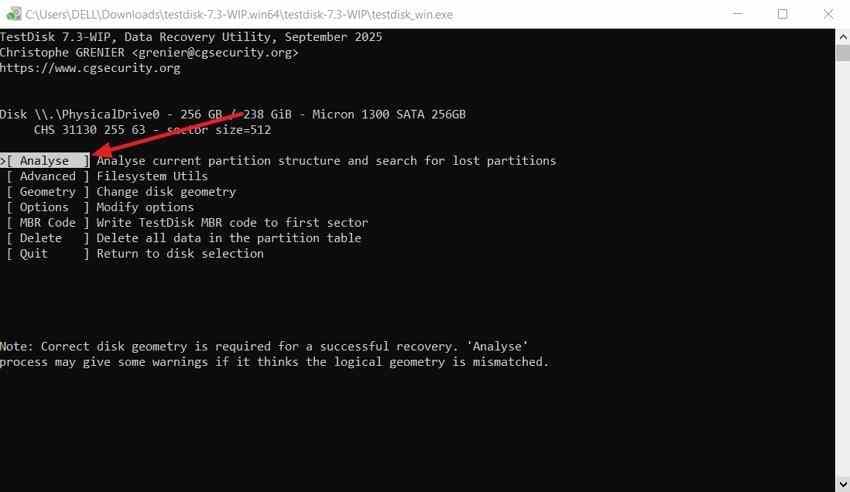
Step 2. Accept the detected partition table type only when it matches the disk, then choose Analyse and Quick Search. If needed, use Deeper Search; large disks can take a long time.
Step 3. Highlight a plausible partition, press P to list its files, and inspect directories. Where TestDisk supports it, copy important files to a different physical disk before changing any partition information. If the expected files are absent, return to the search rather than guessing.
Treat Write as a Last Resort, Not a Recovery Shortcut
TestDisk's Write option changes the partition table. Consider it only after every expected partition is accounted for, boundaries do not conflict, important files are protected, and an appropriate image or backup exists. The developer's guidance expressly distinguishes searching and viewing files from writing the reconstructed layout.
A missing partition may coexist with damaged NTFS boot-sector or MFT structures. Do not apply boot-sector repairs, CHKDSK or partition table changes just because one tool displays a warning. A specialist can help evaluate these distinct problems without unnecessary disk writes.
Part 6. Validate Results and Know the Limits
Seeing familiar filenames in scan results is encouraging, but it is not the finish line. Recovery is successful only when the recovered copies are accessible, useful, and stored safely away from the affected disk.
Test Documents, Media and Archives on the Destination
Use a representative sample, not just file thumbnails. Open the beginning and end of long PDFs, check spreadsheets with formulas, inspect full-resolution photos, play entire video clips and use an archive utility's integrity test for ZIP or RAR files. Keep recovered files on another healthy drive while you check them.

If files have generic names because directory metadata was lost, sort by file type, size, folder and preview rather than assuming the original path can always be reconstructed.
Know What Software Cannot Recreate
| Limit | What it changes | What can still help |
| Overwritten file clusters | Original bytes have been replaced | An earlier intact backup |
| SSD TRIM | Deleted flash data may already be inaccessible | A backup made before deletion; software cannot reverse completed TRIM |
| Locked BitLocker volume | Encrypted contents cannot be interpreted without access | Valid recovery key or authorized unlock |
| Failing HDD or SSD hardware | Drive cannot be read reliably | Specialist assessment and controlled imaging where feasible |
NTFS recovery software works with available storage contents. It cannot guarantee restoration of overwritten bytes, bypass encryption credentials, reverse a completed SSD TRIM operation or repair a physically broken drive.
Stop DIY Attempts When the Hardware Signals Trouble
Unusual mechanical noises, burning smells, extreme heat, and repeated read or disconnect failures are reasons to power down and seek specialist advice. After successful recovery, replace a suspect disk instead of relying on a new format or partition repair as evidence that it has become trustworthy.
Conclusion
The right NTFS data recovery software depends on the loss, not a universal winner. Windows File Recovery and Recuva suit many deleted-file cases; Recoverit and Disk Drill provide graphical scanning across additional logical-loss scenarios. TestDisk is especially useful for investigating missing partitions, but writing a partition table is different from copying files.
Protect the source, recover to another disk, and verify the results before repair. If a stable, detectable NTFS drive has lost files, Recoverit Hard Drive Recovery is one option to evaluate. Seek specialist help for hardware faults.
FAQ
-
Can NTFS recovery software recover permanently deleted files?
Sometimes. Deletion may remove file-system references without immediately overwriting the contents. If the needed clusters remain accessible, suitable software may retrieve them. New writes and SSD TRIM can make recovery impossible, so stop using the affected drive immediately. -
What is the best free NTFS recovery software?
For recent deletions on a healthy NTFS volume, Microsoft's free Windows File Recovery is a strong command-line starting point. Recuva has a free graphical edition for suitable deleted-file tasks. TestDisk is free and open source for partition investigation. Recoverit and Disk Drill offer free tiers with different limits, which should be checked on their official product pages. -
Can I recover a deleted NTFS partition without formatting?
Often you can attempt to recover files without formatting. If the physical disk is detected, inspect the layout and scan for files or missing partitions using an appropriate tool. TestDisk can list and copy files from supported located partitions. Save important data before considering any partition-table write. -
Does NTFS data recovery software work on SSDs?
Yes, supported software can scan a detectable NTFS-formatted SSD. Results are less predictable for deleted files because TRIM may have made their previous data inaccessible. Encryption, overwrite, controller condition and whether the drive can still be read also affect the outcome.



