

 TL;DR:
Data from an unreadable SD card is highly recoverable because the root cause is typically a logical file system error or a hardware connection failure rather than permanent physical damage.
● Test the SD card in a different card reader or use Windows Disk Management to assign a new drive letter to immediately rule out basic hardware port issues or system conflicts.
● Run the built-in Windows CHKDSK utility using the command `chkdsk X: /f /r/x` to automatically repair bad sectors, or deploy recovery software like Recoverit if the file system is severely corrupted.
● Stop using the unreadable card immediately to prevent data overwriting, and only proceed to format the card (FAT32 for cards under 32GB; exFAT for larger cards) as an irreversible last resort after backing up or extracting your files.
Ask AI for a summary
 ChatGPT
 Perplexity
 Gemini
 Claude
 Grok
Grok
An SD card can become unreadable because of a damaged file system, a failed reader, a missing drive letter, an interrupted transfer, or physical card failure. A card that Windows can still detect may contain recoverable photos, videos, documents, and other files even when File Explorer cannot open it.
Protect the card before trying to make it usable again. Do not take new photos, copy files to it, run CHKDSK, initialize it, or format it while important data is still on the card. First test the reader and card, then recover the files if the storage is detectable.

Part 1: Is It Possible to Recover Data From an Unreadable SD Card?
Recovery is often possible when the card is still detectable and the lost sectors have not been overwritten. An unreadable card may have a damaged file system or a reader problem while the underlying photo, video, or document data remains on the storage.
| Card State | Recovery Outlook | First Action |
| Card opens but files are missing | Often recoverable | Stop writing and scan the card for deleted files |
| Card appears in Disk Management as RAW or Unallocated | May be recoverable | Cancel formatting and recover before changing the volume |
| Card has no drive letter but the volume is visible | Often accessible after mounting | Try assigning an unused drive letter if the volume status is usable |
| Card appears in Device Manager but not Disk Management | Reader, adapter, port, or driver issue is possible | Cross-test the connection before repairing the file system |
| Card is absent from every known-good reader and device | Hardware or controller failure is more likely | Stop repeated DIY attempts and consider professional recovery |
Recovery is never guaranteed. Continued use, formatting, initialization, and repair commands can change the card and reduce the chance of retrieving the original files.
Which Recovery Path Fits Your Unreadable SD Card?
| What You See | Best First Move | Do Not Do Yet |
| Card works in another reader | Replace or bypass the original reader or adapter | Do not format the card |
| Card appears in Disk Management without a letter | Assign an unused drive letter if the volume is healthy | Do not create a new volume |
| Card appears as RAW or Unallocated | Recover important files first | Do not format or run CHKDSK first |
| Reader appears in Device Manager with a warning | Update or reinstall the official reader driver | Do not change the card file system |
| Card is invisible everywhere | Try one known-good reader and compatible host, then stop if data matters | Do not repeatedly reconnect, initialize, or clean the card |
Part 2: Safe Methods to Recover Data From an Unreadable SD Card
Method 1: Scan the Detectable Card with Recoverit
Use Recoverit when the SD card is still visible to Windows or the recovery application but files are deleted, missing, formatted, or inaccessible. It is not a way to revive a broken reader or a card that no device can detect.
Try Recoverit to Recover Permanently Deleted/Lost Data
 Security Verified. Over 7,302,189 people have downloaded it.
- Connect the SD card with a stable card reader. Do not install the recovery software on the problem card.
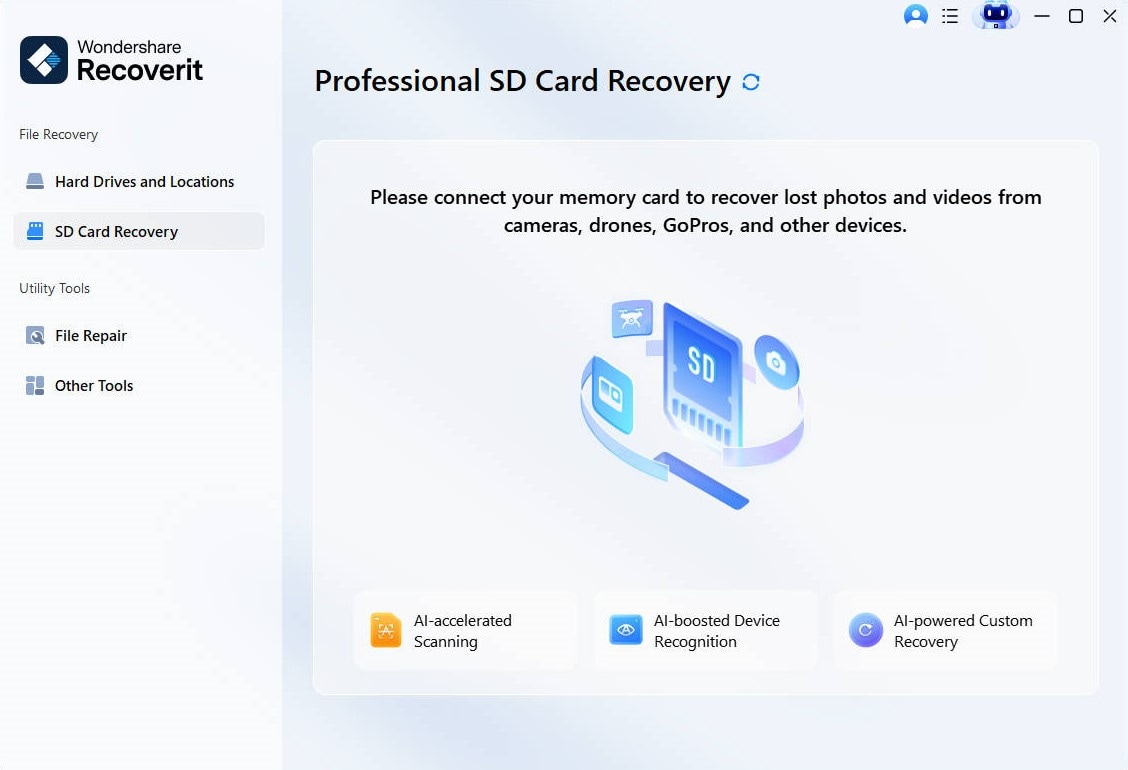
- Open Recoverit and select the detected SD card under the memory-card or storage locations.
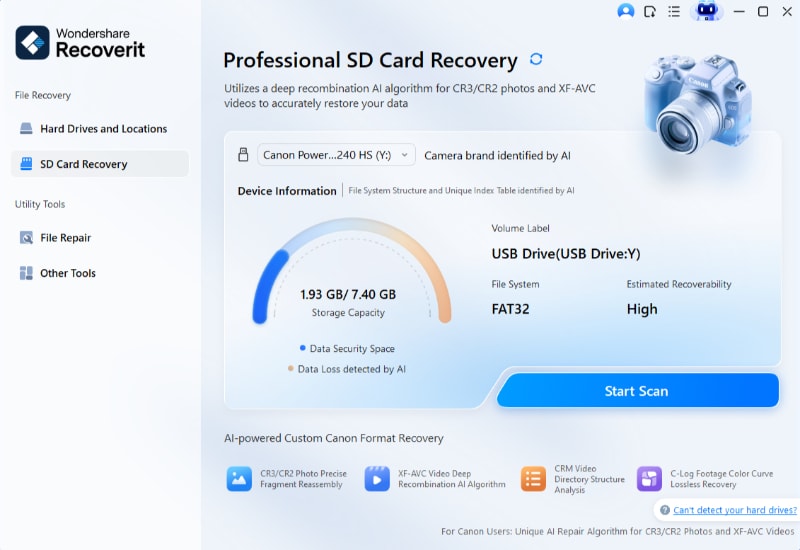
- Start the scan and filter by file type, path, name, date, or size when needed.
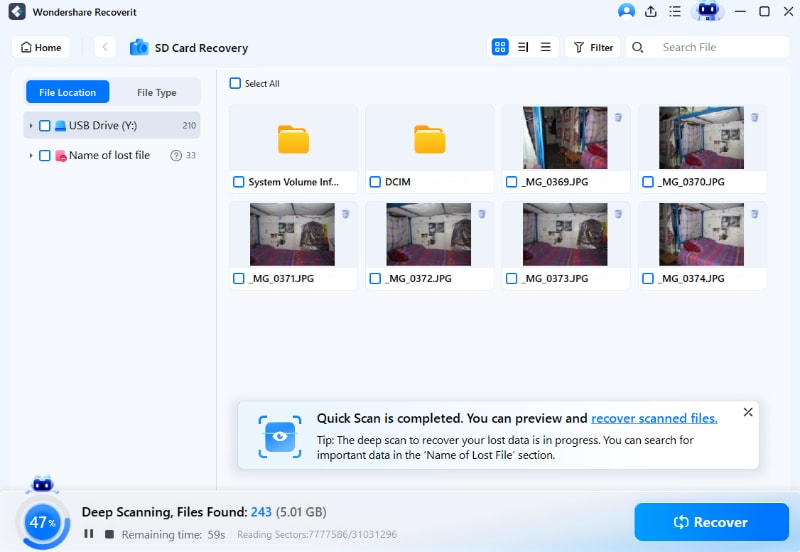
- Preview the found photos, videos, documents, or other files when previews are available.

- Click Recover and save the files to the computer or another healthy drive.

Related Video >>: How to Recover Permanently Deleted Files?

Method 2: Try a Different Card Reader, Adapter, or Device
A failed reader, loose adapter, damaged USB port, or unsupported host can make a healthy SD card appear unreadable. Cross-test the connection before running repair commands.
- Remove the card from the current reader and inspect the contacts for dirt, moisture, or visible damage.
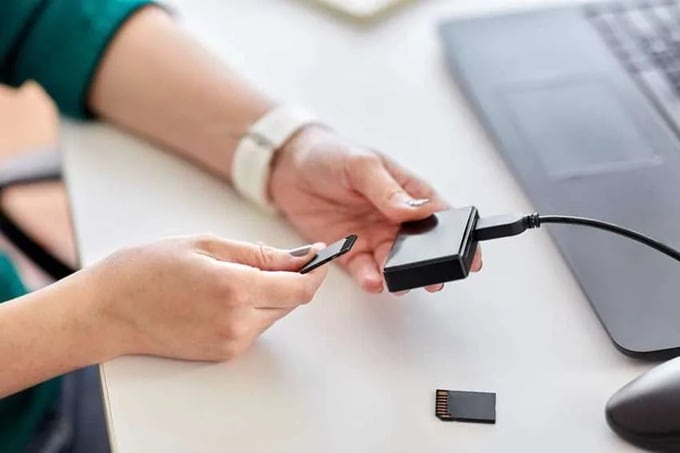
- Try another known-good card reader or a different microSD-to-SD adapter.
- Connect the reader directly to another USB port instead of through an unpowered hub.
- Test the problem card on another computer or compatible camera.
- Test a known-good card in the original reader.
If the problem follows the SD card across readers and devices, protect the card and move to recovery. If another card also fails in the original reader, replace or troubleshoot the reader first.
Method 3: Run CHKDSK Only After Data Recovery
CHKDSK checks and repairs file-system errors. It can change metadata while repairing the volume, so use it only after important files have been recovered or backed up and only when Windows assigns the card a drive letter.
- Confirm that the SD card has a drive letter in File Explorer or Disk Management.
- Recover or copy important files first.
- Open Command Prompt as administrator.
- Run
chkdsk X: /f, replacingXwith the actual SD card letter.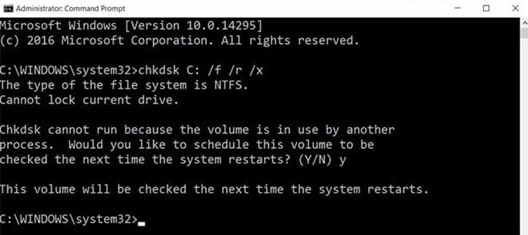
- Wait for the process to finish, then eject and reconnect the card.
Method 4: Assign a New Drive Letter
Use this method when Disk Management can see a usable SD card volume but File Explorer does not show it because no drive letter is assigned.
- Right-click Start and open Disk Management.
- Locate the SD card by checking its capacity and partition layout.
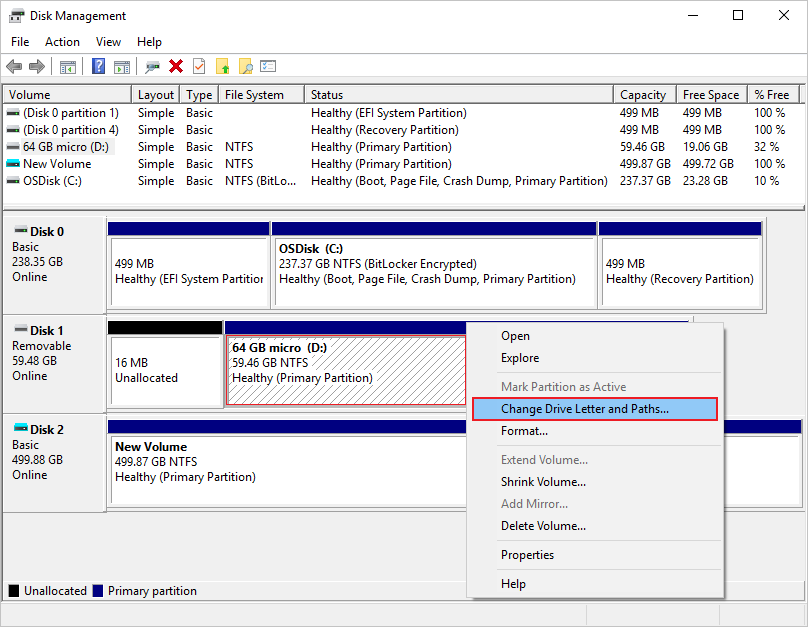
- Right-click the correct usable volume and choose Change Drive Letter and Paths.
- Choose Add if no letter exists, or Change to select an unused letter.
- Open File Explorer and check whether the card is accessible.
Method 5: Update or Reinstall the Card Reader Driver
Use this method when the reader appears in Device Manager with a warning icon, stopped working after a Windows update, or does not expose the card to Disk Management even though the reader is connected.
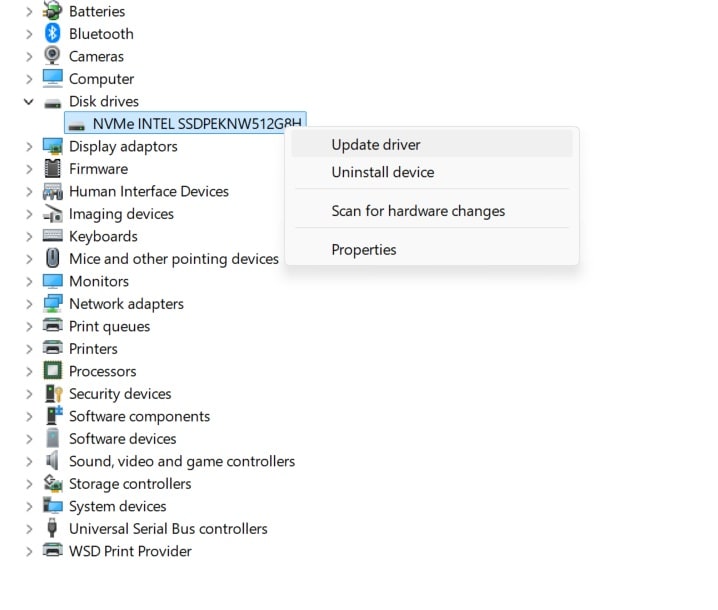
- Open Device Manager and expand Disk drives, Memory technology devices, or Universal Serial Bus controllers.
- Right-click the card reader and choose Update driver.
- Restart Windows and test the card again.
- If the problem continues, right-click the reader, choose Uninstall device, restart Windows, and let Windows reinstall it.
- If Windows cannot supply the correct driver, use the computer or reader manufacturer's official support page.
Driver changes affect the connection path. They do not repair deleted files or rebuild a physically failed SD card.
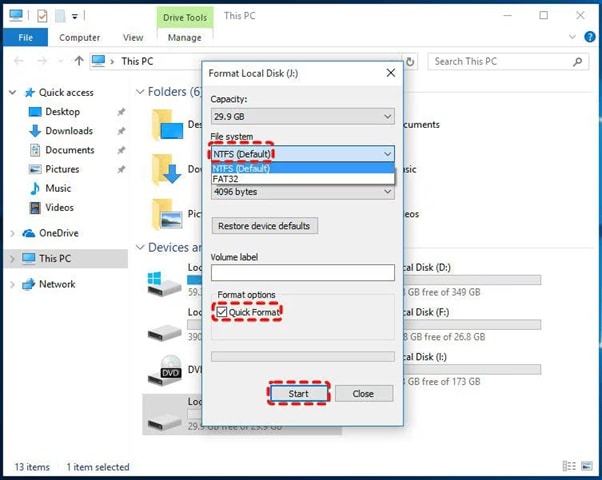
Method 6: Format the SD Card Only After Recovery
Formatting erases the volume and is a usability reset, not a data recovery method. Use it only after important files have been recovered or backed up and the card is still unusable.
- Confirm that the correct SD card is selected by checking its capacity and connection.
- Copy or recover any remaining files to another drive.
- Open File Explorer or Disk Management and choose Format for the correct card.
- Choose a file system supported by the device that will use the card, such as
FAT32orexFATwhen appropriate. - Confirm the erase warning only after checking the backup and disk identity.
Part 3: Pro Tips to Protect SD Card Data
- Stop using the card after a loss: Continued writing can overwrite deleted data.
- Eject safely: Let camera writes and file transfers finish before removing the card.
- Use a reliable reader: Replace readers or adapters that disconnect or work only at certain angles.
- Keep contacts clean and dry: Store cards in protective cases and avoid forcing them into a slot.
- Avoid extreme heat, cold, and moisture: Storage conditions can affect card reliability.
- Keep more than one backup: Copy important files to a computer, external drive, or cloud service.
- Retire unstable cards: A card that repeatedly becomes unreadable, RAW, or corrupt should not hold the only copy of important data.
Conclusion
To recover data from an unreadable SD card, protect the card first and find out whether Windows can still detect the storage. Try a different reader or device, check Disk Management and Device Manager, and use a drive-letter fix only when a usable volume is visible.
If the card is detectable but files are missing or the volume is inaccessible, recover the data before CHKDSK or formatting. If no known-good reader or device detects the card, software may have nothing to scan. For irreplaceable data, stop repeated repair attempts and consider professional recovery.
FAQ
-
Can data be recovered from an unreadable SD card?
Often, if Windows or recovery software can still detect the card. Stop writing to it and recover important files before repair or formatting. -
Should I run CHKDSK before recovering files?
No.CHKDSK /fcan change file-system metadata. Recover or back up important data first, and use CHKDSK only when the card has a drive letter. -
What if the SD card appears in Disk Management without a drive letter?
If the volume is otherwise usable, assign an unused drive letter through Change Drive Letter and Paths. If it is RAW or Unallocated, recover data before changing the volume. -
Can Recoverit recover files from a RAW or formatted SD card?
It can scan a detectable card for deleted, formatted, missing, or inaccessible files. Save the results to another drive, never back to the source card. -
Should I format an unreadable SD card?
Only after important files are recovered or backed up. Formatting erases the volume and should not be used as a first recovery step. -
What if no computer or reader detects the SD card?
Try one known-good reader and one compatible device. If the card remains invisible or shows physical damage, stop DIY repair and consider professional recovery.


