

 TL;DR:
Recovering permanently deleted Google Drive files requires acting within strict timeframes using administrator tools, requesting direct Google Support, or relying on previously established backups.
● Google Workspace administrators can restore user data through the Google Admin Console within 25 days of permanent deletion, or use Google Vault if the organization has data retention enabled.
● Personal account users who missed the standard 30-day Trash recovery window must submit an account-level recovery request to Google Support or extract files from a past Google Takeout backup.
● If the deleted files were previously synced to a local computer, third-party recovery software like Wondershare Recoverit can scan the physical hard drive to retrieve the local offline copies.
Ask AI for a summary
 ChatGPT
 Perplexity
 Gemini
 Claude
 Grok
Grok
When an important file goes missing from Google Drive, it can be stressful. Many people use Drive to keep their photos, work documents, and personal files safe. If something disappears, it’s easy to worry that it’s gone for good. But that’s not always the case. Google Drive has several options to help you get your files back, even after they’ve been deleted.
Sometimes, users empty the Trash or forget to back up their files. This is when recovery becomes difficult. Still, Google’s systems and external tools can help. You can recover permanently deleted files from Google Drive if you act fast and follow the correct process.
In this article, you will learn how to restore permanently deleted files from Google Drive, explore all recovery methods, and understand how to prevent future losses.
Table of Contents
-
- Method 1: Check Google Drive Trash (within 30 days of deletion)
- Method 2: Restore from Google Workspace Admin Console (for business accounts)
- Method 3: Use Google Vault (if enabled for your organization)
- Method 4: Recover from Google Takeout Backup
- Method 5: Contact Google Support for Account-Level Recovery
- Method 6: Use Third-Party Cloud Backup Services (e.g., SysCloud, SpinBackup)Lost Files on PC? Use Recoverit Today!
Part 1: Is it Possible to Recover Permanently Deleted Files from Google Drive?
When you delete a file from Google Drive, it first moves to the Trash. It stays there for 30 days before being removed permanently. During that time, recovery is simple. You can restore the file with a few clicks. But if the Trash is emptied or 30 days pass, recovery becomes complex. Still, there are ways to try.
Google Drive permanently deleted files recovery is sometimes possible because Google keeps hidden backups for a short time. If you are using a business or school account, your administrator might recover it using tools like the Admin Console or Google Vault. For personal users, Google Support may also help. It depends on how long ago the file was deleted and whether it existed on other synced devices.
So, while recovery is not always guaranteed, it is still worth trying every available option. Understanding how to recover permanently deleted files from Google Drive can save valuable data and time.
Part 2: How to Recover Permanently Deleted Files from Google Drive?
Now that you know recovery is possible, let’s look at every available method. Each method below helps you recover permanently deleted Google Drive files depending on your account type. Read carefully and try each one.
Method 1: Check Google Drive Trash (within 30 days of deletion)
A lot of people don’t realize that when a file is deleted from Google Drive, it first moves to the Trash. You can bring it back within 30 days before it’s cleared out for good. This is the quickest and easiest way to recover files that were recently deleted, as long as they haven’t been permanently
How it helps:
- Works for personal and business users.
- Quick recovery with no tools needed.
- Helps you find lost files easily.
Steps:
Step 1. Open Google Drive. Click on “Trash” in the left menu.
Step 2. Find your deleted file, right-click it, and select “Restore.”
When you restore a file, it goes back to the folder it was in before. This is the easiest way to begin recovering deleted files from Google Drive.
Method 2: Restore from Google Workspace Admin Console (for business accounts)
If your organization uses Google Workspace, the admin has powerful tools to restore lost data. Files deleted by users can still be recovered from the Admin Console within 25 days of permanent deletion. This method is useful for teams and companies.
How it helps:
- Works even after Trash is cleared.
- Admins can restore data for any user.
- Ideal for business and education accounts.
Steps:
Step 1. Log in to the Google Admin Console.
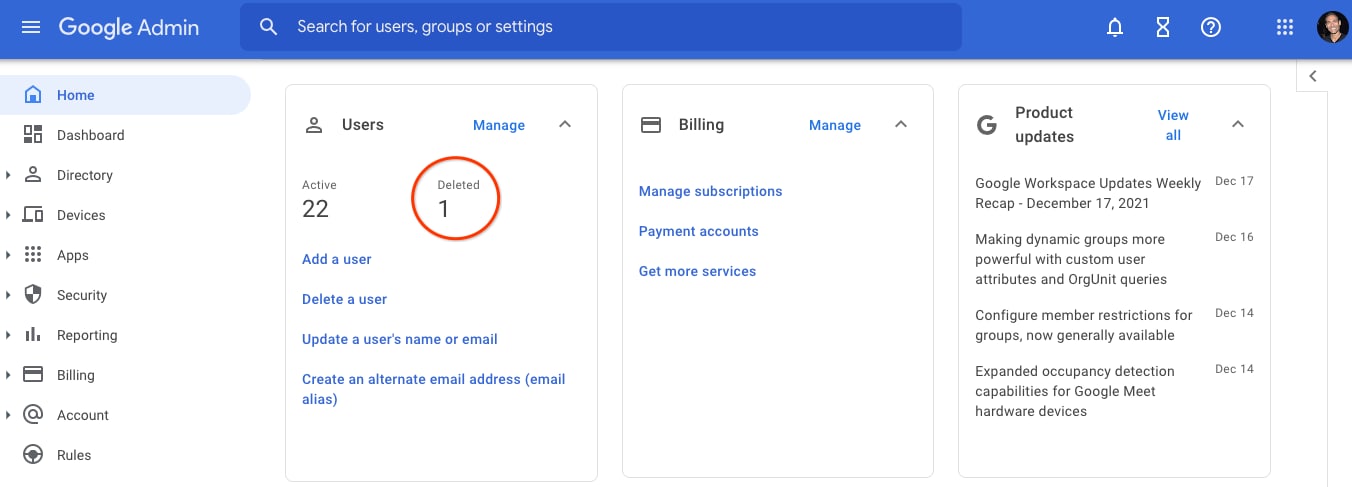
Step 2. Go to “Users,” choose the user’s account, and click “Restore Data.”
Admins can select a specific date range. This feature helps recover permanently deleted files on Google Drive for business environments.
Method 3: Use Google Vault (if enabled for your organization)
Google Vault is a digital storage system used by many companies. It helps retain, search, and export data for legal or compliance needs. Even if a user deletes a file, Vault may still keep it. This method is available only if your organization has Vault enabled.
How it helps:
- Keeps copies of files after deletion.
- Useful for long-term storage and audits.
- Ensures compliance with data policies.
Steps:
Step 1. Go to Google Vault and log in.
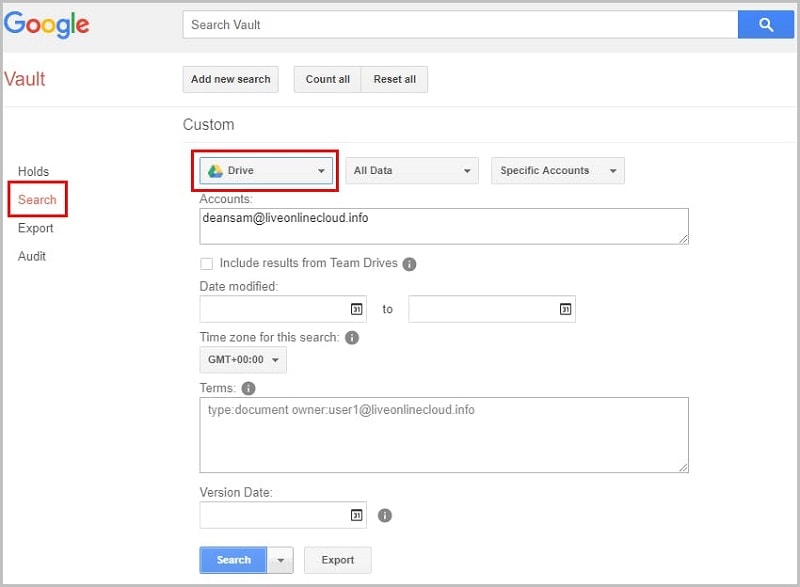
Step 2. Search for the file using filters like date, type, or user, then export it.
Vault gives admins and legal teams another way to recover permanently deleted Google Drive files when Trash recovery fails.
Method 4: Recover from Google Takeout Backup
Google Takeout is a service that allows users to export their Drive data as a backup. If you have used it before, you can restore files easily from the downloaded archive. Even if your Drive data is deleted, your backup will remain safe on your device or external storage.
How it helps:
- Great for users who back up data often.
- Allows offline access to old files.
- Free and easy to use.
Steps:
Step 1. Visit Google Takeout and sign in.
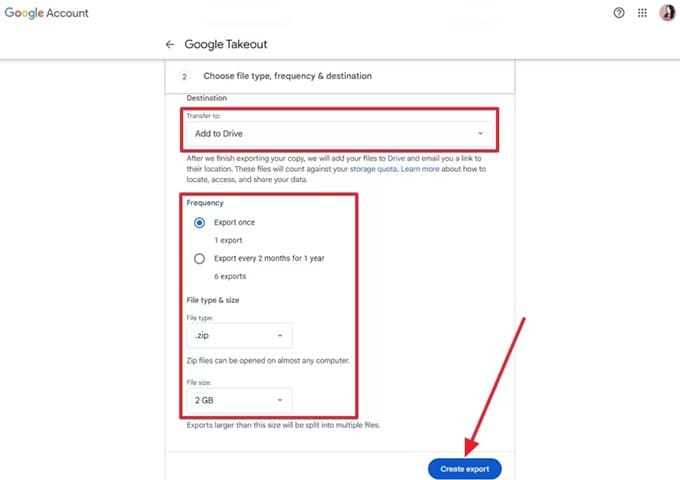
Step 2. Select “Drive,” create an export, and download the ZIP file.
You can unzip it and find your missing files. Regular backups through Takeout make Google Drive permanently deleted files recovery simple.
Method 5: Contact Google Support for Account-Level Recovery
If the above methods do not work, contact Google Support. The support team can sometimes restore files that are not visible to you. This works for both personal and business users, though time matters. The sooner you ask for help, the better your chances.
How it helps:
- Recovery possible even after Trash and Admin tools fail.
- Works for both personal and business accounts.
- Direct support from Google experts.
Steps:
Step 1. Go to the Google Drive Help Center.
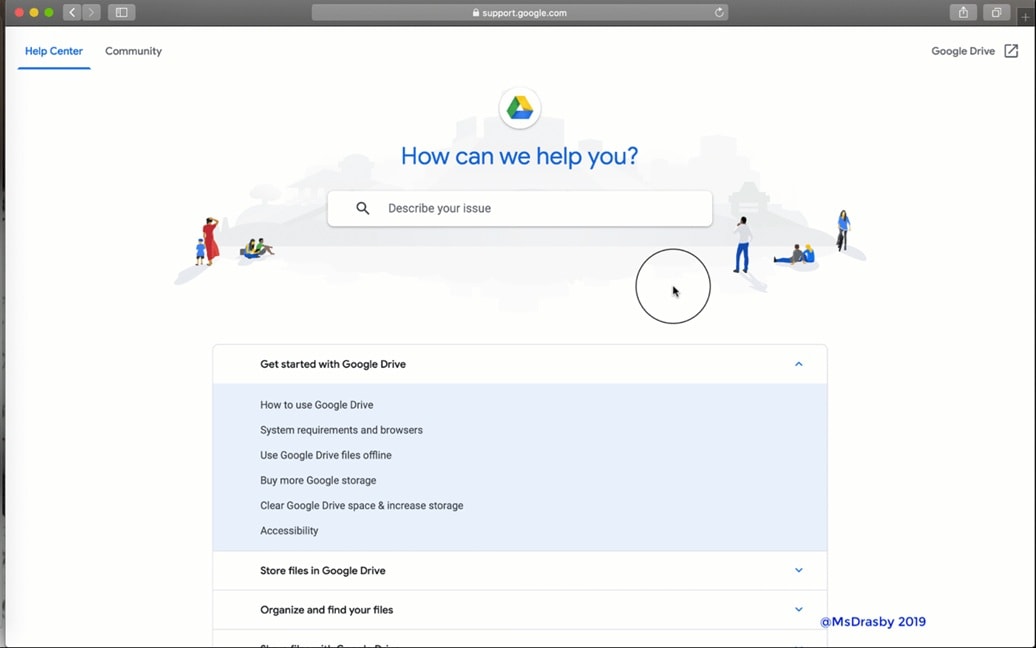
Step 2. Choose “Contact Us,” describe the problem, and share file details.
Google may use backup systems to help recover permanently deleted files from Google Drive, especially for recent losses.
Method 6: Use Third-Party Cloud Backup Services (e.g., SysCloud, SpinBackup)
Some users use external backup tools for extra protection. These services automatically back up Google Drive data and make recovery easier. Popular tools include SysCloud, SpinBackup, and Backupify. They can recover files deleted months ago.
How it helps:
- Keeps automatic daily backups.
- Recovers files even after 30 days.
- Protects data from accidental or malicious deletion.
Steps:
Step 1. Sign up or log in to a backup service such as SysCloud.
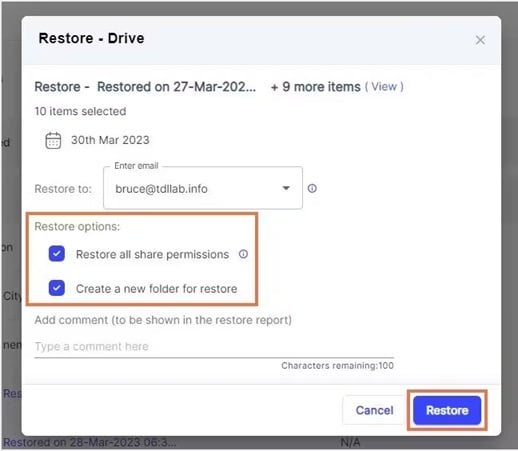
Step 2. Find the lost file and click “Restore” or “Download.”
These services are powerful for both individuals and companies. They make it easy to recover permanently deleted files on Google Drive without depending only on Google.
Part 3: Lost Files on PC? Use Recoverit Today!
Sometimes, your Drive files vanish not only online but also from your computer. If your files were synced with Drive using the Backup and Sync app, they may still exist on your computer. You can use Wondershare Recoverit, a trusted data recovery tool, to restore them.
Recoverit can recover photos, videos, and documents from hard drives, external drives, and SD cards. It works on both Windows and macOS. This makes it a good option when Google Drive permanently deleted files recovery fails online. It’s especially useful for recovering Drive-sync folders on your computer.
Recoverit is easy to use. It scans your drive deeply and finds deleted files quickly. Even if your files were lost months ago, it might still retrieve them.
Key Features:
- Recovers over 1,000 file types, including Word, PDF, and images.
- Works with formatted, crashed, or damaged drives.
- Allows preview before final recovery.
- Simple interface with guided steps.
- Secure and trusted by millions of users.
Steps to Use Recoverit:
Step 1. Download and install Recoverit on your computer. Launch it, choose a drive or folder, and click “Start.”


Step 3. Preview files, and click “Recover.”

Recoverit gives users another way to recover permanently deleted Google Drive files that were synced locally. It’s a reliable backup when other options do not work.
Conclusion
Data loss can happen to anyone. Whether it’s a mistake or a system issue, it’s not always permanent. Knowing how to recover permanently deleted files from Google Drive helps you stay calm and take action. You can start with simple steps like checking Trash and move on to advanced methods like using Vault or Google Support.
Always keep backups and stay cautious when deleting files. If possible, use third-party tools or download your data regularly. Understanding how to recover permanently deleted files on Google Drive gives you confidence and security in handling your digital storage.
Try Recoverit to Recover Lost Data
 Security Verified. Over 7,302,189 people have downloaded it.
FAQs
-
1. Can I recover files deleted long ago from Google Drive?
If your Trash was emptied more than a month ago, recovery depends on your account type. Workspace admins can try Admin Console or Vault. Personal users can request Google Support. If none of these work, third-party tools or local backups may help. -
2. Are third-party tools safe for recovering Google Drive files?
Yes, trusted tools like SysCloud, SpinBackup, or Recoverit are safe. They follow strong security policies and encrypt your data. Always use official websites to download these tools. -
3. How can I avoid losing my files in Google Drive again?
The best way is to back up your files often. Keep your Trash untouched for some time. Enable two-step verification, use proper permissions, and never delete shared folders carelessly.


