

 TL;DR:
To resolve StreamEast playback and loading errors, bypass ISP domain blocks using a VPN, disable media-interrupting ad-blockers, and flush your DNS to restore server connectivity.
● Eliminate corrupted domain resolution records causing connection failures by opening Command Prompt and executing the "ipconfig /flushdns" command to refresh network configurations.
● Prevent HTML5 player compatibility issues and script mismatches by clearing outdated browser cookies or disabling conflicting privacy extensions via the browser's management panel.
● If an abrupt system crash corrupts cached streams or incomplete media downloads, Wondershare Recoverit can reconstruct the raw video fragments from your storage drive with a 500MB free recovery limit.
Ask AI for a summary
 ChatGPT
 Perplexity
 Gemini
 Claude
 Grok
Grok
Game night is set, snacks are ready, and you open your browser to stream the big match, only to find StreamEast not working on your screen. The page won't load, the video won't start, or you're stuck in endless buffering. Frustration builds as kickoff gets closer, and refresh after refresh changes nothing.
When StreamEast is not working and disrupts your plans, it can quickly turn excitement into stress. Instead of scrambling at the last minute, understanding how to respond calmly and effectively makes all the difference. This guide walks you through practical steps to get your stream back up and running smoothly.
Try Recoverit to Perform Data Recovery
 Security Verified. 3,591,664 people have downloaded it.
In this article

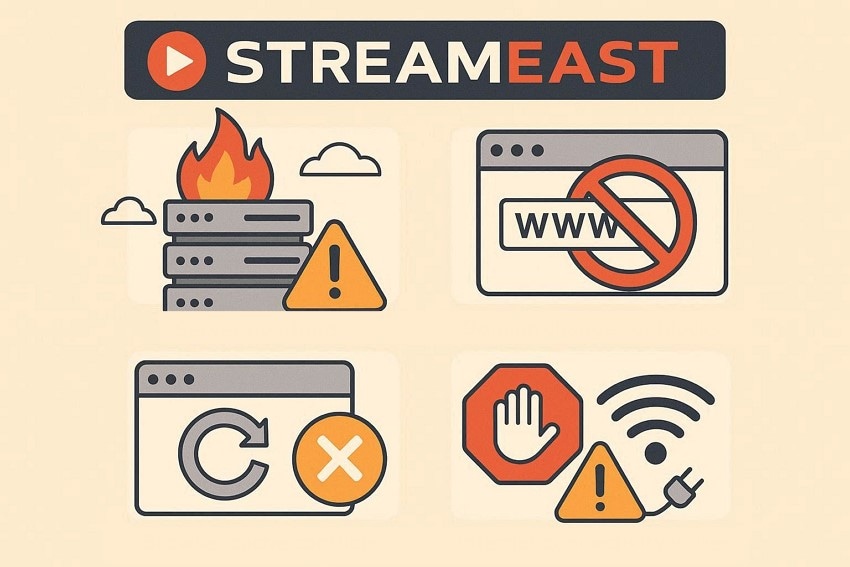
Part 1. Why StreamEast Stops Working: Key Causes to Know
When StreamEast is not working and disrupts your streaming plans, identifying the root cause is the first step toward resolving the issue. Below are the key causes explained clearly:
- Server Overload: Heavy traffic during major sports events can overwhelm StreamEast's servers. When too many users access the platform at once, streams may crash or fail to load entirely.
- Domain Changes or Blocks: StreamEast often shifts to new domains to remain accessible. If your ISP blocks a specific domain, the site may suddenly appear unavailable.
- Browser Cache Conflicts: Stored cache and cookies can become outdated or corrupted over time. This may prevent pages from loading properly or cause playback errors.
- Ad-Blocker Interference: Some ad-blocking extensions block essential scripts along with advertisements. As a result, the video player may not function correctly.
- Internet Connectivity Issues: An unstable or slow internet connection can interrupt video streaming. Frequent buffering or freezing is often linked to network fluctuations.
Part 2. StreamEast Down? Try These Simple Fix Methods
If StreamEast is not working and is preventing you from accessing your favorite live matches, it's time to move from frustration to action. Mentioned below are a few simple and practical fix methods that can quickly restore your streaming experience and get you back to the game without unnecessary delays:
Fix 1: Clear Browser Cache & Cookies
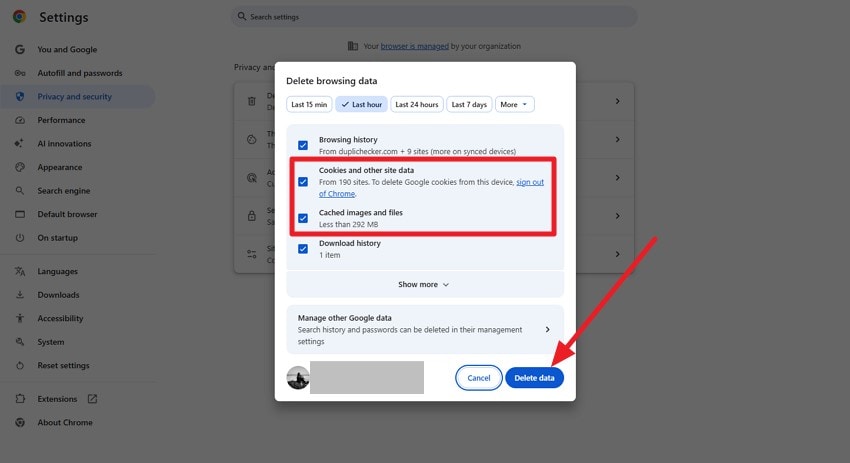
Corrupted or outdated cache files can trigger StreamEast not working errors by loading old scripts instead of updated site resources. Stored cookies may also conflict with new authentication tokens or session data. Removing cached files forces the browser to retrieve fresh page assets, resolve playback script mismatches, and eliminate stored data conflicts affecting stream loading. To learn how to clear browser cache and cookies, read the steps provided next:
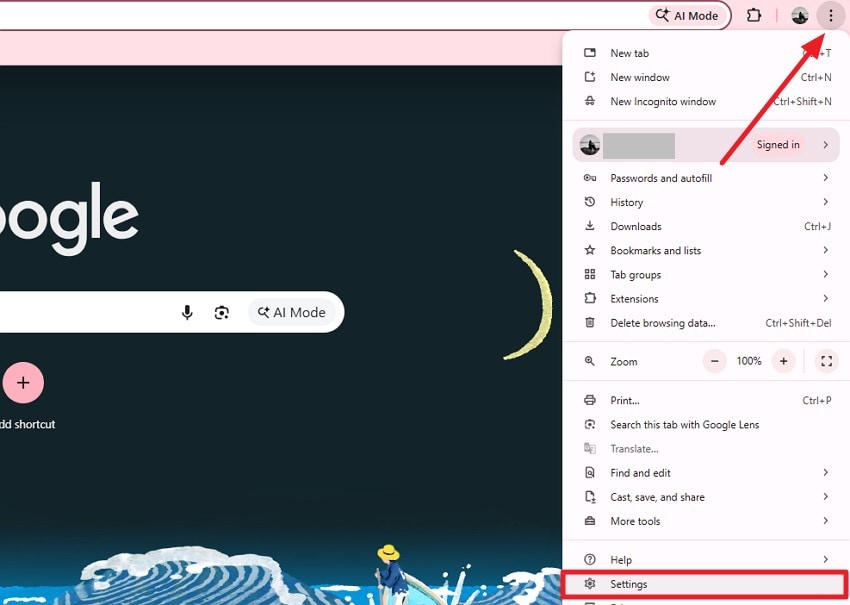
- Launch the browser on your computer and navigate to the top-right corner. Click the "Three Dots" icon, then choose the "Settings" option from the dropdown menu.
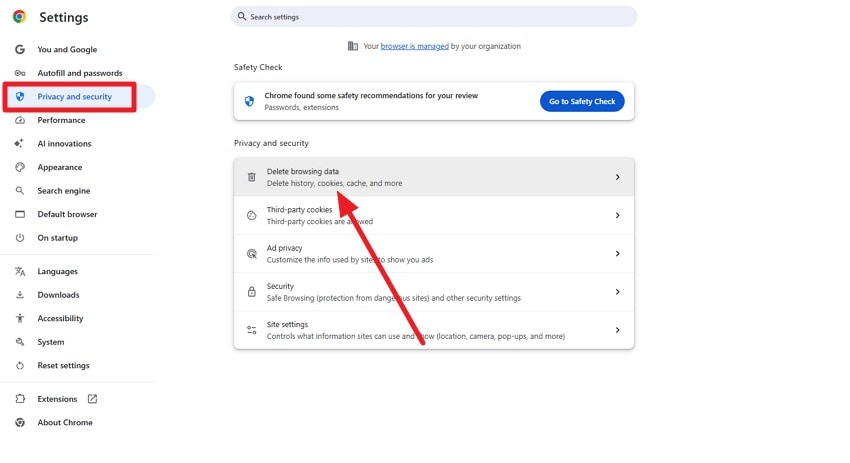
- From the left-side panel, open the "Privacy and Security" section. Next, select the "Delete Browsing Data" option to proceed.
- Mark the checkboxes for "Cookies and Cache" and click the "Delete Data" button to remove the selected browsing information.
Fix 2: Check Internet Connection & Speed
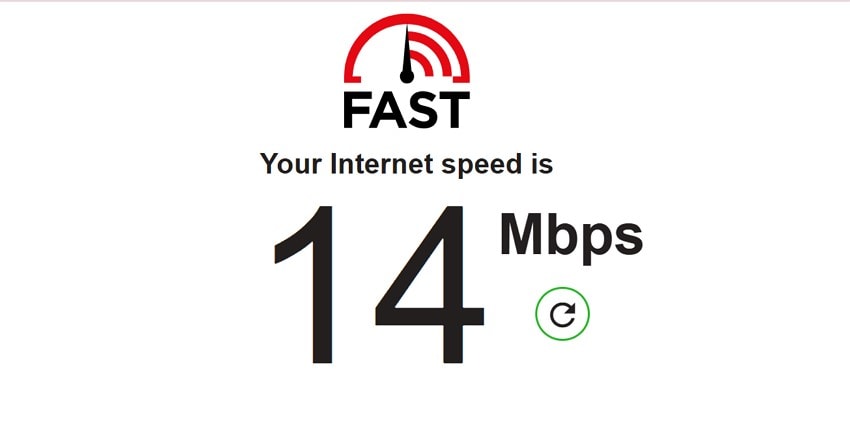
Insufficient bandwidth or unstable network signals frequently result in StreamEast not working or playback failures. High latency, packet loss, or fluctuating speeds can disrupt video streaming from servers. A minimum stable broadband connection is required for continuous streaming. Network congestion, weak Wi-Fi signals, or ISP throttling can directly disrupt video buffering performance. Sites like fast.com let you check the speed of your internet instantly.
Fix 3: Use VPN or Disable Geo-Restriction Blocks
Geo-blocking or ISP-level restrictions may trigger StreamEast not working access errors. Certain regions restrict streaming domains through DNS filtering or firewall policies. A VPN reroutes traffic through alternate servers, masking the original IP address. You can also disable geo-restriction by disabling your browser location access. To learn how to disable location, read the steps provided next:
- Begin by accessing the browser "Settings" by clicking the "Three Dots" icon.
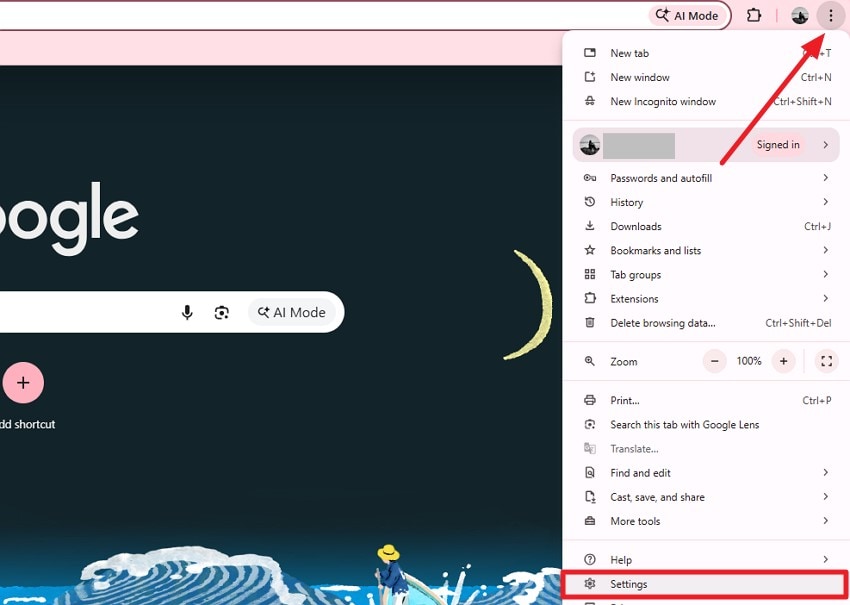
- Next, open the "Privacy and Security" section on the left and select "Site Settings."
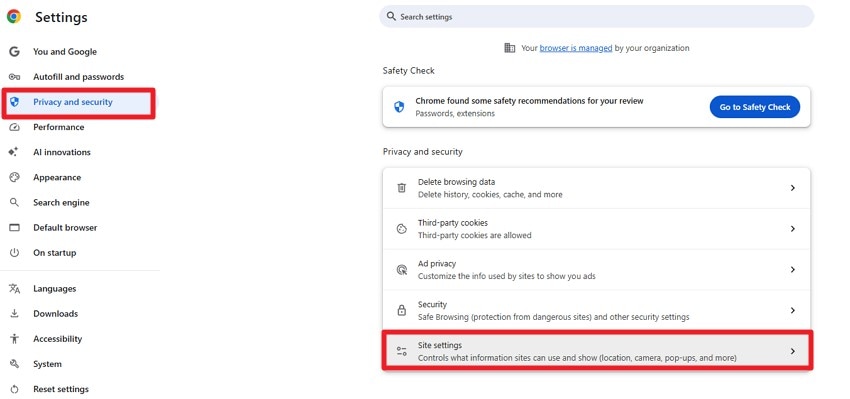
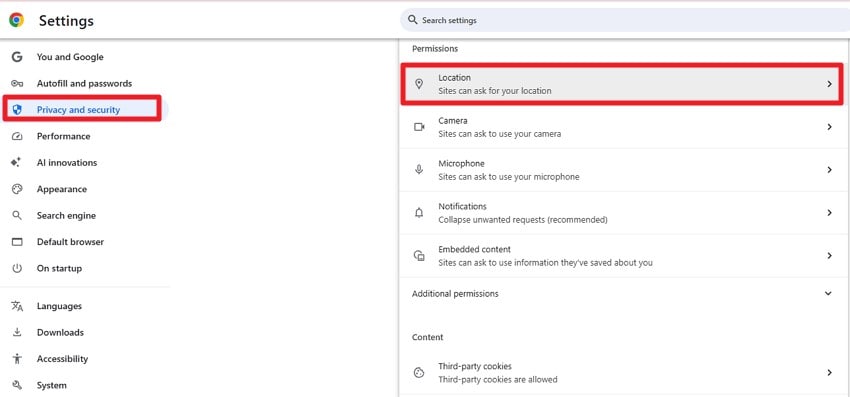
- Now, locate and click on the "Location" option to proceed.
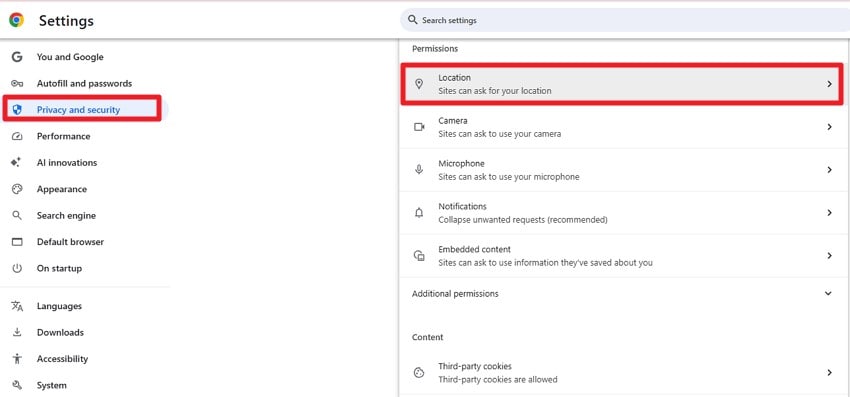
- Select the "Don't Allow Sites to See Your Location" option in the following interface.
Fix 4: Switch Browser or Device
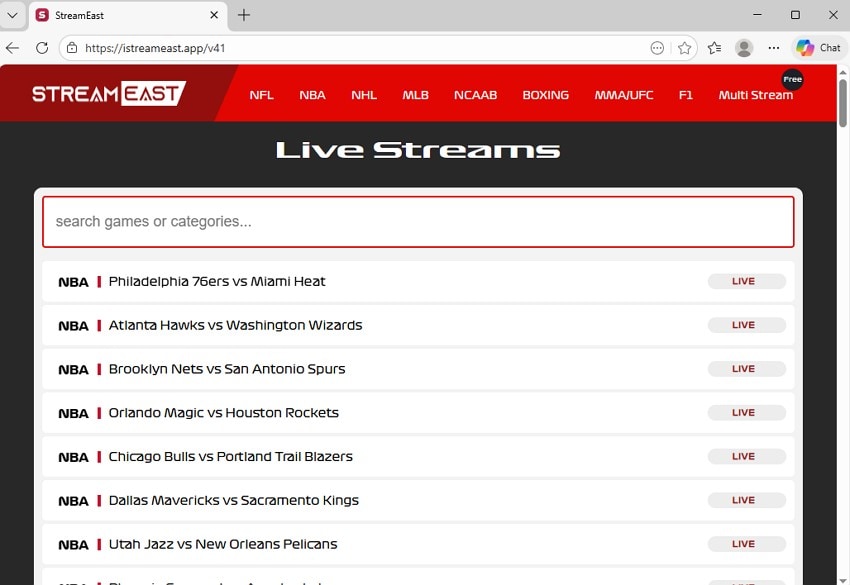
Browser incompatibility is a common reason for StreamEast not working and video rendering issues. Outdated browsers may not fully support HTML5 players or updated JavaScript frameworks used by streaming platforms. Switching to a modern browser engine or accessing the site on a different device can resolve compatibility issues and improve playback stability.
Fix 5: Disable Conflicting Apps or Extensions
Security software, firewall tools, or aggressive ad blockers can cause StreamEast not working script interruptions. Some extensions block embedded media players or prevent streaming scripts from executing. Background applications may also consume bandwidth or modify network requests. Disabling conflicting software removes interference with video rendering and server communication processes. To learn how to disable conflicting extensions, read the steps provided below:
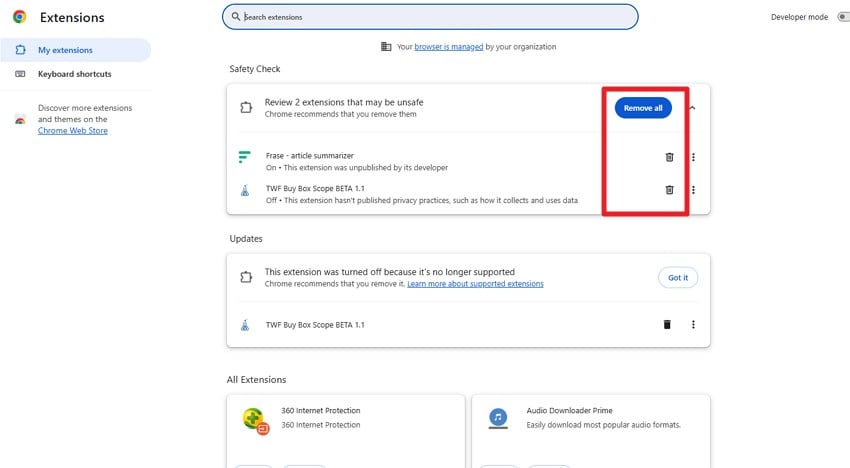
- Open Google Chrome and click the "Three Dots" icon in the upper-right corner. From the dropdown menu, select "Extensions" and then choose "Manage Extensions" to access the extensions panel.
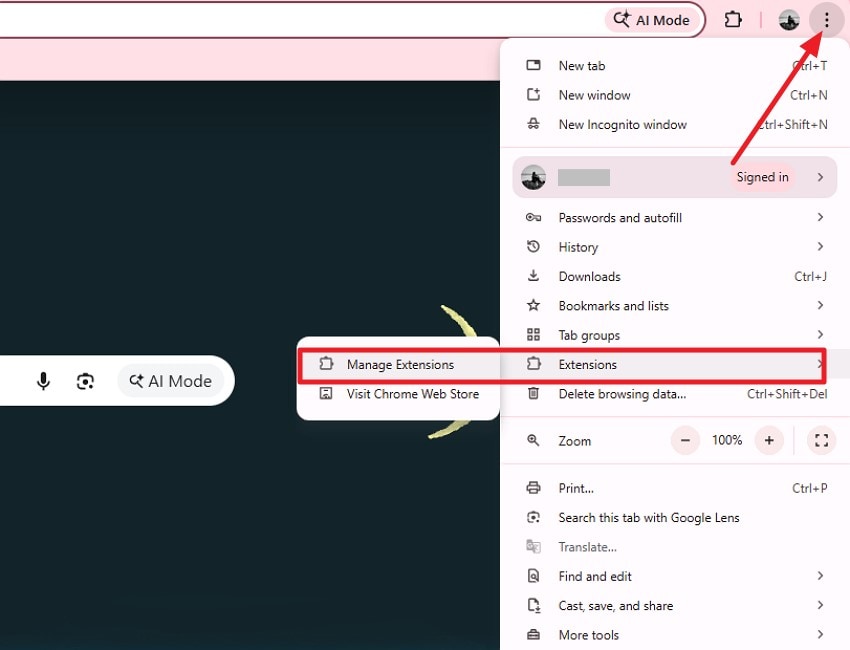
- Locate the extension you wish to uninstall and press the "Bin" icon next to it. If you want to remove all extensions at once, click the "Remove All" button in the interface.
Fix 6: Adjust DNS & Network Settings for Full Access
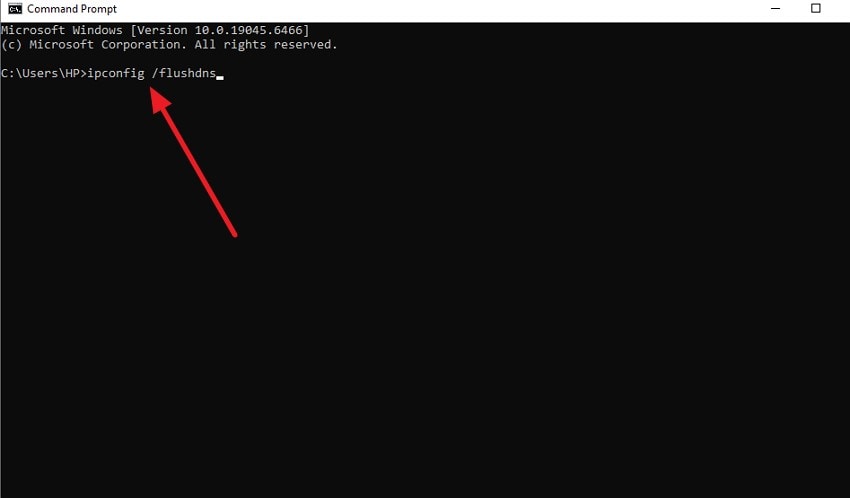
Incorrect DNS configurations can lead to StreamEast not working and domain resolution failures. ISP-provided DNS servers may restrict access or return outdated records. Switching to a public DNS service can improve domain lookup accuracy and reduce latency. Flushing the DNS cache also removes corrupted entries that prevent proper server connection routing. Read the instructions provided next to learn how to configure DNS settings through the command prompt:
Instructions. Open Command Prompt on your computer and type the command "ipconfig /flushdns." After pressing the Enter key, the system will clear the DNS cache, refresh network configurations, and eliminate any corrupted or outdated DNS records that may be causing connectivity problems.
Fix 7: Check the StreamEast Server Status
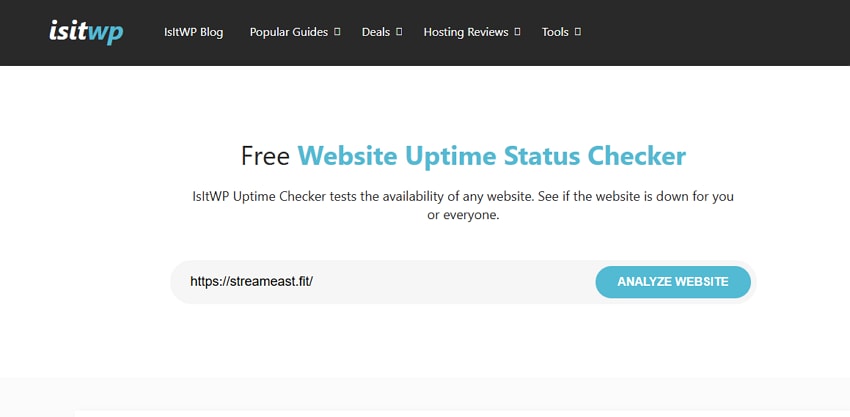
Occasionally, StreamEast not working issues originate from server-side outages rather than user devices. Maintenance windows, backend failures, or traffic spikes can temporarily disable streaming services. Server downtime prevents content delivery regardless of local settings. For this, you can search for the currently active domain of StreamEast and try opening it. You can check if the site is down globally using a third–party website status checker.
Pro Tip: Protect StreamEast Data: Recoverit Helps Before Site Fixes
When the "StreamEast is not working" error coincides with an unexpected system crash, temporary files, cached streams, or downloaded media can become corrupted. Recoverit scans storage sectors at a deep level to detect lost or damaged video fragments caused by sudden shutdowns. Its advanced recovery algorithms rebuild inaccessible files by reconstructing file headers and repairing structural inconsistencies created during abrupt power interruptions.
Beyond crash-related damage, Recoverit can restore files lost due to forced browser closures or incomplete stream downloads triggered while StreamEast is not working. The software supports recovery from internal drives, external storage, and formatted partitions, along with 500MB of free recovery. By analyzing raw data blocks, it retrieves media content even when the original directory structure has been partially overwritten or destabilized.
Coherent Features Offered By Recoverit
- Bulk Data Restoration Capability: Wondershare Recoverit enables simultaneous recovery of numerous files in one scan session, improving efficiency when handling large-scale data loss.
- Pre-Recovery File Verification: The software allows users to examine recoverable files before final restoration, ensuring accuracy and confirming file integrity prior to saving.
- Intelligent File Sorting Tool: Its built-in filtering system categorizes scan results by name, allowing faster identification of specific lost data within extensive recovery lists.
How to Recover StreamEast Data With Recoverit
Using a reliable recovery tool like Recoverit ensures that these files can be retrieved efficiently, restoring access to your content. Here's how to recover your StreamEast-related data step by step with Recoverit:
1. Select the Drive or Folder
Launch Recoverit and pick the drive or folder where your StreamEast downloads, cached videos, or files were stored to launch a deep scan.

2. Review and Pick Files
Once scanning completes, examine the list of found files. Highlight the StreamEast videos or related files you want to restore using the "Recover" button.

3. Confirm and Restore
Preview the recovered files to check that they are intact and playable. After verification, press "Recover" to save them to a secure location on your device.

Part 3. Prevent StreamEast Errors: Tips to Avoid Future Streaming Problems
After learning how to recover lost StreamEast data, taking steps to prevent future interruptions is crucial. Following these measures can help reduce instances of StreamEast not working and provide a smoother streaming experience:
- Regular Browser Maintenance: Keeping your browser up to date ensures compatibility with the latest streaming scripts and features. Periodically clearing cache and cookies prevents conflicts that can cause page load failures or playback errors.
- Stable Internet Setup: A reliable, high-speed connection reduces buffering and prevents interruptions during live streams. Consistent network performance ensures uninterrupted video delivery from StreamEast servers.
- Use a VPN for Restricted Content: Geo-restrictions and ISP blocks can limit access to StreamEast in certain regions. Using a VPN masks your IP address, allowing uninterrupted access to the platform regardless of location.
- Limit Conflicting Extensions: Extensions like ad blockers or security software can block scripts needed for video playback. Disabling or managing these tools helps maintain smooth streaming without errors.
- Check Device Compatibility: Outdated browsers, operating systems, or devices may not fully support modern streaming technologies. Ensuring compatibility prevents playback failures and script-related errors on StreamEast.
Conclusion
To wrap it up, this article provided a detailed guide on how to fix the "StreamEast not working" error, covering common causes, technical fixes, and preventive tips. For users facing data loss from interrupted streams, Recoverit offers a reliable solution to restore corrupted or missing StreamEast files quickly. By combining troubleshooting with effective recovery, you can enjoy uninterrupted streaming while safeguarding your valuable media content.
FAQ
-
1. Why is StreamEast not working on my browser?
This can happen due to server overload, outdated browser cache, geo-restrictions, or incompatible browser settings. Clearing the cache, updating your browser, or switching devices often resolves the issue. -
2. Can I access StreamEast if my region is blocked?
Yes, using a VPN can bypass geo-restrictions and ISP blocks, allowing uninterrupted access to StreamEast from restricted regions. -
3. How can I recover lost videos if StreamEast crashes mid-stream?
If your downloads or cached videos are lost due to crashes, Recoverit can scan your storage and restore corrupted or missing files efficiently, ensuring you don't lose important media. -
4. Can I recover StreamEast data after a sudden computer shutdown?
Recoverit can retrieve files corrupted by unexpected shutdowns, restoring temporary stream downloads, cached videos, or incomplete media files safely.


