

 TL;DR:
To safely regain access to a locked Windows 10 PC, prioritize the built-in Microsoft account recovery or local Settings reset before relying on third-party bootable offline editors like Lazesoft or PCUnlocker.
● Resetting via Command Prompt in Advanced Startup strictly requires existing administrator privileges to execute the password change commands successfully.
● When choosing third-party tools, Lazesoft offers a free wizard-based boot disk for local accounts, Ophcrack is limited to cracking weak passwords using rainbow tables, and PCUnlocker clears local passwords but requires a paid license.
● If you reset a Microsoft account password through the online verification steps, the locked device must be connected to Wi-Fi on the login screen to sync and accept the new credentials.
Ask AI for a summary
 ChatGPT
 Perplexity
 Gemini
 Claude
 Grok
Grok
A Windows 10 lockout can disrupt work and create unnecessary stress. This guide explains safe, practical ways to restore access without risking personal files. Many login failures happen due to typing mistakes, an incorrect keyboard layout, or changed input settings. You will learn quick account checks and built-in reset options that reduce delays.
We also review one Windows 10 password recovery tool for cases where standard methods fail. Simple tips help you create backups and strengthen sign-in security for future logins. By the end, you will know when to reset locally or use Microsoft’s online recovery steps to regain access.
Try Recoverit to Perform Data Recovery
 Security Verified. 3,591,664 people have downloaded it.
In this article

Part 1. Locked Out of Windows 10? Why Password Recovery Matters
When Windows 10 blocks sign-in, you lose settings, files, and productivity. Then the following reasons show why Windows 10 password recovery matters:
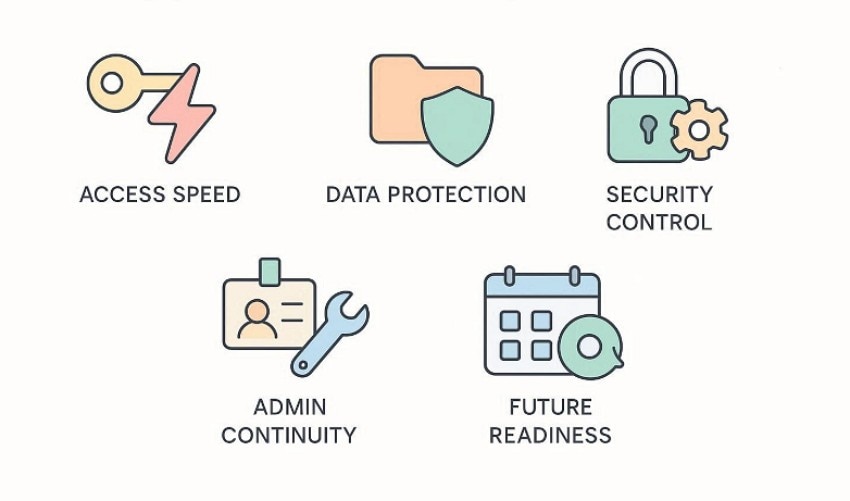
- Access Speed: A clear recovery path restores sign-in access without repeated failed attempts. It minimizes lockout delays and gets you back to work faster.
- Data Protection: Proper steps protect user profiles, documents, and saved browser passwords locally. They avoid risky resets that can erase files or settings unexpectedly.
- Security Control: Recovery allows you to reset credentials and review account access after sign-in. You can enable PIN, update questions, and enable available device encryption such as BitLocker where supported.
- Admin Continuity: Regaining access preserves administrator rights needed for updates and installations later. It keeps business tools, email accounts, and VPN access working normally.
- Future Readiness: After recovery, set a backup admin account and store reset options. Document steps, save recovery media, and periodically verify recovery options and keep them up to date.
Exploring various fixes to know how to fix the 403 forbidden error.
Part 2. Top Tools to Recover Your Windows 10 Password Effortlessly
With the reasons covered, let’s move forward to the tools mentioned below that can restore access more efficiently:
1. Lazesoft
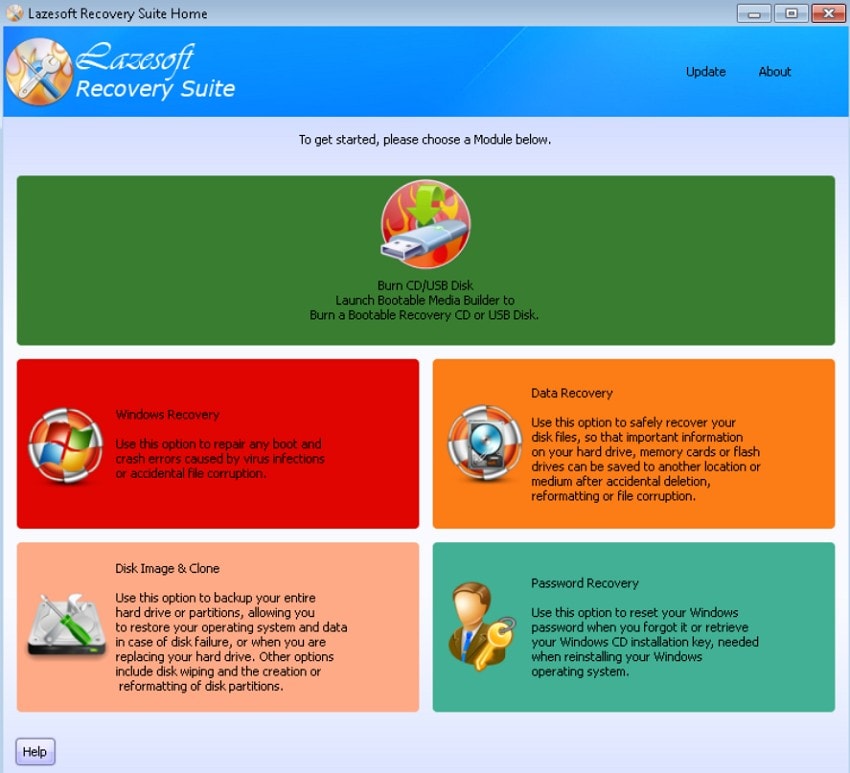
Lazesoft creates bootable media that helps regain your local account access fast. It targets home PCs, using a clean interface and guided recovery steps. This Windows 10 password recovery tool resets credentials without touching your files. Thus, you download an ISO, boot it, and choose the user to reset. After login returns, update security questions and create a spare admin account.
2. Passcape
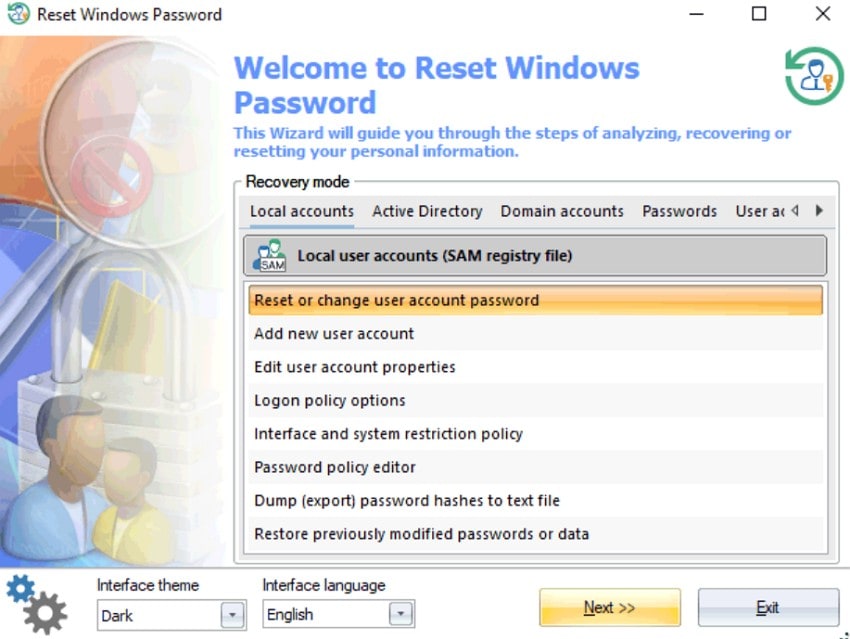
Some forensic tools can audit password hashes in authorized environments. Passcape offers modules for hashes, tables, and controlled search attempts securely now. Plus, use Windows 10 password reset features only on devices you own legally. Moreover, progress logs help you compare runs and document results for audits later. Since it can run many attempts, limit tries to avoid lockouts.
3. Ophcrack
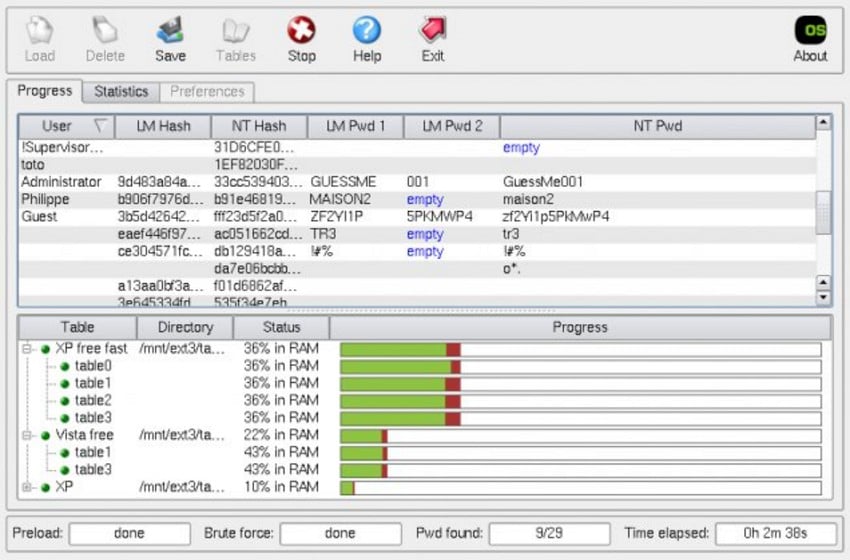
Sometimes you want recovery without changing anything on the installed system first. A live environment reads stored hashes and tries matching table entries fast. Furthermore, Ophcrack uses rainbow tables and is only effective for Windows 10 password recovery against weak, older-style passwords; strong passwords often cannot be recovered this way. If it fails, switch to reset methods instead of endless cracking attempts.
4. PCUnlocker
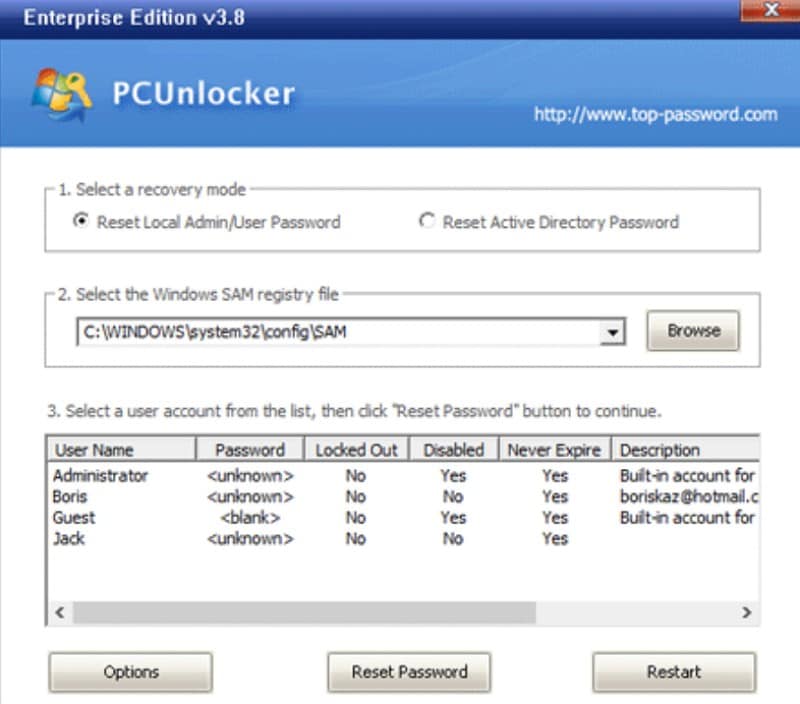
When built-in options fail, an offline editor can clear local passwords. PCUnlocker boots from USB and lists accounts in one clean menu screen. It helps when the reset Windows 10 password command prompt steps break down. So, you choose unlock, clear, or promote admin rights without typing commands manually. After login returns, set a stronger sign-in and review security settings immediately.
Part 3. Windows 10 Password Reset: Step-by-Step Methods
Windows 10 password resets follow two main routes depending on account type. Use Settings for signed-in changes, or Microsoft recovery for forgotten passwords. Now, follow the steps below for the method that fits your situation best:
Reset Password via Settings
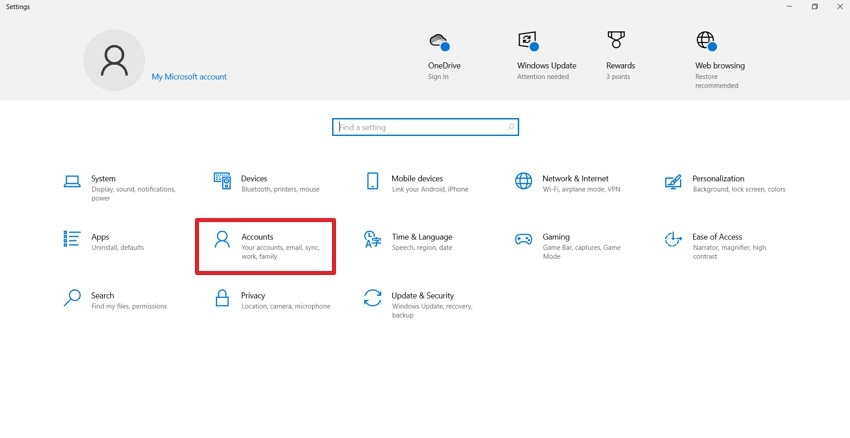
- First, access the “Settings”, then select “Accounts” from the main dashboard.
- Later, choose the “Sign-in options” from the left menu panel to proceed.
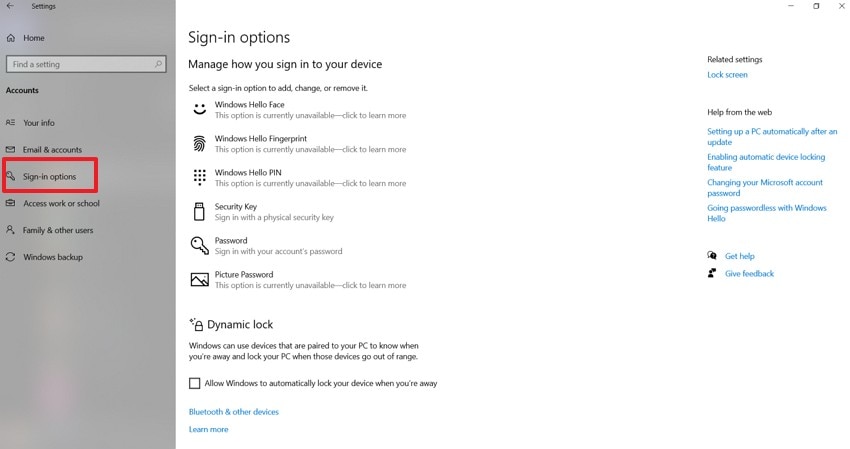
- Then select the “Password” option and pick the “Change” button to continue.
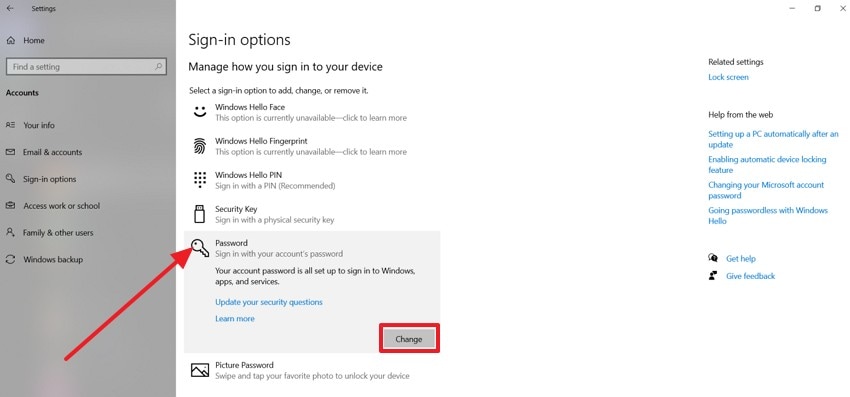
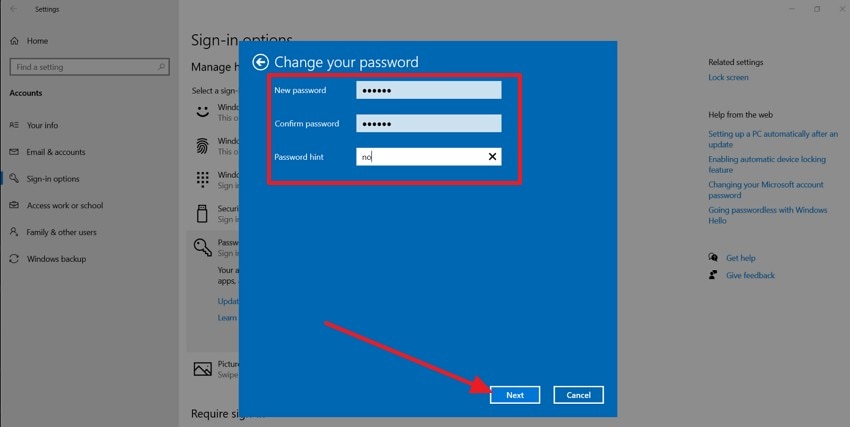
- Here, enter and confirm the new password, add a hint, and then press “Next” to complete the reset.
Reset Password via Microsoft Account
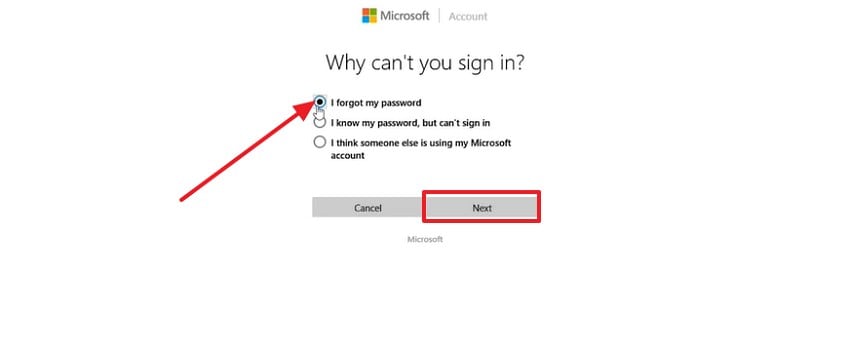
- To start, select “I forgot my password” and press the “Next” button to proceed.
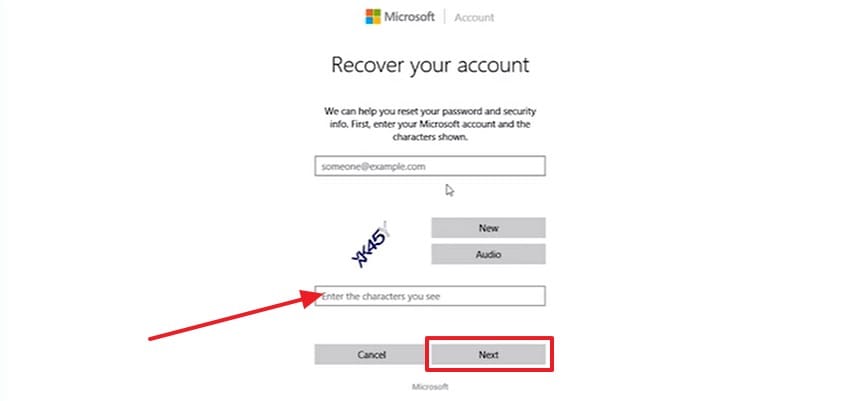
- Here, enters your Microsoft account email, complete the CAPTCHA, then hit “Next”.
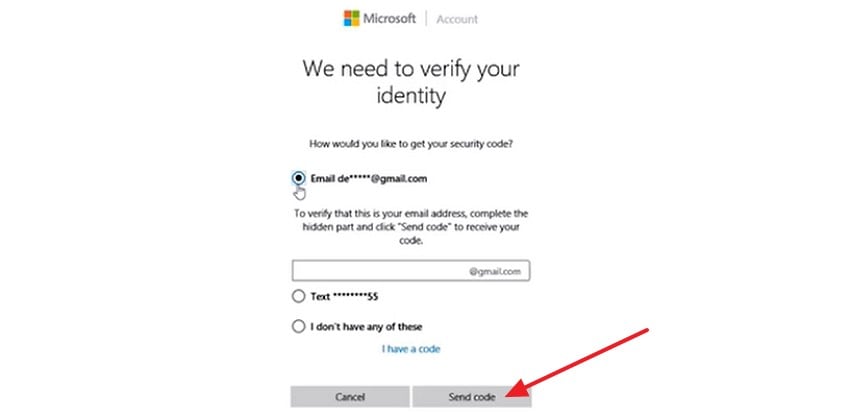
- Afterwards, choose a verification method, fill in the hidden email part, and click “Send code.”
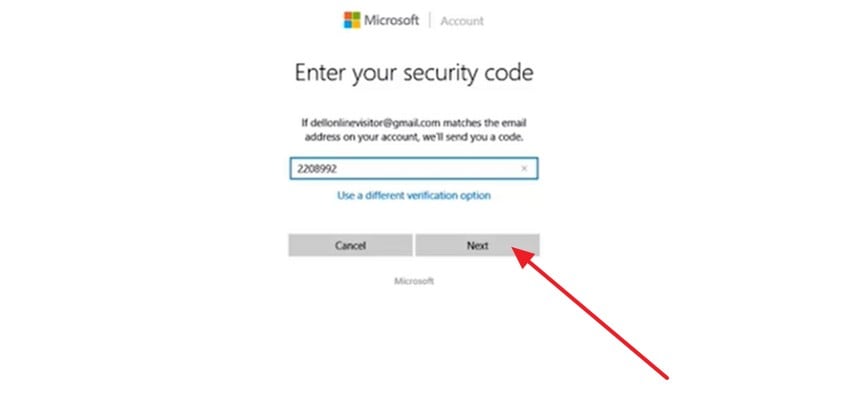
- Then type the “Security code” you received, and select “Next” to continue.
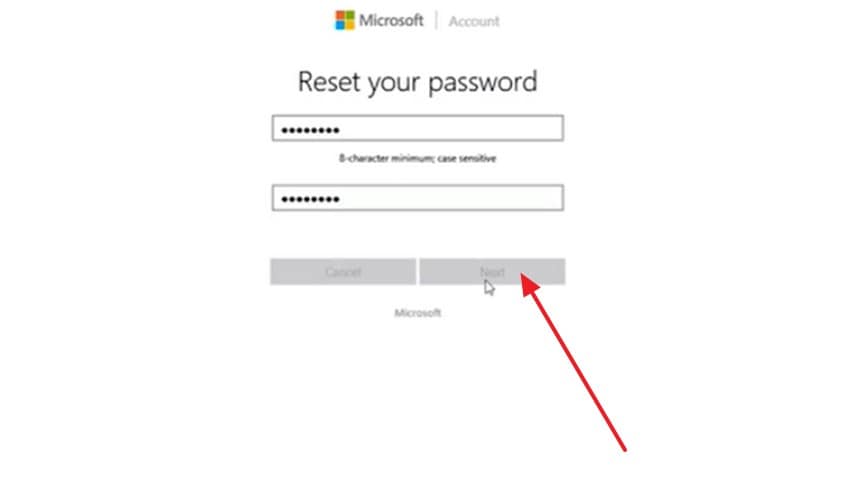
- Finally, create a new password, confirm it, and press the “Next” button to finish.
Part 4. Reset Windows 10 Password Using Command Prompt
To reset Windows 10 password using the command prompt, follow the step-by-step guide mentioned below:
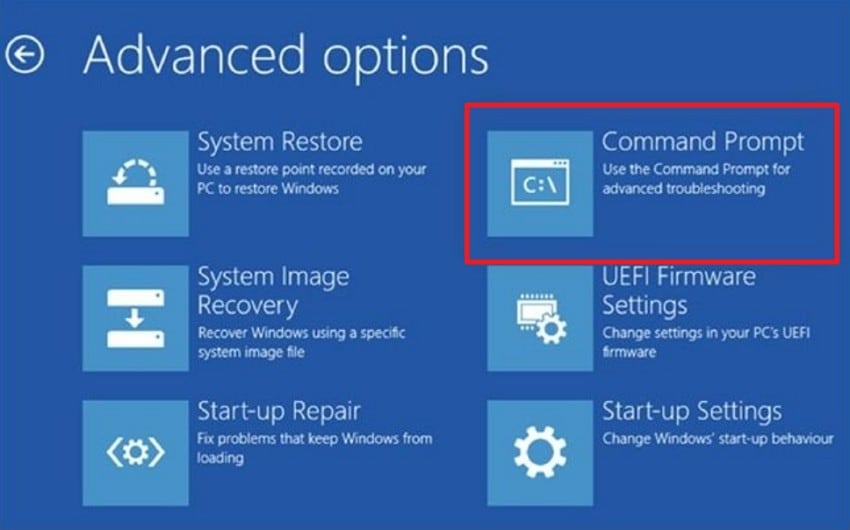
- To initiate, restart into Advanced Startup, then access the “Troubleshoot > Advanced options > Command Prompt” to proceed.
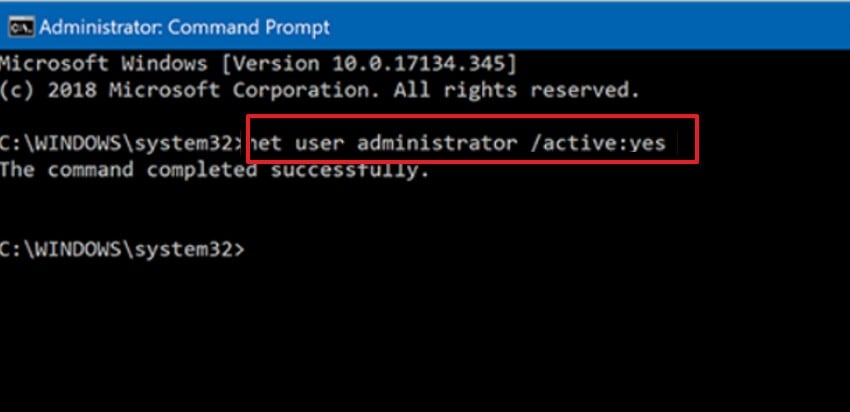
- Here, in the command prompt, make sure you are logged in with administrative privileges. Further, if you are not sure, run the following commands: “net user Administrator /active:yes” and hit “Enter”. Afterwards, type: “net user [Username] [NewPassword]”, and press "Enter." Later, replace [Username] with the actual name of the account you need to update and [NewPassword] with your new password.
Part 5. Recoverit Tip: Rescue Lost Files During Password Recovery
During a lockout, you can reset access and restart your PC quickly. However, unexpected restarts or disk issues can sometimes lead to profile loading problems or missing files. Some users notice photos vanish after a hurried Windows 10 password recovery. So, protect your data first, especially if the drive feels unstable now. Therefore, Recoverit is a safety net beside your reset plan.
Recoverit scans disks, USBs, and partitions to locate lost items fast. It helps after updates, crashes, or mistaken deletions during login troubleshooting efforts. Also, preview the results before restoring so you pick the right files. However, stop saving new data because overwriting reduces the chances of recovery later. Finally, keep backups and a recovery USB, and document account details securely.
Key Features
- Deep Scan Mode: Finds files from formatted, corrupted, or missing partitions by scanning deeper sectors across supported storage media.
- Bootable Recovery: Creates a bootable drive to recover files when Windows fails to start or crashes repeatedly.
- NAS Recovery: Recovers data from NAS devices over network connections without removing disks, supporting safer business restores.
Guide to Recover Lost Files During Password Recovery with Recoverit
Adhere to the steps mentioned below to rescue lost files during password recovery with Recoverit:
- Pick the Correct Drive or Folder to Start Recovery

To start, navigate to “Hard Drives and Location” in the left side panel. Then, if you remember a specific folder, open “Quick Access” and choose “Select Folder” for a more targeted scan.
- Review the Scan Results

Once the scan starts, review the recoverable files that appear under the “File Location” tab.
- 3. Preview and Recover the Files

Lastly, double-click any file thumbnail to open the preview window and confirm it looks correct. Then, select the photos you need, and press “Recover” to restore them.
Part 6. Tips to Prevent Future Windows 10 Password Lockouts
Set a Windows 10 password reset fallback now, before any lockout happens. So, follow the tips below to prevent future Windows 10 password lockouts:
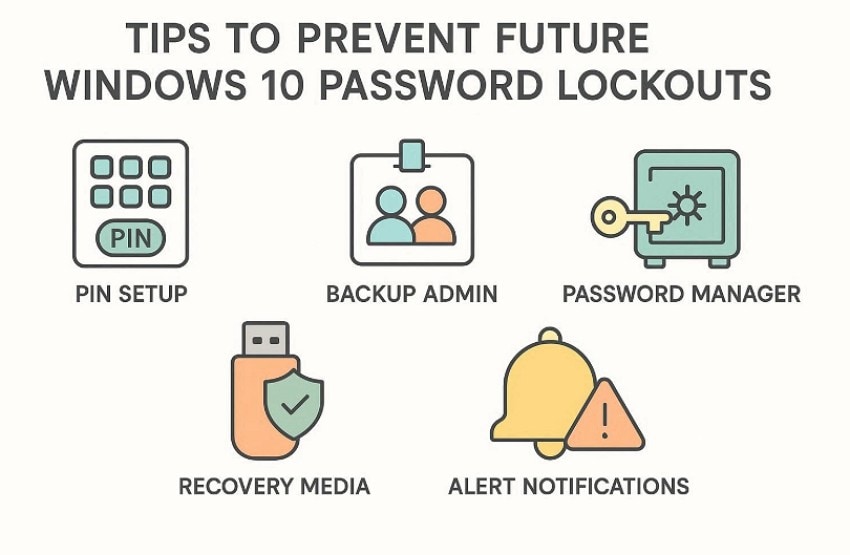
- PIN Setup: Set a PIN for fast sign-in and fewer typing errors daily. Also, keep your password updated, but use the PIN for daily sign-ins and keep the password stored securely.
- Backup Admin: Create a spare admin account and store its password securely offline. Then test it monthly, so lockouts never block urgent fixes again.
- Password Manager: Use a password manager to generate strong phrases you can track. However, keep the vault recovery key printed in a safe place.
- Recovery Media: Create a password reset disk in advance local accounts only, or keep recovery media available. Next, label it clearly and keep it near your device always.
- Sign-in Alerts: Turn on Microsoft security alerts to spot unusual sign-in attempts early. Therefore, change passwords quickly and review devices after every alert event.
Conclusion
To conclude, lockouts happen, but the right steps restore access without unnecessary stress. So, use settings or Microsoft recovery first, then consider trusted boot tools only. Moreover, a Windows 10 password recovery tool helps when built-in options fail. After regaining entry, secure accounts with PINs, backups, and alerts enabled at all times. If files disappear during resets, recover them immediately afterward using Recoverit.
FAQ
-
1. What is the difference between local and Microsoft account resets?
Local accounts reset in Settings, while Microsoft accounts reset through online verification steps. After resetting online, reconnect to Wi-Fi and sign in to sync the new password. -
2. Are Windows 10 password recovery tools safe to use?
Use reputable tools only on your own PC, and avoid lookalike download sites. Create boot media carefully, then restore security settings after access returns successfully again. -
3. Why might Command Prompt password reset steps fail?
Command Prompt resets require administrator rights, so they may fail in recovery mode. If you cannot verify admin access, use Microsoft recovery or sign-in options instead. -
4. How can I prevent lockouts and protect files during resets?
Set a PIN, keep a backup admin account, and store recovery information offline. During resets, stop writing new data, and use Recoverit if files vanish suddenly.


