

 TL;DR:
Windows securely encrypts your primary sign-in password as an unreadable hash, meaning you cannot view it in plain text, but you can retrieve your previously saved app, Wi-Fi, and website credentials using built-in system tools.
● You can extract stored logins for shared folders, networks, and websites using the Windows Credential Manager or browser settings, provided you can successfully pass the system's identity verification prompt.
● If you are completely locked out, advanced procedures like Microsoft online recovery, creating a local admin via Command Prompt, or using PCUnlocker will strictly bypass or reset your credentials instead of revealing the current password.
● Sudden system restarts during password troubleshooting can affect user profiles or hide folders, requiring you to pause account modifications and utilize scanning tools like Recoverit to restore missing data before proceeding.
Ask AI for a summary
 ChatGPT
 Perplexity
 Gemini
 Claude
 Grok
Grok
Forgetting a Windows password is common yet changing it can disrupt access. This guide shows how to find my Windows password without changing it. You may need a saved password for Wi-Fi, an app, or a website login. Instead of guessing, use trusted Windows features and built-in saved credential sources.
Moreover, we cover account types because local and Microsoft logins store data differently. You will learn the exact menus, commands, and prompts required for each method. Each step uses admin permissions, avoids downloads, and protects your data always. Therefore, you can recover access faster and set safer sign-in backups later.
Try Recoverit to Perform Data Recovery
 Security Verified. 3,591,664 people have downloaded it.
In this article

Part 1. Why You Might Need Your Windows Password - Key Reasons
To understand risks, save time, and avoid lockouts, review the reasons below that show why you need your Windows password:
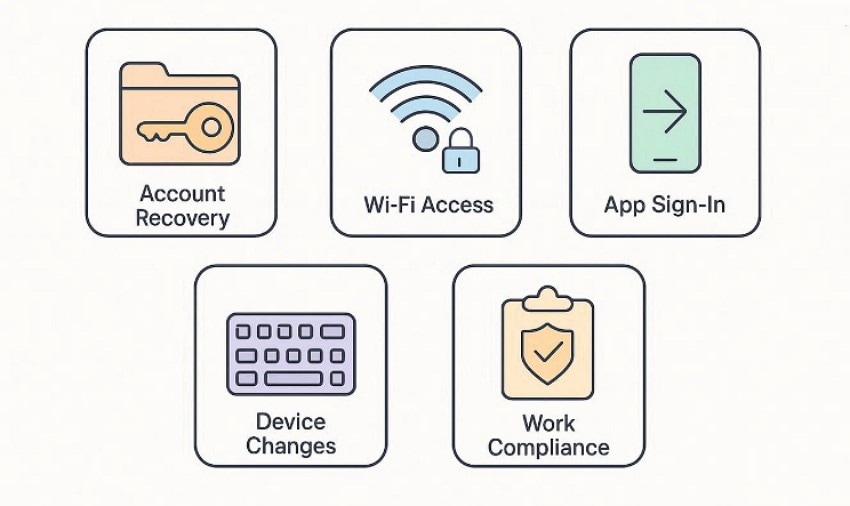
- Account Recovery: Forgotten logins stop access to files, settings, and installed apps. A password hint helps you sign in without risky changes.
- Wi-Fi Access: Windows may save Wi-Fi passwords for reconnecting on trusted networks. You may need the password to share access with others.
- App Sign-in: Some apps reuse Windows credentials for email, VPN, or services. You may need it to reconnect accounts after updates.
- Device Changes: New keyboards and layouts can cause wrong characters to be typed often. Thus, knowing the password helps confirm if typing issues caused failure.
- Work Compliance: Some workplaces require password confirmation for audits and access requests. Having it ready reduces delays during support and security checks.
Part 2. Windows Password Storage: Where Your Passwords Are Kept
Windows does not keep your main sign-in password as readable text anywhere. Instead, it stores protected “proof” of the password, designed to resist snooping. That is why “how to find my Windows password without changing it” usually means checking saved credentials, not “revealing” the login password itself. Now review the following points to understand where Windows commonly keeps password-related data:
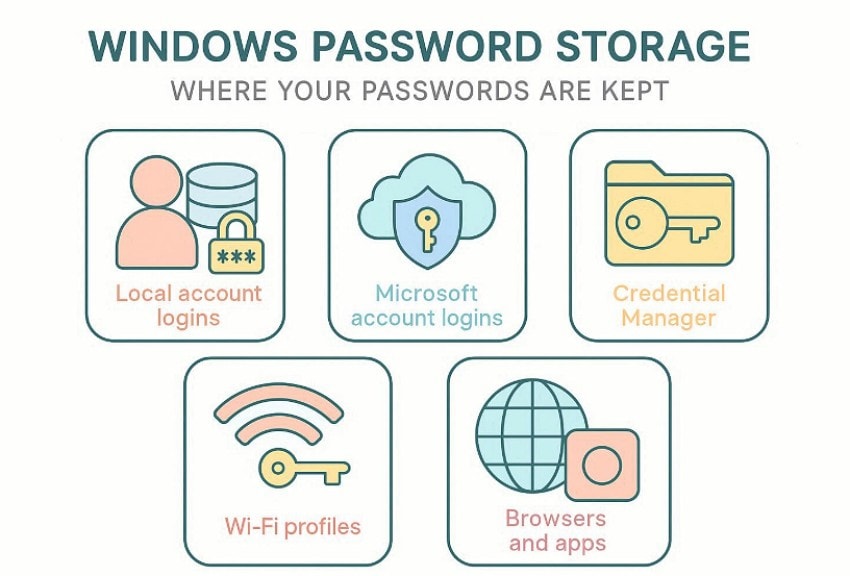
- Local Account Logins: Windows stores local passwords as encrypted hashes inside the SAM database. Hashes verify logins, yet they cannot be read as plain text.
- Microsoft Account Logins: Microsoft accounts confirm passwords online through secure authentication during sign-in. Windows may temporarily cache tokens to speed up future logins safely.
- Credential Manager: Credential Manager stores saved logins for apps, websites, and networks securely. It shows entries you approved, and helps recover saved access details.
- Wi-Fi Profiles: Windows stores Wi-Fi passwords so your device reconnects automatically later. You can reveal keys through network settings when you are signed in.
- Browsers and Apps: Browsers can store passwords separately inside their own encrypted vaults. They rely on your Windows profile to protect locally stored data.
Part 3. Windows Password Recovery: All Possible Solutions
Windows rarely stores your main sign-in password in a readable form. So, “how to find my Windows password without changing it” usually means finding saved credentials (apps, websites, Wi-Fi), not revealing your Windows login password. Now, let’s move towards the following all possible solutions:
Check Saved Windows Passwords Using Credential Manager
Credential Manager is Windows’ built-in vault that stores saved sign-ins you approved earlier. It can hold website logins saved by Windows components, plus app and network credentials for shared folders or related services. However, many entries will not display the password at all for security reasons. In some cases, it only shows the username and the target location by design. To try this solution with ease, follow the steps below:
- To start, navigate to “Control Panel” and select “Credential Manager” to continue.
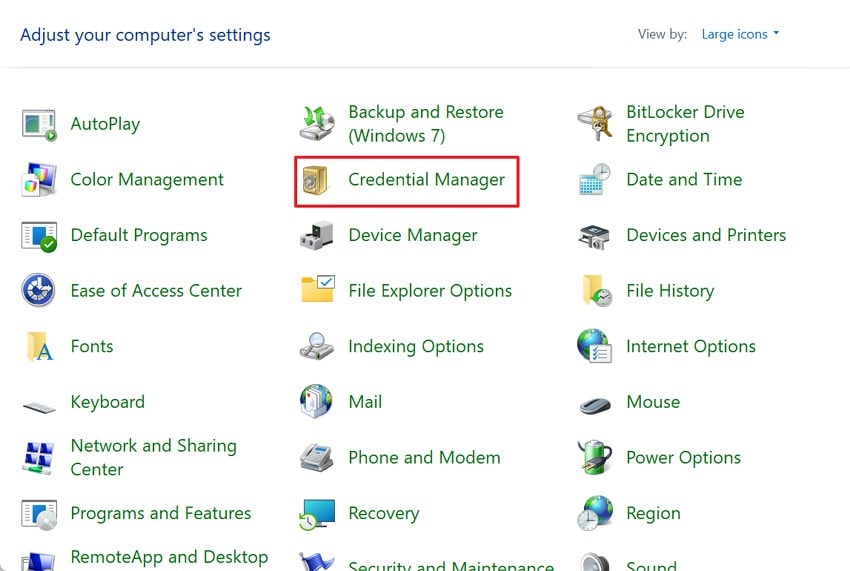
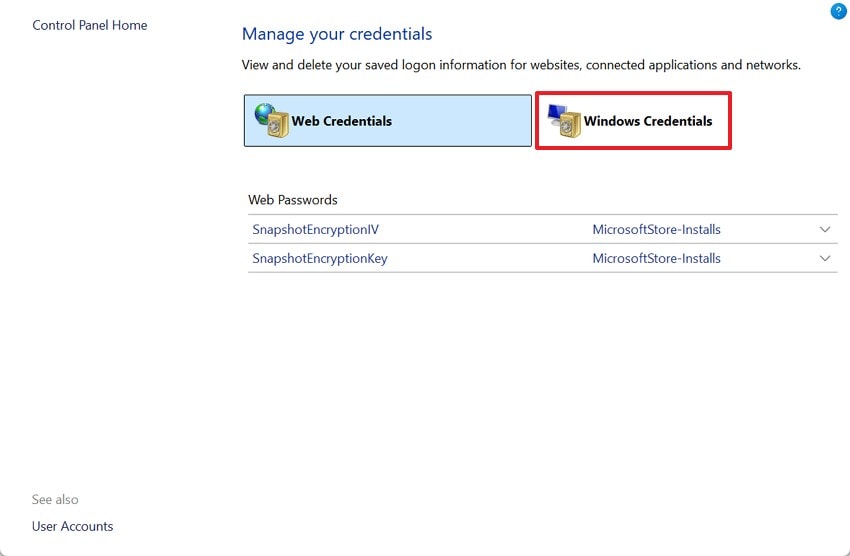
- Afterwards, choose “Windows Credentials” or “Web Credentials” to proceed further.
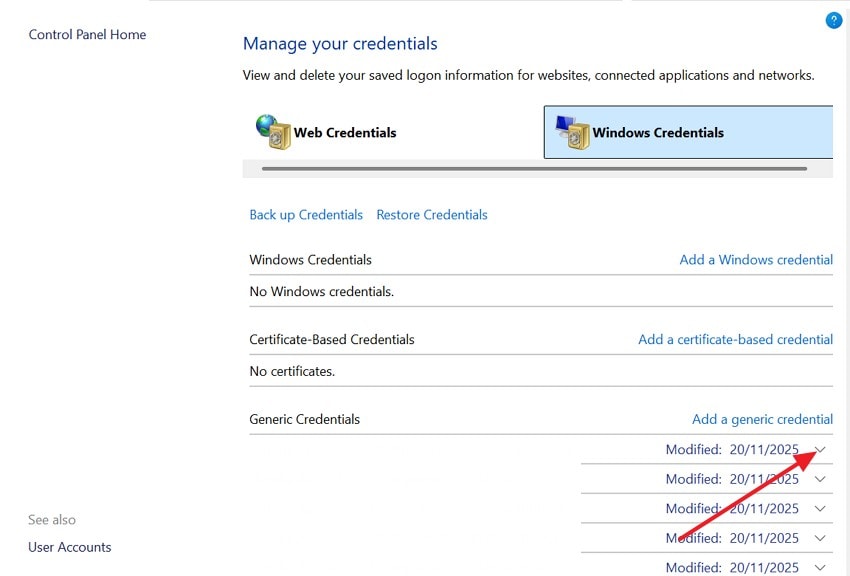
- Now, click on the “Drop-down arrow” to expand details, and if the show is available, then Windows will ask you to verify your identity first.
Find Your Windows Password in Web Browsers
Web browsers can store website passwords in their own password managers, separate from Windows. However, they usually protect viewing access using your Windows sign-in verification. You can only retrieve passwords that were saved previously, not newly entered ones. If you are locked out, you may fail the security prompt and access. Now, follow the steps below to see how Chrome, Edge, and Firefox may have saved login credentials:
For Chrome
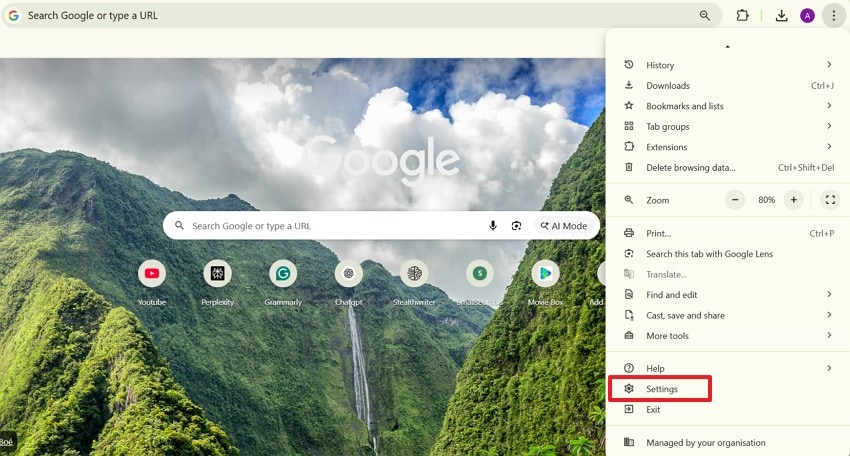
- Navigate to “Three dots” on the top right corner and choose “Settings from the drop-down list.
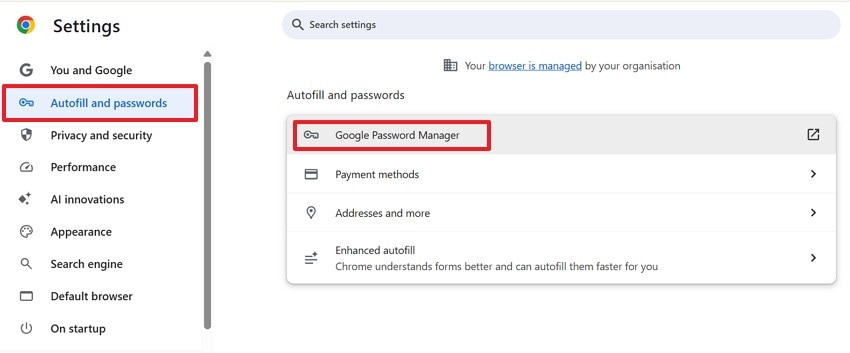
- After that, choose “Autofill and passwords” and select “Google Password Manager” to view the passwords.
For Microsoft Edge
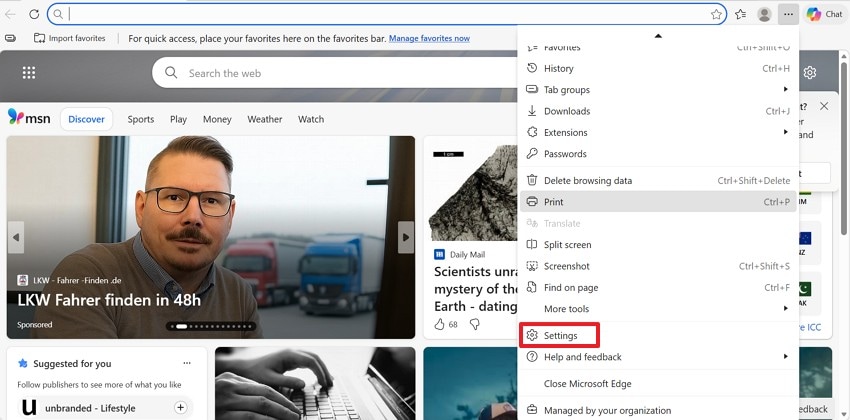
- Upon entering Edge, locate the “Three dots” and pick “Settings” to continue
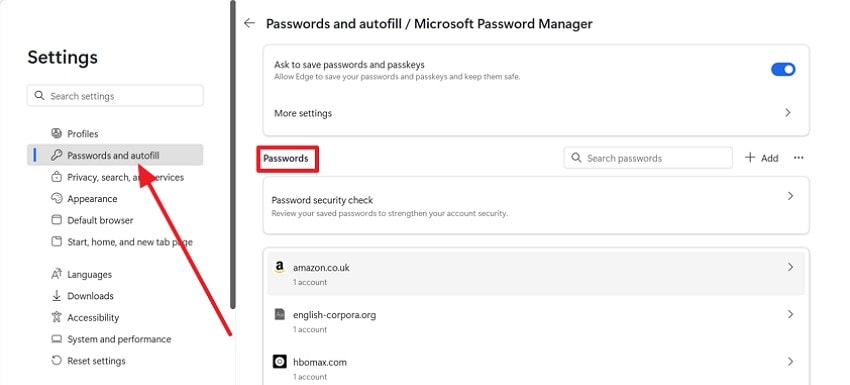
- Later, go to “Profile” and select “Passwords and autofill > Microsoft password manager” and select “Password.”
For Firefox
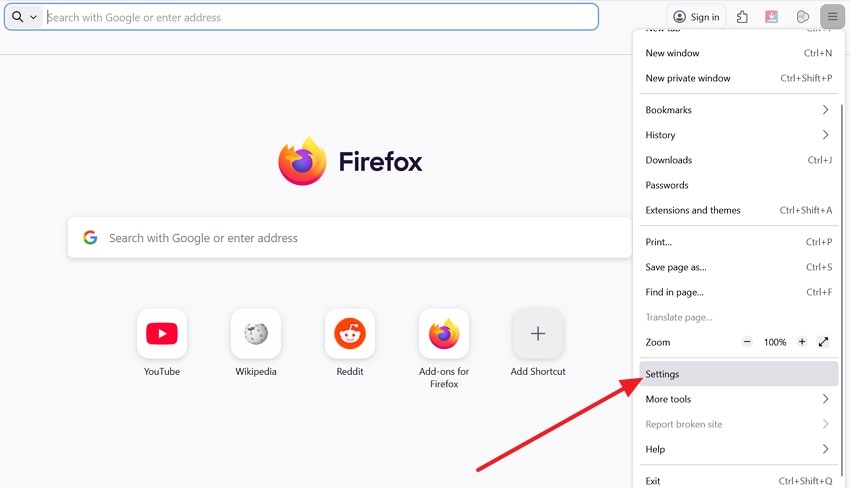
- First, pick the “Settings” option from the “Three lines” menu to further proceed.
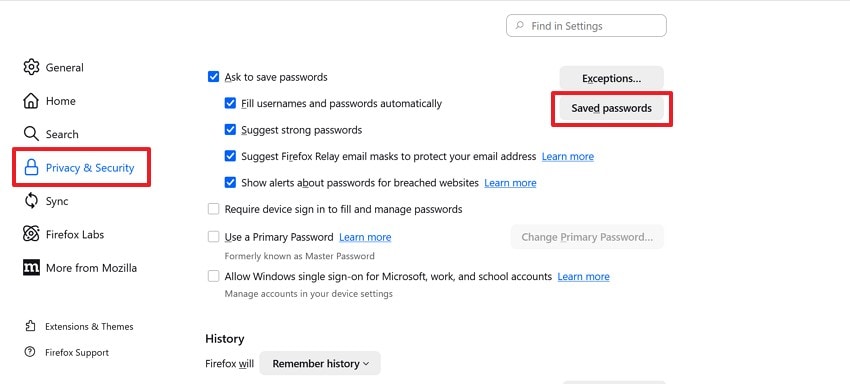
- Next, navigate to the “Privacy & Security” option and choose “Saved Passwords”.
Use Command Prompt to View Stored Windows Passwords
Command Prompt can audit stored sign-in entries, yet it won’t reveal your Windows login password. Use it to identify saved credential records and remove stale ones that cause repeated prompts. It cannot display passwords in plain text or extract protected database data. Use the safe steps below if you are exploring how to find my Windows password without changing it:
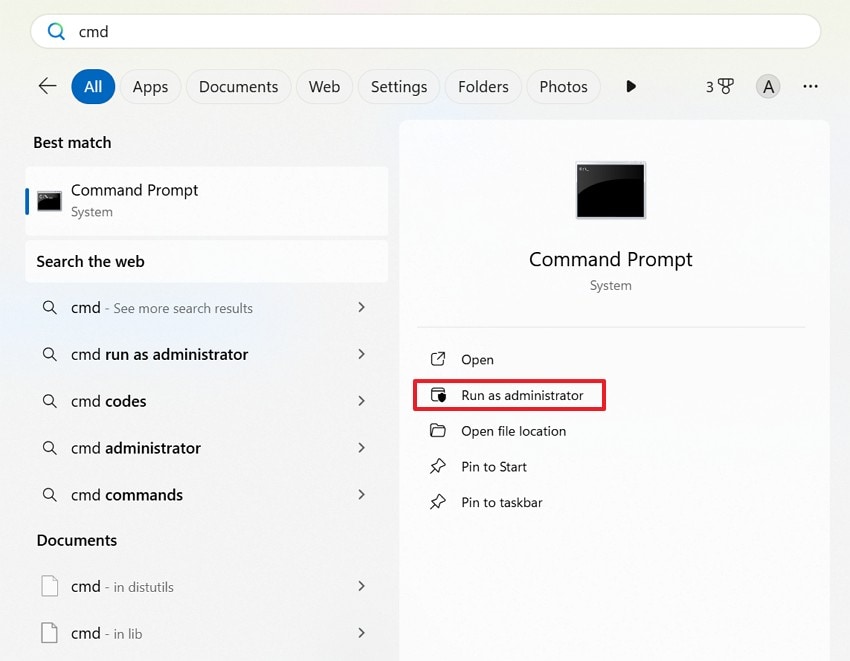
- Start by signing in with an account that has administrative privileges on the computer. Now, access the “Start” menu, type “cmd” and choose “Run as administrator.”
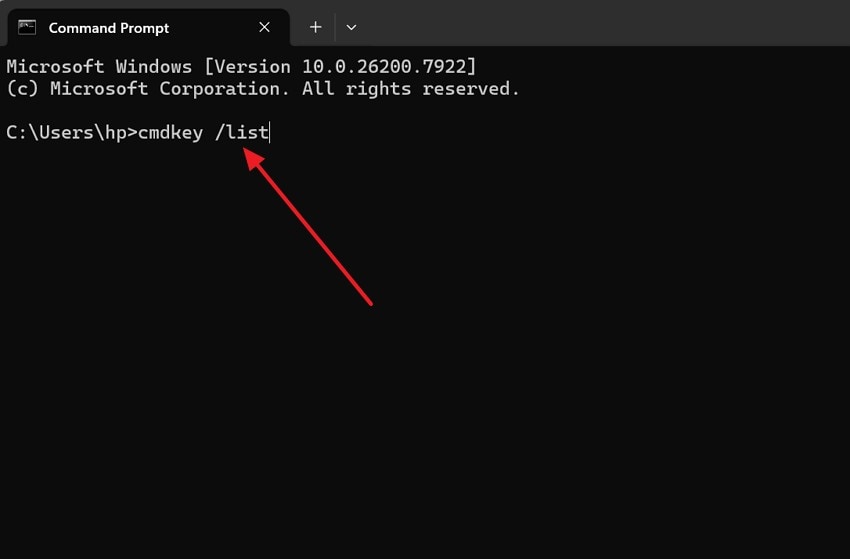
- Now, in the command prompt, type “cmdkey /list” and hit “Enter” to view stored Windows passwords
Access Hidden Windows Password Data Using Registry Editor
Registry Editor mainly holds configuration settings, not readable passwords. Thus, Windows does not store your primary sign-in password there as plain text. Some third-party apps may save tokens or paths, but results vary. Moreover, searching the registry can expose sensitive data, and wrong edits can break sign-in or networking during troubleshooting sessions. Follow the steps below to troubleshoot safely, without editing sensitive registry values:
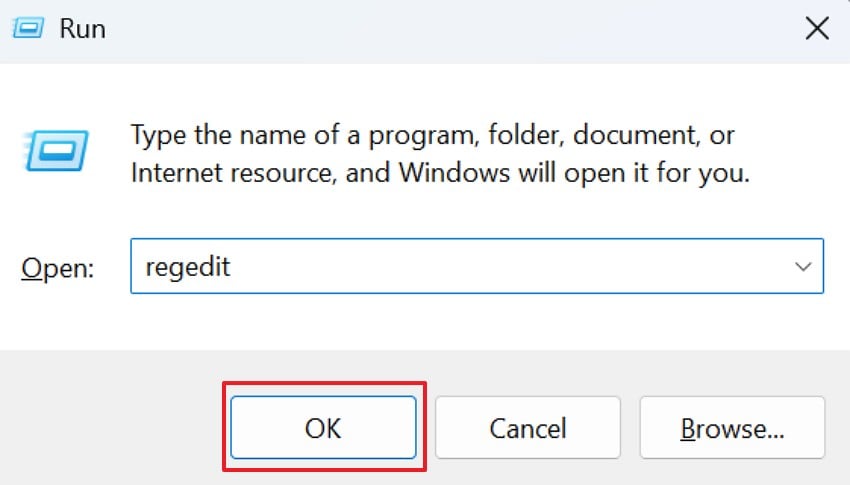
- First, press “Windows + R” and type “regedit,” then press “OK” to open Registry Editor.
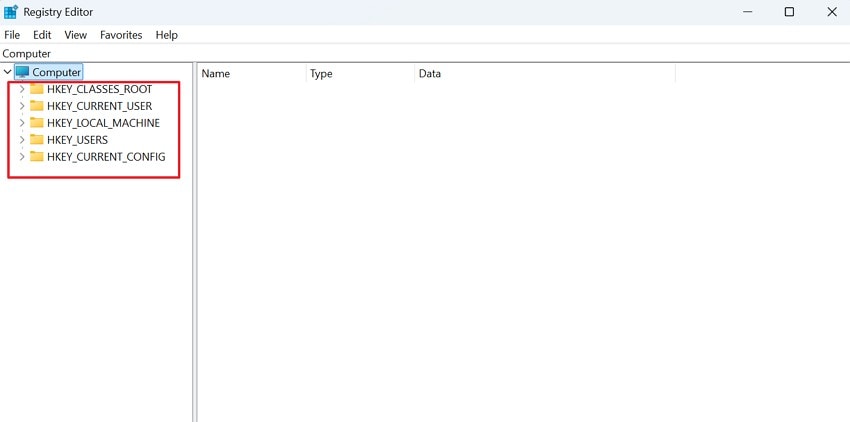
- Afterwards, if the User Account Control prompt appears, click “Yes” to continue. Then, in Registry Editor, use the left panel to navigate through relevant paths, such as the user profile or application-related keys.
Part 4. Advanced Ways to Retrieve Windows Account Credentials
Before exploring deeper system areas, understand how to find my Windows password without changing it using the advanced, authorized methods below:
Use Microsoft Account Online Recovery (For Microsoft Logins)
If your PC uses a Microsoft account, recovery happens through Microsoft’s secure website. This method does not reveal your old password. Instead, it verifies your identity and lets you create a new one safely. It works best when you still have access to your recovery email or phone. Next, follow the step-by-step guide below to complete online recovery securely:
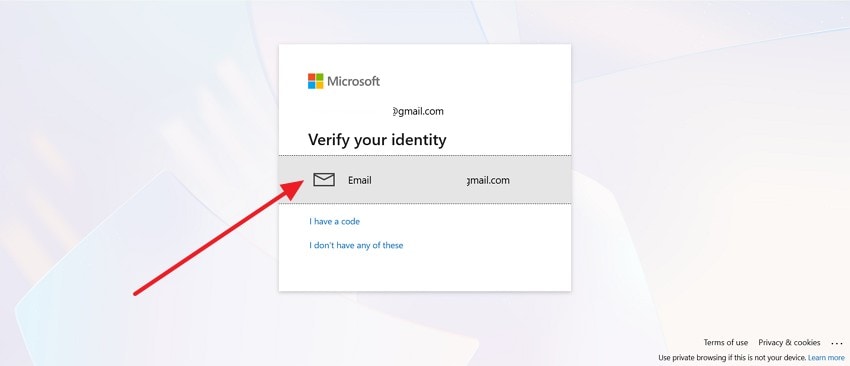
- On the sign-in screen, choose your Microsoft account and select the recovery option to verify your identity. Next, select your recovery method, such as “Email”, then request the verification code.
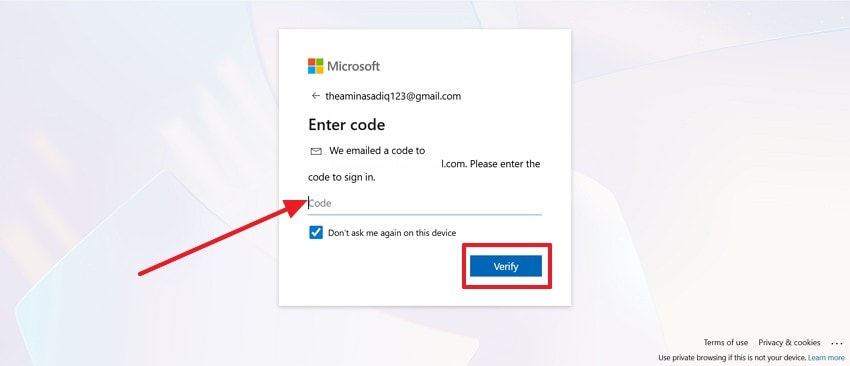
- Afterwards, enter the code sent to your registered email address, then choose the “Verify” button.
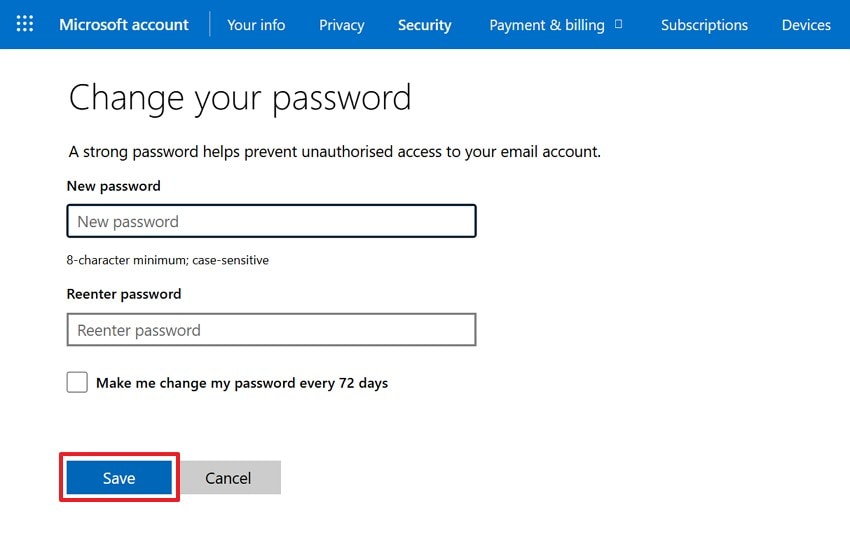
- After verification, enter a new password in the “New password” field. Then, re-enter the password to confirm, and press “Save” to complete the reset.
Create a New Local Admin Account (Advanced Method)
When locked out of a local account, creating a new administrator profile can restore system access. This method bypasses the old login and does not display the previous password. It gives you control again so you can manage files and settings normally. Proceed with the steps below to regain access using a new admin account:
- To start, boot into Advanced Startup and open “Troubleshoot > Advanced Options > Command Prompt.”
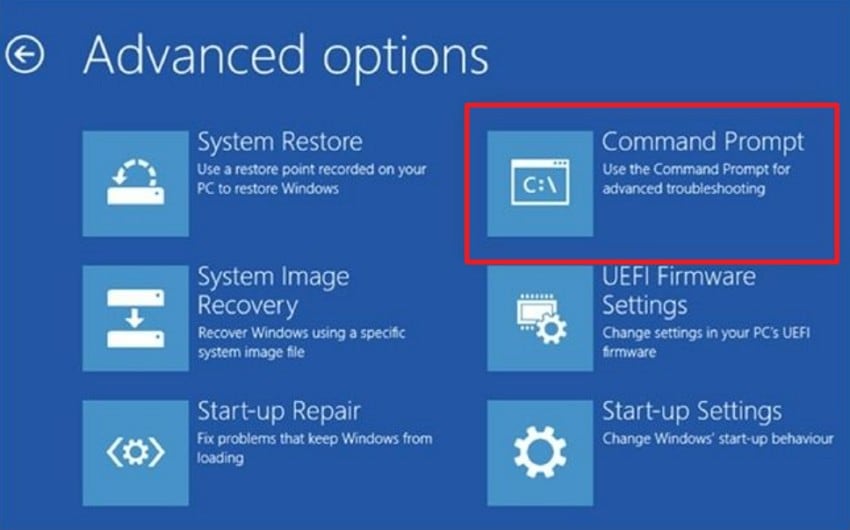
- Then, in the elevated prompt, run the command to enable the built-in Administrator account: “net user Administrator /active:yes” and press “Enter”.
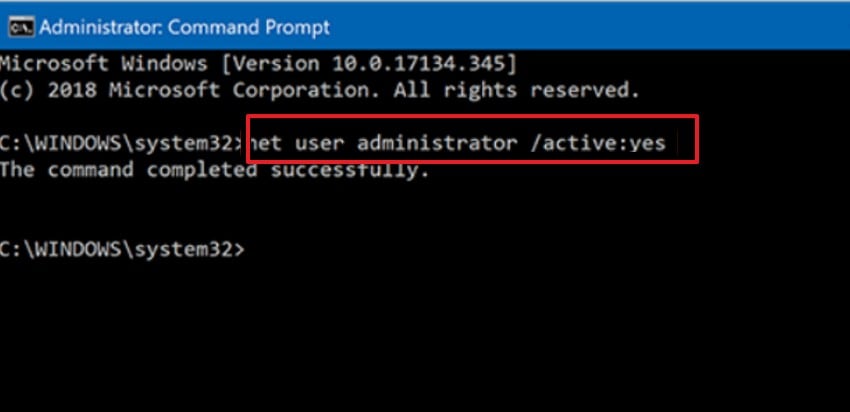
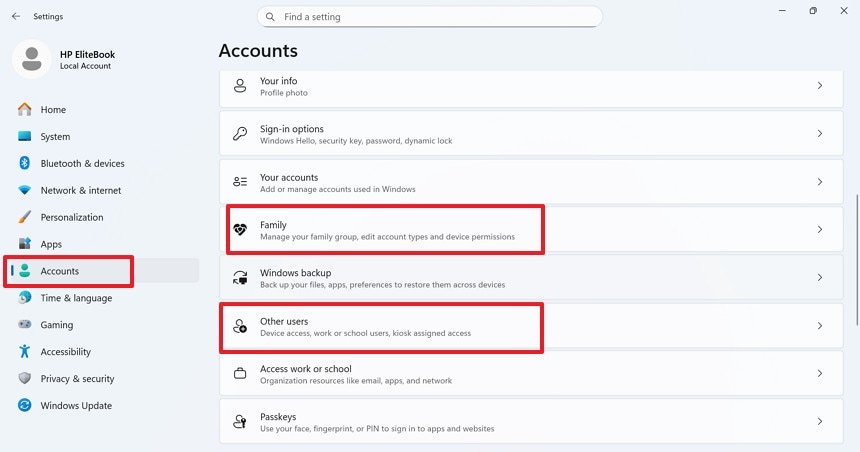
- Next, reboot and sign in using the Administrator account with no password if blank. Then, create a new local admin user in “Settings > Accounts > Family & other users.”
Reset or Bypass Password with Tools like PCUnlocker (Last Resort)
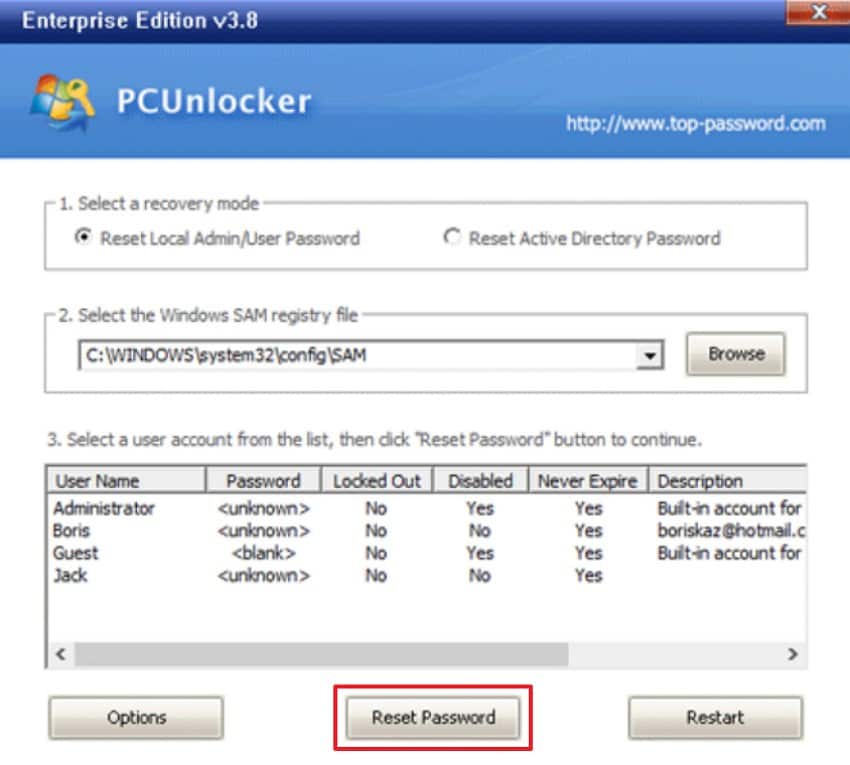
If built-in recovery fails and you still wonder how to find my Windows password without changing it, note this clearly. PCUnlocker does not display your current password in plain text. Instead, it resets or bypasses the login to restore access. It clears or replaces credentials rather than revealing them. Use this method only after safer recovery options fail. Follow the stepwise instructions below to use this last-resort method carefully:
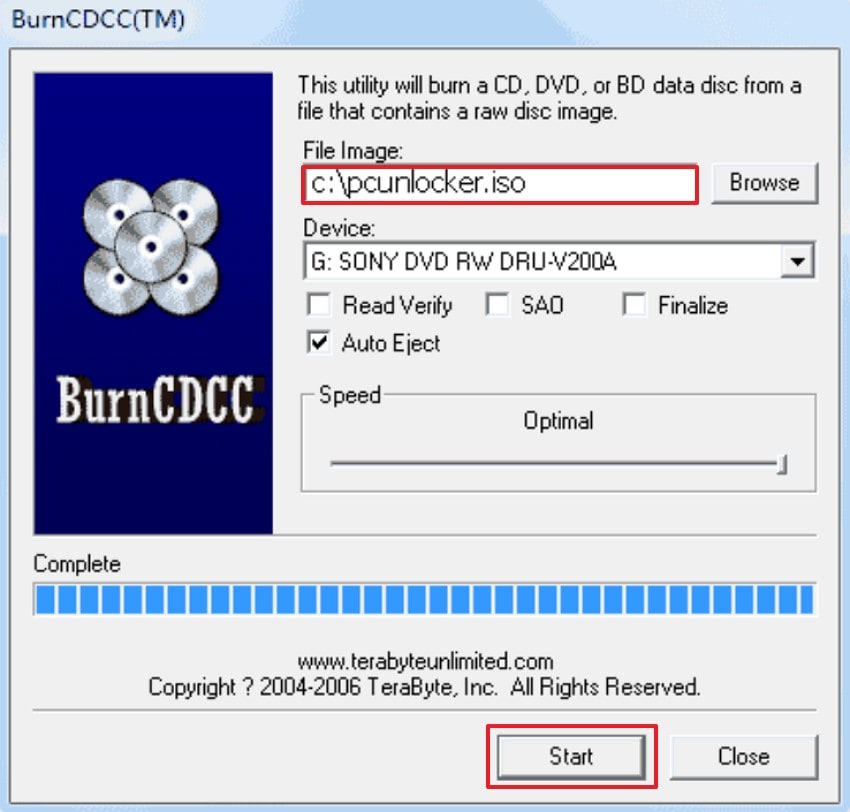
- First, open BurnCDCC and click “Browse” to select the PCUnlocker ISO file. Then confirm the correct CD/DVD device is selected, and hit “Start” to begin creating the bootable disc.
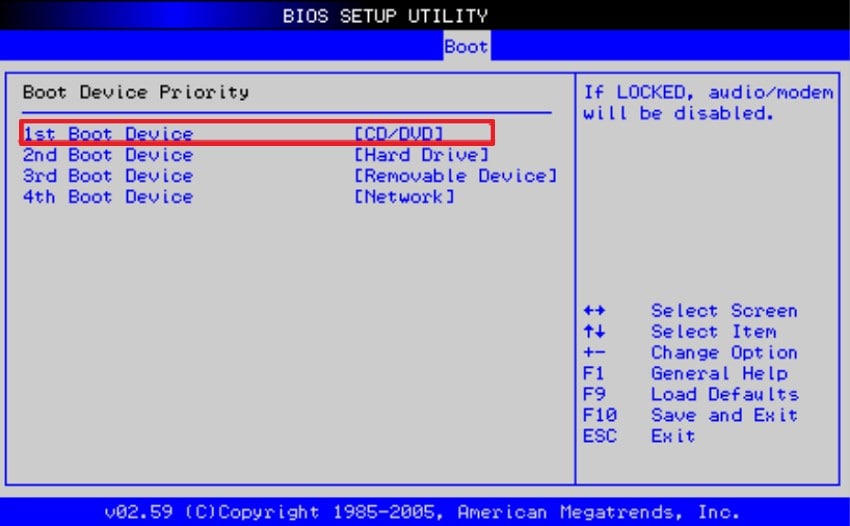
- Next, restart the computer and enter the “BIOS setup menu.” Then set the “CD/DVD” drive as the first boot device, save changes, and exit.
- Afterwards, allow the system to boot from the disc automatically. Now, wait while the recovery environment loads and the PCUnlocker interface appears.

- Finally, select the locked user account from the list shown. Next, press the “Reset Password” option, confirm the action, then restart the computer to sign in.
Pro Tip: Restore Lost Account Data Before Accessing Passwords
Imagine resetting a login, only to notice important folders missing afterward. During how to find my Windows password without changing it, sudden restarts can affect user profiles and saved data. Before adjusting accounts further, pause and check whether files, desktop items, or documents disappeared during troubleshooting. Acting early reduces overwrite risks and improves recovery chances significantly.
Therefore, Recoverit helps scan internal drives, external storage, and partitions for missing files. It can retrieve photos, documents, and account-related data affected during password recovery attempts. Moreover, restoring data first ensures your information stays protected while you resolve account access safely.
Key Features
- Formatted Drive Recovery: Recovers files from accidentally formatted drives without requiring prior backups or technical expertise.
- Crash Recovery Mode: Restores data from unbootable systems using a dedicated bootable recovery environment.
- Advanced File Repair: Repairs corrupted photos and videos after recovery to restore original quality.
Guide to Restore Lost Account Data Before Accessing Passwords with Recoverit
Follow the step-by-step instructions below to restore lost account data safely with Recoverit:
- Select a Location to Start Recovery

Upon accessing the tool, navigate to “Hard Drives and Locations” to choose a location to initiate the recovery.
- Start the Scanning Process

After choosing the location, start the scanning, and once it finishes, all the recoverable files will appear under the “File Location” tab.
- Preview the Files and Complete Recovery

Now, preview the files by double-clicking on the thumbnail, then press the “Recover” button to complete the recovery process.
Part 5. Prevent Future Issues: Backup & Manage Windows Passwords
Before searching for how to find my Windows password without changing it again, review the prevention tips below:
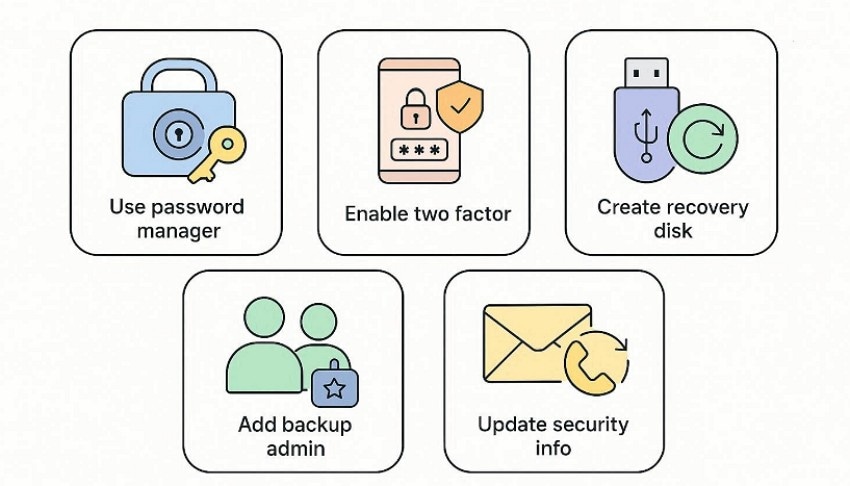
- Use Password Manager: Store strong passwords securely inside a trusted password manager. It helps generate complex phrases and prevents repeated guessing errors.
- Enable Two Factor: Turn on two-factor authentication for Microsoft accounts. This adds another layer of protection beyond passwords alone.
- Create Recovery Disk: Make a password reset disk and store it safely offline. It provides quick recovery access without advanced troubleshooting steps.
- Add Backup Admin: Create a secondary administrator account for emergency access. So, test it regularly to ensure it works during lockouts.
- Update Security Info: Keep recovery email and phone numbers current in settings. Accurate details ensure fast verification during future account recovery.
Conclusion
To conclude, understanding how to find my Windows password without changing it requires realistic expectations. Windows protects primary login passwords using encryption, not readable plain text storage. Focus on saved credentials, trusted tools, and verified recovery methods first. Plus, avoid risky shortcuts that could damage system stability or security settings. If troubleshooting leads to missing files, Recoverit can safely restore important data before final account recovery.
FAQ
1. Can I see my Windows login password in plain text?
Windows does not store your primary login password as readable text anywhere. Instead, it keeps encrypted password hashes for secure authentication verification purposes.2. Where can I check saved Windows-related passwords safely?
You can review saved credentials inside Credential Manager or supported web browsers. However, only previously saved passwords will appear after identity verification is successful.3. Does Command Prompt reveal my current Windows account password?
Command Prompt can list stored credential targets but not actual passwords. It cannot display encrypted login passwords in a readable plain text format.4. What should I do if files disappear during password troubleshooting?
Stop using the affected drive to prevent overwriting recoverable data immediately. Use Recoverit to scan and restore missing files before continuing account recovery.


