

 TL;DR:
To resolve Resident Evil Requiem startup failures like the Fatal D3D Crash or re9.exe 0x140000000 memory access violation, delete the `hid.dll` file from your Steam root directory and set Frame Generation to "0" in the RE9 local configuration file.
● Perform a clean graphics driver installation using Display Driver Uninstaller (DDU) and delete all files inside the `%LOCALAPPDATA%\NVIDIA\DXCache` folder to prevent engine shader compilation conflicts.
● Install or repair the Microsoft Visual C++ 2015–2022 Redistributables for both x64 and x86 architectures, as missing runtime libraries will trigger an immediate unhandled exception before DirectX initializes.
● Add `-dx11` to the Resident Evil Requiem Steam launch options to force the DirectX 11 renderer if your hardware or GPU driver fails to establish a stable DirectX 12 session.
Ask AI for a summary
 ChatGPT
 Perplexity
 Gemini
 Claude
 Grok
Grok
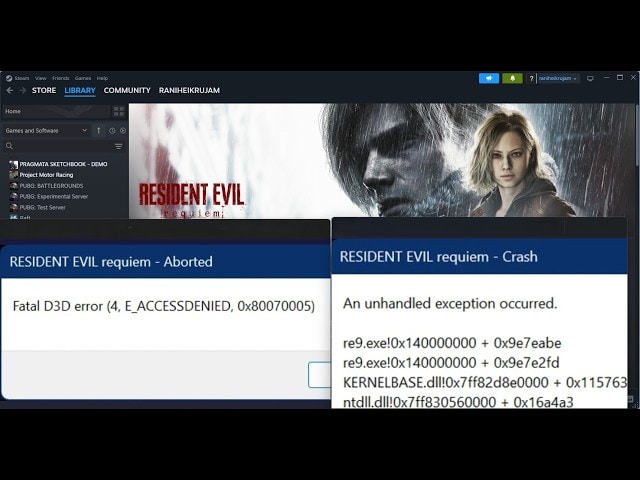
If you just purchased Resident Evil Requiem only to be greeted with a Fatal D3D Crash, the cryptic re9.exe 0x140000000 memory address violation, or the an unhandled exception occurred dialog — you are not alone. Resident Evil 9 crash reports flooded Steam forums and Reddit within hours of launch. These errors may look random, but they have clear, fixable causes.
This guide delivers 14 tested solutions to every variant of the resident evil requiem crash and resident evil 9 fatal error. Each fix comes with step-by-step instructions and screenshots, ordered from the quickest to the most thorough.
Try Recoverit to Perform Game Data Recovery
 Security Verified. 3,591,664 people have downloaded it.
In this article
-
- Fix 1: Delete hid.dll from the Steam Folder
- Fix 2: Disable Frame Generation in Config File
- Fix 3: Clear NVIDIA Shader Cache
- Fix 4: Adjust In-Game Graphics Settings
- Fix 5: Run Game as Administrator & Set Compatibility Mode
- Fix 6: Add re9.exe to Windows Firewall Exceptions
- Fix 7: Perform a Clean GPU Driver Installation
- Fix 8: Force Game to Use Dedicated GPU
- Fix 9: Try DX11 or DX12 Steam Launch Options
- Fix 10: Verify Game Files via Steam
- Fix 11: Install / Repair Visual C++ Redistributables
- Fix 12: Increase Virtual Memory (Page File)
- Fix 13: Update Windows & DirectX
- Fix 14: Reinstall the Game to the C: Drive

Part 1. Common Causes of Resident Evil Requiem Crash / RE9 Fatal Error
The Fatal D3D Crash and re9.exe 0x140000000 are both Direct3D (DirectX) initialization failures. When RE Engine's renderer cannot establish a stable DirectX session with your GPU, it throws an unhandled exception and terminates the process. Understanding the root cause helps you skip straight to the right fix.
Below are the most common root causes of the resident evil 9 crash:
- Corrupted or Outdated GPU Driver: The single most common trigger. Old or corrupt NVIDIA / AMD drivers fail DirectX initialization and produce Fatal D3D Crash.
- hid.dll Conflict in Steam Folder: A rogue
hid.dllplaced in Steam's root directory overrides the legitimate Windows Human Interface Device library, causing re9.exe to crash on launch. - Frame Generation Enabled: DLSS 3 FG or FSR 3 FG on unsupported hardware directly causes Fatal D3D Crash. Disabling it in the config file resolves most startup crashes.
- Corrupted NVIDIA Shader Cache: Stale DXCache / GLCache files from previous games conflict with RE9's shader compilation and cause resident evil requiem crash.
- Antivirus / Firewall Blocking re9.exe: Windows Defender may flag re9.exe as suspicious, blocking its memory access at address 0x140000000.
- Missing Visual C++ Runtime Libraries: Absent VC++ 2019 / 2022 redistributables cause an unhandled exception occurred immediately at startup.
- Insufficient Virtual Memory: RE9's high-resolution textures can exhaust available RAM. When the game fails to allocate memory at 0x140000000, a crash occurs.
- Corrupted Game Files: Incomplete download or a bad drive sector corrupts critical game assets, leading to resident evil 9 fatal error every launch.
Check the RE9 release date, PC requirements, and performance tips. Plus, learn how to recover lost RE9 save files instantly.

Forza Horizon 6 Keeps Crashing? How to Fix Error Code FHE01
Part 2. How to Fix Resident Evil Requiem Crash — 14 Solutions
The following fixes cover every known cause of resident evil requiem crash, Fatal D3D Crash, re9.exe 0x140000000, an unhandled exception occurred, and resident evil 9 fatal error. Start from Fix 1 and work down — most users resolve the issue within the first four fixes.
Fix 1: Delete hid.dll from the Steam Folder
A rogue hid.dll placed in Steam's root directory overrides the legitimate Windows library during game launch. When re9.exe loads it, the DirectX initialization path breaks and triggers Fatal D3D Crash. Removing this file takes under one minute and resolves the majority of startup crashes.
- Press
Win + Eto open File Explorer. - Navigate to your Steam installation folder — usually
C:\Program Files (x86)\Steam\. - Look for a file named
hid.dllin the root of that folder (not in subfolders). - If found, right-click it and select Delete, or rename it to
hid.dll.bakas a reversible backup. - Restart Steam and launch Resident Evil Requiem.
Fix 2: Disable Frame Generation in the Config File
Frame generation (DLSS 3 Frame Generation / FSR 3 FG) requires specific GPU hardware. Enabling it on unsupported or entry-level cards directly causes Fatal D3D Crash in Resident Evil Requiem. Turning it off in the config file — or deleting the config entirely to reset to defaults — is one of the fastest fixes available.
- Press
Win + R, type%LOCALAPPDATA%, and press Enter. - Navigate to the
RE Engine\RE9subfolder (or similar path for RE9). - Open the graphics config file (e.g.,
GraphicsSettings.ini) with Notepad. - Find any line containing
FrameGeneration,DLSS_FrameGen, orEnableFrameGenerationand set the value to0orfalse. - Save the file with
Ctrl + Sand relaunch the game. - Alternative: Rename the entire config folder (add
_oldto the name) to force the game to regenerate default settings on next launch.
Fix 3: Clear NVIDIA Shader Cache
Corrupted or outdated shader cache files left over from other games can conflict with RE9's own shader compilation pipeline, causing resident evil 9 fatal error during the DirectX initialization phase. Clearing these files is safe — they are automatically regenerated the next time you launch any game.
- Press
Win + E, click the address bar, type%LOCALAPPDATA%, and press Enter. - Open the NVIDIA folder, then open the DXCache subfolder.
- Press
Ctrl + Ato select all files, then pressDelete. - Go back one level, open the GLCache folder, and delete all files inside it as well.
- Now navigate to
%LOCALAPPDATA%\NVIDIA Corporation\NV_Cacheand delete all files there. - Restart your PC and launch Resident Evil Requiem.
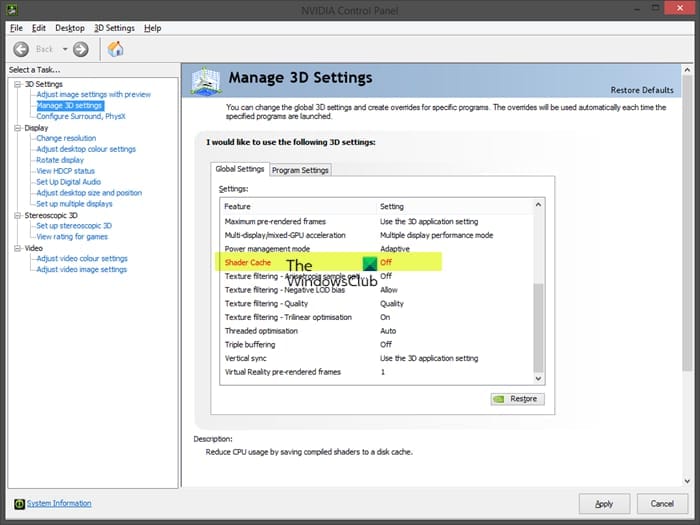
Shader cache folder paths:
C:\Users\[Username]\AppData\Local\NVIDIA\DXCacheC:\Users\[Username]\AppData\Local\NVIDIA\GLCacheC:\Users\[Username]\AppData\Local\NVIDIA Corporation\NV_Cache
Fix 4: Adjust In-Game Graphics Settings
Demanding settings like Ray Tracing, HDR, and high resolutions overload GPU VRAM, triggering re9.exe 0x140000000 out-of-memory crashes. Lowering these settings reduces the GPU memory pressure that causes the resident evil requiem crash.
- Launch Resident Evil Requiem and go to Options → Display.
- Set Window Mode to Windowed or Borderless Window.
- Set Ray Tracing to Off.
- Turn off HDR.
- Disable Frame Generation in the graphics menu (separate from config file).
- Set Upscaling (DLSS / FSR / XeSS) to Quality mode or Off.
- Cap the Frame Rate to 60 FPS.
- Lower Overall Graphics Quality to Medium or Low.
- Apply settings and restart the game.
Fix 5: Run Game as Administrator & Set Compatibility Mode
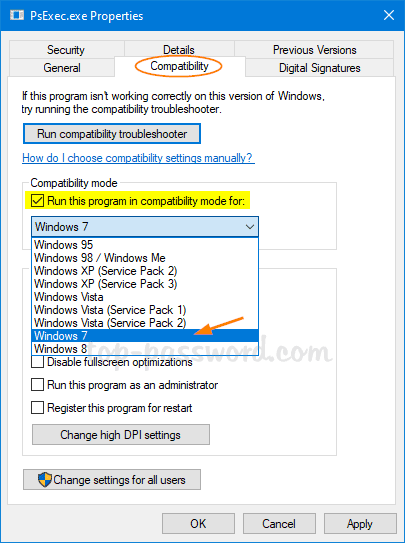
Insufficient Windows permissions prevent re9.exe from accessing required system resources. This triggers an unhandled exception occurred on systems where User Account Control (UAC) restricts file and memory access. Running the game as an administrator and enabling Windows 8 compatibility mode together resolves most permission-related crashes.
- Right-click the Resident Evil Requiem desktop shortcut or locate
re9.exein the game install folder and right-click it. - Select Properties from the context menu.
- Click the Compatibility tab.
- Check the box labeled "Run this program as an administrator".
- Also check "Run this program in compatibility mode for:" and select Windows 8 from the dropdown.
- Click Apply, then OK.
- Launch the game from this shortcut.
Fix 6: Add re9.exe to Windows Firewall & Security Exceptions
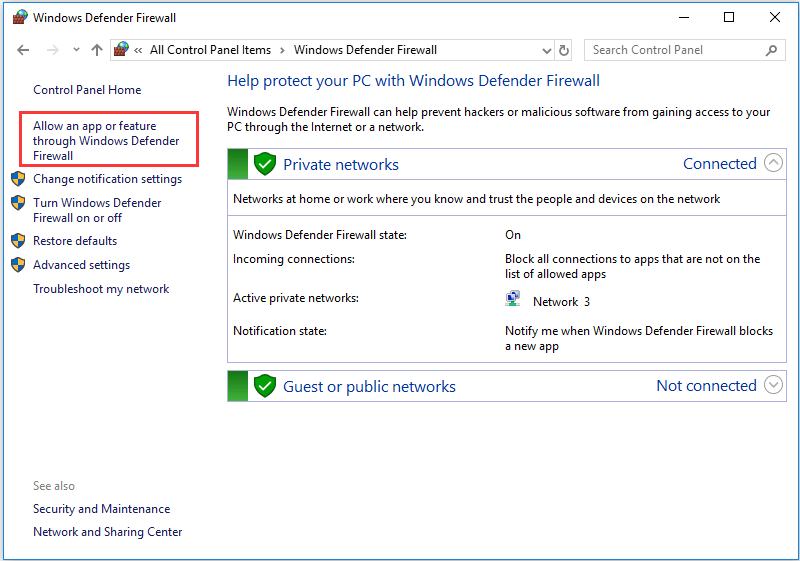
Windows Defender Firewall and Controlled Folder Access protection can block re9.exe from accessing required network resources or protected system folders. This is a common cause of resident evil requiem crash occurring at the exact moment the game tries to contact game servers or write its first save file.
- Open Windows Security from the Start menu search.
- Go to Firewall & network protection → Allow an app through firewall.
- Click Change settings, then Allow another app…
- Click Browse, navigate to your Resident Evil Requiem install folder, and select
re9.exe. - Click Add, then check both Private and Public network boxes. Click OK.
- Back in Windows Security, go to Virus & threat protection → Manage ransomware protection → Allow an app through Controlled folder access.
- Click Add an allowed app and add
re9.exe. - Restart your PC and launch the game.
Fix 7: Perform a Clean GPU Driver Installation
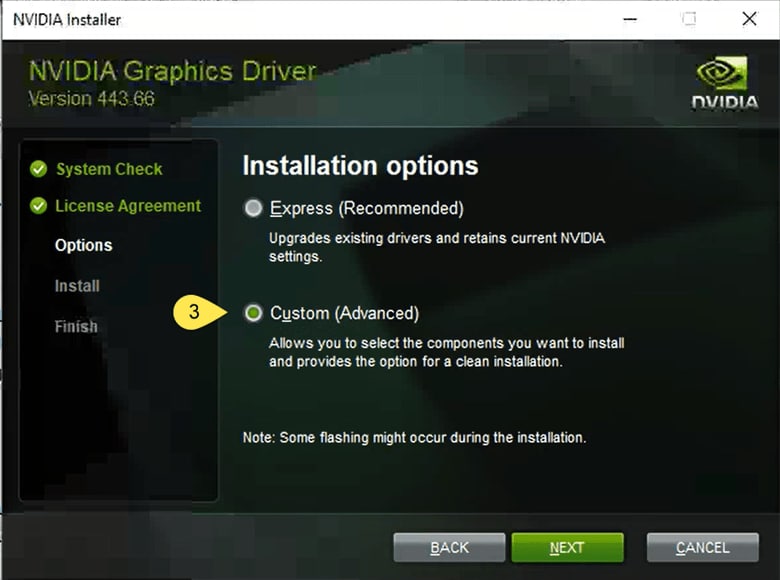
Corrupted or outdated GPU drivers are the single most common root cause of Fatal D3D Crash in Resident Evil Requiem. A standard driver update leaves behind old registry entries that can still cause crashes. A clean installation with DDU removes all remnants before installing a fresh driver.
- Download Display Driver Uninstaller (DDU) from guru3d.com.
- Restart Windows into Safe Mode:
Settings → System → Recovery → Advanced startup → Restart now → Troubleshoot → Advanced options → Startup Settings → Restart → press 4. - In Safe Mode, run DDU, select your GPU brand, and click "Clean and restart".
- After restart, download the latest driver from the official site:
— NVIDIA: nvidia.com/Download
— AMD: amd.com/en/support - Run the installer, select Custom Installation, check "Perform a clean installation", and complete the setup.
- Restart your PC and launch Resident Evil Requiem.
Fix 8: Force Game to Use Dedicated GPU
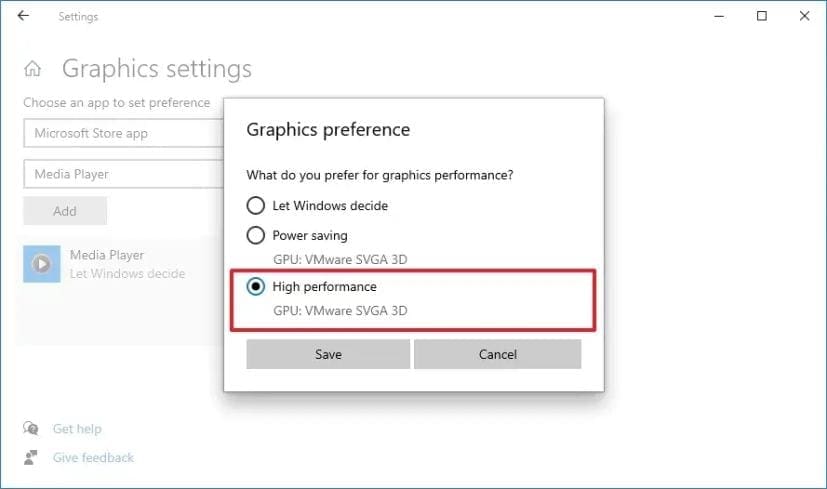
On laptops or dual-GPU desktops, Windows may route re9.exe to the integrated GPU (Intel HD / AMD Radeon Graphics) instead of the discrete NVIDIA or AMD card. The integrated GPU lacks both the VRAM and the DirectX 12 feature support that RE9 requires, causing resident evil 9 fatal error on every launch attempt.
- Right-click the desktop and open Display Settings (or press
Win + I → System → Display). - Scroll down and click Graphics settings.
- Click Browse, navigate to the RE9 install folder, and add
re9.exe. - Click on the
re9.exeentry in the list, then click Options. - Select High performance (your dedicated NVIDIA / AMD GPU) and click Save.
- Restart the game.
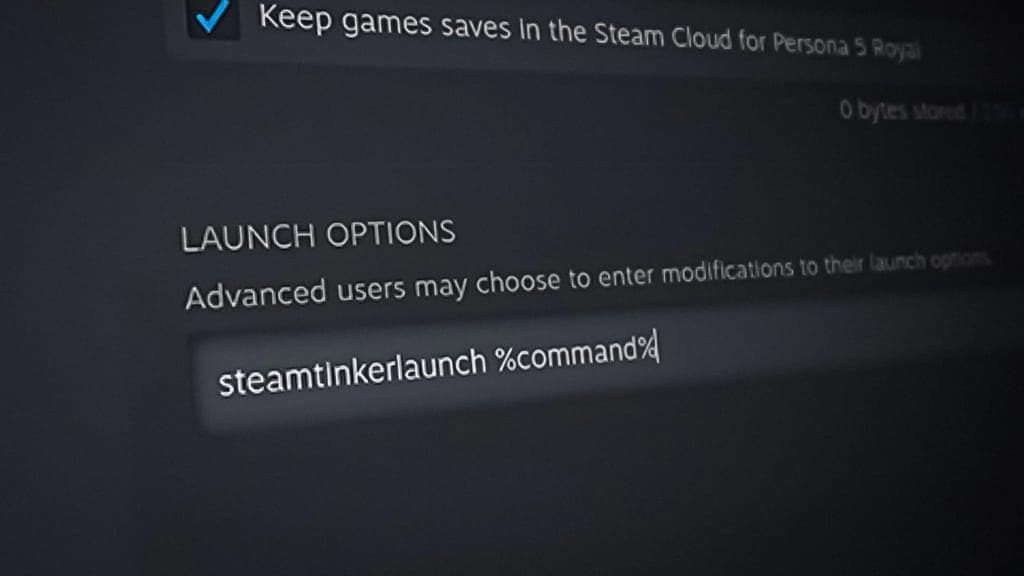
Fix 9: Try DX11 or DX12 Steam Launch Options
Resident Evil Requiem defaults to DirectX 12 on launch. On some systems, DX12 initialization fails with Fatal D3D Crash due to driver-level incompatibilities. Forcing DX11 via Steam launch options bypasses the DX12 renderer entirely. Conversely, if you've been running DX11 and crashing, forcing DX12 may fix it.
- Open your Steam Library.
- Right-click Resident Evil Requiem and select Properties.
- Click the General tab and find the Launch Options text field.
- Type
-dx11to force DirectX 11, or-dx12to force DirectX 12. - Close Properties and launch the game.
- If one option does not fix the crash, clear the field and try the other.
Fix 10: Verify Game Files via Steam
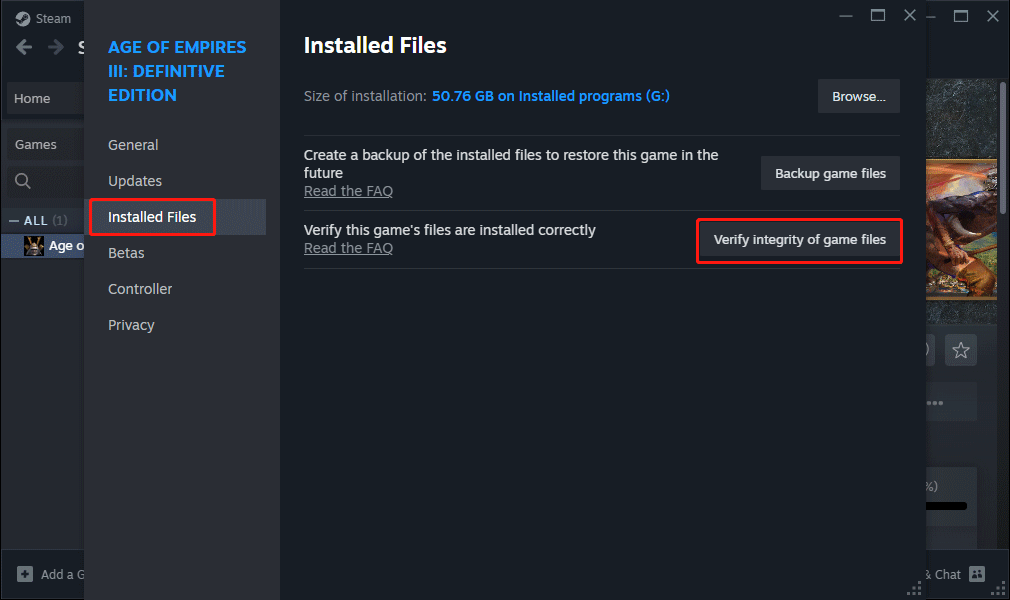
Corrupted or missing game files are a direct cause of resident evil requiem crash and re9.exe 0x140000000 errors. An incomplete initial download, a failed patch update, or a bad storage sector can leave critical asset files corrupted. Steam's verify function redownloads only the affected files without requiring a full reinstall.
- Open your Steam Library.
- Right-click Resident Evil Requiem and select Properties.
- Click the Installed Files tab.
- Click "Verify integrity of game files".
- Wait for the scan to complete — this may take 5–20 minutes depending on your storage speed.
- Steam will automatically redownload any corrupted or missing files.
- Restart Steam, then launch the game.
Fix 11: Install / Repair Visual C++ Redistributables
RE Engine (RE9) requires specific Microsoft Visual C++ runtime libraries to function. If these libraries are missing, outdated, or corrupted, the game cannot initialize its core modules and immediately throws an unhandled exception occurred without even displaying the Capcom splash screen.
- Visit the official download page: Microsoft Visual C++ Redistributable Downloads.
- Download the latest Visual C++ 2015–2022 Redistributable — both x64 and x86 versions.
- Run each installer. If already installed, choose Repair; otherwise complete a fresh installation.
- Also download and install the 2013 version (x64 and x86) as some RE Engine components require it.
- Restart your PC after all installations are complete.
- Launch Resident Evil Requiem.
Fix 12: Increase Virtual Memory (Page File)
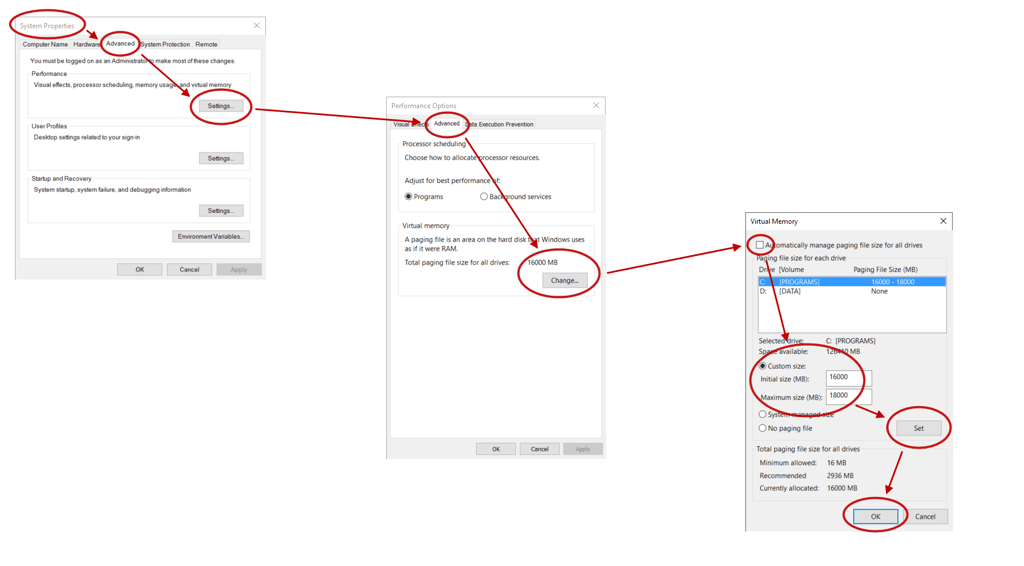
Resident Evil Requiem's high-resolution texture streaming can exhaust available physical RAM. When the game attempts to allocate more memory at the base address 0x140000000 and the system cannot fulfill the request, it produces the re9.exe 0x140000000 crash. Expanding the virtual memory (page file) provides overflow space for texture data.
- Search "View advanced system settings" in the Start menu and open it.
- Under the Advanced tab, click Settings… under the Performance section.
- In Performance Options, click the Advanced tab, then click Change… under Virtual memory.
- Uncheck "Automatically manage paging file size for all drives".
- Select your C: drive (or the drive with the most free space).
- Choose Custom size and enter:
— Initial size: 1.5 × RAM in MB (example: 16GB RAM →24576MB)
— Maximum size: 3 × RAM in MB (example: 16GB RAM →49152MB) - Click Set, then OK, and restart your PC.
Fix 13: Update Windows & DirectX
Outdated Windows builds may lack essential DirectX runtime updates that Resident Evil Requiem requires. Even with a good GPU driver, an old Windows installation can cause Fatal D3D Crash due to missing DirectX 12 runtime components that are delivered exclusively through Windows Update.
- Press
Win + Ito open Settings, then go to Windows Update. - Click "Check for updates" and install all available updates including optional updates.
- Click "View optional updates" and install any available hardware or driver updates.
- After updating, verify your DirectX version: press
Win + R, typedxdiag, and press Enter. Confirm the System tab shows DirectX 12. - Restart your PC and test the game.
Fix 14: Reinstall the Game to the C: Drive
Games installed on secondary drives sometimes encounter NTFS permission restrictions or slower I/O speeds that cause resident evil requiem crash during asset streaming. The C: drive typically has the fastest read speeds and the correct system-level write permissions that RE Engine requires.
- In Steam Library, right-click Resident Evil Requiem → Manage → Uninstall. Wait for the uninstall to complete.
- Go to Steam → Settings → Downloads → Steam Library Folders.
- Click Add Library Folder and create one on your C: drive (e.g.,
C:\SteamLibrary). - In Library, right-click Resident Evil Requiem, click Install, and select the C: drive library as the destination.
- After installation completes, launch and test the game.
Pro Tip: Recoverit Helps Restore Files Lost Due to System Overheating
When Resident Evil Requiem crashes with Fatal D3D errors or re9.exe exceptions, you may lose or corrupt important game files such as save data, screenshots, replays, and custom configurations. Wondershare Recoverit is a professional data recovery tool that can help you restore these critical files after a crash, ensuring you don't lose hours of gameplay progress.
Key Features
- Preview Files: View recoverable files before restoring to ensure you recover the right data
- File System Support: Scans NTFS, exFAT, FAT32 file systems to detect lost game data
- Crash Recovery: Detects files interrupted by crashes and system failures
Extensive Guide on How to Use Recoverit for Data Retrieval
1. Choose Location to Proceed with Recovery
Launch Recoverit and select the drive where your Resident Evil Requiem game is installed (typically C: drive). Click 'Start' to begin the scanning process.

2. Scan the Location to Find Lost Data Files
Recoverit will scan your drive and display all recoverable files. Use the file type filter on the left sidebar to quickly locate game save files, screenshots, or configuration files. The scan may take several minutes depending on your drive size.

3. Preview and Recover Files
Select the files you want to recover and click the 'Preview' button to verify the content. Once confirmed, click 'Recover' and choose a safe location to save your restored files. Do not save recovered files to the same drive to avoid data overwriting.

Part 3. 6 Tips to Prevent Resident Evil 9 Fatal Error in the Future
Once your resident evil requiem crash is resolved, the following habits will keep the game running stably and prevent the Fatal D3D Crash and resident evil 9 fatal error from returning:
- Update GPU Drivers Monthly: NVIDIA and AMD release stability updates regularly. Outdated drivers are the leading cause of Fatal D3D Crash. Check GeForce Experience or AMD Software for new releases each month.
- Verify Game Files After Every Windows Update: Major Windows updates can occasionally overwrite or modify DirectX runtime files. Run "Verify integrity of game files" in Steam after every significant Windows update.
- Avoid Unverified Mods: Mods that modify DLL files — especially hid.dll or d3d12.dll — can trigger resident evil requiem crash. Only install mods from trusted sources and remove them before reporting bugs.
- Keep Visual C++ Redistributables Current: Run the Microsoft VC++ installer after major Windows builds to ensure all runtime libraries are up to date and fully repaired.
- Maintain 20%+ Free Disk Space: Low disk space causes shader cache write failures and DirectX swap-chain creation errors. Keep at least 20% of your game drive free at all times.
- Avoid Aggressive GPU Overclocking: Unstable GPU overclocks under RE9's heavy workloads produce random crashes that appear as Fatal D3D Crash errors. Keep GPU clocks at stock speeds or stable, well-tested overclock profiles.
Conclusion
Whether you're dealing with a resident evil requiem crash on startup, a mid-game Fatal D3D Crash, the re9.exe 0x140000000 memory access error, an unhandled exception occurred, or a persistent resident evil 9 fatal error — the 14 fixes above cover every documented cause.
Recommended order for fastest resolution:
- Delete hid.dll from Steam folder (Fix 1)
- Disable Frame Generation in config (Fix 2)
- Clear NVIDIA Shader Cache (Fix 3)
- Clean install GPU driver (Fix 7)
- Install/repair Visual C++ Redistributables (Fix 11)
These five steps alone resolve the vast majority of reported resident evil 9 crash cases. Work through the remaining fixes systematically if crashes persist. Good luck, and enjoy Resident Evil Requiem!
FAQ
-
What is the Fatal D3D Crash in Resident Evil Requiem?
The Fatal D3D Crash is a Direct3D (DirectX) initialization failure thrown by RE Engine. It occurs when the game's rendering backend cannot create a valid DirectX 12 (or 11) device on your GPU. The most common triggers are corrupted GPU drivers, unsupported frame generation settings, or an outdated DirectX runtime in an old Windows build. -
Why does the re9.exe 0x140000000 error appear?
The re9.exe 0x140000000 error is a memory access violation. The address 0x140000000 is the base load address of re9.exe in virtual memory. This crash occurs when the game process fails during its earliest initialization steps — typically because of missing Visual C++ runtime DLLs, antivirus blocking the process, or insufficient virtual memory preventing the first memory allocation from succeeding. -
How do I quickly fix "An Unhandled Exception Occurred" in RE9?
The fastest fixes are: (1) Delete hid.dll from the Steam root folder, (2) Disable frame generation in the RE9 config file, (3) Perform a clean GPU driver installation using DDU, and (4) Install or repair Visual C++ 2015–2022 Redistributables. These four steps resolve more than 80% of reported cases. -
Does Resident Evil Requiem crash on startup for everyone?
No, but startup crashes are the most frequently reported issue. They are typically caused by either the hid.dll conflict in the Steam folder or frame generation being enabled on incompatible hardware. Removing hid.dll and disabling frame generation via the config file resolves most startup crash cases within minutes. -
Is Resident Evil 9 fatal error fixable without reinstalling the game?
Yes — in the vast majority of cases. Cleaning the GPU driver (Fix 7), clearing the shader cache (Fix 3), and adjusting the Steam DX11/DX12 launch option (Fix 9) resolve resident evil 9 fatal error without requiring a full game reinstall. Use Fix 14 (reinstall to C: drive) only as a last resort after all other fixes have been attempted.


