
 TL;DR:
To resolve a corrupted pen drive without permanent data loss, always extract your files first using recovery tools before attempting structural repairs or formatting.
● Attempt non-destructive data recovery by running the ATTRIB -H -R -S /S /D X: command to reveal hidden files, or use Wondershare Recoverit to extract data from drives that will not open.
● Repair minor logical errors and directory structures safely without erasing existing files by executing the CHKDSK command via the Command Prompt.
● If standard formatting fails or the drive exhibits a RAW file system, force-wipe the drive's internal metadata using the Diskpart clean command, keeping in mind this method will permanently erase all data.
Ask AI for a summary
 ChatGPT
 Perplexity
 Gemini
 Claude
 Grok
USB drives or pen drives are used mostly for sharing and storing files. However, sometimes, the drive may become corrupted. Many people start panicking in this case because their data gets lost. If you've been a victim of this situation, don't panic; you can fix the issue.
First, you can use a data recovery tool to recover all the crucial data from your corrupted device. Next, you can act on your USB device and try to fix it. Corrupted USB devices can be a major pain. So, trying to fix it as soon as possible is advisable.
This blog will guide you on how to fix a corrupted pen drive.
Try Wondershare Recoverit to Perform Data Recovery
 Security Verified. Over 7,302,189 people have downloaded it.
| Symptom / Error | Probable Root Cause | Immediate Action |
| "Disk is Write Protected" | Logical lock or hardware switch. | Run ATTRIB -h -r -s /s /d Command |
| "Please Insert Disk" | Controller or Driver communication failure. | Update/Reinstall USB Device Drivers |
| "Format the Disk" | File system (RAW) or Partition corruption. | Recover with Recoverit FIRST |
| USB Not Recognized | Drive letter conflict or physical connection. | Assign Letter in Disk Management |
Part 1: Why Data Gets Lost on Pen Drive?
Your crucial data can get lost from the pen drive for a variety of reasons, such as the following:
When you accidentally delete data from your pen drive without creating a backup of data,
- Abrupt ejection of the pen drive puts it at the risk of all critical data recovery.
- The virus can quickly attack USB devices and pen drives, especially if you're using the pen drive across different machines and abruptly removing them.
- Bad sectors in your pen drive can damage the memory chip of the pen drive. As a result, all the data will be lost.
A close up of a flash drive
Description automatically generated

- Accidentally formatting the pen drive by entering the wrong drive letter can lead to data loss.
- Physical or external temperature and pressure conditions can also corrupt the pen drive. Pen drive corruption can lead to data loss.
- Frequent usage of the pen drive also leads to pen drive failure. As a result, the data will get lost.
- As the pen drive ages, the data cells carrying the charge will dissipate. Thus, the quality will be reduced, thereby leading to data loss.
2026 Hardware Note: USB-C Sensitivity
With the prevalence of USB 3.2 and USB-C standards, corruption in 2026 is frequently caused by physical "micro-disconnects." Because USB-C pins are much smaller than traditional USB-A, even a small amount of pocket lint can interrupt a data transfer. If your pen drive disconnects mid-transfer, it creates a "Dirty Bit" error that leads to a RAW file system. Always ensure your ports are clean before attempting a software format.
Part 2: How to Recover Corrupted Pen Drive?
Once your pen drive becomes corrupted, the chances of losing the data increase. Therefore, in situations like this, you will have to adopt the correct procedure for recovering the data.
Here are some of the crucial ways through which you can recover data from your corrupted pen drive:
Method 1: Use Recoverit Data Recovery Software (Recommended)
Wondershare Recoverit is one of the fastest data recovery tools to learn how can I recover my corrupted pen drive. Therefore, this tool can help with the flash drive recovery. If you have a corrupted pen drive and want to recover the data from it, you must use pen drive recovery tool - Wondershare Recoverit. Not only will it help recover the corrupted data, but it will also damage the device.
You need to download and install the Recoverit on your Mac and Windows. This is available for free download. Upon launching the Recoverit Data Recovery Software, here are the steps you may want to follow:
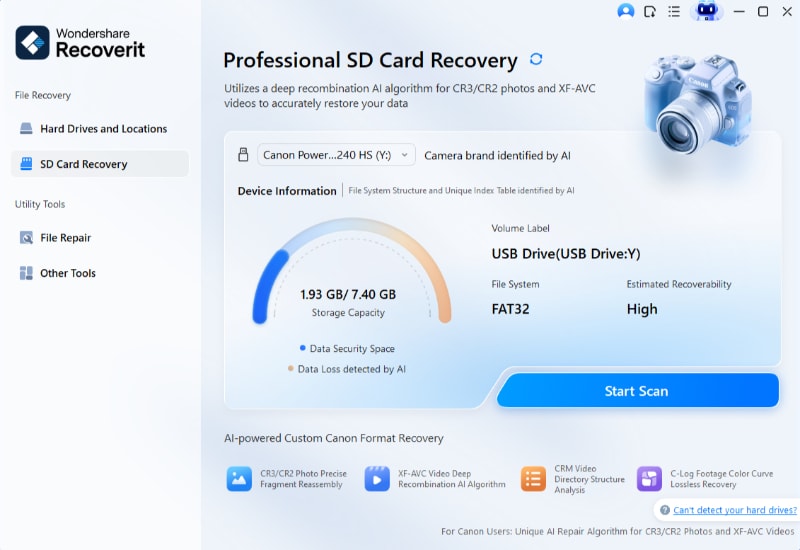
- After downloading and installing Wondershare Recoverit, launch it on your device. Next, select the drive that is instantly detected on the program.
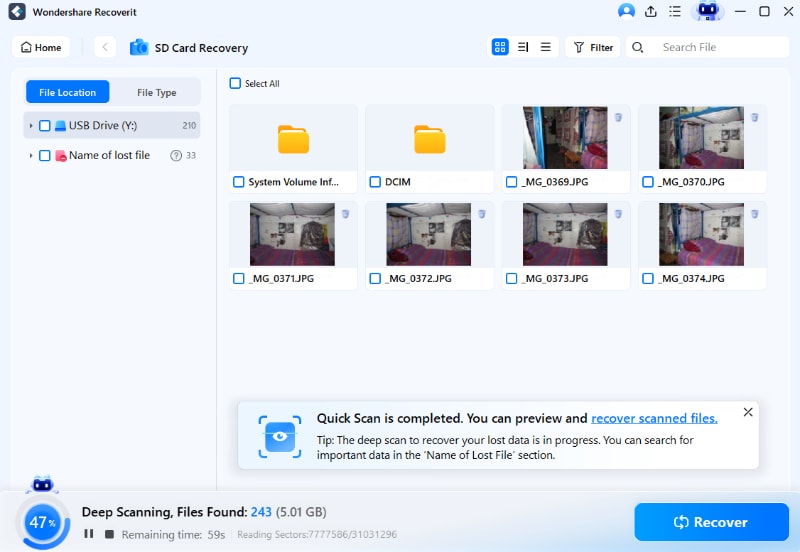
- The data recovery software will scan the corrupted device and check for all the available data. The process will take a few minutes.
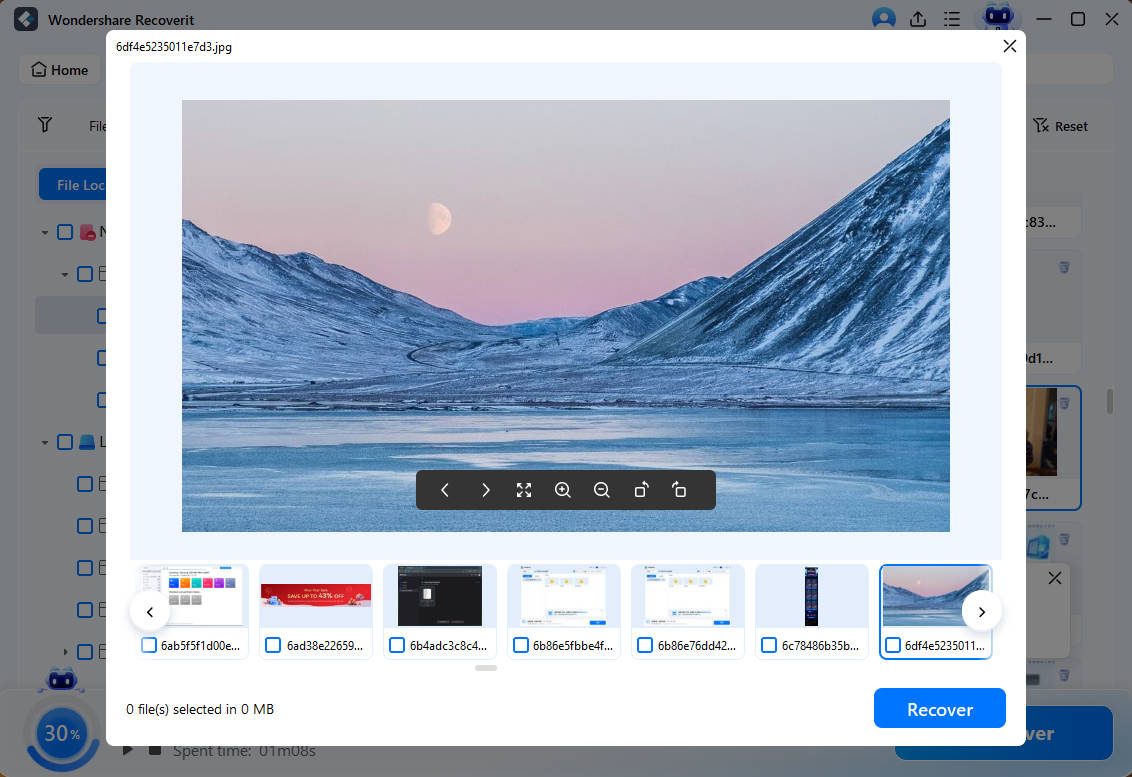
- Check the preview of all the files that you want to recover. Preview music, photos, documents, videos, and all other files. Click on recover.

Method 2: How to Extract Data from a Corrupted Pen Drive with Windows File History?
Windows File History is the local backup feature option provided by Windows. If you have older versions of Windows, such as Windows 10 or other, you can instruct the Files History feature to back up the data in a custom folder. You can even choose the folder on your USB drive to recover the data.
This feature is not available on Windows 11. However, for Windows 11, the backup of File History will be available for different locations like Contacts, Desktop, Libraries, and Favorites.
You can back up the information for Windows 10 or 11 in the required locations. You can also manually back up the data for the USB drive on the File History backup location.
Follow the steps given below to learn how to recover data from corrupted pen drive:
- From the Start menu, open the Control Panel.
- In the Control Panel Home system, select the File History option from System and Security.

- Now, choose Restore personal files available in the left panel.

- Select the location where you want to recover lost files.
- The Recover button will be available in the green option. Click on it to restore the respective file.
Method 3: How to Recover a Corrupted Pen Drive with ATTRIB Command?
The ATTRIB Command can be useful for preventing flash drive corruption data recovery. Once you notice the file is corrupted, you can opt for data recovery in different formats.
You may change the file Attributes, which can eventually impact the files, making them invisible. By becoming the ATTRIB Command, you can easily fix the problem.
Here's how to extract data from corrupted pen drive using the ATTRIB command:
- Open the Command Prompt on your screen by entering Win + X on the keyboard.
- Launch the administrator. It can be PowerShell, Windows Terminal or CMD.
- in the Command Prompt, you can enter the command ATTRIB -H -R -S /S /D X:. (X is the equivalent of the letter which will be assigned to the drive letter. It can be another flash drive letter)

- Close the Command Prompt. Now, open the USB drive in File Explorer and check how it is functioning.
The data should be recovered in the respective location.
Part 3: How to Fix a Corrupted Pen Drive?
| Repair Method | Best For... | Data Safety |
| 01. CHKDSK Command | Fixing minor logical errors and directory structures. | Safe (Maintains existing files) |
| 02. Full Formatting | Total reset of unreadable or "RAW" pen drives. | Destructive (Erases all data) |
| 03. Recoverit Scan | Extracting data from drives that won't open. | High Success (Read-only mode) |
Once you have recovered the data, it is extremely important to adopt ways to fix the corrupted pen drive. There are different methods through which you can learn how to fix a corrupted pen drive without formatting, such as the following:
Fix 1: How to Fix a Corrupted Pen Drive using CHKDSK Command?
The CHKDSK command is said to be one of the most effective ways to prevent the pen drive from being corrupted. It helps to repair damaged and non-working USB flash drives. Furthermore, it helps fix hard drive partitions and SD drives.
This can help to fix a serious file loss issue while running the command. Therefore, it is essential to choose a safe location wherein you can save the recovered files. The CHKDSK command can help repair lost clusters, bad sectors, directory errors, and cross-linked files.
You have to be mindful of the USB storage as well. The time taken for the chkdsk scan will ultimately depend on the USB storage size. Therefore, if the USB drivers have a higher storage, it will take more time.
Here are the steps you need to follow on how to fix a corrupted pen drive without losing data via the CHKDSK command:
- Connect your corrupted pen drive to the PC.
- On the Start option, search for cmd and click Enter. This will help open the Command Prompt.
- On the command prompt, type chkdsk h:/f /r/ x or chkdsk h: /f. h is the drive letter allocated to your pen card or SD card. Hit Enter.

The process will take some time. After a while, the pen drive will be cleared and eventually be fixed.
Fix 2: How to Fix a Corrupted Pen Drive by Updating Device Drivers?
Your device drivers are extremely important. However, the failure of device drivers is one of the main reasons why the pen drive may need to be fixed. If your device driver is the reason why the pen drive isn't functioning, you need to update the device drivers. Furthermore, you may also consider reinstalling it.
Here are the steps on how to fix a corrupted pen drive without losing data by updating or reinstalling device drivers:
- Visit the Start menu and right-click on it.
- Check the Disk drive section and expand it. Now, you will have to right-click on the corrupted USB drive. From the drop-down menu, click on Update device.

- Restart the computer and check if the USB flash drive is successfully updated.
After the update process, it should work properly. However, consider uninstalling and reinstalling the device if it doesn't. You may follow the steps mentioned above. Instead of the Update option, after right-clicking on the disk drive option, choose the Uninstall device option.
Fix 3: Format the Pen Drive
Formatting the pen drive will be essential in preventing the corrupted files from damaging your USB. However, format the data only when you have backed up the information.
If there is no important data or file on your pen drive, you may repair or format the corrupted pen drive. Format the steps given below to learn how to fix a corrupted pen drive:
- Switch on your PC and connect the USB drive you want fixed.
- Right click on the My Computer icon and from the drop-down menu choose Manage.
- From the given option, click on Disk Management.
- Once you have the available options, right-click on the drive location for the non-working pen drive SD. From the drop-down menu, click on Format.

- Once you click Format, reset the file system and drive the letter. Make sure to verify all the necessary information about the pen drive before formatting.
- Click on OK to complete the process.
Pro Tip: Fixing "Windows Was Unable to Complete the Format"
If a standard format fails, use the Diskpart utility to force-wipe the drive's internal metadata:
- Open Command Prompt (Admin) and type diskpart.
- Type list disk to find your USB number (e.g., Disk 2).
- Type select disk 2 and then type clean.
- This "Hard Reset" removes all corrupted partition info, allowing you to re-initialize the drive in Disk Management.
Part 4: Tips to Recover Corrupted Pen Drive
The USB flash drive can become corrupted if you're not mindful about it. Some of the common tips that you need to follow to recover corrupted pen drive are as follows:
- You must store your pen drive properly to prevent it from getting damaged due to humidity, pressure, and temperature.
- When you are not using the corrupted pen drive, cover it with the given cap to prevent contaminants and dust.
- Ejecting the pen drive only after the transfer is complete is advisable. Opt for the ‘safely remove’ option. Do not abruptly eject the pen drive. Unplugging the device abruptly will only lead to data loss and damage.
- Always install antivirus software on your device to prevent the risk of malware on the pen drive across all endpoints. If you want to access the pen drive in your system, scan it properly with the software and then use it.
- Never overload your pen drive with too much data. Overloading will leave no space, thereby increasing the risk of data being corrupted.
- Install a good flash memory such as SLC Flash to protect your data and applications to recover corrupted pen drive data.
Related Video Tutorial: How to Fix a Corrupted Flash Drive and Recover Data?

Conclusion
Have you been struggling with your corrupted USB device? Make sure to recover the data and then fix it. Irrespective of the cause of corruption, fixing the issue is not a major challenge. However, consider recovering the data from the local backup or via a data recovery tool. So, run these processes and learn how to recover data from corrupted pen drive.
Learn more >>:
Why Recoverit is the best SD data recovery software?
Hard Drive Space Disappeared After Partition Shrink? Try These Fixes!
Managing Partitions In Linux: A Complete Guide!
Try Wondershare Recoverit to Perform Data Recovery
Security Verified. Over 7,302,189 people have downloaded it.
FAQ
-
How do I fix the corrupted USB drive?
You can reinstall the USB drivers to fix the corruption. Furthermore, you can also run the command prompt to fix it. A third-party tool can also help in fixing the corrupted USB driver. -
How to open files on a corrupted USB drive?
You can either use a third-party tool to recover the data or fix corruption using the CHKDSK command in Windows. However, you shouldn't format the USB because then all the files will be lost. -
Can I fix a corrupted pen drive without losing data?
Yes, you can fix a corrupted pen drive without losing data. If you don't want to install any software, consider using the USB repair facility on your device to fix the drive without losing data.


