

 TL;DR:
You can recover a RAW partition to NTFS without losing data by declining the Windows format prompt and utilizing built-in diagnostic commands or third-party software to bypass or repair corrupted file system metadata.
● Run the command chkdsk X: /f /r /x using an administrator Command Prompt to repair minor logical errors automatically, provided the drive is still actively detected within Windows Disk Management.
● Use data recovery software like Wondershare Recoverit if command tools fail, ensuring you install the program on a separate healthy drive to extract intact files before formatting the RAW volume back to NTFS.
● Stop all write operations to the affected disk immediately to prevent overwriting recoverable sectors and never format the drive before extraction, as formatting erases existing file system references.
Ask AI for a summary
 ChatGPT
 Perplexity
 Gemini
 Claude
 Grok
Grok
An NTFS partition is a common file system used in Windows computers. It manages how data is stored and organized on a drive. Most internal hard drives and many external drives use NTFS by default. It supports large files, file permissions, and better stability compared to older systems.
When everything works properly, you can open files, copy folders, and install programs without errors. The drive appears normally in File Explorer. You can check its properties and see that the file system is listed as NTFS.
Problems begin when the partition suddenly shows as RAW. Windows may ask you to format the disk before using it. You may see messages such as “You need to format the disk in drive X: before you can use it.” At that moment, you cannot open the drive. Your files seem locked. Many users panic and think all data is lost. In reality, the data is often still present on the disk. The system simply cannot read the file structure.
If you follow the right approach, you can restore an NTFS partition from RAW and regain access. This guide explains how to recover an NTFS partition from RAW in clear steps. It also explains how to fix a RAW partition without losing data in a safe way.
Table of Contents
-
- Fix 1: Check disk health using the CHKDSK command
- Fix 2: Use Disk Management to assign or repair a drive letter
- Fix 3: Run Command Prompt with diskpart to rebuild partition info
- Fix 4: Try the Windows Error Checking tool
- Fix 5: Use professional partition recovery software
- Fix 6: Restore from system backup or restore point
Why Does an NTFS Partition Turn RAW?
Before you attempt any repair, it helps to understand what actually happened. A partition does not change to RAW without a reason. The RAW label means the operating system cannot recognize the file system. The partition may still exist. The data may still occupy the same disk sectors. The issue usually affects the file allocation table or master file table. Once these internal records are damaged, Windows stops identifying the volume as NTFS.
Below are the most common causes explained in more detail.
- File system corruption: The NTFS structure may become corrupted due to system crashes or forced shutdown. When metadata becomes unreadable, Windows shows the drive as RAW.
- Sudden power failure: If electricity stops while files are being saved, writing operations remain incomplete. This may damage file system records.
- Unsafe drive removal: External drives must be ejected properly. Removing them during data transfer can corrupt the NTFS structure.
- Virus or malware attack: Malicious software can alter boot sectors or partition tables. This prevents proper recognition of the file system.
- Bad sectors on disk: Hard drives develop weak sectors over time. If critical NTFS areas sit on those sectors, the system may fail to read them.
- Interrupted formatting process: If formatting is stopped midway, the partition may not finish building the NTFS layout.
- Partition table damage: Errors in the Master Boot Record or GUID Partition Table can hide proper partition details.
- Physical disk problems: Old drives may face mechanical failure. This can affect the ability to read system sectors correctly.
Understanding these reasons makes it easier to restore RAW partition to NTFS with the right method.
Simple Fixes to Recover NTFS Partition from RAW
When facing this issue, avoid quick formatting. Formatting erases file system references. Even if recovery is possible later, it becomes more complex. Always start with diagnostic methods. Work step by step. Check whether the damage is logical or physical.
The following fixes move from simple to advanced. Start with built-in Windows tools. If those do not work, consider recovery software. In many cases, you can restore NTFS partition from RAW without professional repair services.
Fix 1: Check Disk Health Using the CHKDSK Command
CHKDSK is a Windows utility that scans drives for logical and physical errors. It checks file system consistency. If it detects minor corruption, it attempts automatic repair. This method is commonly used to fix a RAW partition without losing data.
Before running CHKDSK, make sure the drive is detected in Disk Management. If Windows does not detect the disk at all, this method will not work. Also, understand that CHKDSK may not function if the partition is severely damaged.
Some users search for convert RAW to NTFS without losing data command prompt solutions. CHKDSK is often the first recommended command.
Steps:
- Press Windows + R. Type cmd. Right-click Command Prompt and choose Run as administrator.
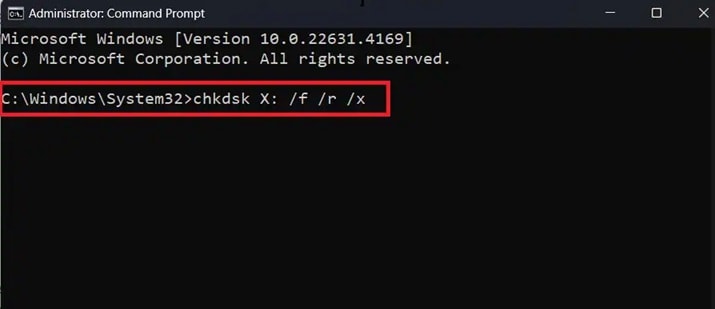
- Type chkdsk X: /f /r /x and press Enter. Don’t forget to replace X with the affected drive letter. Wait patiently until the scan finishes.
If errors are repairable, the file system may change back to NTFS after a restart.
Fix 2: Use Disk Management to Assign or Repair a Drive Letter
Sometimes the problem is not deep corruption. The drive might lack a proper letter. Windows fails to mount it correctly. In such cases, a simple reassignment can resolve the issue.
Open Disk Management and check whether the partition size appears correctly. If the size matches expected storage and shows as RAW, try refreshing the configuration. This method can sometimes fix a RAW partition without losing data if the issue is minor.
Do not choose Format when prompted. That option erases the current file structure.
Steps:
- Right-click the Start button. Select Disk Management. Locate the affected partition.
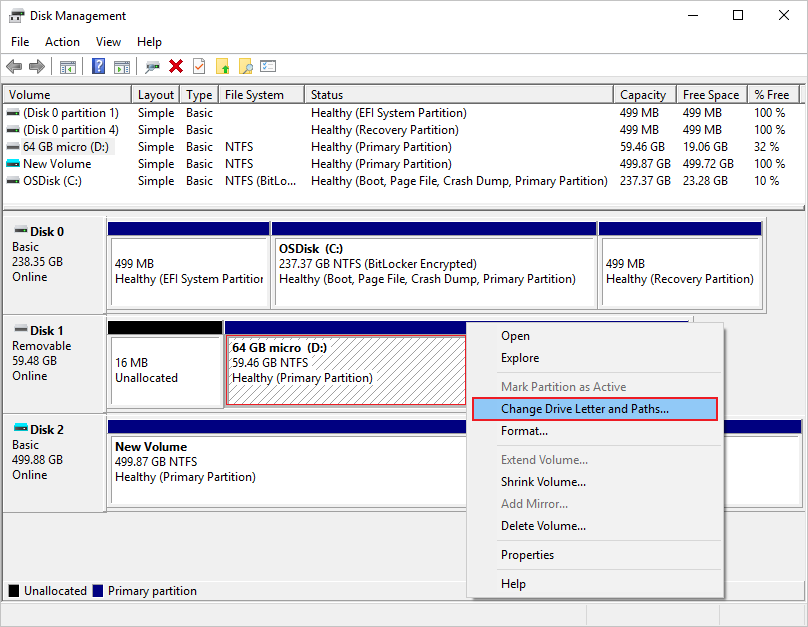
- Right-click it and choose Change Drive Letter and Paths. Click Add or Change, then assign a new letter.
After that, restart your system and verify if the NTFS label returns.
Fix 3: Run Command Prompt with Diskpart to Rebuild Partition Info
Diskpart is a powerful disk management tool. It works through typed commands. It can refresh partition configurations and mark partitions as active when needed.
Be careful while using it. Double-check disk numbers before selecting. This is often suggested when users search for fix RAW partition without losing data cmd instructions.
In some scenarios, correcting partition attributes may help recover RAW partition to NTFS without losing data.
Steps:
- Open Command Prompt as administrator. Type diskpart and press Enter. Then type list disk.
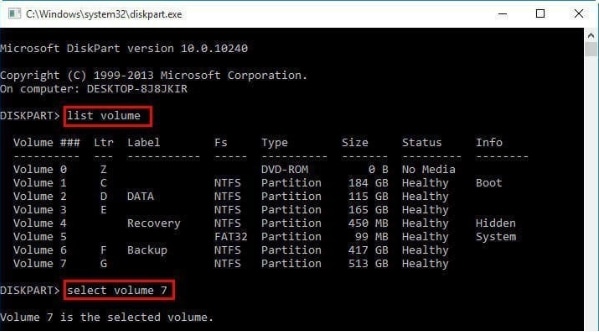
- Type select disk X using the correct disk number. Then type list volume to check the status and confirm details.
Exit diskpart safely after checking the configuration. Restart the system and test access.
Fix 4: Try the Windows Error Checking Tool
The Windows graphical error checking option is easier than typing commands. It performs similar checks to CHKDSK.
Right-clicking the drive and selecting Properties allows you to run scanning tools. If the drive still shows basic information, this method may help restore the NTFS partition from RAW.
It is safe because it attempts correction without immediate formatting.
Steps:
- Open File Explorer. Right-click the RAW drive. Choose Properties.
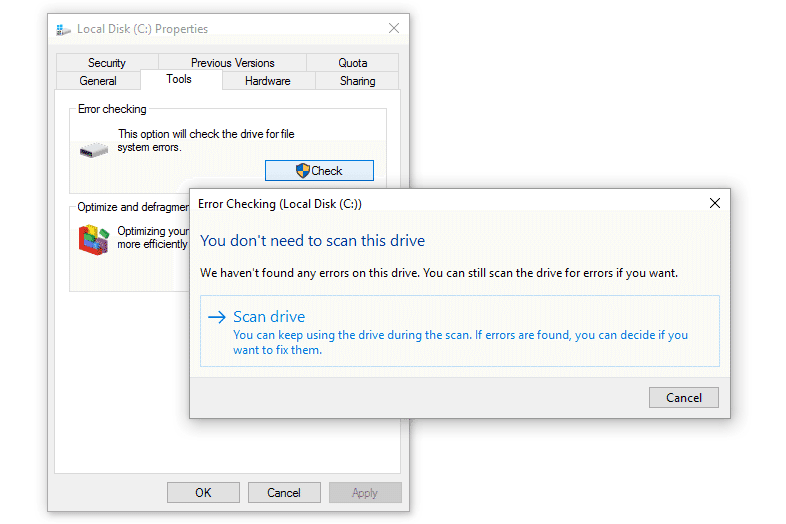
- Click the Tools tab. Press Check under Error Checking. Follow instructions.
Allow it to complete without interruption.
Fix 5: Use Professional Partition Recovery Software Like Recoverit
If Windows tools fail to repair the partition, professional recovery software becomes necessary. A trusted option is Recoverit. It is designed to scan damaged or inaccessible drives and rebuild lost file system records. This is helpful when you need to recover an NTFS partition from RAW and protect critical files. Instead of repairing the structure directly, the software first extracts recoverable data.
Recoverit performs a deep sector scan. It searches for file signatures, directory entries, and hidden records. Even if the partition appears as RAW, the internal data blocks may still be intact. This method is widely used when built-in command tools cannot fix a RAW partition without losing data.
Before using the software, stop saving new data to the affected drive. Installing the program on the same partition may overwrite recoverable sectors. Always use another healthy disk for installation.

Steps:
Step 1: Download and install Recoverit on a different working drive. Launch the program and select the RAW partition from the list of available drives.

Step 2: Start a deep scan. Wait for the scan to complete.

Step 3: Preview the recovered files and save them to a separate storage device.

After you confirm that all important files are safe, you can format the partition back to NTFS and restore the saved data.
Fix 6: Restore from System Backup or Restore Point
Backups provide peace of mind. If you enabled Windows Backup earlier, recovery becomes simple. You can replace a damaged structure with a saved configuration.
System Restore may also revert system files to the previous working state. This can help restore an NTFS partition from RAW if the issue began after updates or changes.
Backups remain one of the safest ways to fix a RAW partition without losing data.
Steps:
- Open Control Panel. Go to Backup and Restore.
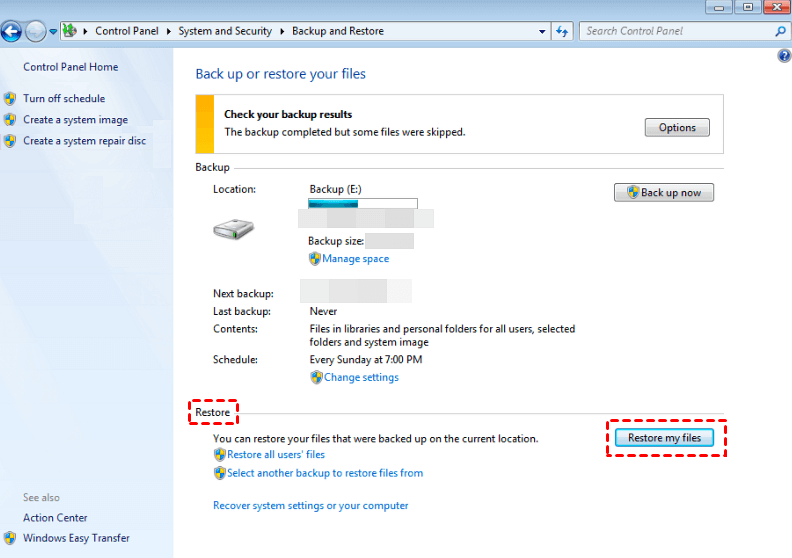
- Select Restore my files. Choose the correct backup version and confirm the restore process.
After completion, verify the drive status.
Important Tips Before You Try to Restore a RAW Partition to NTFS
Recovering a damaged partition requires patience. Small mistakes can worsen the problem. Before you begin the repair process, keep the following points in mind.
- Always stop using the affected drive immediately. Continued use may overwrite recoverable sectors.
- Avoid formatting unless data is already recovered.
- Check SMART disk status to rule out hardware failure.
- Use reliable antivirus software to scan the system.
- Keep recovery software updated for best compatibility.
- Store recovered files on a separate device.
- Avoid repeated command attempts if errors continue.
- Consult professional support if physical damage is suspected.
Taking these precautions increases success when learning how to recover an NTFS partition from RAW.
Conclusion
A RAW partition is alarming, but it is not always permanent damage. In many cases, only the file system structure is unreadable. With proper tools and careful steps, you can restore an NTFS partition from RAW safely.
This article explained practical solutions, including command tools, graphical utilities, and software recovery. It also covered converting RAW to NTFS without losing data, command prompt methods, and safe repair practices. Follow each step carefully. Avoid rushing. Data recovery requires patience and caution.
FAQs
-
Can I convert RAW to NTFS without formatting?
Yes, you can sometimes convert RAW to NTFS without losing data command prompt tools such as CHKDSK when the damage is limited to minor file system errors. This command attempts to repair the existing NTFS structure instead of deleting it. However, if the partition is heavily corrupted, the system may not allow repair, and you should recover your files first using reliable recovery software before choosing to format the drive. -
Is it possible to fix a RAW partition without losing data cmd methods?
Yes, fix the RAW partition without losing data. CMD methods can work in certain situations. Commands like CHKDSK or diskpart can repair logical errors or rebuild basic partition details if the disk is still readable. The success rate depends on the level of corruption and whether the drive has physical damage. Always avoid running repeated commands if errors continue. -
How do I recover a RAW partition to NTFS without losing data safely?
To recover the RAW partition to NTFS without losing data safely, first stop using the affected drive to prevent overwriting sectors. Then scan it with professional partition recovery software to extract all important files to another storage device. Once your data is secured, you can format the partition back to NTFS and copy the recovered files back to the repaired drive.


