

 TL;DR:
File recovery from a formatted drive is highly possible if the disk underwent a Quick Format rather than a Full Format, provided you immediately stop writing to the drive so the hidden data is not permanently overwritten.
● Do not install recovery software or save restored files directly to the formatted drive; always execute scans and output data to a secondary disk to prevent destroying the remaining recoverable files.
● Standard software recovery is typically ineffective on formatted SSDs due to the TRIM command clearing data blocks, or on any drive subjected to a Full Format, which actively overwrites sectors during the disk check.
● Choose free tools like Recuva or Windows File Recovery for recent quick-formats on readable HDDs, use advanced software like Recoverit for RAW or inaccessible file systems, and send clicking or undetected drives directly to professional labs like Ontrack.
Ask AI for a summary
 ChatGPT
 Perplexity
 Gemini
 Claude
 Grok
Grok
"I went to format a USB drive and accidentally formatted my secondary hard drive. I thought I had a backup of the drive but did not. What is the best software or way to recover the files?"
If you need to recover files from a formatted drive, stop using that drive immediately. A quick format may only rebuild the file system and mark space as available, which means some files may still be recoverable until new data overwrites them. A full format, SSD TRIM, encryption, or continued use can sharply reduce recovery chances.
This guide explains recovering files from a formatted hard drive, external drive, SSD, or hard disk safely. Start with the first-step checklist, then choose between backups, Recoverit Hard Drive Recovery, free tools, Windows File Recovery, disk image recovery, or professional service. Do not install recovery software or save restored files to the formatted drive.
In this article
-
- Method 1. Recover Files with Recoverit
- Method 2. Restore from File History or Previous Versions
- Method 3. Restore from Cloud or External Backups
- Method 4. Recover Files with Recuva for Free
- Method 5. Recover Files with PhotoRec or QPhotoRec for Free
- Method 6. Use Windows File Recovery
- Method 7. Recover from a Disk Image
- Method 8. Use Professional Data Recovery Services
Part 1. Can You Recover Files from a Formatted Hard Drive?
Yes, you can often recover files from a formatted hard drive if it was quick formatted, still detected by the computer, and not reused afterward. Recovery is less likely after a full overwrite format, on SSDs after TRIM has cleared blocks, or when the drive has physical damage.
Quick Format vs. Full Format
A quick format usually rebuilds the file system and removes file references. The original data may remain on the drive until new files overwrite it. This is the best scenario for formatted drive recovery.
A full format is much harder. On modern Windows systems, a full format can overwrite sectors while checking the disk. If the original sectors have been overwritten, standard recovery software has little or nothing left to recover.
HDD vs. SSD Recovery and TRIM
Hard drives and SSDs behave differently after formatting. This difference affects whether you can retrieve files from a formatted hard drive or SSD.
| Factor | HDD | SSD |
| How data is stored | Magnetic platters | Flash memory cells |
| After quick format | Old file data may remain until overwritten. | TRIM may tell the SSD controller that old data can be cleared. |
| Typical recovery window | Often better if the drive is not reused. | Often short once TRIM and garbage collection run. |
| What to do first | Stop using the drive and scan from another drive. | Shut down quickly and avoid booting from or writing to the SSD. |
Internal Drive vs. External Drive
An external formatted drive is usually easier to recover because you can connect it to another computer and scan it without writing to it. An internal system drive is riskier. If Windows is installed on the formatted drive, booting normally, installing software, or downloading files can overwrite recoverable data. Use another computer, another boot drive, or professional help if the formatted drive is the system disk.
When Formatted Drive Recovery Is No Longer Possible
- New files, apps, updates, or recovery output have overwritten the original data.
- A full overwrite format completed on the drive.
- SSD TRIM and garbage collection have cleared the blocks that held the files.
- The drive is encrypted and you do not have the correct BitLocker, FileVault, or device password.
- The drive has physical damage, clicking sounds, severe read errors, or does not power on.
- No computer, enclosure, cable, or port can detect the drive.
Part 2. Stop First: What to Do Before Recovering a Formatted Drive
What you do next matters more than which software you choose. Follow this checklist before trying to recover files from a formatted drive.
| Step | What to do | Why it matters |
| Stop using the formatted drive | Unplug an external drive or shut down the computer if the formatted drive is internal. | Every write can overwrite files that still exist. |
| Do not install recovery software on it | Install tools on another drive or another computer. | Installation files can overwrite the data you want back. |
| Do not save recovered files to it | Prepare another internal drive, external drive, or network location. | Saving recovered files to the same drive can destroy remaining recoverable data. |
| Check whether the drive is detected | Look in File Explorer, Disk Management, Device Manager, or BIOS/UEFI. | This separates logical formatting from hardware failure. |
| Identify HDD or SSD | Check the drive type before deciding how urgently to act. | SSD TRIM can reduce recovery chances quickly. |
| Create a disk image if the drive is unstable | Clone the drive to an image if it clicks, freezes, disconnects, or reads slowly. | Scanning an image reduces repeated stress on a failing drive. |
Part 3. Quick Diagnosis: What Type of Formatted Drive Do You Have?
Match your situation before choosing a recovery method. The right path differs for a quick format, full format, RAW drive, system drive, external drive, HDD, and SSD.
| Situation | What it means | Best next step |
| You accidentally quick formatted the drive | The file table was cleared, but data may still remain. | Stop using the drive and run a deep scan from another drive. |
| You performed a full format | Data may have been overwritten during the format. | Try backups first; software recovery is often limited. |
| Windows asked you to format the drive | The file system may be damaged or unreadable. | Cancel the prompt and recover files before formatting. |
| The drive shows as RAW | Windows cannot recognize the file system. | Scan before CHKDSK, repair, or formatting. |
| The drive was formatted during Windows installation | The system setup may have formatted or repartitioned the drive. | Stop using the computer and recover from another boot environment. |
| The drive is an SSD | TRIM may clear data after deletion or formatting. | Power down quickly and avoid further writes. |
| The drive is not detected at all | There may be a cable, enclosure, port, driver, or hardware problem. | Test connections; use a lab if still undetected or physically damaged. |
Part 4. How to Recover Files from a Formatted Hard Drive
Start with backups if they exist. If the formatted drive is readable and has not been reused, use recovery software. If the drive is unstable or physically damaged, stop DIY scans and consider professional recovery.
Method 1. Recover Files with Recoverit
Recoverit Hard Drive Recovery can help recover files from formatted HDDs, external hard drives, USB drives, memory cards, and other readable storage. It is useful after a quick format, RAW drive error, accidental formatting, or when File Explorer shows the drive as empty but the drive is still detected.
Recoverit should be used carefully. Install it on another drive, scan the formatted drive, and save recovered files somewhere else. It cannot recover overwritten files, repair a physically failed drive, bypass BitLocker or FileVault without the valid key, or reverse SSD TRIM after the data is cleared.
Key features:
- Formatted drive scanning: Searches readable drives after quick format, RAW file system issues, or accidental formatting.
- File preview: Lets you preview supported files before recovery.
- Multiple storage devices: Works with HDDs, external drives, USB drives, SSDs, memory cards, and other computer-readable storage.
- Deep scan: Looks beyond the visible file table to find recoverable data that still remains on the drive.
Step 1. Select the formatted drive. Open Recoverit from another drive, go to Hard Drives and Locations, select the formatted HDD, SSD, USB drive, or external drive, and click Scan.

Step 2. Check found files before recovery. Wait for the scan to finish. Use file categories, filters, search, or preview to find photos, videos, documents, archives, and other data.

Step 3. Recover to another drive. Select the files you need, click Recover, and save them to a different drive to avoid overwriting the formatted disk.

Method 2. Restore from File History or Previous Versions
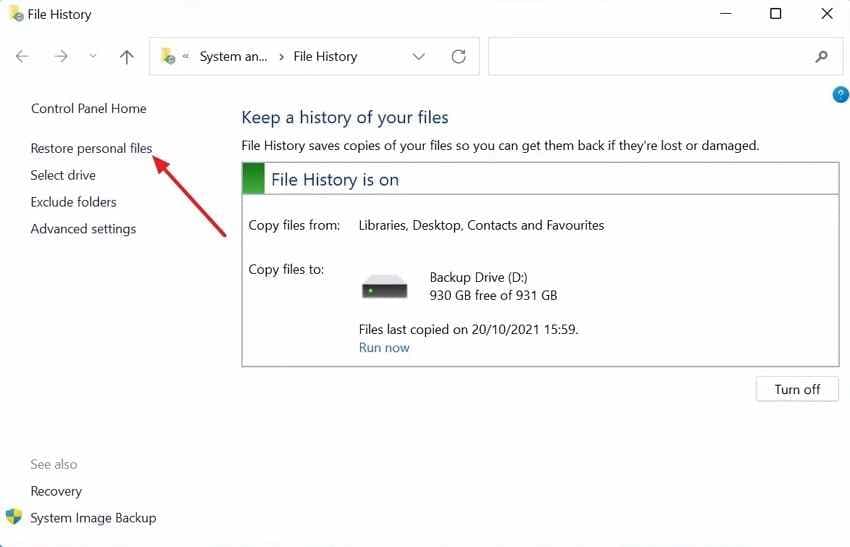
File History can restore files only if the folder or drive was backed up before formatting. It is the safest option when available because it does not scan or write to the formatted drive.
Step 1. Open Control Panel > System and Security > File History, then select Restore personal files.
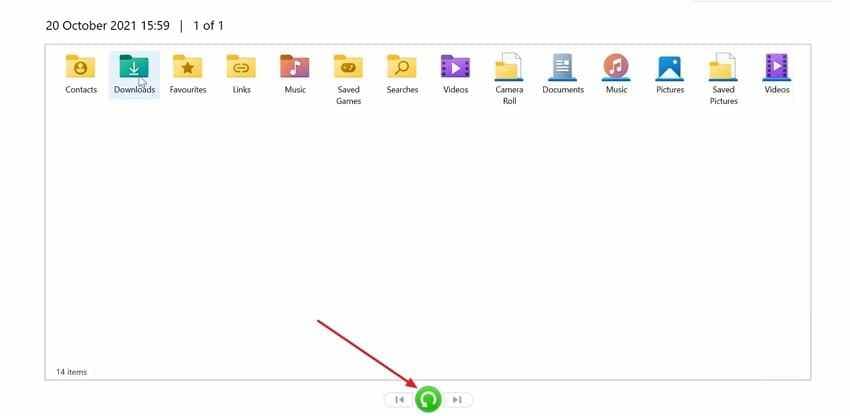
Step 2. Choose a backup version, select the required files, and click the green Restore button.
Method 3. Restore from Cloud or External Backups
Before scanning, check whether the formatted drive data already exists in a cloud service, another external drive, NAS, or backup folder.
- Check Google Drive, OneDrive, Dropbox, iCloud Drive, or other synced folders.
- Check external backup drives, NAS folders, previous computer transfers, and project export locations.
- If the formatted drive was used for photos or videos, check camera import folders and editing software libraries.
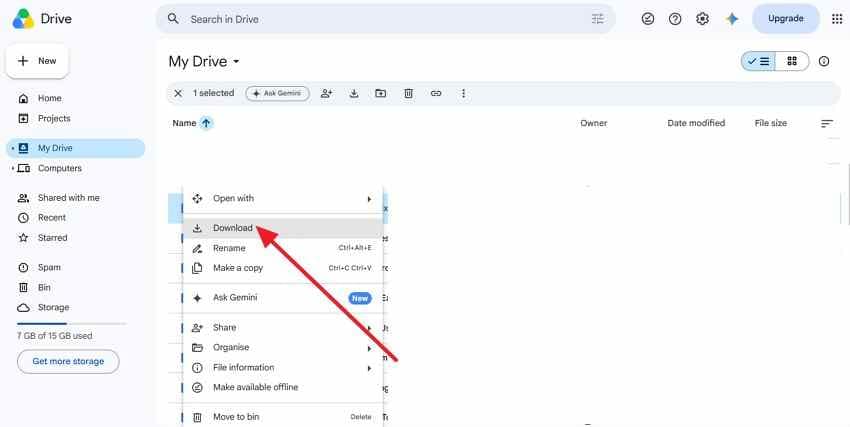
Instructions. In Google Drive, open My Drive, locate the file or folder, right-click it, and choose Download.
Method 4. Recover Files with Recuva for Free
Recuva can help recover files from a formatted hard drive free in simple cases, especially after a recent quick format on a readable HDD. It is less useful after full format, RAW drive damage, SSD TRIM, or severe corruption.
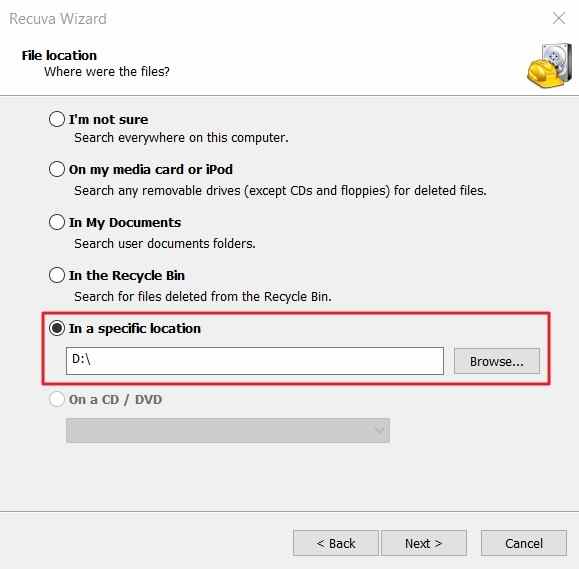
Step 1. Open Recuva, select the file type, choose the formatted drive, and click Next.
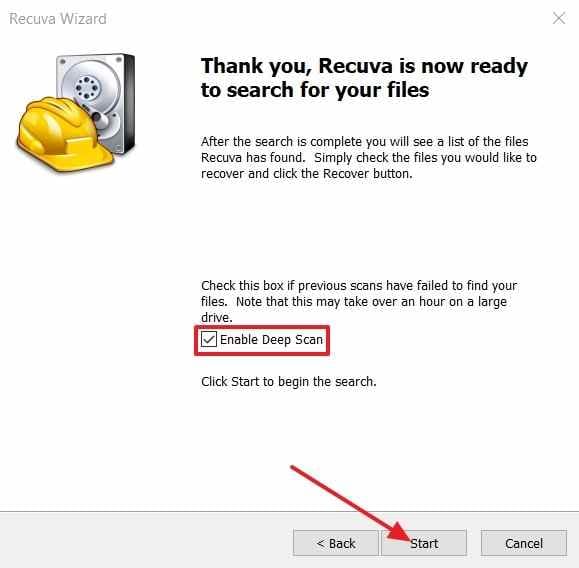
Step 2. Enable Deep Scan and click Start to search more thoroughly.
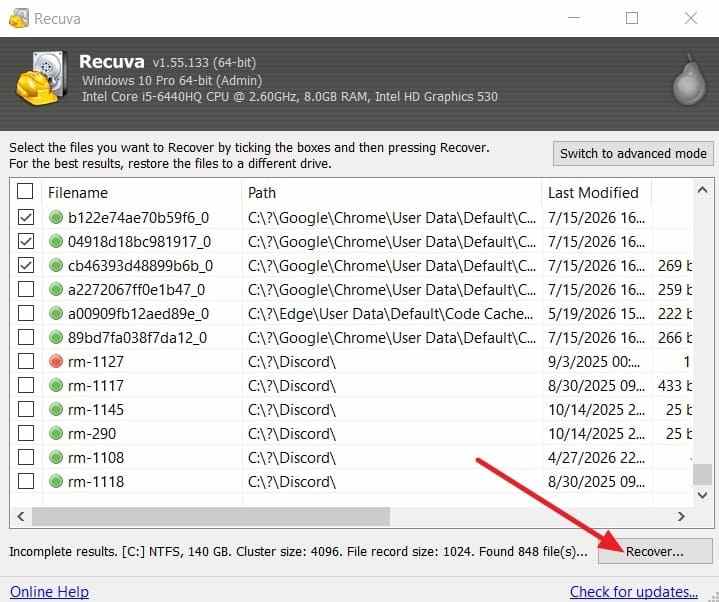
Step 3. Review found files, select what you need, click Recover, and save them to another drive.
Method 5. Recover Files with PhotoRec or QPhotoRec for Free
PhotoRec and QPhotoRec scan raw data by file signatures instead of relying on the formatted file system. They can help after quick formats or file system damage, but original filenames and folder structure are often lost.
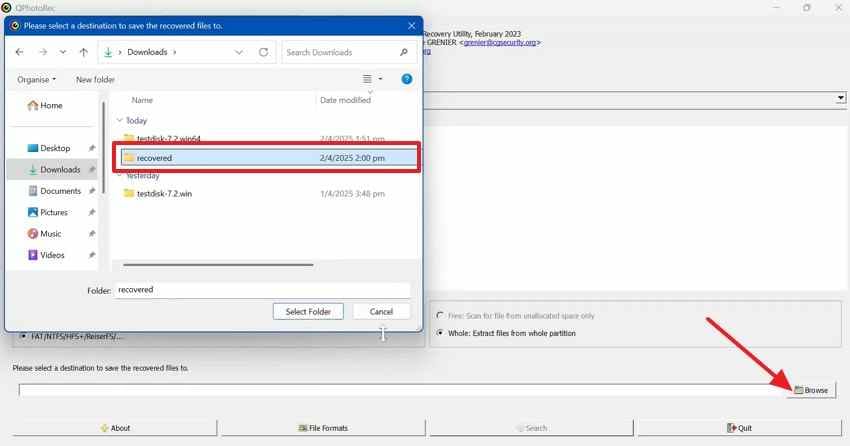
Step 1. Open QPhotoRec, select the formatted drive and partition, click Browse, and choose a recovery folder on another drive.
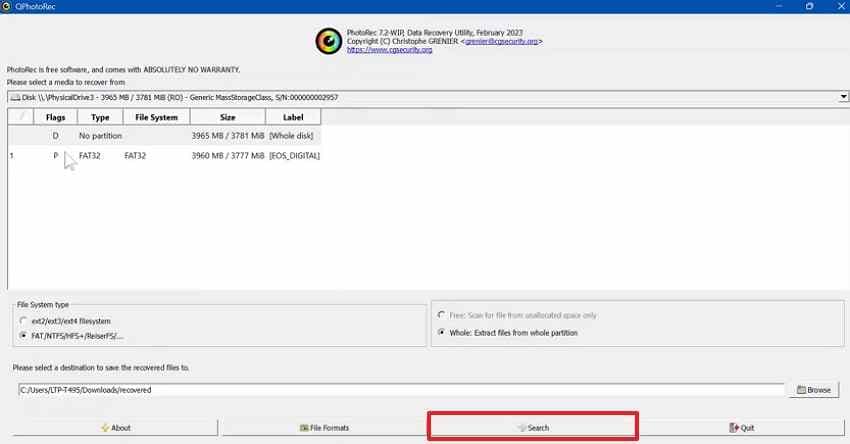
Step 2. Click Search to start signature-based recovery, then review the output folder after the scan.
Method 6. Use Windows File Recovery
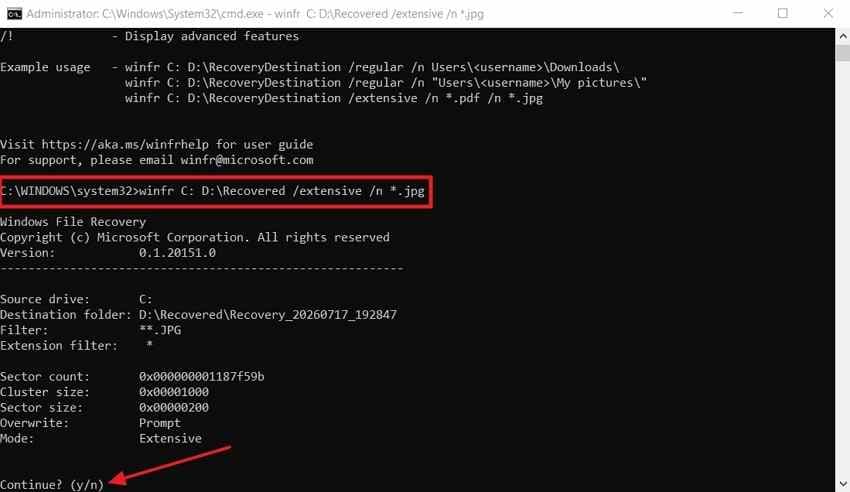
Windows File Recovery is Microsoft's command-line recovery tool. For formatted drives, Extensive mode is usually the right mode to try. The source and destination must be different drives.
Instructions. Install Windows File Recovery, open it as administrator, and run a command like this. Replace E: with the formatted drive and D:\Recovered with a folder on another drive.
winfr E: D:\Recovered /extensive /n *.jpg /n *.jpeg /n *.png /n *.docx /n *.xlsx /n *.mp4Press Y to confirm, then open the recovery folder and check the restored files.
Method 7. Recover from a Disk Image
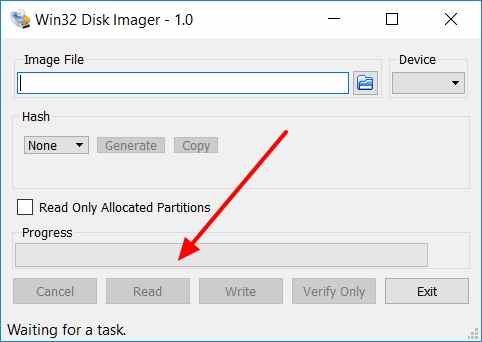
If the formatted drive clicks, freezes, disconnects, or reads extremely slowly, do not keep scanning it directly. Create a disk image first, then scan the image when your recovery tool supports it.
Step 1. Create a disk image of the formatted drive with a disk-imaging tool and save the image to another storage device.
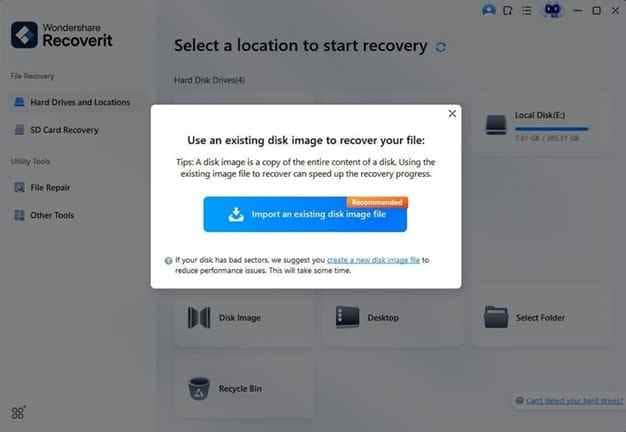
Step 2. Open the disk image in a compatible recovery tool, start a scan, choose recoverable files, and save them to a separate drive.
Method 8. Use Professional Data Recovery Services
Use a professional data recovery service if the drive is clicking, beeping, not spinning, not detected by any computer, physically damaged, or contains irreplaceable business, legal, medical, or deadline-critical data. Software recovery works only when the drive can be read reliably.
A lab such as Ontrack hard drive data recovery may be safer for hardware failures. Do not open the drive casing or keep powering on a failing drive.
Part 5. What If the Formatted Drive Is Not Working?
If the formatted drive is not visible or does not open, troubleshoot carefully. Recover files first if the drive contains important data.
- Check the drive in Disk Management: Confirm whether Windows detects the disk, its size, and its partition status.
- Assign a drive letter: If the volume is healthy but has no letter, assign one through Disk Management.
- Try another USB port, cable, enclosure, or computer: Rule out connection problems before assuming the drive failed.
- Update or reinstall the disk driver: Use Device Manager to update the driver, or uninstall the device and reconnect it.
- Repair file system errors after recovery: Run CHKDSK only after files are recovered or backed up, because repair operations can rewrite file system records.
Part 6. Free vs. Paid vs. Professional Formatted Drive Recovery
The right recovery choice depends on the format type, drive condition, and value of the missing files.
| Recovery option | Best for | Recommended tools | Key considerations |
| Free tools | Recent quick formats and readable drives | Recuva, PhotoRec/QPhotoRec, Windows File Recovery | Good for basic cases, but previews, filenames, and complex recovery may be limited. |
| Paid software | Formatted, RAW, inaccessible, or failed free recovery attempts on readable drives | Recoverit | Guided workflow, preview support, and deeper scanning, but no recovery for overwritten or physically dead drives. |
| Professional lab | Physically damaged, clicking, unstable, encrypted, or undetected drives | Data recovery specialists | Higher cost, but safer for hardware failures and high-value cases. |
Part 7. How to Prevent Data Loss After Formatting
After recovering files from a formatted hard disk or drive, reduce the chance of repeating the problem.
- Verify the correct drive before formatting: Check the drive letter, size, label, and device name before confirming a format.
- Maintain regular backups: Keep current backups on another drive, cloud service, or NAS.
- Separate system and personal data: Store personal files away from the operating system drive when possible.
- Monitor drive health: Use S.M.A.R.T. monitoring tools to catch failing HDDs or SSDs before data loss.
- Keep recovery software ready on another drive: Do not download or install tools onto the drive you need to recover.
- Label external drives clearly: Use clear names such as backup photos or work archive to avoid formatting the wrong disk.
Conclusion
Recovering files from a formatted drive is most realistic after a quick format on a readable HDD or external drive, especially if you stop using it immediately. Full formats, overwriting, SSD TRIM, encryption, and physical damage reduce recovery chances. Start with backups, then use free tools for simple cases or Recoverit for guided formatted drive recovery with preview support. Save restored files to another drive, and use a professional service for clicking, unstable, encrypted, or undetected drives.
FAQ
-
Can Recoverit recover files from a formatted hard drive?
Yes, Recoverit can help recover files from a formatted hard drive if the drive is still readable and the original data has not been overwritten. It scans the formatted drive and lets you preview supported files before recovery. -
Can I recover files from a formatted hard drive free?
Yes, free tools such as Recuva, PhotoRec, QPhotoRec, and Windows File Recovery may help after a recent quick format on a readable drive. Free tools are less reliable for RAW drives, full formats, SSD TRIM, and complex recovery cases. -
Does formatting an SSD permanently delete files?
Often, yes. SSD TRIM and garbage collection can clear data after formatting, even after a quick format. Shut down the SSD quickly and avoid writing to it if the files are important. -
What is the difference between quick format and full format for recovery?
A quick format usually removes file references while leaving some data until it is overwritten. A full format can overwrite sectors, making standard software recovery much less likely. -
Can I recover files if Windows asked me to format the drive first?
Often yes. That message usually means the file system is damaged or unreadable, not that the data is already gone. Cancel the format prompt and recover files before formatting the drive. -
Where should I save recovered files from a formatted drive?
Save recovered files to a different drive, external disk, or network location. Do not save them back to the formatted drive because that can overwrite more recoverable data.


