
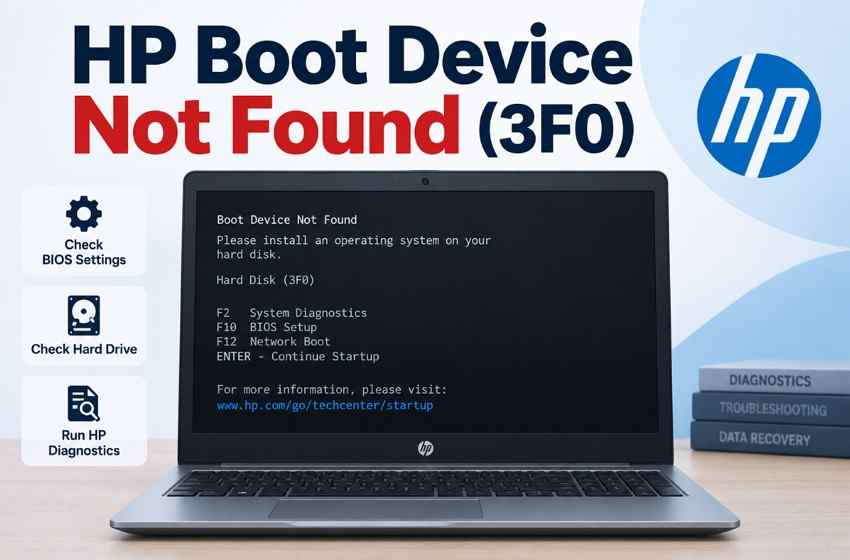

 TL;DR:
The HP "Boot Device Not Found" (3F0) error indicates the firmware cannot locate a usable Windows boot path, requiring you to run the HP PC Hardware Diagnostics UEFI via the F2 key first to determine if the storage hardware is failing.
● Before changing BIOS settings, running Startup Repair, or attempting a clean Windows installation, secure your 48-digit BitLocker recovery key and back up accessible files to prevent permanent data loss.
● If the storage drive passes the diagnostic test, the issue is likely software-based and can often be resolved by restoring BIOS defaults with the F9 key, moving Windows Boot Manager to the top of the UEFI Boot Order, or loading a model-specific Intel RST/VMD driver.
● If the diagnostic returns a 24-digit Failure ID or shows the drive as "Not Installed," immediately stop running scans and stress tests to preserve the failing hardware's remaining lifespan for bootable USB data recovery before physical replacement.
Ask AI for a summary
 ChatGPT
 Perplexity
 Gemini
 Claude
 Grok
Grok
“I wanted to ask what should i do? the last time this happened everytime i turned it off an on the same error would occur which ultimately made me lose my whole drive…” - Fair-Ad-5759
The boot device not found HP error means the computer cannot locate a usable Windows boot device. The HDD or SSD may be missing from BIOS/UEFI, failing hardware checks, or detected but unable to start Windows.
HP diagnostics help narrow down where the fault lies before you attempt repairs. This guide covers each fix in sequence and shows when Recoverit can help retrieve important files if the drive remains accessible.
In This Article
Part 1. What HP Boot Device Not Found and 3F0 Mean
The message means the firmware could not find a usable boot device. The cause may lie with the drive, its connection, or the Windows boot path. HP's built-in diagnostics help separate these possibilities before you change any settings:
| BIOS Shows the Drive | HP Test Result | What It Means | Next Action |
| Yes | Passed | No storage hardware fault detected; check boot configuration | Part 4 |
| Yes | Failed with an ID | Storage hardware fault detected | Recover, then replace |
| No | Not Installed | Diagnostics cannot detect the storage device | Restore BIOS defaults, retest, then check Part 5 if still absent |
| Yes | Passed, Setup sees nothing | Storage driver or controller issue possible | Part 4 |
If an HP no boot device found error comes with a diagnostic Failure ID, treat the drive as unreliable even if its files remain accessible. HP recommends noting the Failure ID when a storage test fails.
Recover important data before replacement or further repair, since a failing drive may become less accessible. A detected drive may also remain unbootable if its file system, EFI boot files, or Windows boot configuration becomes damaged.
3F0 vs. No Boot Device vs. Setup Showing No Drive
These three messages can appear to describe the same problem, but they occur at different stages. Identifying the screen first helps narrow down where to troubleshoot:
| What You See | What It Usually Means | Where It Points |
| Hard Disk 3F0 | HP cannot find a usable boot device | Drive detection, health, or boot configuration |
| Boot Device Not Found, No Code | Firmware found no usable boot path | Drive detection or boot configuration |
| Windows Setup Lists No Drives | Installer cannot detect usable storage | Storage driver, controller configuration, connection, or drive |
Hard Disk 3F0 and the plain boot-device message can therefore lead to similar initial checks, but Windows Setup showing no drive requires a different branch of troubleshooting. For an HP computer boot device not found error, start with BIOS/UEFI drive detection before deciding whether the problem lies with Windows or the storage hardware.
Part 2. Protect Files Before Reset, Repair, or Reinstall
Before running further diagnostics or making repair changes, protect important files where possible. Some reset, recovery, and reinstall options can remove data, so take these precautions first for a boot device not found HP laptop error:
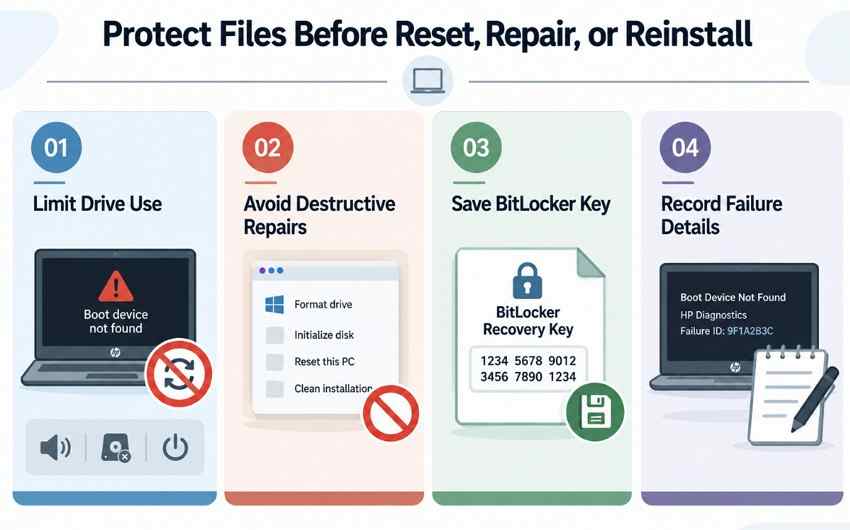
- Limit Drive Use: If the drive clicks, disappears intermittently, becomes unusually slow, or has already failed a storage test, avoid repeated restarts, scans, and unnecessary writes. Recover important files while the drive is still readable.
- Avoid Destructive Repairs: Do not format, initialize, delete partitions, reset Windows, or start a clean installation before securing important data. These actions can remove files, partitions, or existing Windows data.
- Save BitLocker Key: If the Windows drive is encrypted, locate the 48-digit BitLocker recovery key before changing BIOS/UEFI settings, updating firmware, or modifying security settings. Microsoft explains how to find and back up the key in its official guidance.
- Record Failure Details: Note the exact startup message, the Hard Disk 3F0 code if shown, and any HP diagnostic Failure ID. These details help determine the correct repair path and may be required by HP Support.
Part 3. Run the HP Hardware Diagnosis First
To diagnose an HP notebook boot device not found error correctly, follow the five steps below before attempting repairs:
Step 1. Perform a Hard Reset First
A hard reset can clear temporary power-state issues without deleting personal data. Before running storage diagnostics, use the instructions below to reset the system and check whether detection returns:
Instructions. Shut down the computer, remove it from any dock, and disconnect the AC adapter and attached peripheral devices. Hold the “Power” button for about 15 seconds. Reconnect only the AC adapter, turn on the computer, and check whether the boot error returns.
Step 2. Open HP PC Hardware Diagnostics UEFI
Windows is not required to investigate an HP laptop no boot device found problem. HP’s UEFI diagnostics runs independently at startup; access the storage test with these steps:
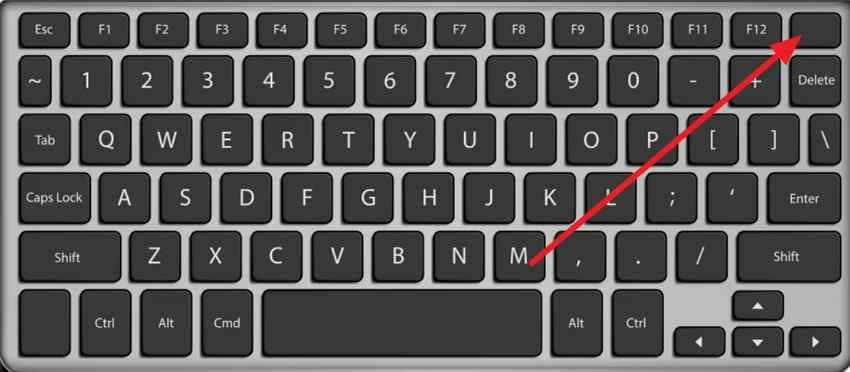
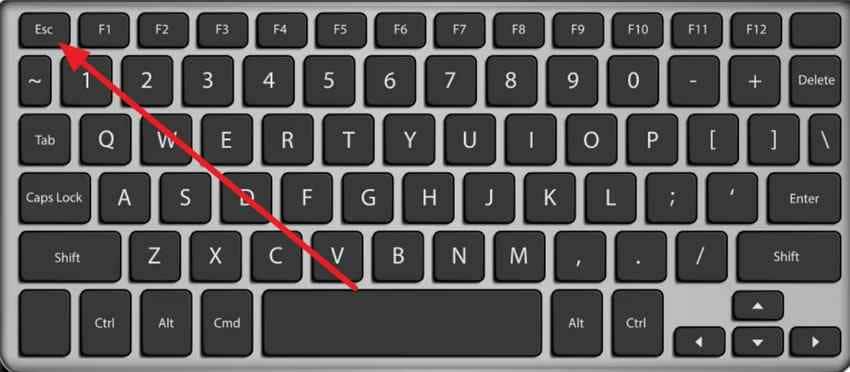
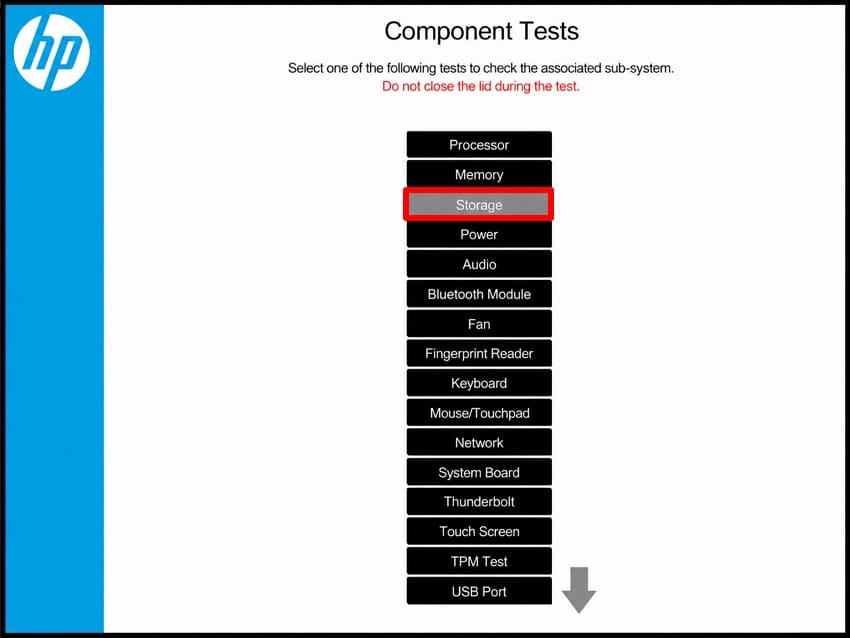
Step 1. Shut down the computer, turn it back on, and immediately tap “Esc” about once per second. At the “Startup Menu,” press “F2” to launch “HP PC Hardware Diagnostics UEFI.”
Step 2. In “HP PC Hardware Diagnostics UEFI,” open “Component Tests” and select the “Storage” test.
Step 3. Run the Quick Test, Then the Extensive Test
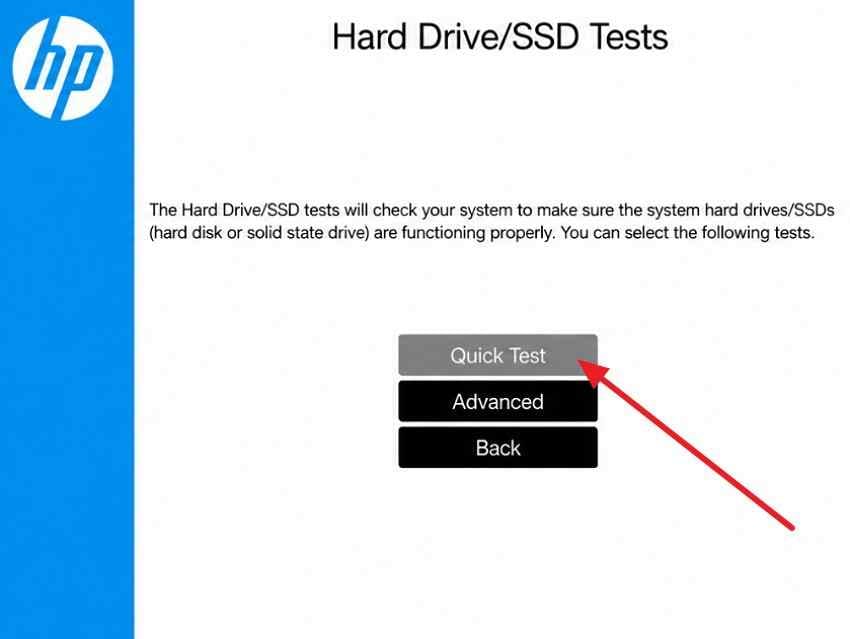
The Quick Test finishes in minutes and catches obvious failures, though passing it does not clear a drive entirely. HP documents a longer storage test that can include SMART Check, Short DST, Optimized DST, and Long DST. Test availability and recommendations vary by drive type and diagnostics version. Here are the steps to run the tests:
Step 1. Open the available storage test and select “Quick Test.” On current versions, this is commonly under “Component Tests > Storage.”
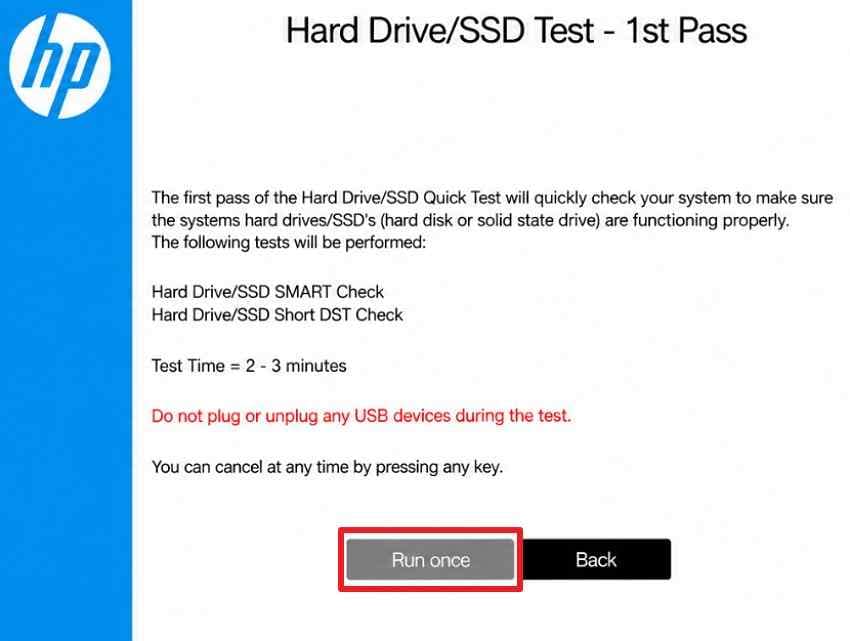
Step 2. Choose “Run Once,” and wait for the test to finish. If the “Quick Test” passes but the problem remains, follow the test options recommended for your HP model. HP commonly recommends the “Extensive Test” for hard drives, while some current HP diagnostic guidance advises against the Extensive Test on SSDs because it can include additional write testing.
Step 4. Interpret the Result Correctly
For an HP computer boot device not found error, use the test result below to identify the next troubleshooting path:
- Passed: No storage failure was detected. Continue to Part 4 to check the boot configuration and Windows startup path.
- Failed: Record the 24-digit Failure ID and product ID. HP may request these details for support or repair.
- Not Installed: The diagnostic cannot detect the drive. Restore BIOS defaults as described in Part 4, retest, then check BIOS/UEFI detection and the drive connection if it remains absent.
Step 5. Check Whether BIOS Lists the Drive
For a boot device not found HP desktop error, BIOS can reveal whether the storage drive is detected before Windows starts. This helps narrow the problem to the boot path or hardware. Use the steps below to check drive detection:
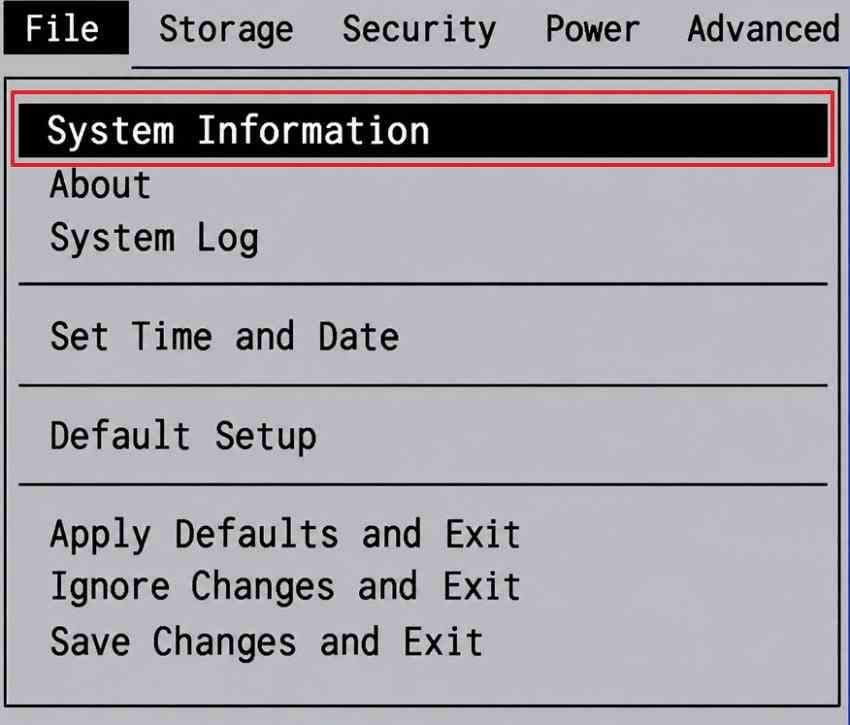
Instructions. Restart the computer and press F10 repeatedly to open “BIOS Setup.” Check the available “Main,” “System Information,” “Storage,” or “Device Configuration” area to confirm whether the internal HDD or SSD is detected.
Part 4. If the Drive Is Detected and Passes Diagnostics
When diagnostics pass, a No boot device found HP error is more likely tied to the boot path than a confirmed storage failure. Work through the methods below to check firmware settings and repair Windows startup:
Method 1. Restore HP BIOS Defaults
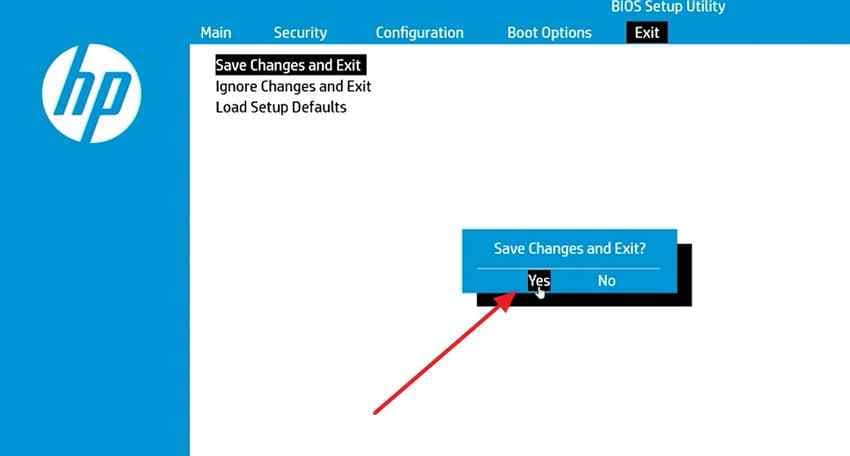
Restoring BIOS defaults does not erase files, but it resets firmware settings and may trigger BitLocker recovery on encrypted systems. Record important custom BIOS settings and keep the BitLocker key available first. HP commonly provides the following sequence:
Instructions. Shut down the computer and wait about 5 seconds. Turn it on and repeatedly press “F10” to enter “BIOS Setup.” Press “F9” to load the BIOS default settings and confirm when prompted. Then press “F10,” select “Yes” to save the changes, and restart the computer.
Note: Update the BIOS if HP provides a newer version for the exact model and HP's support instructions recommend it. Use only an HP-provided BIOS package and maintain reliable power throughout the update.
Method 2. Confirm Boot Order and Windows Boot Manager
Incorrect boot priority can cause a notebook HP boot device not found error even when the storage drive is detected. Review the boot sequence and place the Windows drive first using these instructions:
Instructions. Enter “BIOS Setup,” then open “Boot Options” or “Boot Order,” depending on the HP model. Under “UEFI Boot Order,” locate “Windows Boot Manager” and move it above USB or network boot options using the keys shown on screen. Save the changes, exit BIOS, and restart the computer.
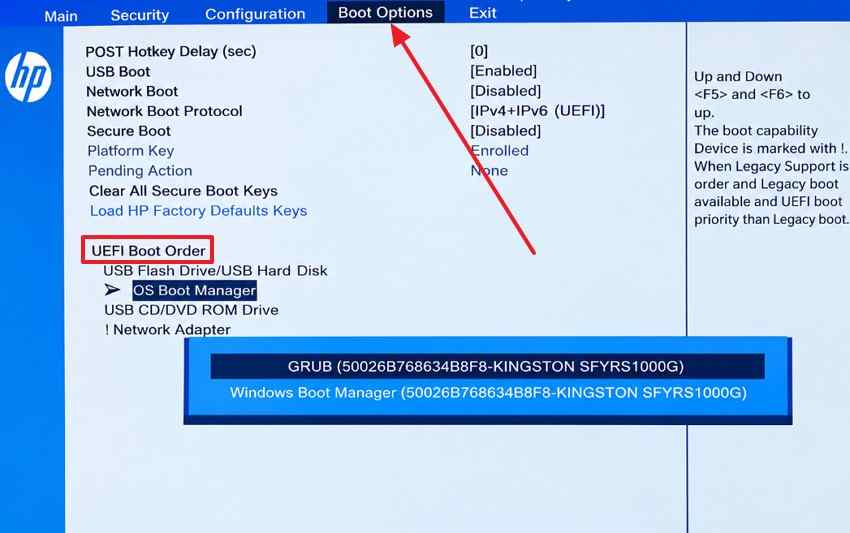
Note: The interface may vary by model and firmware version. Do not change Secure Boot, Legacy Support, or storage-controller modes unless HP's model-specific instructions require it.
Method 3. Use Startup Repair or System Restore
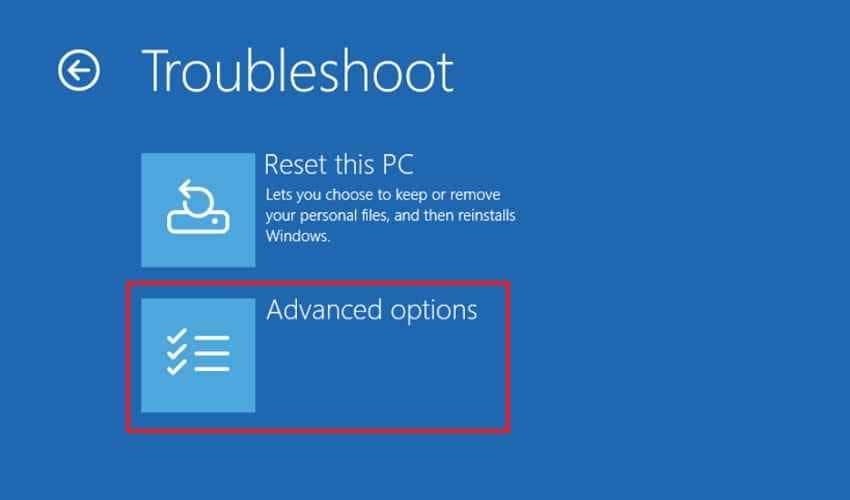
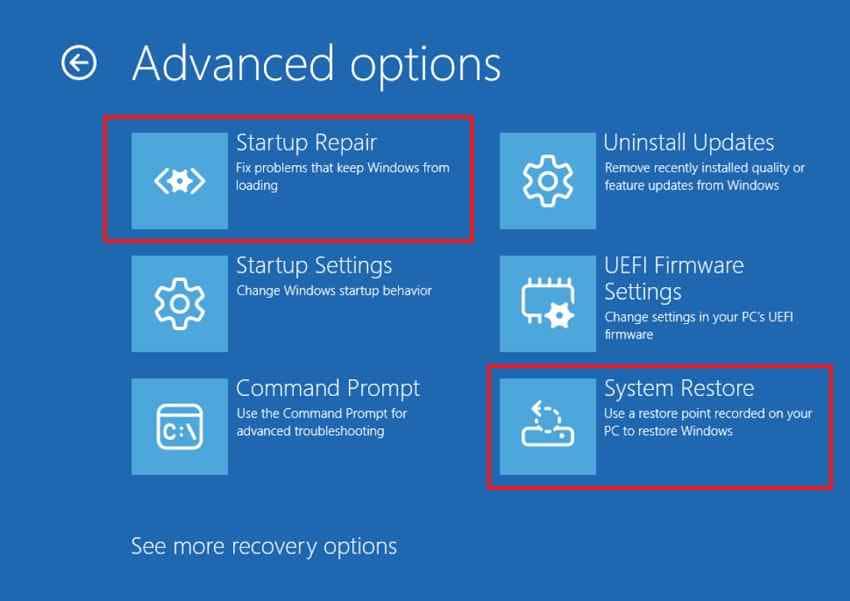
If boot settings are correct but an HP laptop no boot device found error continues, the problem may lie with Windows startup files or configuration. Open Windows Recovery Environment and try Startup Repair first. If it does not resolve the issue and a suitable restore point is available, try System Restore. Enter the BitLocker recovery key if WinRE requests it. Use the steps below to try them in sequence:
Step 1. In the Windows Recovery Environment, select “Troubleshoot,” then choose “Advanced Options.”
Step 2. Select “Startup Repair” and allow Windows to diagnose startup problems. If it does not resolve the issue, return to Advanced options, select “System Restore,” and use an available restore point from before the problem began.
Method 4. Load the Correct Storage Driver
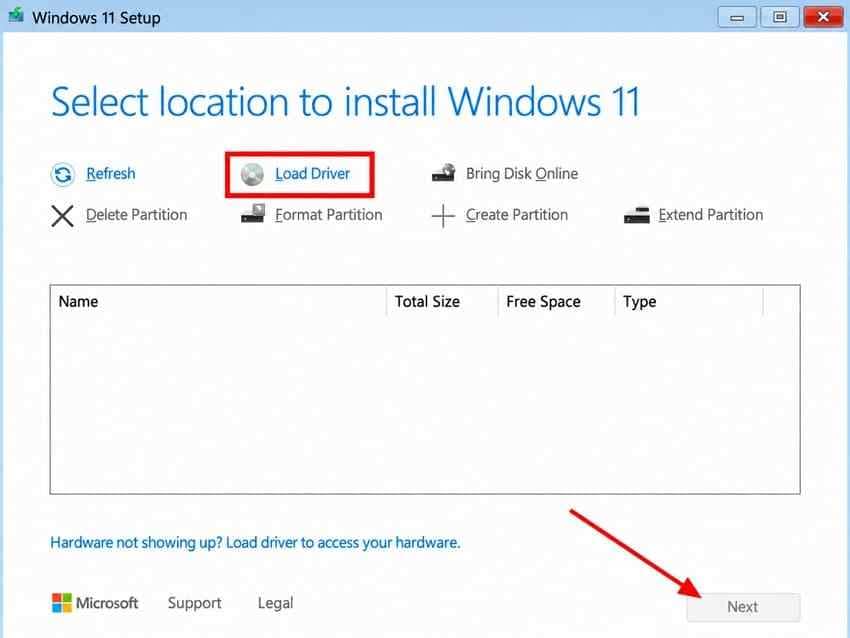
If BIOS and HP diagnostics detect the drive but Windows Setup does not, Setup may be missing the required storage-controller driver. On some Intel-based HP systems, this is an Intel RST/VMD driver. Use the steps below to load the model-specific Intel RST/VMD driver.
Step 1. On another computer, go to “HP Software and Driver Downloads,” enter the HP model or serial number, then under “Driver-Storage,” download the appropriate Intel Rapid Storage Technology (RST) driver. Extract the files and copy them to a USB drive. HP specifically recommends obtaining the model-specific RST driver this way.
Step 2. In Windows Setup, select “Load driver > Browse” on the drive-selection screen and locate the extracted driver folder. Load the appropriate driver, then confirm that the internal drive appears in the installation list.
Method 5. Reinstall Windows Only After Files Are Safe
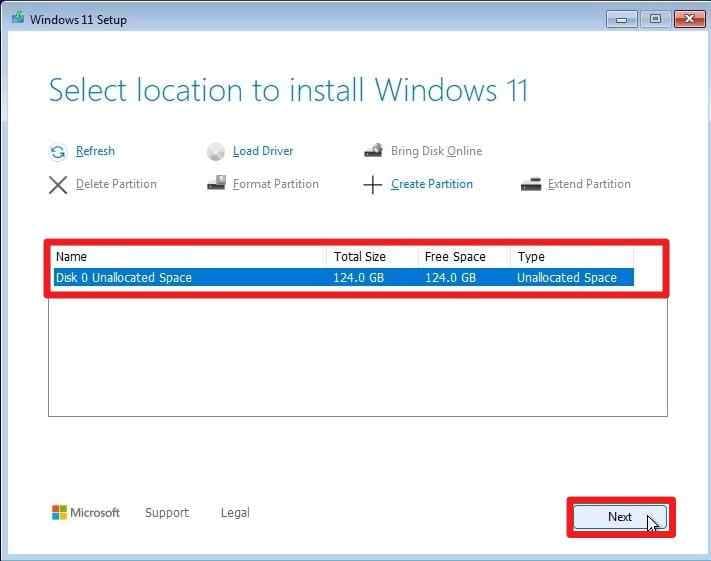
Reinstalling Windows is a final software option when HP diagnostics pass and earlier startup repairs fail. A clean installation can remove existing files and partitions, so recover or back up important data before continuing.
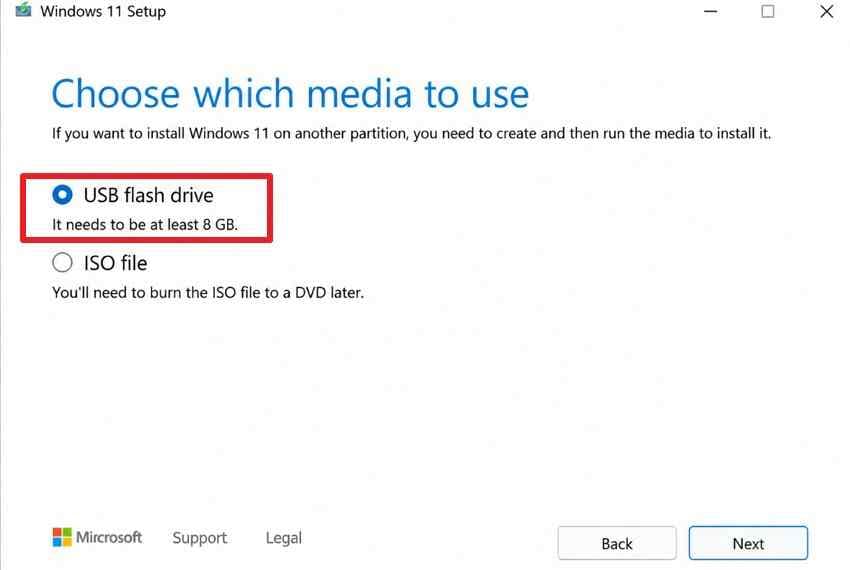
Step 1. In the Windows 11 Media Creation Tool, select a “USB flash drive” and click “Next.” Follow the prompts to create the installation USB.
Step 2. Boot the HP computer from the USB. In Windows Setup, select the intended installation target only after confirming important files are protected. If a clean installation requires deleting existing partitions, understand that their data will be removed.
Part 5. If the Drive Is Missing or Fails HP Diagnostics
A missing drive or failed HP diagnostic changes the troubleshooting path. With an HP laptop no boot device found error, Windows repair is no longer the priority. Focus instead on protecting recoverable data and checking whether the drive needs service.
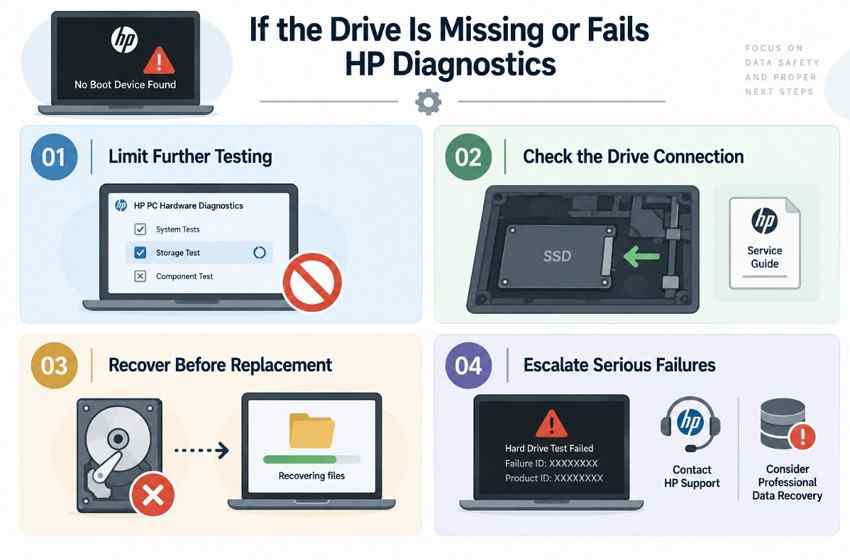
- Limit Further Testing: If the drive fails diagnostics, disappears intermittently, becomes less responsive, or makes unusual noises, avoid repeated scans, restarts, and stress tests. Continued use can reduce the chance of successful recovery on unstable hardware.
- Check the Drive Connection: Consult the service guide for the exact HP model before opening the computer. If the drive is user-serviceable, power off the PC, disconnect AC power, follow battery and ESD precautions, and carefully reseat the drive or its connector.
- Recover Before Replacement: A failed storage test or HP Failure ID can indicate that the drive needs replacement. If the drive is still detected and readable, recover important files before replacing it or attempting additional repair steps.
- Escalate Serious Failures: Record the Failure ID and product ID for HP Support. If the drive clicks, grinds, repeatedly disconnects, or cannot remain detected, stop software-based recovery attempts and consider professional data recovery.
Part 6. Recover Files From an Unbootable HP PC
If an HP computer boot device not found error prevents Windows from starting, protect accessible files before replacing the drive or attempting higher-risk repairs. If the PC still boots occasionally, copy important data to external storage while the drive remains readable. This is the safest option for files Windows can still access normally.
If Windows no longer boots, Recoverit Data Recovery can create bootable media that starts the HP from a USB drive and scans the internal storage without loading Windows from it. The drive must still be detected and readable. Recovery results can vary with drive condition, previous writes, BitLocker access, and SSD TRIM.

Key Features
- Boot-Independent Access: Creates bootable media to start an unbootable HP PC from USB, allowing Recoverit to scan the internal drive without loading the installed Windows system.
- Windows Volume Support: Supports recovery from common Windows storage formats such as NTFS and exFAT, including accessible partitions that may appear RAW or unreadable in Windows.
- Lost Partition Detection: Detects lost partitions during scanning and provides a dedicated recovery path, which can help when partition damage contributes to inaccessible files or storage problems.
- AI Search and Filtering: Uses the upgraded AI Search to find scan results with natural-language queries while combining file criteria for faster, more targeted recovery.
- Enhanced File Preview: Provides improved preview controls for checking recoverable files before saving them, with newer support that also includes high-bitrate 4K/8K video previews.
How to Recover Files From an Unbootable HP PC
Prepare a working computer, USB drive, and external storage, then follow the steps below for recovery:
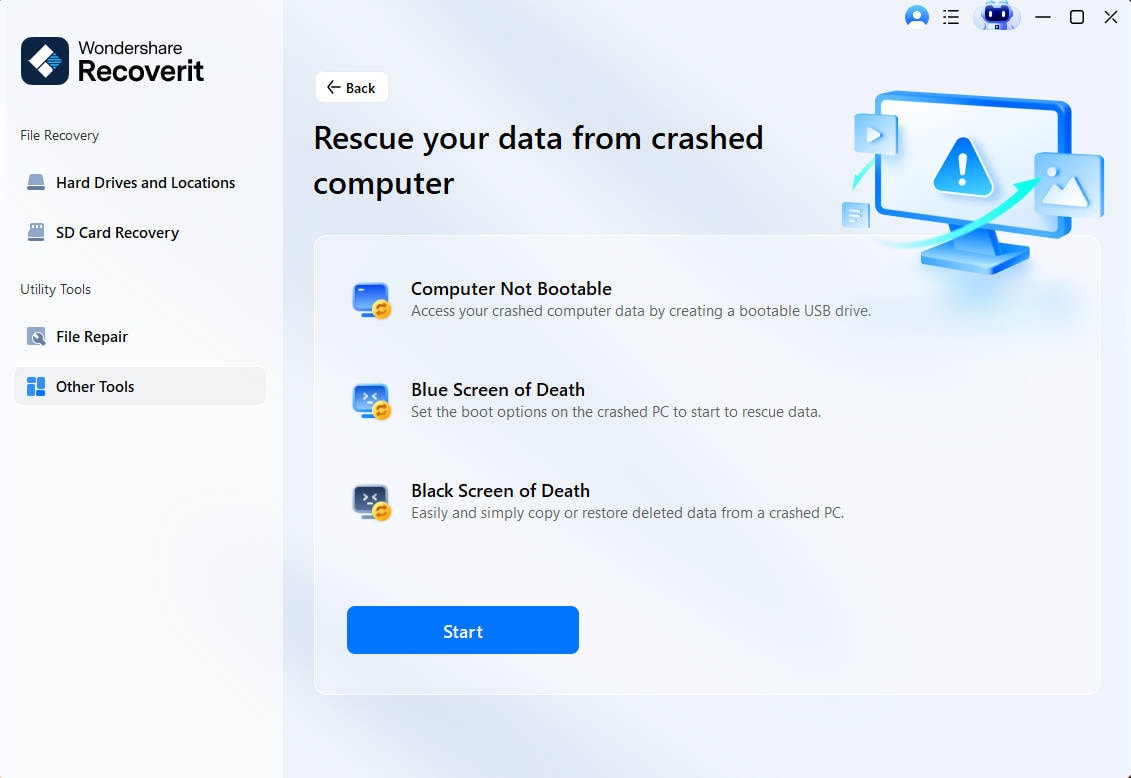
Step 1. Open Crashed Computer Recovery
Launch Recoverit on the working computer. Go to “Other Tools” > Locate “System Crashed Computer” > Click “Start.”
Step 2. Prepare the Bootable USB
Insert a USB drive, select it under “Drive,” and click “Create.” When the bootable media is ready, connect it to the unbootable HP PC and boot the computer from the USB.

Step 3. Recover the Required Files
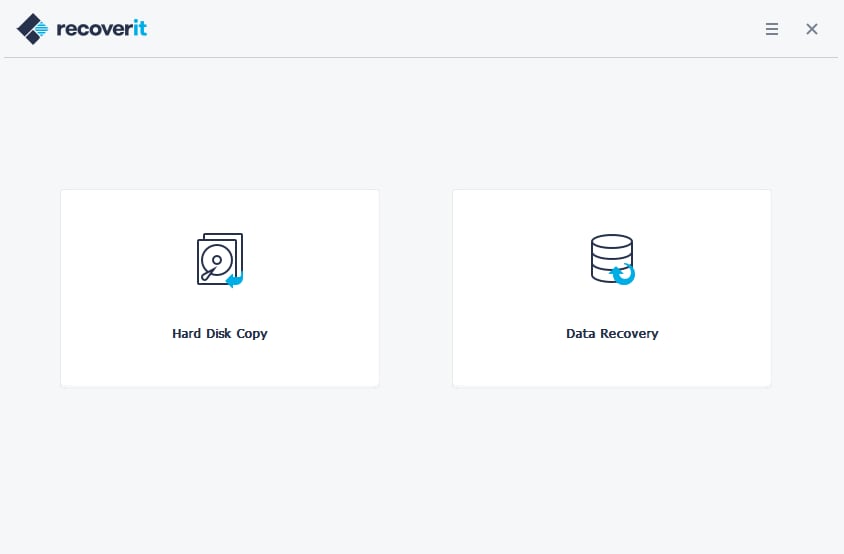
After Recoverit starts, choose “Data Recovery” or “Hard Disk Copy.” Scan the affected drive, select the files you need, and save them to a separate external drive.
Recover Files From an Unbootable HP PC
 Security Verified. Over 7,302,189 people have downloaded it.
Conclusion
To conclude, an HP boot device not found error should be handled according to the diagnostic result. Passed storage tests point toward BIOS or Windows boot problems, while failed or missing drives require hardware attention. Protect important files before reinstalling or replacing the drive. If the storage remains detected and readable, Recoverit can help recover accessible data when the HP computer cannot boot normally.
FAQ
-
What does boot device not found mean on an HP laptop?
It means the firmware cannot find a usable Windows boot device. Causes include storage failure, connection problems, or damaged boot configuration. BIOS detection and HP storage diagnostics help determine which troubleshooting path to follow. -
Why does my HP laptop say boot device not found if the hard drive passes the test?
A passing storage test means HP diagnostics did not detect a hardware failure. The problem may instead involve Windows Boot Manager, startup files, BIOS settings, or storage drivers. Check the boot path and try Startup Repair before considering reinstallation. -
How do I fix no boot device found on an HP desktop?
First, check whether BIOS/UEFI detects the storage device and run HP storage diagnostics. On a SATA-based desktop, also inspect the drive's data and power connections. If the drive passes, check BIOS defaults and Windows Boot Manager. -
Can I recover files from an HP laptop with boot device not found?
Often, you can recover files if the storage device remains readable. Bootable recovery media can access the drive without starting the installed Windows system. If the BIOS cannot detect it, check the connection and hardware first. Physical failure or unusual mechanical noises are better handled by a professional recovery service.


