 TL;DR:
Dell SupportAssist Error 2000-0155 indicates that the system firmware cannot detect the internal HDD or SSD, making immediate data backup the top priority before attempting BIOS updates or physically reseating the hardware.
● If Windows occasionally boots, prioritize copying files immediately and suspend BitLocker Drive Encryption before updating the BIOS to prevent recovery-key prompts upon restart.
● Hardware troubleshooting requires using your Service Tag to find exact drive removal procedures, and any SSD replacement must strictly match the system's supported M.2 length, interface, and PCIe generation.
● Bootable software tools like Recoverit can only extract files if the BIOS or a secondary PC still detects the drive; if the drive is completely undetectable, overheating, or clicking, it requires professional recovery services.
Ask AI for a summary
 ChatGPT
 Perplexity
 Gemini
 Claude
 Grok
Grok
“I came home today to find that my Inspiron 7506 Dell laptop said that the hard drive had not been installed so I ran a diagnostics test and I got the error code: 2000-0155”- Loganator-1010
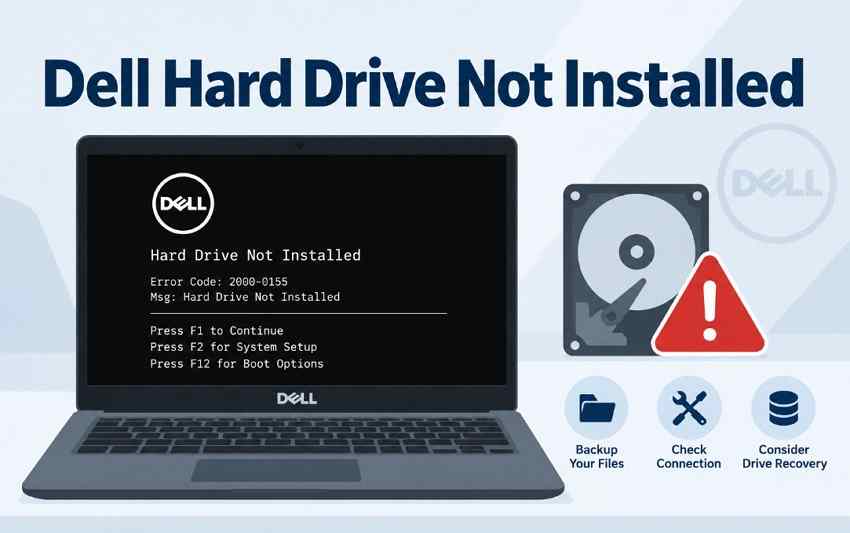
Dell can display the 2000-0155 storage-detection warning during startup when the firmware does not detect the expected internal drive. That gives you a chance to copy important files before the storage problem worsens.
A Dell hard drive not installed message means the firmware could not detect the drive during startup. Dell diagnostics may show error 2000-0155. Repeated failures can indicate a loose connection or a failing drive. If Windows stops booting but the drive remains detectable and readable, Recoverit can scan it for accessible files.
In This Article
Part 1. What Dell Hard Drive Not Installed Error 2000-0155 Means
Dell lists ePSA error 2000-0155 as “Hard Drive - Not Installed.” According to Dell Support, the code is used when a laptop that should contain internal storage does not detect the drive during diagnostics. Dell recommends updating the BIOS, reconnecting the drive, and rerunning ePSA.
Despite Dell's older “Hard Drive” terminology, similar storage-detection failures can involve systems equipped with internal SSD storage, including M.2 drives.
Why the Machine Sometimes Still Boots
A Dell computer hard drive not installed warning can appear on one startup and disappear on another. That does not mean the underlying detection problem has been resolved:
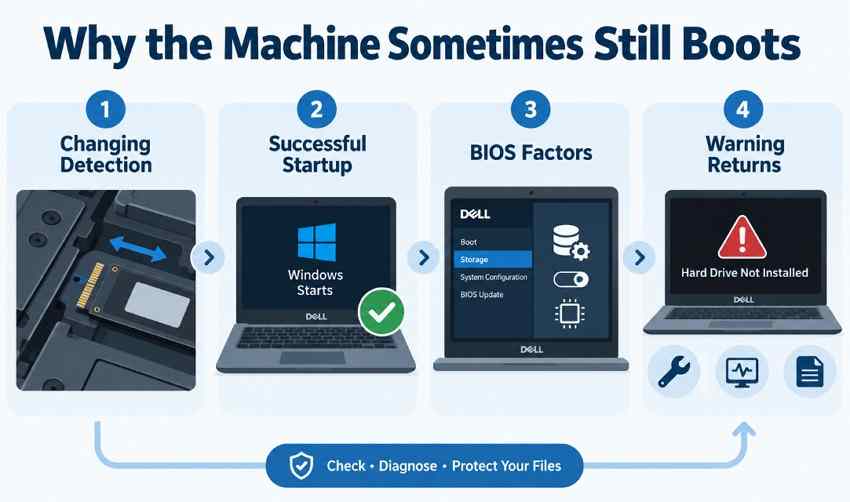
- Changing Detection: A loose SATA connection, a poorly seated M.2 SSD, or a developing drive fault can make the storage device appear during one startup and disappear during another. Dell Support lists connection issues among common causes of drives not appearing in BIOS.
- Successful Startup: Windows can still load if the BIOS detects the internal drive during that particular boot and the required boot files remain readable. One successful startup does not confirm the drive is healthy.
- BIOS Factors: An outdated BIOS may contribute to storage-detection problems. Storage-controller settings can also affect how the drive is presented to the operating system, though they do not always indicate a physical drive failure.
- Warning Returns: If the message returns, treat it as an unresolved storage-detection issue. Back up important files, run Dell pre-boot diagnostics, and check the drive connection before relying on the system.
How It Differs From Related Errors
Similar storage messages can point to different stages of the startup process, so separating them helps you choose the right troubleshooting path:
| What You See | When It Appears | What It Points To |
| 2000-0155 | During pre-boot diagnostics | Storage absent from the diagnostic |
| No Boot Device Found | At startup, before Windows | Boot configuration or missing drive |
| Setup Finds No Drives | During Windows installation | Missing storage driver |
This guide focuses on 2000-0155, which Dell defines as “Hard Drive - Not Installed.” Dell’s ePSA reference treats it as a storage-detection error.
Similar messages do not always mean the same fault. Windows Setup may show no drives when the required storage-controller driver is missing. Dell confirms that Windows cannot see the drive without the correct RAID/IRST driver. Check the cause before replacing the storage device.
Decide Which Situation You Are In
Your next step depends on how the drive behaves. Use the table below to match your Dell SupportAssist hard drive not installed situation:
| Current Behavior | Priority | Continue With |
| Boots Sometimes After F1 | Copy files immediately | Part 5 |
| Never Boots, Drive Absent | Confirm with diagnostics | Part 3 |
| Started After Fitting an SSD | Check seating and compatibility | Part 4 |
Part 2. Protect Data Before Fixing a Dell Laptop Hard Drive Not Installed Error
Before troubleshooting a hard drive not installed Dell error, protect any files you can still access. Then save the diagnostic details you may need for repair or recovery:
- Limit Restarts: An unstable drive may become harder to access over time. If Windows still opens, copy important files first instead of repeatedly rebooting to check whether the warning returns.
- Avoid Disk Changes: Do not format, initialize, repartition, reset Windows, or reinstall the operating system before protecting important data. Microsoft notes that formatting a volume erases the data stored on it.
- Save Error Details: Record the error code, validation code, and Service Tag shown by Dell diagnostics. Dell SupportAssist uses these details when looking up pre-boot errors and asks for the error code without the 2000 prefix.
- Secure BitLocker: Locate your BitLocker recovery key before changing firmware. If Windows remains accessible, suspend BitLocker protection before a BIOS update to reduce the chance of a recovery-key prompt after restart.
- Stop On Noise: Persistent grinding, hard clicking, overheating, liquid exposure, or burn damage can indicate serious hardware trouble. Power the system down and avoid repeated attempts if the drive shows physical-failure symptoms.
Part 3. Confirm Dell Laptop Error 2000-0155 With Preboot Diagnostics
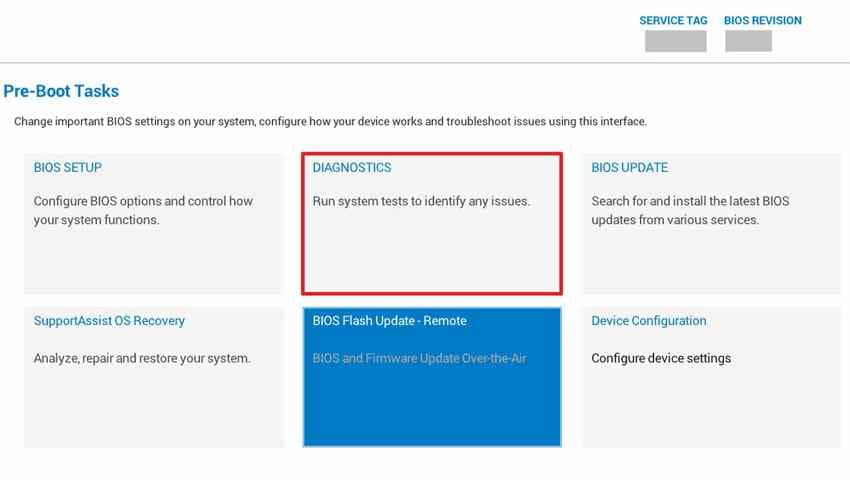
Dell's pre-boot diagnostic checks hardware before Windows loads. This makes it useful when a Dell laptop hard drive not installed error prevents normal startup. It can also confirm whether SupportAssist reports error 2000-0155. Follow the steps below to run Dell pre-boot diagnostics:
Step 1. Connect the power adapter, restart the laptop, and tap “F12” when the Dell logo appears. Select “Diagnostics” from the “One Time Boot Menu.”
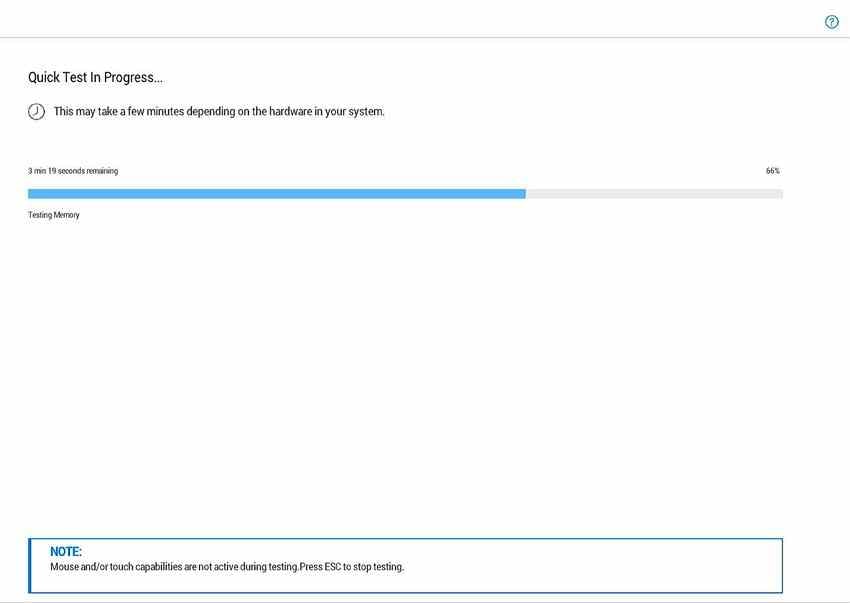
Step 2. SupportAssist automatically begins the “Quick Test.” If the result shows “2000-0155 — Hard Drive - Not Installed,” capture or record the screen before changing firmware or hardware.
Part 4. How to Fix Dell Hard Drive Not Installed Error 2000-0155
A confirmed Dell SupportAssist hard drive not installed result should be handled in Dell’s recommended order. Start with the checks below before moving to hardware replacement:
Fix 1. Update the BIOS From Your Service Tag Page
Dell recommends installing the latest BIOS because firmware updates can resolve some storage-detection issues. If the problem began after an SSD upgrade, also confirm that the drive matches the exact model's supported interface and specifications.
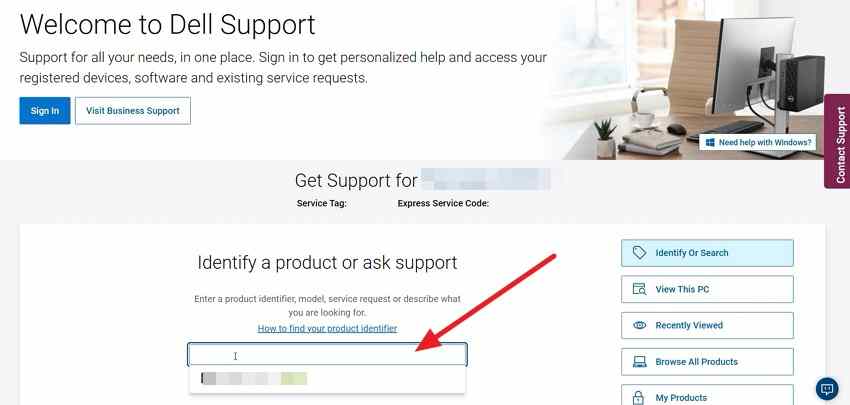
Step 1. Go to Dell Support and enter your “Service Tag” to open the support page for your exact computer.
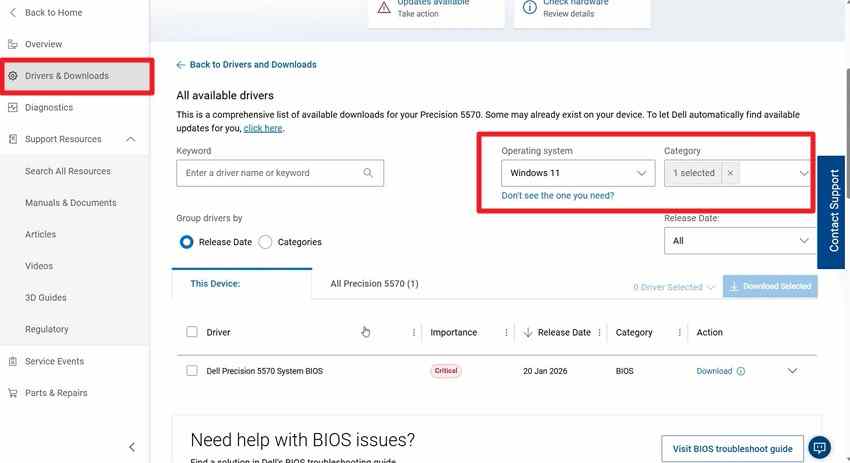
Step 2. Open “Drivers & Downloads,” filter the category to “BIOS,” and select the newest BIOS listed for your model.
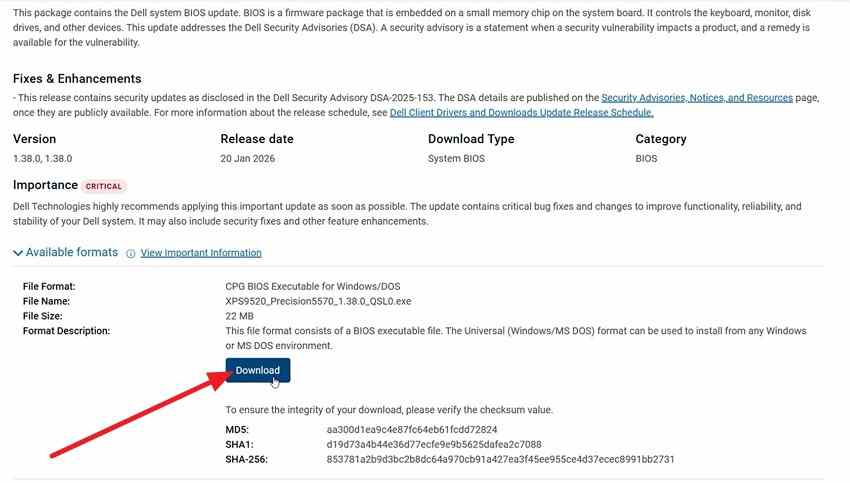
Step 3. Open the BIOS details and click “Download” to save the update file.
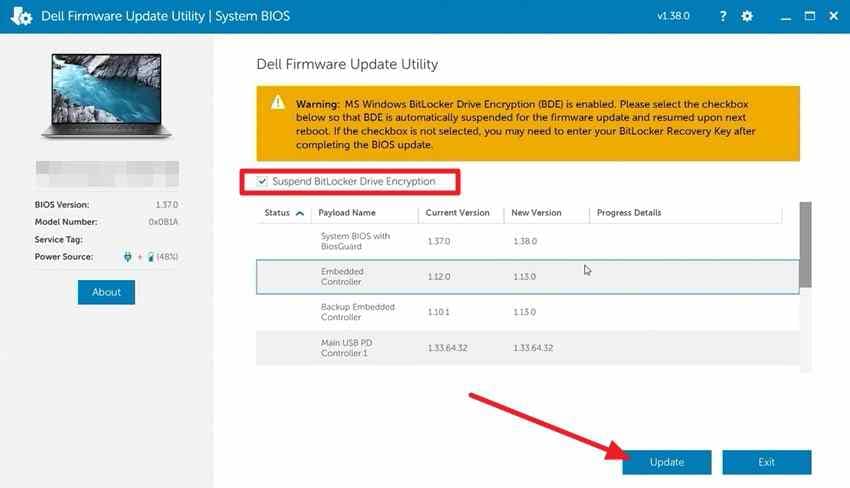
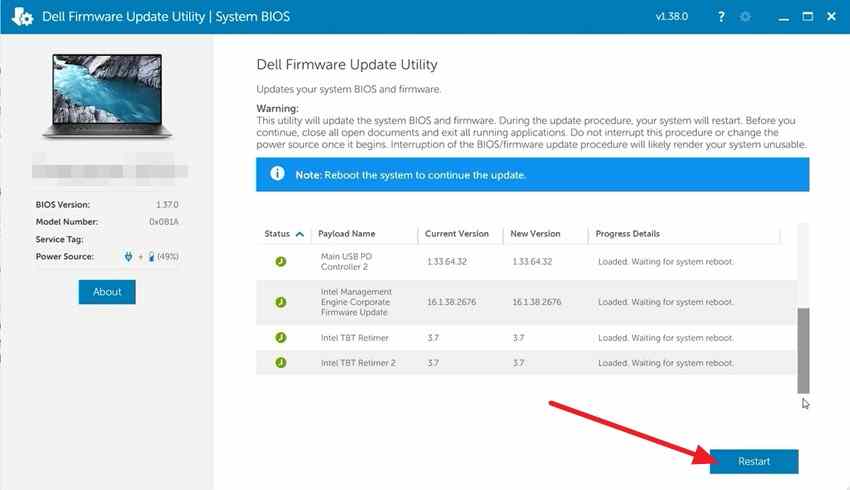
Step 4. Run the downloaded BIOS utility. If BitLocker is enabled, keep “Suspend BitLocker Drive Encryption” selected, then click “Update.” The exact wording or interface can vary by Dell update utility.
Step 5. Follow the on-screen prompts and “Restart” when requested. Keep the laptop connected to power and do not interrupt the update.
Fix 2. Reseat the Drive Using the Service Manual
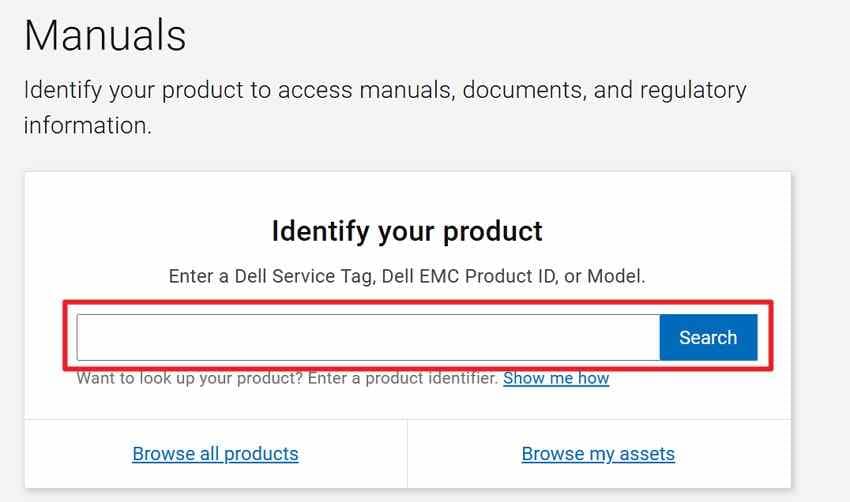
A loose or poorly seated HDD or SSD can trigger a Dell hard drive not installed error by interrupting storage detection. Since Dell models use different drive layouts and removal procedures, follow the manual for your exact system. Find it by entering your Service Tag on Dell’s official Manuals page. Use the steps below to reseat the drive safely:
Step 1. Enter your “Service Tag” on Dell’s Manuals page and open the service manual for your model.
Step 2. Shut down the computer, disconnect power and external devices, then follow the service manual to open the system, remove the required components, and reseat the HDD or SSD securely.
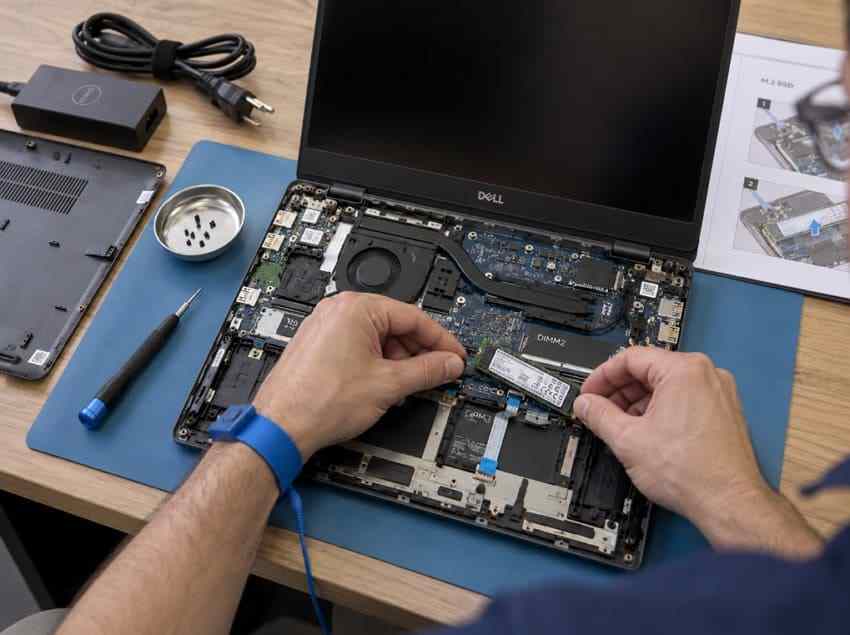
Note: Check warranty and customer-replaceable-unit guidance before opening the system.
Fix 3. Repeat the Diagnostic Once
After reseating the drive, rerun the PSA/ePSA or SupportAssist pre-boot test from Part 3 and compare the new result with the original one.
- Code Cleared: The drive is detected again, suggesting that the connection or another earlier change may have helped. Back up important files and watch for the warning returning.
- Code Persists: Error 2000-0155 means the storage-detection problem remains. The drive, connector, slot, or related hardware may still be responsible.
- Submit the Result: Save the error code, validation code, and Service Tag. Dell’s pre-boot analysis page can use these details to identify the diagnostic result and direct you toward support options.
- Check Coverage: Review warranty and repair options before replacing hardware. If the drive is not listed as customer-serviceable, Dell service is the safer next step.
Part 5. What to Do When the Dell Laptop Drive Becomes Detectable Again
When a Dell laptop hard drive not installed warning disappears and Windows loads again, do not assume the problem is fixed. Dell recommends backing up important data when storage problems appear. Use that temporary access to protect essential files before continuing with troubleshooting.
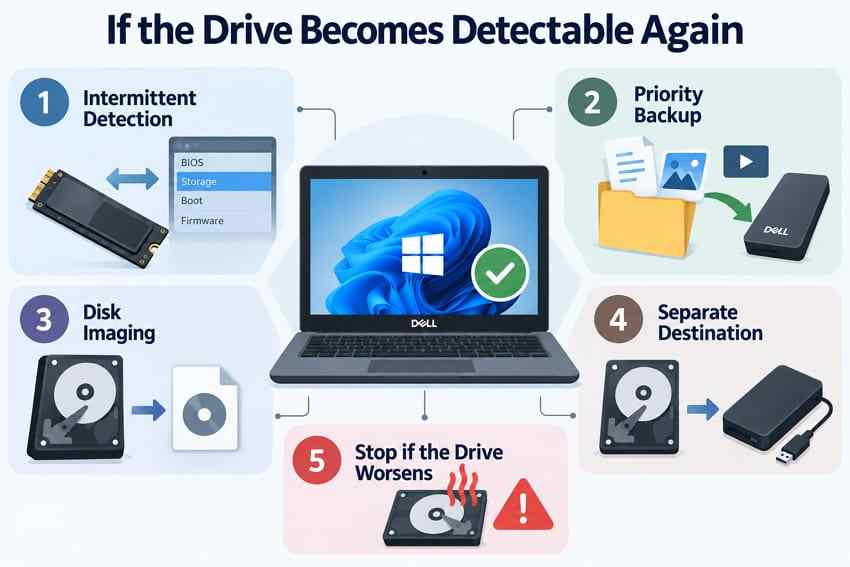
- Intermittent Detection: A drive that appears and disappears may have a loose connection, firmware-related detection issue, or developing hardware failure. Repeated dropouts should be treated as an unresolved storage problem.
- Priority Backup: Copy documents, photos, projects, and other irreplaceable files first. Applications, installers, and downloaded files can usually be replaced later.
- Disk Imaging: If the drive remains stable and readable, a recovery-aware image or clone can preserve accessible sectors before further repair or replacement. GNU ddrescue is designed to prioritize readable areas when a drive develops read errors.
- Separate Destination: Save copied, imaged, or recovered data to another physical drive. Writing new data to the affected storage can overwrite recoverable information.
- Stop if the Drive Worsens: Do not continue imaging if the drive repeatedly disconnects, overheats, clicks, or becomes increasingly difficult to read. Serious physical instability may require professional recovery.
Part 6. Recover Files From a Detectable Dell Laptop Hard Drive or SSD
If a hard drive not installed Dell laptop error appears, recovery software only works when the SSD or HDD is still detected by the BIOS or another computer. Recoverit Hard Drive Recovery can create bootable USB media on a working PC, start the affected Dell without loading Windows, and scan a readable internal drive. Alternatively, connect the removed drive to another computer.

Recovery success depends on the drive’s condition, overwrites, encryption, and SSD TRIM activity. BitLocker-protected volumes may require the recovery key. Save recovered files to another physical drive. If neither BIOS nor another computer detects the storage device, software cannot scan it, so consider professional data recovery instead.
Key Features
- Starts Without the Installed System: Creates bootable recovery media to access a Dell computer that cannot load Windows.
- Windows Drive Support: Scans common Windows storage volumes, including NTFS and exFAT drives that remain detectable.
- AI Search: Uses natural-language search and filtering to help locate specific files within scan results more quickly.
- Improved File Preview: Optimizes the preview overlay so recovered content stays clearer and less obstructed during review.
- Separate Recovery Destination: Easily secures recovered files to another attached drive, helping avoid additional writes to the affected storage.
How to Read the Drive and Recover Files Using Recoverit
Follow the steps below to recover files from a readable Dell drive with Recoverit:
Step 1. Open the Bootable Recovery Tool
On another working PC, install and open Recoverit. Go to “Other Tools > Computer Not Bootable,” then select “Start” to begin creating recovery media.
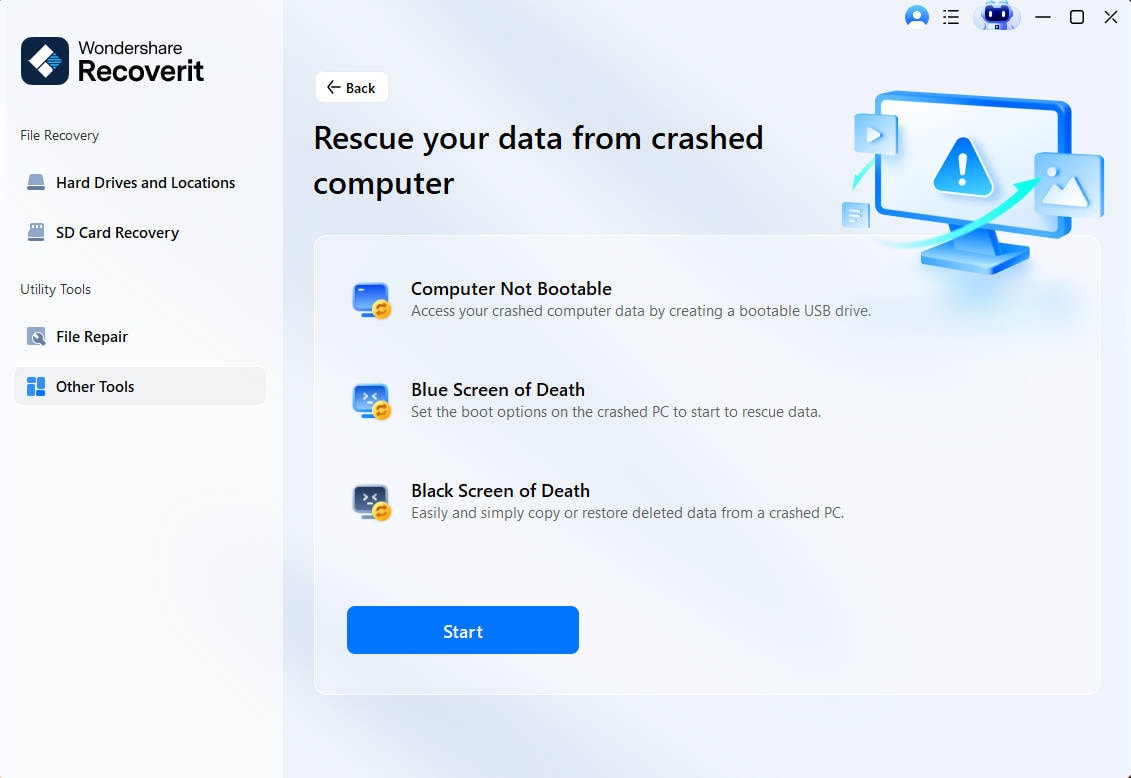
Step 2. Prepare a Bootable USB Drive
Insert a USB drive with more than 4 GB of free space. Choose that drive in Recoverit, click “Start,” and let the program build the bootable recovery USB.

Step 3. Access and Recover the Dell Files
Plug the USB into the affected Dell and boot from it. Open “Data Recovery,” scan the internal drive if it is detected, select the files you need, and save them to a separate physical drive.
Read the Drive and Recover Files Using Recoverit
 Security Verified. Over 7,302,189 people have downloaded it.
Part 7. Replace the Dell Laptop Drive or Request Dell Support
Once your files are safe and 2000-0155 still returns after the earlier checks, move from troubleshooting to replacement or service. A persistent Dell computer hard drive not installed result means the storage-detection fault remains, but the failed component still needs to be identified.
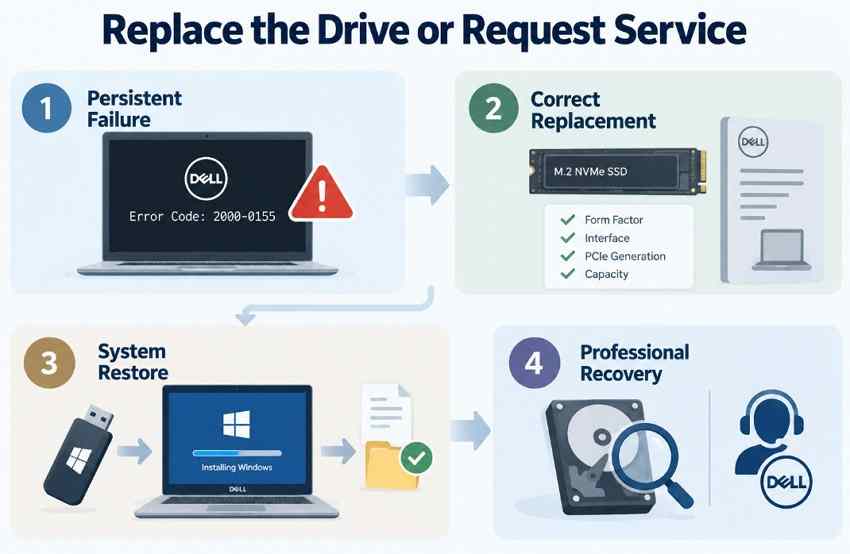
- Persistent Failure: If 2000-0155 returns after the BIOS update, drive reseating, and repeat diagnostics, further basic checks are unlikely to resolve it. Move to Dell support, hardware diagnosis, or replacement.
- Correct Replacement: Match the new drive to the storage specifications for your exact model. Dell notes that supported M.2 length, interface, PCIe generation, and capacity can vary between systems. Check its current NVMe SSD compatibility guide.
- System Restore: After installing a replacement drive, perform a clean Windows installation or use compatible Dell recovery media, then restore your backed-up files. Microsoft documents using installation media on a new or replaced drive in its Windows reinstallation guide.
- Professional Recovery: When BIOS and another compatible computer cannot detect the old drive, normal recovery software cannot scan it. If the files are important, avoid unnecessary power-on attempts and consider a professional data-recovery service before discarding the drive.
Note: For an in-warranty system, Dell recommends identifying the computer by Service Tag to see the available repair and support options. Its Support Services & Warranty page also covers self-repair and service options for expired coverage.
Conclusion
To conclude, a hard drive not installed Dell laptop message signals a serious storage-detection problem. Back up accessible files first, then confirm 2000-0155 with Dell diagnostics. Update the BIOS, reseat the drive, and rerun diagnostics. If the drive remains detectable and readable, use Recoverit to recover files before replacement. For physical failure or complete non-detection, consider professional data recovery.
FAQ
-
What does hard drive not installed mean on a Dell laptop?
The firmware could not detect the expected internal storage. Possible causes include a connection problem, BIOS issue, incompatible replacement drive, or storage hardware failure. -
What does Dell SupportAssist error 2000-0155 mean?
Dell defines 2000-0155 as “Hard Drive - Not Installed.” On modern Dell systems, a similar internal-storage detection problem may involve either an HDD or SSD. -
Why does my Dell say hard drive not installed but boot normally sometimes?
If the drive is detected during that startup, Windows may still load normally. Intermittent detection can indicate a loose connection, firmware issue, or developing storage failure. -
Why does a Dell laptop say hard drive not installed after installing a new SSD?
A newly installed SSD may be poorly seated, incompatible with the model's supported interface or form factor, faulty, or affected by outdated BIOS firmware. Verify the exact Dell storage specifications before assuming the SSD itself has failed.


