 TL;DR:
To safely clean a full C drive in Windows 11 without risking system instability, rely on the built-in Storage settings and Storage Sense to manage temporary data rather than manually deleting unfamiliar contents from protected system folders.
● Removing the Previous Windows installation category through Disk Cleanup reclaims significant space but permanently disables the option to roll back to an earlier OS version.
● Enabling OneDrive Files On-Demand reduces local storage usage by marking files as online-only, though these files will require an active internet connection to open and do not function as an independent backup.
● If a crucial file is accidentally deleted during the cleanup process, immediately stop writing new data to the C drive to prevent overwriting and ensure any data restored via recovery software is saved to a separate physical drive.
Ask AI for a summary
 ChatGPT
 Perplexity
 Gemini
 Claude
 Grok
Grok
When Windows 11 says the C: drive is almost full, the missing space is not always in an obvious folder. Temporary files, Windows update leftovers, installed apps, Recycle Bin contents, OneDrive files kept offline, and the previous Windows installation can all use the system drive.
To learn how to clean C drive in Windows 11 safely, start with Settings > System > Storage. Identify the category that is growing, then use the Windows tool that manages that category. Review personal files yourself, and do not delete unknown content from Windows or application folders.
This guide explains how to clean up C drive in Windows 11 without treating every large file as disposable. It also covers what to do if cleanup accidentally removes a document, photo, video, or project file.
Recover Important Files Accidentally Deleted During Windows 11 Cleanup
 Security Verified. Over 7,302,189 people have downloaded it.
In this article
-
- Method 1. Use Cleanup Recommendations
- Method 2. Remove Temporary Files
- Method 3. Enable Storage Sense
- Method 4. Clean System Files With Disk Cleanup
- Method 5. Uninstall Large Apps and Games
- Method 6. Find and Move Large Personal Files
- Method 7. Free Up OneDrive Storage on C Drive
- Method 8. Remove Windows.old When You No Longer Need It
Part 1. Check What Is Filling Your C Drive
The fastest way to decide how to clean my C drive in Windows 11 is to check the storage breakdown before deleting anything. Open Settings > System > Storage. Microsoft’s Storage settings guidance describes categories such as Installed apps, Temporary files, and System & reserved.
Check Installed Apps
Open Settings > Apps > Installed apps and sort by size when that option is available. Large games, creative applications, virtual machines, and development tools can account for more space than routine Windows clutter. An app’s displayed size may not include every cache or user-data folder, so treat it as a starting point rather than an exact audit.
Review Temporary Files
Select Temporary files under Storage and wait for Windows to calculate the categories. The list can include update cleanup data, delivery optimization files, thumbnails, Recycle Bin contents, and other temporary items. Read the category names before selecting them. Downloads and previous-installation files deserve particular care because they may contain files you still need or the option to return to an earlier Windows version.
Look at Documents, Pictures, Videos, and Downloads
Windows storage categories do not always tell you which individual personal files are safe to remove. Open File Explorer and inspect Downloads, Documents, Pictures, Videos, Desktop, and folders used by large applications. Sort by size and open files that you do not recognize before deciding whether to delete or move them.
Check System & Reserved Storage
System & reserved covers operating-system and reserved storage that Windows manages for normal operation. It is not a folder that should be cleaned manually. If this category is unusually large, use Windows features such as Storage Sense, Disk Cleanup, update troubleshooting, and documented settings instead of deleting files from C:\Windows or other protected locations.
| Storage category | Typical contents | Space-saving potential | Safe first action |
| Temporary files | App caches, thumbnails, update leftovers, and delivery files | Often useful when the list is large | Review Temporary files or use Disk Cleanup |
| Installed apps | Games, creative tools, utilities, and supporting data | High for large unused apps | Uninstall through Settings or the vendor’s uninstaller |
| Downloads and personal files | Installers, archives, photos, videos, and documents | Depends on your files | Open, identify, then delete or move selected items |
| Recycle Bin | Locally deleted files that have not been permanently removed | Can be significant | Restore anything needed before emptying the bin |
| Previous Windows installation | Windows.old and rollback data |
Potentially several gigabytes | Remove through system cleanup only after rollback is no longer needed |
| System & reserved | Windows files and storage reserved for system functions | Varies by device and configuration | Use a documented Windows setting or troubleshooting path |
Windows’ Storage settings and free-up-space-for-updates guidance are better references for system-managed cleanup than a random folder-size result from File Explorer.
Part 2. How to Clean C Drive in Windows 11
These methods answer how to clean C drive Windows 11 in an order that protects personal data. Begin with Windows’ review screens, then remove recognized apps or personal files, and only remove rollback data after you have confirmed that you do not need it.
Method 1. Use Cleanup Recommendations
Cleanup recommendations reviews categories that may be removable, including temporary files, large or unused files, cloud-synced files, and unused apps. It gives you a review step before cleanup, which is useful when the C: drive is full but the cause is not obvious.
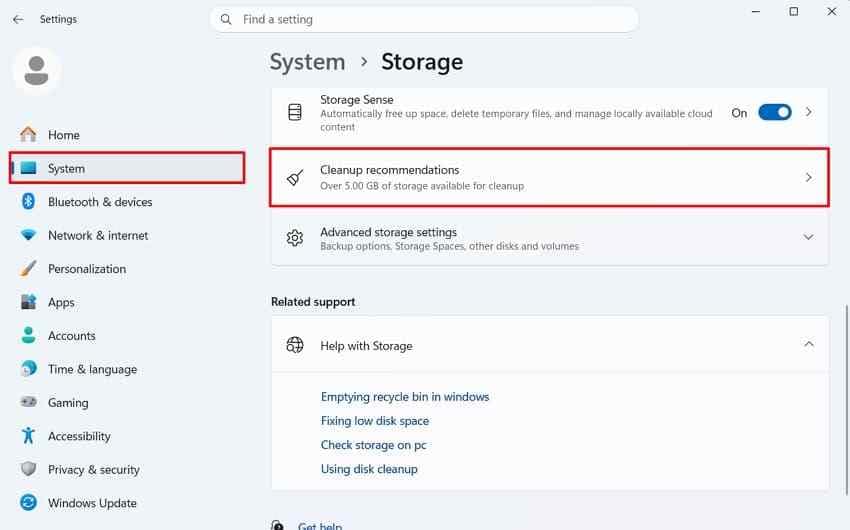
Step 1. Open Settings > System > Storage, then select Cleanup recommendations.
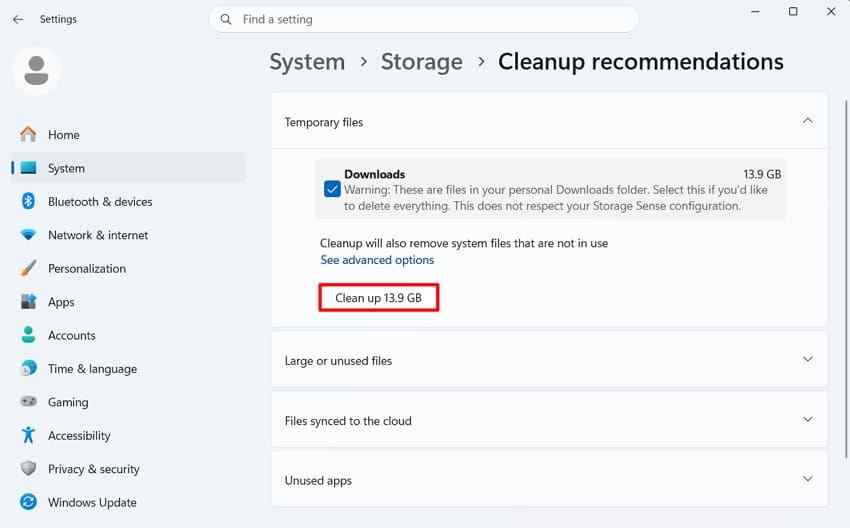
Step 2. Review each category and inspect personal files, especially Downloads and large files. Select only items you can identify, then choose Clean up.
Step 3. Return to Storage and confirm which category changed. If the C: drive is still full, follow the method that matches the category instead of repeatedly cleaning the same temporary files.
Method 2. Remove Temporary Files
Storage settings show the approximate size of temporary categories before removal. This is the most direct answer to how to clean up C drive in Windows 11 when Temporary files is the main source of usage.
Step 1. Go to Settings > System > Storage > Temporary files.
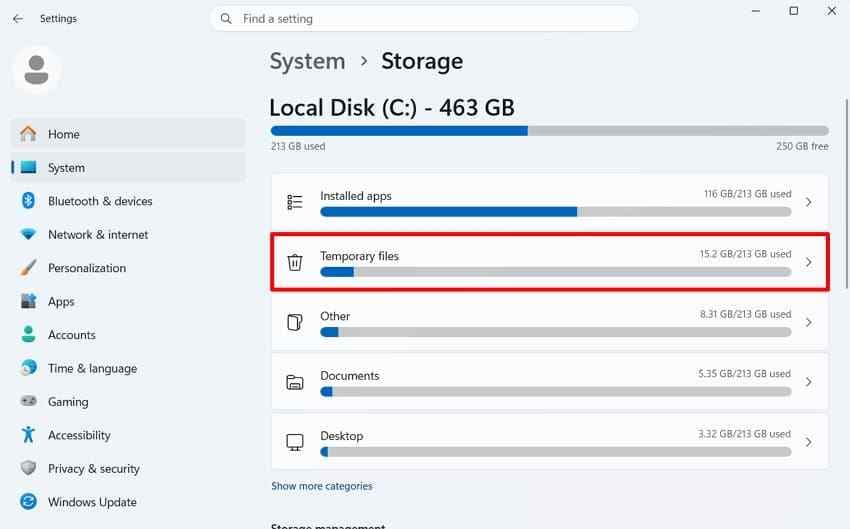
Step 2. Wait for the scan to finish. Review each entry, clear categories you understand, and choose Remove files.
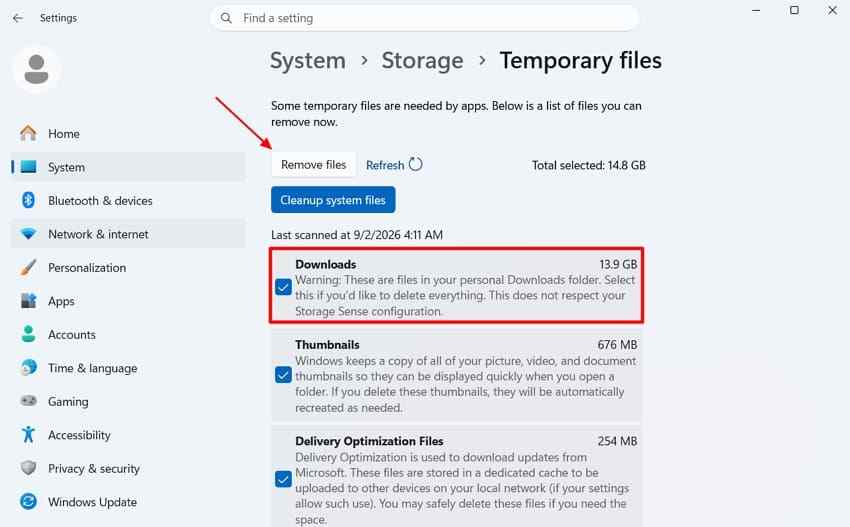
Check Downloads, Recycle Bin, and Previous Windows installation(s) carefully. Selecting them can remove personal files or the ability to roll back Windows, depending on the category and the files present.
Method 3. Enable Storage Sense
Storage Sense automates selected cleanup tasks on the system drive. Microsoft’s Storage Sense documentation explains that it can remove unnecessary temporary files and manage older Recycle Bin items. It does not remove Downloads or cloud files unless you configure those behaviors.
Step 1. Open Settings > System > Storage and turn Storage Sense on.
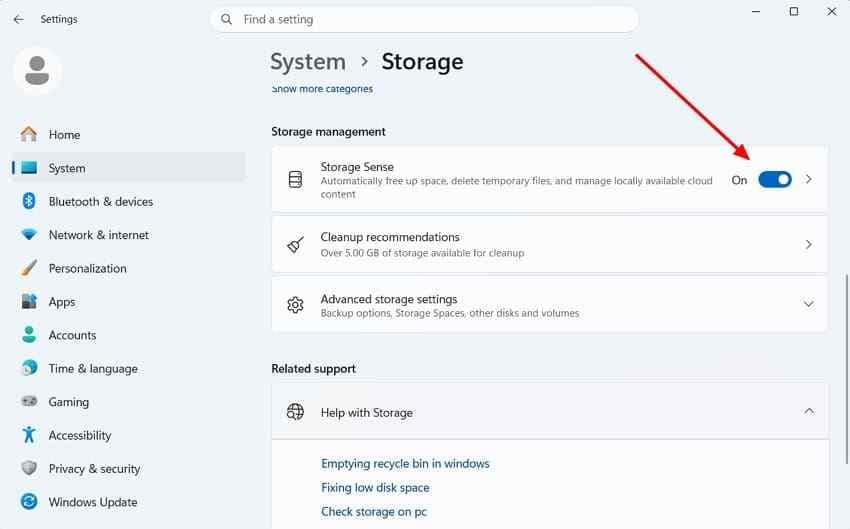
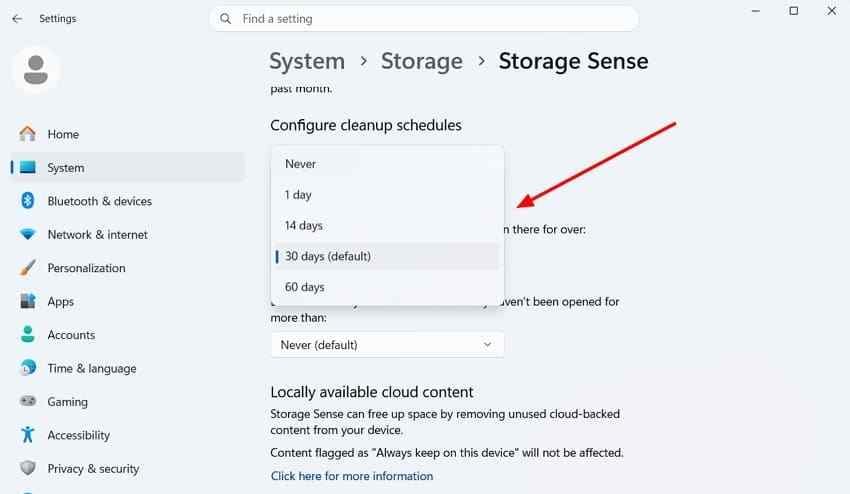
Step 2. Select Storage Sense, then choose how often it runs and how long Recycle Bin items are retained.
Step 3. Keep the Downloads setting at Never unless you have deliberately backed up those files and accept automatic removal based on the selected period.
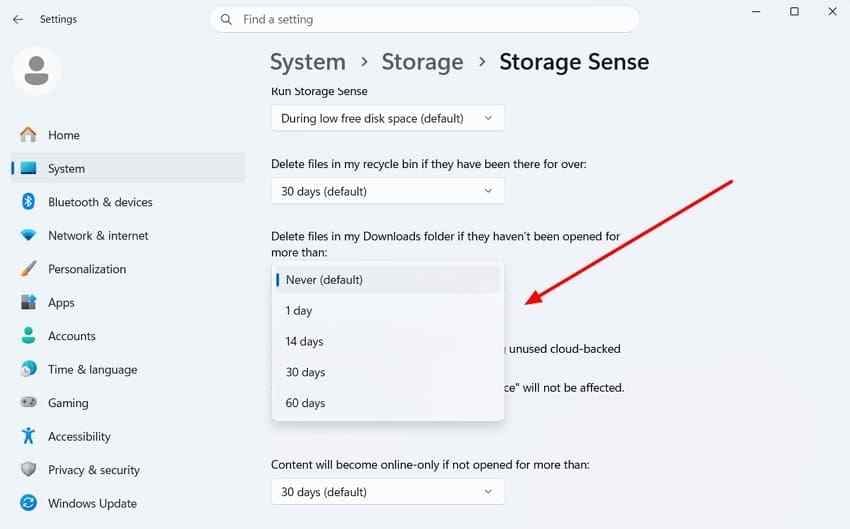
Storage Sense settings apply to the current user. Review them after a major Windows update and on shared PCs because another account can have different cleanup behavior.
Method 4. Clean System Files With Disk Cleanup
Disk Cleanup remains available in Windows 11 for temporary and system-file categories. Microsoft’s free-up-drive-space guidance includes Disk Cleanup as one of the built-in ways to reclaim space.
Step 1. Search for Disk Cleanup, open it, select C:, and choose OK.
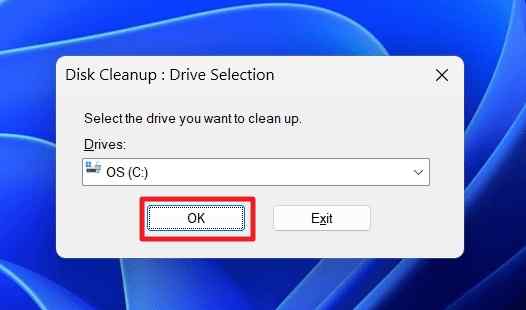
Step 2. Review the categories and their descriptions. Choose Clean up system files when you need to inspect system cleanup categories, then select C: again if prompted.
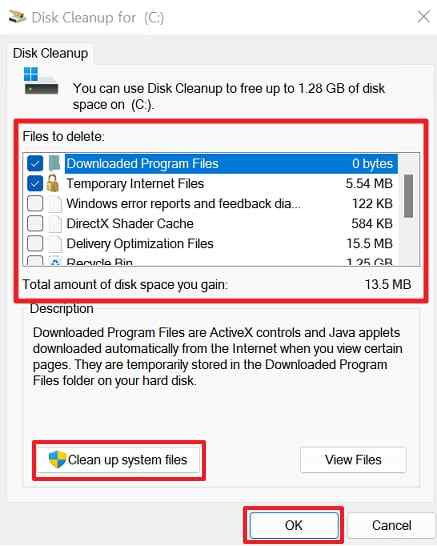
Step 3. Select only the categories you understand, choose OK, and confirm Delete Files. Do not select a large category simply because it promises more space; some entries affect rollback or remove files you may still need.
The original draft linked to Microsoft’s Disk Cleanup reference, which is retained for source-link continuity.
Method 5. Uninstall Large Apps and Games
When Installed apps is the largest category, deleting temporary files will not solve the problem. Uninstall software you recognize through Windows so its services, shortcuts, and registered components are handled correctly.
Step 1. Open Settings > Apps > Installed apps and sort by size when available.
Step 2. Confirm the app name, publisher, and whether you still need it. Open the three-dot menu and choose Uninstall. Follow the vendor’s uninstaller if Windows opens one.
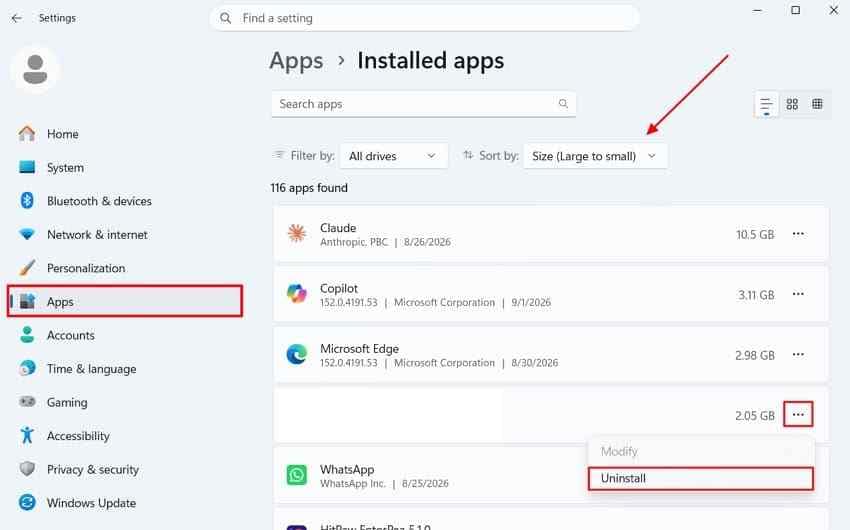
Step 3. Restart if requested and check Storage again. Do not remove a driver, security product, backup agent, or recovery component just because its name is unfamiliar. Microsoft’s app removal guidance notes that some Windows apps cannot be removed through Settings.
Method 6. Find and Move Large Personal Files
Photos, videos, installers, ZIP archives, virtual machines, and exported projects can fill C: even when you rarely install new programs. Manual review is appropriate here because only you can decide which files are valuable.
Step 1. Open File Explorer and inspect Downloads, Documents, Pictures, Videos, Desktop, and application-specific project folders. Use Details view and sort by Size.
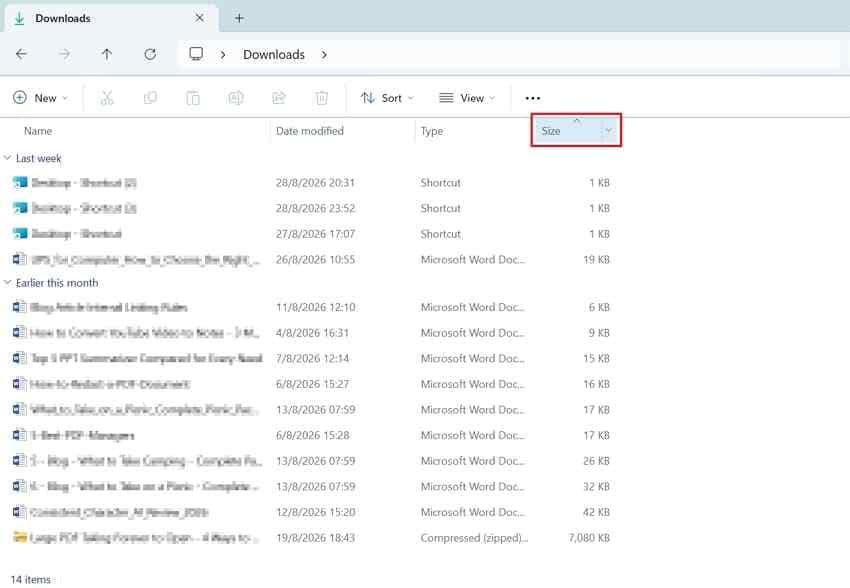
Step 2. Open important-looking files before deleting them. Remove only duplicate files, installers, exports, or other content that you can identify as unnecessary.
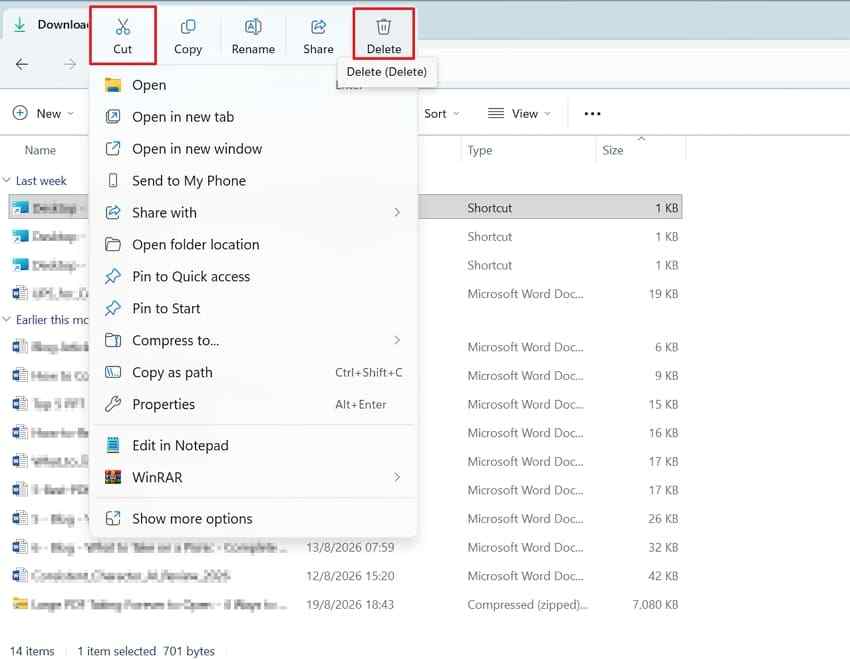
Step 3. For files you want to keep, move them to another physical drive or external storage. Verify that the destination copy opens before removing the original from C:.
Step 4. Review the Recycle Bin before emptying it. A file deleted from a local folder normally goes there, but behavior can differ for removable, network, or synchronized locations.
Method 7. Free Up OneDrive Storage on C Drive
OneDrive Files On-Demand can keep files visible in File Explorer while storing files marked online-only in OneDrive rather than using the full local C: drive space. This is useful for files that you do not need offline, but online-only status is not the same as a separate backup.
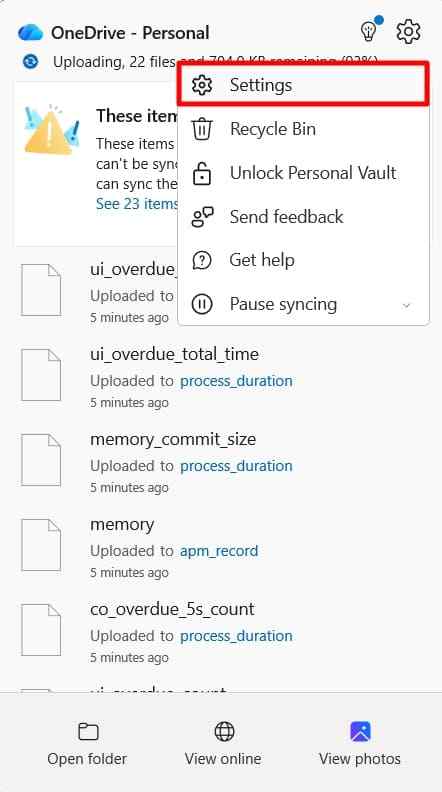
Step 1. Select the OneDrive cloud icon in the taskbar, open Settings, and go to the OneDrive sync and backup settings.
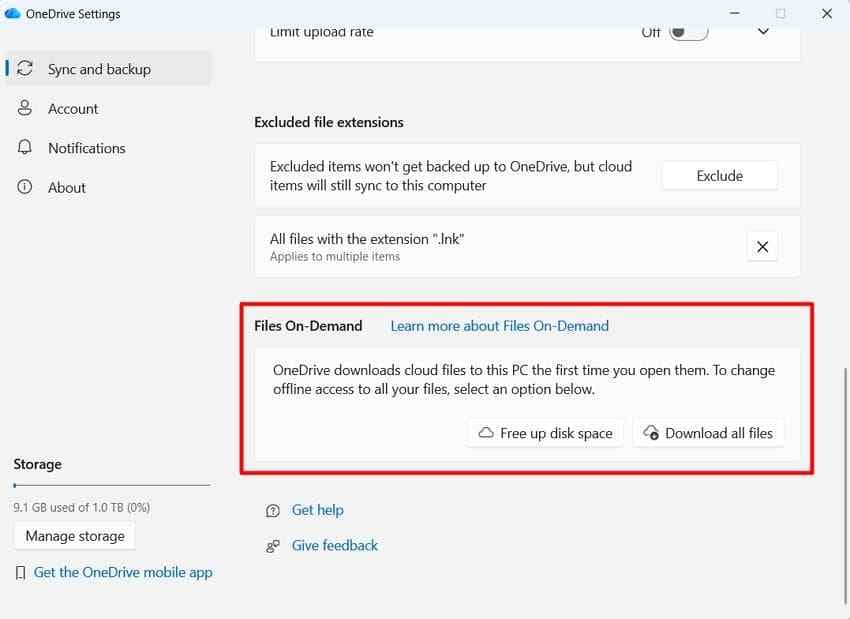
Step 2. Under Sync and backup > Advanced settings, confirm that Files On-Demand is enabled. Microsoft’s Files On-Demand guidance explains the online-only and locally available file states.
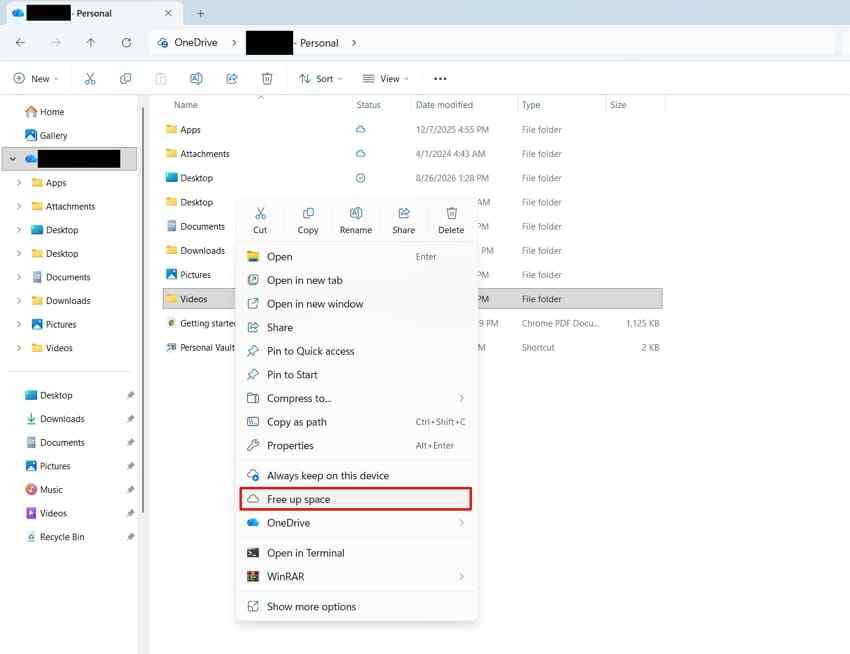
Step 3. In the OneDrive folder, right-click a file or folder you want to keep in the cloud and choose Free up space. Do not use this for files that must be available without an internet connection unless another local copy exists.
Deleting a synchronized file is different from making it online-only. Check OneDrive status and your backup plan before deleting cloud content.
Method 8. Remove Windows.old When You No Longer Need It
After a Windows upgrade, Windows.old can contain files used to return to the previous installation. Removing it can free space, but the rollback option is lost and the deletion cannot be undone through normal Windows settings.
Step 1. Confirm that Windows 11 boots normally, your applications and drivers work, and you do not need to return to the previous Windows version.
Step 2. Open Disk Cleanup, select Clean up system files, and look for Previous Windows installation(s).
Step 3. Select the category only after reviewing the consequence, then confirm the cleanup.
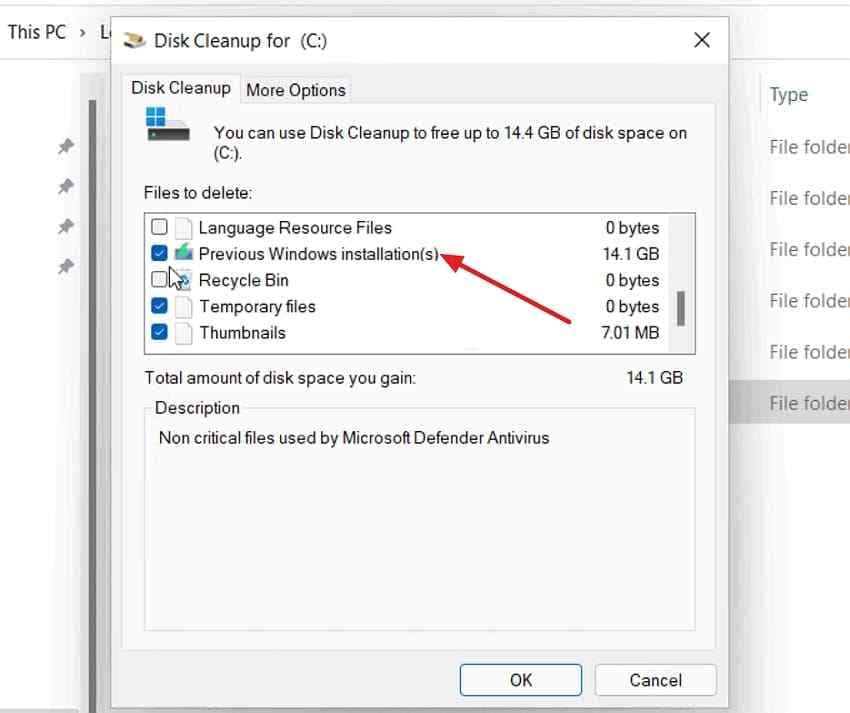
Microsoft’s current free-space instructions explain that deleting the previous installation removes the option to go back. The source draft also included this legacy Microsoft previous-version reference; it is preserved as a source link, but the current free-space page should be treated as the authoritative guide if the older address is unavailable.
Part 3. Which Files Are Safe to Delete From C Drive?
There is no universal "delete everything" folder in Windows 11. The safest choice depends on whether Windows, an application, or a person owns the data.
| File type | Safe to delete? | What you may lose | Best tool or action |
| Temporary files | Usually, after review | Temporary working data or cached content that may be rebuilt | Temporary files, Cleanup recommendations, or Disk Cleanup |
| Recycle Bin files | Only after checking contents | The ability to restore those locally deleted files | Open the Recycle Bin, restore needed files, then empty it |
| Thumbnails | Usually | Cached previews that Windows can recreate | Windows cleanup tools |
| Delivery Optimization files | Through cleanup tools | Cached update-delivery data that may need to download again | Temporary files or Disk Cleanup |
| Windows Update Cleanup | Through cleanup tools | Cleanup data and sometimes files needed for certain update actions | Disk Cleanup or Windows Storage settings |
| Downloads | Only after manual review | Installers, archives, documents, and other downloaded files | File Explorer, then delete or move selected files |
| Previous Windows installation | Only when rollback is no longer needed | The option to return to the earlier Windows version | Disk Cleanup system files |
| Personal files | Only when identified | Irreplaceable photos, videos, documents, or projects | Open, back up or move, then delete selected items |
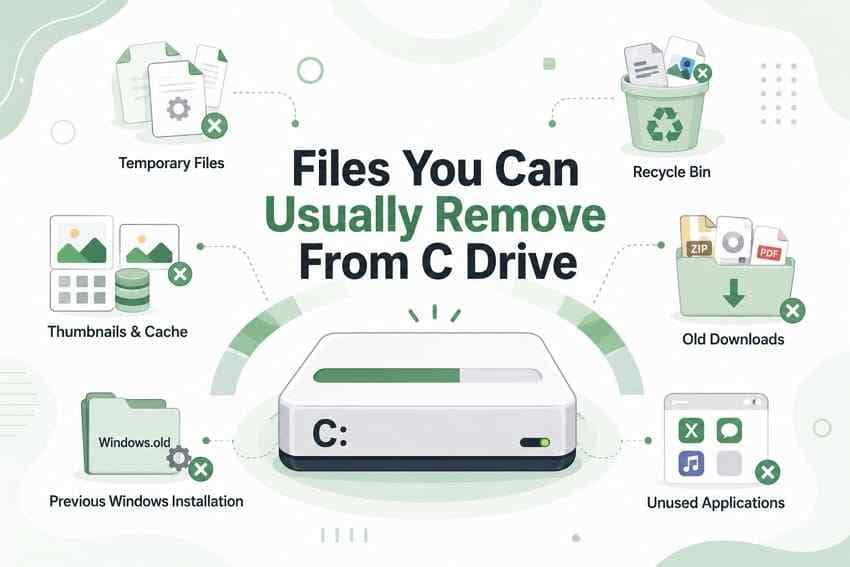
When a category is unclear, leave it selected out and investigate first. A few extra gigabytes are less costly than deleting a file you cannot recreate.
Part 4. Get Extra Space When C Drive Is Still Full
If you have used Cleanup recommendations and Temporary files but still need to free up space on C drive Windows 11, match the next action to the storage problem.
Move Personal Files to Another Drive
Move large videos, photos, project folders, and archives to another internal drive, a trusted external drive, or a backup location. Use copy and verify first when the files are important. Do not keep the only copy on an external drive that is not backed up.
Change Where New Content Is Saved
Windows can let supported new apps and personal content use another drive. Open Settings > System > Storage > Advanced storage settings > Where new content is saved, then review each destination. This changes where future content is stored; it does not automatically move every existing file.
Empty the Recycle Bin
Deleted local files can continue using C: space until the Recycle Bin is emptied. Open the Recycle Bin first and restore anything needed. If you are unsure whether a file is important, keep it until you have checked your backups.
Remove Windows.old Through Windows Cleanup
Use Method 8 rather than deleting Windows.old directly in File Explorer. Confirm that the current Windows installation is stable and that you will not use rollback.
Use External Storage for Large Files
External storage can hold infrequently used recordings, photo libraries, installers, and archives. Eject it safely and maintain another copy of irreplaceable data. Moving files off C: is a space-management step, not a backup strategy by itself.
Scan for Malware With Windows Security
If an unknown process is continuously creating files or the C: drive fills unusually quickly, scan before deleting unfamiliar content. Microsoft’s Windows Security guidance explains how to use the built-in Windows Security app.
For additional low-space guidance, Microsoft’s free-up-drive-space page recommends reviewing personal files, moving infrequently used content to external storage, and using Files On-Demand where appropriate.
Part 5. What You Should Not Delete Manually From C Drive
Knowing how to clean disk C Windows 11 does not make protected system folders safe to edit. Use an app’s uninstaller or Windows cleanup feature instead of deleting unfamiliar files by hand.
C:\Windows. This contains core operating-system components, services, drivers, update files, and troubleshooting resources.C:\Windows\System32. This contains critical libraries, executables, drivers, and services. Removing files can prevent Windows or applications from starting.C:\Program FilesandC:\Program Files (x86). These contain installed application files. Uninstall the application properly instead of deleting its folder.C:\ProgramData. Shared application settings, licensing data, databases, and configuration files may be stored here.- Recovery and boot files. Hidden recovery partitions, boot configuration data, and recovery folders are not normal cleanup targets.
- Unfamiliar content inside
AppData. AppData may contain caches, but it can also contain profiles, saved data, databases, extensions, and application settings.
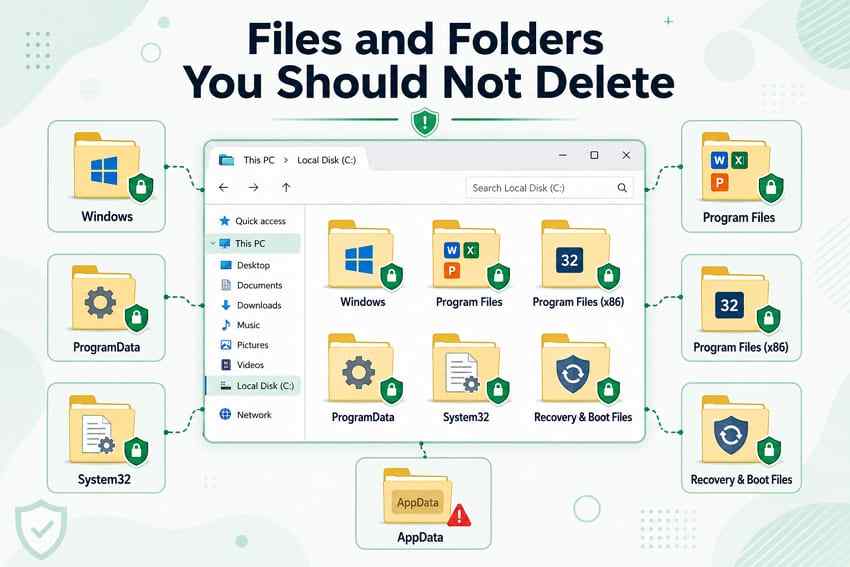
If a folder is large but its purpose is unclear, identify the owning application first. A disk-usage viewer can show where space is located, but it cannot tell you that every item is safe to delete.
Part 6. Why Does C Drive Keep Filling Up After Cleaning?
If you can clean C drive in Windows 11 but the free space disappears again, the cleanup may have removed a symptom rather than the cause. Check Storage again after normal use and compare which category is growing.
- Temporary files keep regenerating. Apps, installers, browsers, and updates recreate working data. If the Temp folder grows unusually fast, investigate the process creating the files.
- Windows Update files are growing. Updates need working space, and some cleanup data may remain until an update completes. Use Microsoft’s update storage guidance instead of deleting update folders manually.
- Apps keep creating cache or app data. Games, creative tools, browsers, virtual machines, and messaging apps can grow outside the folders you normally inspect.
- Downloads and media continue saving to C:. Change supported save locations and review application download settings.
- OneDrive files are stored locally. Files marked as always available use local storage. Use Files On-Demand and Free up space only after confirming the cloud copy is available.
- Malware or Microsoft Store cache problems consume space. Microsoft documents a low-space issue in which Microsoft Store
.appxfiles can repeatedly refill the Temp folder. The documented troubleshooting path includes resetting the Store cache withwsreset.exeand checking Windows Update when the problem persists.
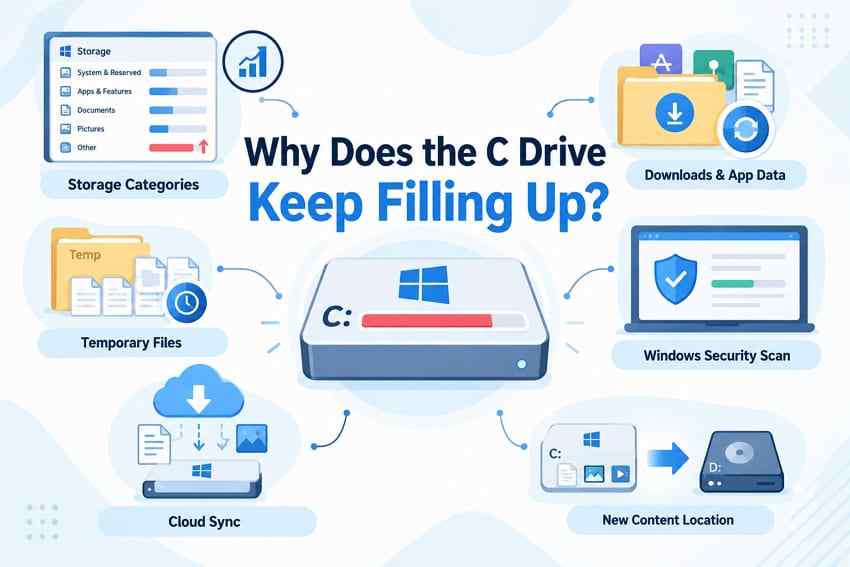
Use Microsoft’s low-disk-space guidance for the Temp-folder issue and use the Windows Security app if malware is a possibility. Do not reset or reinstall Windows just because cleanup is temporary; back up important files before any destructive repair.
Pro Tip. Recover Important Files Accidentally Deleted During Windows 11 Cleanup

Cleanup can remove an important file when you select Downloads, Recycle Bin, previous-installation data, or a personal-file group without reviewing it. If a document, photo, video, or project disappears, stop writing new data to C: as soon as possible.
First check the Recycle Bin, OneDrive or another cloud copy, File History, and external backups. If no usable copy exists, Wondershare Recoverit can help scan readable local storage for files that may still remain after deletion or a file-system problem. It cannot recover data that was never written to the drive or has already been overwritten, and it cannot repair Windows or bypass encryption.
Install recovery software on another physical drive when possible, and save recovered files to a different destination. Repeatedly using the affected C: drive can overwrite recoverable data, especially on an SSD.
Step 1. Select the C: drive.
Open Recoverit, choose Hard Drives and Locations, and select the Windows partition that held the deleted file.

Step 2. Scan for remaining file data.
Start the scan and use available filters for file type, location, or name. Results can include files removed from the file system, but a result is not proof that every byte is intact.

Step 3. Preview and recover to another location.
Preview the files you need when preview is available, choose Recover, and select another internal drive or external storage. Open several recovered files before reusing or cleaning the original C: drive.

Recover Important Files Accidentally Deleted During Windows 11 Cleanup
Security Verified. Over 7,302,189 people have downloaded it.
Recoverit is relevant to deleted or lost local files, not to ordinary Windows storage cleanup. It does not repair the operating system, fix malware, restore a deleted Windows feature, decrypt BitLocker data, or guarantee recovery after overwriting. If the C: drive is failing, disconnecting, or showing hardware errors, minimize use and consider professional recovery before repeated scans.
Part 7. Practical Tips to Keep C Drive Clean Automatically
After learning how to free up space on C drive Windows 11, focus on the categories that repeatedly grow rather than running a broad cleanup every week.
- Keep Storage Sense configured. Let it manage eligible temporary files and Recycle Bin items, but review its Downloads and cloud-file settings.
- Review Cleanup recommendations regularly. It can expose large or unused files and apps before the system drive becomes critically full.
- Move large media libraries off C:. Store recordings, photos, videos, and project exports on another drive when appropriate, and keep a separate backup.
- Use OneDrive Files On-Demand carefully. Online-only files reduce local usage but still depend on account access and connectivity. They are not an independent backup.
- Change default save locations where appropriate. Review new-app and personal-content destinations before the C: drive reaches low-space status.
- Uninstall unused apps properly. Remove large software through Settings or its official uninstaller, not by deleting Program Files folders.
- Check available space before major updates or exports. Keep enough headroom for temporary working files, updates, and application operations rather than waiting for a low-disk warning.
- Back up important files before cleanup. Cleanup tools reduce storage usage; they do not replace File History, cloud versioning, an external backup, or another tested copy.
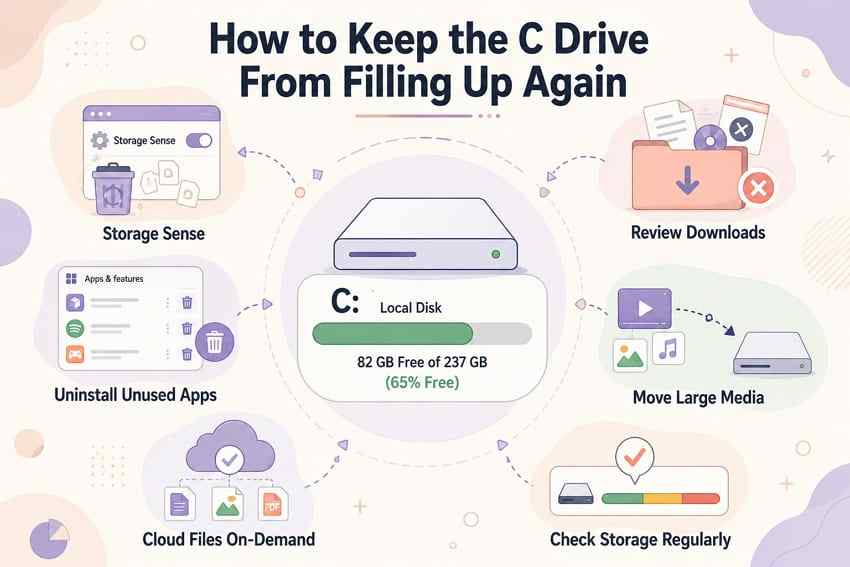
Microsoft’s free-up-space-for-Windows-updates guidance covers Storage Sense, Cleanup recommendations, and Disk Cleanup when Windows needs more working space.
Conclusion
The safest answer to how to clean up C drive Windows 11 is to diagnose first. Use Storage settings to find the growing category, then use Cleanup recommendations, Temporary files, Storage Sense, or Disk Cleanup for system-managed data. Uninstall unused apps through Windows, and review personal files before deleting or moving them.
Do not manually remove content from Windows, System32, Program Files, ProgramData, Recovery, boot locations, or unfamiliar AppData folders. If cleanup deleted an important local file, stop writing to C:, check existing copies, and use Recoverit only when local recovery is relevant. It cannot restore data that has already been overwritten or repair the underlying Windows problem.
FAQ
-
Is it safe to delete temporary files in Windows 11?
Many temporary categories can be removed, but review the list first. Downloads, Recycle Bin, and previous Windows installation files can contain data or rollback information. Storage settings, Cleanup recommendations, and Disk Cleanup are safer starting points than deleting unfamiliar Temp subfolders by hand. -
Why is my C drive full even though I have few files?
File Explorer may not make temporary files, installed-app data, update cleanup files, OneDrive offline content, Recycle Bin contents, or system-reserved storage obvious. Open Settings > System > Storage and compare the categories before deleting anything. -
Can I move the Downloads folder from C drive to another drive?
Yes. In File Explorer, right-click Downloads, choose Properties, open the Location tab, and follow the move option when it is available. Confirm that the destination has enough space and is included in your backup plan. You can also move selected files manually without changing the folder location. -
Does cleaning the C drive make Windows 11 faster?
Freeing space can help when low storage is causing update failures, application errors, or other resource pressure, but cleanup is not a guaranteed performance fix. If the C: drive fills again, identify the growing category and address the underlying app, sync, update, or malware issue. -
What should I recover first if I accidentally deleted files during cleanup?
Stop saving new data to C:, then check the Recycle Bin, OneDrive or another cloud copy, File History, and external backups. Prioritize irreplaceable documents, photos, videos, and projects. If no copy exists, scan the readable local storage with data-recovery software and save recovered files to another drive.


