 TL;DR:
To securely wipe a drive in Windows 10, choose "Reset this PC" with "Clean data" enabled to sell an entire computer, execute the DiskPart "clean all" command to overwrite a secondary mechanical HDD, or use manufacturer utilities to sanitize an SSD.
● Back up essential files and retrieve BitLocker recovery keys before initiating any wipe, as successful overwriting or SSD sanitization permanently destroys data beyond the reach of recovery tools like Recoverit.
● Standard Windows commands do not reliably erase Solid State Drives due to flash wear leveling; you must use official software like Kingston SSD Manager or Samsung Magician to execute a supported ATA Secure Erase or NVMe Sanitize procedure.
● To erase a single data volume without altering the system drive, use the format command with the "/P:0" parameter to write zeros exclusively to that confirmed partition instead of targeting the entire physical disk.
Ask AI for a summary
 ChatGPT
 Perplexity
 Gemini
 Claude
 Grok
Grok
Selling a Windows 10 PC, donating a laptop, or reusing an old hard drive calls for more than dragging files to the Recycle Bin. Deleting files, quick formatting a volume, and overwriting a whole disk leave different amounts of recoverable information behind. Choosing the wrong option can either expose private data or erase a backup you meant to keep.
This guide explains how to wipe a hard drive in Windows 10 based on your actual goal: resetting the PC, clearing a secondary HDD, formatting one partition, or sanitizing an SSD. First, identify the physical disk, check encryption, and verify a backup. If you already lost important files, consider recovery before any overwrite or secure erase.
In This Article
Part 1. Choose the Wipe Method for Your Goal and Drive
The first decision is not which command to run; it is what must disappear and whether the disk is an HDD or SSD. A method that works for clearing one data volume is not equivalent to preparing a complete PC for a new owner.
Match the Erase Method to the Drive and End Goal
Use the following comparison before opening Disk Management or Windows Recovery. The methods differ in scope, not merely in speed.
| Your goal | What to select | Appropriate approach | Important limitation |
| Sell or donate an entire Windows 10 PC | Windows installation and any other internal drives you intentionally include | Reset this PC > Remove everything > Clean data | Consumer-level cleaning, not certified sanitization; verify the all-drives setting |
| Reuse a healthy secondary mechanical HDD | The entire confirmed non-system physical disk | DiskPart clean all if overwriting is actually needed | All addressable sectors on the selected disk are written; the command takes time |
| Erase one separate data partition | Only the confirmed non-system volume | Full format or Windows format /P:0 | Other partitions and disk areas are not sanitized |
| Sell or retire an SSD | Exact SSD model and its supported connection | Manufacturer-supported Secure Erase, Sanitize, or a validated cryptographic erase method | Ordinary host overwrites do not reliably reach all physical flash cells |
If you only want to free up storage space while continuing to use Windows, routine cleanup is a different task. A full disk wipe would be unnecessary and dangerous.
Confirm the Physical Disk, Windows Volume, Encryption and Backup
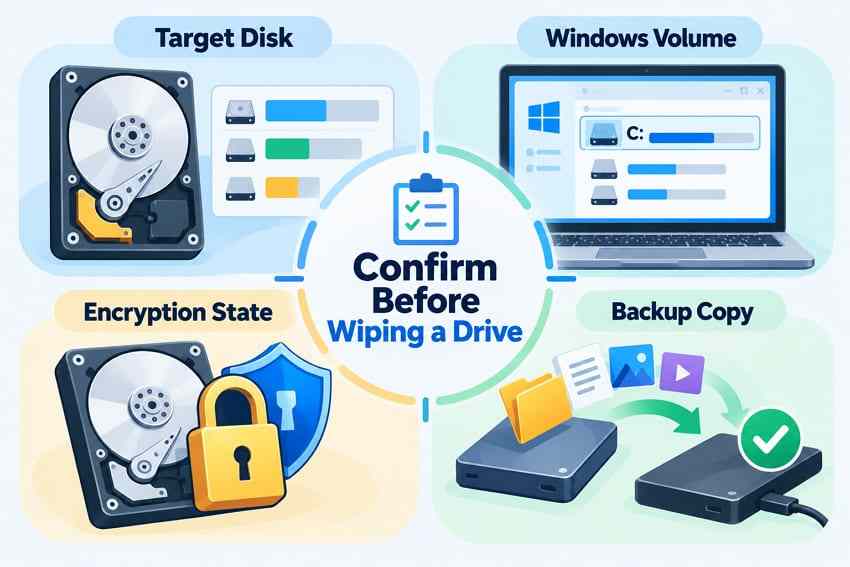
Before any destructive action, open Disk Management with Windows + X > Disk Management. Record the disk capacity, model when available, partitions, and drive letters. Your Windows installation commonly appears as C: alongside EFI, Recovery, or other system partitions; do not assume Disk 0 always identifies the disk you mean to erase.
- Disk identity: Match at least capacity, model, and volume layout; remove unnecessary removable drives to reduce selection mistakes.
- Encryption: Check Control Panel > System and Security > BitLocker Drive Encryption, or device encryption if offered on the PC. Keep any required recovery keys.
- Backup: Copy needed documents, photos, application data, and license details to a separate physical device or approved cloud backup; open some of those files afterward.
- Ownership: For a managed corporate PC, follow your organization's disposal policy rather than substituting an unapproved local wipe.
Recover Accidentally Deleted Files Before the First Overwrite
If you deleted a folder by mistake and now plan to erase the disk, stop the wipe. Check Recycle Bin and existing backups first. A healthy, detectable HDD may still contain recoverable file data after ordinary deletion or some quick formats; overwriting and successful SSD sanitization change that situation fundamentally. SSD TRIM may already have made some deleted blocks unavailable.
For a genuine file-loss case, Recoverit Hard Drive Recovery can scan a supported, readable HDD or SSD for available data. This is file recovery before erasure, not a tool that wipes drives or reverses successful sanitization. If the disk is clicking, repeatedly disconnecting, or physically damaged, avoid repeated scans and contact a specialist instead.
Step 1. Choose the affected drive. Install Recoverit on a different healthy disk where possible. Open Hard Drives and Locations and select the drive that contains the missing files, checking its size and name.

Step 2. Scan and narrow the results. Let Recoverit examine the selected storage, then use file type, path, or other available filters to locate the data you actually need.

Step 3. Preview and save elsewhere. Preview supported files, select the needed items, and use Recover to save to a different physical drive. Open the recovered files to verify them before proceeding with the wipe.

The Recoverit video below is an additional resource; use the written drive-identification safeguards in this article before applying any destructive command.

Part 2. Reset a Windows 10 PC for Sale or Donation
Use Reset this PC when the computer itself is changing hands and the new owner should receive a usable Windows installation. The Remove everything choice removes personal files, apps, and settings, while the optional cleaning setting makes the deleted files harder to recover.
Back Up Files and the BitLocker Recovery Key
A reset can be irreversible, so confirm you have an independent copy of important files and the credentials needed to access it. If the Windows drive uses BitLocker or device encryption, have the recovery key available before beginning. Microsoft's Reset your PC guidance advises checking both backups and recovery keys.
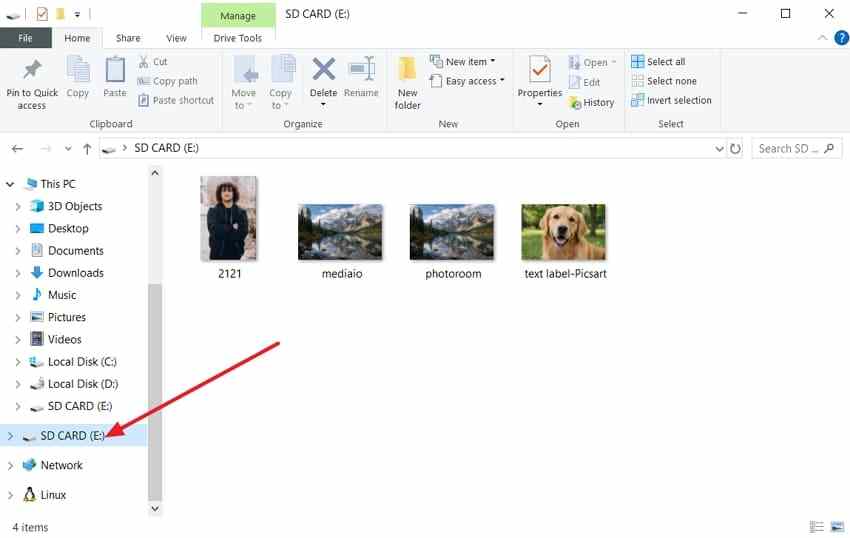
Step 1. Copy documents, pictures, installers you own, and any other necessary data to an independent destination. A removable drive in File Explorer is one possible destination, but the example below is not proof that a backup succeeded.
Step 2. Open Control Panel > System and Security > BitLocker Drive Encryption and review encryption on the Windows and any other drives that may be affected.
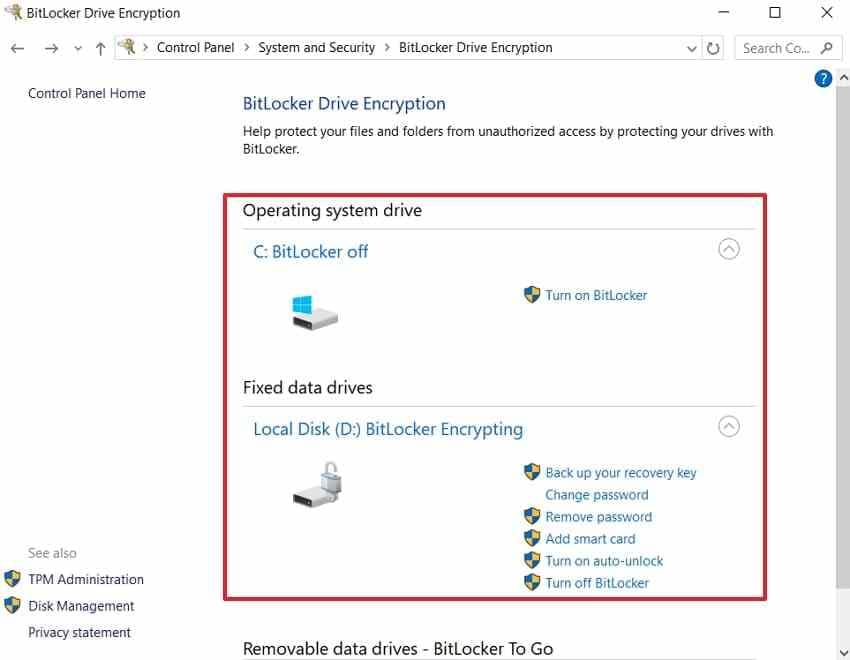
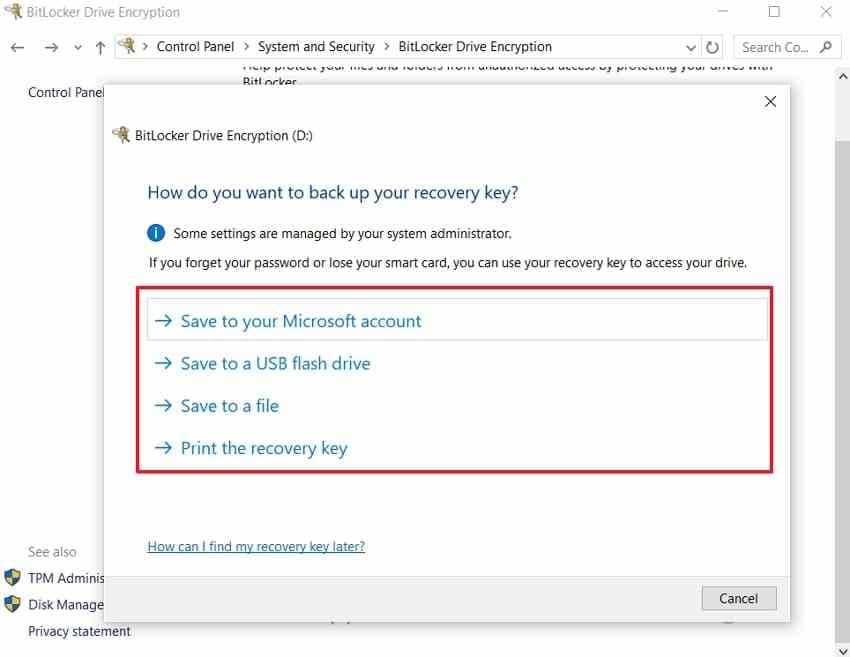
Step 3. Where available, select Back up your recovery key and save it to an approved account, file, printout, or device that will not be wiped. Verify you can retrieve it.
Select Remove Everything, Enable Clean Data, and Check Other Drives
Windows 10 reset screens can differ slightly by build and reinstall method. The critical choices are the removal option, the cleaning option, and any separate all-drives scope control.
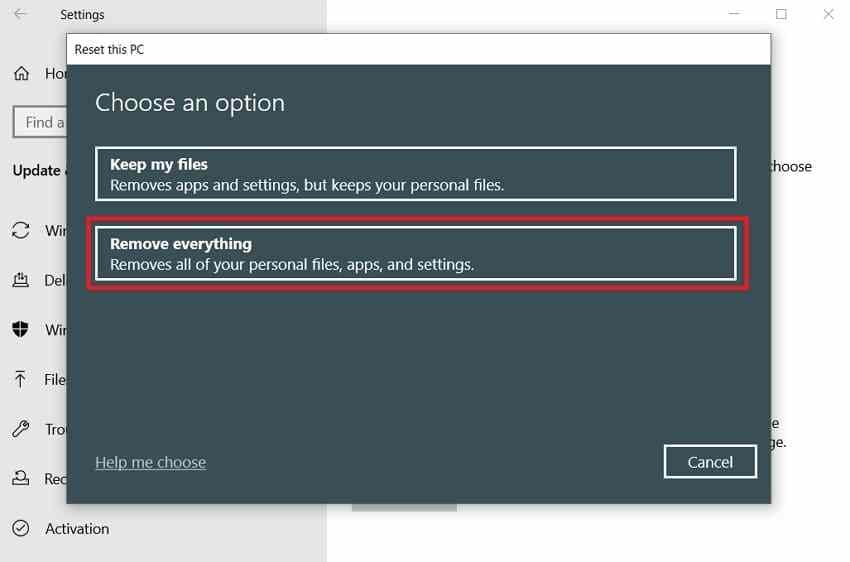
Step 1. Open Start > Settings > Update & Security > Recovery. Under Reset this PC, select Get started, then choose Remove everything, not Keep my files.
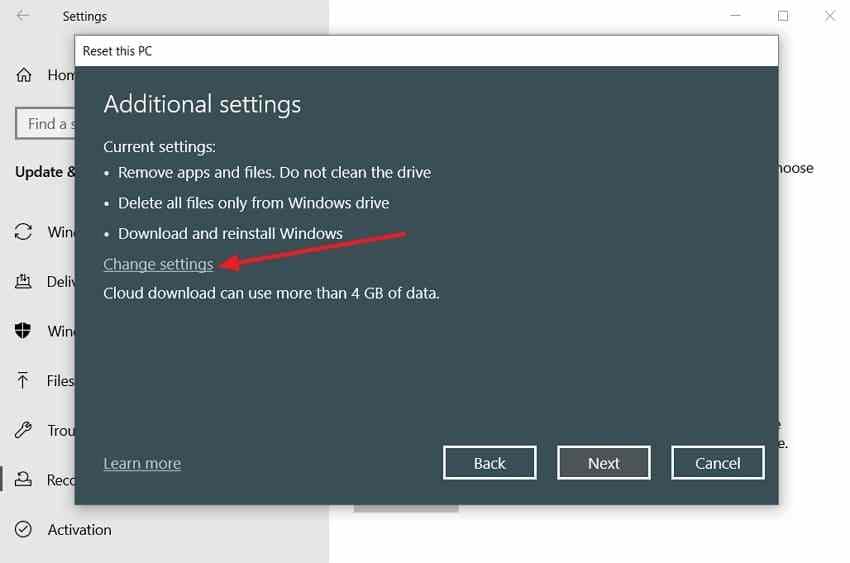
Step 2. Choose Cloud download or Local reinstall, then open Change settings under the additional reset settings when it appears.
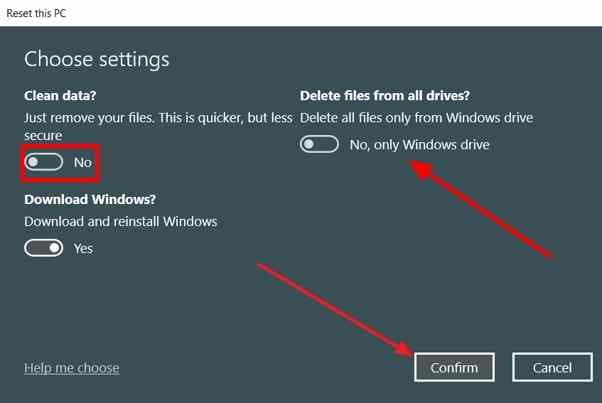
Step 3. Turn Clean data to Yes for a consumer handoff. Review Delete files from all drives, if shown: leave other disks excluded unless you specifically intend to erase them and have separately secured their data. The example screenshot shows both toggles before being switched on; do not mistake its default No for the recommended sale setting.
Step 4. Read the final reset summary, verify the selected drive scope, and start the reset only if it matches your intention. Keep the PC connected to power. Do not interrupt a long cleaning operation simply because the screen is temporarily blank.
Know the Consumer-Erasure Boundary and Windows 10 Lifecycle
Microsoft describes Clean data as a consumer feature, not a substitute for an organization's or government's required sanitization standard. If you handle regulated, confidential, or enterprise-owned media, follow the approved media-disposal process and the current NIST SP 800-88 Revision 2 guidance instead of relying only on a reset message.
Windows 10 mainstream support ended on October 14, 2025. Eligible enrolled devices may receive Extended Security Updates, but resetting Windows 10 does not itself return the OS to normal support. If you plan to keep the machine instead of selling it, check whether it can move to a supported version of Windows.
Part 3. Erase a Secondary HDD for Reuse
When the operating system stays on one disk and you want to clear another healthy mechanical HDD, you can work directly on the secondary disk. Decide whether you merely need fresh partitions or genuinely need an overwrite first.
Understand Quick Format, DiskPart Clean, and Clean All
The three options change different parts of the disk. In particular, the word clean in DiskPart does not automatically mean the old data sectors have been overwritten.
| Operation | What it changes | What may remain |
| Quick format | Recreates filesystem metadata for a chosen volume | Much of the previous user data may remain in addressable areas until overwritten |
| DiskPart clean | Removes partition and volume formatting information on the selected disk | It does not overwrite every file-data sector |
| DiskPart clean all | Sets every addressable disk sector to zero according to Microsoft's command definition | Not a guarantee of sanitizing inaccessible, remapped, or flash-controller-managed areas |
Microsoft's DiskPart clean reference documents the distinction. If the goal is simply reusing a drive under your own control, a quick format may be sufficient; do not run clean all unless its permanent effect is intended.
Identify the Non-System Disk Before Selecting It
The mistake to prevent is selecting the current Windows system disk or the backup drive. Unplug unused removable devices; match the secondary HDD in Disk Management first. The screenshot below illustrates list disk syntax, not authorization to choose the numbered disk pictured.
Step 1. Search for Command Prompt, choose Run as administrator, type diskpart, and enter list disk.
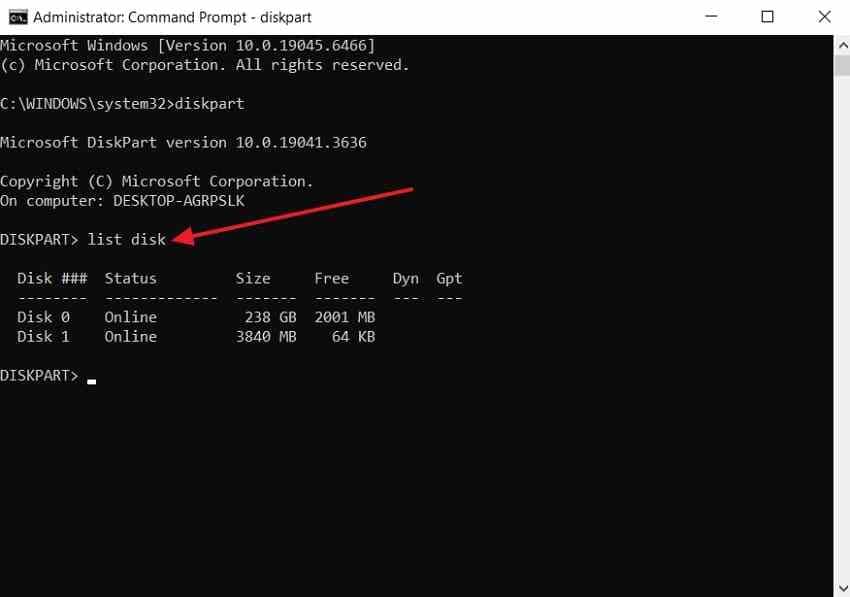
Step 2. Compare capacity and disk layout with Disk Management, then enter select disk X, substituting the correct number for X. Follow with detail disk and check the model, volumes, and whether it contains any boot, system, or recovery partitions.
Stop condition: If you cannot positively identify a secondary, non-system HDD, exit DiskPart. Never select a disk using only an example number from an online screenshot. For more background, see the Recoverit DiskPart command reference.
Run Clean All Only After Verification, Then Prepare the Disk
Step 1. If the selected disk is unquestionably the intended secondary HDD and the files are no longer needed, type clean all and press Enter. This operation writes over the disk's addressable sectors. It cannot be undone with an ordinary recovery scan.
Step 2. Wait for DiskPart to report successful completion. The duration depends on capacity, connection and sustained write speed; a large mechanical HDD can take hours. If the operation fails or the disk disconnects, do not claim the wipe is complete.
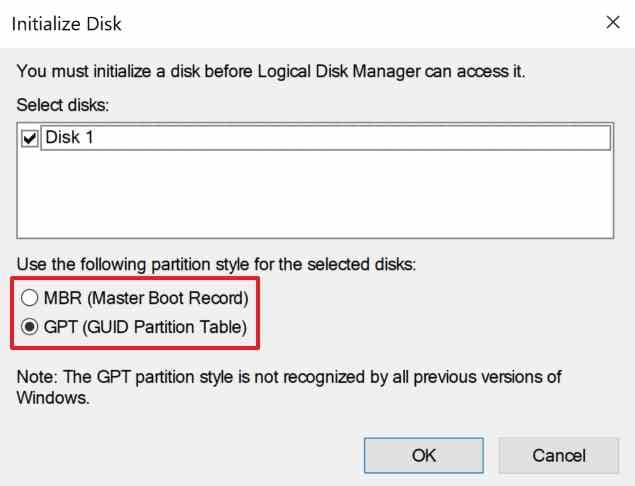
Step 3. Only after successful completion, type exit, open Disk Management, initialize the now-empty disk if Windows requires it, and choose GPT for typical modern PCs unless older compatibility needs MBR.
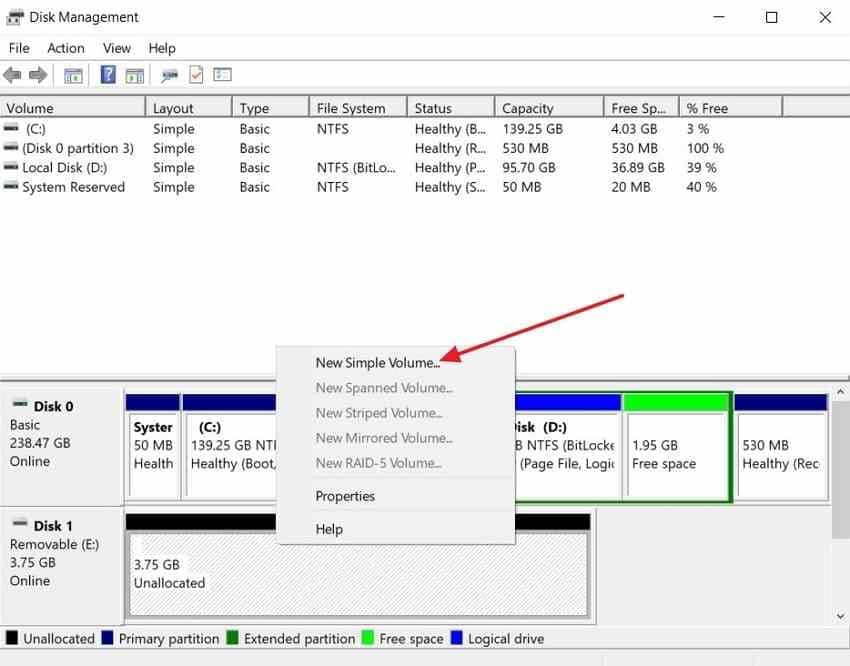
Step 4. Right-click the confirmed unallocated space, select New Simple Volume, assign a drive letter and choose a suitable filesystem. This rebuilds the disk for storage; it is not part of proving the overwrite occurred.
If you accidentally used clean instead of clean all and now need files back, stop before creating or formatting new partitions. A lost-partition recovery guide covers that different, potentially recoverable scenario.
Part 4. Wipe Only One Partition Without Claiming Whole-Disk Security
Sometimes the task is only to clear D: or another separate data volume while preserving Windows and neighboring partitions. That requires a volume-level method, not an entire-disk command.
Full-Format a Confirmed Non-System Volume
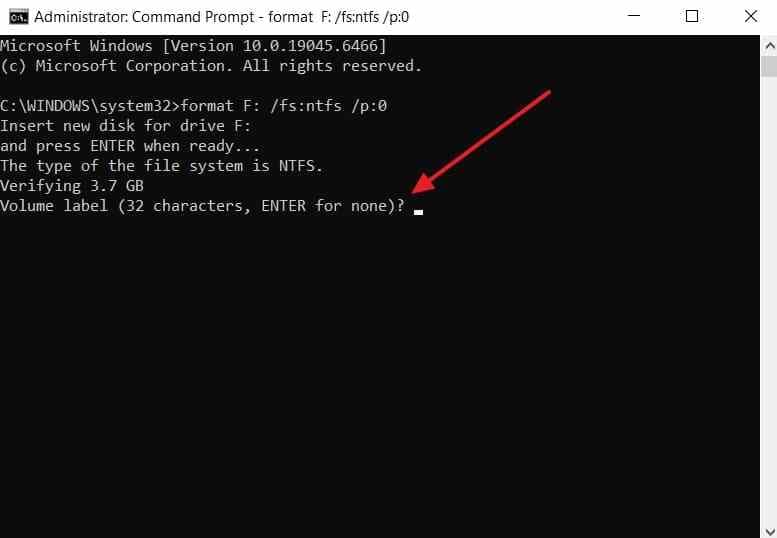
In Windows 10, a full format of a conventional HDD volume can zero its addressable sectors, but you must identify the volume letter accurately. The /P:0 parameter explicitly zeroes the volume with no additional random overwrite passes; Microsoft's format command reference documents this behavior. Do not combine it with /Q, which selects quick formatting.
Step 1. Confirm the drive letter, label, volume size and that it is not the running Windows volume. In an elevated Command Prompt, use format X: /FS:NTFS /P:0, replacing X with the confirmed data-volume letter. Do not copy a sample letter without checking the target.
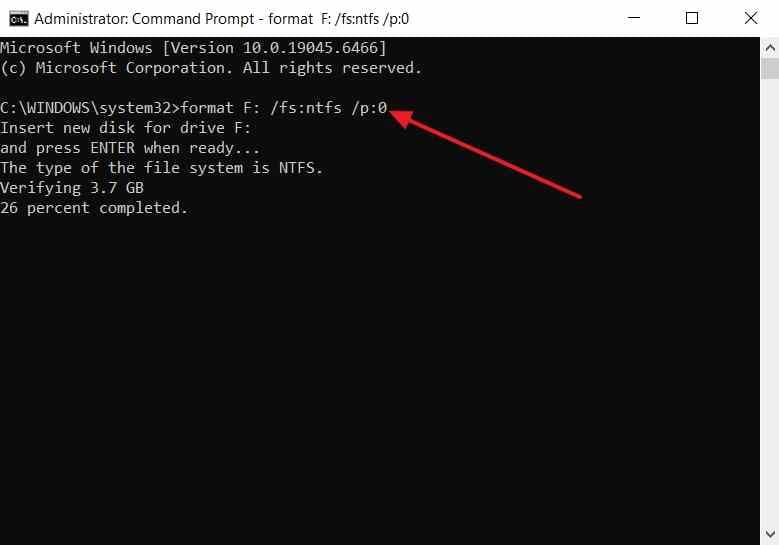
Step 2. When asked, enter the existing volume label if required and confirm the destructive operation. Let the full format complete without interrupting it.
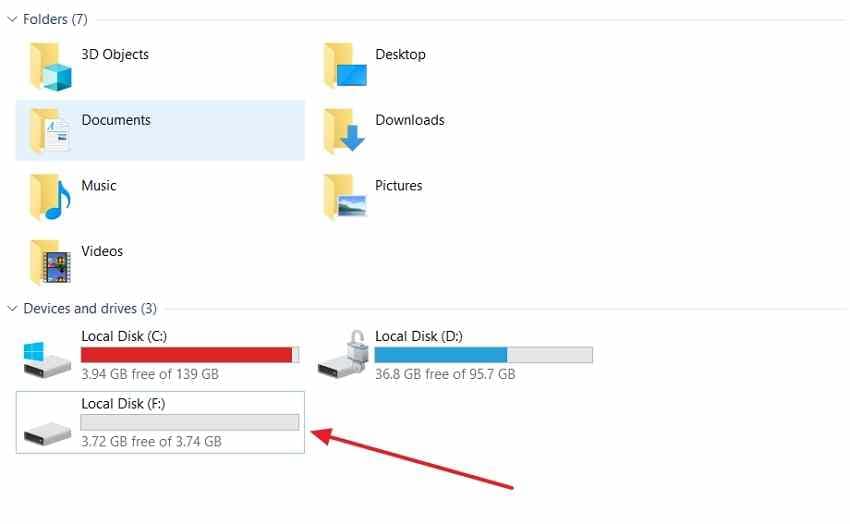
Step 3. Open File Explorer and verify the intended volume is accessible and empty. Recheck the disk name and formatting result; a folder view alone does not establish sanitization of the whole physical disk.
Understand What the Partition Wipe Leaves Behind
Formatting one partition does not erase other partitions, unallocated regions, backups, or possible copies on the Windows system drive. It also cannot guarantee every physical block on an SSD has been sanitized. If the task is an entire-PC sale, go back to Part 2; if the target is the active C: drive, do not attempt to format it while Windows runs.
For the different problem of replacing or rebuilding the operating-system partition, use the dedicated C-drive formatting guide. Deleting C: or reinstalling Windows does not, by itself, demonstrate a full secure erase of every disk area.
Part 5. Handle SSDs With Their Supported Erase Method
SSDs are not small HDDs. Wear leveling, spare blocks, interface limitations and controller features mean an operating-system overwrite may not touch all historical flash locations. For a sale or retirement where secure removal matters, check what the specific SSD supports.
Choose a Supported SSD Secure Erase or Sanitize Procedure
Start with the drive's exact model and official utility, not a generic one-click eraser. Kingston documents an ATA Secure Erase path for compatible SATA drives in Kingston SSD Manager; Samsung Magician offers Secure Erase and other features on supported Samsung models. NVMe drives may provide controller-level Format NVM or Sanitize capabilities, which are different from an ATA command.
| Drive family | What to check | Critical constraint |
| Kingston SATA SSD | Kingston SSD Manager and its supported ATA Secure Erase procedure | Compatibility is model-specific; Kingston states USB enclosures are unsupported for the manager |
| Samsung SSD | Samsung Magician's model-specific Secure Erase availability | Not all devices, interfaces or controllers expose the same tool features |
| NVMe SSD | Manufacturer documentation for NVMe Format, Sanitize or supported cryptographic erase | Check controller support and exact namespace or drive scope; do not improvise a command |
For supported models, refer to the Kingston SSD Manager documentation or Samsung Magician support page. The manufacturer procedure, not a general Windows command, determines which erasure operations are available.
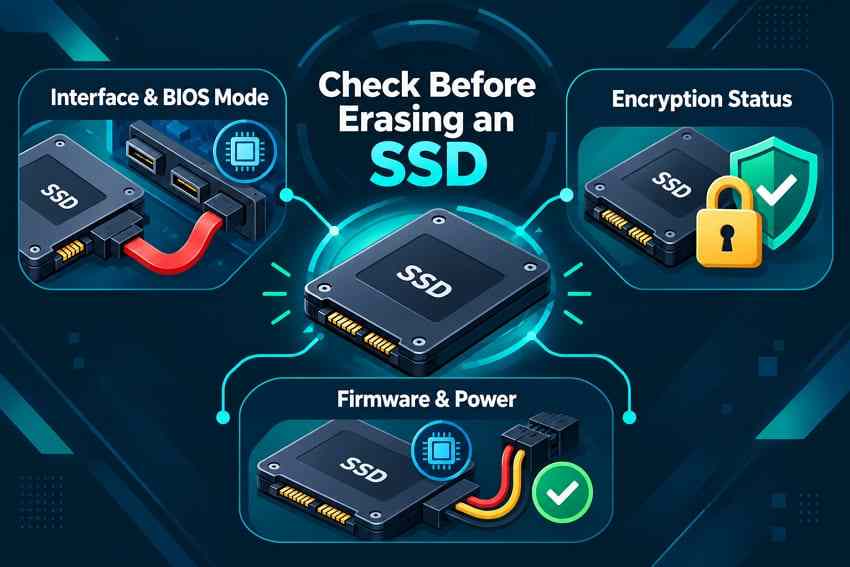
Check Interface, Encryption and Power Before Erasure
Before executing a vendor-sanctioned SSD erase, verify the interface is supported, the drive is correctly identified, any security state or encryption prerequisites are understood, and the machine has reliable power. A USB-to-SATA bridge may hide required controller commands. If a vendor tool reports that the drive is unsupported, frozen, locked or not detected, stop and consult that vendor's model-specific instructions rather than repeatedly forcing erasure.
The following original illustration is a planning checklist, not a screenshot of a real SSD utility. It does not replace the vendor's exact procedure.
Part 6. Verify Completion and Prepare the Drive or PC
A wipe is only as trustworthy as its scope and its completion evidence. Confirm what was erased, whether the chosen tool finished successfully, and whether your handoff or reuse task actually needs a formatted drive or fresh Windows setup.
Confirm the Result Matches the Selected Method
Check the application or command's completion message, error log where available, and the identity of the disk you recorded before erasure. For clean all, Disk Management normally shows the previous partitions removed after completion. For Windows Reset, confirm the machine reaches the expected out-of-box setup state. For vendor SSD tools, record the result reported by that utility.
These checks establish reported completion, not an independent forensic certification. Formal disposal programs may require documented verification or validation under their applicable policy. If the wipe was interrupted or a disk developed errors, treat its sanitization status as uncertain.
Prepare for Handover or Reuse and Know the Recovery Limit
For a donated or sold Windows PC, leave it at initial setup so the next owner can create their own account; do not sign in again with personal credentials. If you wiped a secondary HDD for reuse, initialize and format it only after the wipe succeeds. If you permanently erased an SSD that hosted Windows, reinstall an OS only when your intended use requires it.
Recoverit may help with files lost before a destructive wipe, when those bytes are still available on a stable disk. It cannot reconstruct overwritten data or undo successful manufacturer-supported sanitization. Keep a verified backup and a record of the correct target and completed method for future handoffs.
Conclusion
To wipe a hard drive in Windows 10, choose the method that fits the target: Reset this PC with Clean data for a consumer PC handoff, DiskPart clean all for a confirmed secondary HDD, a full format for one data partition, or the SSD maker's supported erase procedure. Back up and verify important files, confirm the correct disk, and let the operation finish. Recoverit may help with eligible accidental deletions before overwriting begins, not after successful sanitization. Always check the completion result before reuse or sale.
FAQ
-
How do I wipe a hard drive on Windows 10 without deleting Windows?
Select a separate non-system HDD, verify it does not hold boot or recovery volumes, and use an appropriate format or clean all only if the whole secondary HDD should be overwritten. Never target the Windows disk by accident. To wipe one data partition, format that volume instead. -
Does formatting a hard drive permanently erase all data?
A quick format generally does not overwrite all previous file data. A full format or format /P:0 zeroes addressable sectors of the selected volume under Windows, but does not sanitize other partitions or guarantee erasure of all SSD flash areas. Pick a method that fits the actual disposal requirement. -
How long does it take to completely wipe a hard drive on Windows 10?
The time depends on drive capacity, sustained write speed, method and connection. A mechanical HDD overwrite can take hours. As an illustration, 1 TB at an uninterrupted 150 MB/s takes roughly 1 hour 51 minutes before overhead; actual performance varies. Do not interrupt an operation merely because it seems slow. -
Can I wipe a Windows 10 hard drive without a recovery disk?
Yes. If Windows or its recovery environment is working, Reset this PC > Remove everything can reinstall Windows with local or cloud reinstall options, without a separate recovery disk. If you need to overwrite the active system disk with a different tool, bootable media or another environment may be necessary.



