


 TL;DR:
Successfully scavenging XFS inodes requires immediately unmounting the affected partition and cloning the drive to prevent data overwriting before extracting file remnants using sector-level scanning or manual debugging tools.
● The xfs_repair utility fixes structural metadata corruption on unmounted drives to stabilize the file system, but it does not automatically restore overwritten or deleted file contents.
● Experienced administrators can use the xfs_db debugger to manually inspect unmounted inode tables for valid block pointers and extract the surviving raw data using low-level copy tools like dd.
● If inode references are entirely broken or missing, graphical software like Recoverit bypasses the file tables entirely to rebuild files based on internal signatures via deep sector-level scanning.
Ask AI for a summary
 ChatGPT
 Perplexity
 Gemini
 Claude
 Grok
Grok
XFS is a reliable and high-performance file system used on many Linux servers and enterprise systems. It handles very large storage volumes with ease. It also performs well under heavy workloads such as databases, virtualization, and backup servers. Because of its scalability and stability, it is often the default choice for modern Linux distributions.
However, even a strong file system can face issues. Files may be deleted by mistake. Disks may fail. Sudden power loss can damage metadata. In such cases, administrators begin searching for how to scavenge XFS inodes and perform XFS recovery.
Understanding the internal structure of XFS makes the recovery process clearer and more controlled.
Table of Contents
What is the inode in XFS?
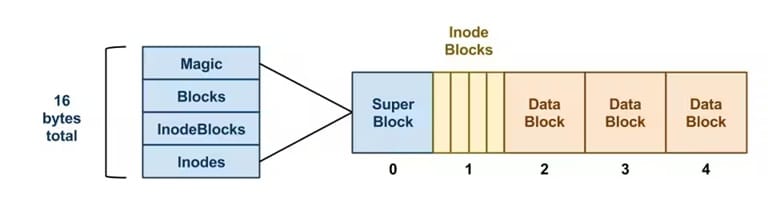
To understand recovery, you must first understand what is the inode in XFS. An inode is a data structure that stores metadata about a file. It contains information such as file size, ownership, permissions, timestamps, and pointers to data blocks. It does not store the file name. The directory structure maps file names to inode numbers.
Every file created on an XFS partition receives a unique inode number. The system uses this number to locate the file’s actual content on disk. When a file is deleted, the directory entry is removed, and the inode is marked as free. However, the data blocks may remain untouched until new data overwrites them.
This design is why deleted file recovery is sometimes possible. If you clearly understand what is the inode in XFS, you can analyze block references and metadata. This knowledge also helps when learning how to manage inodes and prevent exhaustion of inodes in large storage environments.
How to Scavenge XFS Inodes?
Learning how to scavenge XFS inodes requires patience and careful handling. Scavenging means scanning the file system at a low level. The goal is to inspect inode structures directly and search for damaged or deleted records. This process must be performed on an unmounted partition to avoid further damage.
Before starting, it is highly recommended to create a full disk image. Work on the copy instead of the original drive. This protects the source data and improves the safety of your XFS recovery efforts. Avoid writing new data to the affected partition.
Overview of the Steps
There are several approaches to scavenging inode data. Some tools repair structural corruption automatically. Others allow manual inspection. Advanced users often rely on debugging tools to examine internal inode tables.
These methods help in how to retrieve remnants of deleted/lost files in XFS and rebuild usable file data when possible.
Use xfs_repair to rebuild damaged inode structures
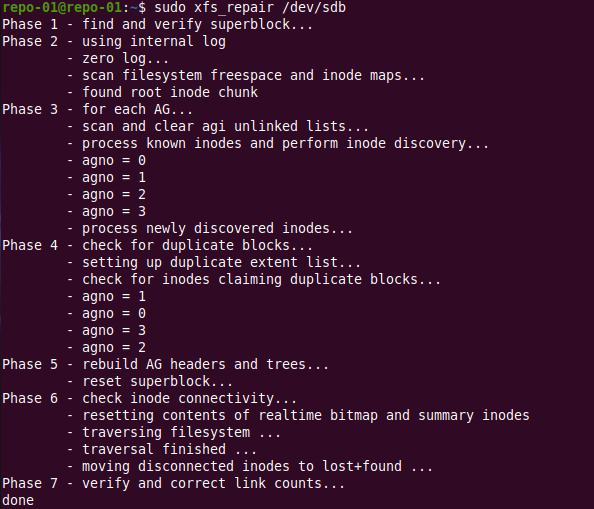
The xfs_repair utility is the primary repair tool for XFS. It scans allocation groups and inode metadata. It checks internal consistency and corrects logical errors within the file system.
Run the tool only on an unmounted partition:
sudo xfs_repair /dev/sdX
Replace sdX with the correct device name. The tool analyzes inode blocks and rebuilds damaged structures if possible. While it does not always restore deleted content, it stabilizes the environment for further XFS recovery tasks. This is often the first technical step when researching how to scavenge XFS inodes.
Use xfs_db (XFS debugger) to manually inspect and scavenge inode data
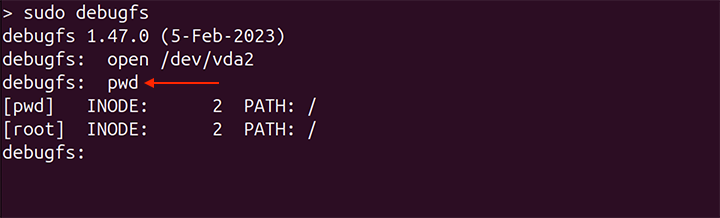
The xfs_db utility provides direct access to XFS metadata. It allows you to inspect inode contents, allocation groups, and block pointers. Many experts use xfs_db to recover lost data in XFS when automatic repair does not restore missing files.
Launch the debugger:
sudo xfs_db /dev/sdX
Switch to a specific inode using:
inode <inode_number>
You can then display its core structure. This inspection supports how to retrieve remnants of deleted/lost files in XFS by analyzing block mappings. Using xfs_db to recover lost data in XFS requires attention to detail and knowledge of file system layouts.
Explore inode tables to retrieve remnants
In some cases, deleted inodes still contain valid block references. If those data blocks have not been overwritten, you may manually extract the raw data. This process requires identifying block addresses listed in the inode structure.
You can print inode information with internal commands such as:
p core
Once you find the referenced data blocks, you may copy them using low-level tools like dd. This advanced step is often included in deep investigations of how to scavenge XFS inodes and perform manual XFS recovery.
Why Inodes Get Corrupted in XFS Systems
Inode corruption usually happens due to external or system-level problems. Understanding the causes helps prevent damage and improve future XFS recovery planning. It also supports strategies on how to manage inodes and prevent exhaustion of inodes in production systems.
- Hardware disk errors: Bad sectors and failing drives can damage inode tables and metadata blocks.
- Sudden power loss: Abrupt shutdowns interrupt write operations and may leave inode updates incomplete.
- Kernel crashes: System crashes during file operations can corrupt journaling data.
- File system bugs: Older kernel versions may contain rare XFS bugs affecting metadata integrity.
- Improper unmounting: Disconnecting storage without proper unmounting may cause metadata inconsistency.
- RAID configuration errors: Incorrect RAID rebuilds may damage inode references.
- Firmware defects: Controller or firmware issues may introduce write instability.
- Human administrative mistakes: Incorrect commands or formatting errors can lead to inode structure loss.
Each of these factors increases the need to understand how to recover deleted files in XFS and how to recover deleted data on XFS disk safely.
How to Recover Deleted Data on XFS Disk
When files are removed, immediate action is important. Continued disk usage may overwrite data blocks. Recovery success depends on how quickly you stop using the partition. Below are two structured methods to recover deleted data on XFS disk.
Method 1: Use Recoverit Data Recovery Software
Recoverit is simple and clear to use. It scans storage devices at the sector level instead of relying only on file tables. This allows it to detect file signatures even when metadata is damaged. It is a practical choice for users who prefer a graphical interface rather than manual debugging tools.
The program performs a deep scan of the entire partition. It searches for lost fragments and attempts to rebuild complete files from scattered blocks. It can still recover data when inode references are partly missing or broken. This makes it helpful for XFS recovery in many common data loss situations.
It is especially useful for users who are not comfortable with command-line utilities. The process is guided step by step on the screen. You can preview files before restoring them. This reduces mistakes and makes it easier to recover deleted files safely.

Here are the key features of Recoverit:
- Deep sector-level scanning: Scans the entire XFS partition at the raw data level. It does not rely only on file system metadata.
- Support for XFS partitions: Can detect and scan XFS file systems directly without reformatting.
- File signature recognition: Identifies files based on internal signatures, even if inode references are damaged.
- Preview before recovery: Lets you preview documents, images, and videos before saving them.
- Selective recovery: Allows you to choose only the files you need instead of restoring everything.
- Recovery from formatted drives: Can recover data even if the XFS partition was accidentally formatted.
- Safe recovery process: Restores files to a different location to prevent overwriting original data.
- User-friendly interface: Simple step-by-step process suitable for both beginners and professionals.
Steps:
Step 1: Install the Recoverit software on a separate drive. Connect the affected XFS disk to the system. Select the XFS partition in the program interface.

Step 2: Run a deep scan. Preview recoverable files.

Step 3: Save selected files to external storage, not to the original partition.

Method 2: Use xfs_db to explore and attempt recovery
This technical method requires deeper file system knowledge. It is recommended for experienced administrators. It helps users who want direct control and wish to use xfs_db to recover lost data in XFS manually.
By examining inode metadata, you may locate block addresses that still contain usable data. This approach directly supports how to retrieve remnants of deleted/lost files in XFS.
Step 1: Open xfs_db and navigate to suspected inode numbers. Inspect metadata fields carefully.
Step 2: Identify valid block pointers. Use dd to copy those blocks into a new file. Verify file integrity after extraction.
This method is slower but gives more control over how to recover deleted files in XFS when automated tools are not sufficient.
Pro Tips for XFS Inode Recovery and Management
Proper planning reduces recovery needs. By following good storage practices, you can lower the risk of corruption and inode exhaustion. Learning how to manage inodes and prevent exhaustion of inodes is essential for large systems.
- Monitor inode usage regularly: Use system commands to check inode allocation before space becomes critical.
- Maintain frequent backups: Regular backups reduce pressure on emergency XFS recovery efforts.
- Avoid forced shutdowns: Always shut down servers properly to protect metadata integrity.
- Keep systems updated: Update kernels and XFS utilities to stable versions.
- Use reliable hardware: Invest in quality storage controllers and drives.
- Test restore procedures: Verify backups periodically to ensure recovery readiness.
- Separate workloads: Avoid heavy random writes on the same partition handling sensitive data.
- Create disk images before repair: Always work on a cloned image when attempting deep recovery.
Conclusion
XFS is powerful and dependable, but no file system is completely free from risk. Disk failures, system crashes, or human mistakes can still cause damage. Understanding what is the inode in XFS explains how file data is organized on the disk. It also helps you see why deleted data may remain on the drive for some time. When problems arise, a careful and methodical approach is necessary to avoid further loss.
By learning how to scavenge XFS inodes and using proper XFS recovery methods, you improve your chances of restoring valuable files. Quick action and correct tools make a real difference. At the same time, regular monitoring and good maintenance habits lower the risk of serious corruption and reduce the need for urgent repairs later.
FAQs
-
Can deleted XFS files always be recovered?
Deleted XFS files cannot always be recovered. Success depends on whether the original data blocks have been overwritten. If new data has replaced those blocks, recovery becomes very difficult or impossible. Stopping disk activity immediately and acting quickly improves the chances of restoring the files. -
Is xfs_repair safe to use?
xfs_repair is generally safe when used on an unmounted file system. It checks and fixes structural issues in XFS metadata. However, it is strongly recommended to create a full disk image before running the tool. This protects your data in case unexpected changes occur during repair. -
How can I prevent inode problems in XFS?
You can reduce inode issues by monitoring inode usage regularly and ensuring enough free space remains. Maintain regular backups so you can restore data if corruption occurs. Always shut down systems properly and use reliable hardware to minimize the risk of file system damage.


