 TL;DR:
Successful Linux hard drive recovery requires immediately unmounting the affected storage to prevent data overwriting and selecting a specialized recovery utility based on the exact type of file system failure.
● Never format, repartition, or run fsck on the original drive; if the hardware exhibits I/O errors or frequent disconnections, first use GNU ddrescue 1.30 to clone readable sectors into an image to prevent further physical degradation.
● Match the software to the specific failure layer by utilizing TestDisk 7.2 to rebuild missing partition tables, PhotoRec 7.2 for signature-based carving when metadata is destroyed, or Wondershare Recoverit to scan a reachable Linux system remotely from Windows or macOS.
● Software recovery attempts may still fail if active SSD TRIM commands instruct controllers to deallocate deleted logical blocks, or if EXT4 extent metadata changes prevent tools from properly reconstructing original filenames and directory structures.
Ask AI for a summary
 ChatGPT
 Perplexity
 Gemini
 Claude
 Grok
Grok
Few moments on a Linux machine feel as final as watching a drive come up empty after an accidental rm, a mistaken mkfs, or a partition that has quietly stopped appearing in lsblk. The encouraging part is that Linux hard drive recovery is frequently possible. The catch is timing: every new write that lands on the affected disk after the loss can overwrite the exact blocks that still hold your files, so the choices you make in the first minutes matter more than the tool you eventually run.
There is no universal recovery tool because there is no single failure. A deleted file, a reformatted partition, a corrupted file system, and a drive that has started throwing I/O errors each need a different approach and often a different tool. This guide walks through the main data-loss scenarios on Linux, the disk recovery tools that fit each one, the file system differences that change your odds, and the precautions that keep your data recoverable while you work.
In this article
Part 1. Linux Hard Drive Recovery: Identify the Data-Loss Problem
Every Linux disk recovery task starts with an honest diagnosis. Running the wrong tool on the wrong failure wastes hours and can even lower your chances of getting data back, because some tools modify the very structures you are trying to read. Match your situation against the table below before you run anything:
| Problem | Typical Sign | Best Recovery Approach | Recommended Tool |
| Deleted Files | Files gone after rm, disk otherwise fine | Filesystem-based recovery or file carving | Recoverit, R-Linux, PhotoRec |
| Formatted Partition | Previous files are gone, or the partition appears newly formatted | Signature-based carving | PhotoRec, Recoverit |
| Missing Partition | Partition absent from lsblk or fdisk | Partition table rebuild | TestDisk |
| Corrupted File System | Mount fails, superblock errors | Image first if the drive is unstable, then recover or repair the copy | ddrescue, filesystem-specific repair tools |
| Read Errors | I/O errors, slow reads, dmesg warnings | Image the drive first | GNU ddrescue |
| System Runs, Data Missing | Files missing while storage remains accessible | File-level scan | Recoverit |
Note: Image drives with read errors before any other tool performs scans or recovery operations. Repairing a corrupted file system on the original disk is risky because repair tools write changes while they work; always repair a copy instead.
Part 2. What to Do Before Linux Disk Data Recovery
The actions you take before starting Linux disk data recovery determine how much of the lost information remains recoverable. Red Hat is blunt on this point: any write operation on the affected device can overwrite the lost data, and the drive should be left unmounted and disconnected where possible.
- Stop Writing to the Affected Drive: Stop normal use immediately. Logs, caches, downloads, and background updates can all overwrite recoverable data without you noticing. If the affected drive contains the running Linux system, boot from live media instead so the drive is not mounted read-write.
- Unmount the Affected Partition: Use umount to keep applications from modifying the file system. Leave the volume unmounted whenever possible, because some journaled file systems can still perform journal replay during a normal read-only mount, changing metadata you may need later.
- Do Not Format or Repartition: Formatting creates new file system structures that can overwrite recovery metadata. Repartitioning can also alter the partition information needed to locate lost volumes and files in the first place.
- Avoid fsck Before Recovering Data: fsck can modify file system structures while repairing errors, potentially destroying metadata that recovery tools depend on. Recover important data first, or run repair attempts on an image or clone instead of the original disk.
- Prepare a Separate Destination Drive: Save recovered files to another physical drive rather than back onto the affected source. Make sure the destination has enough free space for everything you expect to recover.
- Clone an Unstable Drive First: If the disk shows read errors, disconnects, or other instability, use GNU ddrescue to capture readable sectors into an image before doing anything else. Run subsequent recovery scans on that image instead of repeatedly stressing the original drive.
Part 3. Best Linux Hard Drive Recovery Tools
No single tool handles every data-loss problem across Linux drives and file systems. The right Linux hard drive recovery tool depends on the specific problem you face. The table below compares each tool by interface, key strength, and main limitation:
| Tool | Best For | Interface | Key Strength | Main Limitation |
| Wondershare Recoverit | General file recovery | Graphical | Broad format and file system support | Requires remote connection for Linux recovery |
| TestDisk | Lost partitions | Terminal menu | Rebuilds partition tables | Steep learning curve |
| PhotoRec | Carving by signature | Terminal menu | Works without metadata | Loses filenames and structure |
| GNU ddrescue | Failing hardware | Command line | Images drives with bad sectors | Does not recover individual files |
| R-Linux | Deleted EXT files (EXT2, EXT3, & EXT4) | Graphical | Recovers files from damaged, deleted, or reformatted EXT partitions | Supports only EXT file systems |
| The Sleuth Kit | Advanced filesystem analysis | Command line | Examines deleted entries and filesystem metadata | Requires forensic and command-line knowledge |
The six tools below cover both graphical and command-line workflows, ranging from general file recovery to partition repair, drive imaging, and advanced filesystem analysis.
Wondershare Recoverit for General Linux Data Recovery
Recoverit Linux Recovery is the visual option in this comparison. It connects from Windows or macOS to a reachable Linux machine over the network, so nothing has to be installed on the target system. It supports EXT4, BTRFS, XFS, and BFS file systems plus more than one thousand file formats, and it can scan deleted and formatted data while letting you preview files before committing to recovery.

Choose Recoverit when you want filtering and preview in a GUI and can safely connect to the Linux system. Do not present it as a native Linux package, a way to repair EXT4, a replacement for ddrescue, or a method for scanning a drive that the Linux system cannot read.
Key Features
- Linux Distribution Support: Supports over 600 active Linux distributions across varied system configurations during remote scanning.
- Formatted Drive Recovery: Searches formatted Linux storage for recoverable data that remains after file system changes.
- Deep Scan with Live Results: Displays discovered files during scanning, so you can track recovery results as they appear.
- Describe-It AI Search: Finds target files from content descriptions, alongside filters for file type and date.
- Lost Partition Data Recovery: Searches lost Linux partitions for accessible files without requiring normal volume access first.
How to Recover Linux Data Using Recoverit
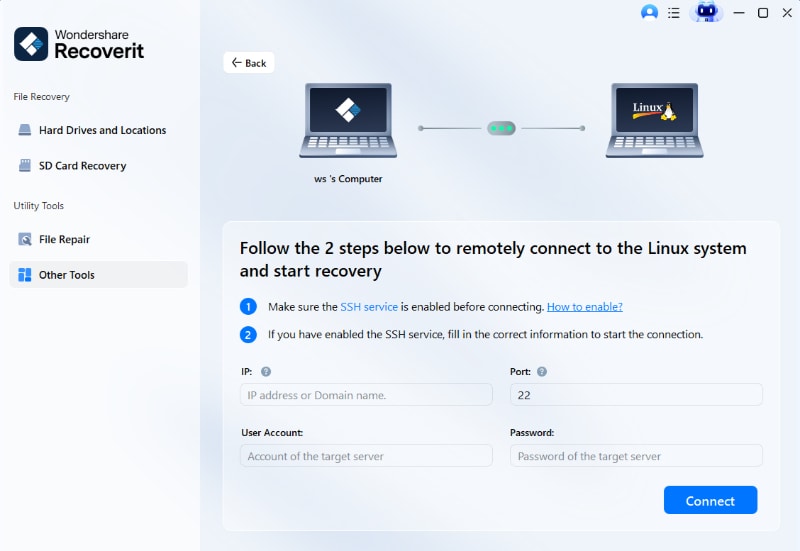
Prepare the Linux machine's IP address, port, username, and password before you start. Then follow these steps to connect and begin recovery:
Step 1. Connect to the Linux Machine. Open Recoverit, choose Other Tools, then Linux Recovery. Enter the IP address, port, username, and password, then select Connect.
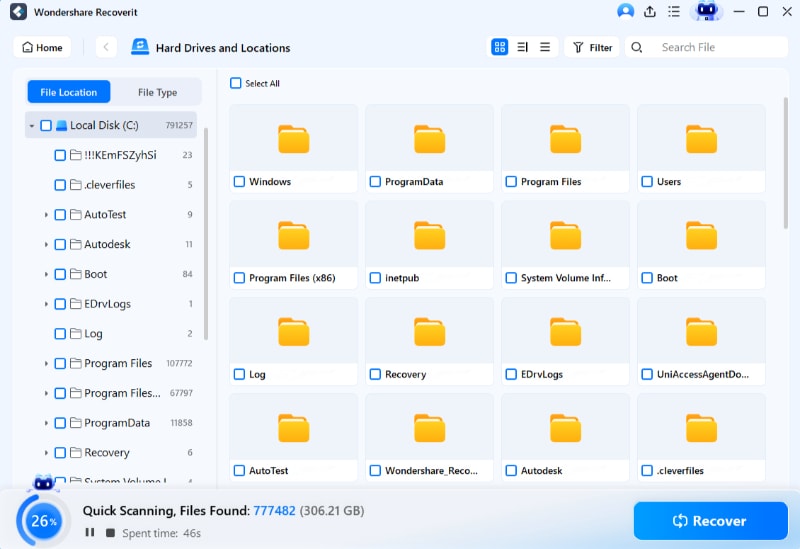
Step 2. Scan the Target Drive. Recoverit begins scanning automatically once connected. Review the scanned files and apply File Filters to narrow the search.
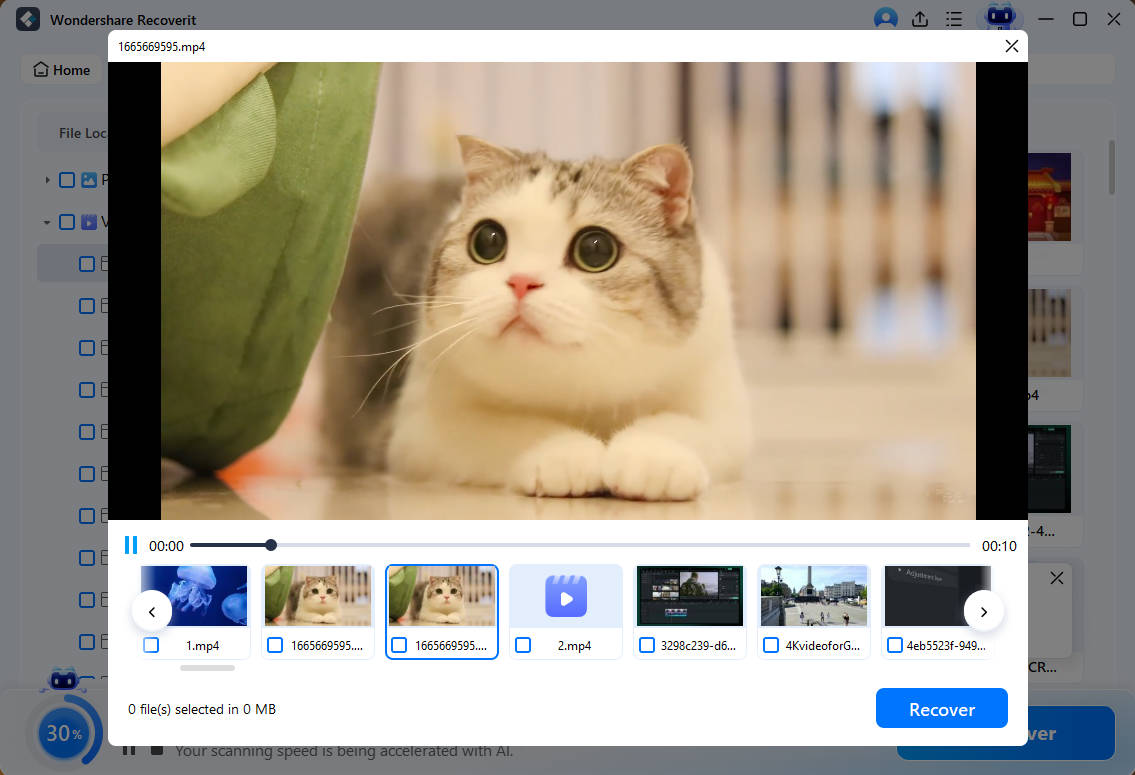
Step 3. Preview and Export the Files. Once you find the target file, preview it, then press Recover to save the file on your Linux computer.
Try Wondershare Recoverit to Perform Data Recovery
 Security Verified. Over 7,302,189 people have downloaded it.
TestDisk for Lost Partition Recovery
TestDisk is an open-source CGSecurity utility built for recovering lost partitions from storage drives. CGSecurity's current download page lists TestDisk 7.2 as the latest stable release, published in February 2024. The program uses a text-based menu for examining disks and managing discovered partition structures.
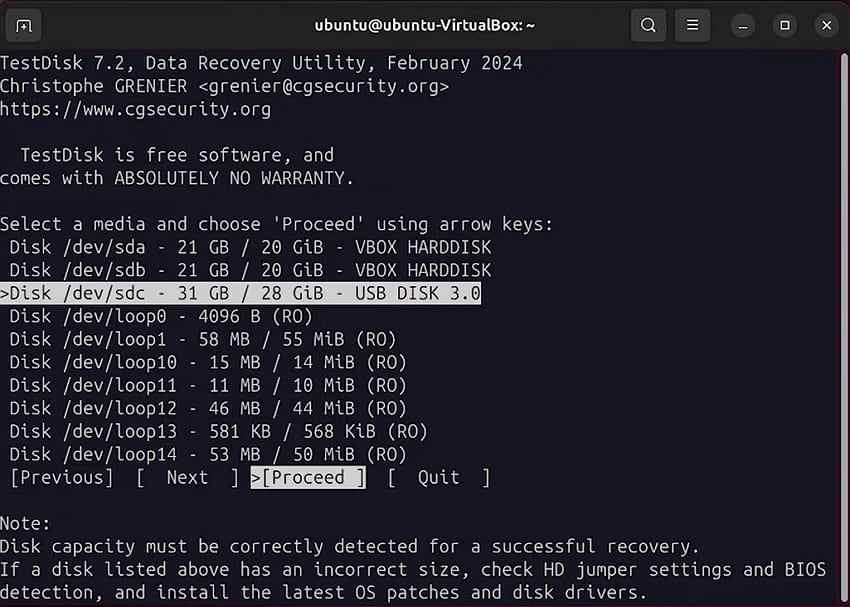
- Useful analysis: TestDisk searches for partition boundaries and can list files on many discovered filesystems, which helps validate a result before a write.
- Selective repair capability: It can recover deleted partitions and restore damaged FAT32 and NTFS boot sectors using available backup boot sector copies. For EXT filesystems, it can locate backup superblocks.
- Main risk: Clone failing hardware first, because some TestDisk recovery operations can modify partition table data.
PhotoRec for File Carving
PhotoRec is an open-source file carver distributed alongside TestDisk by CGSecurity. Instead of depending on file system metadata, it carves files directly from raw disk data, which makes it useful after formatting or corruption destroys the information metadata-based tools rely on. It ships with the same 7.2 release as TestDisk.
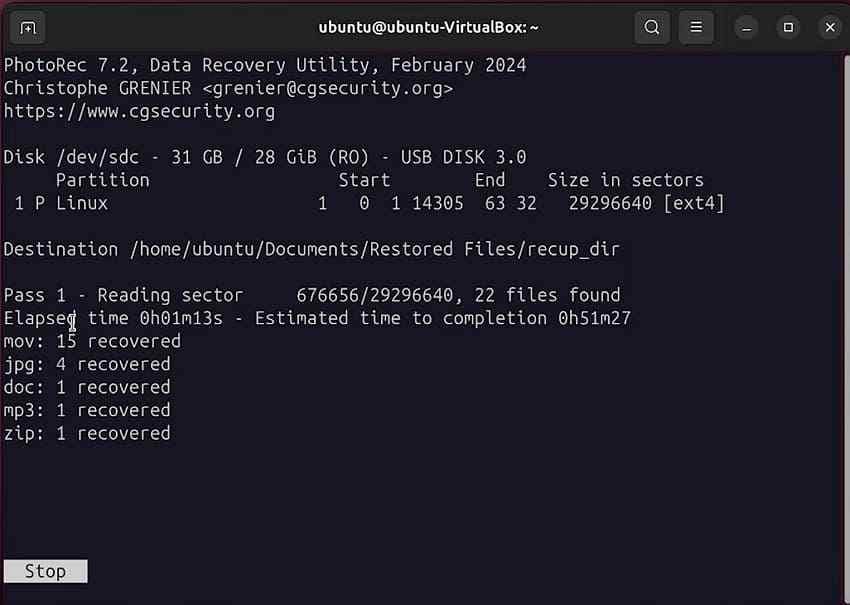
- Best strength: It recognizes hundreds of file formats through signatures found within raw storage sector data, even when the original filesystem cannot be mounted.
- Read-only source access: PhotoRec reads the source without writing recovered content back onto the affected disk itself. CGSecurity explicitly warns against saving recovered files to the same partition.
- Main tradeoff: Recovered files often lose their original filenames and directory structure during signature-based carving, so plan to sort the results afterward.
GNU ddrescue for Failing Hard Drives
GNU ddrescue copies readable sectors from failing drives into images or replacement disks. Its mapfile tracks copied, failed, and pending disk areas across multiple rescue passes, and recovery applications can then examine the completed image without stressing the failing source drive. The current release, version 1.30, added major improvements for automatic recovery from drives with a dead head. Source
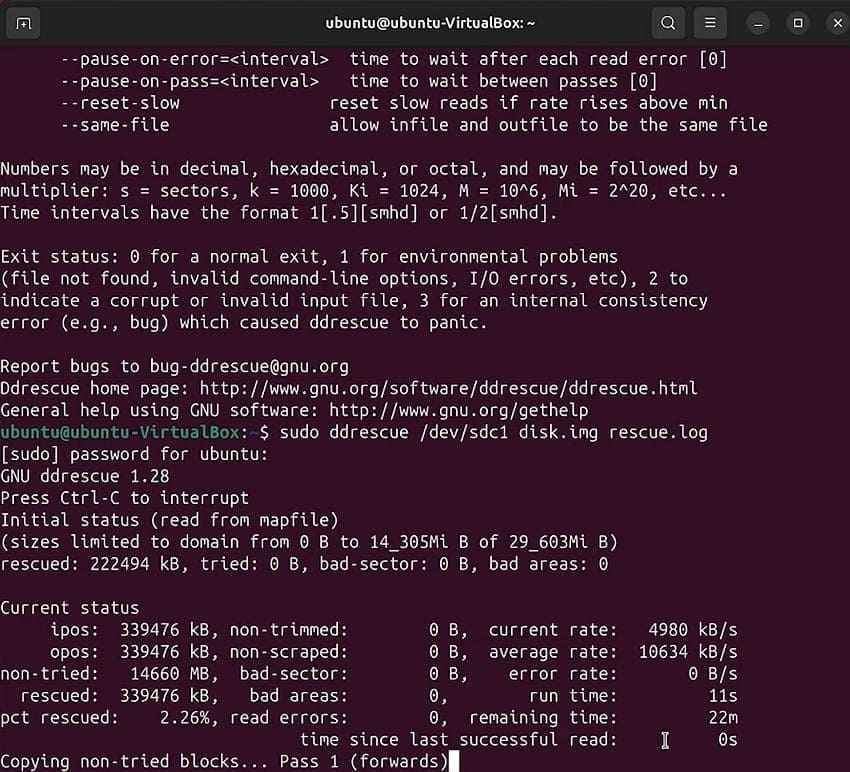
- Mapfile value: It resumes interrupted imaging sessions through mapfile records without restarting completed disk regions.
- Retry passes: It retries bad sectors using configurable passes while preserving data captured during earlier attempts.
- Direct disk access: It supports direct disk access that bypasses kernel caching when operating system support exists.
R-Linux for Deleted EXT Files
Designed for EXT2, EXT3, and EXT4 file systems, R-Linux is a free utility that can recover files from damaged, deleted, or reformatted partitions. It also supports known-file-type scanning when file system records are unavailable, and it can work from disk images to limit repeated access to the source drive. Source
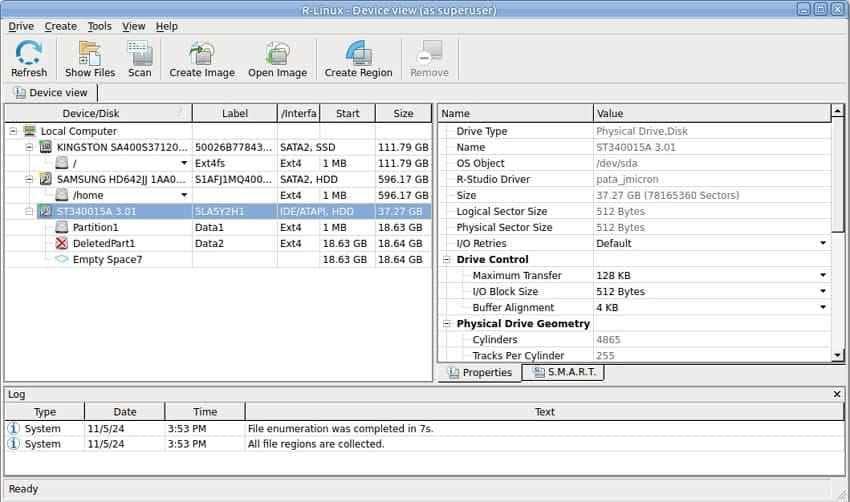
- Structure reconstruction: It reconstructs original file and folder structures when enough file system metadata remains available.
- Search by attributes: It searches deleted file versions by name, size, extension, and recognized file type.
- SMART monitoring: It displays SMART attributes for supported hard drives to help identify hardware-health warnings.
The Sleuth Kit for Advanced EXT4 Recovery
The Sleuth Kit is an open-source forensic toolkit for examining disk images and file systems, including EXT4. It can inspect deleted file names, inode metadata, and unallocated data without relying on normal operating system access. It is better suited to advanced recovery and forensic analysis than to simple one-click restoration. Source
- Deleted-name listing: It lists allocated and deleted file names using tools such as fls, helping identify recoverable entries.
- Metadata examination: It examines file system metadata, including EXT inodes, to trace deleted files and their associated data structures.
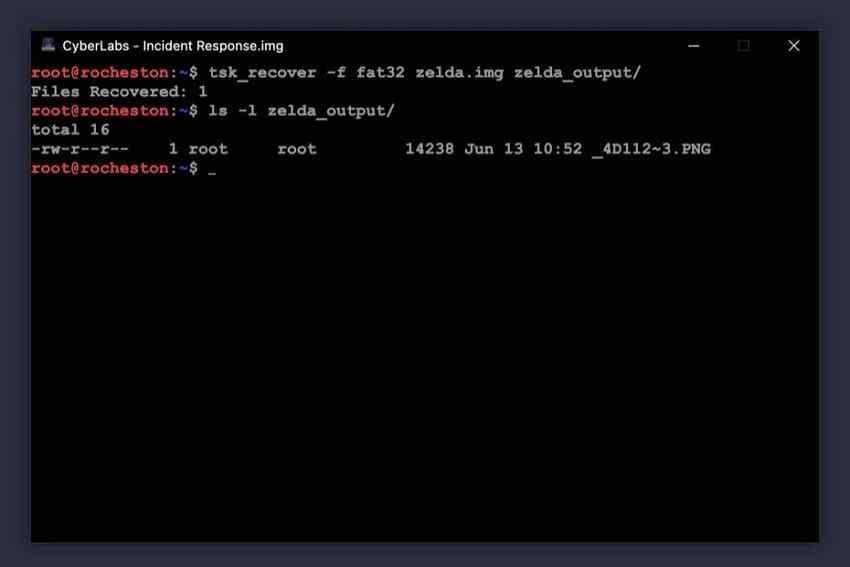
- Image extraction: It uses tsk_recover to extract allocated or unallocated files from a disk image into a separate recovery directory.
Part 4. Linux Disk Recovery Methods by Data-Loss Scenario
Choosing the right Linux disk recovery tool depends on the data-loss problem you face. Match each scenario below with the tools designed to handle its specific challenges:
- Deleted Files: Recoverit can scan for deleted files across supported Linux storage, while R-Linux targets EXT2, EXT3, and EXT4 recovery. The Sleuth Kit can examine deleted entries and file system metadata. Unmount the affected volume first to reduce further writes.
- Deleted or Missing Partition: TestDisk can locate lost partitions and rebuild damaged partition table entries. Recoverit can instead retrieve files from lost partitions without restoring their partition structures first.
- Formatted Drive: PhotoRec carves remaining file content when formatting replaces important file system metadata. For deeper file scanning, Recoverit can search formatted storage for data that remains recoverable.
- Corrupted File System: If the drive shows read errors or instability, image it with ddrescue before repair or repeated recovery scans. For important data, working from a clone or image is safer than repairing the original disk.
- Failing Hard Drive: Use Recoverit on readable drives; choose ddrescue when hardware shows read errors. Create an image with ddrescue before repeated scans add read load to failing hardware. For drives that can no longer be read reliably, Recoverit can help scan what remains accessible.
Part 5. Linux Disk Data Recovery by File System
File systems determine which Linux disk data recovery methods can restore lost data, because each one stores metadata and deleted-file information differently. The Linux kernel documentation notes that EXT4 journals file system metadata by default, not data. Compare your options across common Linux file systems below:
| File System | Common Use | Suitable Tools | Recovery Consideration |
| EXT4 | Common Linux distributions | Recoverit, The Sleuth Kit, PhotoRec, R-Linux | Extent metadata changes after deletion can make inode-based recovery difficult |
| EXT3 | Older systems and servers | R-Linux, The Sleuth Kit, PhotoRec | Journal and directory metadata may help preserve names and structure |
| EXT2 | Older systems and flash media | TestDisk, PhotoRec, R-Linux | No journal exists, but surviving inode metadata may support recovery |
| XFS | RHEL, CentOS, large volumes | Recoverit, PhotoRec | Deleted-file metadata recovery is limited, making carving a common approach |
| BTRFS | Copy-on-write and snapshot setups | Existing BTRFS snapshots, Recoverit, PhotoRec | Snapshots may offer recovery, while EXT-specific recovery tools do not apply |
Note: EXT4 deserves extra attention because its deletion behavior can limit file recovery. Understanding this difference explains why some EXT4 recovery attempts return less data than expected.
Part 6. Why Linux Drive Recovery Sometimes Fails
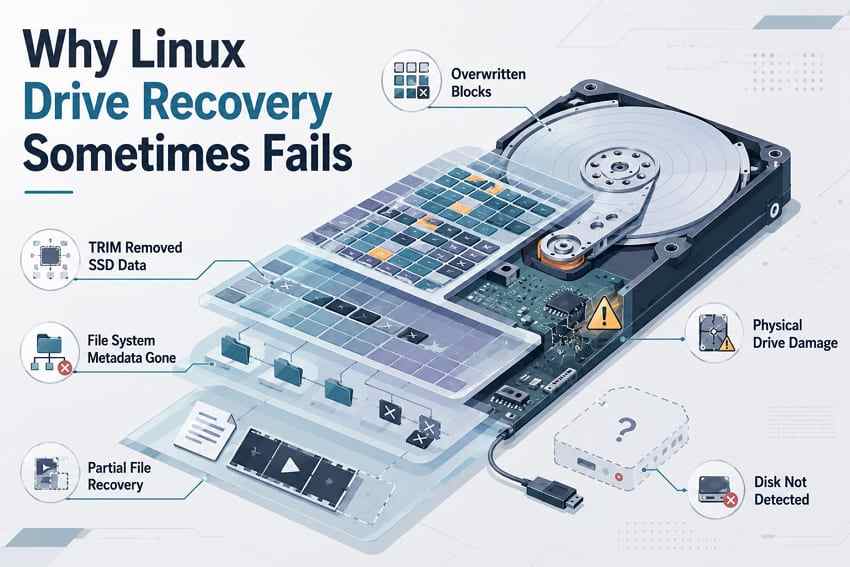
Several technical limits can prevent successful drive recovery attempts in Linux even with the right tools. These six causes are the most common reasons lost data becomes impossible to recover:
- New Data Overwrote the Blocks: New writes can reuse blocks that held deleted data, replacing the original contents and making software recovery impossible.
- TRIM Removed Deleted SSD Data: TRIM tells an SSD that deleted logical blocks are no longer needed. NVMe controllers can deallocate these blocks, after which their previous contents may no longer be recoverable.
- File System Metadata Is Gone: Missing inode and directory metadata can prevent recovery tools from restoring original filenames, paths, and folder structures.
- The Drive Has Physical Damage: Mechanical or electronic damage can prevent reliable software access and may require professional data recovery services.
- The Disk Is No Longer Detected: Software cannot scan an undetected drive until the storage device becomes accessible again or a readable image is created.
- Files Were Recovered Only in Part: Reused or unreadable blocks can leave recovered files incomplete or corrupted. Fragmented files face greater risk because their contents may span multiple affected areas.
Part 7. When Linux HDD Recovery Needs Professional Help
Hardware failure can make further Linux HDD recovery attempts risk the data that remains recoverable. Seagate notes that persistent hard clicking, especially when paired with a repeating clunking or grinding sound, points to a physical problem with the drive. These warning signs indicate that professional data recovery may be required:
- The Drive Makes Abnormal Sounds: Loud clicking, grinding, or repeated spin attempts can indicate mechanical failure and justify professional assessment.
- The Drive Disconnects Repeatedly: Frequent disconnections can interrupt imaging and may indicate unstable hardware, power, cable, enclosure, or connection problems.
- Severe I/O Errors Appear in dmesg: Persistent I/O errors across multiple sectors can indicate media damage, hardware faults, or unstable connections.
- Cloning Cannot Complete: Repeated ddrescue read failures can indicate severe media problems that may require professional recovery equipment.
- Linux No Longer Detects the Disk: Drives absent from lsblk and dmesg may require hardware diagnosis before software-based recovery can continue.
- The Data Is Irreplaceable: Stop DIY attempts when important data makes further recovery risks unacceptable. Professional recovery is safer when losing the remaining readable data is not an acceptable outcome.
Part 8. How to Improve Linux Hard Drive Recovery Chances
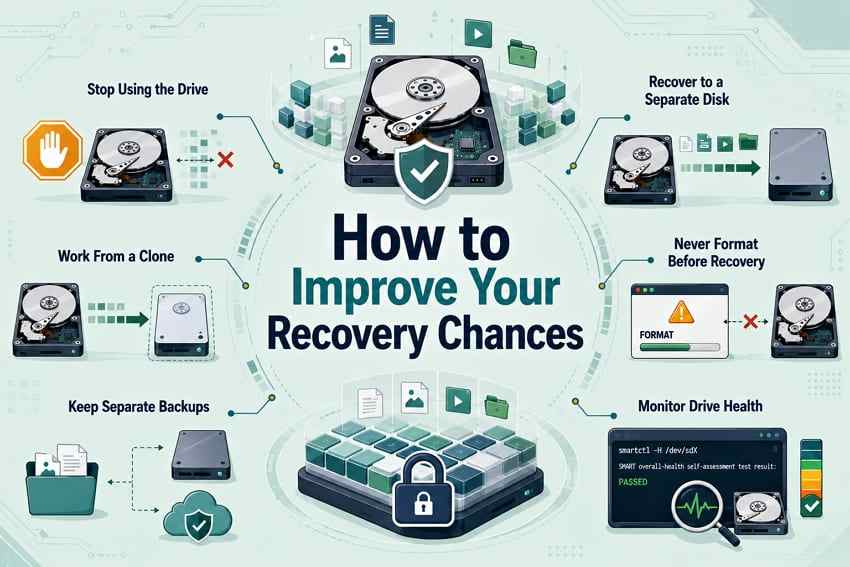
Early actions during Linux disk recovery can determine how much lost data remains recoverable. NIST guidance treats backups as something that must be created, protected, maintained, and tested, not merely scheduled. Apply these practices to improve your recovery chances:
- Stop Using the Drive Immediately: Stop writes and power down when needed to prevent further overwriting of recoverable data blocks.
- Recover to a Separate Physical Disk: Save recovered files elsewhere to avoid overwriting data that may still remain recoverable on the source.
- Work From a Clone When Hardware Is Unstable: Create an image or clone first when the drive shows read errors or instability, reducing repeated access to the source.
- Never Format Before Recovering: Formatting changes file system metadata and may overwrite information needed for successful data recovery.
- Keep Separate Backups: Maintain current backups on separate storage to reduce dependence on later recovery attempts. Create them regularly, test them, and review them during recovery exercises.
- Monitor Drive Health: Use smartctl to review available SMART health indicators and investigate warnings before the drive becomes unreliable.
Conclusion
The best Linux hard drive recovery tool is the one that matches the failed layer. TestDisk addresses lost partitions; PhotoRec carves recognizable files; GNU ddrescue protects readable sectors on an unstable disk; and Recoverit offers a GUI for a reachable Linux machine from Windows or macOS. R-Linux and The Sleuth Kit cover EXT-focused recovery and forensic analysis respectively.
Do not run fsck, format, repartition, or save results to the source before preserving the data. If the disk is physically unstable or the files are irreplaceable, stop and choose professional recovery rather than exhausting the drive with repeated scans.
FAQ
-
Can Linux Recover Files After rm?
Sometimes. rm removes the file's file system reference, while the underlying data may remain until its blocks are reused or discarded. Stop using and unmount the affected file system quickly, because continued writes can reduce recovery chances. -
Can You Recover Data From an EXT4 Drive Using Windows?
Yes, if the software explicitly understands EXT4 or uses a supported connection to a Linux host. Windows itself does not provide ordinary native access to an EXT4 volume, so do not accept a prompt to format or repair an unfamiliar drive. Recoverit's current Linux workflow runs on Windows or macOS and connects remotely to a reachable Linux machine. -
Should You Run fsck Before Linux Disk Recovery?
Not on the only copy when lost files still matter. fsck repairs file system consistency by changing metadata, and those changes can remove evidence that undelete or forensic tools could use. Image the source first and recover important files from a copy before running repair tools. -
Can Linux Hard Drive Recovery Tools Recover Data From an SSD?
Sometimes. TRIM can cause deleted logical blocks to be discarded by the SSD controller, after which software may no longer recover their previous contents. Recovery depends on whether the data remains accessible and has not been overwritten or discarded.


