 TL;DR:
macOS 26 Tahoe is Apple's 2025 major macOS release (the successor to macOS Sequoia 15), headlined by the Liquid Glass design language, a Phone app on Mac, a dedicated Games app, Live Magnifier, Spotlight Actions, an enhanced Stage Manager, and kernel-level malware protection. It runs on Macs from 2017-2018 onward (MacBook Pro/Air 2018+, MacBook 2017+, iMac 2017+, Mac mini 2018+, Mac Pro 2019+). Back up with Time Machine before upgrading — if an interrupted install loses data, recover it with Wondershare Recoverit.
Ask AI for a summary
 ChatGPT
 Perplexity
 Gemini
 Claude
 Grok

Imagine you are a creative professional relying on your Mac every day to edit high-resolution images and communicate with clients seamlessly. You receive a prompt about the new macOS 26 update, offering advanced features that promise to boost your productivity and security. This article is a comprehensive guide to everything you need to know about macOS 26 — what it is, its new features, compatibility, installation, and how it compares to its predecessor.
Part 1. What is macOS 26 and Its Key Highlights
macOS 26, officially named macOS Tahoe, is Apple's latest major version of its desktop operating system. It is designed to make the Mac more capable, productive, and intelligent with a refined user interface and improved core system. Here are the key highlights:
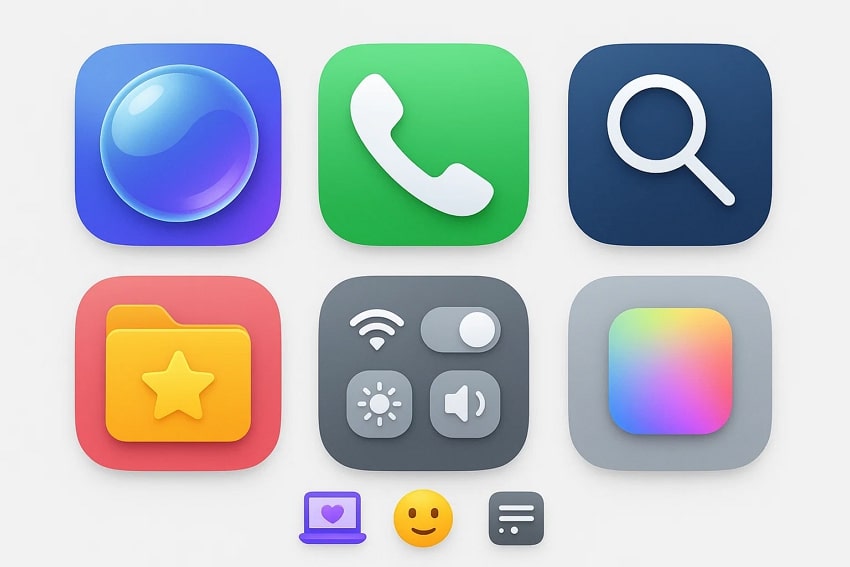
- The Breathtaking New Design: macOS 26 unveils a design language based on Liquid Glass that makes UI elements more expressive, with customizable folders, docks, and toolbars.
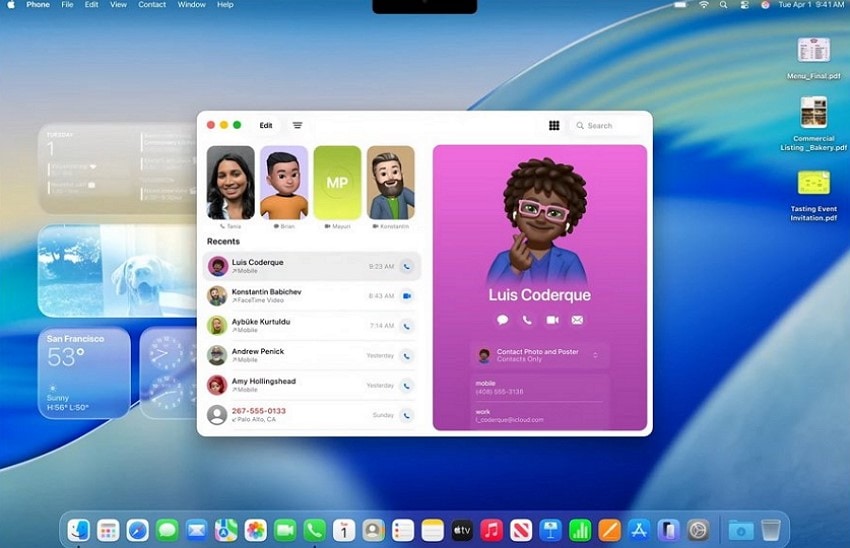
- Better Mac-Phone Call Continuity: The Phone app is now accessible on Mac, offering smooth access to calls and contacts, with new features like "Call Screening" and "Hold Assist."
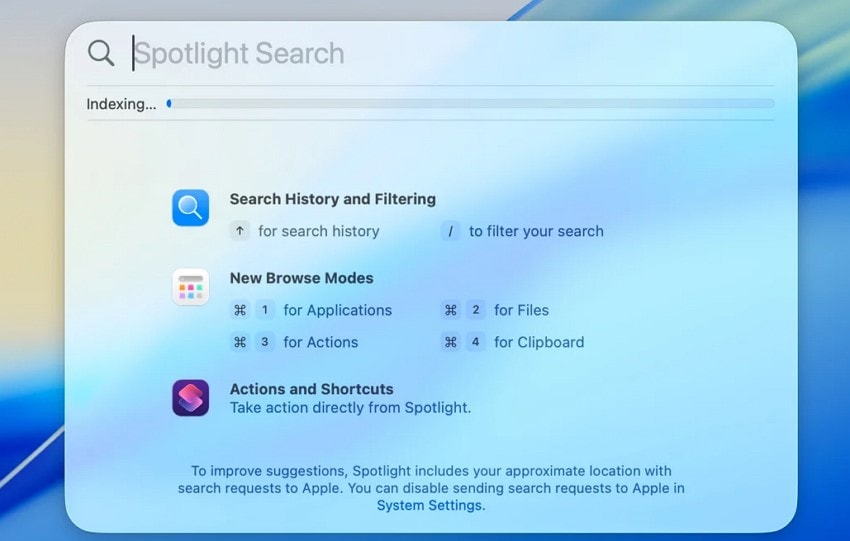
- Biggest Update Ever to Spotlight: Spotlight search can now execute hundreds of direct actions, such as sending emails or creating notes.
- Improved Personalization: Customize apps, folders, and widgets with new colors and emojis for a more flexible interface.
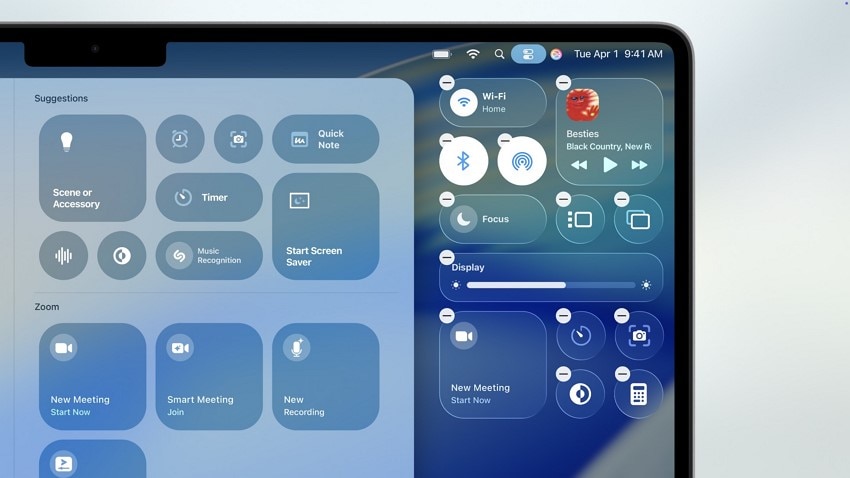
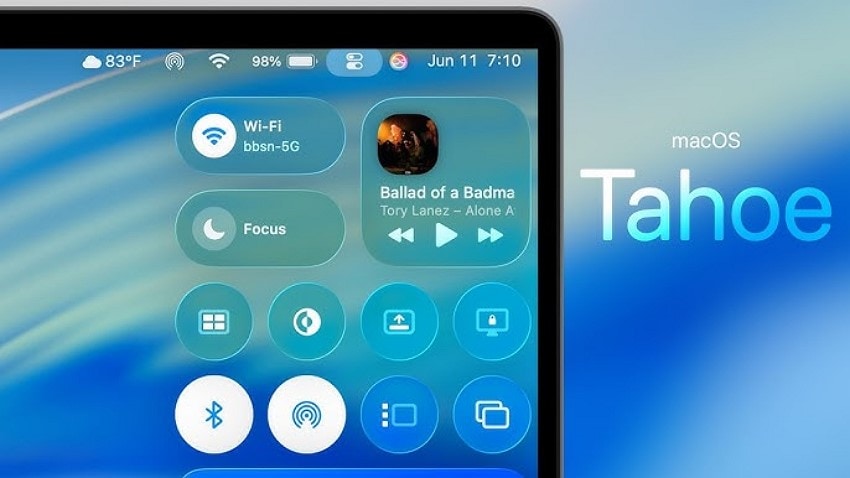
- Redesigned Control Center: Control Center is revamped to align with iOS 26, giving faster access to settings in the menu bar.
Part 2. What is macOS 26 in Terms of New Features
macOS 26 Tahoe introduces many new features that enhance productivity, usability, and security. Below is a detailed overview of each major feature:
1. Liquid Glass Design
The new design language of macOS 26, Liquid Glass, is dynamically reflective of the environment in real time. It adapts to light and dark environments, adding lively but not overpowering vitality to app icons, widgets, controls, and the navigation bar.
2. Phone App on Mac
macOS 26 brings Live Activities from iPhone to Mac, allowing users to access their entire iPhone directly on the Mac desktop. You can dial a call, send a message, and even FaceTime on your phone network right from your Mac, plus add new contact backgrounds and use live translation during calls.
3. Dedicated Games App
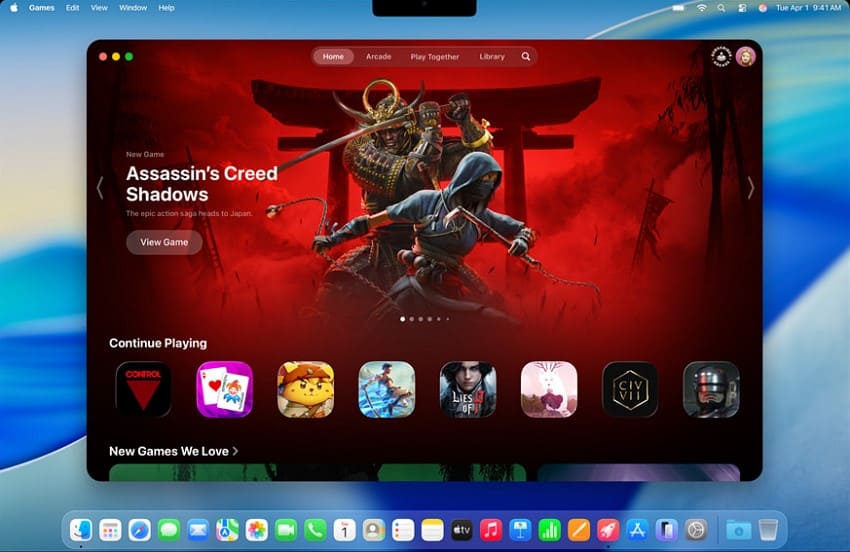
macOS 26 is the first to introduce a Games application — a single gaming platform for both Apple Arcade and third-party games, simplifying game discovery and management for casual and serious gamers.
4. Live Magnifier
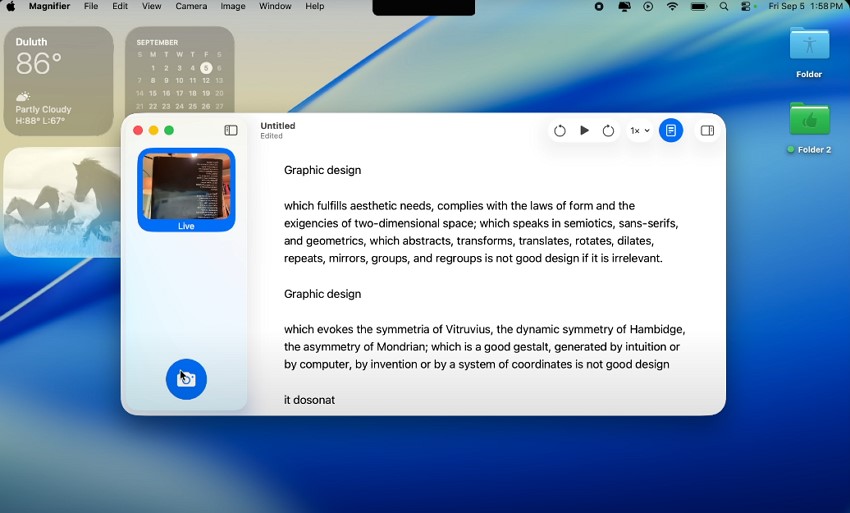
Live Magnifier in macOS 26 is a reading option for people with visual impairments: point the camera at text and it reads it aloud, with customizations such as playback speed.
5. Automation Feature
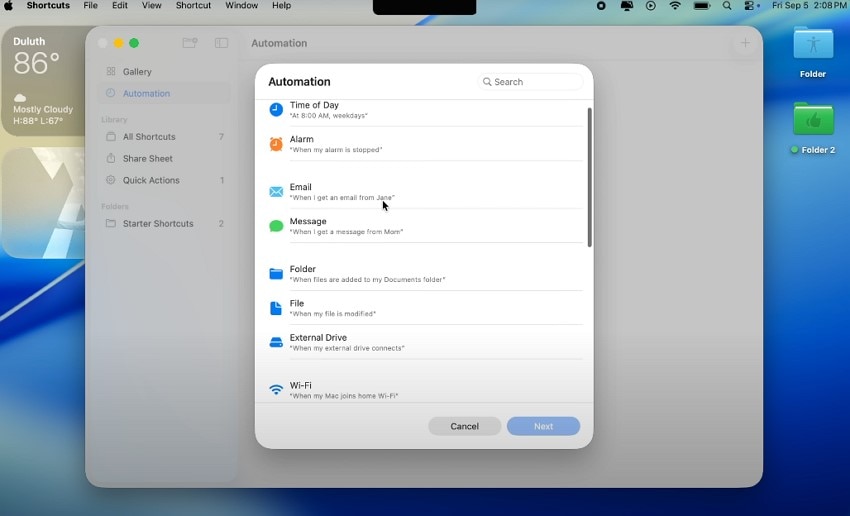
macOS 26 Automation lets users build event-based workflows that respond to system events — for example, snoozing an alarm at a specific time whether or not you are present.
6. Actions Feature
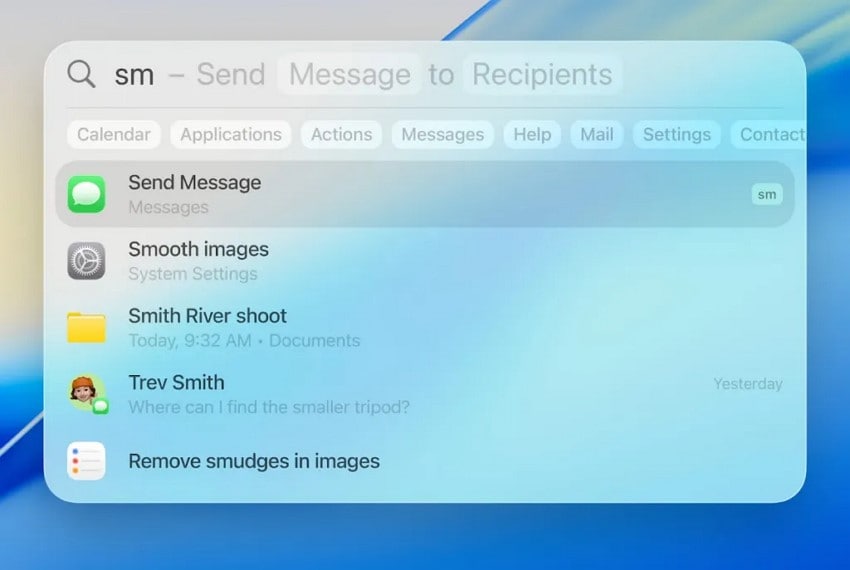
The update lets users perform complex tasks in Spotlight — emailing or setting timers — using AI to automate common activities and boost productivity.
7. Enhanced Stage Manager
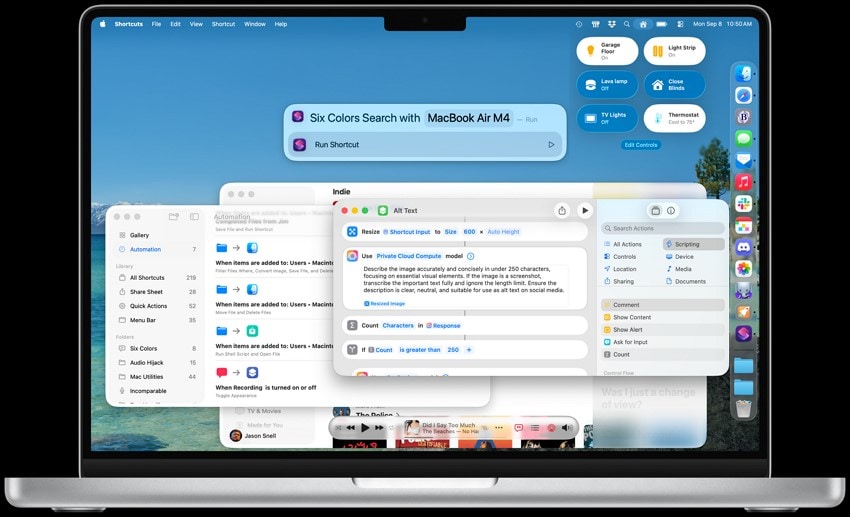
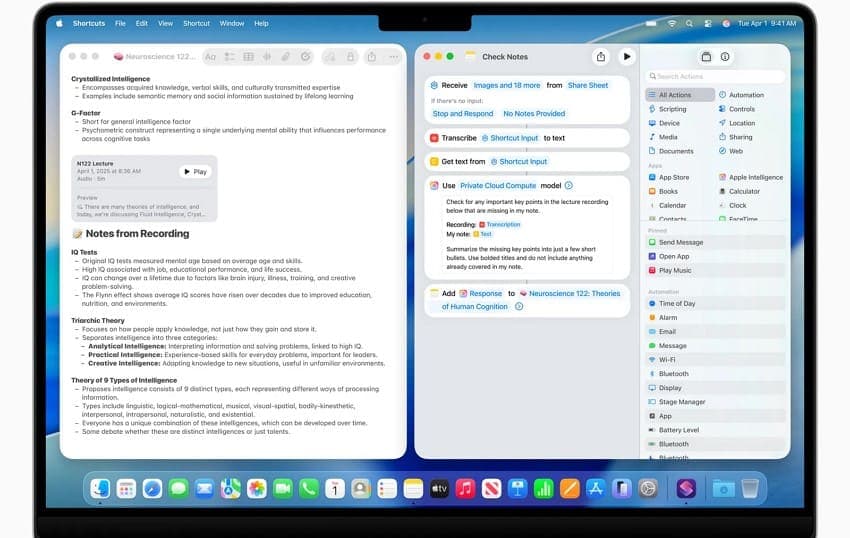
Stage Manager's window management now includes more intuitive grouping of applications and customizable workspaces, with better keyboard-shortcut support and the ability to minimize windows into the sidebar.
8. Live Text Video
An expansion of Live Text lets users interact with text inside paused video frames — copy, translate, or look up content directly in video. It benefits students, researchers, and professionals working with multimedia or foreign-language content.
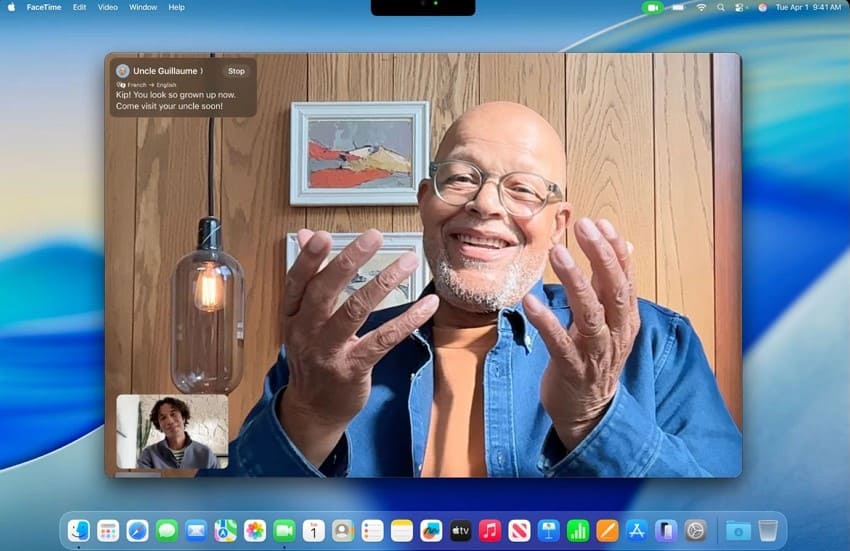
9. Live Translation
macOS 26 integrates continuous live translation into system apps, extending to Messages and FaceTime, broadening language accessibility for seamless communication.
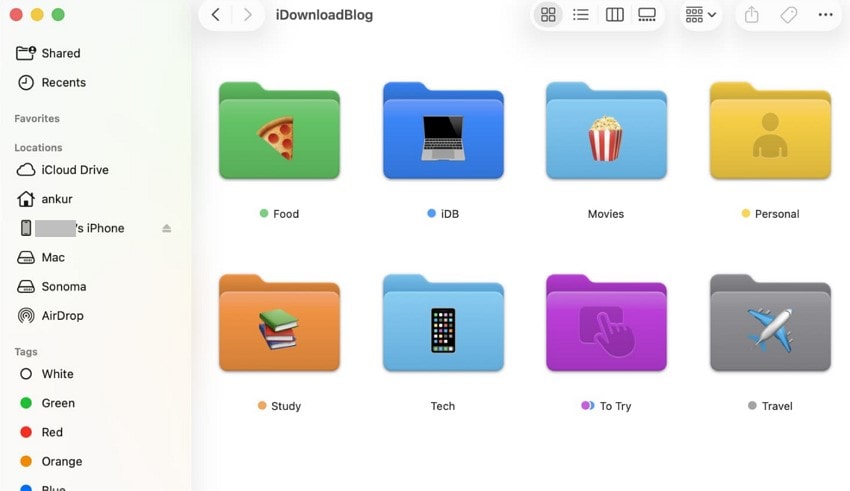
10. Customized Folder Appearance
To make folders easy to recognize, macOS 26 lets you give them a distinctive look by customizing colors and adding emojis or symbols, going beyond traditional folder icons.
11. Security Enhancements
macOS 26 introduces new kernel-level malware detection designed to catch threats early, improves user-data encryption, and increases protection against advanced cyber-attacks.
Other Notable Features of macOS 26
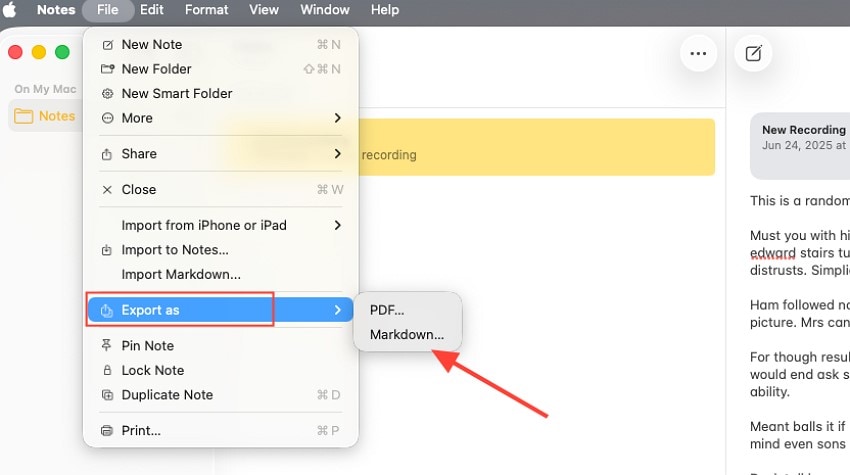
1. Save Notes as Markdown
macOS 26 lets users export notes directly as Markdown files — ideal for developers and writers, and absent in the previous macOS.
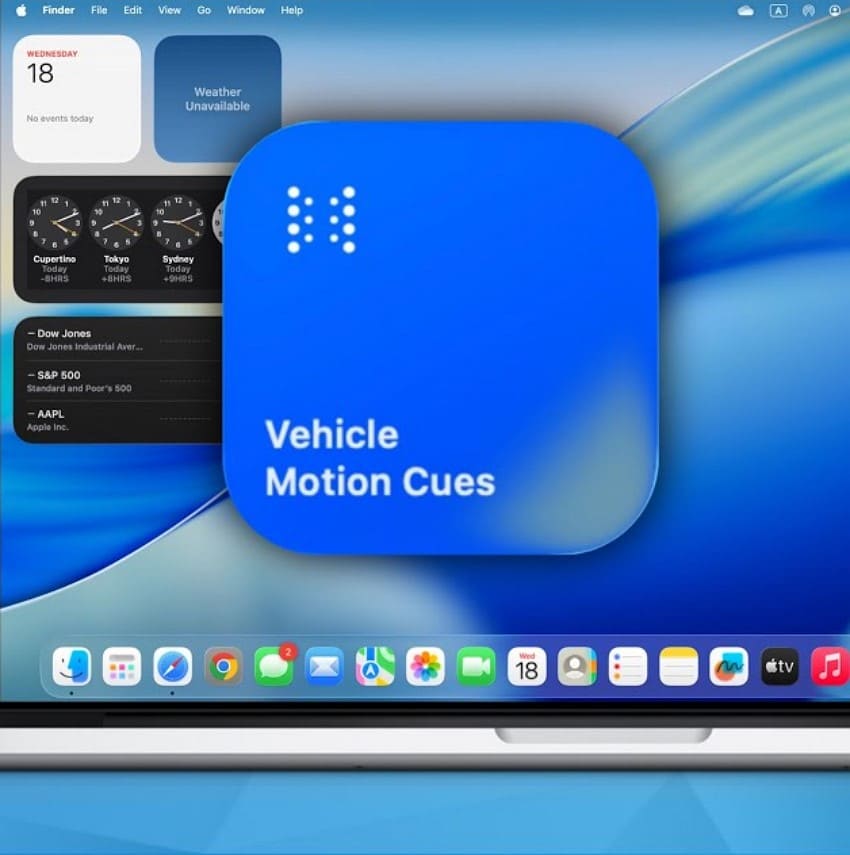
2. Vehicle Motion Cues
Vehicle Motion Cues provide contextual motion alerts and haptic feedback when using connected devices in vehicles, tying macOS more closely with Apple's CarPlay ecosystem.
3. Name Recognition
This feature tells you when somebody has claimed your name or addressed you — convenient with noise-canceling headphones or AirPods, so you never miss crucial moments.
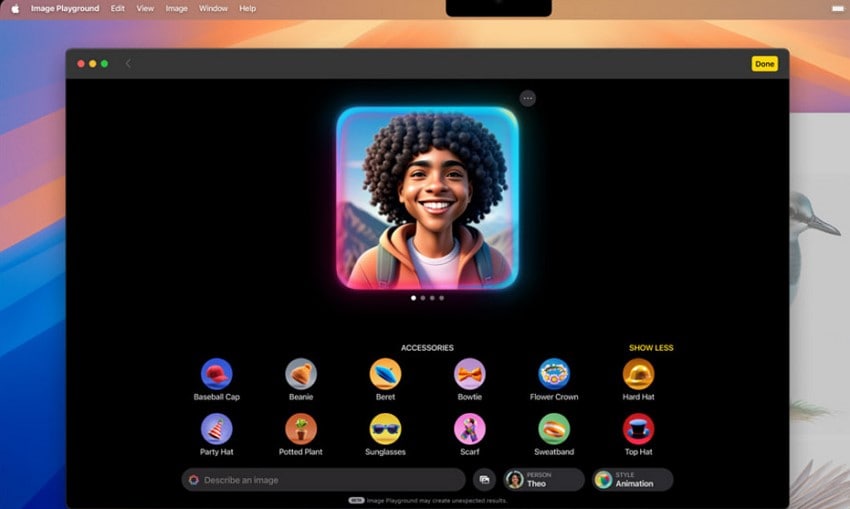
4. Genmoji
macOS 26 builds on Genmoji (from iOS 18) with deeper customization — edit expressions, hairstyles, costumes, and accessories to taste.
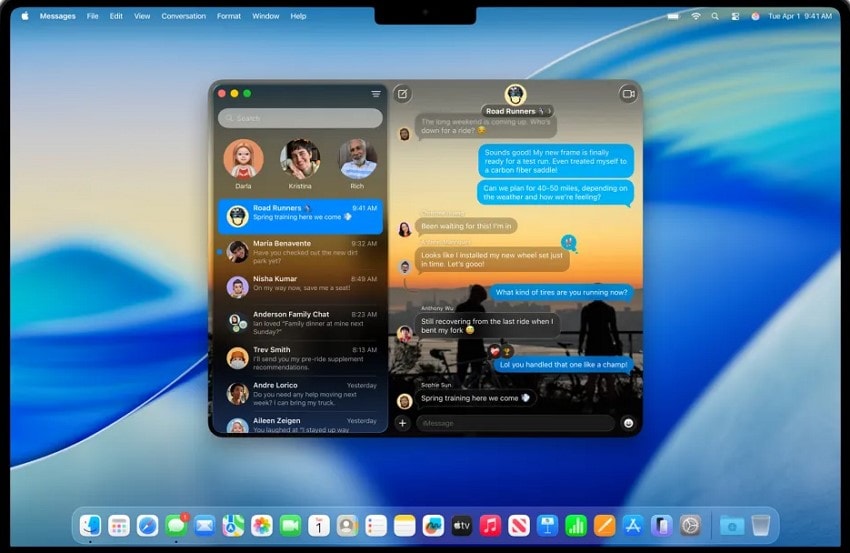
5. Change Message Background
The latest release lets you customize your Messages chat with a photo or custom color as the background — visible to both you and the person you are chatting with.
Part 3. What is macOS 26 Compatibility List
Before upgrading, confirm your Mac is supported. Below is the official compatibility breakdown — which models run macOS 26 and which older models were phased out:
| Mac Model | macOS 26 Tahoe | Notes |
| MacBook | Supported (2017 and later) | Intel 12" models included |
| MacBook Air | Supported (2018 and later) | Intel 2018-2019 and all M-series |
| MacBook Pro | Supported (2018 and later) | 2017 model is not eligible |
| Mac mini | Supported (2018 and later) | Intel 2018+ and all M-series |
| iMac | Supported (2017 and later) | Intel 2017+ and M-series |
| iMac Pro | Supported (2017) | All iMac Pro models |
| Mac Pro | Supported (2019 and later) | Intel 2019+ and M2 Ultra |
| Mac Studio | Supported (2022 and later) | All Mac Studio models |
| MacBook Air (2015-2017) | Not supported | Phased out |
| MacBook Pro (2013-2016) | Not supported | Phased out |
| iMac (2015 and earlier) | Not supported | Phased out |
| Mac mini (2014 and earlier) | Not supported | Phased out |
| Mac Pro (2013) | Not supported | Phased out |
Bottom line: if your Mac is from 2017 (MacBook, iMac, iMac Pro) or 2018+ (MacBook Air/Pro, Mac mini, Mac Pro), you can upgrade; 2017 MacBook Pro and older models cannot.
Part 4. What is the macOS 26 Installation Process
Prepare your Mac before updating:
- Create a full backup of your data (Time Machine) to protect it from loss during installation.
- Check compatibility to confirm your Mac model supports the new upgrade.
- Disconnect non-essential peripherals to avoid conflicts during installation.
- Connect to a reliable network and power source to prevent interruption during the macOS 26 update.
More related: What to Do When macOS Installation Couldn't Be Completed.
How to Install the macOS 26 Upgrade
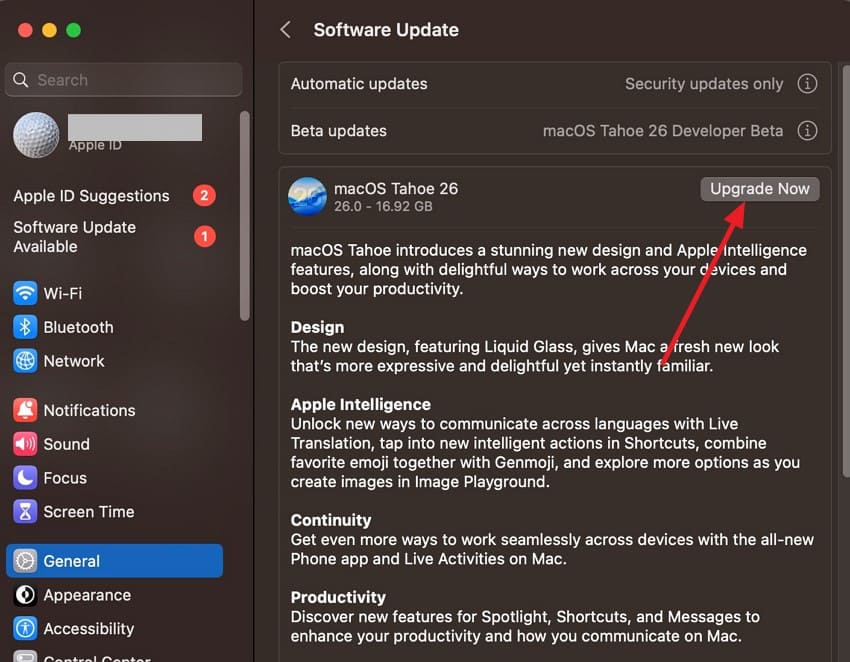
- Open System Settings and click General on the left, then Software Update.
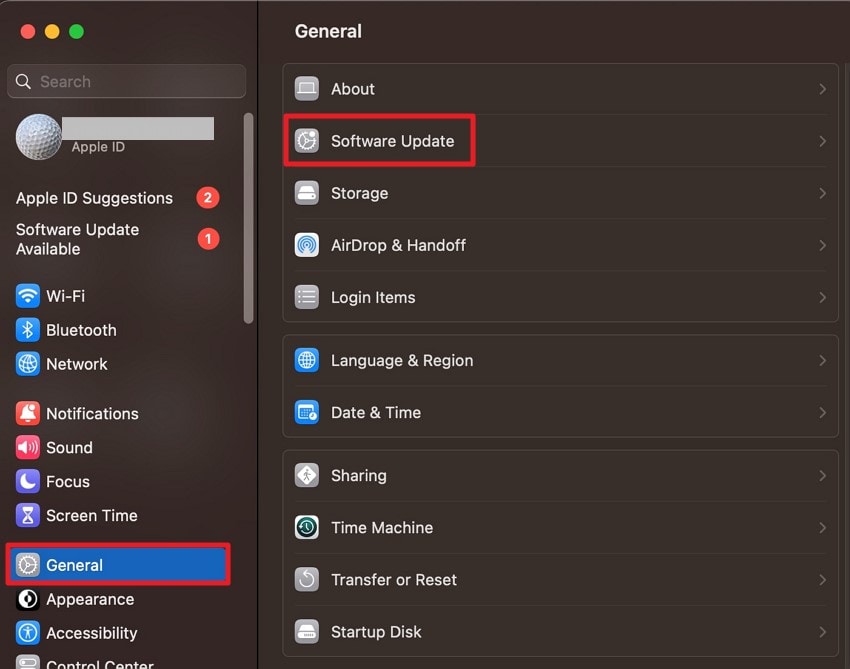
- Let the system check for the macOS 26 Tahoe update and press Upgrade Now to begin.
Part 5. What is macOS 26 Compared to macOS Sequoia (15)
macOS 26 (Tahoe) is a notable evolution over its predecessor, macOS Sequoia (15), with performance and productivity enhancements. Here are the key differences:
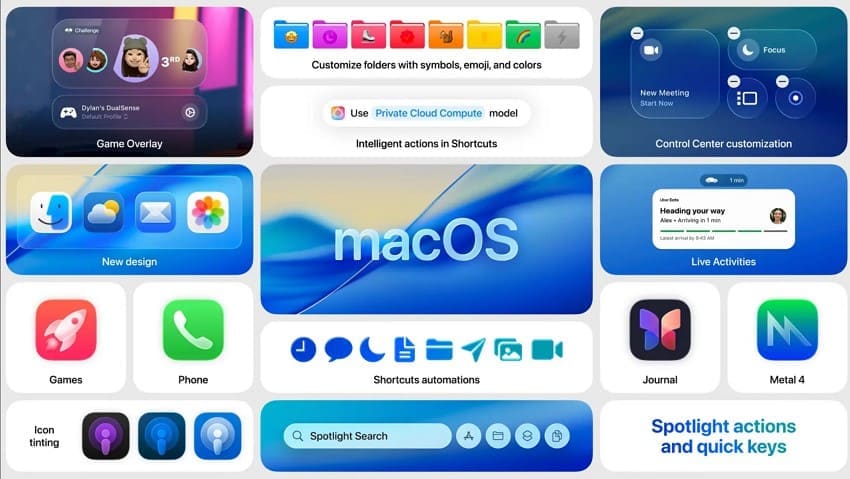
1. Key Differences in Design and Features
| Aspect | macOS Sequoia (15) | macOS 26 |
| User Interface | Big Sur-style design with translucency | New "Liquid Glass" design with customizable folders and icons |
| Control Center | Basic | Redesigned with improved accessibility |
| Core Apps | Limited AI integration | New Health app and Genmoji tools |
| Notification | Standard grouping | Compact and priority-based grouping |
| Multitasking | Basic Stage Manager | Enhanced Stage Manager with customizable workspaces |
2. Performance Benchmarks
| Aspect | macOS Sequoia (15) | macOS 26 |
| App Launch Speed | Fast but varied across hardware | Faster on most supported devices |
| Multitasking Efficiency | Standard window management | More efficient with workspace grouping |
| Power Efficiency | Balanced performance and power | Adaptive performance modes extend battery life |
| Security Response Time | Routine malware detection | Advanced kernel-level malware scanning |
3. User Experience Improvements
macOS 26 brings a more refined and intelligent experience than Sequoia, focusing on personalization with AI-driven enhancements and interface polish. Users report noticeably faster app launches and window switching, with a more cohesive feel.
4. Hardware and Ecosystem Integration
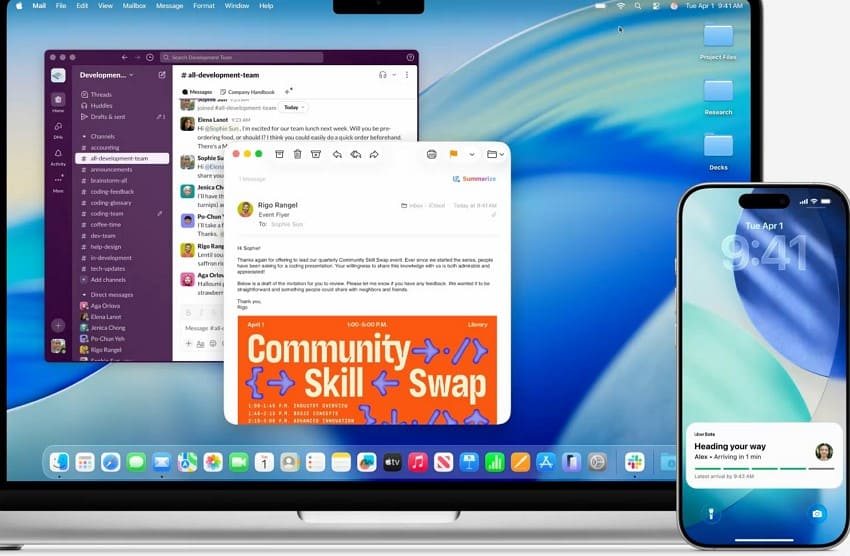
macOS 26 deepens Apple ecosystem integration with Live Activities on Mac and the Phone app, enabling seamless synchronization between Mac, iPhone, and iPad — beyond what Sequoia offered.
5. Security and Privacy
Built on Sequoia's baseline protections, macOS 26 adds advanced kernel-level malware detection, faster threat response, and improved encryption, with more granular and transparent privacy controls.
6. User Personalization
macOS 26 raises the bar with AI-powered Spotlight search with better context awareness and home-screen widgets, decluttering the interface and tailoring results to intent more intelligently.
7. Apps and Icons
New apps and icons offer more translucency and a uniform squircle shape matching iOS and watchOS for cross-platform consistency — one of the most significant visual updates in recent macOS.
8. Zoom Content with Hover
macOS 26 supports content zooming on hover — magnify images by placing the cursor over them, without extra clicks or gestures. Sequoia lacked this, requiring manual zoom shortcuts.
9. Appearance Customization
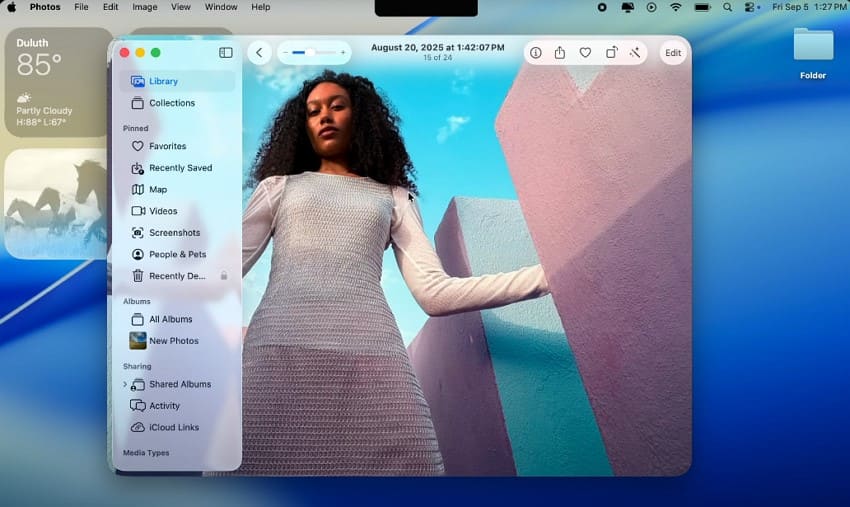
The update broadens personalization with folder tinting, icon color variation, and transparent dock icons. Sequoia offered limited customization through static folder icons and basic color schemes.
10. Preview App
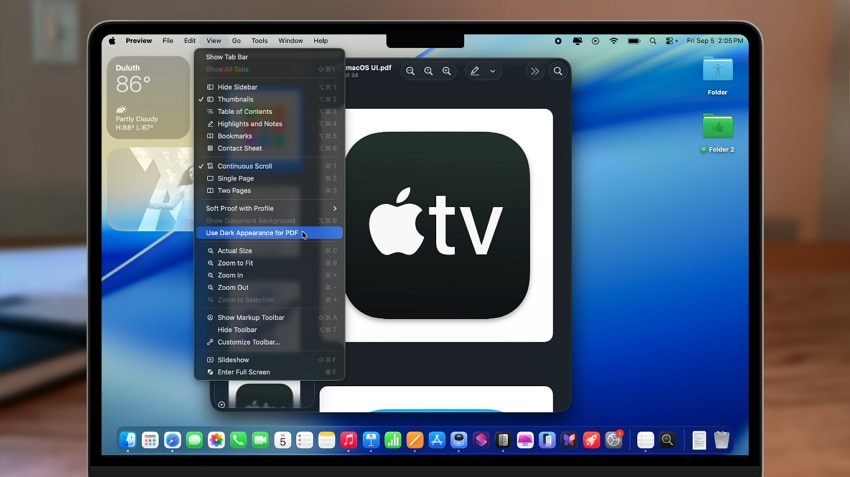
The Preview app in macOS 26 gains enhanced markup features and better PDF/image handling, prioritizing ease of use and system-wide annotation — more useful for professionals reviewing designs.
11. Safari Browser
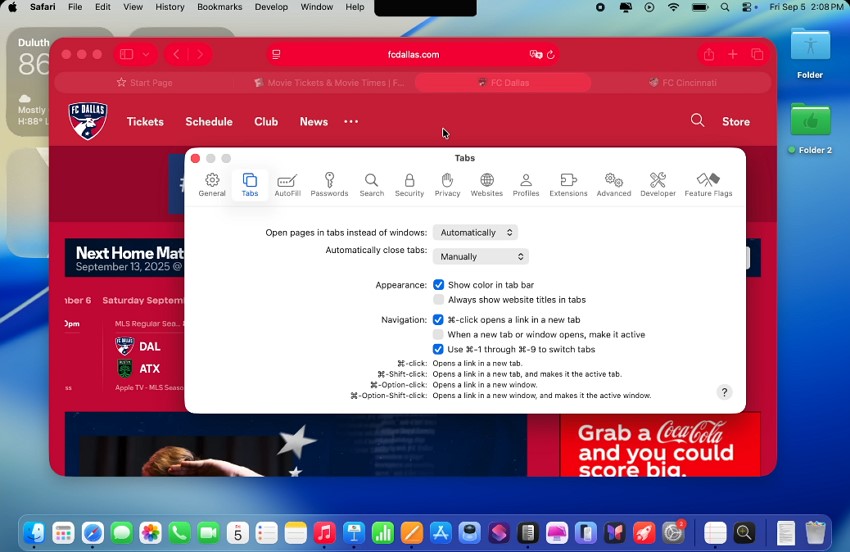
Safari in macOS 26 has adaptive color that changes with the website's background, improved extension management, and real-time group browsing and project sharing.
12. Launchpad
Launchpad is redesigned as the "Apps" service, tightly integrated with AI-driven Spotlight search for smart categorization and direct search — instead of the static grid icons in Sequoia.
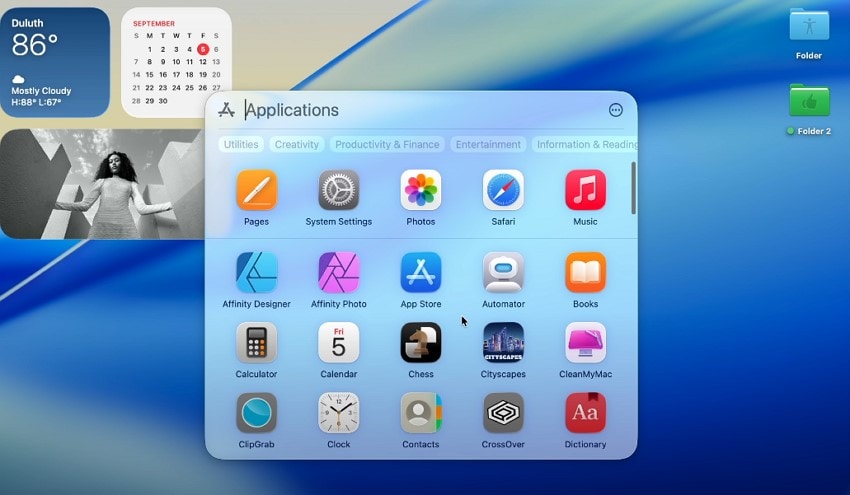
13. Finder Customization
Finder customization in macOS 26 adds customizable folder colors and emojis, improved menu icons, and more accessible folder options through right-click menus.
Part 6. What is macOS 26 in Terms of Productivity and Daily Use
macOS 26 significantly elevates productivity and daily usability for professionals and students:
- Enhanced Stage Manager lets professionals create customized workspaces and group windows intuitively.
- Apple Intelligence automates repetitive tasks, helping students manage study materials effectively.
- Customizable folder icons and colors help users visually organize projects and materials.
- Enhanced Messages and FaceTime features facilitate smoother remote collaboration.
- Clipboard history allows easy retrieval of copied text for various assignments.
Pro Tip. Safeguard Your Data with Recoverit - Total Recovery for Any macOS 26 Mishap
If upgrading to macOS 26 Tahoe caused data loss during installation, you do not need to worry. Wondershare Recoverit performs a deep scan of your system storage and retrieves lost or damaged data — supporting 1000+ file types, an intuitive interface, and batch recovery.
Prominent Features Offered by Recoverit
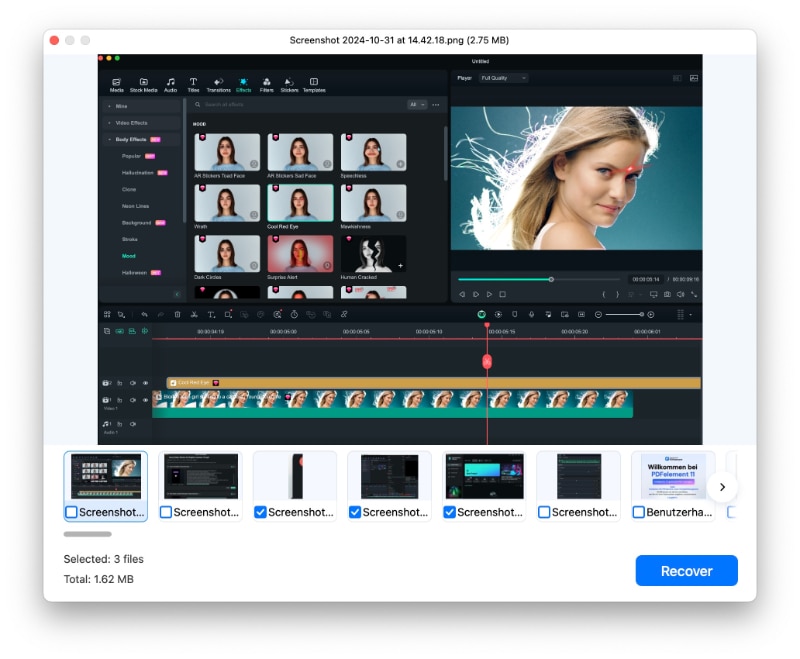
- Preview Before Saving: Preview scanned files within the interface before recovering them.
- Advanced Recovery Mode: Deep scan to recover severely damaged data across your system.
- Multiple Device Support: Recover files from more than 1M storage devices, including external hard drives and SD cards.
Steps for Recovering Files on Mac
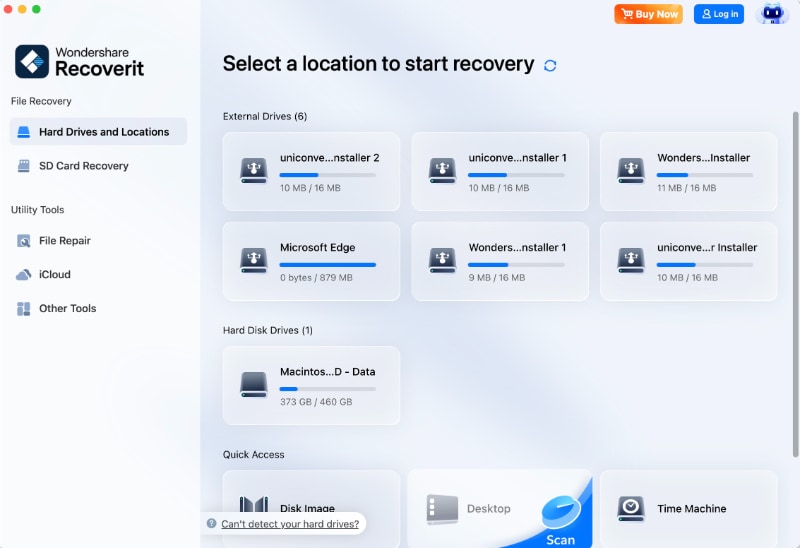
1. Start By Locating the Device
Initiate the process by locating the device's storage in the tool's homepage to begin the scanning process.
2. Select Files and Recover
Once the scan is completed, select the files you want to recover and press the "Recover" button.

3. Preview Results and Save
After recovery, preview the file within the tool and press the "Recover" button to save it to your device.
Conclusion
This article covered what is macOS 26 — its Liquid Glass design, Phone and Games apps, Spotlight Actions, enhanced Stage Manager, kernel-level security, and compatibility. If you encounter data loss during the upgrade, recover it with Wondershare Recoverit.
- Recovers data from 1000+ file formats across HDDs, SSDs, USB drives, SD cards and more.
- Handles 10000+ data loss scenarios, including deletion, formatting, corruption, and virus attacks.
- Recovers lost or deleted files like documents, photos, videos, music, and emails safely and completely.
- Restores full HD, Ultra HD, 4K and 8K videos without corruption.


FAQ
-
1. What is macOS 26 Tahoe?
macOS 26 Tahoe is Apple's latest desktop operating system, released in 2025 as the successor to macOS Sequoia (15). It introduces the Liquid Glass design, a Phone app on Mac, a Games app, Spotlight Actions, and kernel-level security enhancements. -
2. How do I prepare my Mac for macOS 26 installation?
Back up all data (Time Machine), check device compatibility, and make sure you have a reliable internet connection and a power source before updating. -
3. What should I do if data loss occurs during macOS 26 installation?
In case of data loss, use Recoverit's powerful data recovery tool to quickly and safely restore lost or corrupted files. It offers a comprehensive solution for recovering data of various types in no time. -
4. Does macOS 26 support my 2017 MacBook Pro?
No — macOS 26 Tahoe requires a MacBook Pro from 2018 or later. The 2017 MacBook Pro cannot run Tahoe and will stay on macOS Sequoia or earlier. MacBook (12-inch), iMac, and iMac Pro from 2017 remain supported.


