 TL;DR:
Select the official SD Memory Card Formatter for strict SD-standard device compatibility, rely on Windows Disk Management or DiskPart for structural partition errors, and utilize EaseUS Partition Master Free to bypass native FAT32 capacity limits.
● Scan unreadable or accidentally quick-formatted cards with Wondershare Recoverit before applying any format, as formatting replaces the file map; avoid Full or Overwrite formats entirely if data is missing, as these permanently destroy remaining recoverable files.
● Use Windows Disk Management to fix RAW errors or missing drive letters, but use EaseUS Partition Master Free for formatting cards larger than 32GB to FAT32 via a graphical interface, as standard Windows GUI tools restrict FAT32 to 32GB (though Windows 11 Insider Preview Build 27686 raises the command-line limit to 2TB).
● Format Android microSD cards exclusively via native Android Storage Settings and select "Portable storage" to retain cross-device compatibility, because selecting "Internal storage" encrypts the card and permanently locks its read access to that single Android phone.
Ask AI for a summary
 ChatGPT
 Perplexity
 Gemini
 Claude
 Grok
Grok
If you are looking for an SD card format app, do not install the first formatter you see. Most SD cards can be formatted with tools you already have, and the best choice depends on what is wrong: wrong capacity, FAT32 requirements, Android compatibility, missing drive letters, RAW errors, or a card that refuses to format.
This guide compares the best free and practical SD formatter applications for PC and Android: the official SD Memory Card Formatter, Windows File Explorer, Windows Disk Management, DiskPart, EaseUS Partition Master Free, and Android Storage Settings. It also explains when to recover important files before formatting, because every real formatting tool can remove access to data.
In this article
-
- App 1. SD Memory Card Formatter: Best Overall
- App 2. Windows File Explorer: Best for Quick Formatting
- App 3. Windows Disk Management: Best for Partition Management
- App 4. DiskPart: Best Command-Line Formatter
- App 5. EaseUS Partition Master Free: Best for Large FAT32 Cards
- App 6. Android Storage Settings: Best for Android Devices
Part 1. What Is an SD Card Formatter App?
An SD card formatter app is any tool that creates a new file system on an SD card, SDHC card, SDXC card, SDUC card, or microSD card. It may be a dedicated utility, a Windows or Android built-in setting, a partition manager, or a command-line tool.
What an SD Card Formatter Does
A formatter prepares a card so devices can write files to it. Depending on the tool and option, it may create a new partition, assign a drive letter, write a fresh file system such as FAT32 or exFAT, and create an empty root directory. The official SD Association formatter is built specifically for SD-family cards and formats SD, SDHC, SDXC, and SDUC cards according to SD file-system specifications.
Quick Format vs Full or Overwrite Format
Quick Format is the normal option for a reusable card that you believe is healthy. It rebuilds file-system records quickly and may leave old file contents recoverable until overwritten. Full format or overwrite format writes much more data across the card and can take far longer. It also reduces the chance of recovery, so do not use it if files still matter.
Formatting vs Deleting Files
Deleting removes selected entries. Formatting rebuilds the file-system structure for the whole card. Neither should be treated as a safe recovery step. If the card has lost files, asks to be formatted, or shows RAW errors, recover the files first and format later.
Built-In Tools vs Dedicated Formatter Apps
Windows, macOS, Android, cameras, drones, dash cams, and game devices can format cards without extra software. Dedicated apps are useful when the card shows the wrong capacity, needs SD-standard formatting, requires FAT32 beyond what your Windows graphical tool offers, or has partition and drive-letter problems.
When You Need a Third-Party Formatter
You usually need a third-party SD format app only when built-in tools fail or your device requires something specific. Good examples include a 64GB or 128GB card that must be FAT32 for an older camera or console, a card with damaged partitions, or a card that Windows detects but does not show correctly in This PC. Avoid unknown formatter apps from software mirrors, especially when they claim to repair every card or recover every file.
Part 2. What to Check Before Using an SD Formatter App
Formatting should happen only after data protection and basic hardware checks. The second row below is the one users most often skip, and it is the one that matters most.
| Check | Why It Matters | What to Do |
| Back up accessible files | Formatting can remove access to files and folders. | Copy readable photos, videos, documents, and device folders to another storage device. |
| Stop using the card if files are missing | New writes can overwrite recoverable data. | Remove the card, scan it first, and do not accept a format prompt yet. |
| Check the write-protect switch | A locked adapter can make a healthy card look unformattable. | Move the SD card or adapter switch to the unlocked position. |
| Test another reader, port, or device | Bad readers and adapters often cause formatting errors. | Try another card reader, USB port, computer, camera, or Android phone. |
| Confirm capacity and authenticity | Counterfeit or unsupported cards may fail after formatting. | Compare the shown capacity with the label and device manual. |
| Check file-system compatibility | The wrong file system can make the card unreadable in the target device. | Use FAT32 or exFAT based on card capacity and device requirements. |
Note: Every method after this point assumes the card can be erased. If the data is not safe, recover or back it up first.
Part 3. Recover Files Before Formatting the SD Card
A format does not diagnose whether your files are recoverable. It only prepares the card for reuse. If the SD card holds valuable data, recovery comes first.
Why Recovery Comes Before Formatting
Formatting replaces the card's file map. Recovery tries to read what still exists beneath or around a damaged file map. If you reverse the order, especially by choosing overwrite or by recording new files after the format, you can reduce the recovery window.
When Deleted or Formatted SD Card Recovery Is Possible
Recovery may be possible after deletion, accidental quick formatting, RAW errors, interrupted transfers, and some corrupted directory structures, as long as the computer can still detect the card and the old data has not been overwritten. Recovery software cannot normally recover files from Android adopted storage on another device because Android formats and encrypts adopted media for one Android device.
Recover SD Card Files With Wondershare Recoverit
Recoverit Memory Card Recovery can help recover files from readable SD cards, microSD cards, camera cards, CF cards, and other memory cards before formatting. Use it when files are deleted, the card was quick-formatted, the file system is damaged, or Windows asks you to format the card before use.
Recoverit is a data recovery tool, not an SD card repair app. It cannot repair a physically damaged card, bypass Android encryption, guarantee recovery, or recover overwritten files. Recovery depends on card condition, overwriting, encryption, and whether the storage is detected.
- Format-aware scanning: Scans beyond a newly created file-system index when old data may still exist.
- Memory card support: Works with common SD, microSD, camera, and removable card scenarios where the card is readable.
- Preview before saving: Lets you check recoverable files before exporting them.
- Safe destination: Saves recovered files to another drive so the original card is not overwritten.
How to Scan an SD Card to Recover Important Data
Before committing to any SD card format app, scan the memory card if files are missing.
Step 1. Access SD Card Recovery mode.
Connect the card through a stable reader. Open Recoverit, choose the SD card or memory card recovery option, and start the scan.

Step 2. Scan and narrow the results.
Use file type, size, date, and path filters to focus on the files you need, such as photos, videos, RAW files, or documents.

Step 3. Preview, then save elsewhere.
Preview the recoverable files, click Recover, and choose a destination on your computer or another drive. Do not save recovered files back to the same SD card.

Try Wondershare Recoverit to Perform Data Recovery
 Security Verified. Over 7,302,189 people have downloaded it.
Part 4. How to Choose the Best SD Card Formatter App
Use these checks before downloading another formatter. A safer tool is one that matches your card, platform, and actual problem.
| Selection Factor | What to Look For | Why It Matters |
| Platform support | Windows, macOS, Android, or device-native support | A formatter that cannot access the card through your device is useless. |
| FAT32 and exFAT control | Manual file-system choice when needed | Older cameras, consoles, and dash cams may require FAT32; newer larger cards usually use exFAT. |
| SD standard compatibility | Support for SD, SDHC, SDXC, or SDUC as appropriate | The SD Association lists SDHC as FAT32 and SDXC/SDUC as exFAT by standard. |
| Partition and drive-letter control | Ability to assign letters, delete damaged partitions, and create new volumes | This helps when the card is detected but does not appear in File Explorer. |
| Ease of use and warnings | Clear confirmation prompts and visible disk size | Formatters can erase the wrong drive if the selected device is unclear. |
| Official download source | Publisher website, Microsoft built-in tools, Google/Android settings, or SD Association | Unknown mirrors can bundle outdated, unsigned, or unwanted software. |
Part 5. 6 Best SD Card Formatter Apps and Tools
The best app for formatting SD card media is not always a separate app. In many cases, the safest formatter is already built into the operating system or the device.
App 1. SD Memory Card Formatter: Best Overall
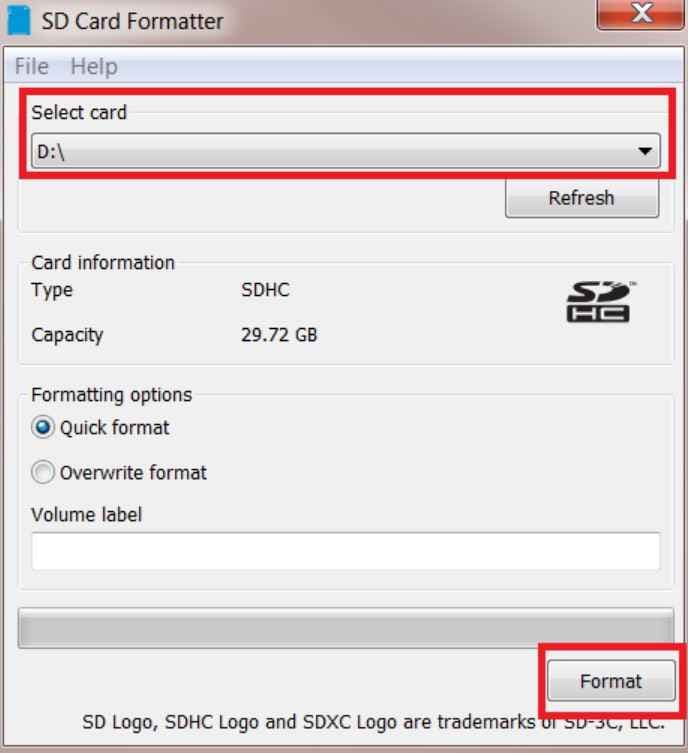
The SD Memory Card Formatter is the official SD Association utility for SD, SDHC, SDXC, and SDUC cards. As of August 11, 2026, the SD Association page lists SD Memory Card Formatter 5.0.4 for Windows and 5.0.3 for Mac. It is the best first choice when you want SD-standard formatting, capacity cleanup, or a trusted free formatter.
Best for: SD and microSD cards used in cameras, phones, drones, handheld devices, dash cams, and other SD-standard hosts.
Key features: SD-standard formatting, SDHC/SDXC/SDUC support, Quick Format and Overwrite Format options, and official Windows/macOS support listed by the SD Association.
How to use: Download it from sdcard.org, run it with administrator rights, select the correct card, choose Quick Format for normal reuse, and confirm only after files are safe.
Cons: It does not offer manual FAT32/exFAT selection, does not format BitLocker To Go-encrypted cards until unlocked, and is not a general USB drive formatter.
App 2. Windows File Explorer: Best for Quick Formatting
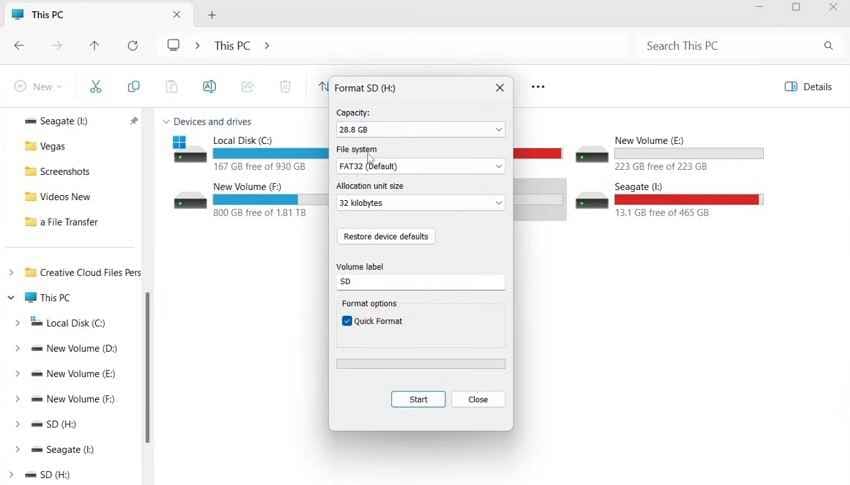
Windows File Explorer is the fastest SD format app for a healthy card that already appears in This PC. It is built into Windows, familiar to beginners, and good for routine quick formatting.
Best for: Simple SD card reuse when the card appears normally and files are already backed up.
Key features: Right-click Format menu, file-system selection, allocation unit size, volume label, and Quick Format checkbox.
How to use: Open This PC, right-click the card, choose Format, select the file system, keep Quick Format for normal reuse, and start.
Cons: It has limited diagnostics, may not expose FAT32 for larger cards on many Windows systems, and cannot fix deeper partition issues.
App 3. Windows Disk Management: Best for Partition Management
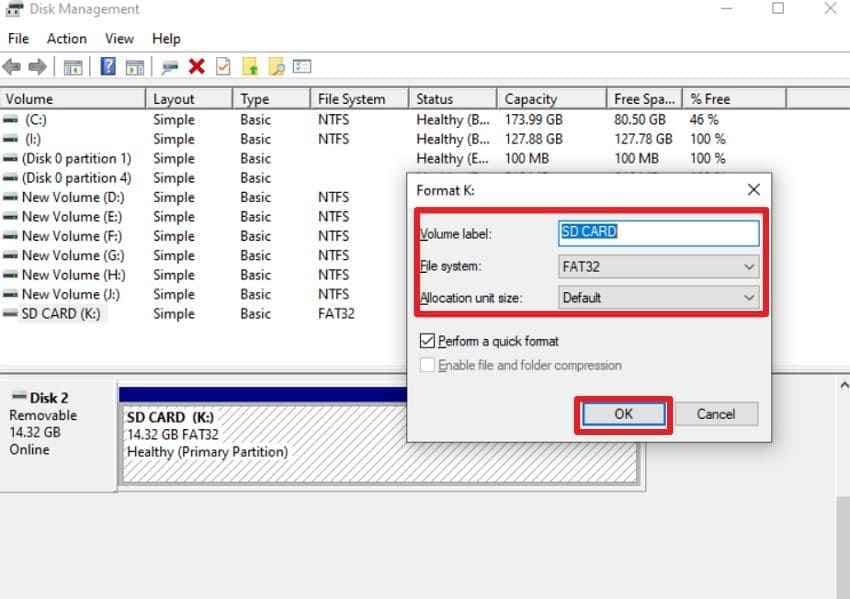
Windows Disk Management is useful when the card is detected by Windows but not shown correctly in File Explorer. It can assign drive letters, create volumes, delete partitions, and format detected volumes.
Best for: Missing drive letters, unallocated space, wrong partition layout, and cards that File Explorer does not display.
Key features: Volume formatting, drive-letter assignment, partition deletion, new volume creation, and visual disk layout.
How to use: Open Disk Management, identify the card by size, right-click the target volume or unallocated space, and choose the needed action.
Cons: Formatting destroys data on the selected volume, and Disk Management cannot repair physically damaged cards.
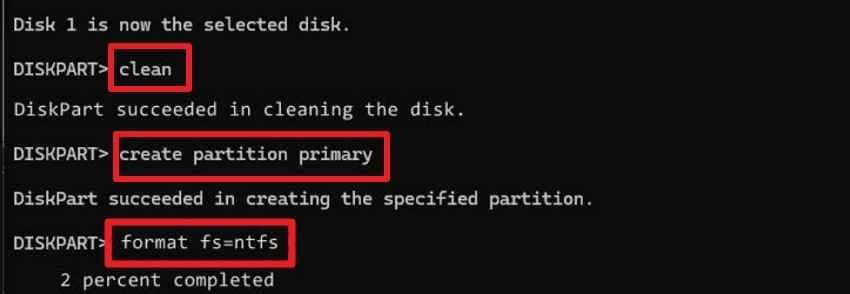
App 4. DiskPart: Best Command-Line Formatter
DiskPart is a Microsoft command-line utility for managing disks, partitions, volumes, and virtual disks. Microsoft states that after an object has focus, DiskPart commands act on that object, so disk selection must be exact.
Best for: Advanced partition cleanup, missing drive letters, RAW volumes, and cards that graphical tools cannot reset.
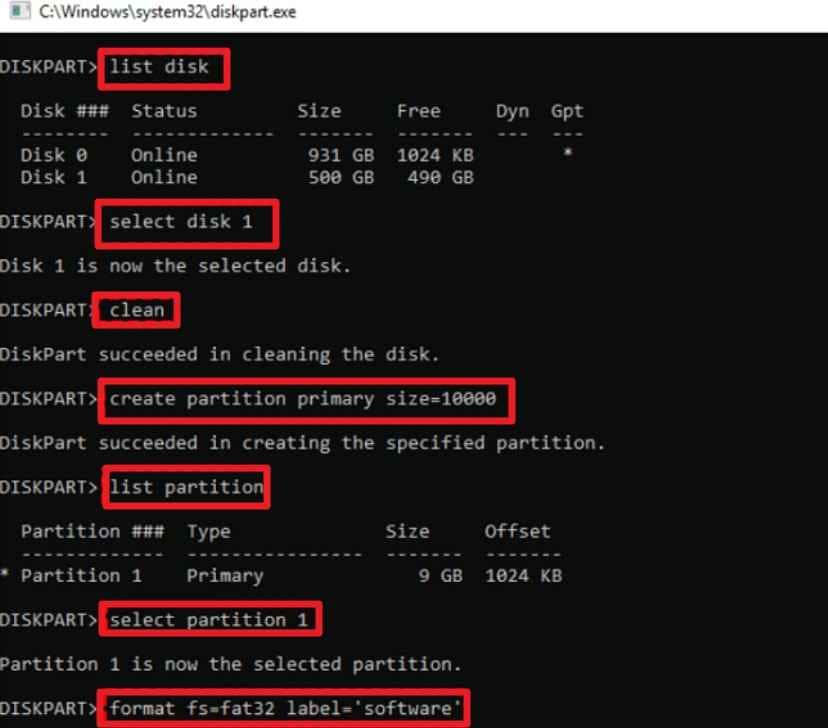
Key features: List disk, select disk, clean, create partition primary, format, and assign drive-letter commands.
How to use: Run Command Prompt as administrator, identify the card by size, select the right disk, clean it only after backup or recovery, create a partition, format it, and assign a letter.
Cons: A wrong select disk command can erase another drive. It is powerful but not forgiving.
App 5. EaseUS Partition Master Free: Best for Large FAT32 Cards
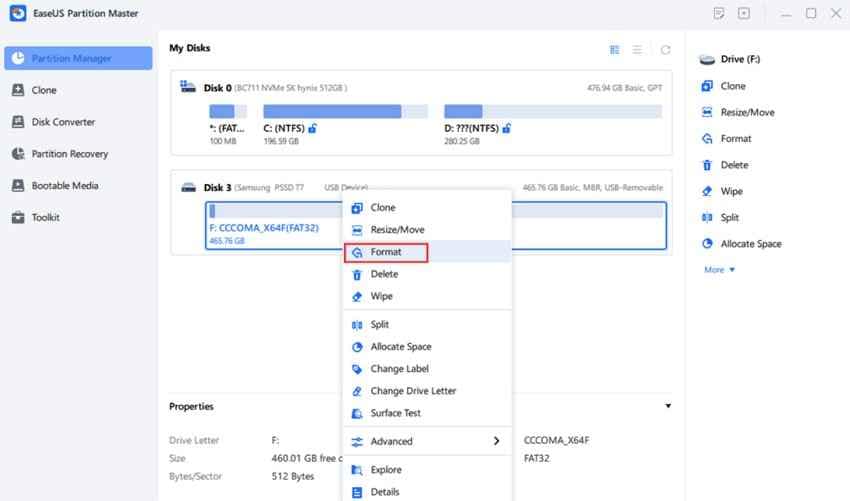
EaseUS Partition Master Free is a third-party Windows partition manager. EaseUS lists support for file systems including FAT12, FAT16, FAT32, exFAT, NTFS, ReFS, EXT2, EXT3, and EXT4, and its product help includes partition formatting. It is a practical option when you need a graphical tool for FAT32 or partition work that your Windows build does not expose clearly.
Best for: Users searching for sd card formatter fat32 free download, especially when a device requires FAT32 on a card larger than 32GB.
Key features: Format partitions, change drive letters, resize or manage partitions, and choose common file systems through a graphical interface.
How to use: Download from EaseUS directly, select the SD card partition, choose Format, select FAT32 or another required file system, confirm, and apply the pending operation.
Cons: It is a third-party download, some features are paid, and users must still confirm the correct disk before applying changes.
App 6. Android Storage Settings: Best for Android Devices
For an SD card formatter app for Android, the best answer is usually not a Play Store app. Use Android's built-in Storage settings. Google says users can choose portable storage or internal storage when setting up an SD card, and it warns that formatting permanently deletes data.
Best for: Android phones and tablets with a microSD slot.
Key features: Portable storage formatting, internal or adoptable storage on supported devices, and device-native compatibility.
How to use: Open Settings, go to Storage, select the SD card, open the menu or storage settings, and choose Format, Format as portable, or Format another way depending on device wording.
Cons: Android usually does not give manual FAT32/exFAT control. Adopted internal storage is encrypted and tied to one Android device. SanDisk's Android adoptable storage guidance also warns that internal/adopted cards cannot be used on a different Android device or computer.
Part 6. Compare SD Card Formatter Apps
Use this table to pick the right formatter quickly. The safest app is the one that solves your exact problem with the fewest destructive steps.
| App | Platform | Supported File Systems | Large FAT32 Support | Partition Control | Ease of Use | Best Use | Main Limitation |
| SD Memory Card Formatter | Windows, macOS | Automatic SD-standard format | No manual FAT32 choice | No | Very easy | SD and microSD standard formatting | No manual file-system selection. |
| Windows File Explorer | Windows | FAT32, exFAT, NTFS depending on system and card | Varies by Windows build and GUI behavior | No | Very easy | Beginner quick formatting | Limited troubleshooting and partition control. |
| Windows Disk Management | Windows | FAT32, exFAT, NTFS depending on volume and system | Varies by build and volume | Yes | Moderate | Drive letter and partition issues | Cannot recover data and cannot fix failed hardware. |
| DiskPart | Windows | FAT32, exFAT, NTFS through commands | Build-dependent; command-line FAT32 limit was raised in Insider Build 27686 | Yes | Advanced | Stubborn partition cleanup | Wrong disk selection can erase another drive. |
| EaseUS Partition Master Free | Windows | FAT32, exFAT, NTFS, ReFS, EXT family and others listed by EaseUS | Yes, useful when Windows GUI does not offer it | Yes | Easy | Large FAT32 and graphical partition work | Third-party download and some features are paid. |
| Android Storage Settings | Android | Device chooses | Not applicable | No | Very easy | Formatting for that Android device | No manual file-system choice; internal storage is tied to one device. |
Which Tool Wins Each Situation
- Best tool for SD and microSD standard formatting: SD Memory Card Formatter.
- Best tool for Windows beginners: Windows File Explorer.
- Best tool for advanced partition issues: Disk Management first, then DiskPart if you are comfortable with commands.
- Best tool for Android phones: Android Storage Settings, not a random third-party Play Store formatter.
- Best tool for large FAT32 cards: Check your Windows build first. If the built-in tools do not expose the FAT32 option you need, use a trusted partition manager such as EaseUS Partition Master Free or a device-specific formatter.
Why the Large FAT32 Answer Is Changing
Windows users have long run into the 32GB FAT32 formatting limit in standard graphical tools, even though FAT32 itself can support larger volumes under the right conditions. Microsoft announced in Windows 11 Insider Preview Build 27686 on August 15, 2024 that the FAT32 size limit for the command-line format command was increased from 32GB to 2TB.
That official announcement was for the Canary Channel, not a blanket promise that every stable Windows 10 or Windows 11 PC exposes large FAT32 formatting in File Explorer. For 2026 users, the practical advice is: check what your current Windows build offers, then use SD Memory Card Formatter, the device itself, DiskPart, or a trusted third-party partition tool only when needed.
Part 7. How to Format an SD Card on PC or Android
These steps assume you have already backed up or recovered important files. No SD formatter application here has an undo button after formatting is applied.
Format With SD Memory Card Formatter
Step 1. Download the formatter from the SD Association. Insert the card, open the app, select the card from Select Card, choose the formatting option, and click Format. Check the selected card carefully before confirming.
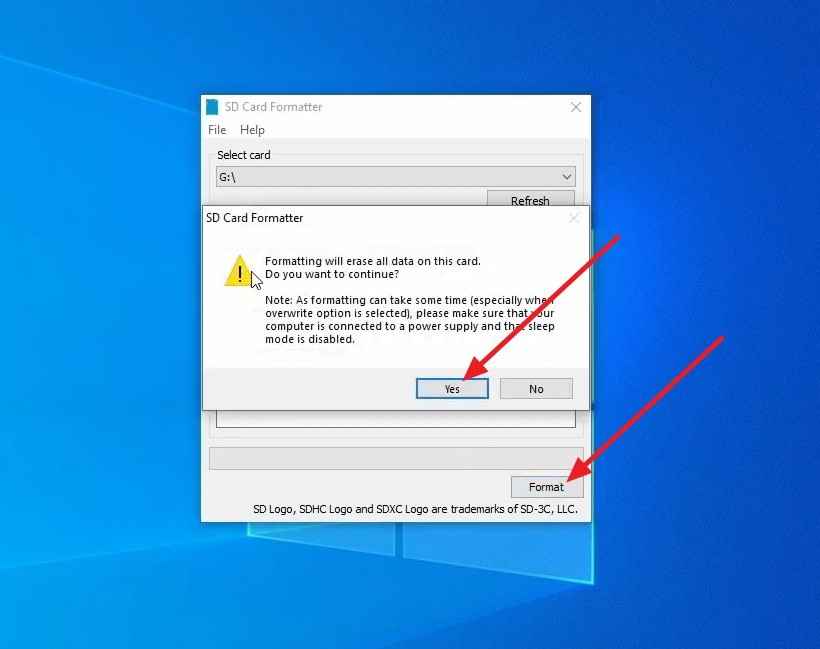
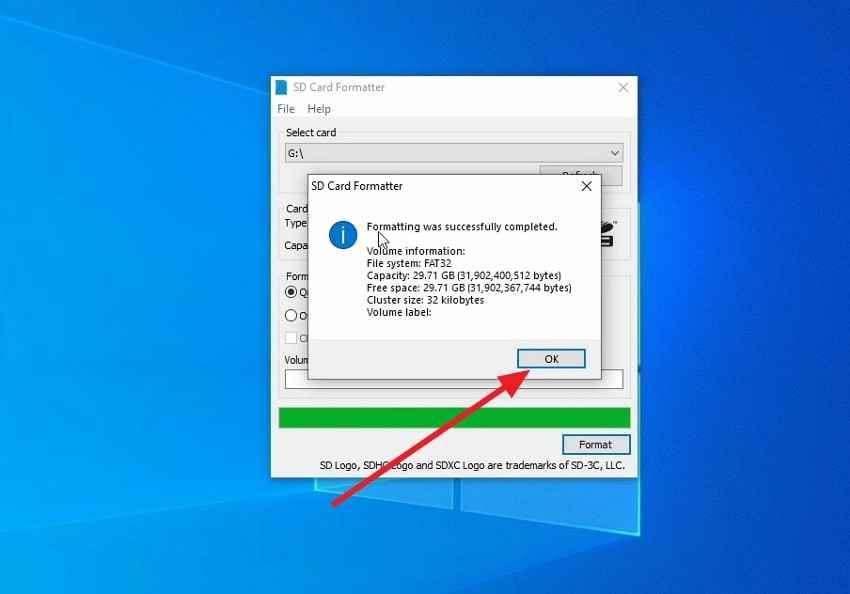
Step 2. Accept the warning only after your files are safe. Wait for the process to finish, then click OK and eject the card safely.
Format With Windows File Explorer
Step 1. Open This PC, right-click the SD card, and choose Format.
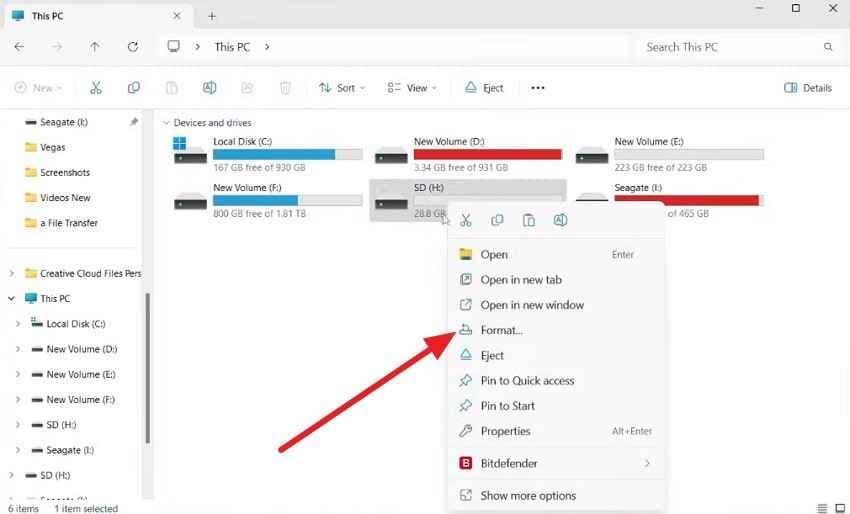
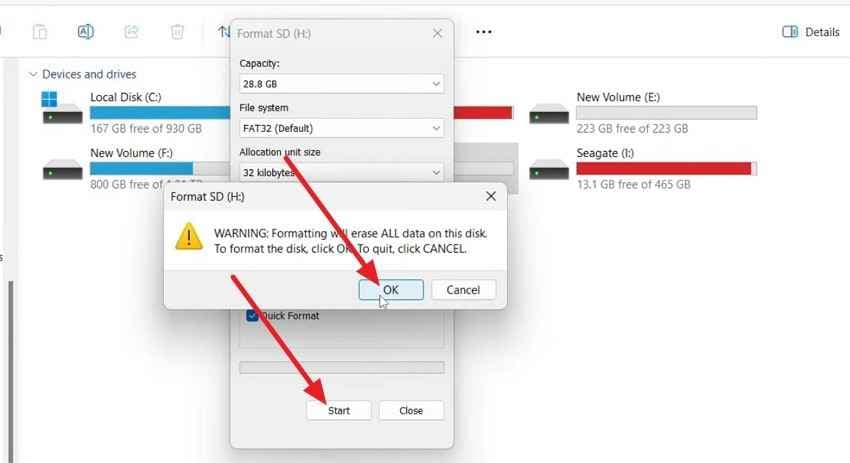
Step 2. Choose the file system required by your device. Use FAT32 for many 32GB-and-under cards, exFAT for most SDXC cards above 32GB, and avoid NTFS for cameras and phones unless the device specifically supports it. Keep Quick Format selected for routine reuse, then click Start and OK.
Format With Windows Disk Management
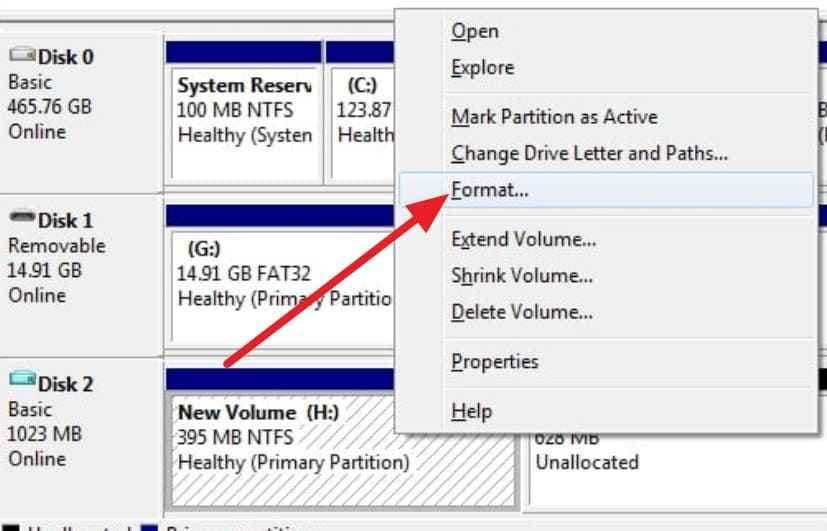
Step 1. Right-click Start, open Disk Management, and find the SD card by capacity. Right-click the card's volume and choose Format.
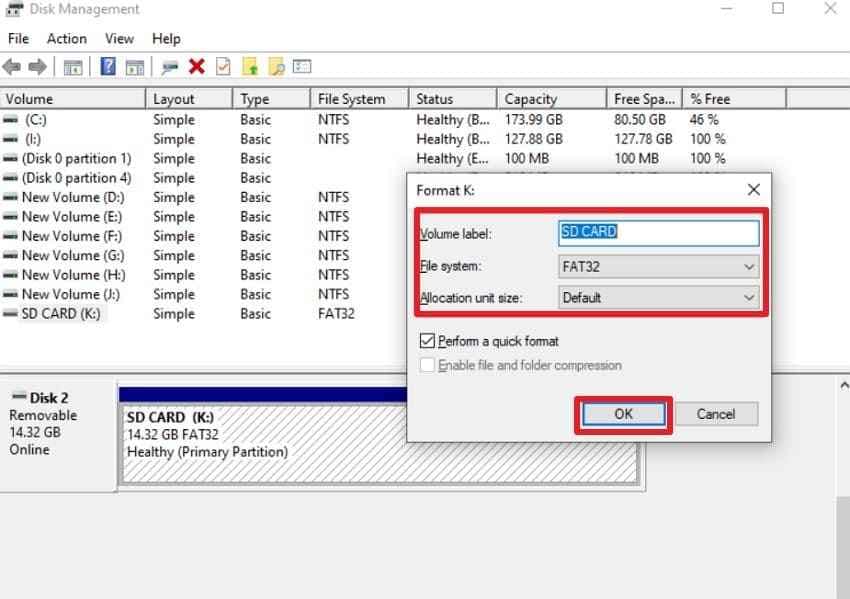
Step 2. Set the file system, volume label, and quick format option, then click OK. If the card has no drive letter, assign one from the same tool.
Format With DiskPart
Use DiskPart only if you are comfortable verifying disk numbers. The commands below delete the selected card's existing partition layout.
| Command | What It Does | Safety Note |
| diskpart | Opens the DiskPart utility. | Run Command Prompt as administrator. |
| list disk | Shows disks by number and size. | Identify the SD card by capacity. |
| select disk N | Targets the selected disk. | Replace N with the card number, not your system drive. |
| clean | Removes partition and volume formatting from the selected disk. | This is destructive. |
| create partition primary | Creates a new primary partition. | Use after clean. |
| format fs=exfat quick | Formats the partition as exFAT. | Use FAT32 only when required by the device. |
| assign | Assigns a drive letter. | Lets the card appear in File Explorer. |
Format With EaseUS Partition Master Free
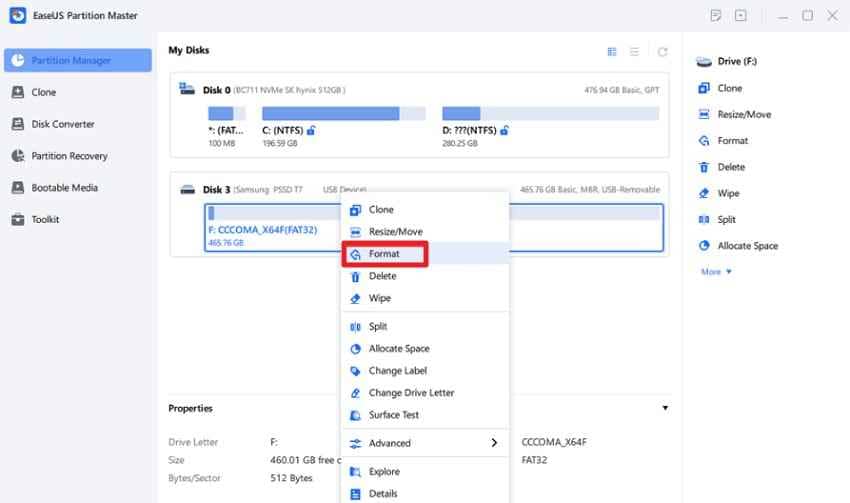
Step 1. Download EaseUS Partition Master Free from the publisher's official page. Open it, right-click the SD card partition, and choose Format.
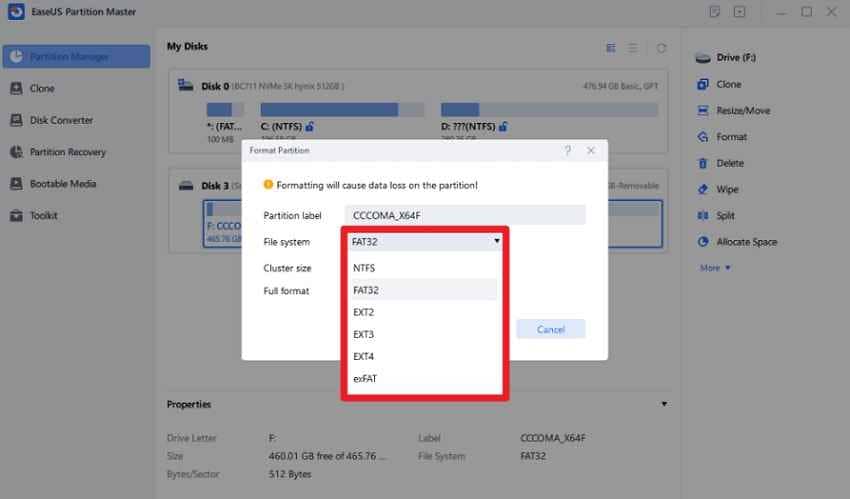
Step 2. Choose the target file system, such as FAT32 for a device that requires it or exFAT for most modern large cards.
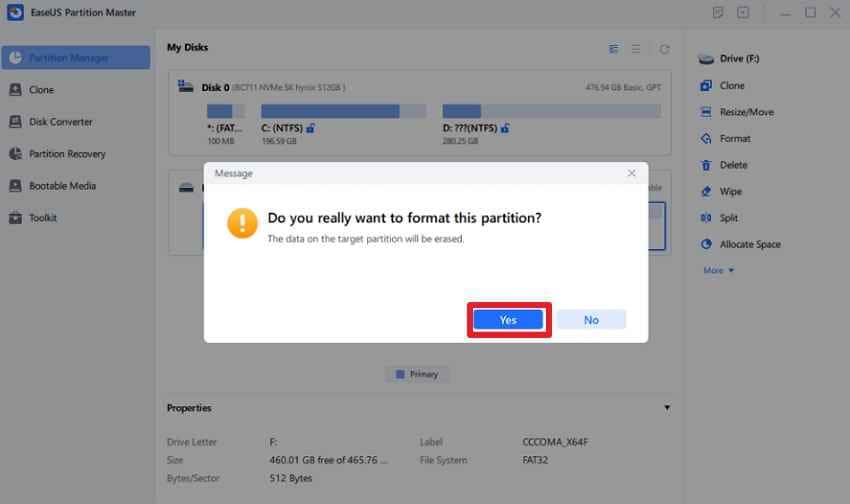
Step 3. Apply the pending operation and confirm the warning. Verify the card in the target camera, phone, console, or computer after formatting.
Format From Android Storage Settings
Instructions. Open Settings > Storage, select the SD card, open the menu or storage settings, and choose Format, Format card, Format as portable, or Format another way depending on your Android version and phone brand.
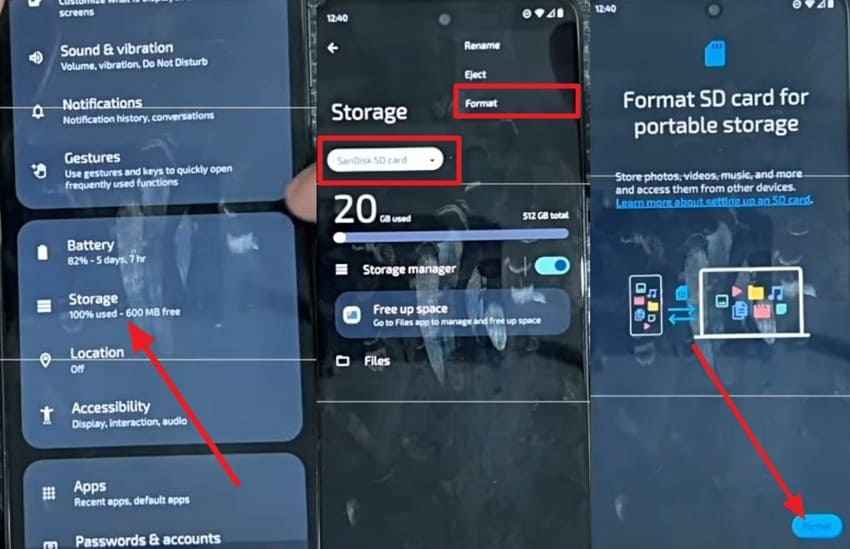
Tip: Choose portable storage if you want to move the card between Android, Windows, cameras, or other devices. Choose internal or adoptable storage only if you understand that the card will be formatted, encrypted, and tied to that phone.
Part 8. What to Do if an SD Card Will Not Format
If one formatter fails, do not keep repeating the same destructive operation. Work through the cause logically.
| Fix | When It Applies | What to Do |
| Unlock and reinsert the SD card | Formatting is immediately refused or the card is read-only. | Unlock the card or adapter switch, reinsert it, and try again. |
| Change the card reader, adapter, or USB port | The card disconnects or appears only sometimes. | Use another reader, adapter, direct USB port, or computer. |
| Close programs using the card | Windows says the card is in use. | Close File Explorer windows, backup tools, photo apps, media players, and sync programs. |
| Run the formatter as administrator | The utility reports access denied or cannot write settings. | Run the SD formatter, Command Prompt, or partition tool with administrator rights. |
| Assign or change the drive letter | The card is detected but missing from This PC. | Use Disk Management to assign a drive letter. |
| Delete the damaged partition and create a new volume | The card shows RAW, unallocated space, or incorrect capacity. | Recover files first, then use Disk Management, DiskPart, or a partition manager to rebuild the partition. |
| Replace the card | Errors return after successful formatting or the card fails on several devices. | Retire it. Repeated format errors often point to worn flash, controller failure, counterfeit capacity, or physical damage. |
Conclusion
The best SD card format app depends on the job. Use SD Memory Card Formatter for SD-standard formatting, File Explorer for quick Windows formatting, Disk Management for drive-letter and partition issues, DiskPart for advanced cleanup, EaseUS Partition Master Free when you need a graphical FAT32 or partition workflow, and Android Storage Settings for phones and tablets.
Do not treat formatting as a recovery method. If files are missing, recover them before you format. Recoverit and Recoverit Memory Card Recovery can help scan readable cards before destructive formatting, but they cannot repair failed hardware, bypass Android adopted-storage encryption, or guarantee overwritten data recovery.
FAQ
-
Does formatting an SD card remove viruses or malware?
A quick format removes the file-system records that make files visible, but it is not a complete security cleanup because old data remnants may remain until overwritten. If you suspect malware, back up only trusted personal files, scan them with security software, and use a full or overwrite format before reusing the card. -
Does frequent formatting reduce an SD card's lifespan?
Occasional quick formatting has very little impact because it writes only file-system structures. Repeated overwrite formats write across the whole card and consume more of the card's finite write endurance. -
Why does an SD card show less usable storage after formatting?
Part of the difference comes from decimal marketing capacity versus binary capacity shown by operating systems. File-system structures, reserved space, and device-created folders can also reduce the usable number shown after formatting. -
Can formatting repair a physically damaged SD card?
No. Formatting can rebuild file-system structures, but it cannot fix worn flash cells, a failed controller, cracked plastic, bent contacts, water damage, or counterfeit capacity. Replace the card if errors return across multiple readers or devices.



