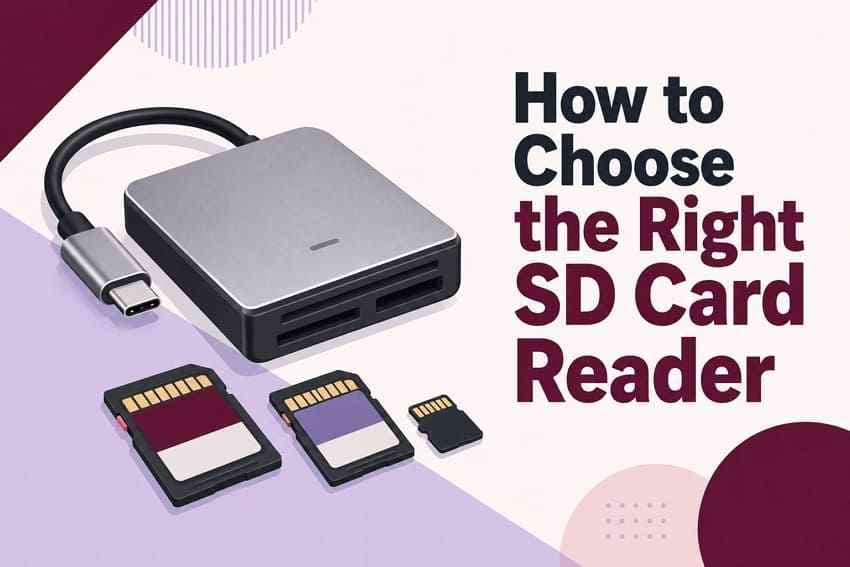

 TL;DR:
The Lexar Dual-Slot USB-A/C Reader is the most versatile choice for most users because it supports both full-size SD and microSD cards while connecting directly to older USB-A and newer USB-C computers.
● Choose the Apple USB-C to SD Card Reader for a full-size UHS-II SD workflow on compatible Apple devices, or the Insignia USB-C multi-format reader strictly when handling legacy CompactFlash Type I media.
● A passive microSD-to-SD adapter only works if your computer already features a built-in full-size SD slot, whereas a dedicated USB reader is required to connect memory cards to standard USB-A or USB-C ports.
● Inserting a high-speed UHS-II card into a standard UHS-I reader restricts transfer performance to slower UHS-I speeds, and readers built for CompactFlash Type I cannot read newer CFexpress Type A, CFexpress Type B, or XQD formats.
Ask AI for a summary
 ChatGPT
 Perplexity
 Gemini
 Claude
 Grok
Grok
Quick answer: The Lexar Dual-Slot USB-A/C Reader is the best overall choice for most shoppers because one compact device handles full-size SD and microSD cards and connects to USB-A or USB-C. Choose the Apple USB-C to SD Card Reader for a full-size UHS-II SD workflow on a Mac, iPad, or USB-C iPhone, or the Insignia multi-format model when you genuinely need legacy CompactFlash Type I support.
A card reader that looks interchangeable on a store shelf can become the bottleneck in a photo or video workflow. The wrong product may lack a microSD slot, use the wrong computer connector, limit a UHS-II card to UHS-I speed, or support CompactFlash but not the similarly named CFexpress format. This photographer discussion about reliable card readers shows why shoppers often care about stability as much as headline speed.
This guide answers commercial searches such as best buy SD card reader, SDHC card reader Best Buy, Best Buy micro SD card reader, and Best Buy SD card adapter. It compares current listings, explains what the specifications actually mean, and separates a passive microSD adapter from a USB reader.
In This Article
Part 1. Best SD Card Readers at Best Buy: Quick Picks
The current Best Buy memory card reader category mixes products sold directly by Best Buy with listings from marketplace sellers. The six picks below cover the most common SD, SDHC, SDXC, and microSD needs while showing the tradeoff each product makes.
| Product | Best For | Card Support | Connector | Key Advantage | Current Price Check |
| Lexar Dual-Slot USB-A/C Reader | Best overall mixed-port reader | SD and microSD | USB-A and USB-C | Two card slots, two host connectors, up to 205MB/s advertised | $19.99 |
| Insignia USB 3.0 SD and microSD Reader | Traditional USB-A computers | SD, SDHC, SDXC, microSDHC, and microSDXC | USB-A | Simple first-party Best Buy option with broad OS compatibility | $19.99 |
| Insignia USB-C/USB 3.0 SD and microSD Reader | Switching between old and new computers | SD, SDHC, SDXC, microSDHC, and microSDXC | USB-C and USB-A | Both computer connectors in one compact reader | $24.99 |
| UGREEN CM401 USB-C SD Card Reader | Budget USB-C use | SD and microSD, including listed SDHC/SDXC variants | USB-C | Simultaneous dual-card access and compact cable design | $10.99, marketplace listing |
| Insignia USB-C SD, microSD, and CompactFlash Reader | Legacy multi-format camera cards | SD, microSD, and CompactFlash Type I | USB-C cable with USB-A adapter | Four slots, UHS-II SD support, and up to 312MB/s advertised | $39.99 |
| Apple USB-C to SD Card Reader | Simple Apple UHS-II workflow | Full-size SD, including UHS-II; microSD through an adapter | USB-C | Official Apple reader with UHS-II support | $39.00 |
Price note: These were the new-product prices displayed during verification on August 25, 2026. A product page can show a different promotional price, marketplace shipping charge, open-box price, or local pickup result based on location and time.
Most important buying distinction: Lexar is the strongest all-purpose pick for ordinary SD and microSD transfers across USB-A and USB-C. It is not the best choice for extracting the full potential of every UHS-II card. Best Buy also lists a separate Insignia UHS-II dual-slot reader rated up to 312MB/s for shoppers whose workflow prioritizes UHS-II speed over dual USB connectors.
Part 2. Best Buy SD Card Reader Options by Use Case
The right reader depends on the cards you own, the ports available on the host device, and whether you value maximum transfer speed, portability, legacy compatibility, or in-store pickup. The recommendations below explain both the useful feature and the limitation hidden by the product name.
Best Overall SD and microSD Card Reader
The Lexar Dual-Slot USB-A/C Reader is the most flexible default. It combines separate SD and microSD slots with built-in USB-A and USB-C connectors, so the same reader can move between an older desktop, a modern laptop, and compatible USB-C tablets or phones.
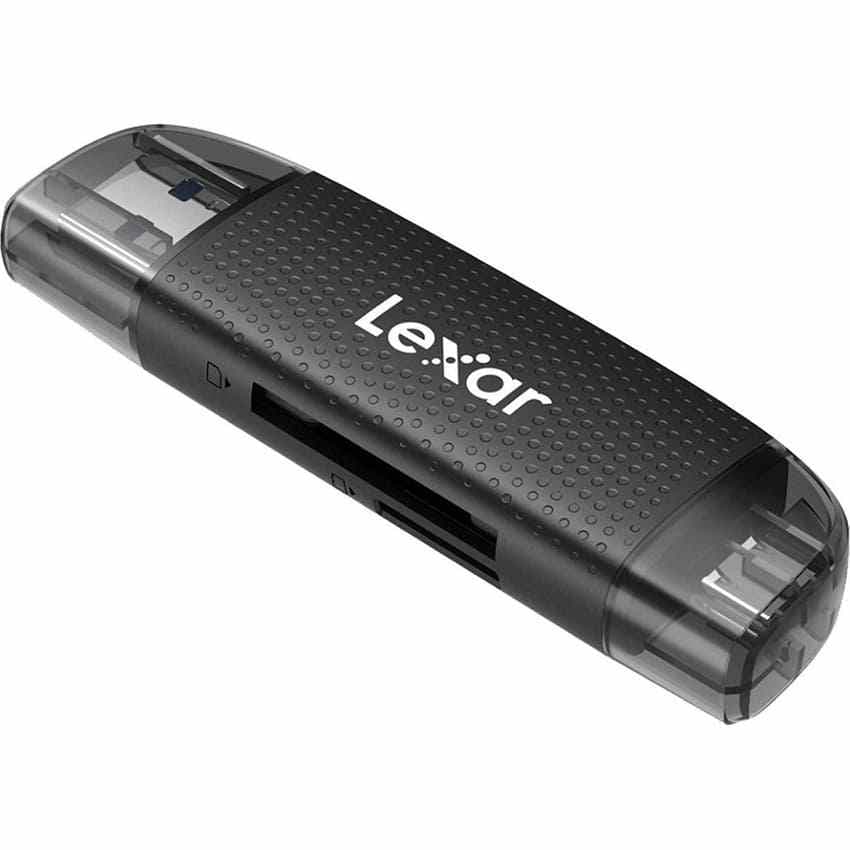
Its strongest advantage is practical compatibility rather than one specialized high-end interface.
Key Specifications and Limits
- Card slots: One full-size SD slot and one microSD slot; Best Buy says both can be used for simultaneous transfers.
- Computer connectors: USB Type-A and USB Type-C built into the reader.
- Interface: USB 3.2 Gen 1, with backward compatibility for older USB ports.
- Advertised performance: Up to 205MB/s under supported conditions; actual speed depends on the card, port, device, file mix, and system.
- Setup: Plug-and-play with no separate driver listed by Lexar.
- Warranty: Lexar specifies a two-year limited warranty on its official reader page.
Best for: Photographers, students, and household users who own both SD and microSD cards and frequently move between USB-A and USB-C computers.
Do not overread the speed claim: “Up to 205MB/s” is not a guaranteed copy rate. Large sequential files transfer differently from thousands of small files, and a slower card or host port sets the ceiling.
Best USB-A SD Card Reader
The Insignia USB 3.0 SD and microSD Memory Card Reader fits desktops and laptops that still rely on rectangular USB-A ports. It avoids an extra dongle and supports the common capacity families in both full-size and microSD form factors.
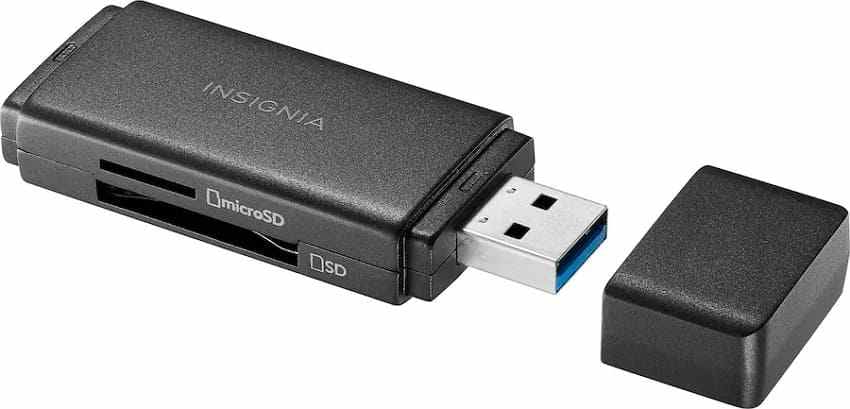
The product makes sense when simplicity and direct Best Buy availability matter more than UHS-II performance.
Key Specifications and Limits
- Card support: SD, SDHC, SDXC, microSD, microSDHC, and microSDXC.
- Computer connector: USB-A using a USB 3.x-class connection.
- Operating systems: Best Buy lists Windows, macOS, ChromeOS, iPadOS, and Android compatibility where the host accepts the connection.
- Physical design: Compact stick format with a protective connector cap.
- Main advantage: No USB-C adapter is needed on a conventional PC.
- Main limitation: It is not identified as a UHS-II reader, so it is not the right purchase for maximizing a UHS-II card.
Best for: Moving photos, videos, schoolwork, and archives to or from an older Windows desktop or laptop with a reliable USB-A port.
Best USB-C and USB-A Memory Card Reader
The Insignia USB-C/USB 3.0 SD and microSD Reader solves a common mixed-device problem. A user can connect the same reader to a newer USB-C laptop and an older USB-A desktop without carrying a separate host adapter.
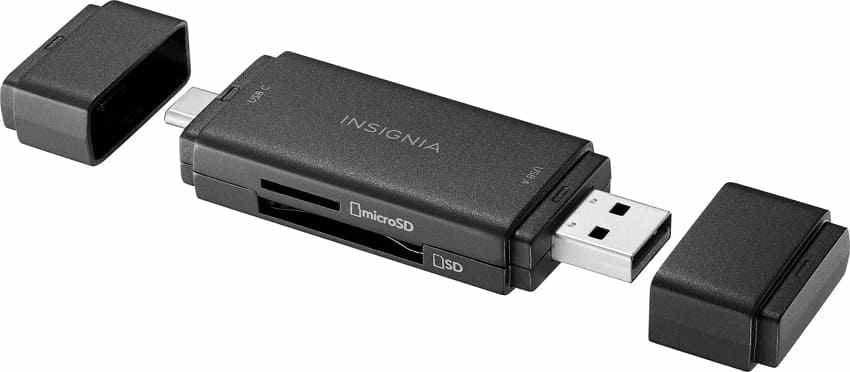
Its broad host compatibility is more important than a narrow maximum-speed claim.
Key Specifications and Limits
- Card support: SD, SDHC, SDXC, microSD, microSDHC, and microSDXC.
- Computer connectors: USB-C and USB-A, each protected by a cap.
- Operating systems: Best Buy lists Windows, macOS, ChromeOS, iPadOS, Android, and compatible USB-C iOS devices.
- Best use: One travel reader for computers from different hardware generations.
- Main advantage: The connector choice is built into the product.
- Main limitation: It is a standard SD/microSD reader, not a CF, CFexpress, XQD, or explicitly UHS-II specialist reader.
Best for: People who regularly transfer files between a workplace desktop, personal laptop, tablet, or compatible phone with different USB ports.
Best Budget USB-C SD Card Reader
The UGREEN CM401 USB-C SD Card Reader is the lowest-priced USB-C pick in this six-product comparison. Its short braided cable keeps the reader body away from adjacent ports, while separate SD and microSD slots can be accessed together.
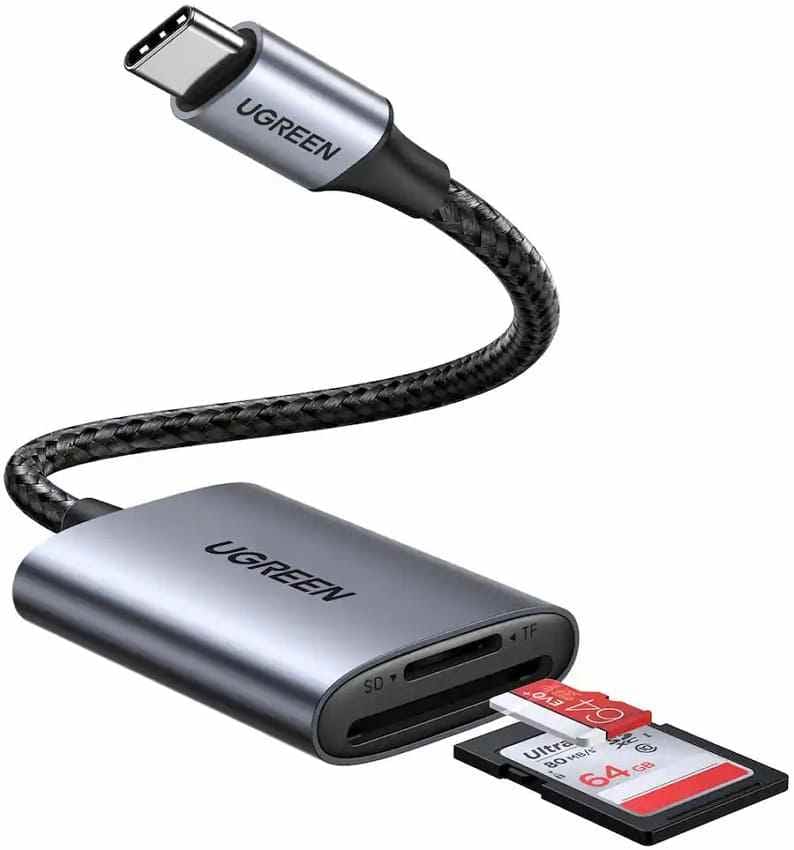
The buying decision should account for both interface marketing and the seller behind the listing.
Key Specifications and Limits
- Card support: SD and microSD families, including SDHC, SDXC, microSDHC, and microSDXC as listed by UGREEN.
- Computer connector: USB-C only on the CM401 configuration in the source document.
- Dual-card access: The two card slots can be read at the same time.
- Advertised interface: The listing promotes 5Gbps USB connectivity.
- Important speed limit: 5Gbps describes the USB link, not a guaranteed memory-card transfer rate. The card interface, card, host, and file workload remain limiting factors.
- Seller status: The verified Best Buy listing was sold and shipped by UGREEN Official Store, with pickup unavailable from that seller at verification.
Best for: Cost-sensitive USB-C users who want SD and microSD slots and are comfortable ordering from a Best Buy marketplace seller instead of relying on local pickup.
Best Multi-Format Memory Card Reader
The Insignia USB-C to SD, microSD, and CompactFlash Reader is designed for photographers who still use legacy CompactFlash Type I cards alongside SD or microSD. Its included USB-C cable and USB-A adapter make it easier to use across different computers.
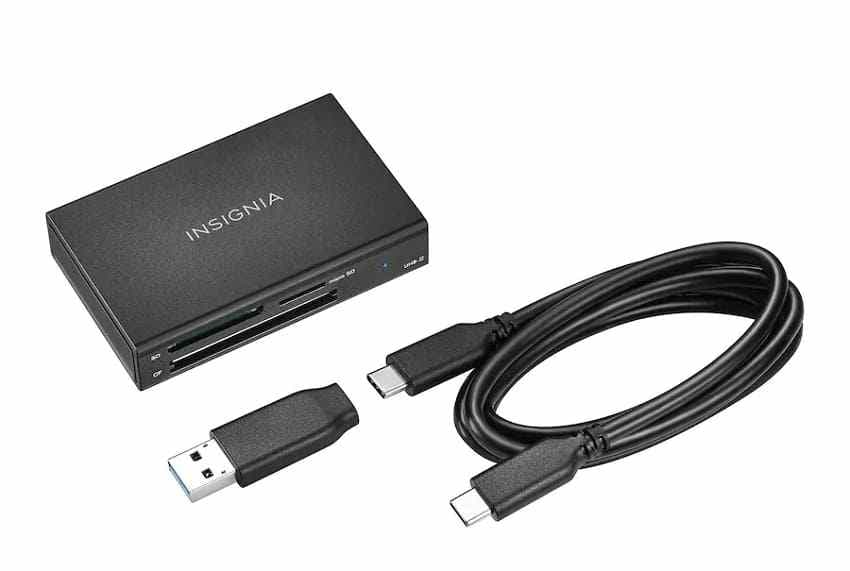
The name “multi-format” needs one strict compatibility warning before purchase.
Key Specifications and Limits
- Card support: SD, SDHC, SDXC, microSD, microSDHC, microSDXC, and CompactFlash Type I.
- Computer connector: USB-C cable plus an included USB-A adapter.
- SD performance: Best Buy lists UHS-I and UHS-II support with transfer speeds up to 312MB/s under supported conditions.
- Multi-card workflow: Multi-LUN functionality allows simultaneous card access.
- Legacy value: Useful when an older DSLR or archive still relies on traditional CompactFlash.
- Critical limitation: CompactFlash Type I is not CFexpress Type A, CFexpress Type B, or XQD. Those formats require a reader that names them explicitly.
Best for: Photographers with mixed SD, microSD, and legacy CompactFlash Type I media. Do not pay the premium if every card you own is SD or microSD.
Best Buy also carries separate CFexpress and XQD products, such as a Sony CFexpress Type B/XQD reader. That does not make the Insignia CompactFlash model compatible with those newer formats.
Best Simple Apple USB-C SD Reader
The Apple USB-C to SD Card Reader is the straightforward choice for an Apple-centered workflow using full-size SD cards. Apple and Best Buy both describe UHS-II support with backward compatibility for older SD cards and adapters.
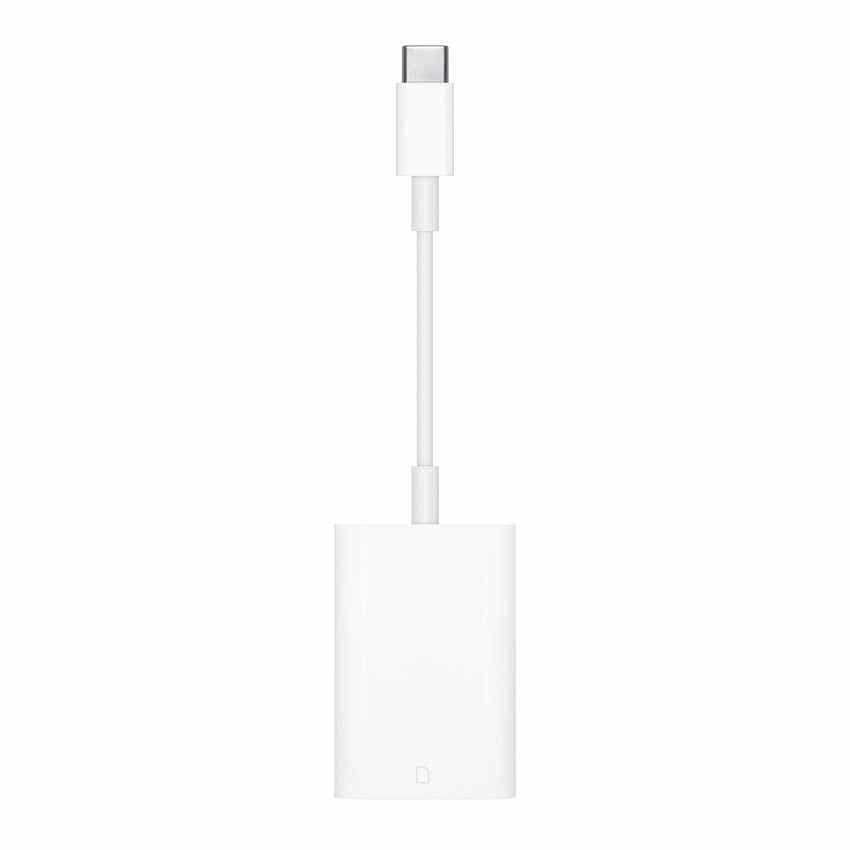
Its simplicity comes from doing one job rather than covering every card format.
Key Specifications and Limits
- Card slot: One full-size SD slot.
- Computer connector: USB-C.
- Performance class: UHS-II support with backward compatibility for other SD cards.
- Apple-device fit: Designed for compatible USB-C Mac, iPad, and iPhone models.
- microSD use: Requires a passive microSD-to-SD adapter because the reader has no dedicated microSD slot.
- Main tradeoff: It costs more than several dual-slot products and does not support simultaneous SD and microSD access.
Best for: Apple users who work primarily with full-size UHS-II SD cards and value a first-party accessory more than format breadth or the lowest price.
Part 3. SD, SDHC, microSD Reader, or Adapter: What Do You Actually Need?
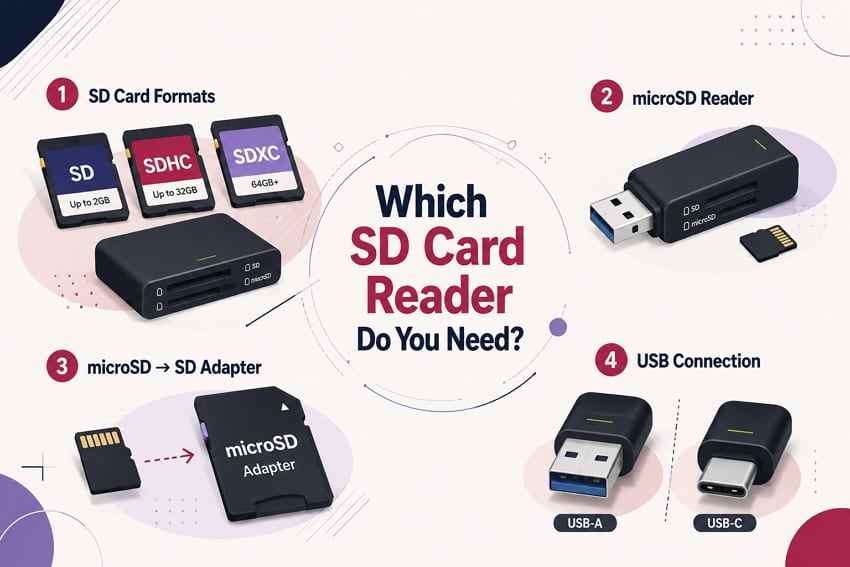
Product names combine capacity standards, physical card sizes, and computer connectors. Separating those three layers prevents the most common purchasing mistake: buying an accessory that fits one side of the connection but not the other.
SD, SDHC, and SDXC Card Readers
SD, SDHC, and SDXC are capacity families, not three unrelated physical card shapes. The SD Association capacity standard defines SD up to 2GB, SDHC above 2GB through 32GB, and SDXC above 32GB through 2TB.
| Capacity Standard | Capacity Range | Default File System | Reader Check |
| SD | Up to 2GB | FAT12 or FAT16 | Widely supported, including older readers |
| SDHC | More than 2GB through 32GB | FAT32 | Reader should show SDHC support |
| SDXC | More than 32GB through 2TB | exFAT | Reader and host OS must support SDXC/exFAT |
| SDUC | More than 2TB through 128TB | exFAT | Requires explicitly compatible newer hardware |
A current Best Buy reader that explicitly lists SDXC should normally cover SDHC and standard SD as well, but older built-in laptop slots may predate SDXC. Never format a card merely because an old reader asks; test a confirmed-compatible reader first.
microSD Card Readers
microSD is the smaller physical form factor used in phones, action cameras, drones, dashcams, handheld consoles, and security cameras. Its capacity names mirror the full-size family: microSD, microSDHC, microSDXC, and newer microSDUC.
A dedicated microSD slot lets the tiny card insert directly. A dual-slot reader is more convenient when a workflow switches between a camera's full-size SD card and a phone, drone, or action camera microSD card.
microSD-to-SD Adapters
A microSD-to-SD adapter is a passive sleeve. It changes the physical size so a microSD card can enter a full-size SD slot; it does not contain a USB controller, create storage, improve speed, repair corruption, or connect to a computer that lacks an SD slot.
This is the main difference between a Best Buy micro SD card adapter and a Best Buy micro SD card reader. Use the adapter when the laptop or reader already has a full-size SD slot. Buy a USB reader when the host has only USB-A or USB-C.
USB-A vs USB-C Card Readers
USB-A is the larger rectangular host connector common on older PCs. USB-C is smaller, reversible, and common on newer laptops, tablets, and phones. Connector shape alone does not reveal the actual USB generation or card-bus speed.
A dual-connector reader provides flexibility, while a short-cable USB-C reader can avoid blocking adjacent ports. Before buying for a phone or tablet, confirm that the device supports USB host/OTG storage access and supplies enough power for the reader.
Part 4. How to Choose an SD Card Reader at Best Buy
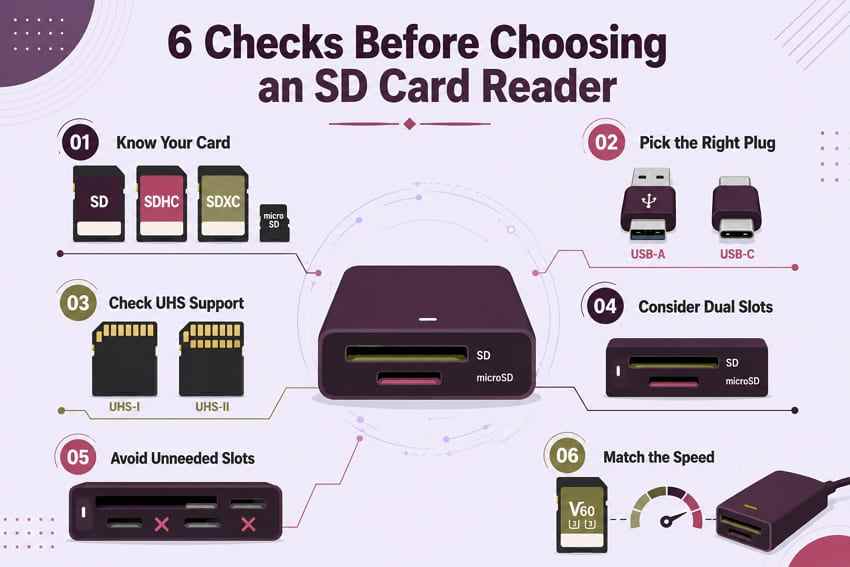
Use these checks in order. Starting with card format and host connector eliminates incompatible products before speed claims or promotional prices influence the decision.
- Identify the exact card: Read the card label for SD, SDHC, SDXC, microSDHC, microSDXC, CompactFlash, CFexpress Type A/B, or XQD. Similar names do not guarantee compatibility.
- Match the computer connector: Check whether the host has USB-A, USB-C, Thunderbolt/USB-C, or a built-in full-size SD slot. Do not assume a USB-C shape guarantees a particular speed.
- Check UHS-I or UHS-II support: UHS-II cards have a second row of contacts. A UHS-II card is generally backward compatible in a UHS-I reader, but it cannot reach UHS-II transfer performance through the slower interface.
- Choose dual slots only when useful: Separate SD and microSD slots reduce adapter handling. Confirm whether both can be accessed simultaneously if that workflow matters.
- Pay for extra formats only when needed: A CompactFlash, CFexpress, or XQD reader can cost more. Buy the exact format used by the camera rather than a vaguely labeled “multi-card” model.
- Compare the whole speed chain: The card, reader, USB port, host storage, cable, operating system, thermal conditions, and file pattern all affect observed speed.
The SD Association bus-speed specification lists UHS-I up to 104MB/s and UHS-II up to 312MB/s in half-duplex mode. These are interface ceilings, not guaranteed benchmark results.
| Your Card and Workload | Reader to Choose | Reason | Main Limitation to Check |
| Ordinary SDHC/SDXC photos and documents | Modern UHS-I SD reader | Enough for routine transfers | USB connector must match the host |
| SD and microSD used regularly | Dual-slot reader | Avoids carrying a separate microSD sleeve | Some readers do not access both slots simultaneously |
| Fast UHS-II photo or video card | UHS-II reader | Uses the card's second contact row | Host and destination drive must also be fast |
| Legacy CompactFlash Type I | Reader explicitly listing CF Type I | Matches the card's physical interface | Does not imply CFexpress support |
| CFexpress Type B or XQD | Reader explicitly listing CFexpress Type B/XQD | Uses a different modern interface | Traditional CompactFlash readers will not work |
A card's Speed Class, UHS Speed Class, or Video Speed Class describes minimum sequential card performance under specified conditions. It does not tell you whether the reader itself supports UHS-II or whether the host will sustain the same result.
Part 5. Best Buy SD Card Adapter vs Card Reader
An adapter and reader can appear beside each other in search results, but they solve different physical connection problems. This table shows when each purchase is appropriate.
| Feature | SD Card Adapter | USB SD Card Reader | Multi-Card Reader |
| Connection to computer | No direct USB connection; requires an existing full-size SD slot | Connects through USB-A or USB-C | Connects through USB-A, USB-C, or another listed host interface |
| microSD support | Lets microSD fit a full-size SD slot | Often includes a dedicated microSD slot | Varies; may include microSD plus other formats |
| USB-A and USB-C compatibility | Not applicable | Depends on reader connector | Depends on cable, connector, or included adapter |
| Transfer-speed expectation | Depends on microSD card and the existing SD reader | Depends on card bus, USB link, host, and destination | Depends on each slot and whether simultaneous access shares bandwidth |
| When it is enough | The computer already has a compatible full-size SD slot | You use SD/microSD and the computer lacks a suitable slot | You genuinely use several different card families |
| Main limitation | Cannot connect to USB or repair a card | May support only SD-family cards | Higher price and confusing format names |
Practical example: A microSDXC card plus a passive SD adapter is enough for a Mac or PC with a compatible full-size SDXC slot. If the computer has no SD slot, the same sleeve still has nowhere to connect; use a USB card reader.
Part 6. How to Use an SD Card Reader Safely
A reliable reader reduces connection problems, but the transfer workflow determines whether files remain intact. Follow these practices whenever the card contains irreplaceable photos, videos, or work files.
- Insert the card fully before opening files: Align the contacts correctly and never force a card into a slot. CompactFlash pins are particularly vulnerable to damage from misalignment.
- Let transfers finish before disconnecting: Wait until copy dialogs and reader activity lights stop. Do not pull the card during imports, previews, exports, or thumbnail generation.
- Eject the card properly: Use the operating system's eject control. Microsoft provides a Safely Remove Hardware workflow for Windows; Finder provides Eject on macOS.
- Avoid unknown readers for important archives: Poor connectors, unstable cables, heat, or intermittent power can interrupt transfers. Test a new reader with noncritical data before trusting it on the only copy of a shoot.
- Back up after a successful transfer: Verify several files, compare expected counts or folder sizes, then maintain at least one separate copy before formatting or reusing the card.
- Stop if files are missing: Do not format, repair, initialize, or copy new files onto the card. Test another known-good port or reader to separate a connection problem from data loss.
Reader test vs card test: If several healthy cards fail only in one reader, the reader is the likely problem. If one card fails in multiple compatible readers and devices, the card or its file system is more likely at fault. If the card is visible but folders are empty, protect it from new writes before attempting recovery.
Part 7. Recover Lost Files if Your Card Reader Shows the Card but Data Is Gone
A reader establishes communication; it does not repair a corrupted file system or restore deleted files. The next action depends on whether the operating system still detects the card with a plausible capacity.
When Recovery Software Can Help
If an SD, SDHC, SDXC, microSD, CompactFlash, or compatible camera card appears on a Windows or Mac computer but files are deleted, missing, formatted, RAW, or inaccessible, Wondershare Recoverit Memory Card Recovery can scan the readable media through a stable card reader.
The product is designed for logical data loss, so its benefits and boundaries should be evaluated together.
Key Features and Recovery Boundaries
- Memory-card coverage: Supports SD, SDHC, SDXC, microSD, CF, CFexpress, and other listed camera-card types when a compatible reader makes the card detectable.
- Logical-loss scenarios: Scans after accidental deletion, formatting, RAW status, transfer interruption, and file-system errors.
- File-type support: Searches for photos, camera RAW files, videos, audio, documents, and other common formats.
- Filtering and preview: Helps narrow scan results and preview supported files before selecting what to recover.
- Separate recovery destination: Recovered files should be saved to the computer or another healthy drive, never back to the affected card.
Important: Do not run CHKDSK, First Aid, formatting, or other write-based repairs before recovering important data. Recoverit cannot make an unsupported reader understand the card format, reconstruct overwritten sectors, or repair physically broken flash hardware.
The following three-step workflow begins only after the computer detects the card.
How to Recover Files From a Memory Card
Step 1. Choose the Card and Start Scanning. Connect the affected card with a compatible, stable reader. Open Recoverit, select SD Card Recovery, verify the card by capacity and device information, and start the scan.

Step 2. Let Recoverit Search for Missing Files. Allow the scan to continue while results appear. Filter by file type, date, size, or path without writing anything new to the card.

Step 3. Preview and Recover to Another Drive. Preview important photos, videos, or documents where available. Select recoverable files, click Recover, and save them to the computer or a separate external drive.

When the Card Needs Professional Service Instead
Software requires stable communication with the storage device. Stop repeated DIY attempts when the card is cracked, bent, corroded, overheating, showing no media or zero capacity, or undetected by every known-good compatible reader and computer.
- Physical breakage: A cracked microSD card or bent CompactFlash interface can require specialist hardware work.
- Controller failure: A card that shows “No Media” or zero bytes may not expose the flash memory to software.
- Electrical or heat symptoms: Disconnect a reader or card that becomes abnormally hot or repeatedly drops offline.
- Critical one-copy data: For irreplaceable commercial footage or legal evidence, avoid repeated power cycles and seek a reputable recovery lab.
A different reader can solve a compatibility or connector fault, but no reader or microSD adapter can repair broken NAND flash, a failed controller, or overwritten file content.
Try Wondershare Recoverit to Recover Files From a Memory Card
 Security Verified. Over 7,302,189 people have downloaded it.
Conclusion
The best Best Buy SD card reader is the one that matches all three sides of the workflow: the card format, the host connector, and the performance level. Lexar's dual-slot USB-A/C model is the most flexible all-purpose choice; Insignia offers straightforward USB-A, dual-connector, and legacy CompactFlash options; UGREEN is the budget USB-C pick; and Apple's reader is the focused UHS-II choice for full-size SD cards on compatible Apple devices.
Check the exact seller, local availability, and current price before ordering. More importantly, do not treat a reader as a backup or repair tool. Transfer carefully, verify the files, keep another copy, and stop writing to a card as soon as data disappears.
Frequently Asked Questions
-
Do I Need a Separate Reader if My Laptop Already Has an SD Slot?
Not for a compatible full-size SD card. A separate reader is useful when the laptop slot does not support the card's capacity or UHS generation, when you need microSD without an adapter, or when the built-in slot is slow or unreliable. Confirm the laptop specification before buying. -
Will a UHS-I Reader Work With a UHS-II Card?
Usually yes because UHS-II cards are designed for backward compatibility, but the transfer will fall back to the slower reader interface. To use UHS-II performance, the card, reader, host connection, and destination drive must all avoid becoming the bottleneck. -
Is a microSD Adapter the Same as a USB Card Reader?
No. A microSD-to-SD adapter is a passive sleeve that lets the small card fit a full-size SD slot. A USB reader contains the electronics needed to connect a card to a USB-A or USB-C host. The adapter cannot connect to a computer without an SD slot. -
Can a Card Reader Fix a Corrupted SD Card?
No. Another compatible reader can rule out a bad port or reader, but it cannot repair corrupted file-system data or physical flash damage. If the card is detected but files are missing, stop writing to it and recover important data before attempting repairs. If it is physically damaged or undetected everywhere, consider professional service.


