 TL;DR:
The Samsung PRO Plus is the strongest all-around microSD card for mixed Galaxy Tab workloads, while the Samsung EVO Plus delivers the best value for everyday offline media, though any purchase must strictly align with your tablet's official capacity limits.
● Exact tablet models dictate maximum storage support: current Galaxy Tab S11 and S10 FE models support up to 2TB microSDXC cards, whereas the Galaxy Tab A9/A9+, S9, and S8 families are officially capped at 1TB.
● While A2-rated cards offer better random performance for apps, Samsung devices do not support Android Adoptable Storage, meaning the microSD card cannot function as true internal storage and not all apps can be moved to it.
● Do not overpay for maximum advertised transfer speeds, as these peak lab figures require compatible branded card readers and will not be natively reached on the tablet itself, which also requires formatting cards over 32GB to exFAT since NTFS and APFS are unsupported.
Ask AI for a summary
 ChatGPT
 Perplexity
 Gemini
 Claude
 Grok
Grok
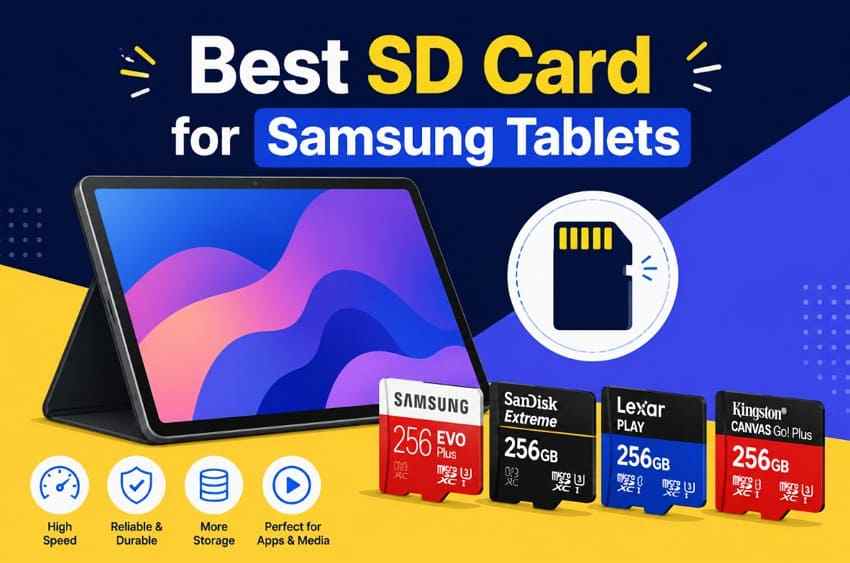
Quick answer: Samsung PRO Plus is the strongest all-around choice for a compatible Galaxy Tab, while Samsung EVO Plus offers better value for everyday downloads, photos, and offline video. Capacity matters more than headline speed: current Galaxy Tab S11 and S10 FE models support microSD cards up to 2TB, while the Galaxy Tab A9/A9+, S9, and S8 families officially support up to 1TB.
“I own a Tab S11 with 128GB internal storage, I wanna put a SD card with at least 256GB of storage inside. I know that having the symbols V30, U3 and A2 is very good but tbf almost every card today had them so which is better?..”. — HELP_ME__PLEASE_
That question captures the real buying problem. Several cards carry the same U3, V30, and A2 logos, yet they differ in supported capacities, claimed peak speed, card-reader requirements, warranty terms, and price. A fast 2TB card is also a poor purchase if the tablet supports only 1TB.

In This Article
Part 1. Best SD Cards for Samsung Tablets: Quick Picks
The best card is the one that matches both the tablet and the workload. This comparison separates everyday storage from heavier photo, video, and transfer use while showing where capacity-specific specifications matter.
| microSD Card | Best For | Capacity Options | Speed Class | App Rating | Key Advantage |
| Samsung PRO Plus | Best overall | 128GB, 256GB, 512GB, 1TB | U3, V30 | A2 | Up to 180MB/s read and 130MB/s write; Samsung explicitly lists tablets as a supported use |
| Samsung EVO Plus | Best value | 64GB, 128GB, 256GB, 512GB, 1TB | U3, V30 on current 128GB-and-larger variants | A2 on current 128GB-and-larger variants | Up to 160MB/s read with enough performance for common tablet storage |
| SanDisk Extreme | Photos and high-resolution video | 32GB to 2TB | U3, V30 on supported higher-capacity variants | A2 on supported variants | High-capacity options and fast transfers when used with compatible hardware |
| Lexar Professional SILVER PLUS | Large media libraries | 64GB to 2TB | U3, V30 | A2 | Up to 255MB/s read and 180MB/s write on the current 2TB model |
| Kingston Canvas Go! Plus | Frequent file transfers | 64GB to 1TB | U3, V30 | A2 | Up to 200MB/s read; up to 160MB/s write on 256GB-to-1TB variants |
Best default capacity: 256GB is the practical starting point for most users. It offers useful room for offline media, photos, documents, and downloads without paying for capacity that may remain unused. Choose 512GB or more when you already know your media library will justify it.
Part 2. What SD Card Does a Samsung Tablet Need?
Brand comes after compatibility. Before comparing cards, confirm the physical format, capacity standard, card slot, and maximum storage supported by the exact tablet model.
Samsung Tablets Use microSD, Not Full-Size SD Cards
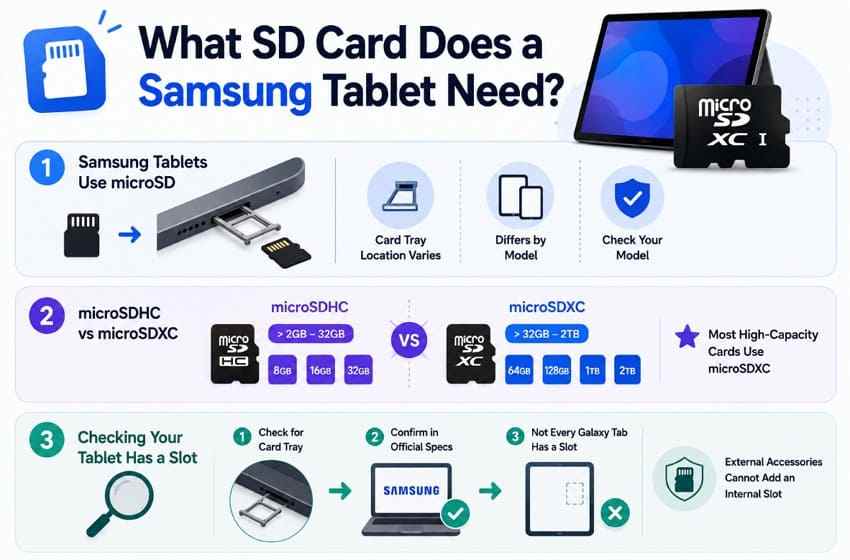
Galaxy Tab models with expandable storage use the smaller microSD form factor. A full-size SD card does not fit the tablet tray. Some retail packages include a full-size SD adapter, but that adapter is intended for cameras or computer card readers, not the tablet itself.
microSDHC vs microSDXC for Tablets
The SD Association capacity standard defines microSDHC as more than 2GB through 32GB and microSDXC as more than 32GB through 2TB. That means nearly every 64GB, 128GB, 256GB, 512GB, 1TB, or 2TB card considered for a modern Galaxy Tab is microSDXC.
Samsung recommends FAT32 for cards under 32GB and exFAT for larger compatible cards. NTFS and APFS are not supported for this use. If a new card is not recognized, verify its capacity and file system before assuming the card is defective.
Check Whether Your Samsung Tablet Has a microSD Slot
Inspect the tablet edge for a SIM/microSD tray, then confirm expandable storage through Samsung Support or the specification page for the exact model number. Not every Android tablet includes a card slot, and a USB-C card reader provides removable external access rather than adding an internal microSD slot.
Check the Tablet’s Maximum Supported Capacity
Do not infer capacity from the product family name alone. Samsung increased the official limit from 1TB on several earlier Galaxy Tab families to 2TB on newer models, but the change is not universal across every tablet.
Why microSD Capacity Limits Differ Between Galaxy Tab Models
Capacity support depends on the storage controller, firmware, file-system support, and Samsung’s validation for a specific device. A card may be electrically compatible yet still exceed the capacity Samsung officially supports. Buying within the stated limit reduces recognition, formatting, and reliability problems.
| Samsung Tablet Example | microSD Support | Official Maximum Capacity | Practical Capacity Range |
| Galaxy Tab S11 and S11 Ultra | microSDXC slot | Up to 2TB | 256GB to 1TB for most users; 2TB for very large libraries |
| Galaxy Tab S10 FE and S10 FE+ | microSDXC slot | Up to 2TB | 256GB to 1TB for most users |
| Galaxy Tab A9 and A9+ | microSDXC slot | Up to 1TB | 128GB to 512GB |
| Galaxy Tab S9 and S8 families | microSDXC slot | Up to 1TB | 256GB to 1TB |
| Older Galaxy Tab models | Varies by model | Varies widely | Check the exact model number and specification sheet |
| Samsung tablets without expandable storage | No internal microSD slot | Not applicable | Use cloud storage or a compatible USB-C drive |
Decision rule: Choose the smaller of the card capacity you need and the maximum capacity Samsung lists for your exact tablet. A 2TB card is a valid option for a Tab S11 or S10 FE, but it is outside the official 1TB limit of the Tab A9/A9+, S9, and S8 families.
Part 3. Best microSD Cards for Samsung Tablets
Once compatibility and capacity are settled, compare cards by sustained speed, app rating, available sizes, and the hardware needed to reach advertised peak performance.
1. Samsung PRO Plus for Best Overall Performance
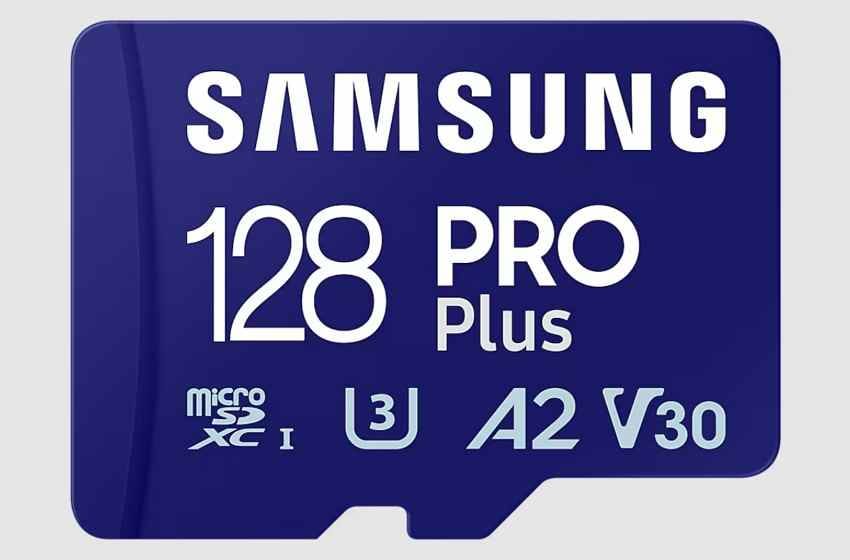
Samsung PRO Plus is the most balanced choice for a Galaxy Tab. Samsung lists tablets among its intended applications, and every current capacity from 128GB to 1TB carries U3, V30, and A2 ratings.
- Interface: UHS-I microSDXC.
- Performance ratings: U3, V30, and A2.
- Capacities: 128GB, 256GB, 512GB, and 1TB.
- Advertised speed: Up to 180MB/s read and 130MB/s write under compatible conditions.
- Best fit: Users who mix large media files, apps, downloads, and frequent transfers.
Important limit: Samsung states that actual speed varies by capacity, host device, and test conditions. Its peak result is achieved with compatible Samsung readers, so a Galaxy Tab may not reach the number printed on the package.
2. Samsung EVO Plus for Best Value
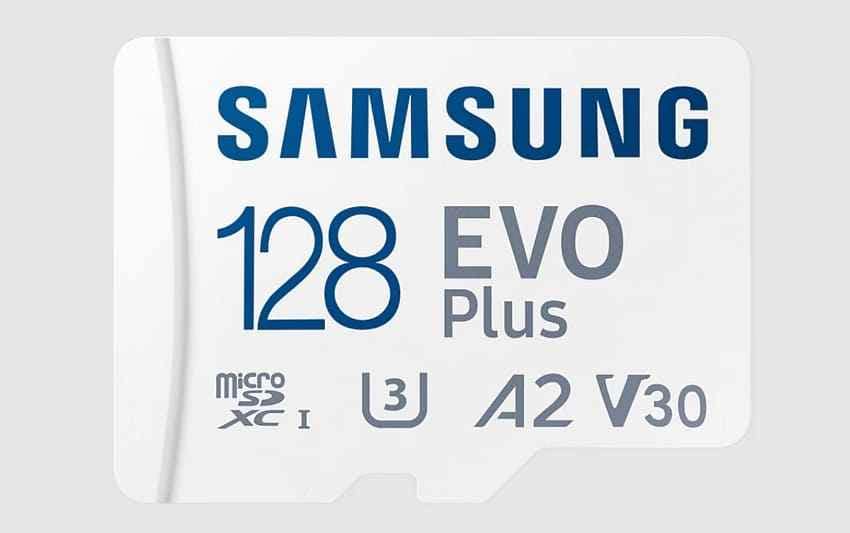
Samsung EVO Plus suits buyers who mainly need more room for photos, documents, offline streaming, and downloads. Current 128GB-and-larger variants offer U3, V30, and A2 performance without requiring the premium positioning of PRO Plus.
- Interface: UHS-I microSDXC on current higher-capacity variants.
- Performance ratings: U3, V30, and A2 on current 128GB-to-1TB variants.
- Capacities: 64GB through 1TB.
- Advertised speed: Up to 160MB/s read on compatible hardware.
- Best fit: Most Galaxy Tab users who prioritize storage value over maximum transfer speed.
Check the exact capacity before ordering because the 64GB version can carry lower speed and app ratings than the 128GB-and-larger versions.
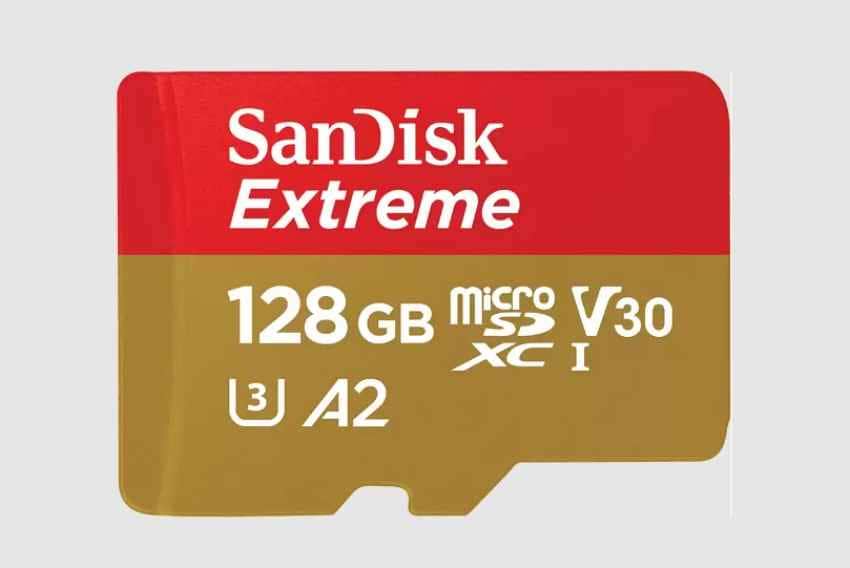
3. SanDisk Extreme for Photos and High-Resolution Video
SanDisk Extreme is a strong fit for users who frequently import, store, and move large photo or video collections. Its range extends to 2TB, making it relevant to current Tab S11 and S10 FE models.
- Interface: UHS-I microSD.
- Performance ratings: U3, V30, and A2 on supported higher-capacity variants.
- Capacities: 32GB through 2TB.
- Advertised speed: Current 128GB model lists up to 245MB/s read and 120MB/s write; speed varies by capacity.
- Best fit: Large photo libraries, high-resolution video, and regular computer-to-tablet transfers.
SanDisk states that the highest read speeds require compatible devices and proprietary technology. Buy the card for its sustained class ratings and capacity first, not on the assumption that the tablet will reproduce a benchmark from a supported reader.
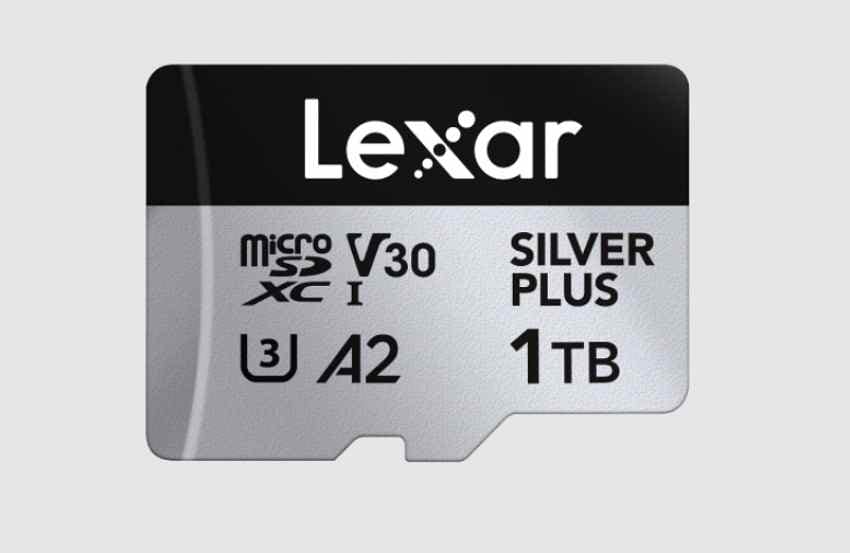
4. Lexar Professional SILVER PLUS for Large Media Libraries
Lexar Professional SILVER PLUS combines high-capacity options with fast claimed transfers. It is particularly relevant when a tablet regularly exchanges large media folders with a computer.
- Interface: UHS-I microSDXC.
- Performance ratings: U3, V30, and A2.
- Capacities: 64GB, 128GB, 256GB, 512GB, 1TB, and 2TB.
- Advertised speed: Up to 255MB/s read and 180MB/s write on the current 2TB model; other capacities have different limits.
- Best fit: Large media collections and frequent bulk transfers between a tablet and computer.
As with other UHS-I cards advertising speeds beyond the standard interface ceiling, the maximum figures depend on compatible hardware. A 2TB model should be considered only for a tablet officially supporting 2TB.
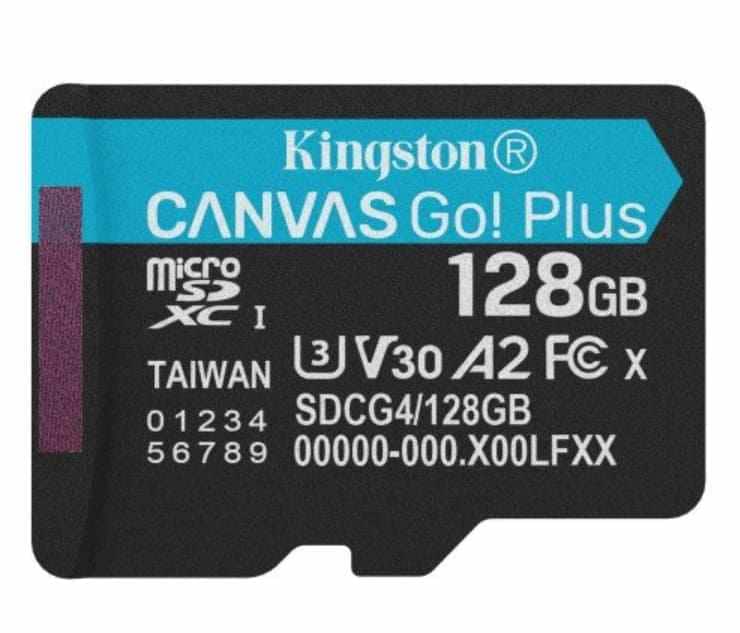
5. Kingston Canvas Go! Plus for Frequent File Transfers
Kingston Canvas Go! Plus is suitable for users who routinely move large files and want A2, U3, and V30 ratings across a broad capacity range.
- Interface: UHS-I microSD.
- Performance ratings: U3, V30, and A2.
- Capacities: 64GB through 1TB.
- Advertised speed: Up to 200MB/s read; up to 160MB/s write on 256GB-to-1TB models.
- Best fit: Large-file transfers, Android use, and mixed media workloads.
Kingston notes that full performance requires its MobileLite Plus Reader and that results vary by host device. On a tablet, the V30 and U3 guarantees are more useful purchasing signals than the peak 200MB/s figure.
Part 4. How Much Storage Does Your Samsung Tablet Need?
Capacity should reflect what you will actually store. The estimates below are planning ranges rather than exact file counts because photo resolution, video codec, download quality, and app behavior vary.
128GB for Basic Storage Expansion
Choose 128GB for documents, e-books, music, moderate photo collections, and occasional offline video. It is inexpensive and sufficient when most large files already live in cloud storage.
256GB for Most Tablet Users
Choose 256GB for offline streaming content, photos and videos, large downloads, school files, and work documents. It is the best balance for users who want meaningful expansion without turning the card into a long-term archive.
512GB for Heavy Media Storage
Choose 512GB for large video libraries, high-resolution photos, offline movies, creative assets, and project files. This capacity is useful when the tablet often travels without reliable cloud access.
1TB to 2TB for Maximum Expandable Storage
Choose 1TB for a large media archive or creator workflow. Choose 2TB only when the exact tablet officially supports it and the library genuinely needs that space. Current Galaxy Tab S11 and S10 FE models qualify; the Galaxy Tab A9/A9+, S9, and S8 families officially stop at 1TB.
| Capacity | Best Use | Why It Makes Sense | Main Caution |
| 128GB | Documents, books, music, light photos | Low-cost expansion for basic use | Fills quickly with high-resolution video |
| 256GB | Offline media, photos, school and work files | Best default for most users | Still needs a separate backup |
| 512GB | Large photo and video libraries | Enough room for frequent travelers and heavy media use | Confirm support on older models |
| 1TB | Large archives and creator files | Maximum officially supported by many Tab A, S8, and S9 models | Higher replacement cost if the only copy is lost |
| 2TB | Very large local media collections | Maximum supported by current S11 and S10 FE models | Do not buy for a 1TB-limited tablet |
Part 5. Which microSD Speed Rating Matters for a Tablet?
Capacity decides how much fits; speed ratings indicate the type of workload a card can sustain. The logos are useful only when interpreted correctly.
| Rating | Meaning | Why It Matters | Tablet Use |
| U1 | At least 10MB/s minimum sequential write speed | Adequate for light storage and common files | Documents, music, photos, and basic downloads |
| U3 | At least 30MB/s minimum sequential write speed | More headroom for large and continuous writes | Large transfers and demanding media workloads |
| V30 | At least 30MB/s sustained write speed under the video class standard | Helps maintain continuous video recording performance | High-resolution video and sustained transfers |
| A1 | Baseline random read/write performance for apps | More relevant to small-file access than video transfer | Light app-related storage where supported |
| A2 | Higher minimum random performance than A1 | Can improve app responsiveness with compatible host support | Mixed app and media workloads on a compatible tablet |
U1 vs U3 for Everyday Tablet Storage
SD Association speed classes define minimum sequential write performance. U1 guarantees 10MB/s, while U3 guarantees 30MB/s. U1 can handle ordinary documents and music, but U3 gives useful headroom for large media files and repeated transfers.
Why V30 Matters for Large Video Files
V30 also represents a 30MB/s minimum write level, but it is tested under the Video Speed Class framework. It is a sensible target for users handling high-resolution footage, though the tablet, app, codec, and recording mode must also support the intended workflow.
A1 vs A2 for Android Tablets
A ratings concern random access rather than bulk sequential transfer. A2 defines higher minimum random performance than A1, but the full benefit depends on host support. Samsung also notes that not all apps can move to a microSD card, and Galaxy devices do not use Android Adoptable Storage, so A2 should not be treated as a guarantee that every app can run from the card.
Why Advertised Card Speed May Not Match Tablet Speed
Headline speeds are maximum laboratory figures. Actual performance depends on the tablet controller, card interface, capacity variant, workload, file size, thermal conditions, and reader. Several cards above require a compatible branded reader to reach their highest transfer rates. A Galaxy Tab may therefore show a lower result even when the card is genuine and functioning normally.
Part 6. How to Choose the Best Memory Card for Any Tablet
Use these checks in order. They prevent the most common mistake: paying for capacity or speed the tablet cannot use.
- Confirm microSD support: Check the exact model number, because not every tablet has expandable storage.
- Verify the maximum capacity: Stay within the limit listed by the manufacturer for that model.
- Match speed to workload: Choose U3/V30 for large media and sustained writes; lighter storage can work with lower ratings.
- Consider A2 realistically: A2 is useful for compatible app workloads, but it does not make every app movable or turn the card into internal storage.
- Buy from a reputable seller: Counterfeit cards may report false capacity, corrupt files after the real storage fills, or perform far below their printed rating.
- Avoid paying for unusable peak speed: The tablet’s host interface can limit performance, and some headline speeds require a matching computer card reader.
Part 7. How to Set Up a microSD Card on a Samsung Tablet
After choosing a compatible card, follow Samsung’s storage workflow. Menu wording can vary by model, carrier, and One UI version, so use Samsung’s current microSD instructions if your screen differs.
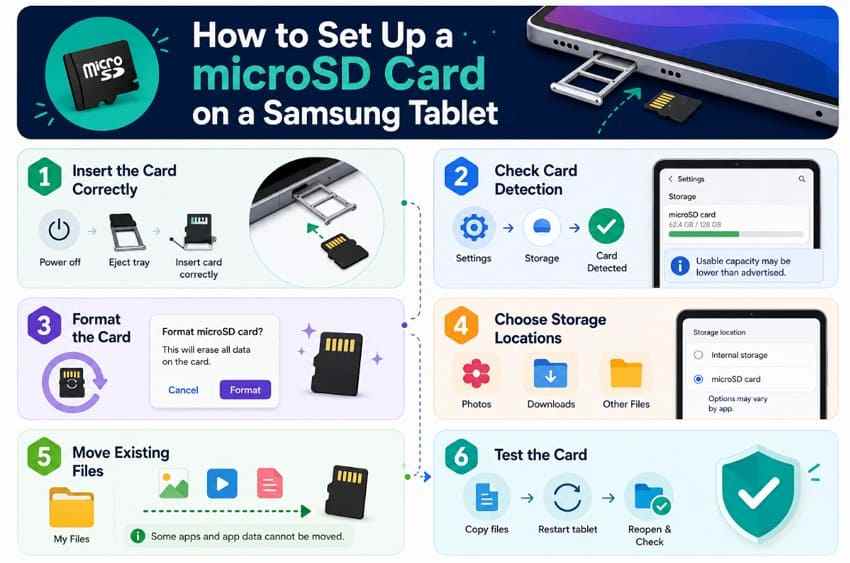
- Insert the card correctly: Power off the tablet when practical, open the correct tray with the ejector tool, place the microSD card in the marked orientation, and reinsert the tray without forcing it.
- Confirm the card is detected: Open Settings > Battery and device care > Storage and switch to the SD card view. If the card is absent, power down and reseat it before formatting.
- Format only when required: Back up any existing files first because formatting erases the card. Samsung recommends FAT32 for cards under 32GB and exFAT for larger compatible cards.
- Choose supported storage locations: Configure camera, download, or media apps to use the card where the app provides that option. Samsung does not support Adoptable Storage, and some apps cannot be moved.
- Move existing files with My Files: Select the files, tap Move or Copy, choose SD card, open the destination folder, and confirm the transfer.
- Test before relying on it: Copy several files, reopen them, restart the tablet, and confirm the card remains mounted. Keep a second copy of anything irreplaceable.
Part 8. Recover Lost Files From a Samsung Tablet microSD Card
If photos disappear, folders become inaccessible, or the tablet asks to format a card containing important files, stop using the card. New downloads, photos, app data, and formatting can overwrite recoverable content.
Recommended Tool: Wondershare Recoverit SD Card Recovery
Wondershare Recoverit can scan a removable microSD card through a computer and card reader for files lost through deletion, formatting, RAW file-system errors, and other logical failures. It is appropriate when the computer still detects the card. It does not repair a physically cracked card or directly scan the tablet’s internal Android storage.
When Software Recovery Can Help
- The microSD card is detected by the computer but files were deleted.
- The card was accidentally formatted and has not been heavily reused.
- The file system is RAW, corrupted, or inaccessible while the device remains detectable.
- Folders appear empty or files disappeared after an interrupted transfer.
- You need to preview recoverable photos, videos, or documents before saving them elsewhere.
How to Scan a Samsung Tablet microSD Card
Remove the card safely, connect it to a computer through a reliable reader, and prepare a different drive for the recovered files.
Step 1. Select the microSD Card. Open Recoverit, choose the detected card under SD Card Recovery, verify its capacity, and start the scan.

Step 2. Scan and Filter the Results. Allow the scan to continue while filtering by file type, path, date, or size. Do not write new data to the card during the scan.

Step 3. Preview and Recover the Files. Preview important photos, videos, and documents to check whether they open correctly. Select the files, click Recover, and save them to the computer or another external drive—not to the affected card.

When the Card Needs Replacement or Professional Service
Stop DIY attempts if the card is cracked, overheats, has damaged contacts, disconnects continuously, or is not detected by multiple known-good readers. Repeated scans cannot solve a hardware failure and may worsen an unstable device. If the data is valuable, contact a professional recovery service; otherwise replace the card.
Recover Lost Files From a Samsung Tablet microSD Card
 Security Verified. Over 7,302,189 people have downloaded it.
Part 9. How to Protect Data on a Tablet microSD Card
A reliable card reduces risk, but it is not a backup. These habits protect the files after setup.
- Use a recognized card from a reputable seller: Validate the packaging and capacity instead of trusting an unusually low price.
- Back up important tablet files separately: Keep another copy on a computer, external drive, NAS, or trusted cloud service.
- Avoid removing the card during transfers: Interrupting a write can damage a file or the file system.
- Unmount before removal: Use the tablet’s storage controls or power it down before opening the tray.
- Replace an unreliable card: Repeated corruption, read/write errors, slowdowns, and disconnects are warning signs.
- Keep irreplaceable files in more than one location: A 1TB or 2TB card concentrates a large amount of data in one small device.
Conclusion
The best SD card for a Samsung tablet starts with the exact Galaxy Tab model. Samsung PRO Plus is the best overall pick, Samsung EVO Plus offers the strongest everyday value, and SanDisk Extreme, Lexar Professional SILVER PLUS, and Kingston Canvas Go! Plus suit heavier media or transfer workloads. For most users, 256GB or 512GB is more practical than paying for the largest card. If a detectable microSD card later loses files, stop using it and scan it through a computer before new data overwrites the missing content.
Frequently Asked Questions
-
Do All Galaxy Tabs Support 2TB microSD Cards?
No. Current Galaxy Tab S11 and S10 FE models officially support microSD cards up to 2TB. Galaxy Tab A9/A9+, S9, and S8 models officially support up to 1TB. Check the specification page for the exact model number. -
Should I Buy A2 for a Tablet Used Mostly for Offline Video?
A2 is not essential for offline video because it describes random app performance, not video playback. U3 or V30 is more relevant when you need sustained write performance for large media files. -
Can I Move a Tablet microSD Card to a Phone?
Yes, if the phone supports the card’s capacity and file system and the card was used as portable storage. Back up the files and unmount the card before moving it. An encrypted card may remain tied to the original device. -
Why Is My New microSD Card Slower Than Advertised?
Advertised speeds are maximum results measured under specific conditions. The tablet’s controller, card capacity, file size, workload, temperature, and reader can all reduce real-world speed. Some cards require a compatible branded reader to reach their highest claimed transfer rate.


