 TL;DR:
Resolve an SD card missing from Windows File Explorer or Android File Manager by first verifying its detection in system tools like Disk Management or Android Storage, and strictly extract your data before applying file-altering repairs like CHKDSK or formatting.
● On Windows, manually assign a missing drive letter within Disk Management or update the card reader driver via Device Manager if the physical hardware is detected but remains hidden from the file browser.
● On Android devices, clear the File Manager app cache or manually remount the drive directly through the OS Storage settings to bypass app-level detection failures without erasing the drive.
● Software like Recoverit Memory Card Recovery can only salvage files if the computer still detects the unopenable card; completely undetected cards across multiple adapters indicate physical failure requiring professional recovery services.
Ask AI for a summary
 ChatGPT
 Perplexity
 Gemini
 Claude
 Grok
Grok
"When I put the SD card into my laptop, it does not show up in File Explorer. Windows recognizes it in Disk Management, but I cannot see it as a drive."
If your SD card is not showing in File Manager, the card is not always dead and your files are not always lost. The real issue depends on where the SD card appears: Windows Disk Management, Device Manager, Android Storage settings, another phone, another reader, or nowhere at all.
This guide explains how to fix a file manager not showing SD card issue on Windows and Android without risking your data. Start with detection checks and recovery steps before CHKDSK, formatting, or repair actions. If the card is detected but cannot be opened, Recoverit Memory Card Recovery can help recover files from readable SD cards before you format or repair them.
In this article
Part 1. Why Is My SD Card Not Showing in File Manager?
An SD card can disappear from File Manager for different reasons. On Windows, it may appear in Disk Management but not File Explorer because it lacks a drive letter, has a damaged file system, or uses a partition Windows cannot mount. On Android, the card may appear in Storage settings but not in the File Manager app because it is not mounted, the app cache is stale, or the card format is not supported.
Use the table below to identify the actual problem before trying fixes.
| Symptom | What it usually means | Data risk |
| Detected elsewhere but not in File Manager | The card is connected, but a mount, app, permissions, or file system issue is hiding it from the file browser. | Low to medium. Avoid formatting until files are safe. |
| Shows in Disk Management but not File Explorer | Windows sees the disk but cannot display a usable drive, often because of a missing drive letter or damaged partition. | Medium. Recover first if the card asks to be formatted. |
| Shows in Device Manager but not File Explorer | The reader hardware is recognized, but the volume is blocked by a driver, partition, or file system issue. | Medium. Try driver and connection checks before formatting. |
| Shows in Android Storage settings but not File Manager | Android detects the card, but it may not be mounted or the File Manager app may not refresh correctly. | Low to medium. Do not format before backup or recovery. |
| Not detected anywhere | The reader, adapter, port, phone slot, or SD card hardware may have failed. | High if files are important. Stop repeated DIY attempts if the card is unstable. |
Only the last case strongly suggests hardware failure. The other cases are often fixable, but data recovery should come before destructive fixes.
Part 2. Check These Things Before Fixing the SD Card
Before fixing an SD card not showing in File Manager, protect the files that may still be recoverable.
| Step | What to do | Why it matters |
| Recover or copy important files first | Copy accessible files or scan the card before formatting, CHKDSK, or repair. | Repair actions can change file system data and make recovery harder. |
| Reinsert the SD card properly | Remove the card, clean the contacts gently, and insert it firmly. | Loose connections are a common cause of SD card visibility problems. |
| Try another reader, port, or device | Test another card reader, USB port, computer, phone, or adapter. | This separates a bad reader from a damaged SD card. |
| Check Windows system tools | Open Disk Management and Device Manager to see whether Windows detects the card. | The next fix depends on whether Windows sees the disk, the reader, or neither. |
| Check Android Storage settings | Open Settings > Storage and look for the SD card. | Android may detect a card that the File Manager app does not display. |
| Cancel format prompts | If Windows, Android, or another device asks to format the card, cancel it until files are safe. | Formatting can erase file system records and reduce recovery chances. |
Part 3. How to Fix SD Card Not Showing in Windows File Explorer
If the SD card is not showing in Windows File Explorer, start with refresh and connection fixes. Move to CHKDSK or formatting only after recovering or backing up important files.
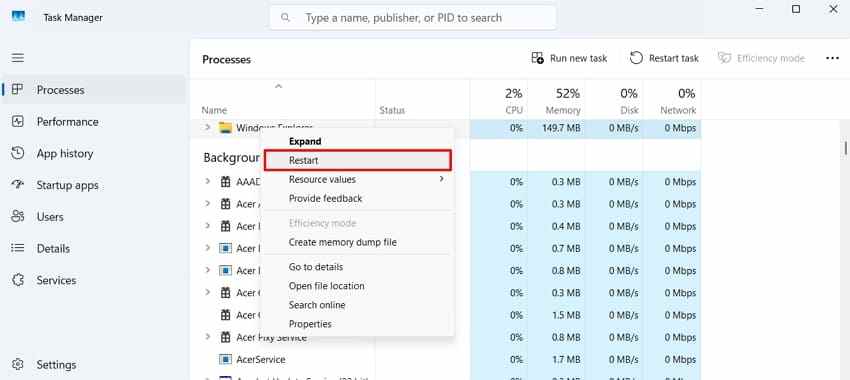
1. Restart Windows Explorer or the Computer
Windows Explorer can fail to refresh removable drives. Restarting Explorer or the computer can make a detected SD card appear again without changing the card.
Instructions. Open Task Manager, find Windows Explorer, right-click it, and select Restart.
2. Assign a Drive Letter in Disk Management
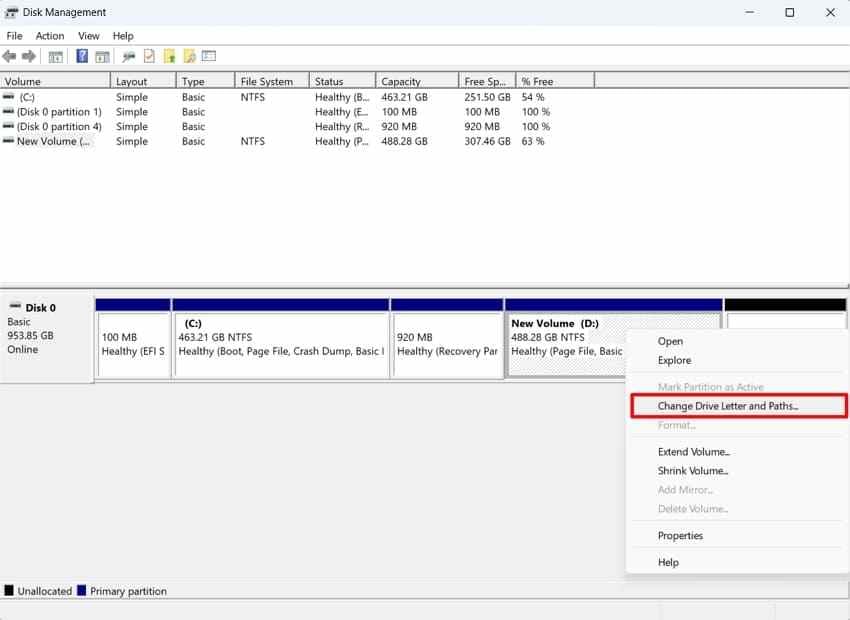
If the card appears in Disk Management but not File Explorer, it may not have a drive letter. Windows cannot show it as a normal drive until one is assigned.
Instructions. Open Disk Management, locate the SD card partition, right-click it, choose Change Drive Letter and Paths, and add a drive letter.
3. Update or Reinstall the SD Card Driver
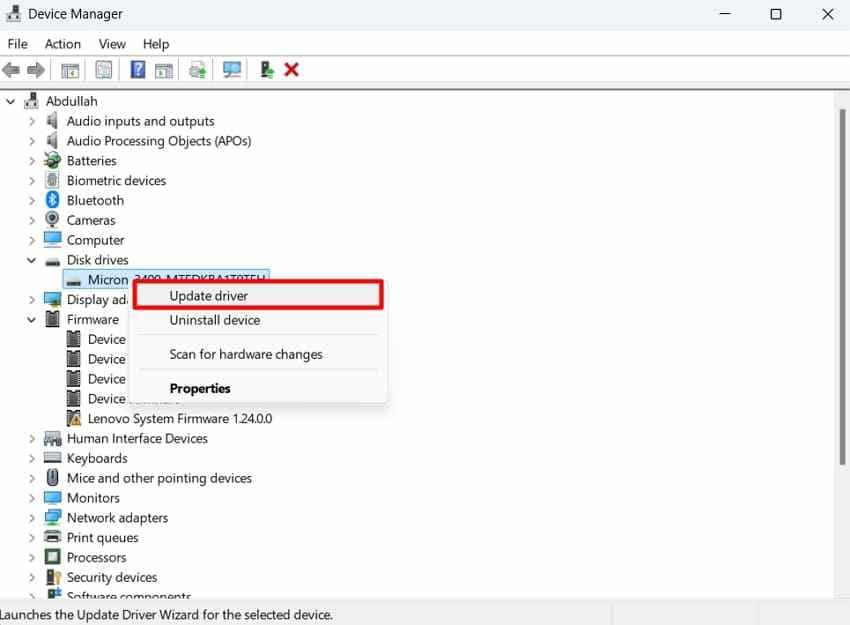
If Windows sees the card reader in Device Manager but the SD card does not mount, a driver issue may be blocking the card. Microsoft explains that Device Manager can be used to update hardware drivers when devices do not work correctly.
Instructions. Open Device Manager, expand Disk drives or Universal Serial Bus controllers, right-click the SD card or card reader, select Update driver, and follow the prompts.
Tip: If updating does not help, uninstall the card reader device, disconnect the reader, restart the computer, and reconnect it so Windows can reinstall the driver.
4. Show Hidden Folders and Files
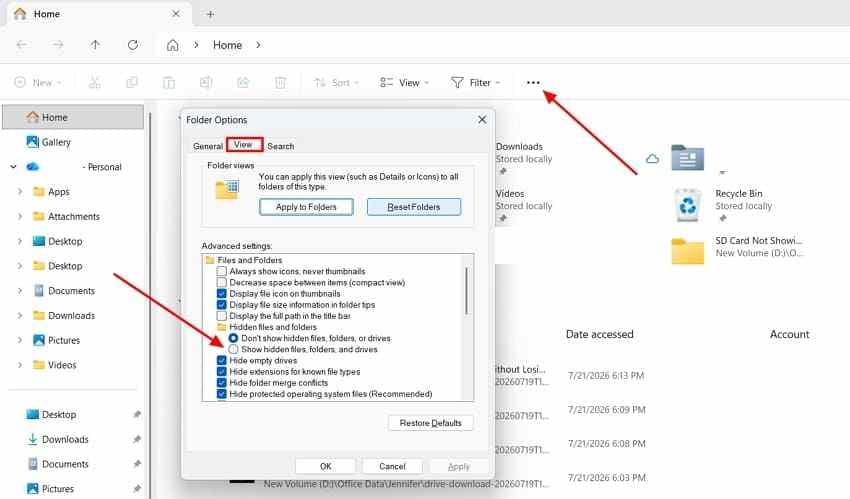
Sometimes the card is visible, but the folder you need is hidden. Camera folders may also be nested inside directories such as DCIM, PRIVATE, or app-specific folders.
Instructions. Open File Explorer, select View or the three-dot menu, open Options, go to View, and enable Show hidden files, folders, and drives.
5. Run CHKDSK After Recovering Important Files
CHKDSK can repair file system errors, but it can also modify card metadata. Run it only after copying accessible files or scanning the card for recoverable files.
Instructions. Open Command Prompt as administrator and run the command below after recovery. Replace E: with your SD card drive letter.
chkdsk E: /f /r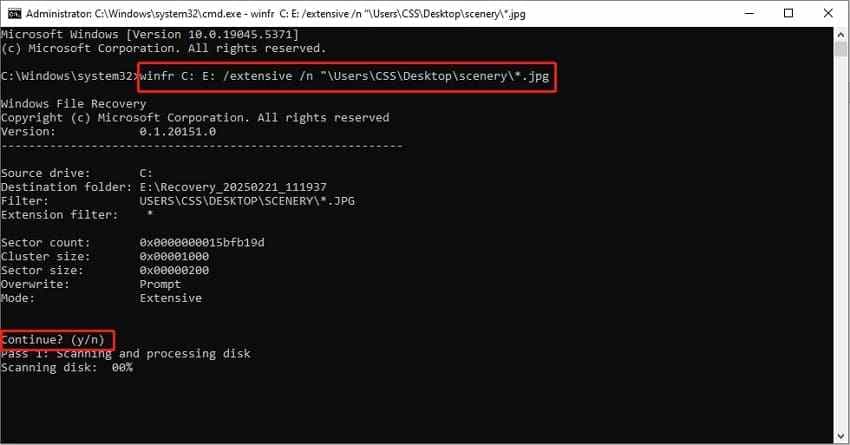
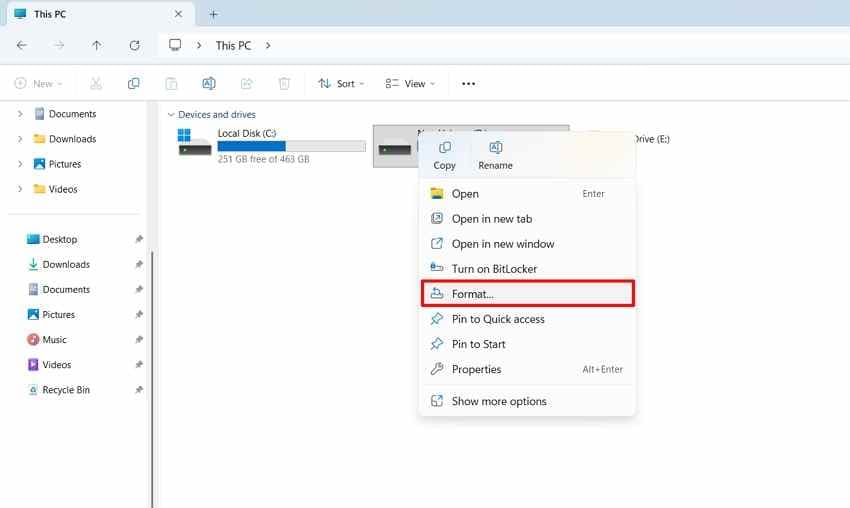
6. Format the SD Card After Recovery
Formatting can fix a damaged or incompatible file system, but it also removes the card's current file structure. Use this only after important data is recovered or backed up.
Instructions. In File Explorer, right-click the SD card, choose Format, select a compatible file system, and confirm only after recovery is complete. You can also use the official SD Memory Card Formatter after your files are safe.
Part 4. How to Fix SD Card Not Showing in Android File Manager
Android File Manager issues usually come from mounting, app cache, system updates, or card compatibility. Try the steps below before formatting.
1. Restart the Phone and Reinsert the Card
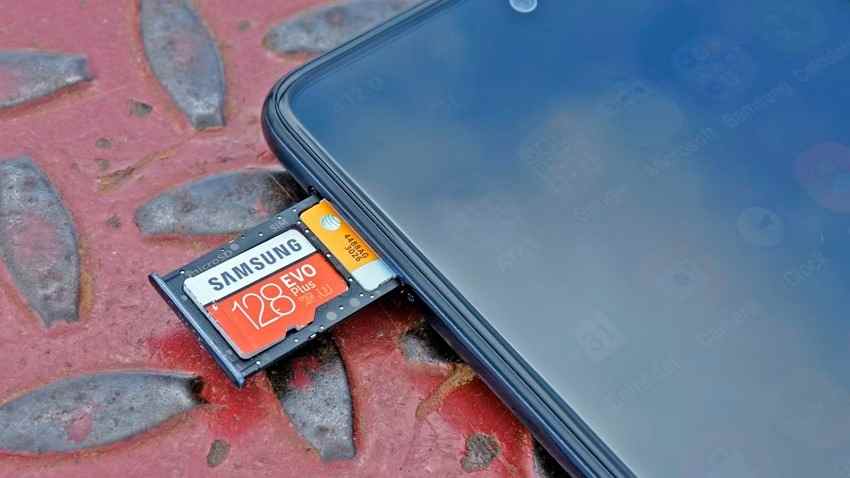
A restart can clear temporary storage detection issues. Turn off the phone, remove the card, check the tray and contacts, restart the phone, and insert the card again.
2. Mount or Remount the SD Card in Storage Settings
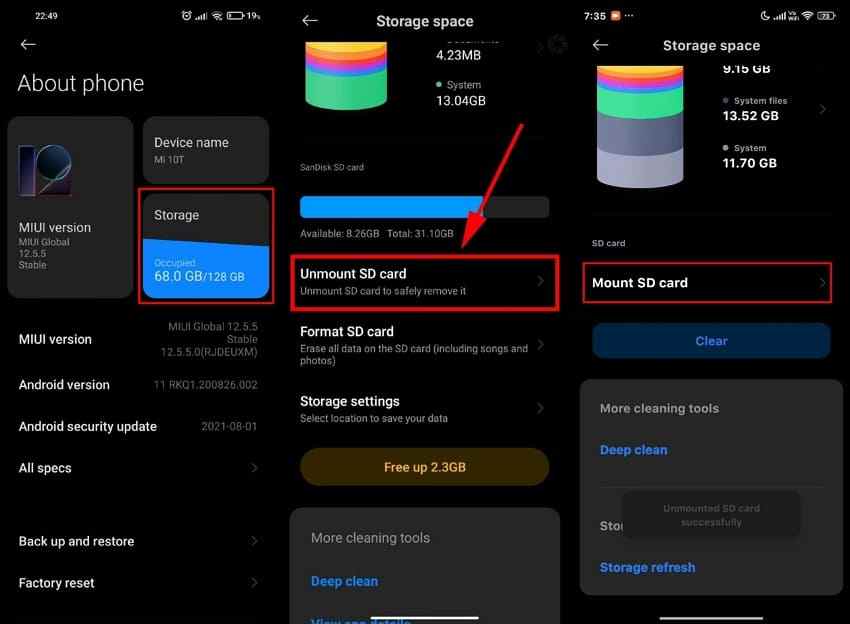
Android may detect an SD card without mounting it for file access. Check the system Storage menu before blaming the File Manager app.
Instructions. Open Settings > Storage, select the SD card, and use Mount, Unmount, or Remount if the option is available. Menu names vary by Android version and phone brand.
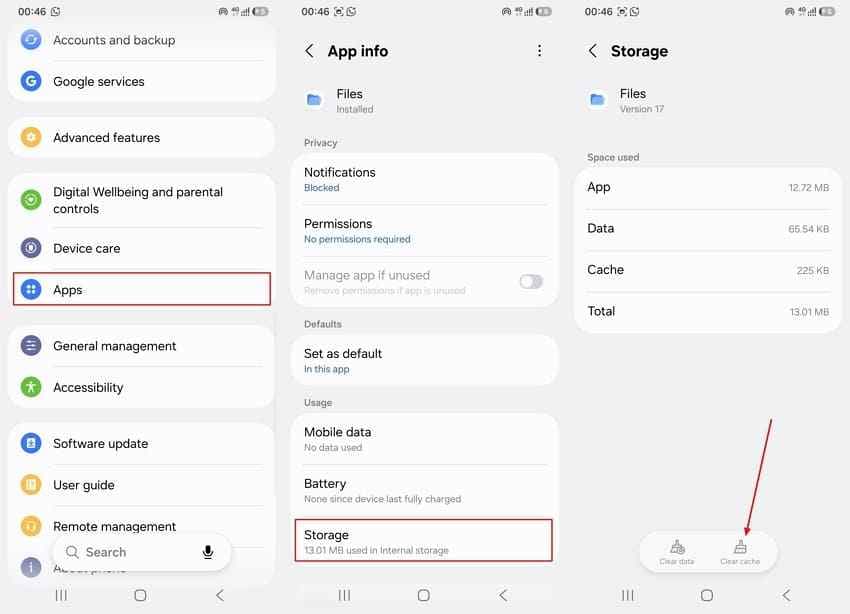
3. Clear File Manager Cache
The File Manager app may keep an outdated folder list even after Android detects the card. Clearing the app cache can force it to refresh.
Instructions. Open Settings > Apps, choose your File Manager or Files app, open Storage, and tap Clear cache.
4. Update Android or the File Manager App
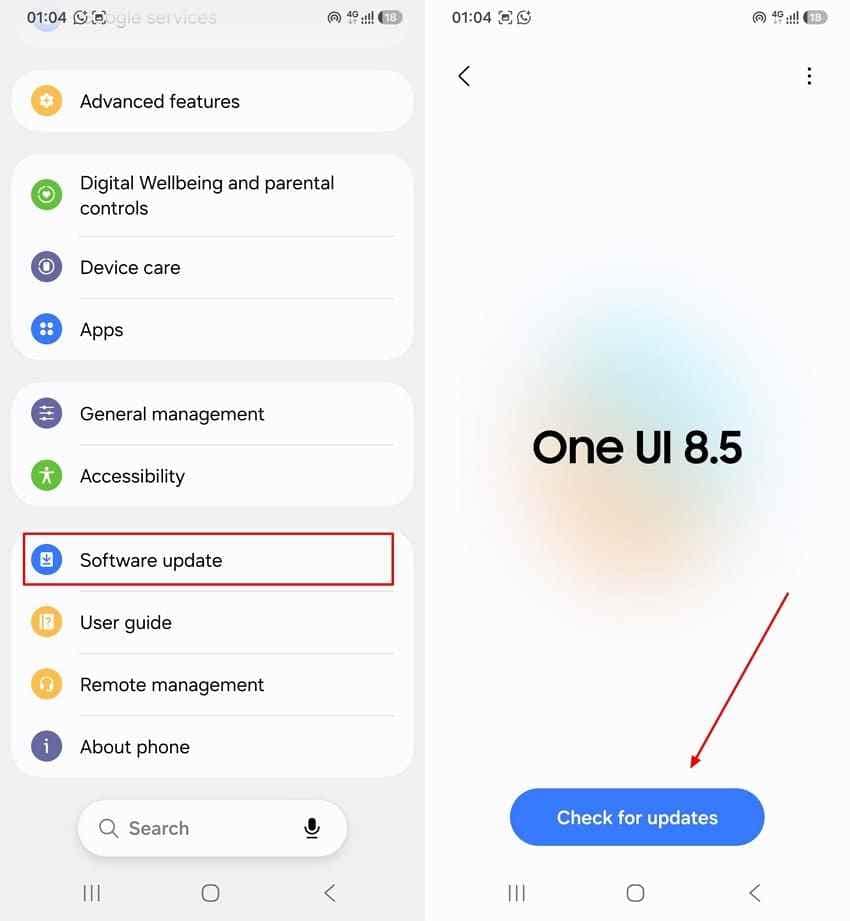
Android system updates can include bug fixes and storage behavior improvements. Update the phone and the File Manager app before formatting a working card.
Instructions. Open Settings > System or Software update, check for updates, and install available updates. Also update the File Manager app from your app store if it is separate from the system.
5. Test the SD Card on a Computer
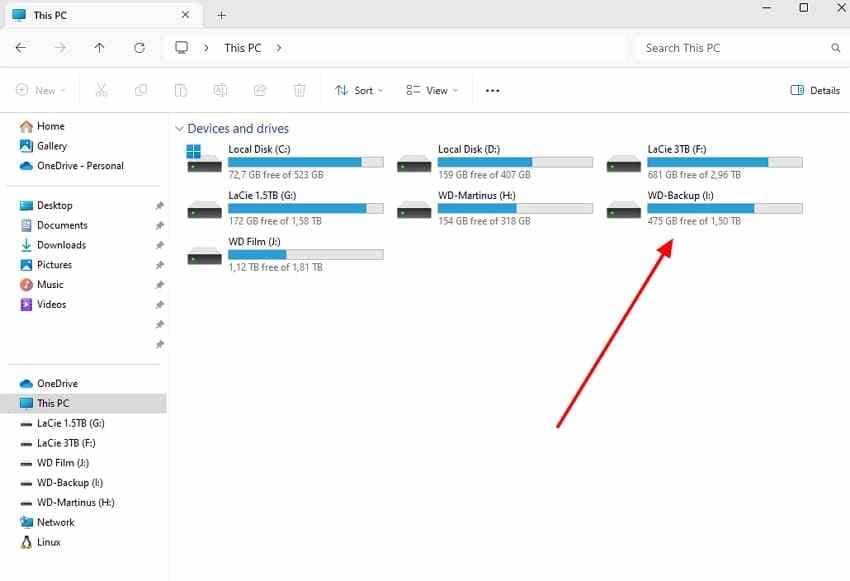
If Android still does not show the card in File Manager, remove the card and test it on a computer through a card reader. If the computer reads the card, copy important files immediately and troubleshoot the phone. If the computer asks to format it, cancel and recover files first.
6. Format the Card After Recovering Data
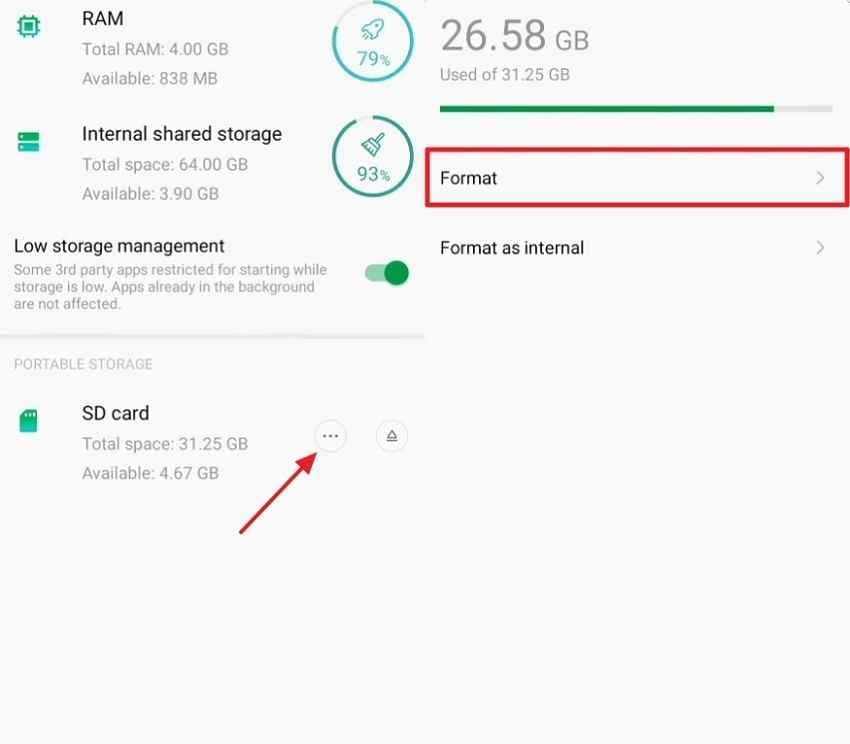
Formatting from Android can rebuild a file system the phone expects, but it removes files from the card. Use it only after recovery or backup.
Instructions. Open the SD card settings, choose Format, and confirm only after your data is saved elsewhere.
Part 5. Recover Files Before Formatting or Repairing the SD Card
Some fixes above rewrite the card's file system. If the SD card contains important photos, videos, documents, or device backups, recover files before running CHKDSK or formatting.
When SD Card Recovery Is Necessary
- The card appears in Disk Management but not File Explorer.
- The card shows RAW, asks to be formatted, or says the file system is not recognized.
- The card appears in Android Storage settings but not in the File Manager app.
- The card mounts briefly and then disconnects.
- You cannot copy files normally, but the card is still detected by a computer.
- You are about to run CHKDSK, format the card, or send the card for repair.
Recover Missing Files with Recoverit
Recoverit Memory Card Recovery can help recover files from readable SD cards, microSD cards, CF cards, MMC cards, Memory Stick cards, camera cards, and other memory cards. It is useful when File Explorer or Android File Manager cannot browse the card, but the card is still detected by the computer.
Recoverit is a data recovery tool. It cannot repair a damaged card reader, fix Android's File Manager app, repair a phone SD slot, or recover overwritten files. Recovery depends on card condition, overwriting, encryption, and whether the card can be detected.
Key features for a missing SD card:
- Scans cards that will not open normally: Looks for recoverable data when File Explorer cannot browse the card.
- Recovers before repair: Helps recover files before CHKDSK, formatting, or file system repair.
- Supports common memory cards: Works with readable SD, microSD, CF, MMC, and Memory Stick storage.
- Preview before recovery: Lets you check recoverable photos, videos, documents, and other files before saving them.
Step 1. Select the card and start a scan. Connect the SD card through a reader. Open Recoverit, choose the SD card from the device list, and click Start Scan.

Step 2. Let Recoverit scan for missing files. Wait for the scan to finish. Use file type filters, file location view, and preview to locate missing data.

Step 3. Preview and recover to another location. Select the files you need, click Recover, and save them to your computer or another drive instead of the same SD card.

Try Free Recovery Options for Simple Deletion
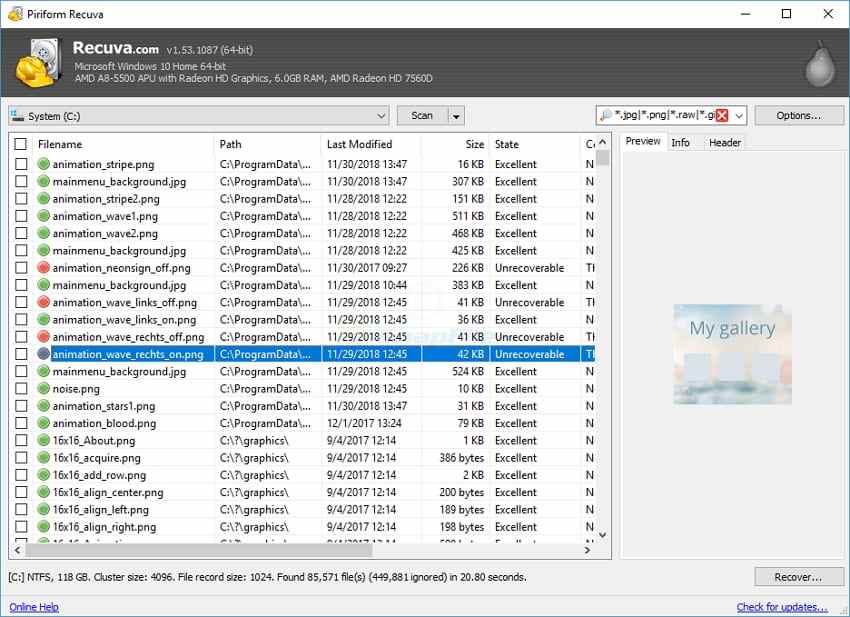
Free tools such as Recuva, PhotoRec, and Windows File Recovery can help when the SD card is readable and files were deleted by mistake. They are less useful when the card is RAW, unmounted, physically unstable, or not detected.
When Professional Recovery Is Safer
Use a professional recovery service when the card has visible physical damage, is not detected by any reader or computer, causes devices to freeze, or contains irreplaceable data. Repeated DIY scans on failing flash storage can reduce recovery chances.
Part 6. What If the SD Card Is Not Detected Anywhere?
A File Manager not showing an SD card is different from an SD card that is not detected by any system tool. If the card does not appear in Windows Disk Management, Device Manager, Android Storage settings, another computer, or another reader, treat it as a possible hardware issue.
- Test another reader and computer: Rule out one bad adapter, USB port, or phone slot before blaming the card.
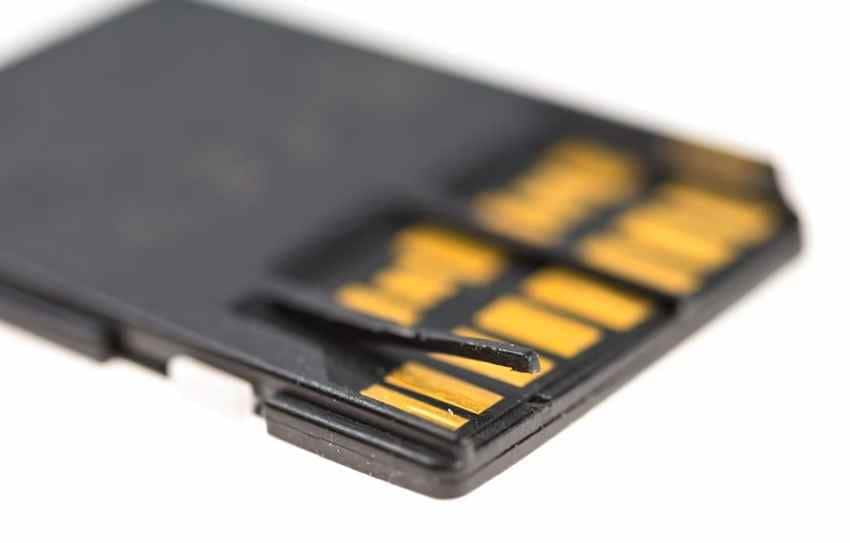
- Check for physical damage: Look for cracks, corrosion, bent plastic, loose contacts, or a burnt smell. Software cannot repair physical flash damage.
- Stop DIY fixes if devices freeze: A card that freezes, crashes, or disconnects devices may be failing. Stop repeated scans and consider professional recovery.
Part 7. How to Prevent SD Card Detection Problems
Most SD card detection problems come from unsafe removal, incompatible formatting, aging cards, and missing backups. These habits reduce the chance of seeing the same issue again.
- Eject or unmount the SD card safely: Use Safely Remove Hardware on Windows or unmount the card in Android Storage settings before removing it.
- Keep systems and drivers updated: Update Windows, Android, card reader drivers, and File Manager apps to reduce compatibility problems.
- Format in the device that will use the card: Format the card in the camera, phone, drone, or device where it will be used most often.
- Avoid removing the card during transfers: Wait until copy, recording, or import tasks finish before removing the card.
- Back up important files regularly: Keep copies on a computer, external drive, NAS, or cloud service so a card error does not trap the only copy.
- Replace unreliable cards: Retire cards that repeatedly disconnect, show errors, ask to format, or disappear from File Manager.
Conclusion
An SD card not showing in File Manager is usually caused by a mounting, drive letter, driver, app cache, connection, or file system issue. Start by checking where the card is detected, then try low-risk fixes first. Recover important files before CHKDSK, formatting, or Android format options. If the card is still detected but cannot be opened, Recoverit can help recover files from the readable card. If the SD card is not detected anywhere or shows physical damage, professional recovery is safer than repeated DIY repair attempts.
FAQ
-
Why does my SD card show in Disk Management but not File Explorer?
This usually means Windows can detect the physical card but cannot display it as a normal drive. The card may need a drive letter, or the partition/file system may be damaged. Assign a drive letter if the partition is healthy, and recover files first if Windows asks to format it. -
Will formatting fix an SD card not showing in File Manager?
Formatting can fix some file system and compatibility problems, but it removes the card's current file structure. Recover or back up important files first, then format only if the card still will not mount correctly. -
Why does my SD card show in Android Storage but not File Manager?
The card may be detected but not mounted, or the File Manager app may have a stale cache. Restart the phone, remount the card in Storage settings, clear the File Manager cache, and update the app or Android system before formatting. -
Can Recoverit fix an SD card that is not showing in File Manager?
Recoverit does not fix File Manager, drivers, phone slots, or card hardware. It can help recover files from an SD card that is still detected by the computer but cannot be opened or browsed normally. -
What should I do if my SD card is not detected anywhere?
Try another reader, USB port, computer, or phone first. If no device detects the card, software cannot scan it reliably. Stop repeated attempts and contact a professional recovery service if the data is important. -
Should I run CHKDSK before recovering files from the SD card?
No. Run CHKDSK only after copying or recovering important files. CHKDSK can modify file system records on a corrupted card and may make later recovery harder.



