

 TL;DR:
Recovering overwritten data on an SD card is only possible if the original memory sectors have not been completely replaced by new data.
● Immediately stop using and remove the SD card from your device to prevent background processes or new files from permanently destroying the remaining data fragments.
● Use data recovery software like Recoverit to perform a deep scan for surviving file signatures, or bypass scanning entirely by checking Windows Previous Versions, cloud syncs, and camera internal shadow copies.
● Always save any successfully recovered files to a completely different storage drive (like a computer hard drive), because saving them back to the original SD card will overwrite the remaining hidden data.
Ask AI for a summary
 ChatGPT
 Perplexity
 Gemini
 Claude
 Grok
Grok
SD cards are tiny devices, yet they often carry valuable data. They are used in cameras, smartphones, action cams, drones, and game consoles. People save travel pictures, personal videos, office files, and study materials on them. When data disappears, it can feel upsetting.
A common reason is overwriting. This occurs when fresh data takes the place of existing files in the same memory area. After this happens, many users look for how to recover overwritten data on SD card to try and get their files back. Overwriting is different from simple deletion. When a file is deleted, the space becomes free, but the original data may still exist until it is replaced. When data is overwritten, new content takes its place. That makes recovery harder. Still, people often ask, is it possible to recover overwritten data on SD card? In some cases, yes.
The chances depend on how much of the original file was replaced. This guide explains how to recover overwritten files on SD card step by step. It also shows ways to recover overwritten videos from SD card, restore overwritten data on SD card, and retrieve overwritten data on SD card using safe and practical solutions.
Table of Contents
-
- Fix 1: Recover Lost Data Easily Using Recoverit
- Fix 2: Stop using the SD card immediately to prevent further overwriting
- Fix 3: Check backups (local, cloud, or device-specific)
- Fix 4: Use Windows Previous Versions feature if enabled
- Fix 5: Try recovery from the camera or device software
- Fix 6: Attempt recovery via command line tools (CHKDSK, Diskpart)
- Fix 7: Explore file history or synced cloud accounts
7 Fixes to Recover Overwritten Data on SD Card
If you are facing overwritten data, do not panic. Quick and careful action improves the success rate. Overwritten recovery depends on whether the original sectors are fully replaced. Sometimes only part of the file is affected. In such cases, recovery tools may still extract usable content.
Below are seven detailed methods. Each method suits a different situation. You can try them based on your condition.
Fix 1: Recover Lost Data Easily Using Recoverit
Recovery software like Recoverit scans the raw sectors of storage devices. It searches for file signatures. Even when the file system is damaged, a deep scan may detect fragments.
This method is helpful when overwriting happened recently. If new data usage is limited, chances are better. Many users try this first because it is simple and does not require technical skills. It supports different file types and storage formats.
If your main concern is how to recover overwritten files on an SD card after accidental recording or copying, this tool can scan hidden sectors. It may also help recover overwritten videos from the SD card if the original data blocks are still readable.

Step 1:Remove the SD card from your device. Insert it into a computer using a card reader. Install and launch Recoverit. Select the SD card drive from the list and begin a deep scan instead of a quick scan.
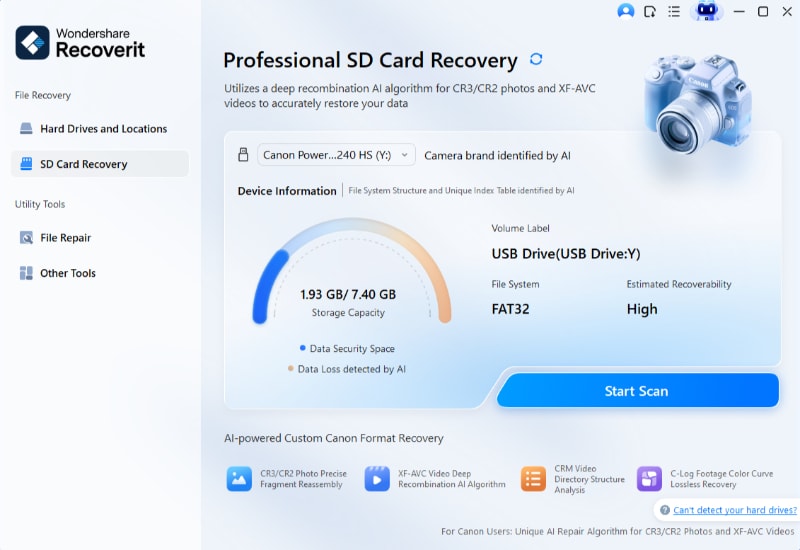
Step 2:Wait until the scan completes fully. Do not interrupt the process.
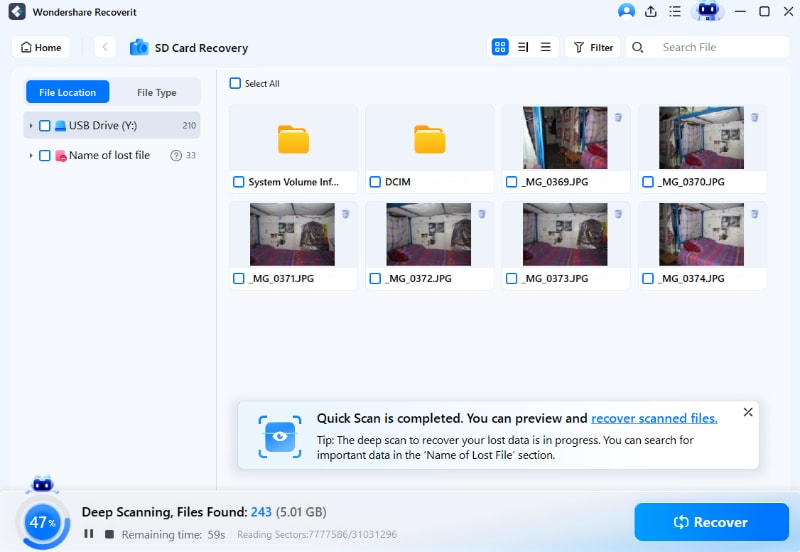
Step 3: Preview recoverable files. Select required items and save them to a different storage device, such as your computer's hard drive.

Fix 2: Stop Using the SD Card Immediately to Prevent Further Overwriting
This may sound simple, but it is critical. Every time the device writes new data, it may replace remaining original sectors. Even viewing or editing files could trigger background processes.
Stopping use protects the remaining data fragments. It increases the chance to restore overwritten data on SD card before more sectors are reused.
This step should be taken even before installing recovery software. Physical removal prevents automatic background writing.
Steps:
- Turn off the device using the SD card. Remove the card safely without performing new operations.
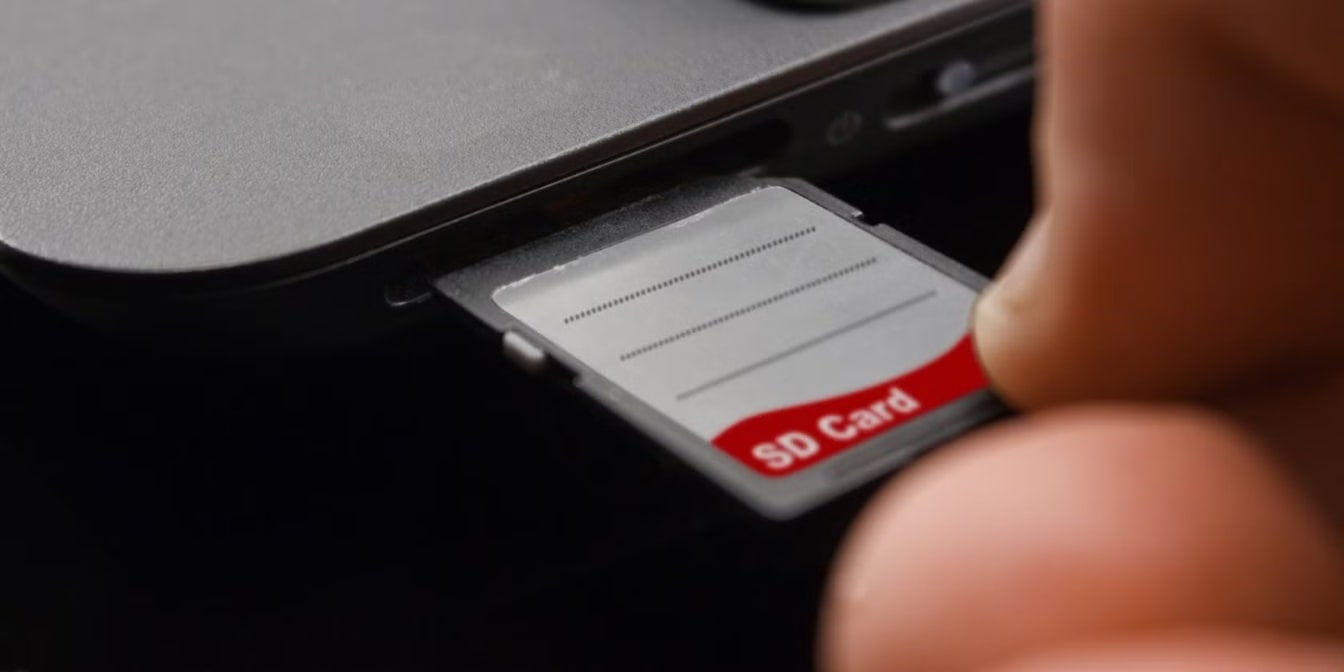
- Keep the card in a safe place. Do not reinsert it into the device until you are ready to attempt recovery.
Fix 3: Check Backups (Local, Cloud, or Device Specific)
Many people forget they enabled backup earlier. Some cameras copy files to internal storage. Phones sync media automatically. Computers may store temporary copies.
Before trying complex solutions, check available backups. This is often the safest method for How to recover overwritten data on SD card without technical risk.
Local backups may exist in download folders or picture libraries. External drives may contain copies from earlier transfers.
Steps:
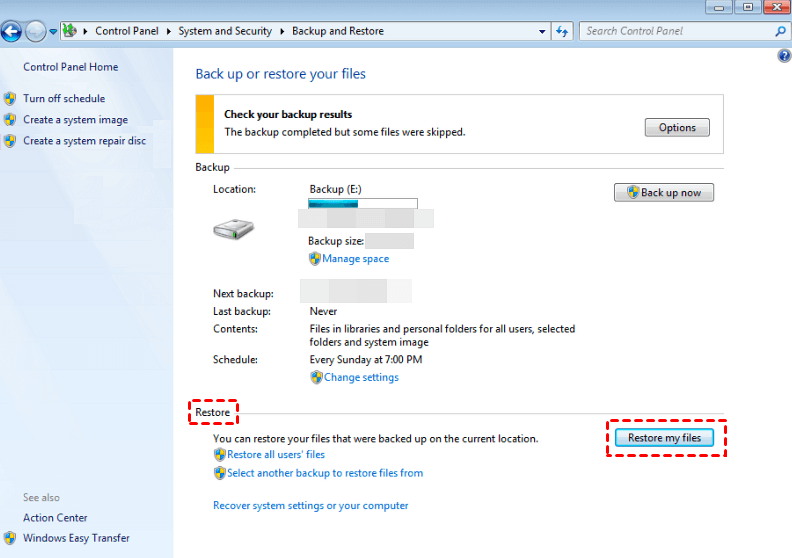
- Connect your computer and check the backup folders in the Control Panel. Also, look inside Documents, Pictures, or Video libraries.
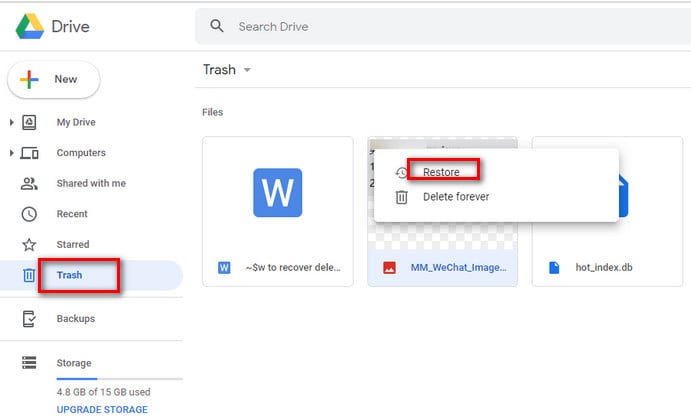
- Log in to cloud accounts or backup apps like Google Drive, Dropbox. Search by file name or date. Download earlier versions if available.
Fix 4: Use Windows Previous Versions Feature if Enabled
Windows File History automatically saves previous file states if enabled earlier. This feature works at the folder level. It may help you revert to older versions.
It only works if File History or System Protection was active before overwriting occurred. If not enabled, this method will not show older copies.
Still, it is worth checking because it is built into Windows.
Steps:
- Insert the SD card into your PC. Right-click the folder where the file was stored and select Properties.
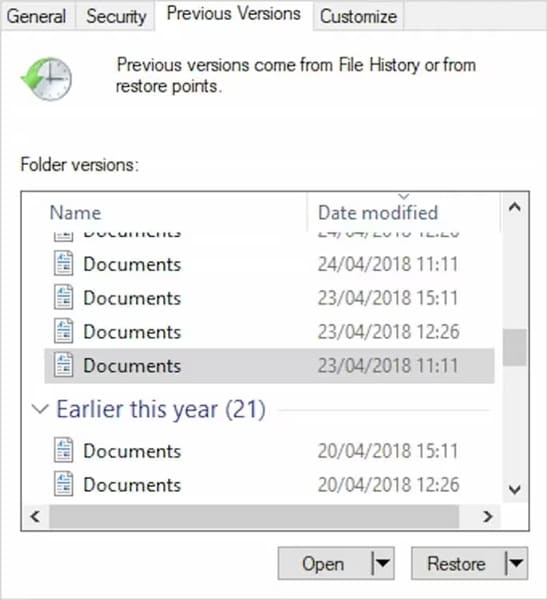
- Step 2: Open the Previous Versions tab. Choose a version from the list and click Restore. Save the restored files to your computer drive.
Fix 5: Try Recovery from Camera or Device Software
Some advanced cameras keep shadow copies. Professional cameras may maintain separate clip databases. Action cameras may store preview thumbnails.
If you are trying to recover overwritten videos from SD card, check device software. Sometimes partial previews remain stored internally.
Device companion software may also have an import history.
Steps:
- Connect the camera or device to your computer using a USB cable. Open the internal memory section.
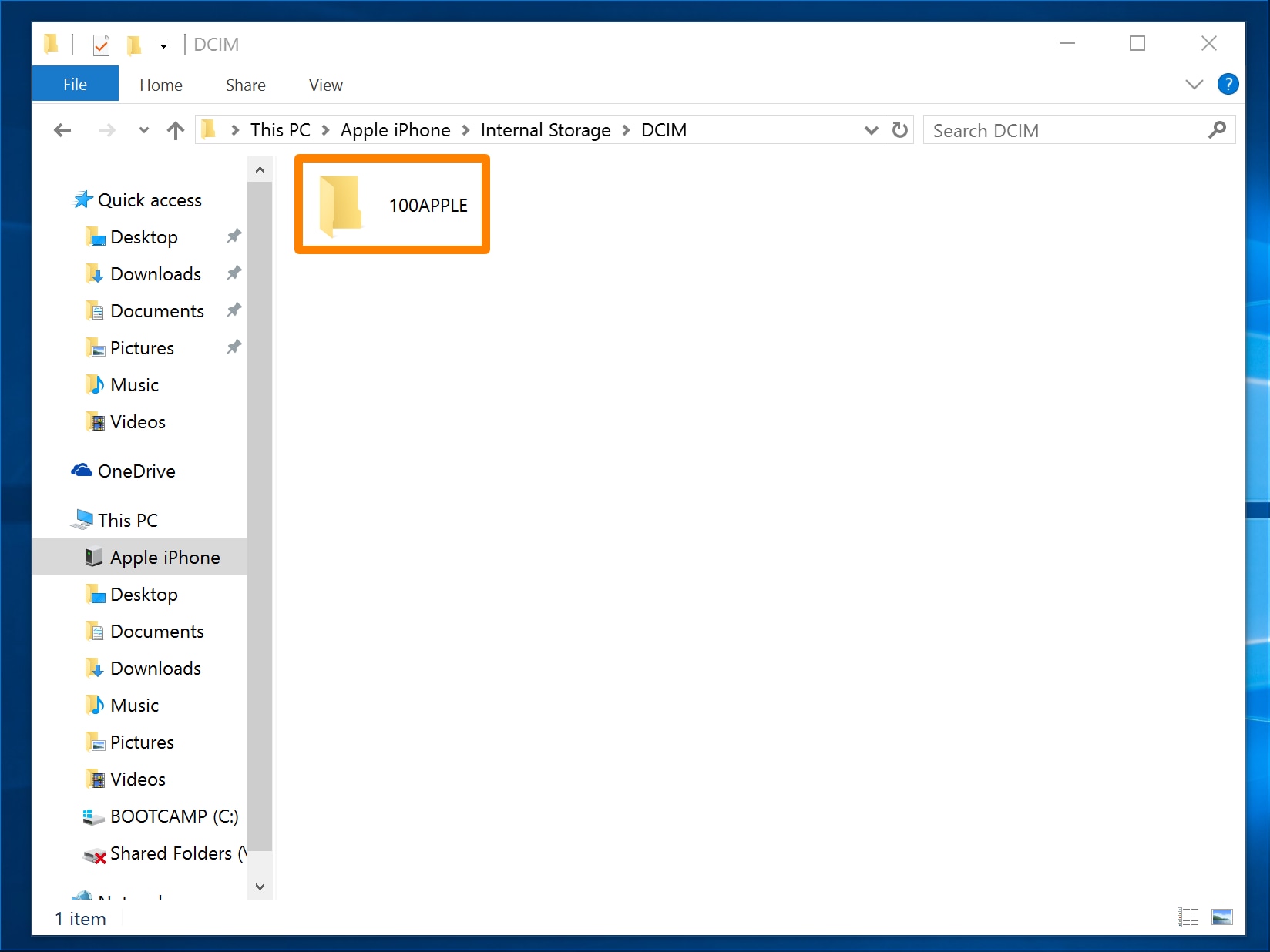
- Search for backup folders, cache files, or thumbnail directories. Copy any usable content to your system.
Fix 6: Attempt Recovery via Command Line Tools (CHKDSK, Diskpart)
Command-line tools cannot reverse full overwriting. However, they can fix logical corruption or partition errors. Sometimes overwritten data appears missing because of damaged file tables.
CHKDSK checks disk consistency. Diskpart manages partitions. Use these tools carefully.
This method works best for file system repair rather than deep data rescue.
Steps:
- Open Command Prompt as administrator. Type chkdsk X: /f /r and press Enter. Replace X with the SD card drive letter.
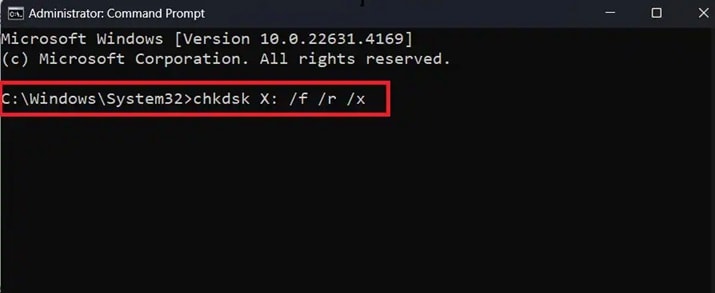
- Allow scanning to finish completely. Restart the computer if required. Reconnect the SD card and check if the files reappear.
Fix 7: Explore File History or Synced Cloud Accounts
Automatic sync services store copies in the cloud. If you had sync enabled before overwriting, files might still exist online.
This method answers the common question, is it possible to recover overwritten data on SD card without advanced software. If sync was active, recovery is simple.
File history in cloud storage may allow version rollback.
Steps:
- Open your cloud account from a web browser. Navigate to the photos or file section.
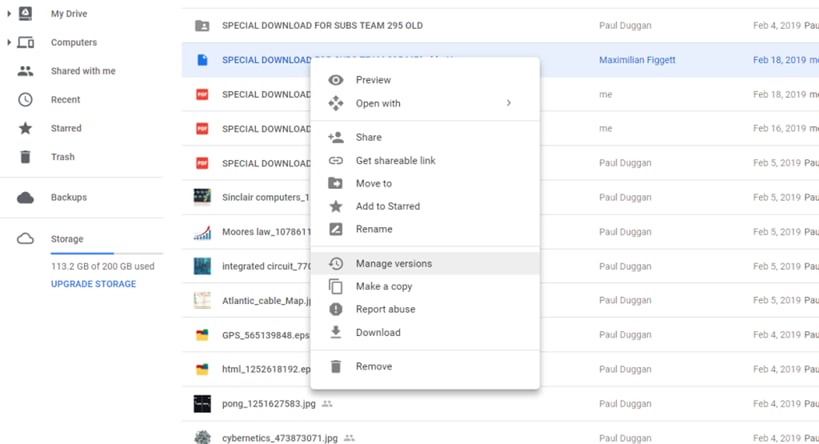
- Download earlier versions to your computer.
Essential Tips Before Starting SD Card Overwrite Recovery
Recovering overwritten storage needs patience. Small mistakes can reduce success chances. Careful planning increases the possibility to retrieve overwritten data on the SD card safely.
Keep these points in mind before starting.
- Stop using the card immediately Continued use reduces recovery success.
- Avoid installing software on the SD card Installation writes new data.
- Always recover to another drive Never restore to the same card.
- Perform a deep scan only once Repeated scans strain memory cells.
- Use reliable card readers Poor connections may interrupt scanning.
- Keep the battery or power stable A sudden shutdown may corrupt the structure.
- Maintain regular backups in the future Prevention is better than recovery.
- Label and organize cards properly This avoids accidental formatting.
These precautions improve your ability to restore overwritten data on the SD card successfully.
Conclusion
Overwritten data recovery depends on how quickly you act. If the storage sectors are not completely replaced, recovery software and backups may help. If the data has been fully overwritten, recovery becomes very difficult. That is why stopping further use is the first and most important step.
If you are searching for how to recover overwritten files on an SD card, start with backups and safe tools. Many users manage to retrieve overwritten data on the SD card when they respond quickly. While people often ask whether it is possible to recover overwritten data on an SD card, the answer varies by situation. With careful handling and proper methods, you may still restore overwritten data on the SD card and protect important files in the future.
FAQ
-
Is it possible to recover overwritten data on an SD card?
Yes, recovery may still be possible, but it depends on how much of the original storage space has been replaced. When only part of the old data is overwritten, recovery software can sometimes detect and rebuild file fragments. If the sectors are fully replaced with new data, the chances become very low. Acting quickly and stopping further use of the card improves the success rate. -
Can I recover overwritten videos from SD card without software?
It is possible only if you have a backup or cloud sync enabled before the overwrite happens. Some cameras or phones automatically create copies in internal storage or online accounts. In such cases, you can restore the files directly from those backups. If no copy exists, specialized recovery software is usually needed to scan the card at a deeper level. -
How long does it take to retrieve overwritten data on an SD card?
The time required depends on the size and speed of the SD card. A small card may finish scanning within an hour, while a large card can take several hours during a deep scan. The number of recoverable files also affects the total recovery time. It is important to let the scan complete fully without interruption for better results.


