

 TL;DR:
To safely restore data from a deleted, formatted, or corrupted micro SD card, always run read-only recovery software before attempting file system repairs with tools like CHKDSK or SD Card Formatter.
● Recoverit is the recommended beginner-friendly option for extracting files from RAW or formatted cards, whereas PhotoRec is a fully free, cross-platform alternative that recovers via file signatures but loses original file names and folder structures.
● Recuva provides a lightweight, free solution exclusively for Windows users dealing with simple, recently deleted files on memory cards that still open normally.
● Software recovery will fail if the micro SD card is completely undetected by the reader, displays 0 bytes or the wrong capacity, or has sustained severe physical damage.
Ask AI for a summary
 ChatGPT
 Perplexity
 Gemini
 Claude
 Grok
Grok
Micro SD card recovery software helps recover deleted, formatted, RAW, or corrupted files from cards used in phones, cameras, drones, GoPro cameras, dash cams, game consoles, and other devices. The safest tool should scan the card without writing new data, preview recoverable files, and save recovered data to another drive.
Quick answer: The best micro SD card recovery software should support deleted, formatted, RAW, and corrupted cards; scan in read-only mode; preview recoverable files; and clearly explain free and paid limits. Recoverit is a strong beginner-friendly choice for mixed files and damaged cards that are still detected. PhotoRec is fully free but technical and often loses original file names. Recuva is simple for Windows deletion cases. Repair tools such as CHKDSK, First Aid, or SD Card Formatter should be used after file recovery, not before.
In this article
-
- 1. Wondershare Recoverit — Best Overall for Beginner-Friendly Micro SD Recovery
- 2. Disk Drill — Best for Visual Recovery on Windows and Mac
- 3. Stellar Data Recovery — Best for Organized File Filtering
- 4. Recuva — Best Free Windows Tool for Simple Deleted Files
- 5. PhotoRec — Best Fully Free Tool for Advanced Users
- 6. CardRecovery — Best for Camera Card Photos and Videos
- 7. DiskDigger — Best Simple Recovery Tool for Memory Cards and Drives
Part 1. Quick Diagnosis: Which Micro SD Recovery Method Fits Your Case?
Before choosing free or paid micro SD recovery software, match your problem with the safest recovery path.
| Micro SD Card Case | What It Usually Means | Best First Step | Tool Type |
| Accidentally Deleted Files | File entries were removed, but data may remain | Stop using the card and run a deleted file scan | Recovery software |
| Card Was Formatted | File system metadata was reset | Use a deep scan before saving new files | Recovery software |
| Card Shows Empty | Files may be hidden, corrupted, or indexed incorrectly | Check hidden files, then scan | Recovery software |
| Card Is RAW Or Corrupted | File system cannot be read properly | Scan first, repair later | Recovery software first |
| Used In Camera, Drone, GoPro, Phone, Or Console | Files may use device-specific structures or formats | Choose software with photo/video support | Recovery software |
| Card Not Recognized | Reader, adapter, port, or card hardware may be failing | Try another reader once | Hardware check |
| Free Software Gave Incomplete Results | Basic scans may miss formatted or damaged files | Try deeper scan or preview-based software | Advanced recovery software |
| Files Are Private | Personal photos, videos, or documents need local handling | Use trusted local recovery and save securely | Local recovery software |
| Card Shows 0 Bytes Or Wrong Capacity | Controller, firmware, or severe corruption issue | Stop repeated scans if unstable | Professional recovery may be needed |
| Card Is Physically Damaged | Cracks, water, heat, or bent contacts | Stop DIY attempts | Professional recovery |
Part 2. Micro SD Recovery Software vs Repair Software: Which Should You Use First?
Micro SD recovery software and repair software do not solve the same problem. So, review the table below to see what each software does well:
| Aspects | Recovery Software | Repair Software |
| Main Purpose | Finds deleted, formatted, RAW, or lost files | Fixes file system or access errors |
| Best Used When | Photos, videos, documents, or folders are missing | Files still exist but the card has access errors |
| Safe First Step? | Yes, because it scans before changing the card | No, repairs may modify file system data |
| Works on RAW Cards? | Often scans RAW or corrupted cards for files | May attempt to repair the file system |
| Main Limit | Cannot fix physical card damage | Cannot reliably restore already-lost files |
| Examples | Recoverit, Disk Drill, Stellar, Recuva, PhotoRec | CHKDSK, Disk Utility First Aid, SD Card Formatter |
If files matter, use micro SD card data recovery software before repairing, formatting, or running error-fixing tools. Repair tools may make the card usable again, but they can also change file system structures and reduce recovery chances.
Part 3. How We Chose the Best Micro SD Card Recovery Software
A good recovery tool is not only about price. The best micro SD recovery software should balance safety, recovery coverage, usability, and transparent limits.
We evaluated the tools using these criteria:
- Deleted, Formatted, RAW, and Corrupted Card Support: The software should handle common micro SD card loss cases without forcing you to format or repair the card first.
- Read-Only Scanning: A safer recovery tool scans the card without writing new data to it. This lowers the risk of overwriting lost files.
- Preview Before Recovery: Preview support helps you check whether photos, videos, or documents are intact before saving them.
- File Type Coverage: A strong tool should support photos, videos, audio, documents, archives, and camera files from phones, drones, action cameras, and dash cams.
- Windows And Mac Compatibility: The best choice depends on your computer. Some tools support both Windows and Mac, while others are Windows-only.
- Free Scan, Free Preview, Or Free Recovery Limit: Free software can mean different things. A transparent tool should explain whether it offers free scan, free preview, limited free recovery, or fully free recovery.
- Ease Of Use: Command-line tools can be powerful but hard for beginners. Visual tools are easier for selective recovery.
- Clear Recovery Limits: No software can recover overwritten files or physically repair a broken micro SD card. Honest limits are part of a trustworthy tool.
Part 4. Best Micro SD Card Recovery Software Compared
Below are reliable micro SD card recovery software options for deleted, formatted, RAW, or corrupted cards. Features and limits may vary by version, so always check the current product terms before recovery.
1. Wondershare Recoverit — Best Overall for Beginner-Friendly Micro SD Recovery
Best For: Recovering photos, videos, documents, audio, and mixed files from deleted, formatted, RAW, or corrupted micro SD cards.
Platform: Windows and Mac
Free Option: Free download, scan, preview, or limited recovery may be available depending on the current license
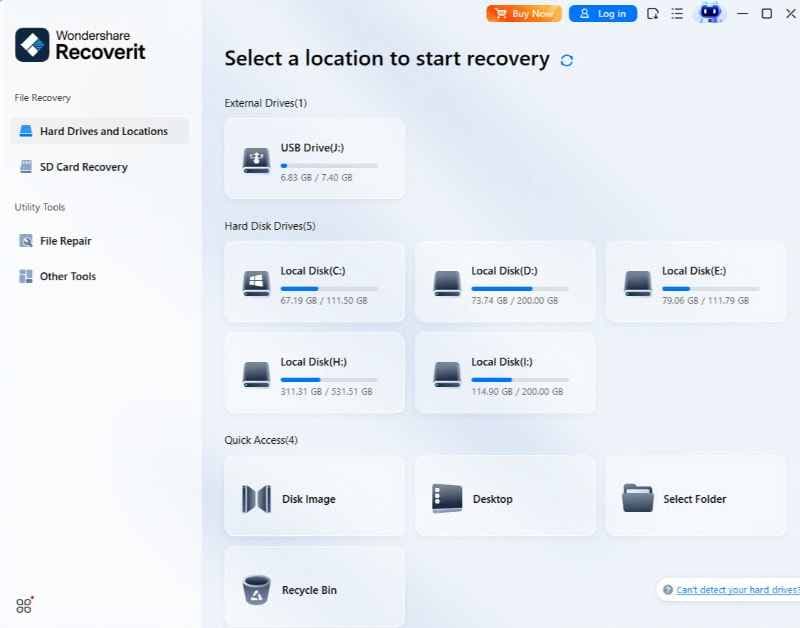
Recoverit is a beginner-friendly micro SD card recovery software for cards used in cameras, phones, drones, GoPro cameras, dash cams, and game consoles. It is suitable when files were deleted, the card was formatted, the card became RAW, or the card is corrupted but still detected by the computer.
Pros
- Visual interface for beginners
- Supports photos, videos, documents, audio, and more
- Works with common memory cards and camera cards
- Preview before recovery
- Saves recovered files to another drive
- Useful for deleted, formatted, RAW, and corrupted card scenarios
Limits
- Full recovery or larger recovery jobs may require an upgrade
- Cannot physically repair damaged micro SD cards or readers
- Software recovery may not work if no device detects the card
2. Disk Drill — Best for Visual Recovery on Windows and Mac
Best For: Users who want a visual interface, file previews, and organized scan results.
Platform: Windows and Mac
Free Option: Free scan or limited recovery may vary by version
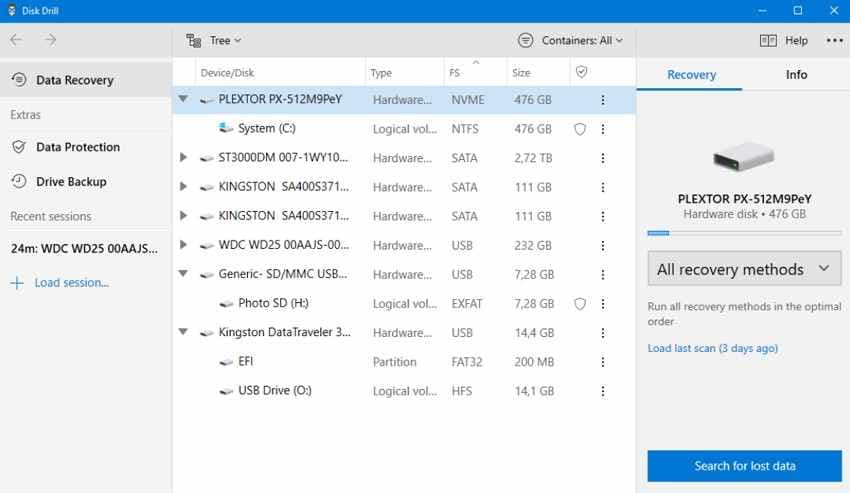
Disk Drill offers quick scan, deep scan, file previews, and recovery tools for deleted or formatted files. It is a strong option for users who want a polished interface and are recovering from readable or partially readable micro SD cards.
Pros
- Clean visual interface
- Supports Windows and Mac
- Preview support
- Good for common deletion and formatting cases
Limits
- Free recovery capacity may be limited
- Advanced features may require a paid plan
- Results vary with severe corruption or unstable cards
3. Stellar Data Recovery — Best for Organized File Filtering
Best For: Users who need organized scanning and file filters for mixed file types.
Platform: Windows and Mac
Free Option: Free version or trial may vary by product version
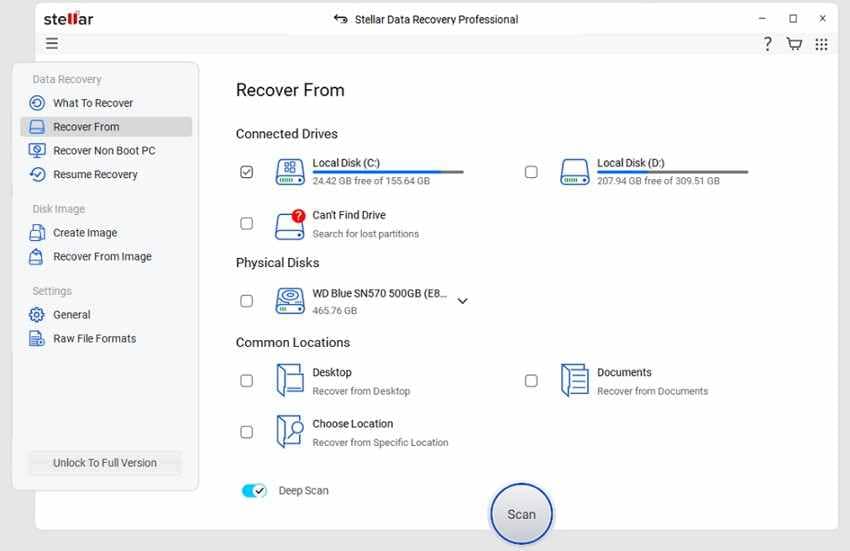
Stellar Data Recovery helps locate photos, videos, documents, emails, and other file types from storage devices, including micro SD cards. It is useful when users want a structured recovery interface with filters and previews.
Pros
- Organized file categories
- File preview support
- Windows and Mac versions
- Useful for mixed file recovery
Limits
- Some advanced recovery features require paid plans
- Large recoveries may require upgrade
- Scans can take time on damaged or large cards
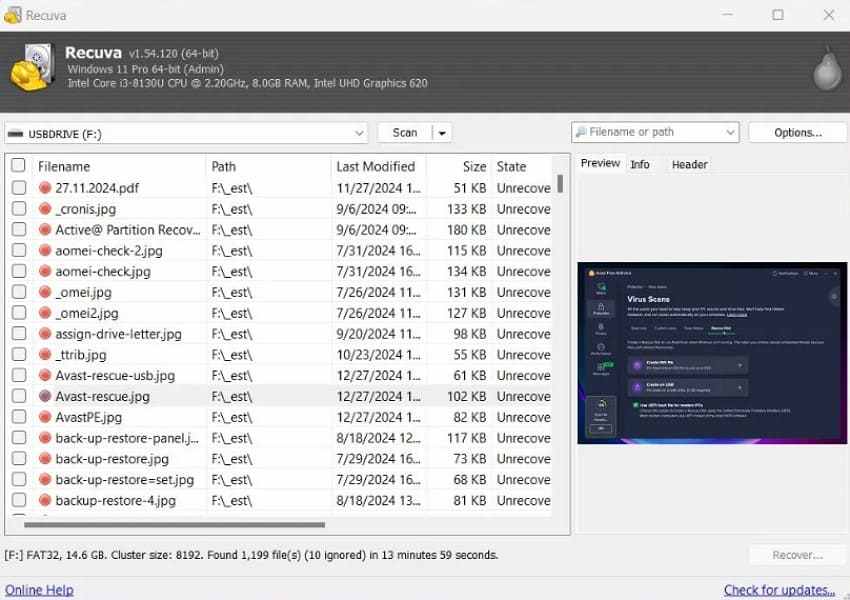
4. Recuva — Best Free Windows Tool for Simple Deleted Files
Best For: Recently deleted files on readable micro SD cards.
Platform: Windows
Free Option: Free version available
Recuva is a lightweight Windows recovery tool for recovering deleted files from readable drives and memory cards. It works best when files were deleted recently and the micro SD card still opens normally.
Pros
- Free version available
- Simple interface
- Good for basic deleted file recovery
- Lightweight Windows tool
Limits
- Windows only
- Less suitable for Mac users
- Weaker for RAW, formatted, or severely corrupted cards
- Advanced support/features may require Professional version
5. PhotoRec — Best Fully Free Tool for Advanced Users
Best For: File signature recovery from formatted or corrupted cards.
Platform: Windows, Mac, and Linux
Free Option: Fully free and open source
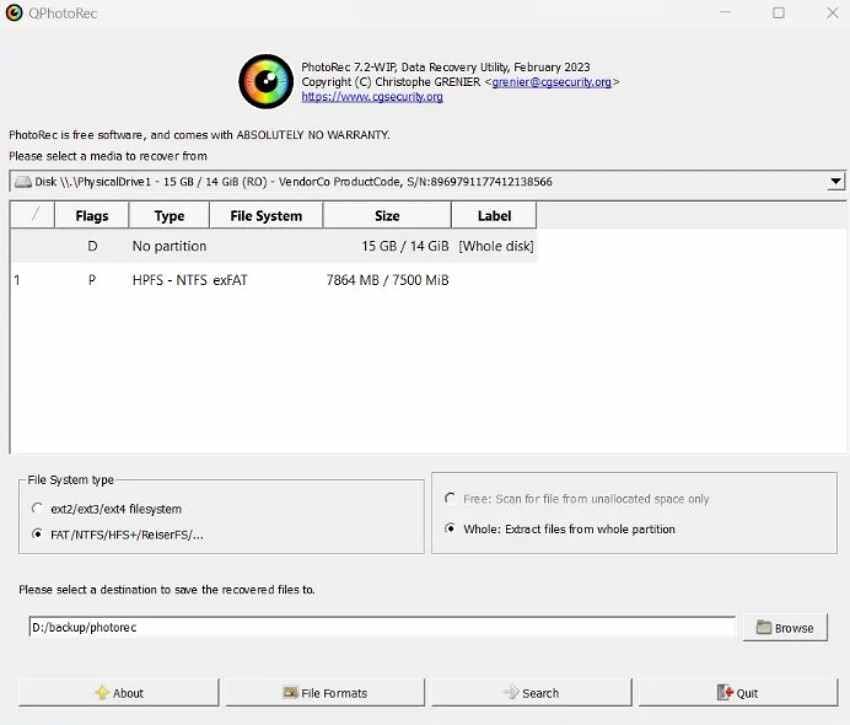
PhotoRec is a free, open-source file recovery tool. It scans for file signatures instead of depending only on the damaged file system, which can help recover files from formatted or corrupted memory cards.
Pros
- Fully free
- Open source
- Cross-platform
- Useful when file system structures are damaged
- Can recover many file types by signature
Limits
- Command-line interface
- Not beginner-friendly
- Original file names and folder structure may be lost
- No simple visual preview workflow
6. CardRecovery — Best for Camera Card Photos and Videos
Best For: Photos, videos, and audio from camera memory cards.
Platform: Windows
Free Option: Free trial may vary by version
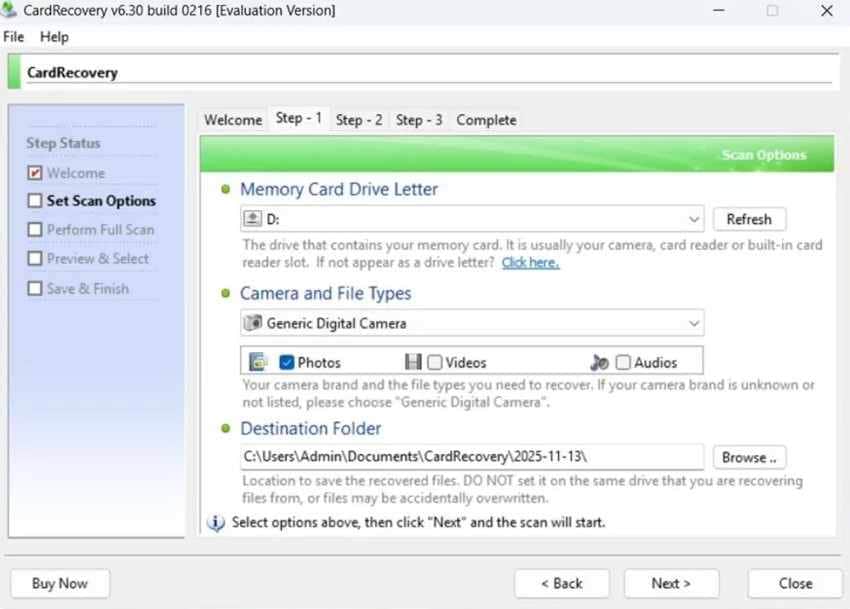
CardRecovery is designed mainly for camera card recovery. It supports common memory card types used in cameras, including SD, SDHC, CF, xD, MMC, and micro SD cards through a compatible reader.
Pros
- Focused on camera photos and videos
- Simple recovery workflow
- Supports common camera memory cards
- Good for basic photo/video recovery
Limits
- Windows-focused
- Not ideal for documents or mixed file recovery
- Less flexible than broader data recovery tools
- May not be the best choice for RAW or severe corruption cases
7. DiskDigger — Best Simple Recovery Tool for Memory Cards and Drives
Best For: Simple recovery from memory cards and storage drives.
Platform: Windows-focused, with other versions depending on platform
Free Option: Free scan or trial may vary by version
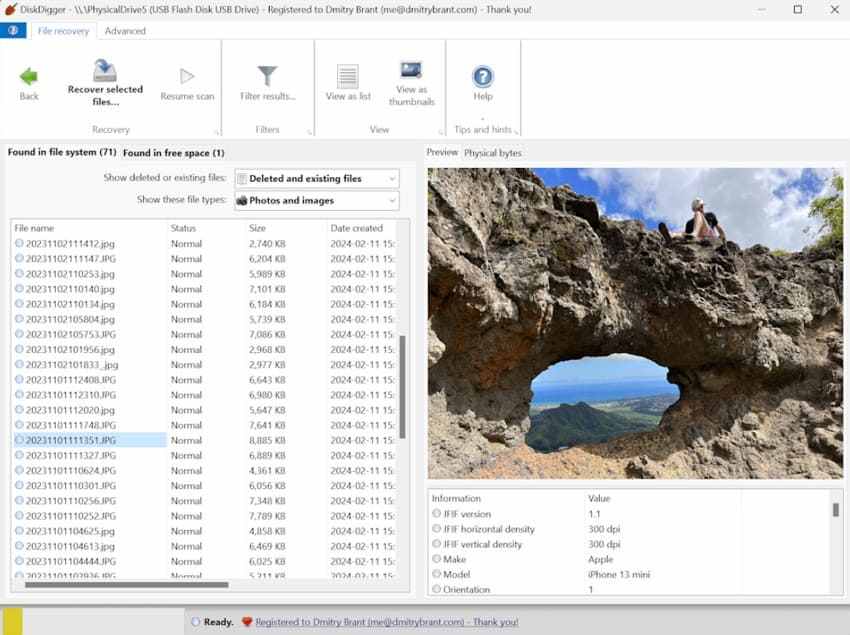
DiskDigger can recover lost photos, videos, music, documents, and other files from memory cards and drives. It is a recovery tool, not micro SD card repair software, so recover your files before attempting repairs or formatting.
Pros
- Simple recovery workflow
- Useful for memory cards and drives
- Can recover different file types
- Preview support may be available depending on version
Limits
- Platform and feature support vary by version
- Advanced recovery may require a paid license
- Not a physical repair tool
- Results vary with damaged or unstable cards
Part 5. Micro SD Card Recovery Software Comparison Table
Before making your final choice, use this micro SD recovery software comparison table to weigh your options based on features, pricing, and performance:
| Aspect | Recoverit | Disk Drill | Stellar Data Recovery | Recuva | PhotoRec | CardRecovery | DiskDigger |
| Best For | Mixed files from damaged or formatted microSD cards | Visual recovery with previews and deep scans | Organized scanning for mixed file types | Basic Windows recovery for readable cards | Signature recovery when file names disappear | Photos and videos from microSD cards | Simple recovery from memory cards and drives |
| Free Version or Trial | Free download or trial | Free scan and preview | Free version or trial | Free version available | Free and open source | Free trial available | Free scan or trial |
| Windows and Mac Compatibility | Windows and Mac | Windows and Mac | Windows and Mac | Windows only | Windows, Mac, and Linux | Windows only | Windows-focused, with other versions |
| Deleted File Recovery | Yes | Yes | Yes | Yes | Yes | Yes | Yes |
| Formatted Card Recovery | Yes | Yes | Yes | Limited | Yes | Limited | Limited |
| RAW or Corrupted Card Recovery | Yes | Yes | Yes | Limited | Yes | Limited | Limited |
| Preview Before Recovery | Yes | Yes | Yes | Limited | No | Yes | Yes |
| Ease of Use | Very Easy | Easy | Easy | Very Easy | Technical | Easy | Easy |
| Main Limitation | Full recovery usually requires an upgrade. | Free recovery capacity is limited. | Some advanced features require paid plans. | Weak for severe corruption cases. | Original names and folders may be lost. | Not ideal for documents or mixed files. | Advanced recovery may require a paid license. |
Verdict: Recoverit is the best overall choice for beginner-friendly micro SD card recovery because it balances wide file support, preview, guided steps, Windows/Mac compatibility, and recovery from deleted, formatted, RAW, or corrupted cards that are still detected. PhotoRec is the best fully free choice for technical users. Recuva is best for simple Windows deletion cases.
Part 6. How to Recover Micro SD Card Data with Recoverit
Recoverit is recommended for micro SD card recovery because it can scan deleted, formatted, RAW, and corrupted cards without repairing the card first. It supports common photos, videos, audio, documents, archives, and mixed files from phones, cameras, drones, GoPro cameras, dash cams, and other devices.
Recoverit offers free download, scanning, preview, or limited recovery options depending on the current version and license. Full recovery or larger recovery jobs may require an upgrade.
Important: Recoverit restores files. It cannot physically repair damaged micro SD cards, readers, or memory chips.
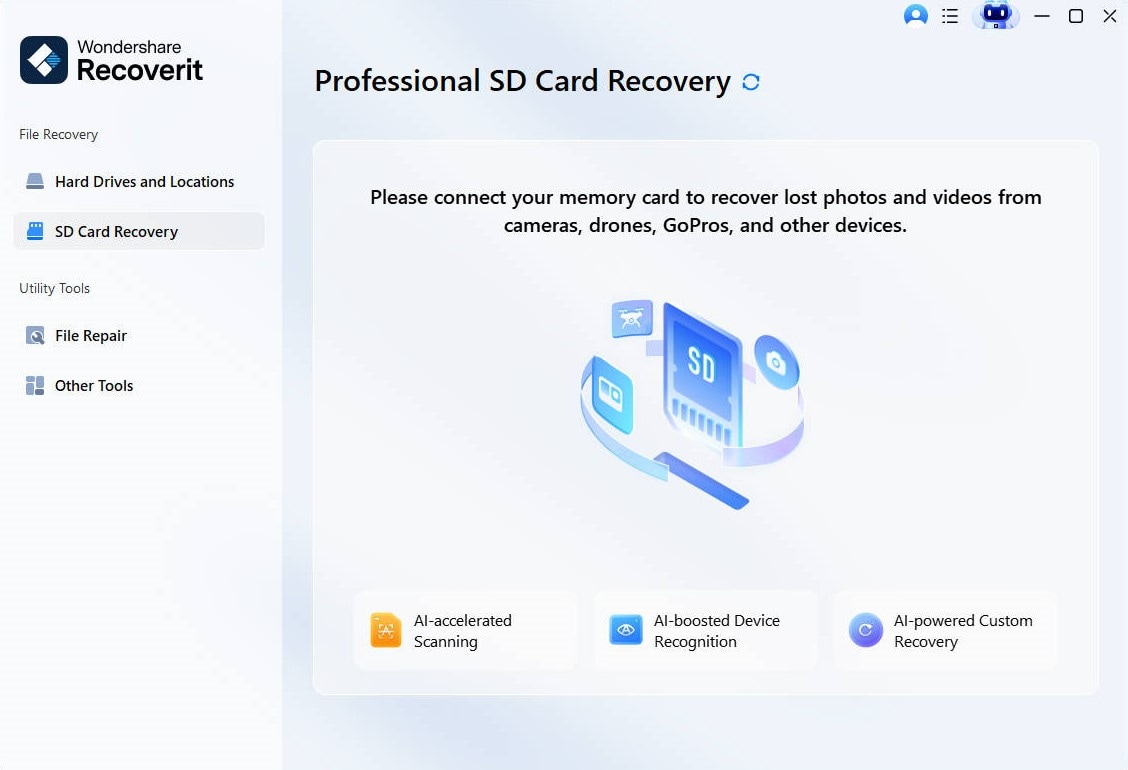
Step 1. Connect the Micro SD Card and Select Recovery Mode
Choose “SD Card Recovery” from the left corner and select your micro SD card so Recoverit can start scanning the connected card.
Step 2. Let Recoverit Scan and Check Found Files
Once results appear, use preview and file categories to check photos, videos, documents, or other needed items.
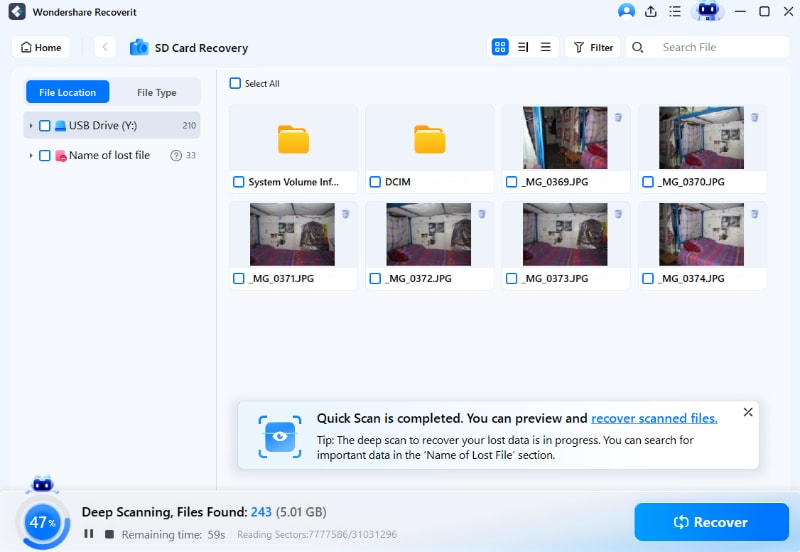
Step 3. Recover Files to a Safe Location
Choose the files you want to restore, then press “Recover” to continue. Save the recovered data to your computer or another healthy drive, not the same microSD card.

Part 7. Free Micro SD Recovery Software: What Is Actually Free?
Free micro SD recovery software can mean several different things. Read the limits carefully before starting a scan.
Free Micro SD Recovery Software Is Usually Enough When
- Files were deleted recently.
- The micro SD card still opens normally.
- You only need a small number of files.
- The files were not overwritten.
- You can use technical tools like PhotoRec.
- You do not need original file names or folders.
Free Tools May Not Be Enough When
- The card was formatted.
- The card is RAW or corrupted.
- The card asks to be formatted.
- You need original names and folder structure.
- You need to preview and selectively recover many files.
- You need to recover many GBs of photos or videos.
- The card disconnects or shows the wrong capacity.
Part 8. How to Get the Best Results from Micro SD Recovery Software
To get better results from micro SD Card recovery software, follow the safe recovery habits mentioned below:
- Stop Using the Micro SD Card: Continued use can overwrite deleted files and reduce the chances of successful recovery.
- Use a Reliable Card Reader: A quality card reader maintains a stable connection, allowing scans to finish without interruptions.
- Recover Files Before Repairing: Restore your files first, then repair or format the microSD card if necessary.
- Save Files to Another Drive: Always save recovered files to a different drive to avoid overwriting remaining recoverable data.
- Use Deep Scan for Complex Cases: Run a deep scan if files were lost after formatting, corruption, or a RAW file system error.
- Preview Files Before Recovery: Preview recovered files to verify they are intact before saving them.
- Verify Recovered Files: Open recovered photos, videos, and documents to confirm they are complete before deleting or reusing the card.
- Keep the Card Connected During Scanning: Removing the card during recovery can interrupt the scan and affect the recovery process.
Part 9. When Micro SD Recovery Software May Not Work
Even strong micro SD recovery software has limits when storage becomes unreadable or damaged, so review the points below:
- Card Not Detected Anywhere: No software can scan storage that computers or readers cannot detect at all. Try another adapter once, but avoid repeated attempts on unstable readers.
- 0 Bytes or Wrong Capacity: Wrong capacity usually points toward controller trouble, damaged firmware, or failing memory. A scan may show nothing until specialists stabilize the card first.
- Files Overwritten by New Data: Overwritten files lose their original storage space, making recovery unrealistic afterward. Stop using the card immediately if important files suddenly disappear.
- Severe Physical Damage: Cracks, bent contacts, heat damage, or water exposure can block scanning. Recovery software cannot repair broken parts or rebuild damaged memory chips.
- Fully Formatted or Securely Erased: A full format may clear file traces more deeply than quick formatting. These types of tools are designed to prevent any later recovery attempts.
- Card Disconnects During Scan: Frequent disconnections can break scans and increase stress on failing storage. Use a better reader, but stop if the disconnect continues repeatedly.
- Professional Recovery May Be Needed: Valuable files deserve expert handling when software cannot safely read the card. Labs can work on damaged storage without worsening the original problem.
Conclusion
The best micro SD card recovery software depends on your card condition, file type, platform, budget, and comfort level. If you need a beginner-friendly tool for deleted, formatted, RAW, or corrupted cards, Recoverit is a strong overall choice because it supports preview, mixed file recovery, and guided recovery steps.
If you need a fully free tool and can handle a technical workflow, PhotoRec is a good option. If you use Windows and only need to recover recently deleted files from a readable card, Recuva may be enough.
Most importantly, use recovery software before repair software. Do not format, run CHKDSK, or use First Aid before recovering important files. Save recovered files to another drive, then repair, format, or replace the micro SD card if needed.
FAQs
-
1 What Is The Best Micro SD Card Recovery Software?
For beginners, Recoverit is a strong overall choice because it supports deleted, formatted, RAW, and corrupted micro SD cards with preview and guided recovery. PhotoRec is best for fully free advanced recovery. Recuva is best for simple Windows deletion cases. -
2 Is There Free Micro SD Recovery Software?
Yes. PhotoRec is fully free and open source. Recuva offers a free version for Windows. Some commercial tools offer free scan, free preview, or limited free recovery. -
3 Can Micro SD Card Recovery Software Recover Formatted Cards?
Yes, recovery may be possible after quick formatting if new data has not overwritten the files. Use a deep scan and save recovered files to another drive. -
4 Can Recovery Software Fix A Corrupted Micro SD Card?
Recovery software helps recover files from corrupted cards. It does not physically repair the card. After recovering files, you can try repair or formatting tools if the card is still usable. -
5 Should I Use Repair Software Before Recovery Software?
No, not if the files matter. Repair tools may modify file system structures. Recover files first, then repair or format the card. -
6 Can Recuva Recover Files From Micro SD Cards?
Yes, Recuva can recover recently deleted files from readable micro SD cards on Windows. It is less suitable for Mac users, RAW cards, formatted cards, or severe corruption -
7 Is PhotoRec Safe For Micro SD Card Recovery?
PhotoRec is safe when used correctly because it reads from the source card and saves recovered files to another location. However, it is technical and may not preserve original file names or folder structures. -
8 Why Did Recovery Software Find Files But Not Recover Them?
The files may be partially overwritten, damaged, unsupported, or restricted by the free version’s recovery limit. Try previewing files and saving them to another drive. -
9 Where Should I Save Recovered Micro SD Card Files?
Save recovered files to your computer, external hard drive, or another healthy storage device. Do not save them back to the same micro SD card. -
10 When Does Micro SD Recovery Software Not Work?
Software may not work when the card is not detected by any device, physically damaged, securely erased, overwritten, showing wrong capacity, or disconnecting repeatedly.


