 TL;DR:
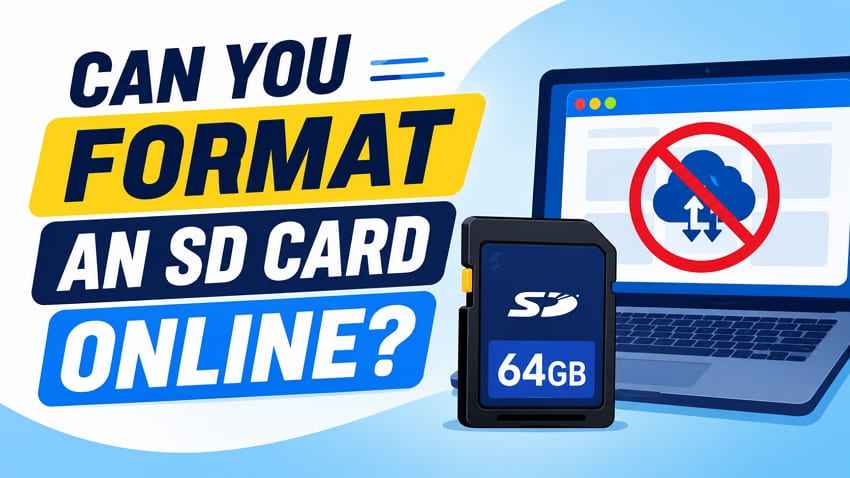
It is impossible to format a physical SD card directly through a website because web browsers block the low-level storage access required to rewrite a file system.
● Scan unreadable or corrupted cards with Recoverit Memory Card Recovery to extract missing files before accepting any device prompt to format the storage.
● Download the official SD Memory Card Formatter from the SD Association for local computer formatting, or format the card directly inside the specific camera or Android device to ensure optimal compatibility.
● Choose the FAT32 file system for SDHC cards up to 32GB and exFAT for SDXC cards over 32GB, avoiding NTFS which lacks support across most portable devices and dash cams.
Ask AI for a summary
 ChatGPT
 Perplexity
 Gemini
 Claude
 Grok
Grok
If you searched for online SD card format, the direct answer is simple: a normal website cannot directly format a physical SD card, microSD card, or memory card in your reader. Formatting needs block-level access to the storage device, while browsers are designed to protect local drives and removable storage from websites.
That does not mean you are stuck. The safe path is to recover or back up files first, then use a trusted local tool such as the official SD Memory Card Formatter, Windows File Explorer, Windows Disk Management, DiskPart, macOS Disk Utility, or the device that will use the card. This guide explains what “format memory card online” really means and which free method fits your situation.
In this article
Part 1. Can You Format an SD Card Online?
No website can directly format a physical SD card through the browser. A browser can help you download a formatter, read selected files, or upload files you choose, but it does not get the low-level disk access needed to create a new file system on removable storage.
The Short Answer for Online SD Card Formatting
An online SD card formatter is usually not a true browser-based formatting tool. In most cases, the page is one of these:
- A download page for desktop formatting software.
- An instruction article that explains offline formatting methods.
- A search page using the phrase “online” because users want a free and convenient answer.
- A risky mirror site or fake utility page trying to collect downloads or clicks.
If a page asks you to install a program before formatting, the format is happening locally on your computer, not inside the website.
Why a Website Cannot Directly Format a Physical SD Card
Formatting writes a new file system to a physical storage device. That requires access below the normal file and folder layer. Browsers do not expose raw SD card sectors, partition tables, or disk initialization commands to ordinary websites because that would let a page erase local drives.
Modern browser APIs confirm this boundary. The File System API works through user-selected file or directory handles, while the WebUSB API is experimental, limited in browser support, and designed for permitted USB device services, not a general memory-card formatting layer.
What Online SD Card Formatter Usually Means
When people search for sd card format online free, they usually want a free method that does not require confusing paid utilities. The trustworthy answer is a free local formatter from a known source. The most SD-specific option is the SD Association formatter. Windows, macOS, cameras, and Android devices also include free formatting options.
What Browser-Based Storage Tools Can Access
A browser photo editor can open images from an SD card after you select them. A web app can save a file back to a folder if you grant permission. Those actions are file-level operations. A format is different: it rebuilds file-system structures and may remove all file entries on the card. That is why the job belongs to an installed formatter, the operating system, or the camera or phone that owns the card.
Risks of Fake Online Formatter Websites
Be careful with sites that use names close to official formatter tools. The SD Association says its formatter is free and available from its own website, and its FAQ warns against SD Memory Card Formatter copies hosted elsewhere. For SD cards, start from the official sdcard.org site or the direct SD Association formatter page, not a mirror download.
Part 2. What to Do Before Formatting an SD Card
Formatting is a data-loss action. If the card contains photos, videos, documents, dash cam footage, camera RAW files, or Android downloads you still need, protect those files before you try any formatter.
| Before You Format | Why It Matters | What to Do |
| Back up readable files | Formatting can remove file access and reset the card. | Copy every accessible file to your computer or another drive. |
| Recover missing files first | A quick format may leave old data recoverable, but new writes can overwrite it. | Scan the card before accepting a format prompt if files are missing. |
| Check write protection | A locked full-size SD card or adapter can block formatting. | Move the physical switch to the unlocked position and reconnect the card. |
| Try another reader or port | A bad adapter, reader, or USB port can mimic SD card failure. | Test another reader, USB port, computer, camera, or phone. |
| Verify card capacity | Wrong capacity can point to a bad partition, unsupported card, or counterfeit media. | Compare the shown capacity with the card label and device limits. |
| Check device compatibility | Older devices may not support SDXC, SDUC, exFAT, or larger capacities. | Check the device manual before formatting or buying a larger card. |
| Choose the correct file system | The wrong format can make the card unreadable in cameras, phones, or dash cams. | Use FAT32 for many 32GB-and-under cards and exFAT for most cards above 32GB, unless the device manual says otherwise. |
Part 3. Recover Files Before Formatting the SD Card
If Windows, macOS, Android, or a camera says the card must be formatted before use, do not click Format if the files matter. That warning often means the file system is damaged or unreadable, not that the photos and videos are already gone.
When SD Card Recovery Is Possible
Recovery is most realistic when the computer can still detect the card, the card has not been overwritten, and the damage is logical rather than physical. Deleted files, accidental quick formats, RAW file-system errors, interrupted transfers, and some corrupted directory structures may still leave recoverable data on the memory card.
Recovery becomes much harder after an overwrite format, a full-card test that writes across the card, new camera recording, new Android downloads, or repeated repair attempts. If the card is important, stop using it and scan it from a stable computer.
Recover Deleted, Formatted, or Corrupted SD Card Files With Recoverit
Recoverit Memory Card Recovery can help recover files from readable SD cards, microSD cards, camera cards, and other memory cards before formatting. It is useful when a card asks to be formatted, turns RAW, loses files after deletion, or becomes unreadable because the file system is damaged.
Recoverit does not repair a physically broken card, bypass encryption, or guarantee recovery. It scans the card for recoverable photos, videos, documents, and other file types, then saves recovered files to another storage device so the original card is not overwritten.
- Local scanning: Scan the connected card from your computer instead of uploading private files to a website.
- Card-focused recovery: Recover photos, videos, audio, documents, archives, and common camera files from readable memory cards.
- Preview before saving: Check recoverable files before exporting them to another drive.
- Safer timing: Use recovery before formatting, repartitioning, or running destructive repairs.
How to Scan an SD Card to Recover the Data With Recoverit
Before you try any local alternative to an SD card format online free search, recover the files you still need.
Step 1. Attach the card and select it.
Connect the SD card or microSD card through a reliable reader. Open Recoverit, choose the memory card, and start the scan.

Step 2. Scan and narrow the results.
Let the scan run. Use file type, path, size, or date filters to find photos, videos, and other files from the card faster.

Step 3. Preview and export to another device.
Preview the recoverable files, click Recover, and save them to your computer or another external drive. Do not save recovered files back to the same SD card.

Try Wondershare Recoverit to Perform Data Recovery
 Security Verified. Over 7,302,189 people have downloaded it.
When Recovery Software Cannot Help
Recovery software needs the card to be detected by the computer. If several readers and computers cannot detect it, if the card is cracked, bent, burned, water-damaged, or shows severe controller failure, a professional recovery lab may be the only realistic option. If the files were overwritten by new data or erased with an overwrite format, software recovery may not find usable originals.
Part 4. Free Ways to Format an SD Card Safely
After your files are backed up or recovered, choose a local formatting method. A true website-based formatter does not exist for normal SD cards, but these free options cover the real use cases behind the search.
| Method | Platform | Best Use | File-System Control | Main Limitation |
| SD Memory Card Formatter | Windows, macOS | SD-standard formatting and wrong-capacity issues | Automatic, card-appropriate | Only for SD-family memory cards, not general USB drives. |
| Camera or Android device | Device itself | Best compatibility with the device that will use the card | Device chooses | Limited manual control and may fail on corrupted cards. |
| Windows File Explorer | Windows | Routine quick formatting when the card appears normally | FAT32, exFAT, NTFS depending on card and Windows options | Limited repair ability; wrong file system may reduce device compatibility. |
| Windows Disk Management | Windows | Drive letter, partition, RAW, or unallocated-space problems | Volume and partition control | Formatting a selected volume destroys its data. |
| DiskPart | Windows | Stubborn partition layouts and command-line cleanup | Advanced command control | Wrong disk selection can erase another drive. |
| macOS Disk Utility | macOS | Routine Mac formatting for SD cards and removable storage | ExFAT, MS-DOS (FAT), APFS, and Mac formats | APFS and Mac-only formats are usually wrong for cameras and phones. |
Method 1. Format With SD Memory Card Formatter
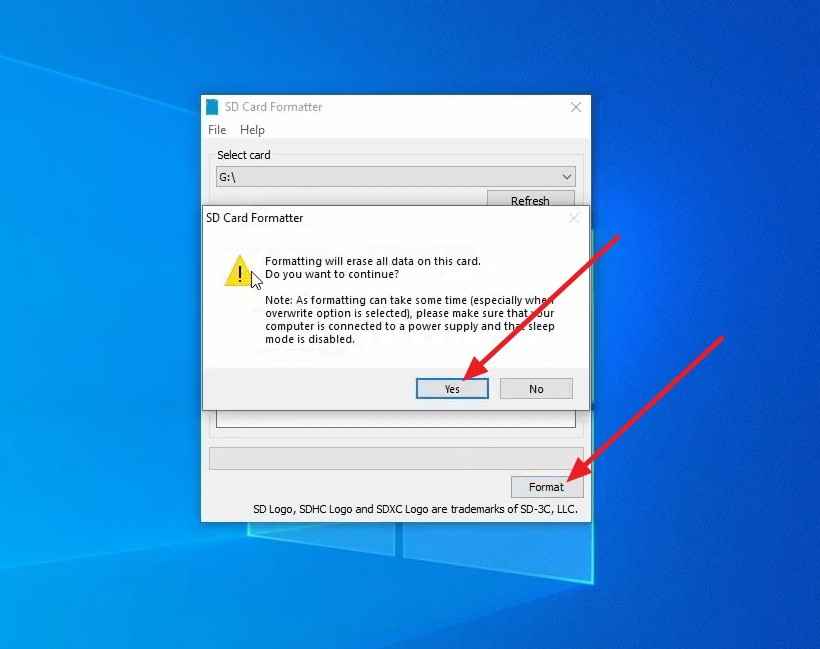
The SD Memory Card Formatter is the safest first choice when you want SD-standard formatting or when the card shows the wrong capacity after being used in another device. The SD Association says the formatter supports SD, SDHC, SDXC, and SDUC cards and is preferred over generic operating-system formatters for SD cards.
Step 1. Download the installer from the official SD Association download page, launch it, insert the card, select the correct card in the Select Card menu, choose the formatting option, and click Format. Confirm the warning only after your files are safe.
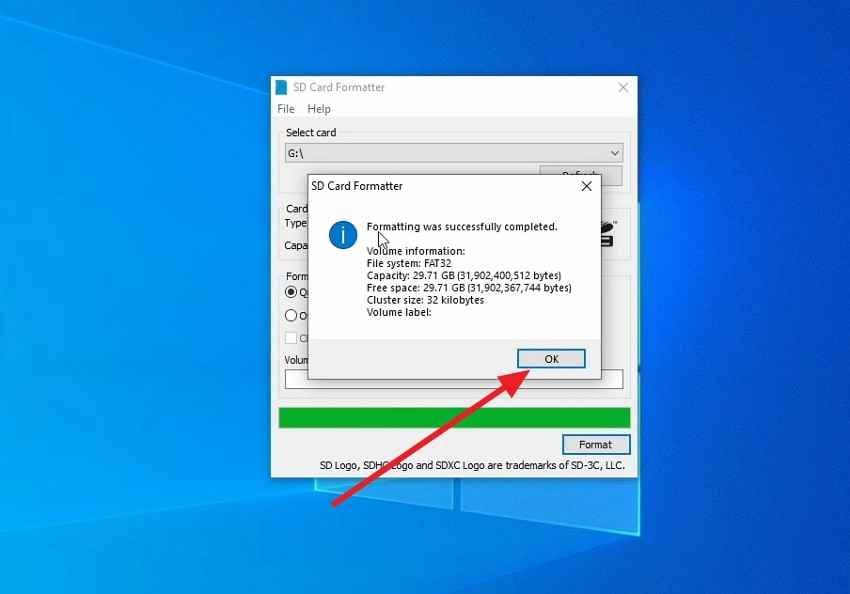
Step 2. Wait until formatting finishes, then click OK. Eject the card safely before removing it.
Method 2. Format Inside a Camera or Android Device
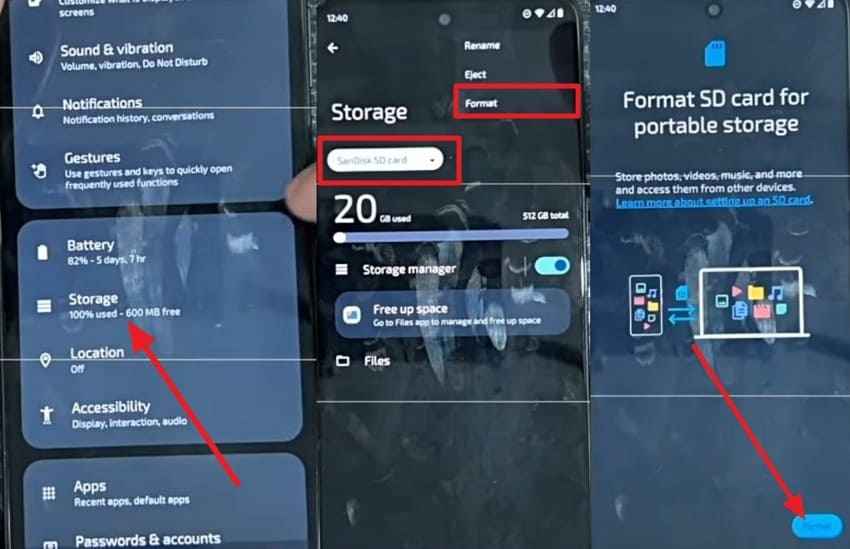
If the SD card will be used in a camera, dash cam, drone, trail camera, handheld console, or Android phone, formatting inside that device is often the best final step. The device can create the folder structure and file-system settings it expects.
Instructions. On many Android devices, open Settings > Storage, choose the SD card, tap the menu, and select Format. Camera and dash cam menus usually place the option under Setup, Storage, Memory Card, or Format Card. Menu names vary by brand.
Method 3. Format Using Windows File Explorer
Use File Explorer when Windows detects the card normally and you only need a quick, simple format. This is the fastest built-in option for routine reuse.
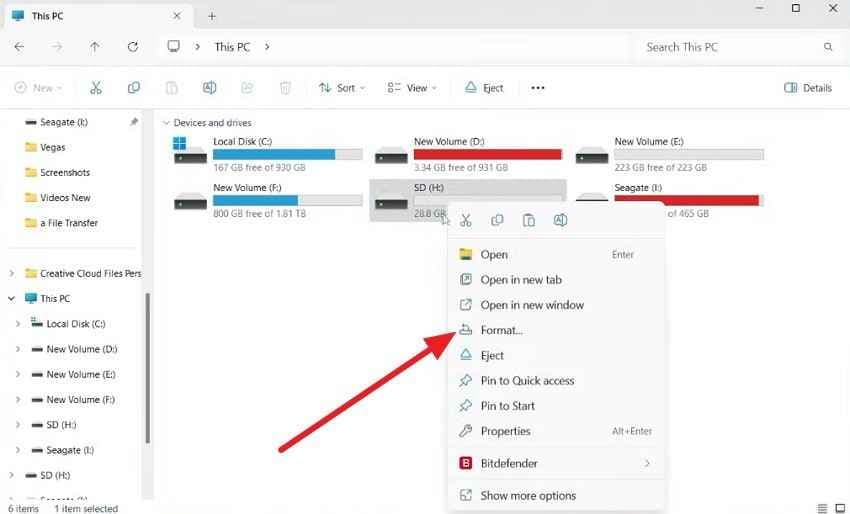
Step 1. Connect the card, open This PC, right-click the SD card, and choose Format.
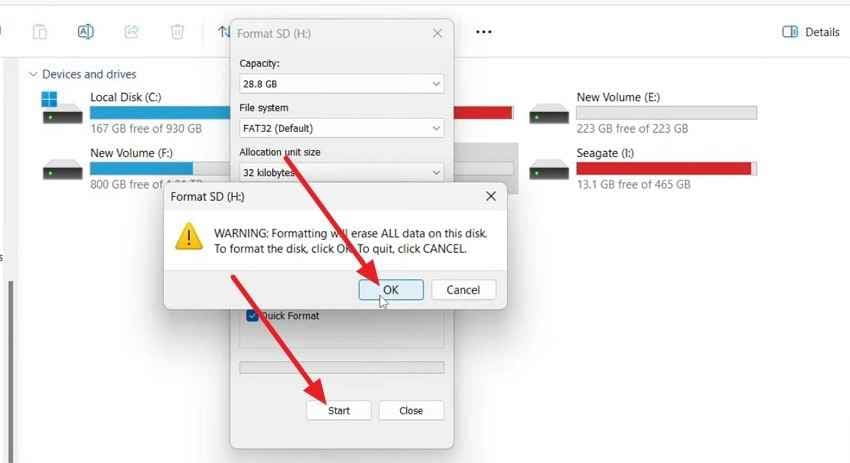
Step 2. Choose exFAT for most cards above 32GB, or FAT32 for many cards at 32GB or below. Keep Quick Format selected for a routine card reset, enter a volume label if needed, and click Start.
Method 4. Format Through Windows Disk Management
Disk Management helps when the card appears in Windows but does not show correctly in File Explorer. Microsoft warns that formatting a volume destroys data, so use this only after backup or recovery.
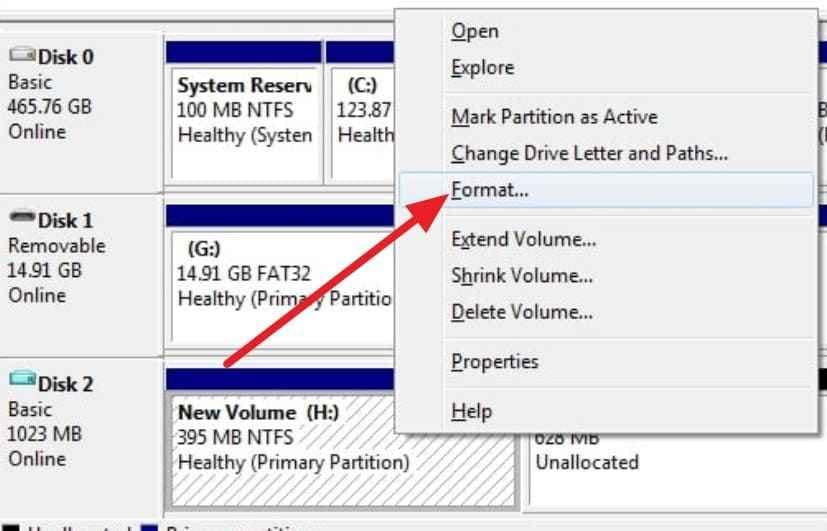
Step 1. Right-click Start, open Disk Management, find the SD card by capacity, right-click its partition, and choose Format.
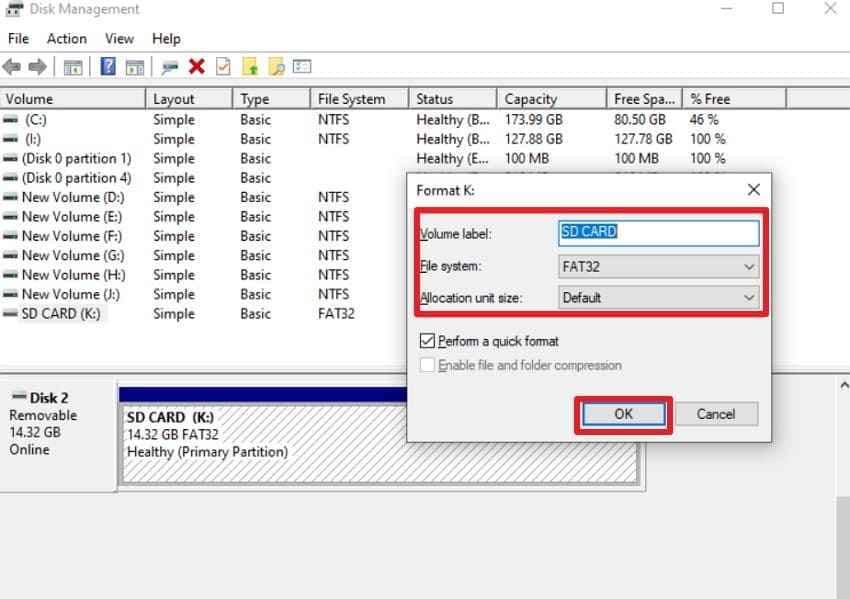
Step 2. Enter a volume label if needed, choose the file system, select Perform a quick format for routine formatting, and click OK.
Method 5. Format an SD Card Using DiskPart
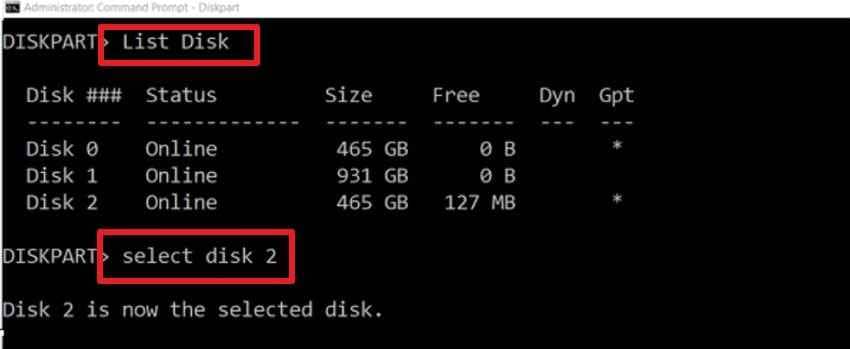
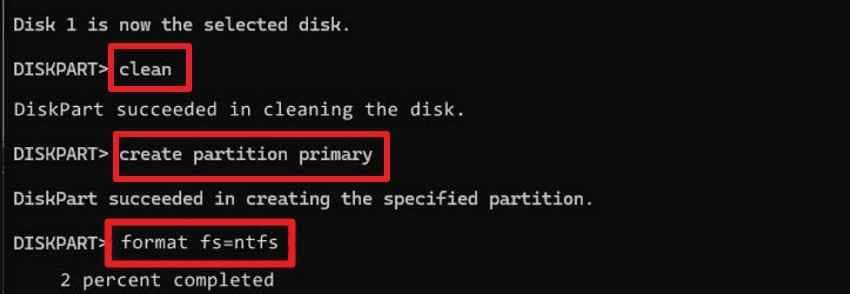
DiskPart is useful for stubborn cards that show bad partition layouts, missing drive letters, or incorrect volumes. Use it carefully. The clean command deletes partition information from the selected disk.
Step 1. Open Command Prompt as administrator and run these commands one by one: diskpart, list disk, and select disk X. Replace X with the SD card number. Check capacity before selecting.
Step 2. Run clean, then create partition primary. Format the card with format fs=exfat quick for most larger cards or format fs=fat32 quick where FAT32 is required. Finish with assign and exit.
Method 6. Format With macOS Disk Utility
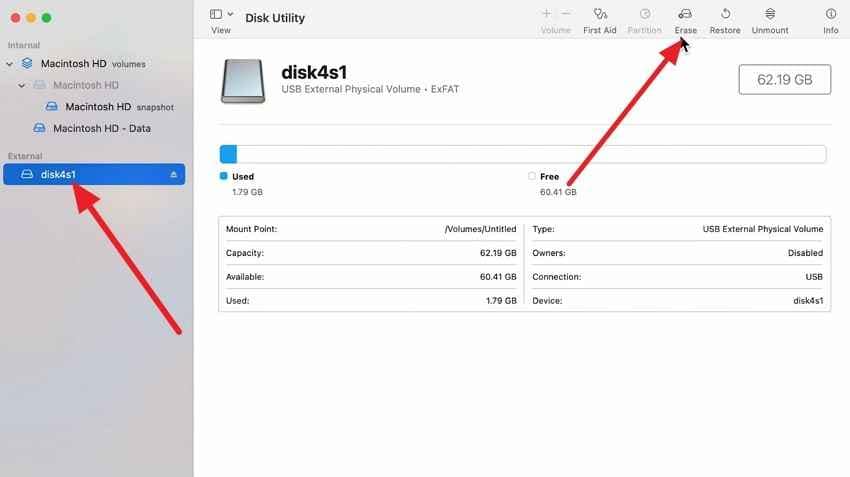
Use Disk Utility when formatting an SD card on a Mac. Apple states that erasing a storage device deletes everything on it, so copy files elsewhere first. Apple also lists MS-DOS (FAT) and ExFAT as Windows-compatible formats.
Step 1. Insert the card, open Disk Utility, choose View > Show All Devices, select the SD card under external devices, and click Erase.
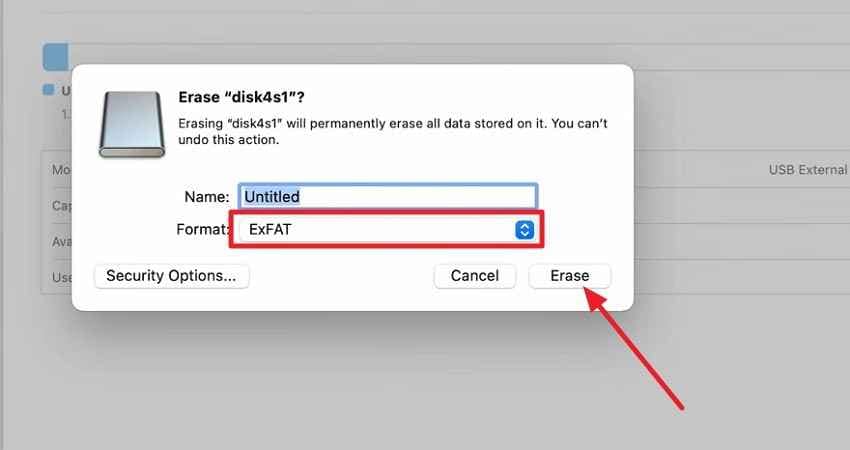
Step 2. Choose ExFAT for most cards above 32GB or MS-DOS (FAT) for many cards at 32GB or below. For broad camera compatibility, use Master Boot Record where appropriate, then click Erase.
Part 5. FAT32 vs exFAT for SD Cards
Most online SD card format searches eventually lead to one practical question: FAT32 or exFAT? The best answer depends on the SD card standard and the device that will use the card.
SD, SDHC, SDXC, and SDUC File Systems
The SD Association lists the standard capacity and file-system mapping for SD-family cards. Use the device manual as the final authority if it gives a different requirement.
| Card Type | Capacity Range | Standard File System | Practical Note |
| SD | Up to 2GB | FAT12 or FAT16 | Mostly used by older devices. |
| SDHC | Over 2GB to 32GB | FAT32 | Common for older cameras, handhelds, and smaller cards. |
| SDXC | Over 32GB to 2TB | exFAT | Common for modern cameras, phones, drones, and larger cards. |
| SDUC | Over 2TB to 128TB | exFAT | Requires SDUC-compatible hosts, readers, and drivers. |
Why NTFS Is Usually Not Recommended
NTFS is a Windows file system, and Windows may offer it in some formatting dialogs. It is usually a poor choice for SD cards used in cameras, Android devices, dash cams, drones, game consoles, and media devices because many of those products expect FAT32 or exFAT. FAT32 has a 4GB single-file limit, while exFAT supports larger individual files and is better for long video clips when the device supports it.
Device-Specific Format Requirements
Some devices ignore the simple capacity rule. Older cameras may require FAT32. Some dash cams format large cards to FAT32 for their firmware. A device may also support only a maximum card capacity, such as 32GB, 128GB, 256GB, or 512GB. For the cleanest setup, format the card in the device after using a computer formatter, especially for cameras and recorders.
Part 6. What to Do if the SD Card Will Not Format
If the SD card still will not format, work from low-risk checks to destructive fixes. Do not keep repeating random format attempts if files are still missing.
| Fix | When It Applies | What to Do |
| Unlock and reconnect | Formatting is refused immediately or the card is read-only. | Unlock the SD card or adapter switch, reconnect it, and try again. |
| Change reader, adapter, or USB port | The card appears and disappears or cannot be read consistently. | Use another card reader, adapter, direct USB port, or computer. |
| Try formatting on another device | One computer or phone cannot format the card. | Try the primary camera, Android phone, another Windows PC, or a Mac. |
| Assign or change the drive letter | The card appears in Disk Management but not in File Explorer. | Use Disk Management to add a drive letter before formatting. |
| Delete the existing partition and create a new volume | The card shows RAW, unallocated space, or a wrong partition layout. | Use Disk Management or DiskPart only after data recovery or backup. |
| Replace the card | Errors return after formatting or the card fails in several readers. | Retire the card. Repeated failures usually mean the card is unsafe for storage. |
The first four fixes handle many connection, reader, and assignment problems. If partition rebuilding also fails, do not trust the card with important data. A memory card that repeatedly demands formatting may be worn out, counterfeit, physically damaged, or incompatible with the device.
Part 7. How to Avoid SD Card Corruption After Formatting
After formatting, card handling matters. These habits reduce the chance of another format prompt, missing file error, or unreadable card.
- Safely eject the card before removing it: Wait until file transfers, recording, and thumbnails finish before unplugging the card reader.
- Format the card inside its primary device: Cameras, drones, dash cams, and Android devices may create expected folders and metadata.
- Avoid interrupting recording or file transfers: Do not remove the card, reader, or device battery while data is being written.
- Buy memory cards from authorized sellers: Counterfeit cards can show fake capacity and corrupt files after they exceed their real storage.
- Test new cards before important use: Copy files to the card, read them back, and confirm the shown capacity is realistic.
- Keep multiple backups: Treat an SD card as temporary storage, not the only copy of irreplaceable photos, videos, or documents.
Conclusion
No true online SD card format tool can format a physical memory card directly from a normal website. Browser storage APIs work with selected files, folders, or permitted device services, but they do not hand websites raw disk-formatting control over your SD card.
The safe free route is local: recover or back up files first, then use the SD Association formatter, Windows, macOS, Android, or the camera itself. If the card asks to be formatted but still contains important files, scan it first with Recoverit Memory Card Recovery and save recovered files to another device before you format.
FAQ
-
Can I format an SD card through a website?
No. A normal website cannot directly format a physical SD card because browsers do not provide raw disk-formatting access to web pages. Use a trusted local formatter, Windows, macOS, Android, or the device that will use the card. -
What is the best free SD card formatting tool?
For SD, SDHC, SDXC, and SDUC cards, the best SD-specific free tool is the official SD Memory Card Formatter from the SD Association. For routine formatting, Windows File Explorer, Windows Disk Management, macOS Disk Utility, and in-device formatting can also work. -
Should I format an SD card to FAT32 or exFAT?
Use FAT32 for many SDHC cards up to 32GB and exFAT for most SDXC cards above 32GB, unless your device manual requires something else. Some older cameras and dash cams have special limits, so the device manual should be the final authority. -
Can Recoverit recover files after formatting?
Recoverit may help recover files after a quick format if the card is still detected and the old data has not been overwritten. It cannot guarantee recovery, recover overwritten files, repair a physically damaged card, or bypass encryption.



