 TL;DR:
Recovering deleted or quick-formatted SD card files on OS X/macOS is highly possible using software like Recoverit or PhotoRec, provided you stop writing to the card immediately and it remains detectable in Disk Utility.
● Do not run Disk Utility First Aid, initialize, or reformat an unreadable SD card before attempting recovery, and strictly save any recovered files to a different drive to avoid permanently overwriting the original data.
● Choose Recoverit or Disk Drill for a beginner-friendly graphical interface with visual file previews, or use PhotoRec as a completely free alternative that recovers corrupted data via Terminal but typically loses original filenames.
● If Terminal-based tools report "no hard disk found," verify hardware detection in Disk Utility first, test a different USB-C adapter or card reader, and ensure you execute the recovery command with administrator permissions.
Ask AI for a summary
 ChatGPT
 Perplexity
 Gemini
 Claude
 Grok
Grok
"I accidentally formatted my camera, so all data in the microSD card is now lost. I am using a MacBook M3 and PhotoRec keeps saying no hard disk found. Is there any free way to recover my pictures and videos?"
OS X SD card recovery is possible in many cases if the missing files have not been overwritten and the card is still detected by your Mac. Deleted files, quick-formatted cards, RAW file system errors, and unreadable SD cards can often be scanned before you repair or erase the card.
This guide explains how to recover SD card files on OS X and macOS safely. It covers what to check first, how to use Recoverit Memory Card Recovery, Mac Trash, Time Machine, PhotoRec, TestDisk, Disk Drill, and what to do after recovery with Disk Utility. Recoverit can help recover files from readable memory cards, but it cannot repair physically dead cards or recover overwritten data.
In this article
Part 1. Can You Recover SD Card Files on OS X or macOS?
Yes, you can often recover deleted or lost SD card files on OS X or macOS if the card is still detectable and the data has not been overwritten. Apple renamed OS X to macOS starting with macOS Sierra, but the recovery logic is similar: stop writing to the card, check whether macOS detects it, recover files to another drive, and repair or erase the card only after recovery.
1. Deleted Files from an SD Card on a Mac
If files were deleted from the SD card in Finder, they may be in Mac Trash. If they were deleted in a camera, phone, drone, or another device, they usually bypass Mac Trash. Either way, deleted file data may remain on the card until new data overwrites it.
2. Formatted SD Card on Mac
A quick format in Disk Utility, a camera, or another computer usually rebuilds the file system. It does not always overwrite every photo, video, or document immediately. Recovery is more likely if you stop using the card right after formatting.
3. SD Card Not Readable or Not Mounted
If macOS says the card is not readable or Disk Utility shows the card without mounting its volume, the card may have a damaged file system, a partition problem, or a connection issue. Files may still be recoverable before you initialize, erase, or run repairs.
4. RAW, Corrupted, or Empty SD Card
An SD card can look empty even when storage is used. This often means the directory or file system is damaged. Scan the card before using First Aid, formatting, or any repair step that may change file system records.
When Mac SD Card Recovery May Fail
- New photos, videos, or files have overwritten the lost data.
- The card was fully overwritten, securely erased, or reused heavily after formatting.
- The memory chip, connector, or controller is physically damaged.
- No Mac, reader, adapter, camera, or computer can detect the card.
- The recovered files are only fragments because the original data is incomplete.
Part 2. Before Recovering an SD Card on a Mac
Before starting OS X SD card recovery, protect the data that may still be on the card.
| Step | What to do | Why it matters |
| Stop using the SD card | Remove the card from the camera, phone, drone, card reader, or Mac. | New data can overwrite deleted or lost files. |
| Check Disk Utility | Open Disk Utility and see whether the physical card appears in the sidebar. | This confirms whether macOS detects the card at the hardware level. |
| Check whether the volume is mounted | Look for a volume listed under the physical card and check whether it is mounted. | A detected but unmounted card may still be recoverable. |
| Try another reader or adapter | Test another USB-C adapter, SD card reader, port, or Mac. | A bad adapter can look like SD card failure. |
| Prepare another save location | Use your Mac's internal drive or another external drive for recovered files. | Saving recovered files back to the SD card can overwrite remaining data. |
| Avoid First Aid and Erase before recovery | Do not repair, erase, or initialize the card before recovering important files. | These actions can change file system records and lower recovery chances. |
Part 3. Quick Diagnosis: How Does the SD Card Appear on Mac?
The way the card appears on macOS tells you what to do next.
| Mac symptom | What it usually means | Best next step |
| SD card not showing in Finder | The card may not be mounted, Finder may not show external disks, or the file system may be damaged. | Check Disk Utility and Finder settings before formatting. |
| SD card appears in Disk Utility but not Finder | macOS detects the card, but the volume is not mounted or is unreadable. | Recover files first if data matters, then try mounting or First Aid. |
| Mac says the SD card is not readable | The file system or partition table may be damaged. | Ignore initialize/erase prompts and scan the card first. |
| SD card looks empty but storage is used | Files may be hidden, deleted, or the directory structure may be damaged. | Scan for lost files and check hidden files. |
| PhotoRec says no hard disk found | PhotoRec may lack permissions, the card may not be detected, or the wrong disk view was selected. | Check Disk Utility, run from Terminal with proper permissions, and test another reader. |
| No Mac or reader detects the card | The reader, adapter, connector, controller, or memory chip may have failed. | Stop repeated DIY attempts and consider professional recovery. |
Part 4. How to Recover SD Card Files on OS X/macOS
Start with the safest available source. Check Trash and Time Machine if the files may already exist. Use recovery software if the original SD card is readable but files are deleted, formatted, or inaccessible.
Method 1. Recover SD Card Files with Recoverit for Mac
Recoverit Memory Card Recovery can help recover deleted, formatted, lost, RAW, or corrupted files from readable SD cards, microSD cards, CF cards, MMC cards, Memory Stick cards, and camera memory cards on Mac. It is useful when Finder cannot browse the card but macOS still detects it through a reader.
Recoverit is a recovery tool, not a hardware repair tool. It cannot recover overwritten files, fix a broken card reader, repair a physically failed memory chip, or bypass encryption. Recovery depends on card condition, overwriting, file system damage, and detectability.
Key features:
- Memory card recovery: Scans readable SD, microSD, CF, MMC, and Memory Stick storage.
- Mac and camera file system support: Helps recover from cards used on macOS, cameras, phones, drones, and Windows devices.
- Deep scan for formatted or corrupted cards: Searches beyond damaged directory records to locate recoverable files.
- Preview before recovery: Lets you check recoverable photos, videos, documents, and other files before saving them.
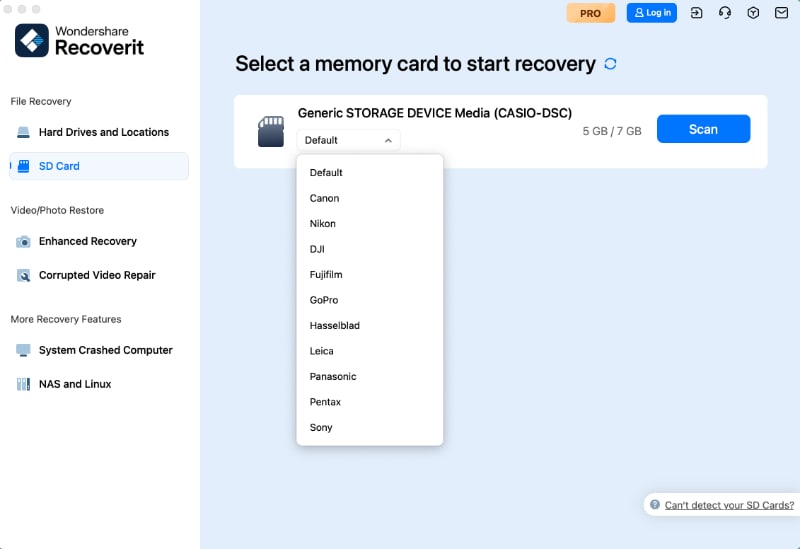
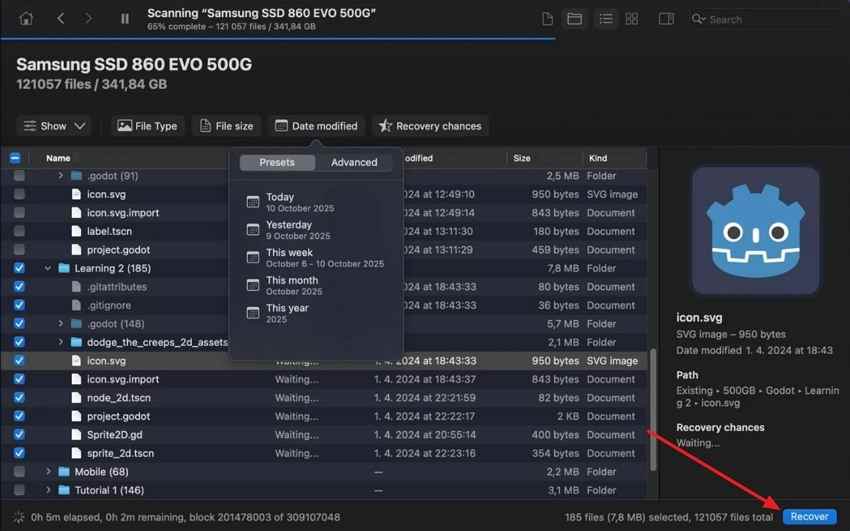
Step 1. Select the card and start a scan. Connect the SD card to your Mac through a reliable reader. Open Recoverit, choose the SD or memory card, and click Start Scan.
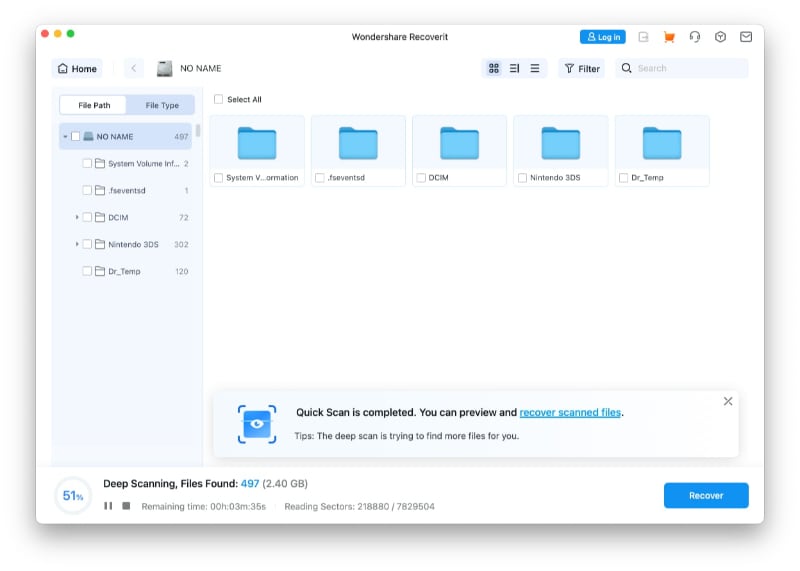
Step 2. Scan for missing files. Wait while Recoverit scans the card. Use file type filters, file location view, or preview to locate recoverable files.
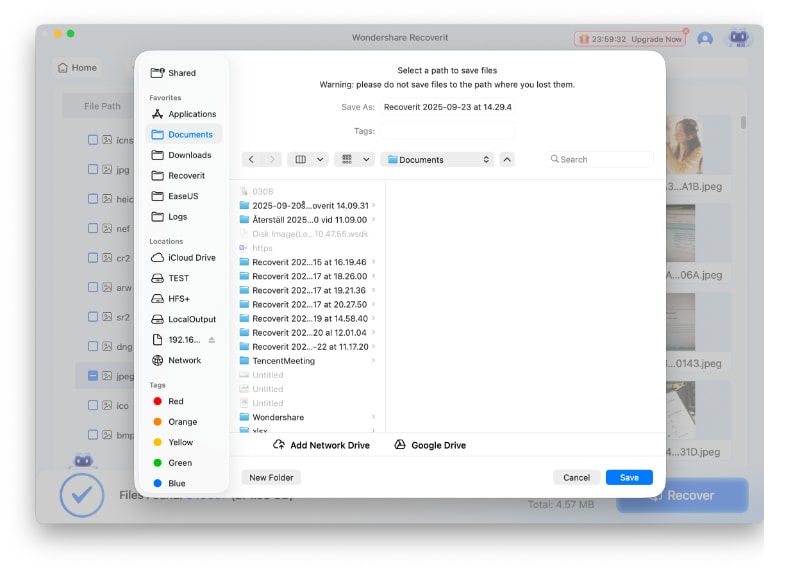
Step 3. Preview and save SD card data. Preview the files, select what you need, click Recover, and save the recovered files to your Mac or another drive, not the same SD card.
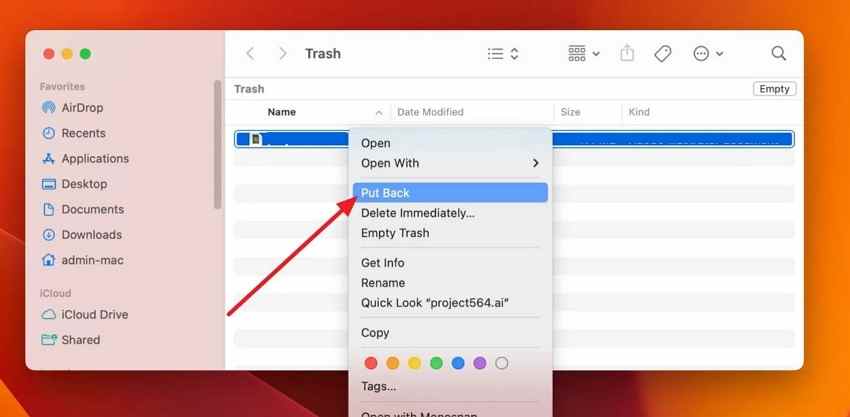
Method 2. Restore Files from Mac Trash
Mac Trash helps only if the files were deleted through Finder on the Mac. Files deleted in a camera, Android phone, drone, or another device usually bypass Mac Trash.
Instructions. Open Trash on your Mac, find the missing files, right-click or Control-click them, and choose Put Back.
Method 3. Restore Files with Time Machine
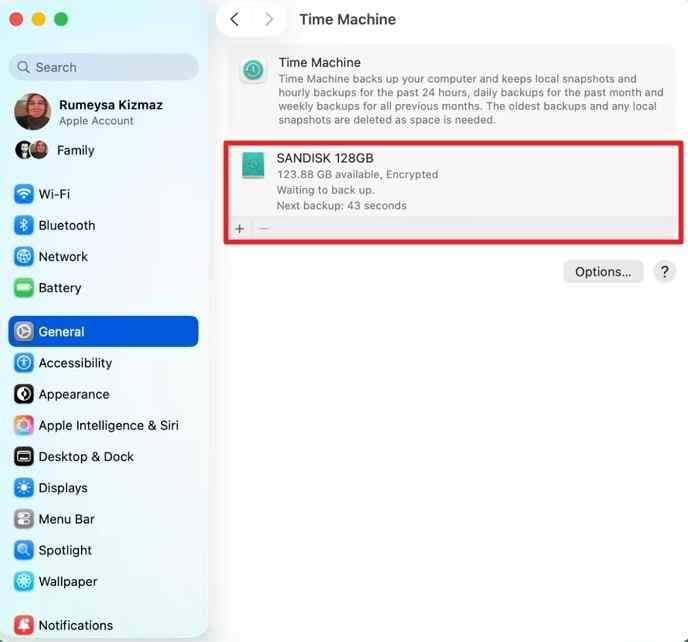
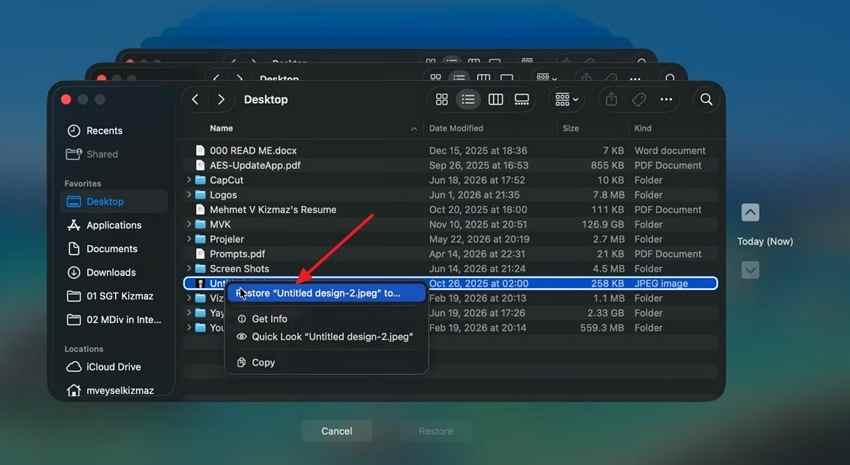
Time Machine can restore files only if the SD card files, or the Mac folder where they were imported, were included in a backup before the loss.
Step 1. Connect your Time Machine backup drive or make sure the backup location is available. Open Time Machine.
Step 2. Browse to the date and folder where the missing files existed, select the files, and click Restore.
Method 4. Recover Files with PhotoRec for Mac
PhotoRec is a free, open-source recovery tool that scans raw card data by file signatures. It can help with formatted or corrupted cards, but it runs through Terminal, does not preview files, and usually loses original filenames and folder structure.
If PhotoRec says no hard disk found, first check whether the SD card appears in Disk Utility. If it does not, try another reader or adapter. If it does appear, run PhotoRec from Terminal with administrator permission and make sure you select the physical card, not only an empty volume.
Step 1. Install PhotoRec from the official TestDisk/PhotoRec website, or install TestDisk with Homebrew if you already use it.
brew install testdisk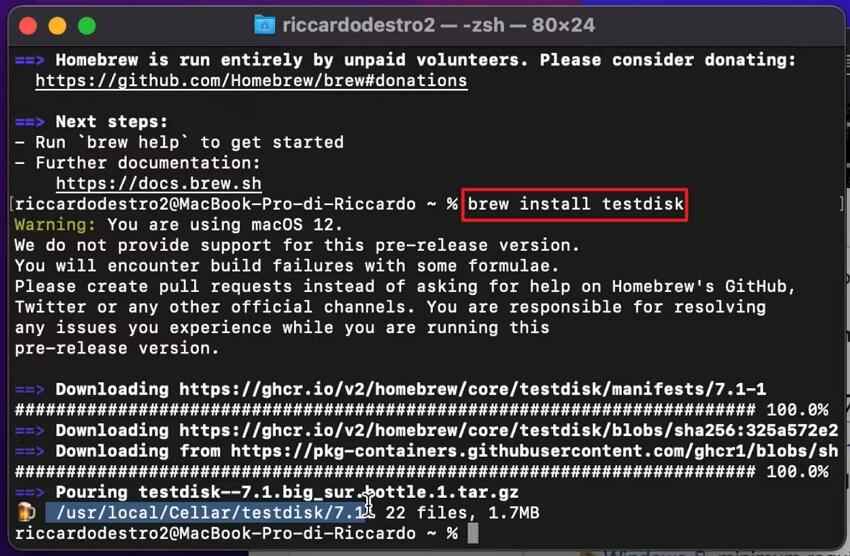
Step 2. Run PhotoRec with administrator permission, select the SD card, choose a recovery folder on another drive, and start scanning.
sudo photorec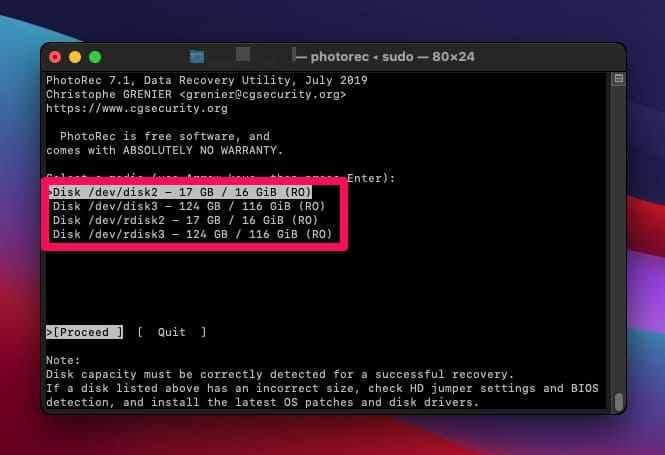
Method 5. Recover Lost Partitions with TestDisk
TestDisk is PhotoRec's companion tool. It is designed for lost partitions and damaged partition tables, not simple photo preview recovery. Use it carefully because writing partition changes to the wrong disk can create new problems.
Step 1. Open Terminal, run TestDisk with administrator permission, and choose the SD card drive.
sudo testdisk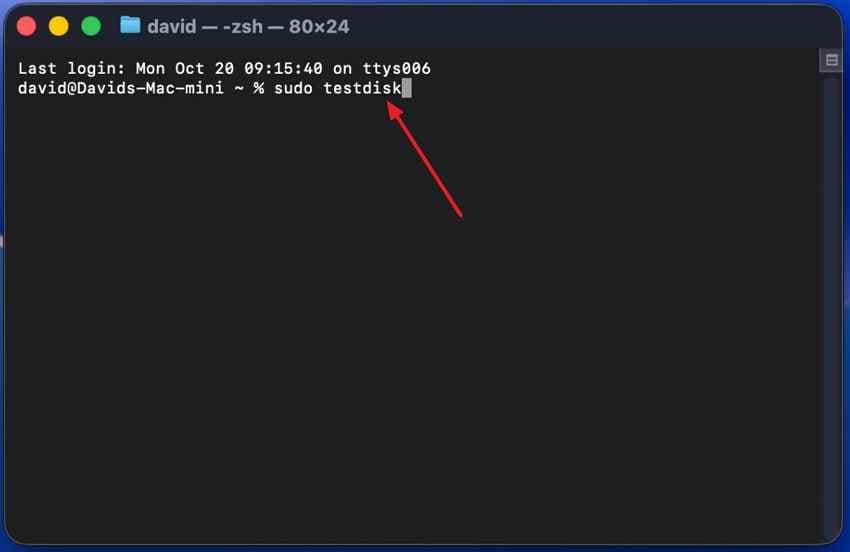
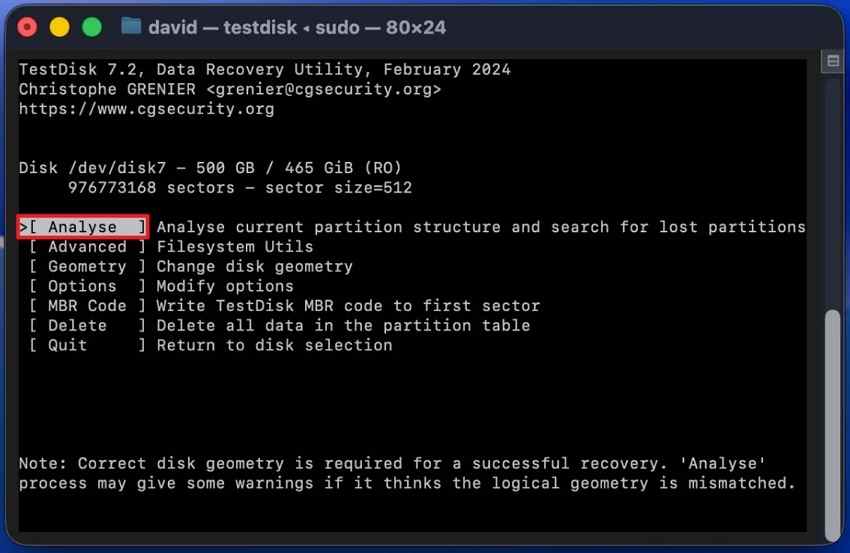
Step 2. Choose Analyse to search for lost partitions. Follow the prompts only if you are sure the listed partition belongs to the SD card.
Method 6. Recover Files with Disk Drill for Mac
Disk Drill is a paid Mac recovery tool with scan and preview options. It can be useful if you want to compare results with Recoverit or check whether files are visible before choosing a paid recovery route.
Step 1. Open Disk Drill, choose your SD card, and click Search for lost data.
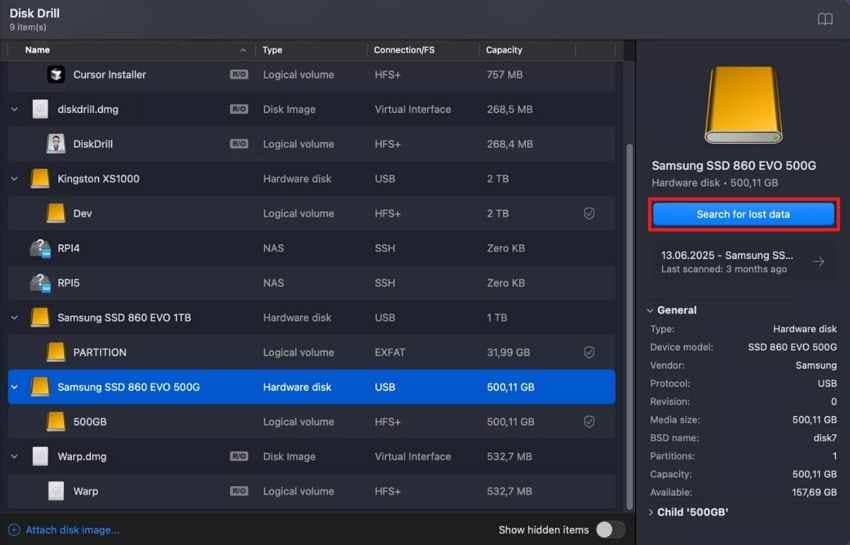
Step 2. Review the scan results, select the files you need, and recover them to another drive.
Part 5. How to Fix SD Card Errors on Mac After Recovery
Fix the SD card only after your important files are recovered or backed up. Mounting, First Aid, and Erase can change how macOS writes to the card.
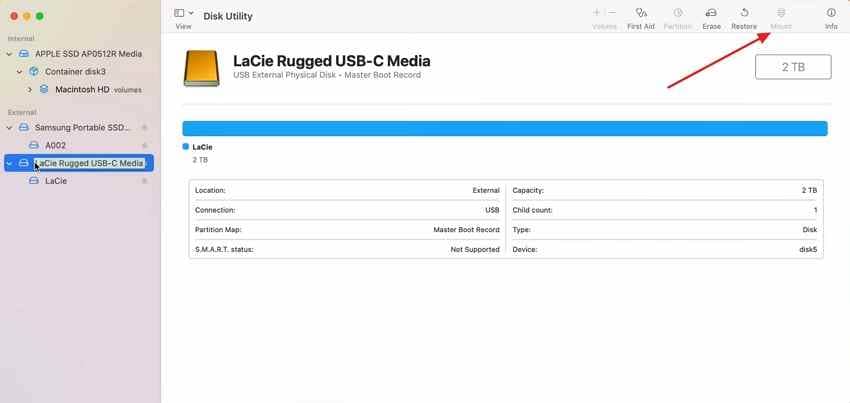
1. Mount or Remount the SD Card in Disk Utility
Open Disk Utility, select the SD card volume in the sidebar, and click Mount if the button is available. If the card mounts, copy your files immediately.
2. Run First Aid in Disk Utility
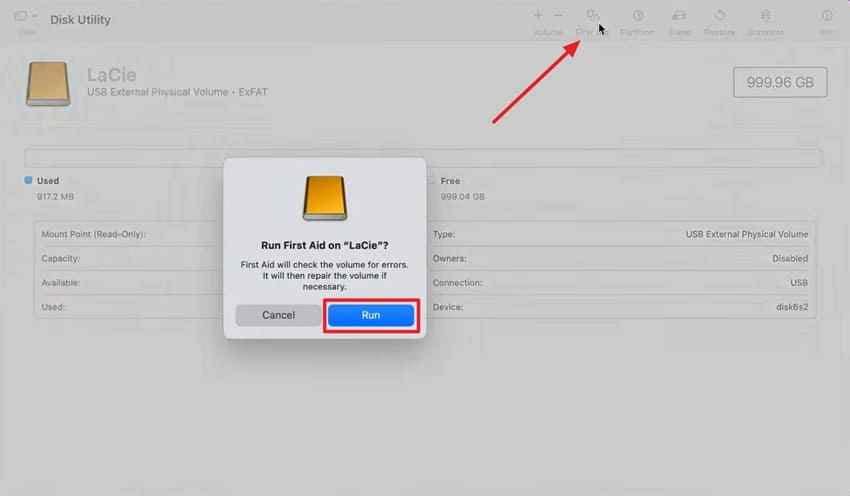
Disk Utility First Aid can check and repair certain formatting and directory structure errors. Run it after recovery if the card still has file system problems.
Instructions. Select the card volume in Disk Utility, click First Aid, click Run, and let macOS check the file system.
3. Show Hidden Files in Finder
Press Command + Shift + . in Finder to show hidden files. Check the SD card again before assuming files are deleted.
4. Reformat the SD Card in Disk Utility
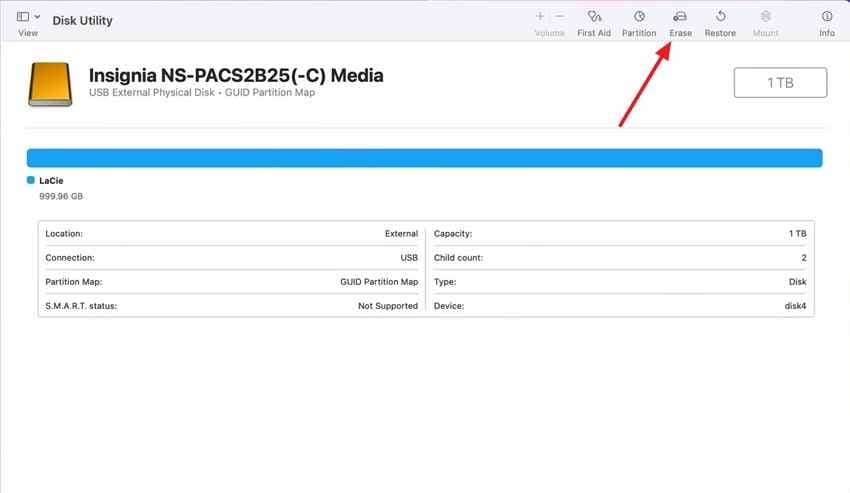
Erase the SD card only after recovery is complete. Apple Disk Utility can erase and reformat storage devices, but this removes the existing file system and can reduce later recovery chances.
Instructions. Open Disk Utility, select the SD card, click Erase, choose a compatible format such as exFAT for cross-device use, and confirm only after your files are safe.
5. Test Another Reader, Port, or Computer
If the card still will not mount, test another reader, USB-C adapter, Mac, Windows PC, or camera. If no device detects it, the card may have a hardware failure that software cannot fix.
Part 6. Best Mac SD Card Recovery Software Compared
Different Mac recovery tools fit different cases. Use this comparison to choose the safest option for your card.
| Tool | Cost | Preview | Best for | Main limitation |
| Recoverit | Free scan, paid recovery features | Yes | Deleted, formatted, RAW, corrupted, or inaccessible SD cards with a guided workflow | Cannot recover overwritten data or physically dead cards |
| PhotoRec | Free | No | Formatted or corrupted cards when you can use Terminal | No preview and original filenames are often lost |
| TestDisk | Free | No | Lost partitions or damaged partition tables | Risky if you write changes to the wrong disk |
| Disk Drill | Free scan, paid recovery features | Yes | Beginners who want a graphical Mac recovery interface | Paid recovery may be required after preview |
Best for Beginners
Recoverit and Disk Drill are easier for beginners because they provide a graphical workflow and file previews. They are better than command-line tools when you need to select files carefully.
Best Free Tool
PhotoRec is the strongest free option for many formatted or corrupted cards, but it requires Terminal and does not preserve filenames as cleanly as preview-based tools.
Best for Lost Partitions
TestDisk is the better fit for lost partitions and partition table problems. Use it cautiously, especially before writing changes to the card.
Best for Corrupted SD Cards
Recoverit is a practical first option when the SD card is detected but corrupted, RAW, formatted, or not visible in Finder. Use professional recovery if the card is not detected anywhere or has physical damage.
Part 7. How to Prevent SD Card Data Loss on Mac
Once your files are safe, reduce future recovery risk with better card handling and backups.
- Eject the SD card properly: Eject the card in Finder before removing it from your Mac.
- Back up important files: Use Time Machine backup, another backup drive, or cloud storage.
- Do not interrupt transfers: Wait until imports, copies, and camera writes are finished before removing the card.
- Use reliable adapters: Poor USB-C hubs and card readers can cause disconnects or failed scans.
- Format in the device that uses the card: Format a camera card in the camera after backup, not randomly across many devices.
- Replace aging SD cards: Retire cards that frequently show errors, slow saves, or mounting failures.
Conclusion
OS X SD card recovery works best when you stop using the card, check Disk Utility, avoid erase/repair steps until files are safe, and save recovered files to another drive. Use Trash or Time Machine if a backup path exists. Use Recoverit when the card is detected but deleted, formatted, RAW, corrupted, or inaccessible. Use PhotoRec or TestDisk if you need free Terminal-based options. If no Mac, reader, or computer detects the card, professional recovery is safer than repeated DIY attempts.
FAQ
-
Does Mac come with built-in SD card recovery software?
Mac does not include dedicated deleted-file recovery software for SD cards. Disk Utility can mount, check, and repair certain file system issues, and Time Machine can restore files only if a backup already exists. -
Why will my SD card not mount on my Mac?
The cause may be a faulty reader, USB-C adapter, damaged file system, unsupported format, partition problem, or hardware failure. Check Disk Utility first. If the card is detected but not mounted, recover important files before running First Aid or erasing it. -
Can I recover a formatted SD card on macOS for free?
Yes, PhotoRec and TestDisk are free options for macOS, but they run through Terminal and do not offer the same preview workflow as graphical tools. Stop using the card immediately after formatting to avoid overwriting recoverable data. -
Why does PhotoRec say no hard disk found on my Mac?
PhotoRec may not have permission to access disks, the SD card may not be detected, or the reader may be faulty. Check Disk Utility, try another reader, and run PhotoRec from Terminal with administrator permission. -
Is Recoverit safe to use for Mac SD card recovery?
Recoverit can safely scan readable SD cards on Mac and recover files to another drive. It should not be used as a hardware repair tool, and it cannot recover overwritten data or scan a physically dead card that no device detects. -
Should I run First Aid before recovering SD card files on Mac?
No, recover or back up important files first if the card is corrupted, RAW, or unreadable. First Aid can repair file system issues, but repair actions may change records that recovery software needs.



