 TL;DR:
SanDisk does not offer a proprietary formatting tool, so you must use the SD Association's SD Memory Card Formatter to restore standard formatting to SD cards, or rely on native OS and device tools for routine tasks and SanDisk USB drives.
● Secure your data before formatting because the process destroys file-system records, and executing an overwrite format or saving new files will make data recovery impossible.
● The SD Memory Card Formatter strictly supports SD-family cards, meaning you must use Windows File Explorer, Disk Management, DiskPart, or macOS Disk Utility to format a SanDisk USB flash drive.
● Apply FAT32 to SDHC cards up to 32GB and exFAT to SDXC cards above 32GB, then perform a second format inside your primary camera, drone, or phone to build the exact folder structure the device expects.
Ask AI for a summary
 ChatGPT
 Perplexity
 Gemini
 Claude
 Grok
Grok
If you are searching for a SanDisk card formatter, the first thing to know is that SanDisk does not offer a separate proprietary formatter for SD or microSD cards. For SanDisk SD, SDHC, SDXC, and SDUC cards, the closest official path is the SD Memory Card Formatter from the SD Association. For a SanDisk USB flash drive, use Windows, macOS Disk Utility, or the device that will use the drive.
Before formatting, decide whether the files still matter. Formatting is data-destructive. A quick format may leave some old data recoverable until overwritten, while overwrite formatting, new photos, or new videos can make recovery much harder. If files are missing, recover first and format later.
In this article
Part 1. Is There an Official SanDisk Card Formatter?
There is no standalone SanDisk-branded SD card format tool that most users should download. SanDisk support documents instead point users toward platform formatting methods and, for SD cards that show the wrong capacity, the SD Association formatter.
Does SanDisk Offer a Separate Proprietary Formatter?
No. SanDisk does not publish a separate proprietary SanDisk SD formatter for memory cards under names like SanDisk Card Formatter, SanDisk SD Formatter, or SanDisk SD Card Format Tool. Be careful with search results that offer old or generic formatter downloads using the SanDisk name. Those are not official SanDisk memory card tools.
Why SanDisk Users Are Often Directed to SD Memory Card Formatter
SanDisk's support article for restoring full card capacity directs users to download and use the SD Memory Card Formatter, while also noting that SanDisk Support cannot help with third-party software or hardware. That matters because the tool is hosted by the SD Association, not by SanDisk support. The SD Association says it was founded in January 2000 by Panasonic, SanDisk, and Toshiba, now KIOXIA, so it is the standards-based formatter most closely aligned with SD card specifications.
The SD Association says SD Memory Card Formatter 5.0.4 for Windows and 5.0.3 for Mac formats SD, SDHC, SDXC, and SDUC cards according to SD file-system specifications. It also says the formatter is preferred over generic OS tools for SD cards because operating-system tools are designed for many storage types and may not be optimized for SD cards.
When Windows, macOS, Camera, or Android Formatting Is Enough
Built-in tools are enough when the card is healthy, files are backed up, and you only need a routine quick format. For example, SanDisk's own Windows formatting instructions explain how to format a microSD or SD memory card through File Explorer and warn that formatting is data destructive and cannot be undone. Cameras, drones, Android phones, dash cams, and game devices may also prepare a card with the exact folder structure they expect.
SD Cards vs microSD Cards vs SanDisk USB Drives
The SD Memory Card Formatter is for SD-family cards: SD, SDHC, SDXC, SDUC, and microSD cards used through a proper adapter or reader. It is not a SanDisk USB formatter. If you need to format a SanDisk USB flash drive, use Windows File Explorer, Windows Disk Management, DiskPart, macOS Disk Utility, or the device where the USB drive will be used.
Part 2. Which SanDisk Formatting Method Should You Use?
Choose the formatting method by device type and problem. If files are missing, skip formatting for now and go to the recovery section first.
| Method | Platform | Best Use | File-System Control | Ease of Use | Main Limitation |
| SD Memory Card Formatter | Windows, macOS | Restoring SD-standard formatting or full card capacity | Automatic SD-optimized formatting | Easy | SD-family cards only, not SanDisk USB drives. |
| Windows File Explorer | Windows | Quick everyday format when the card appears normally | FAT32, exFAT, NTFS depending on capacity and device | Easy | Limited diagnostics; FAT32 formatting is limited for larger cards. |
| Windows Disk Management | Windows | Drive letter, partition, RAW, or wrong-volume issues | FAT32, exFAT, NTFS on supported volumes | Moderate | Formatting destroys data on the selected volume. |
| DiskPart | Windows | Advanced cleanup for stubborn partition layouts | Command-driven format and partition control | Advanced | Wrong disk selection can erase another drive. |
| macOS Disk Utility | macOS | Formatting SD cards or SanDisk USB drives on Mac | ExFAT, MS-DOS (FAT), APFS, Mac formats | Moderate | APFS and Mac-only formats are unsuitable for most cameras and phones. |
| Camera or Android formatting | Device | Preparing the card for that exact camera, dash cam, phone, or drone | Device decides | Easy | Usually no file-system choice and may fail if the card is corrupted. |
SD Memory Card Formatter for SD, SDHC, SDXC, and SDUC Cards
Use this when a SanDisk SD or microSD card shows the wrong capacity, was partitioned by another device, or needs SD-standard formatting. The official SD Association FAQ says its formatter is available only at sdcard.org and should not be downloaded from other websites.
Windows File Explorer for Quick Formatting
Use File Explorer when Windows already reads the card normally and you just need a quick format. This is convenient for routine reuse, but it is not the best first step if files are missing or the card is damaged.
Windows Disk Management for Partition and Drive Letter Issues
Use Disk Management when the card appears in Windows but File Explorer does not show it correctly. Microsoft's Disk Management guidance says it can create and format volumes and change drive letters, but it also warns that formatting destroys data on the partition.
DiskPart for Advanced Windows Formatting
Use DiskPart only when you understand disk numbers and have recovered or backed up files. Microsoft says DiskPart commands act on the selected object after you give it focus. That makes it powerful, but a mistaken select disk command can wipe the wrong drive.
macOS Disk Utility for Mac Users
Use Disk Utility for SanDisk cards or USB drives on a Mac when you need to erase the physical device and choose ExFAT or MS-DOS (FAT). If the SD Association formatter appears stuck for hours on macOS, cancel only if safe to do so, reconnect the card through another reader, and check whether the card is failing before trying again.
Camera or Android Formatting for Device Compatibility
Use the primary device's own formatting option when the card will stay in that camera, phone, drone, or dash cam. Device formatting can create the folder structure and file-system settings the device expects.
Part 3. What to Check Before Formatting a SanDisk Card
Before using any SanDisk card formatter alternative, check the card and protect the data. The right order is recover or back up first, then format.
| Check | Why It Matters | What to Do |
| Stop using the card if important files are missing | New photos, videos, or copies can overwrite recoverable data. | Remove the card and scan it before accepting a format prompt. |
| Back up or recover files before formatting | Formatting removes access to file-system records and can make recovery harder. | Copy readable files and recover missing files first. |
| Check the lock switch and read-only status | A locked full-size SD card or adapter can block formatting. | Move the switch to unlocked and try again. |
| Test another card reader, USB port, or computer | A bad reader or adapter can mimic card failure. | Try another reader and a direct USB port. |
| Confirm real capacity and device compatibility | Wrong capacity may mean bad partitioning, fake capacity, or unsupported SDXC/SDUC media. | Compare with the card label and device manual. |
| Check whether the card is genuine or physically damaged | Counterfeit and damaged cards may keep failing after formatting. | Inspect the card, test capacity, and replace if errors return. |
Part 4. Recover SanDisk Card Files Before Formatting
A format prompt can look like a fix, but it is often the point where users accidentally make recovery harder. If the SanDisk card contains important photos, videos, documents, camera files, or dash cam footage, recover first.
When SanDisk Card Recovery Is Possible
Recovery may be possible when files were deleted, the card was quick-formatted, the file system became RAW or unreadable, or a device asks to format the card. The card still needs to be readable through a card reader or computer, and the missing data must not have been overwritten.
When Recovery Software Cannot Scan the Card
Software recovery may not work if the card is physically broken, burned, water-damaged, heavily degraded, counterfeit with overwritten fake capacity, encrypted without the key, or not detected by multiple reliable readers. In those cases, stop using the card and consider professional data recovery if the files are critical.
Recover SanDisk Files With Wondershare Recoverit
Recoverit Memory Card Recovery can help recover deleted, formatted, or inaccessible files from a readable SanDisk SD, SDHC, SDXC, microSD, CF, or CompactFlash card through a card reader. Use it before running DiskPart clean, overwrite formatting, device reset, or repeated repair attempts. Recovery depends on detectability, card condition, overwriting, file fragmentation, and encryption.
You can also visit the Wondershare Recoverit site for broader data recovery resources, but this article's recommended product page is the memory card recovery page linked above.
How to Scan a SanDisk Card to Recover Data With Recoverit
Step 1. Connect the card and choose it.
Connect the SanDisk SD or microSD card through a compatible reader. Open Recoverit, choose SD Card Recovery, select the card, and start scanning.

Step 2. Scan and filter what returns.
Filter by file type, such as photos, videos, documents, or audio, and let the scan continue if the first results do not include the files you need.

Step 3. Preview, then save elsewhere.
Preview recoverable files, select what you need, and save the results to your computer or another external drive. Do not save recovered files back to the same SanDisk card.

Try Wondershare Recoverit to Perform Data Recovery
 Security Verified. Over 7,302,189 people have downloaded it.
What Not to Do Before Recovery
Do not format the card, do not run DiskPart clean, do not record new camera or dash cam footage, do not copy test files to the card, and do not repeatedly accept device repair prompts. Each write operation can reduce recovery chances.
Part 5. How to Format a SanDisk SD or microSD Card Safely
After important files are secured, formatting becomes straightforward. Pick the method that matches the card type and device.
Method 1. Format With SD Memory Card Formatter
Use SD Memory Card Formatter for SanDisk SD or microSD cards when you want standards-based formatting or need to restore full card capacity.
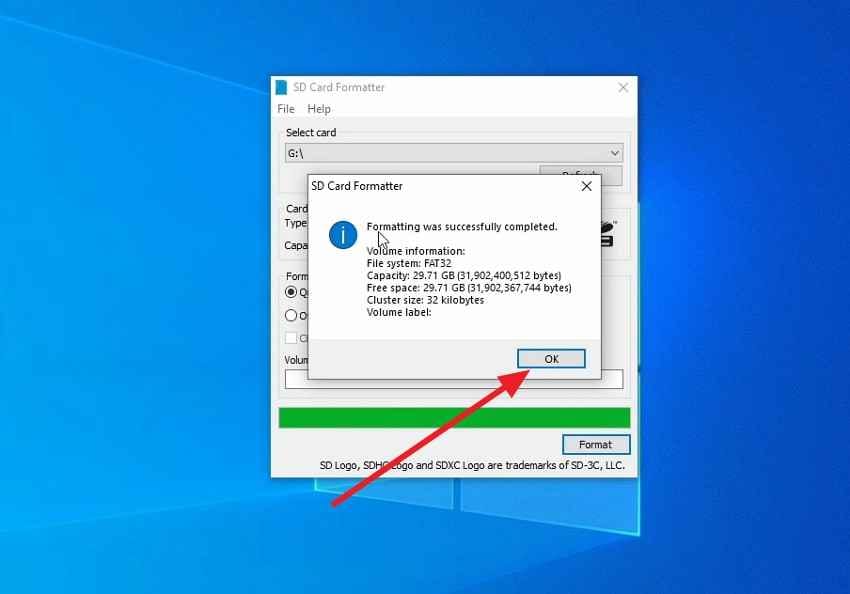
Step 1. Download the formatter from the SD Association, install it, insert the SanDisk card, choose the correct card, select Quick Format or Overwrite Format, and click Format.
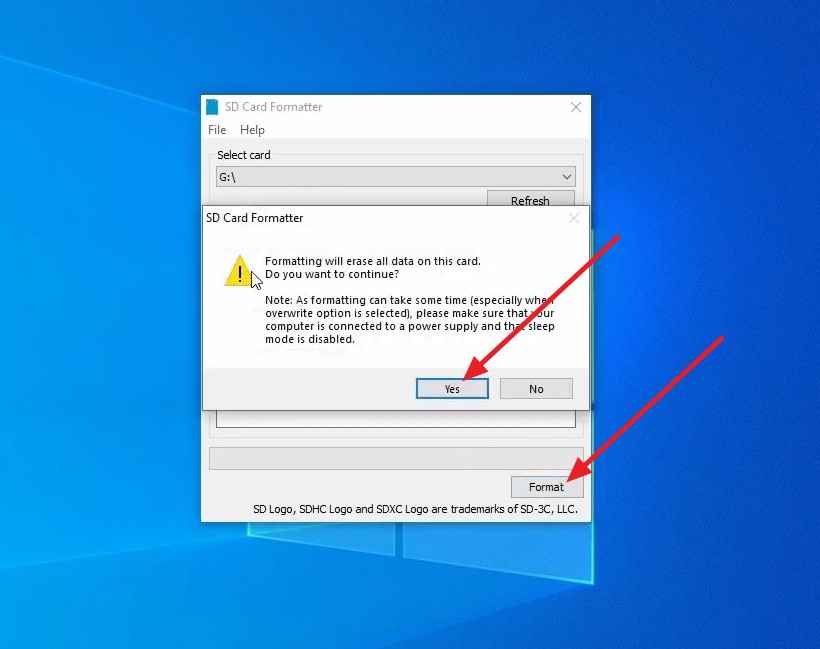
Step 2. Wait for completion, click OK, and safely eject the card.
Method 2. Format Inside a Camera or Android Device
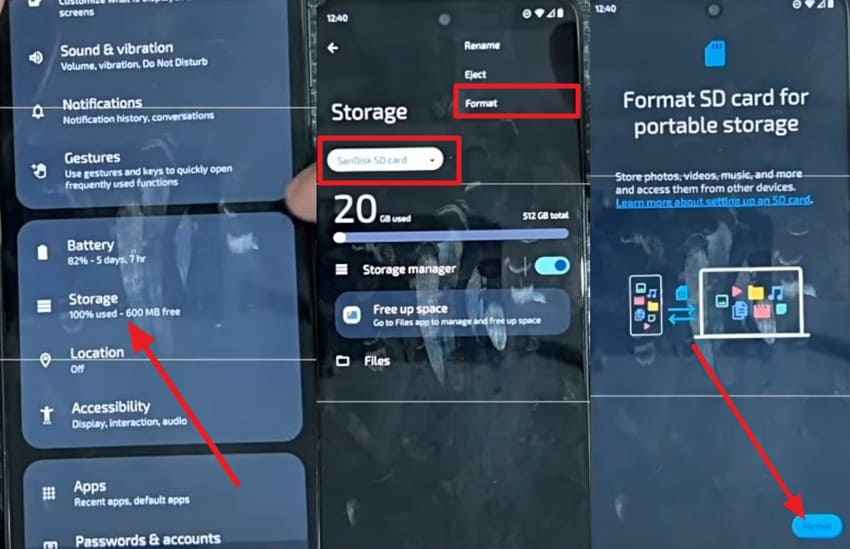
Use this when the SanDisk card will mainly live in that device. Cameras, dash cams, drones, and Android phones may create their own folder structure after formatting.
Instructions: On Android, open Settings > Storage, select the SanDisk card, open the menu, and choose Format. On cameras and dash cams, use Format, Initialize Card, or Format Memory Card in the setup menu.
Method 3. Format Using Windows File Explorer
Use File Explorer for quick formatting when Windows already detects the card normally.
Step 1. Open This PC, right-click the SanDisk card, and choose Format.
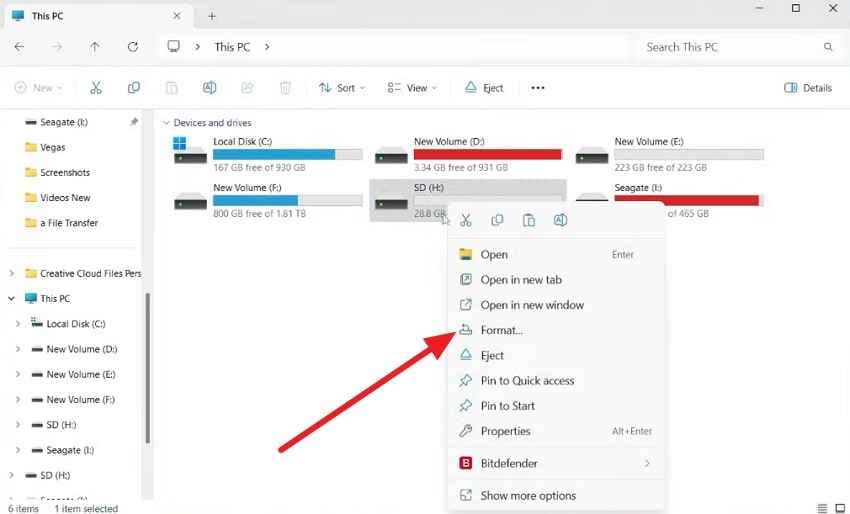
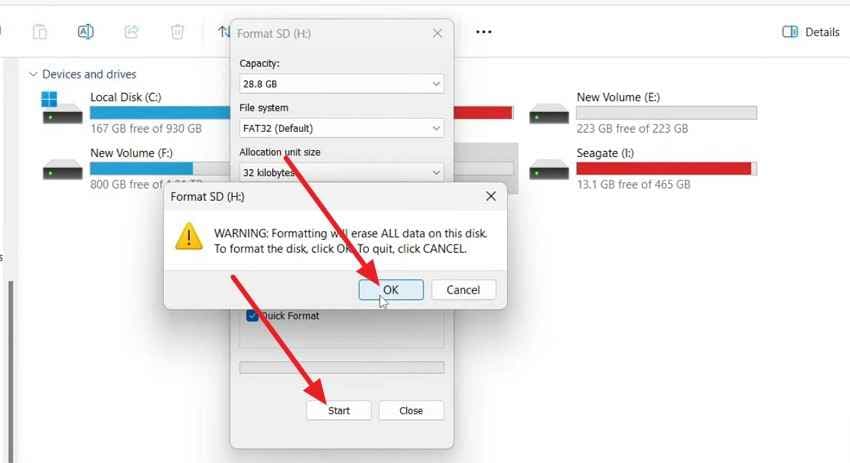
Step 2. Choose the file system and allocation unit size if needed, keep Quick Format selected for normal reuse, click Start, and confirm.
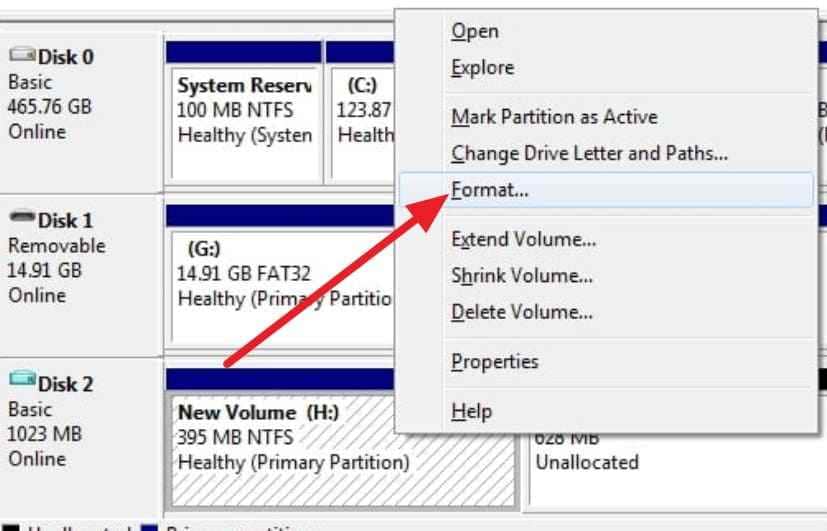
Method 4. Format Through Windows Disk Management
Use Disk Management when the card appears in Windows but File Explorer does not show the drive letter or volume correctly.
Step 1. Right-click Start, open Disk Management, identify the SanDisk card by size, right-click the correct volume, and choose Format.
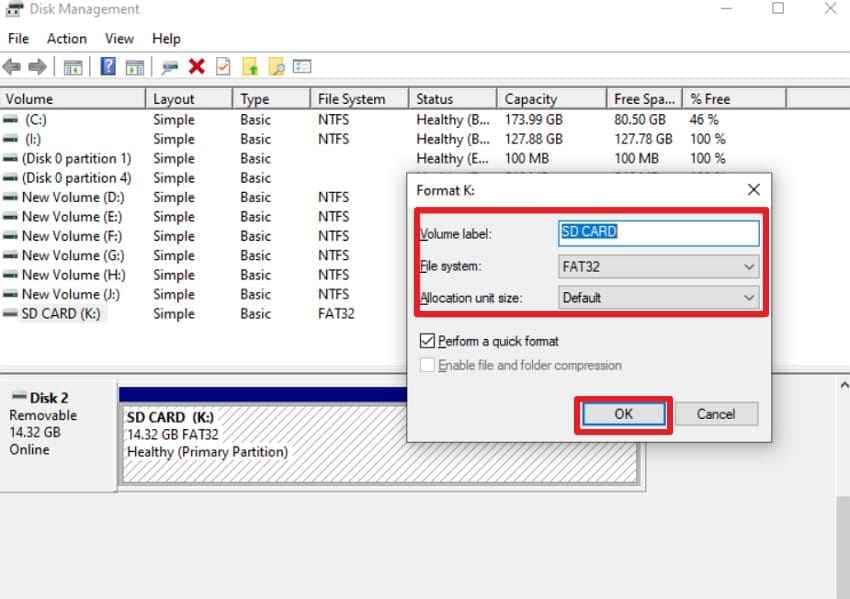
Step 2. Choose the file system, volume label, and Quick Format option, then click OK.
Method 5. Format Using DiskPart
Use DiskPart only for stubborn partition problems after files are backed up or recovered. It acts on disk numbers, so verify the selected disk carefully.
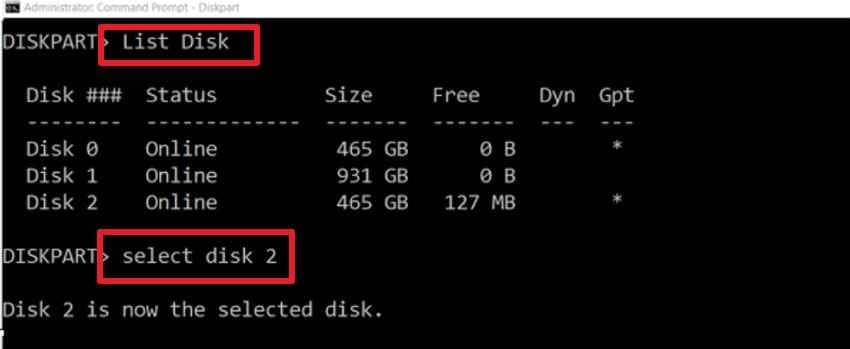
Step 1. Open Command Prompt as administrator. Type diskpart, then list disk. Identify the SanDisk card and run select disk X, replacing X with the correct disk number.
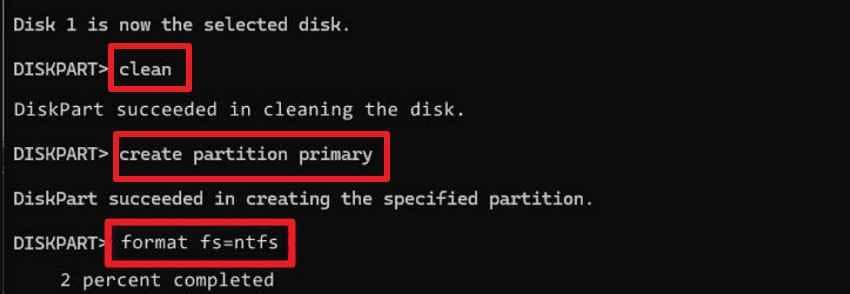
Step 2. Run clean, then create partition primary. Use format fs=exfat quick for most SDXC cards above 32GB, or format fs=fat32 quick when the device requires FAT32. Then run assign.
Method 6. Format With macOS Disk Utility
Use Disk Utility for SanDisk SD cards and SanDisk USB drives on Mac. Select the physical device when you need to erase and reformat the entire card or drive.
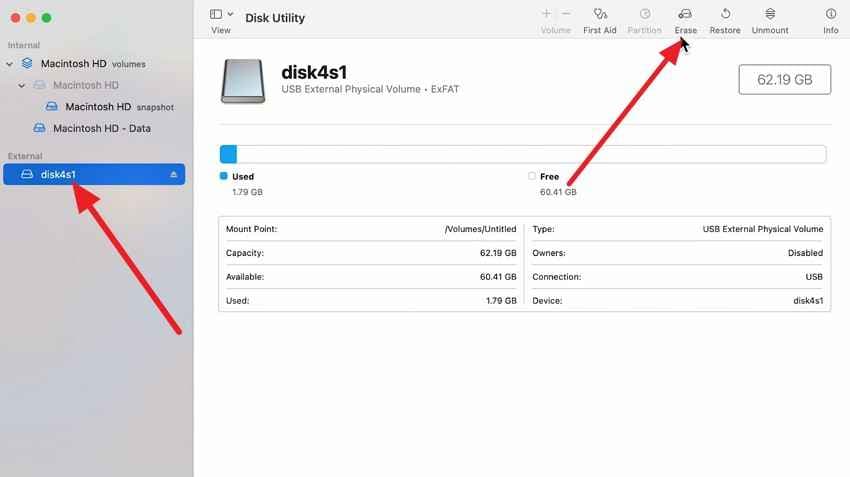
Step 1. Insert the card, open Disk Utility, select the SanDisk card under External, and click Erase.
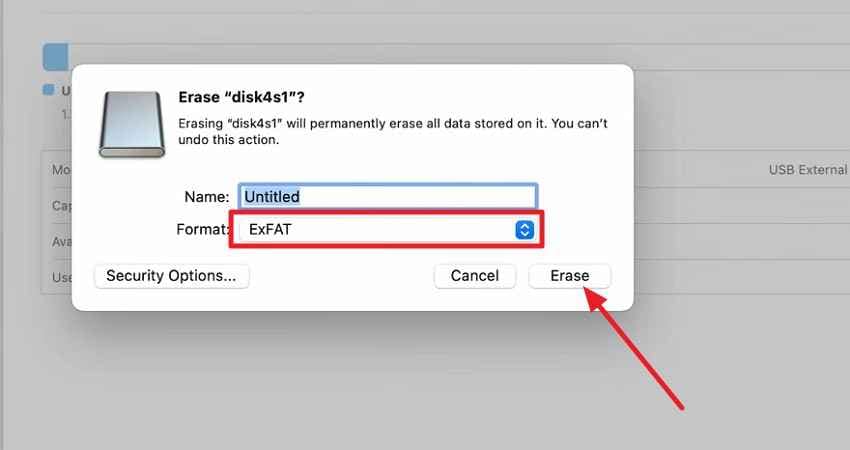
Step 2. Choose ExFAT or MS-DOS (FAT), click Erase, and click Done when it finishes.
Part 6. FAT32 vs exFAT for SanDisk Cards
Choosing the right file system matters as much as choosing the right SanDisk formatter. Cards are usually preformatted to match SD standards, so change the file system only when your device requires it.
| Card Type | Capacity Range | Standard File System | Best Use |
| SD | Up to 2GB | FAT12 or FAT16 | Older devices and small-capacity cards. |
| SDHC | Over 2GB to 32GB | FAT32 | Older cameras, handheld devices, and 32GB cards. |
| SDXC | Over 32GB to 2TB | exFAT | Modern cameras, phones, drones, dash cams, and large cards. |
| SDUC | Over 2TB to 128TB | exFAT | Future large-capacity SD cards and supported hosts. |
FAT32 for SDHC Cards Up to 32GB
Use FAT32 for SDHC cards from over 2GB to 32GB, especially when the card is used in older cameras, consoles, or embedded devices. FAT32 has a 4GB single-file size limit, so long videos may split into segments.
exFAT for SDXC Cards Above 32GB
Use exFAT for most SanDisk SDXC cards above 32GB. exFAT supports large files and is the standard file system for SDXC and SDUC cards. Many modern cameras, drones, Android devices, and computers support it.
Device-Specific File-System Requirements
Some older devices require FAT32 even on larger cards, while some modern cameras prefer exFAT for uninterrupted large video files. Always check the device manual before overriding the card's default file system.
Why NTFS Is Usually Wrong for Cameras and Phones
NTFS can work on Windows computers, but it is usually the wrong choice for SD cards used in cameras, drones, phones, game consoles, dash cams, and action cameras. Those devices commonly expect FAT32 or exFAT.
When to Reformat in the Primary Device
After formatting on a computer, format again inside the main camera, phone, drone, or dash cam when possible. This creates device-specific folders and reduces compatibility issues.
Part 7. How to Fix Common SanDisk Formatting Problems
If a SanDisk SD formatter alternative fails, identify the symptom before trying stronger fixes. Recover important files before formatting, cleaning, repartitioning, or replacing the card.
| Formatting Error | Likely Cause | Relevant Fix |
| SanDisk card is write-protected | Lock switch, adapter issue, read-only state, or failing card | Unlock the switch, try another adapter, and check whether the card is failing. |
| SanDisk card shows the wrong capacity | Partition layout problem, counterfeit card, or incompatible reader | Recover files, then use SD Memory Card Formatter or Disk Management and verify capacity. |
| Windows cannot complete the format | File-system corruption, write protection, bad sectors, or card failure | Try another reader, remove protection, then recreate the partition if files are safe. |
| SD Memory Card Formatter cannot detect the card | Reader, adapter, USB port, driver, unsupported media, or hardware failure | Test another reader, port, and computer before assuming the card is dead. |
| Card is RAW, corrupted, or not accessible | Damaged file system or interrupted write | Recover files first, then format with the SD Association tool or the primary device. |
| Card does not appear in Disk Management or Disk Utility | Reader failure, physical card failure, or connection issue | Try another reader and computer. If still undetected, software recovery may not scan it. |
Part 8. What to Do After Formatting the SanDisk Card
Formatting is not the final check. Confirm the card is stable before putting it back into a camera, drone, phone, dash cam, or recorder.
- Confirm the correct capacity appears: Usable capacity will be slightly lower than the label, but it should not be half or a tiny fraction of the advertised size.
- Test the card with several files: Copy files to the card, safely eject it, reconnect it, and open the files again.
- Format again inside the primary camera or device: This creates the folder structure and storage settings that device expects.
- Safely eject the card before removing it: Pulling the card during writes can corrupt the file system.
- Replace the card if errors return: Repeated format prompts, missing files, or capacity changes can indicate wear, counterfeit media, or hardware failure.
Conclusion
There is no separate official SanDisk card formatter for SD and microSD cards. For SD-family cards, use the SD Association's SD Memory Card Formatter when you need SD-standard formatting or full-capacity restoration. For routine jobs, Windows File Explorer, Disk Management, macOS Disk Utility, or the camera/Android formatter may be enough. For a SanDisk USB flash drive, use Windows or macOS tools rather than SD Memory Card Formatter.
The safest sequence is simple: stop using the card, recover or back up files, choose the right file system, then format. If the card keeps failing after a clean format, the issue is probably compatibility, counterfeit capacity, wear, or physical failure rather than the formatter itself.
FAQ
-
Is there an official SanDisk SD card formatter?
SanDisk does not provide a separate branded SanDisk SD card formatter. For SD, SDHC, SDXC, SDUC, and microSD cards, use the SD Association's SD Memory Card Formatter or the built-in formatting tool on Windows, macOS, cameras, or Android devices. -
Should I format a SanDisk card to FAT32 or exFAT?
Use FAT32 for SDHC cards over 2GB to 32GB. Use exFAT for most SDXC cards above 32GB and SDUC cards. If your camera, phone, dash cam, or console requires something different, follow that device's manual. -
Can Recoverit recover files after formatting?
Recoverit may help recover files after a quick format if the SanDisk card is readable and the data has not been overwritten. Overwrite formatting, new recordings, and continued use can reduce or eliminate recovery chances. -
Why does my SanDisk card still fail after formatting?
Repeated failures usually point to write protection, an incompatible device, counterfeit capacity, worn flash memory, reader problems, or physical damage. Test another reader and computer, then replace the card if errors return. -
Can SD Memory Card Formatter format a SanDisk USB drive?
No. SD Memory Card Formatter is for SD-family cards, including SD, SDHC, SDXC, SDUC, and microSD cards. For a SanDisk USB flash drive, use Windows formatting tools, Disk Management, DiskPart, or macOS Disk Utility.



