 TL;DR:
Recover a crashed Word document by immediately checking the built-in Document Recovery Pane and AutoRecover folders before attempting deeper storage scans to prevent overwriting recoverable data.
● Navigate to the "Recover Unsaved Documents" option or search the %temp% system folder for .asd files if your document lacked a standard saved path prior to the crash.
● Reserve the "Open and Repair" function strictly for files that display corruption errors or fail to load properly, and always save the rebuilt content under a new file name to protect the original data.
● Utilize Recoverit to scan original drives or external storage for missing DOC/DOCX files only when OneDrive version history fails or built-in recovery folders remain empty, ensuring you save any recovered draft to a different storage location.
Ask AI for a summary
 ChatGPT
 Perplexity
 Gemini
 Claude
 Grok
Grok
TL;DR
- Word Recovery Tools: First, check out the Document Recovery Pane and Recover Unsaved Documents.
- Read Hidden Recovery Locations: AutoRecover, UnsavedFiles, and temporary folders may contain unsaved drafts.
- Open and Repair Files That Reopen Incorrectly: Only use Open and Repair for files showing corruption errors.
- Check Backups Before Replacing Files: OneDrive, Windows Backup, and Time Machine may store earlier versions.
- Recoverit for Deeper Recovery: Scan drives, folders, and external storage when Word recovery options are not available.
Quick Answer: Start crashed Word document recovery by reopening Word and checking the Document Recovery Pane. If nothing appears, try AutoRecover, temporary files, or backups. For deeper recovery, use Recoverit to scan drives, folders, or external storage for missing DOC/DOCX files.
Microsoft Word can crash while editing, leaving recent changes invisible. Still, the document may remain in AutoRecover, a backup, or a temporary file location. These copies can hold text written before the crash that interrupted Word. Therefore, checking them first reduces the need for rewriting and protects available versions safely.
This article explains the crashed Word document recovery through a practical step-by-step recovery sequence. Next, it covers Word recovery tools, system folders, backups, and repair options. Users can compare recovered copies before restoring the most complete document. Moreover, the methods support safer recovery without changing the original file data.
In this article
-
- Fix 1. Recover Word Documents Using the Document Recovery Pane
- Fix 2. Use the "Recover Unsaved Documents" Option
- Fix 3. Recover Word Files from the AutoRecovery Folder
- Fix 4. Search Temporary Files After a Word Crash
- Fix 5. Repair Corrupted Word Files with Open and Repair
- Fix 6. Restore Word Files Using Time Machine Backup (Mac)
- Fix 7. Restore Previous Versions via OneDrive or Windows Backup
- Fix 8. Recover Lost Word Documents After a Crash with Recoverit
Part 1. Why Does Microsoft Word Keep Crashing?
Before starting any Word crash recovery process, it helps to understand why Microsoft Word closes unexpectedly. These causes show what usually interrupts editing and puts unsaved document changes at risk:
Common Causes of Microsoft Word Crashes
- Outdated Microsoft Word: Older program builds may contain unresolved bugs that disturb normal editing sessions. These issues often appear while saving, formatting, loading, or exporting documents.
- Faulty Add-ins: Extra plugins can clash with commands and affect normal document performance. Such conflicts may cause freezing, delayed responses, or unexpected program shutdowns.
- Large or Complex Documents: Files with images, tables, comments, or revisions require more memory. When the program cannot manage that load, documents may become unstable quickly.
- Corrupted Templates or Settings: Templates control page layout, formatting rules, and the editing environment. Corruption within these files can disrupt opening, formatting, or editing.
- Low System Resources: Limited RAM, storage, or processor capacity can weaken editing performance. Thus, heavy background programs may leave fewer resources for stable document handling.
How to Reduce Future Word Crashes
After identifying the common causes, the next step is to reduce crash risk before it disrupts another document. Below are the preventive habits that help Word run more steadily during writing, editing, saving, and formatting:
- Update Microsoft Word Regularly: New Word updates often fix bugs linked to saving, formatting, and file handling. Check for updates weekly, especially before working on long or important documents.
- Disable Unstable Add-ins: Some plugins run in the background and interfere with normal Word commands. Remove any add-in that causes delays, freezing, or repeated document crashes.
- Repair Microsoft Office: A damaged Office installation can make Word close without a clear warning. Use the repair option when crashes continue after updates and restarts.
- Reduce Large Document Load: Heavy files become harder to manage when images, tables, and comments increase. Save complex chapters separately instead of keeping everything in one file.
- Close Heavy Background Apps: Word needs enough memory and processor space during active writing sessions. Before editing, shut down browsers, games, or other tools that are consuming system resources.
Part 2. Can Microsoft Word Crashes Permanently Delete Documents?
A Word crash does not always mean the document has been permanently erased. This part explains what usually happens after Word closes suddenly and where copies of unsaved files may still exist:
What Happens to Unsaved Files After a Crash?
After a crash, Word may keep a recovery copy instead of deleting the work immediately. AutoRecover data, temporary files, or backup versions can still hold recent text. Crashed Word document recovery should begin before reopening and editing multiple files, because new changes may overwrite the most useful recoverable version.
Can You Recover a Word File That Was Never Saved?
Yes, a never-saved Word file can sometimes return through AutoRecover or UnsavedFiles storage. Since it has no normal saved path, users must check Word's recovery areas carefully. A Word crash recovery document situation often depends on whether Word created temporary data before the crash.
Where Do Unsaved Word Documents Go After a Crash?
Unsaved documents usually remain in the AutoRecover location, the Office UnsavedFiles storage. Since it has no normal saved path, users must check Word's recovery areas carefully. A Word crash recovery document situation often depends on whether Word created temporary data before the crash.
Part 3. Word Document Recovery After a Crash: 8 Easy Fixes That Work
Once users understand where unsaved files may remain, recovery becomes easier to handle. The following methods move from built-in recovery options to deeper recovery paths when needed:
Fix 1. Recover Word Documents Using the Document Recovery Pane
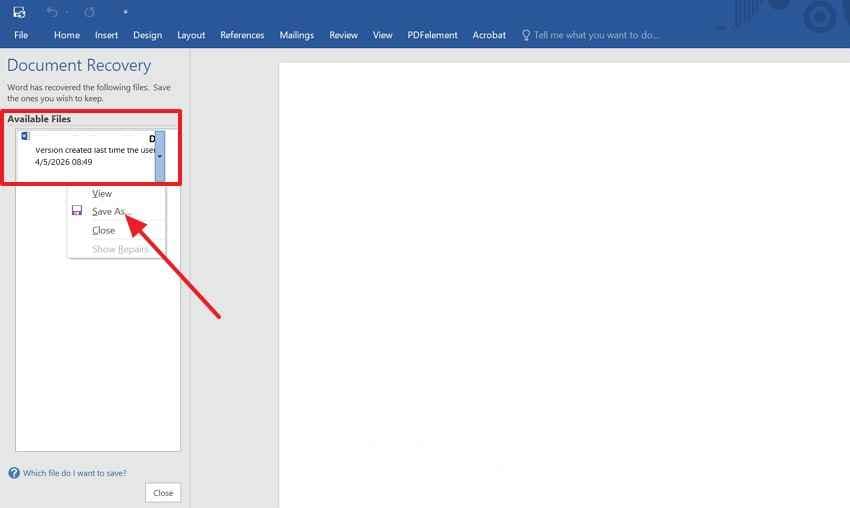
Crashed Word document recovery often starts with the Document Recovery Pane, because Word may automatically show recoverable drafts after reopening. This pane lists files saved before the crash interrupted editing, helping users choose the latest available version. Follow the instructions below to review the pane and restore the correct draft safely:
- Reopen Microsoft Word after the crash and select the latest draft from the Document Recovery Pane.
- Check the content, then press "File > Save As," rename it, and save it in a safe folder.
Fix 2. Use the "Recover Unsaved Documents" Option
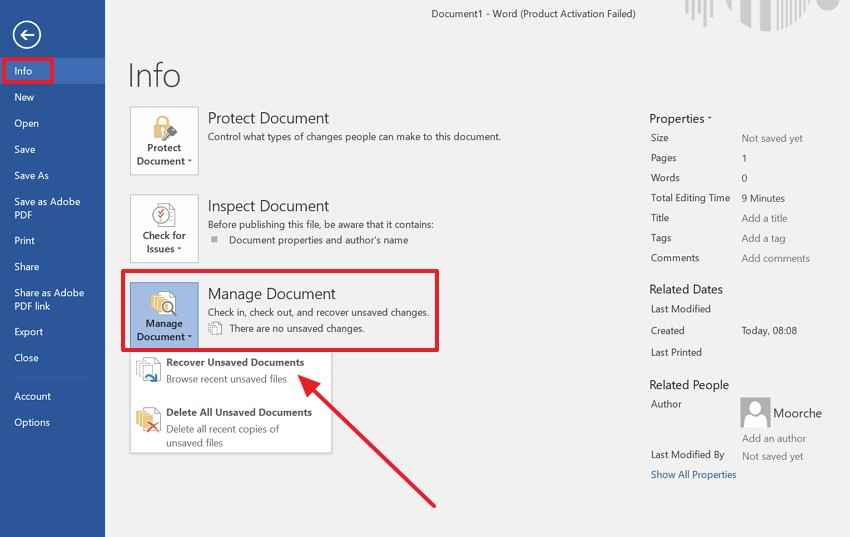
The Recover Unsaved Documents option is useful when the recovery pane does not appear. It opens Microsoft Office's unsaved file location, where drafts may remain after sudden closure. Therefore, this method works best for recently created files without a saved path. Adhere to the steps below to access and restore the missing document:
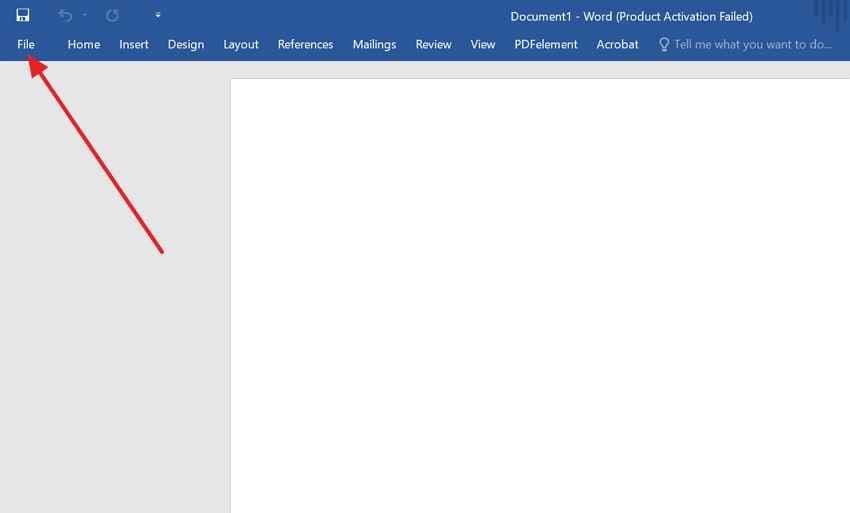
Step 1. Start by navigating to the "File" option on the top left corner to further select the "Info" from the left panel.
Step 2. Next, in the Info tab, select the "Manage Document," then press the "Recover Unsaved Document," to access unsaved drafts.
Fix 3. Recover Word Files from the AutoRecovery Folder
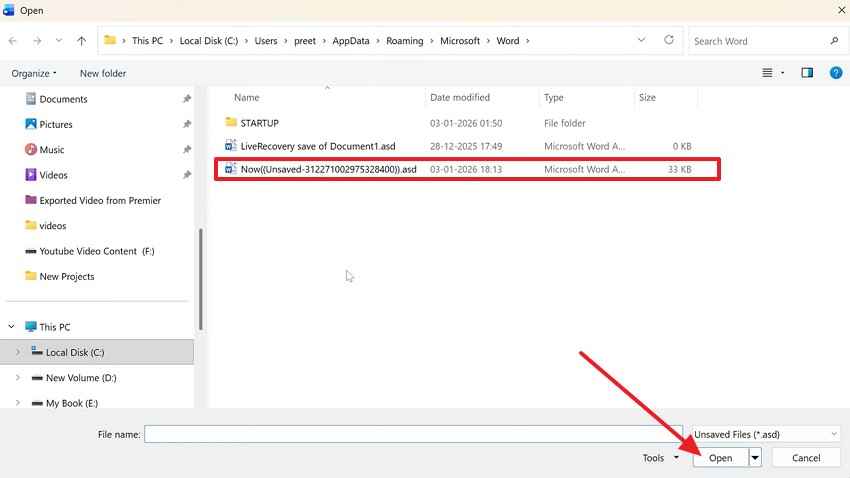
The AutoRecover folder stores timed copies that Word creates while a document is active. For crashed Word document recovery, this location becomes important when no recovery prompt appears. Meanwhile, checking file dates can help identify the latest usable version. Use the following steps to locate and restore AutoRecovery files:
Step 1. In Word, press "File > Options > Save" and copy the path shown beside "AutoRecover File Location."
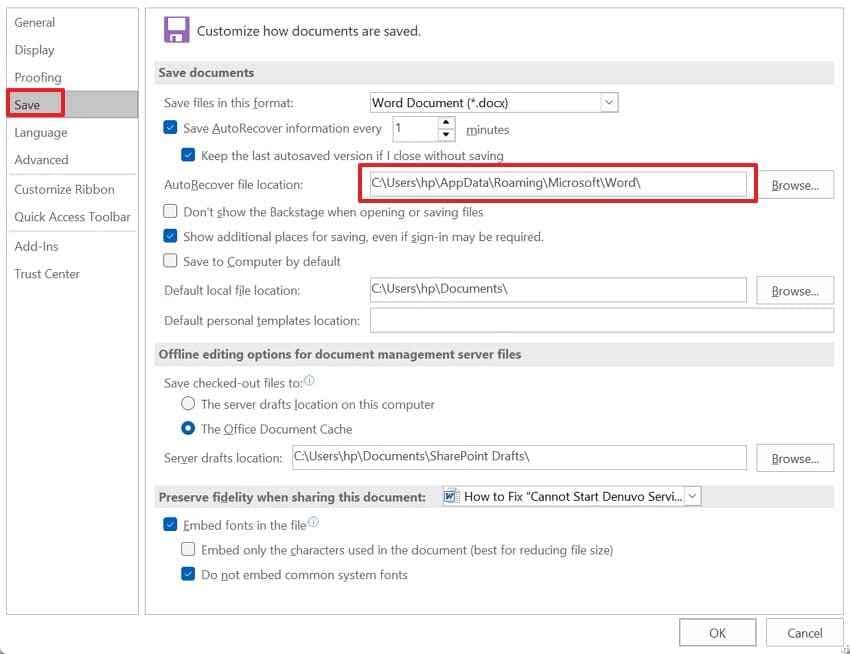
Step 2. Afterward, press "Windows + E" to launch File Explorer, then paste the copied path into the address bar and press "Enter." Next, look for the recent .asd file, open it in Word, then save it separately.
Fix 4. Search Temporary Files After a Word Crash
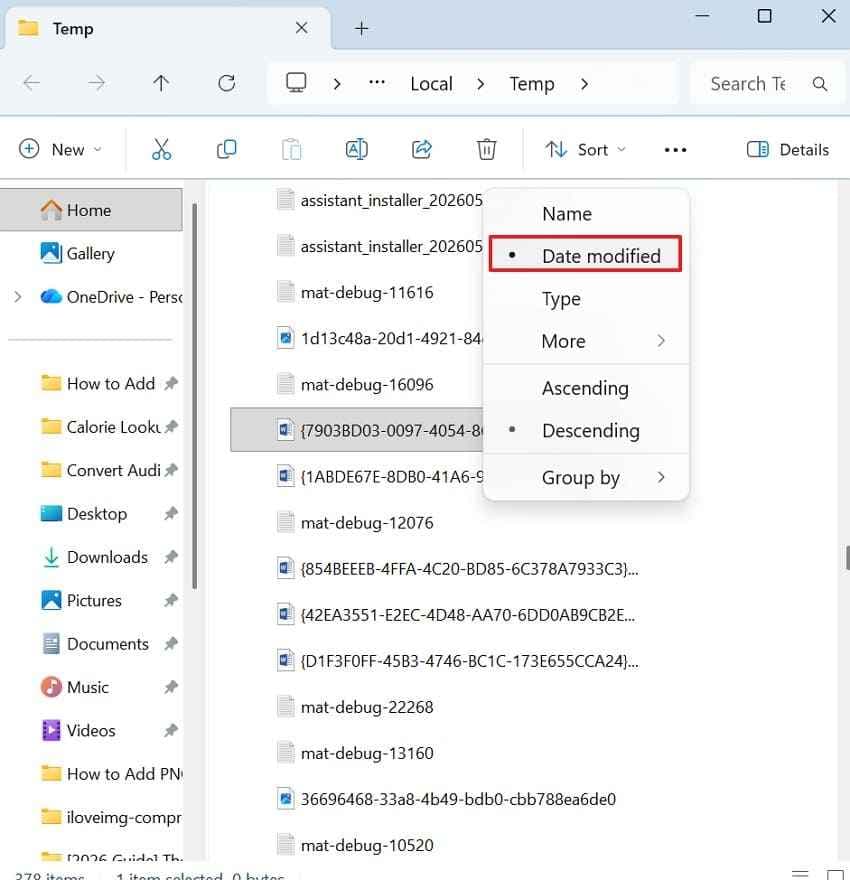
Temporary files can hold partial document data when standard Word recovery options fail. Their names may look unusual, so users should check file dates, extensions, and storage locations carefully. In some cases, these files preserve text from the interrupted session. Thus, follow these steps to search temporary folders properly:
Step 1. Press "Window+ R" and type the command "%temp%" in the Run dialog box and press "Enter."
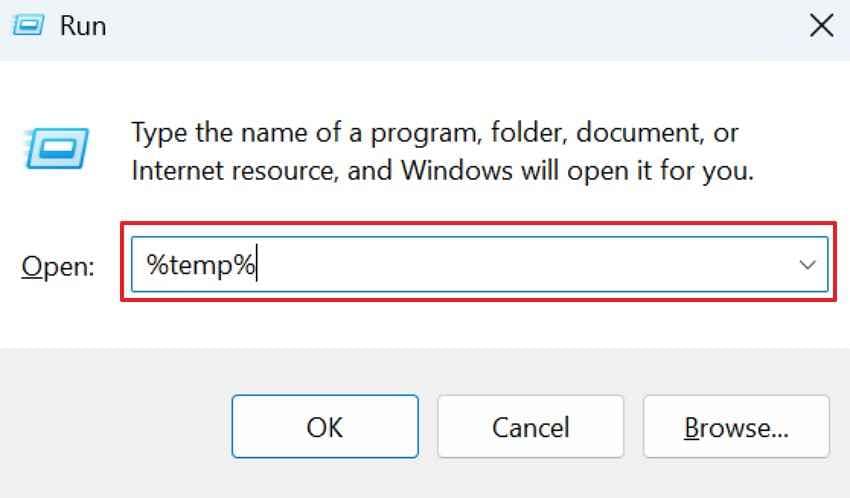
Step 2. After that, click "Sort," choose "Date modified," then select "Descending" to show the newest files first. Open likely Word temporary files and save readable content as a new document.
Fix 5. Repair Corrupted Word Files with Open and Repair
Blank pages, unreadable text, missing sections, or broken formatting often suggest corruption. So, Open and Repair help Word rebuild the file structure and recover readable content. For crashed Word document recovery, this method fits files that still exist but fail to load. Afterward, follow these steps to repair the document without replacing the original copy:
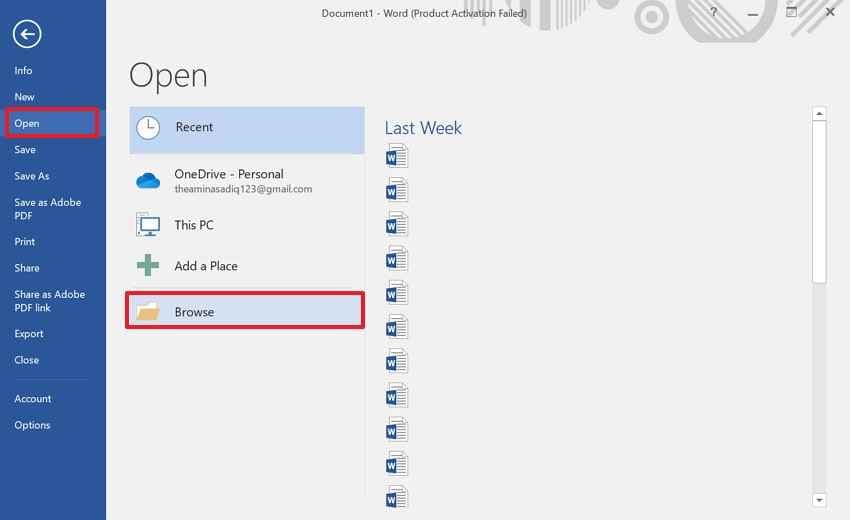
Step 1. Access the Word and go to "File > Open > Browse" to locate the damaged document.
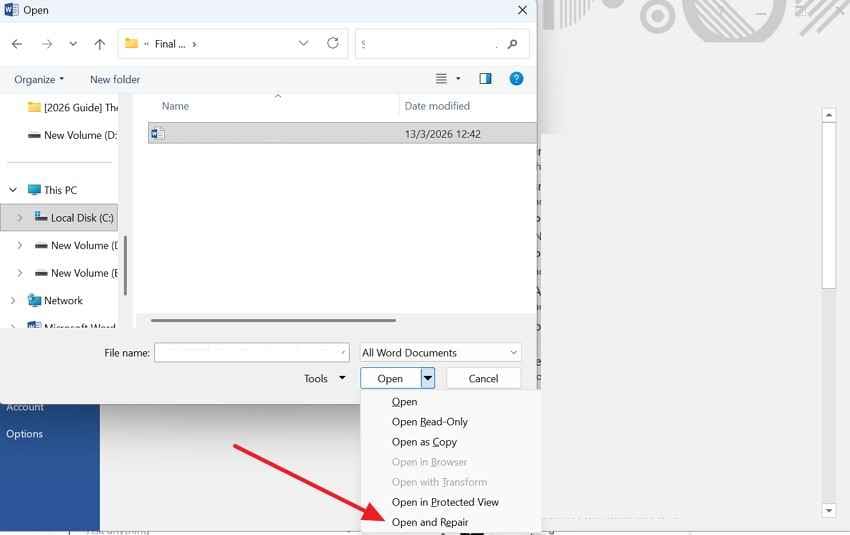
Step 2. Later, select the file, press the arrow beside "Open," and choose the "Open and Repair" option from the drop-down menu. If Word restores readable content, press "File > Save As" immediately. Then, choose a new file name to protect the original corrupted document.
Fix 6. Restore Word Files Using Time Machine Backup (Mac)
Mac users can check Time Machine when Word's recovery folders show no useful copy. A previous backup may contain an earlier version saved before the crash happened. This route works best for documents already stored on the device. Therefore, move through these steps to restore the backup version:
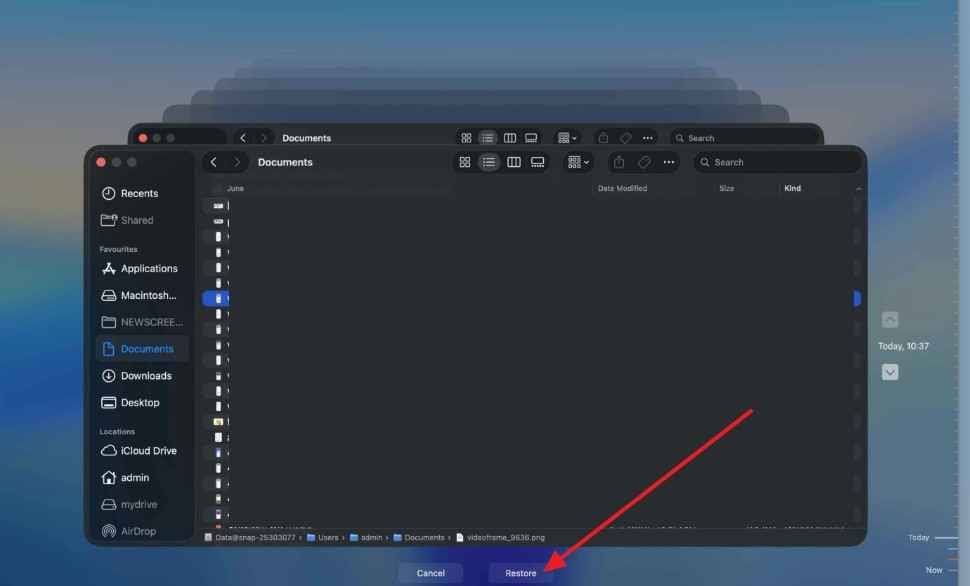
Step 1. First, search for "Time Machine" and select "Enter Time Machine."

Step 2. Next, move through earlier backups and choose the version saved before the crash. Afterward, select the required Word file and press "Restore." After restoration, open the document and save a separate copy if needed.
Fix 7. Restore Previous Versions via OneDrive or Windows Backup
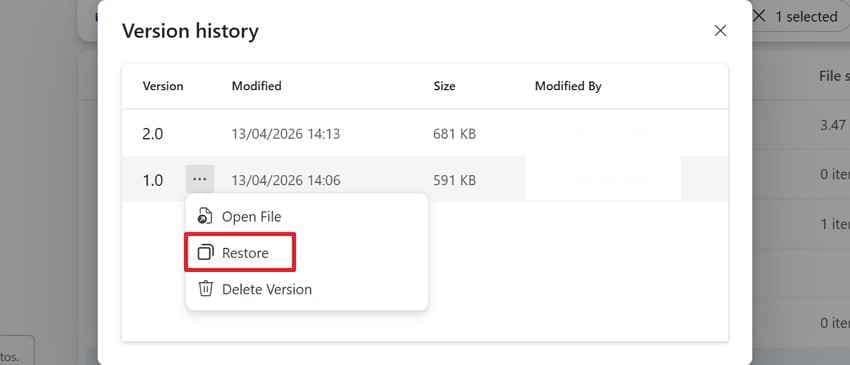
OneDrive, SharePoint, and Windows Backup may store earlier copies after an unexpected Word closure. Earlier versions help when recent edits vanish, or the saved file looks incomplete. Version history supports crashed Word document recovery by allowing users to compare dates before restoration. Follow these steps to recover the safest copy without overwriting the current work:
Step 1. Go to the OneDrive folder containing the Word document. Now, right-click the file, choose "Version History," and review available versions.
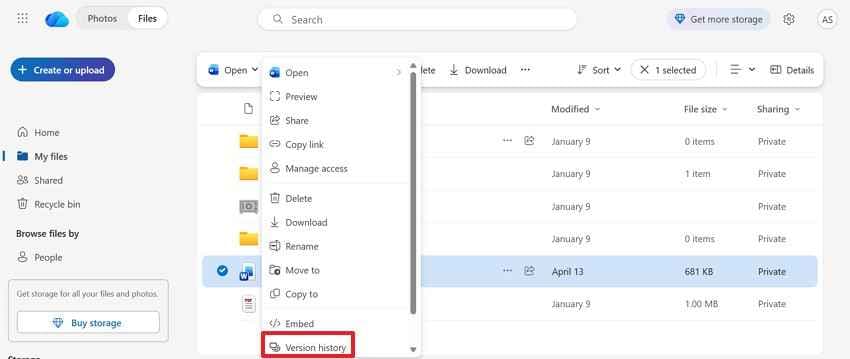
Step 2. After that, select the earlier version and press "Restore" to recover.
Fix 8. Recover Lost Word Documents After a Crash with Recoverit
A full day's edits can disappear in seconds when Word freezes, restarts, or closes during an update. After reopening the file, the Document Recovery Pane may stay empty, while the Unsaved Documents folder shows only yesterday's draft. Cloud version history can also fail when syncing stops, storage runs out, or the latest changes never upload before the crash completes properly.
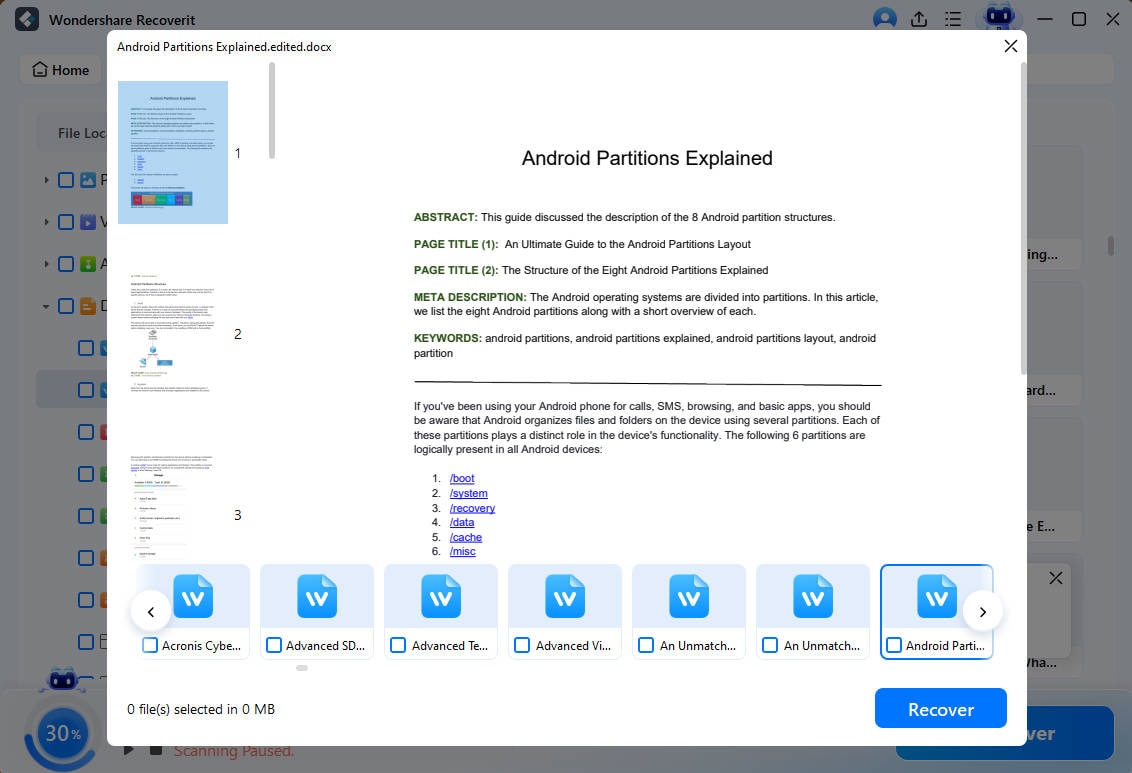
At this stage, the problem becomes a Word-crashed recover document case, not a simple Word menu issue. Recoverit Word Recovery can scan the original drive, the Desktop, a USB device, or the path to a lost file for missing DOC and DOCX files. Its filters narrow results, while preview helps confirm the correct version before saving it safely elsewhere, without overwriting damaged copies or older drafts.
Key Features
- AI-Accelerated Scanning: Find missing Word files faster when standard recovery folders return no usable document copy after crashes.
- Disk Image Recovery: Protect unstable drives by recovering Word documents from copied disk images rather than repeatedly scanning the originals.
- Windows and Mac Support: Handle recovery across Windows and Mac systems without changing the main document recovery approach for users.
Guide to Recover Crashed Word Documents Using Recoverit
After understanding why Recoverit helps, the next step is using it correctly. These steps show how to safely scan, preview, and restore crashed Word documents:
Step 1. Go to "Hard Drives and Locations" in Recoverit and select the drive, folder, Desktop, or USB where the Word document was last stored.

Step 2. After the scan begins, use "File Type" or the search bar to find "DOC" and "DOCX" files faster.

Step 3. Once the correct Word file appears, click "Recover" and choose a different storage location. Avoid saving it back to the original folder because it may overwrite recoverable data.
Part 4. 7 Ways to Avoid Word Document Loss in the Future
Recovery solves the immediate problem, but the prevention process documents the next crash. These safeguards keep work recoverable even if Word closes unexpectedly again:
- Turn On AutoRecover: AutoRecover creates timed copies of documents while users continue writing or editing. A shorter interval protects recent changes before a sudden Word shutdown.
- Enable AutoSave with OneDrive: AutoSave records changes continuously as files remain in OneDrive storage. Cloud syncing keeps the latest copy available across connected devices.
- Save Before Major Edits: Manual saving creates a checkpoint before making changes to layouts, images, or sections. This habit prevents one failed edit from damaging earlier work.
- Maintain Backup Copies: Backup copies preserve important documents in the event of corruption. Keep them on another drive, in another folder, or in a safe cloud account.
- Use Version History: Version history records earlier document states after major changes or syncing. Users can return to a previous copy instead of rebuilding content.
- Avoid Editing Email Attachments: Attachments may open from temporary locations that do not save reliably. Thus, download each file into a fixed folder before making edits.
- Set Up File History or Time Machine: File History or Time Machine can capture document versions from selected folders. This protects work outside Word when crashes, deletions, or corruption happen suddenly.
Conclusion
To conclude, a Word crash does not always mean permanent document loss. AutoRecover, UnsavedFiles, temporary folders, backups, and version history can help restore missing work when checked in the right order. For safer crash Word document recovery, avoid overwriting files before comparing available copies. When built-in options fail, Recoverit can serve as a practical final option for deeper Word file recovery.
Frequently Asked Questions
-
Can I recover an unsaved Word document after a crash?
Yes, Word may keep AutoRecover copies after an unexpected crash or shutdown event. Open Word first, then check the Document Recovery and Recover Unsaved Documents options carefully. -
Where are unsaved Word documents stored after a crash?
Unsaved files may appear in AutoRecover, UnsavedFiles, or temporary system folders after crashes. Their location depends on AutoRecover settings, operating system, and previous saving habits. -
Can a never-saved Word file be recovered?
A never-saved document can still return if Word created temporary recovery data earlier. Check UnsavedFiles and AutoRecover locations before assuming the document is permanently lost. -
What should I do if Word recovery options fail?
Search backups, previous versions, OneDrive history, and temporary files for recoverable copies. When these options fail, Recoverit can scan deeper storage locations for documents.



