


 TL;DR:
Online PDF password recovery tools can unlock files with weak or partially remembered passwords, but they cannot guarantee access against strong encryption and should only be applied to legally authorized documents.
● LostMyPass and iFindPass offer free browser-based attempts that work best when you provide password hints, while Password-Online uses server-side processing for unknown passwords but struggles with long symbolic combinations.
● If you can still open the document, you can bypass restrictions by printing to a new PDF via Google Chrome or resaving it through Google Drive, though Drive may alter complex formatting and Chrome requires active printing permissions.
● For dedicated desktop software, Dr.Fone DocPassRemover handles password decryption, whereas Recoverit is strictly designed to restore missing or deleted PDF files from storage drives and cannot unlock password protection.
Ask AI for a summary
 ChatGPT
 Perplexity
 Gemini
 Claude
 Grok
Grok
TL;DR
For a clearer overview, the key points below explain where online recovery helps, where it fails, and what users should try next:
- Recovery Limits: Online tools work better with weak, reused, or partly remembered PDF passwords.
- Tool Options: LostMyPass, Password Online, and iFindPass support different recovery attempts.
- Safe Access: Google Drive, Chrome, and Dr.Fone DocPassRemover help when access is still possible.
- Recoverit Role: Recoverit restores deleted or missing PDFs, not locked document passwords.
- Prevention Tips: Secure passwords, keep backups, and review PDF protection before sharing.
Quick Answer: Online PDF password recovery free tools can help recover weak or partly remembered PDF passwords. They cannot guarantee access for strong encryption, so users should try authorized tools carefully and use Recoverit only when the file is lost or deleted.
PDF passwords protect private reports, contracts, invoices, forms, and study files from unwanted access. However, the same protection becomes stressful when users forget the password or receive a restricted document they cannot edit or open properly.
Thus, this article explains when online PDF password recovery free methods can help and when they cannot. It also guides users through safer options for removing known restrictions, checking file access, and handling locked PDFs carefully without risking important document content or privacy.
In this article
-
- 1. Recover Forgotten PDF Password Online with LostMyPass
- 2. Recover PDF Password Online with Password-Online
- 3. Try iFindPass Online PDF Password Recovery
- Comparison Table: Best Free Online PDF Password Recovery Tools
- What If Online PDF Password Recovery Fails?
- Alternative Ways to Access Locked PDF Files
Part 1. Can You Recover a PDF Password Online?
Yes, users can sometimes recover a PDF password online, but results depend on password strength, encryption type, and tool capability. However, password-protected PDF files cannot always be unlocked, especially when the password is complex or ownership is unclear. Online recovery tools work best for authorized documents with weak, reused, or partially remembered passwords.
Is PDF Password Recovery Legal?
PDF password recovery is legal only when the file belongs to the user or the permission is clear. That said, unlocking someone else's protected document can become unauthorized access. Users should recover passwords for personal, work-approved, or client-authorized files only, and avoid uploading confidential PDFs to unknown tools without consent online safely.
How Online PDF Password Recovery Tools Work
Online PDF password recovery tools do not magically open a locked file. They analyze the file's protection, then run controlled password guesses using wordlists, patterns, symbols, numbers, or user-provided hints. For online PDF password recovery cases, shorter or familiar passwords are easier, while long random combinations can take extremely long or fail entirely during testing.
However, no online service can guarantee recovery for every protected PDF. Strong encryption, missing clues, and complex passwords reduce the chance of success. Moreover, safety depends on how the platform handles uploaded files and stored data. Therefore, users should check privacy terms, HTTPS, deletion policy, and reviews before sharing sensitive PDFs.
Part 2. 4 Best Free Online PDF Password Recovery Methods to Try
Password recovery limits vary across tools, file types, and encryption strength. Still, these free online PDF password recovery methods can help in suitable cases:
1. Recover Forgotten PDF Password Online with LostMyPass
For forgotten open passwords, LostMyPass provides a browser-based recovery option instead of a basic unlock function. This PDF file password recovery online method tests possible password matches through its recovery system. However, the result depends on password strength, remembered clues, encryption type, and whether the file owner has authorized access. Follow these steps to try LossMyPass to recover forgotten passwords:
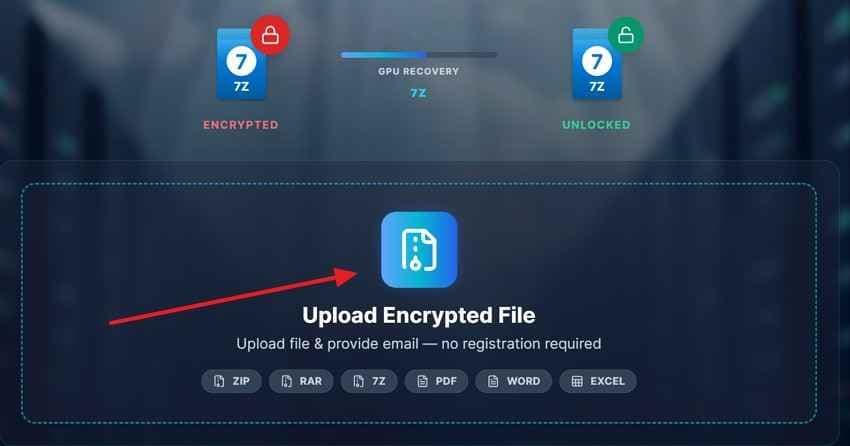
Step 1. Start by choosing the "Upload Encrypted File," to add your locked PDF document, and wait until the upload completes.
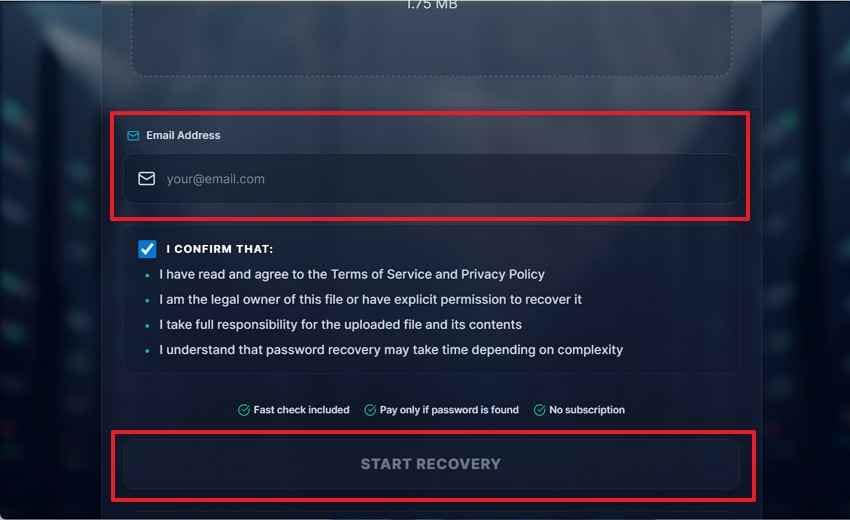
Step 2. Now, select "Start Recovery" after entering your email, and confirm ownership terms to start processing securely.
Pros
- A free weak password check can finish within several minutes.
- Its large password database improves chances for common combinations.
Cons
- Weak password success rate is listed at around 22 percent.
- A stronger recovery may require payment after successful matching.
2. Recover PDF Password Online with Password-Online
A server-side recovery service can help when a desktop installation is not suitable. Password-Online supports PDF password recovery through its online processing system, making it useful for locked files where the current password is unknown. Therefore, users should check upload terms, success conditions, and possible charges before submitting any sensitive document. Use the guide below to start a recovery request through Password-Online:
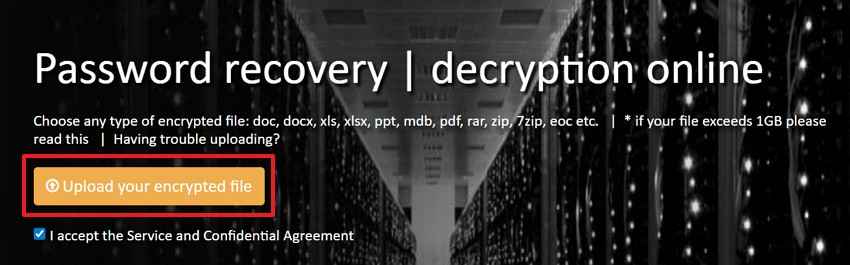
Step 1. Go to the Password-Online recovery page and select "Upload Your Encrypted File." After that, select the locked PDF and keep the "Service and Confidential Agreement" checkbox enabled.
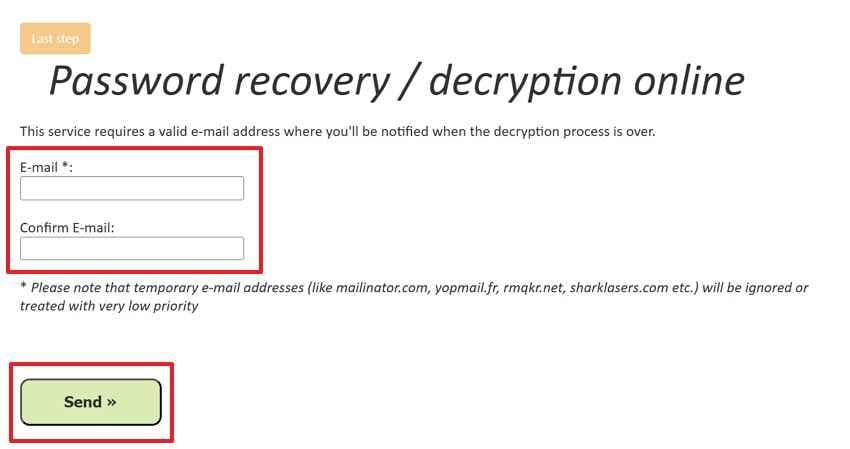
Step 2. Enter a valid email address in both email fields after the upload process. Then, click "Send" to receive a notification when the password recovery or decryption process finishes.
Pros
- Email notification helps users avoid keeping the page open.
- Service covers both user and owner password scenarios.
Cons
- Long symbolic passwords remain slow and difficult to recover.
- Temporary email addresses receive low-priority treatment during requests.
3. Try iFindPass Online PDF Password Recovery
iFindPass fits users who need a browser-based attempt for a forgotten PDF user password. It separates lost-password recovery from normal PDF unlocking, which makes the method clearer for protected files that cannot open. The platform may work better when users provide password hints, character patterns, or remembered combinations during recovery. Here are the instructions to run an iFindPass recovery attempt:
Instructions. Click the "Plus" upload icon to add the protected PDF file. After the file uploads, follow the on-screen prompts to continue the recovery process.

Pros
- Weak password recovery is listed as absolutely free.
- Uploaded files are stored for a maximum of 24 hours.
Cons
- Brute-force with a mask requires prepayment and no refund.
- Strong password recovery depends on paid attack modes and user clues.
Comparison Table: Best Free Online PDF Password Recovery Tools
After reviewing each method separately, this comparison table below helps users choose the most suitable online PDF password recovery option quickly:
| Tool | Best For | Free Option | Key Limitation | Safety Note |
|---|---|---|---|---|
| LostMyPass | Forgotten PDF open passwords | Free weak password check | A strong recovery may require payment | Use only for authorized files. |
| Password Online | Server-based PDF decryption | No software installation needed | Long, complex passwords can take much longer | Check terms before uploading private PDFs. |
| iFindPass | Weak or partially remembered passwords | Weak password recovery can be free | No 100% success guarantee | Paid strong recovery starts after success. |
What If Online PDF Password Recovery Fails?
If online PDF password recovery fails, users should stop repeated uploads and check safer alternatives. Try remembered password hints, older file versions, backups, cloud history, or the original sender. For important documents, use trusted desktop recovery software or professional help. Strong encryption may make recovery unrealistic without the correct password or clear recovery clues.
Alternative Ways to Access Locked PDF Files
When online tools cannot recover the password, the following methods can help users access locked PDF files through safer and more practical options:
Method 1. Open the Locked PDF with Google Drive
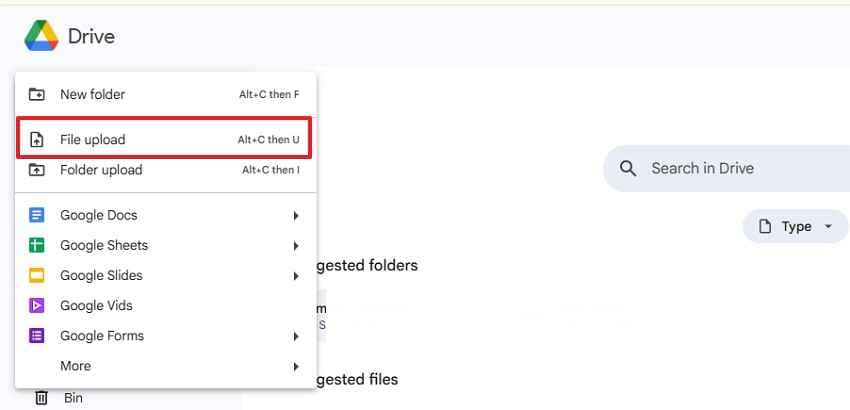
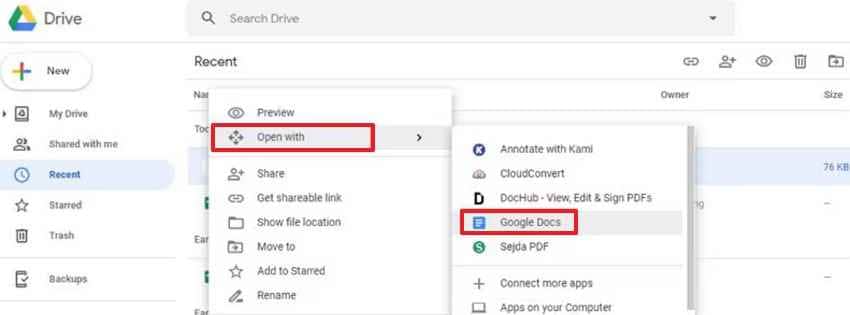
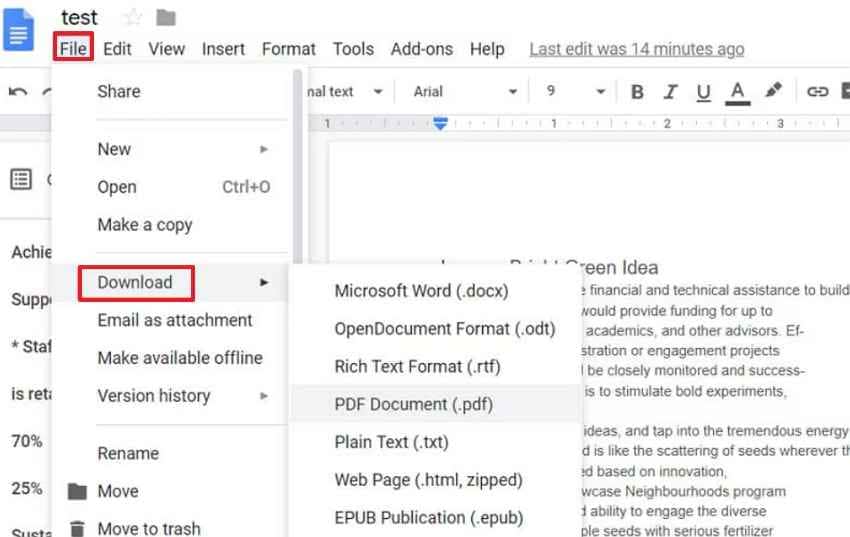
When a locked PDF still opens after users enter the correct password, Google Drive can create an accessible working copy. This method supports online PDF password recovery alternatives when users need a quick browser route. However, formatting may shift during conversion, so it suits simple documents more than complex layouts or scanned files. Follow these steps to open and resave the locked PDF with Google Drive:
Step 1. Open Google Drive and click "+ New > File Upload" to add the password-protected PDF. Users can also drag and drop the PDF directly into their Drive account.
Step 2. Afterward, right-click the uploaded PDF and choose "Open With > Google Docs."
Step 3. After the file opens, go to "File > Download" and save it as a new PDF file.
Method 2. Unlock PDF by Printing to PDF
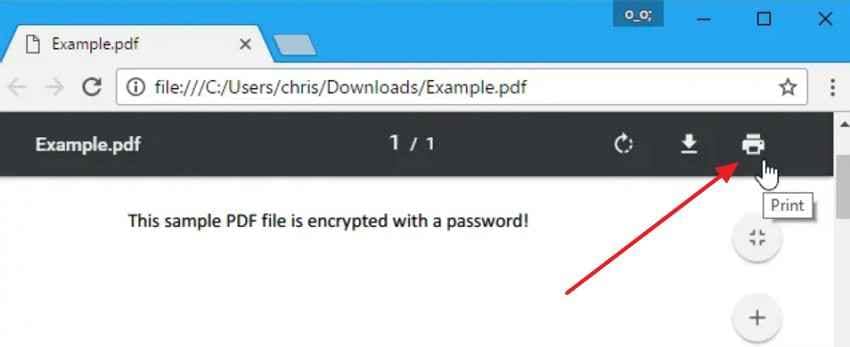
Printing to PDF can help create a new copy of a protected PDF when the file is already viewable, and printing is allowed. This method does not recover a forgotten open password, but it may remove certain access restrictions from the duplicate file. However, it will not work if the PDF owner has blocked printing permissions. Use the instructions below to unlock a PDF by printing it:
- Open the protected PDF in Google Chrome and select the "Print" icon from the top-right corner. Users can also press "Ctrl + P" to open the print window directly.
- Next, under the "Destination" option, choose "Save as PDF" and click "Save."
- Then, select a folder, rename the new file clearly, and open it to confirm whether the restrictions are removed.
Method 3. Unlock PDF with Dr.Fone -- DocPassRemover
For harder cases, dedicated software can provide more recovery modes than basic browser workarounds. Dr.Fone DocPassRemover offers password removal and recovery options for protected documents, making it useful after online PDF password recovery fails. Moreover, users should apply it only to personal, work-approved, or legally authorized PDF files. Adhere to the steps below to attempt PDF unlocking with Dr.Fone DocPassRemover:
Step 1. Access Dr.Fone DocPassRemover and click "Select the File" to upload the protected PDF document.
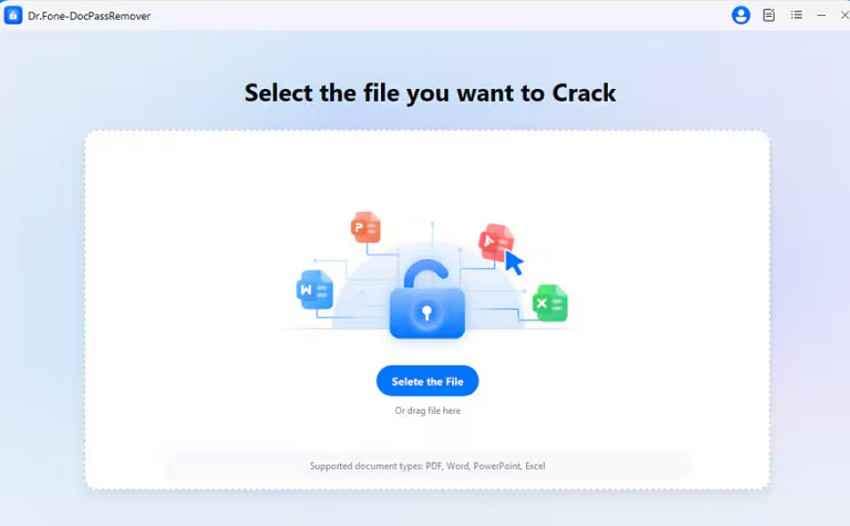
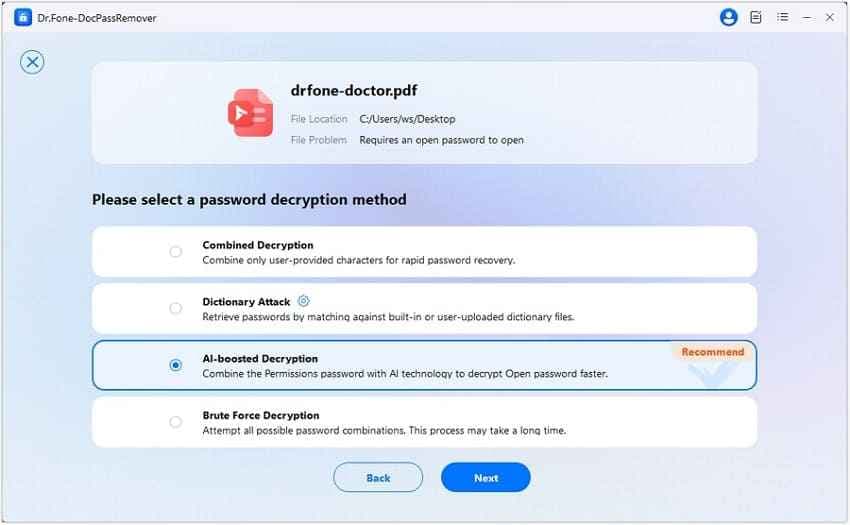
Step 2. Confirm whether you want to remove the open or permission password and provide the necessary information. Following this, select "Decryption Method" according to your document password.
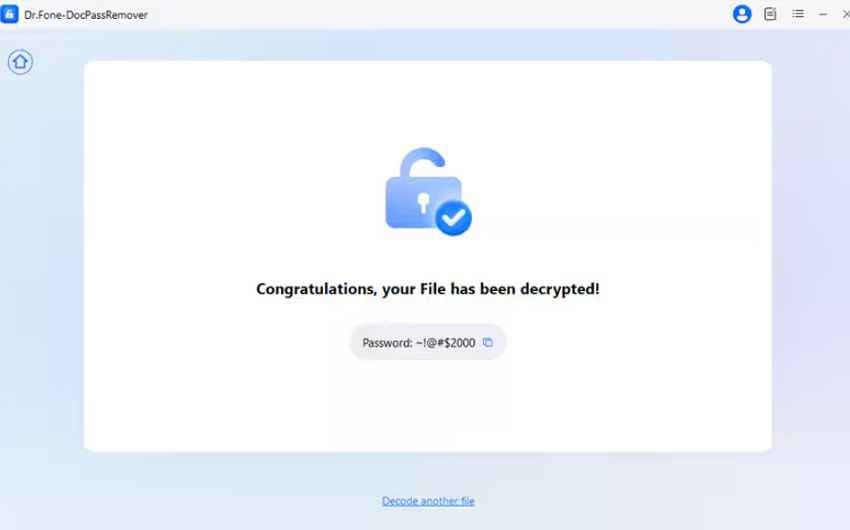
Step 3. After decryption finishes, Dr.Fone DocPassRemover shows the recovered password on the screen. Copy the "Password" and enter it to open the locked PDF document.
Pro Tip: Recover Lost PDF Files Quickly with Recoverit Data Recovery Tool
PDF documents do not always disappear because users delete them directly. They may be misplaced after updates, overwritten by newer exports, separated from email downloads, or hidden inside synced folders. Sometimes, the file name changes or the storage index breaks, making normal search results unreliable during urgent document access situations.
Recoverit PDF Recovery helps when the issue is missing or deleted PDFs, not password removal. Unlike a PDF password recovery tool online, it scans drives, folders, USBs, and external storage to locate lost PDF files. Moreover, its preview and file-type filter options make recovery more organized when recent files, backups, and cloud folders show nothing.
Key Features
- PDF Format Coverage: Recovers PDF, PDF/A, and XPS files created through different editors, scanners, and export tools sources.
- Quick and Deep Scan: Runs quick checks first, then deeper scans for PDFs missing, deleted, or difficult to locate.
- Privacy Protection: Keeps recovered PDF data private by not storing users' restored document content after recovery processes.
How to Recover Lost PDF Files Using Recoverit
After choosing Recoverit, users can follow these steps to scan the lost location and restore recoverable PDF files safely:
Step 1. Select the drive, folder, Desktop, Recycle Bin, USB, or external device where the PDF file was last stored in "Hard Drives and Locations."

Step 2. Let Recoverit scan the selected location and display recoverable files. Use file type, path, or search filters such as ".pdf" to locate missing PDF documents faster.

Step 3. Finally, preview the found PDF to confirm the correct file, then click "Recover" to complete the recovery process.

Note: Password recovery unlocks protected PDFs, while file recovery restores deleted or missing documents. Use a PDF password recovery tool online for locked files, and Recoverit when PDFs disappear from folders.
Part 3. How to Prevent PDF Password Issues in the Future
PDF password problems usually become harder when access details are stored carelessly. Therefore, the tips below help users protect important PDFs without losing control of their own files:
- Use a Trusted Password Manager: Save PDF passwords inside a trusted manager instead of scattered notes everywhere. Label each entry clearly, so future document access stays simple and secure.
- Create Strong Password Phrases: Build long password phrases using unrelated words, numbers, and symbols together carefully. Short personal passwords can fail security and become easy to forget later.
- Keep an Unlocked Backup Copy: Store one unlocked backup copy inside a private, protected backup folder offline. Use it only when the main protected PDF becomes inaccessible or damaged.
- Share Passwords Separately: Send the PDF and password through different communication channels whenever possible. This reduces exposure if one email, chat, or shared link leaks.
- Record Access Details Clearly: Note who created the PDF and which password version applies currently. Clear records prevent confusion when teams edit, rename, or resend files.
- Review Protection Before Sharing: Check printing, copying, editing, and opening restrictions before sending PDFs. Early review helps avoid locked files reaching clients or team members.
Conclusion
To conclude, a PDF password recovery tool online can help users regain access when passwords are weak, remembered partly, or legally authorized. Yet strong encryption, privacy risks, and failed attempts make safer alternatives important. Users should store access details carefully, keep backup copies, and avoid unknown upload sites. When PDFs are lost or deleted instead, Recoverit offers a practical recovery solution for important documents.
Frequently Asked Questions
-
Can online tools recover every PDF password?
No, online tools cannot recover every PDF password, especially when strong encryption is used. They work better when passwords are weak, reused, or partly remembered by users. -
Is online PDF password recovery safe?
Safety depends on the tool's privacy policy, encryption, deletion practices, and reputation online. Users should avoid uploading confidential PDFs to unknown or poorly reviewed websites. -
What should I do if password recovery fails?
If password recovery fails, check backups, cloud history, and older file versions first. Contact the file owner before trying repeated uploads or risky recovery websites again. -
Can Recoverit unlock a password-protected PDF file?
No, Recoverit restores deleted or missing PDF files from selected storage locations. Use password recovery tools for locked PDFs and Recoverit for lost documents.


