

 TL;DR:
To safely recover an unsaved or lost Excel workbook, immediately check built-in options like the Document Recovery pane or Manage Workbook for temporary drafts before attempting deep storage scans with tools like Recoverit.
● Retrieve drafts of never-saved workbooks by navigating to File > Info > Manage Workbook > Recover Unsaved Workbooks, or search for recent temporary files inside C:\Users\[username]\AppData\Local\Microsoft\Office\UnsavedFiles and the Windows %temp% directory.
● Restore overwritten workbooks or resolve cloud sync conflicts by right-clicking the file in OneDrive and selecting Version History, or by using Windows Previous Versions on the local storage folder.
● Deploy Recoverit to scan hard drives or external devices only when Excel's built-in recovery records are missing, which is required for finding workbooks lost to storage formatting, permanent deletion, or file corruption.
Ask AI for a summary
 ChatGPT
 Perplexity
 Gemini
 Claude
 Grok
Grok
Excel workbook loss can happen through crashes, deletion, sync conflicts, or unsaved closing. The points below highlight the safest recovery direction before deeper scanning.
- Start with Loss Type: Identify whether the workbook is unsaved, deleted, overwritten, corrupted, or synced.
- Check Built-In Options: Use Document Recovery, Manage Workbook, AutoRecover, Temp folders, and OneDrive versions.
- Avoid Risky Actions: Do not overwrite, rename, or keep editing before checking recovery copies.
- Use Recoverit Later: Try Recoverit when the built-in Excel recovery finds no usable workbook.
An Excel workbook can go missing without warning, leaving important numbers, formulas, and records inaccessible. Sometimes the file closes before saving, while other times it disappears after deletion, crashes, or storage problems. These moments create pressure because even one lost workbook can delay reports, audits, or daily office tasks.
Therefore, Excel workbook recovery needs a careful and organized approach from the beginning. The goal is to protect existing data first, avoid risky actions, and improve the chance of restoring a usable workbook. Therefore, this guide explains the workbook recovery process step-by-step.
Quick Answer: How to Recover an Unsaved or Lost Excel Workbook
Access Excel and go to File > Info > Manage Workbook > Recover Unsaved Workbooks. Select the available draft, open it, and save it immediately with a clear file name.
In this article
-
- Way 1. Use the Document Recovery Pane
- Way 2. Use Recover Unsaved Workbooks
- Way 3. Use Manage Workbook
- Way 4. Check AutoRecover Files and Excel Temp Locations
- Way 5. Search the Windows Temp Folder
- Way 6. Restore from OneDrive Version History
- Way 7. Use Windows File History or Previous Versions
- Way 8. Recover from Cloud or Synced Copies
- Way 9. Use Recoverit when built-in recovery is not enough
Part 1. Identify What Kind of Excel Workbook Loss You Are Dealing With
Before trying any recovery method, identify how the Excel workbook disappeared. A never-saved workbook depends on temporary Office drafts, while lost recent changes may come from AutoRecover or version history. If Excel crashed suddenly, a saved draft may still exist. However, missing, overwritten, or corrupted files need careful handling because the original data may still be at risk.
This first check prevents users from searching the wrong location or replacing a possible recovery copy. If the workbook was stored in OneDrive, version history may offer a safer return point. Therefore, confirm whether the issue is unsaved, changed, crashed, synced, deleted, overwritten, or corrupted before moving further. A clear starting point makes Excel workbook recovery safer and more organized.
Part 2. Why Unsaved or Lost Excel Workbooks Happen
Once the workbook type is clear, the following causes explain the loss. The following causes show why recovery steps should match the actual workbook problem:
- Unsaved Closing: Closing Excel without saving can remove edits before any stable copy exists. The workbook may not appear in recent files or normal folders afterward.
- Sudden Crash: A sudden crash can interrupt saving before Excel records the latest changes. Some drafts remain available, while others disappear after incomplete recovery attempts.
- AutoRecover Off: Disabling the AutoRecover leaves Excel without timed background copies during editing sessions. Recovery becomes limited because no temporary snapshot was created during work.
- Power Failure: Power loss can cause Excel to close instantly before the workbook saves properly. Recent formulas, entries, or formatting may be lost when the file is reopened.
- Sync Conflict: Cloud syncing can create conflicting copies when edits change across devices. One version may overwrite another before users notice missing workbook content.
- File Deletion: A saved workbook may disappear after deletion, cleanup, or folder reorganization. That issue needs storage checking before unsaved draft locations.
Part 3. How to Recover Unsaved or Lost Excel Workbooks: 9 Practical Ways
After identifying the cause, the next step is choosing the safest recovery direction. The following practical ways help users recover unsaved or lost Excel workbooks without risking the original data.
Way 1. Use the Document Recovery Pane
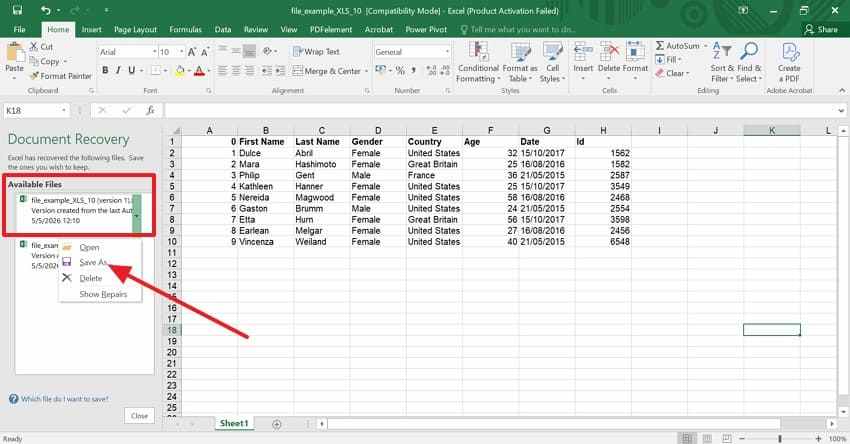
The Document Recovery pane usually appears when Excel reopens after a crash or forced shutdown. It may show recovered workbook versions from the interrupted session. However, users should open the latest relevant copy carefully and save it immediately. For Excel workbook recovery after a sudden closure, follow the instructions below:
- Access Excel again after the sudden shutdown, crash, or forced closure. If Excel saved a recovery copy, the Document Recovery pane appears automatically.
- Afterward, select the latest workbook version from the recovery pane and review it carefully.
- Then, choose "Save As" and save it with a clear, new file name.
Way 2. Use Recover Unsaved Workbooks
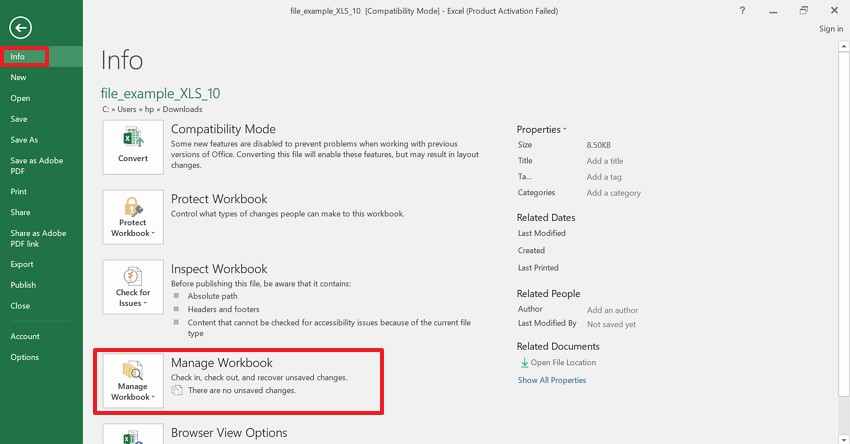
The "Recover Unsaved Workbooks" option is useful when the file was never saved manually. Excel may keep a temporary copy inside Office's unsaved file location. This method helps users recover unsaved workbook data without searching system folders. The guide below explains where to find this option inside Excel:
Step 1. Start by navigating to "File," then choose the "Info" option to further select the "Manage Workbook."
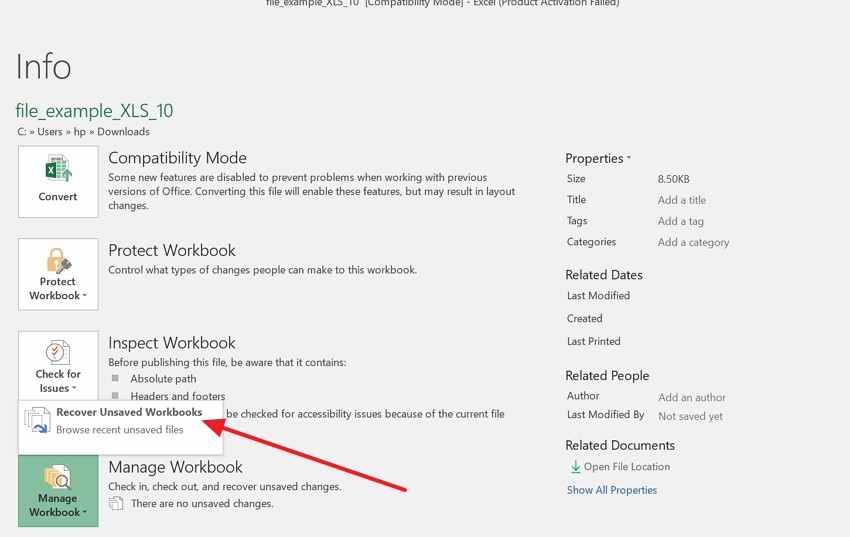
Step 2. After that, choose the "Recover Unsaved Workbooks," open it, then re-save it with a different filename.
Way 3. Use Manage Workbook
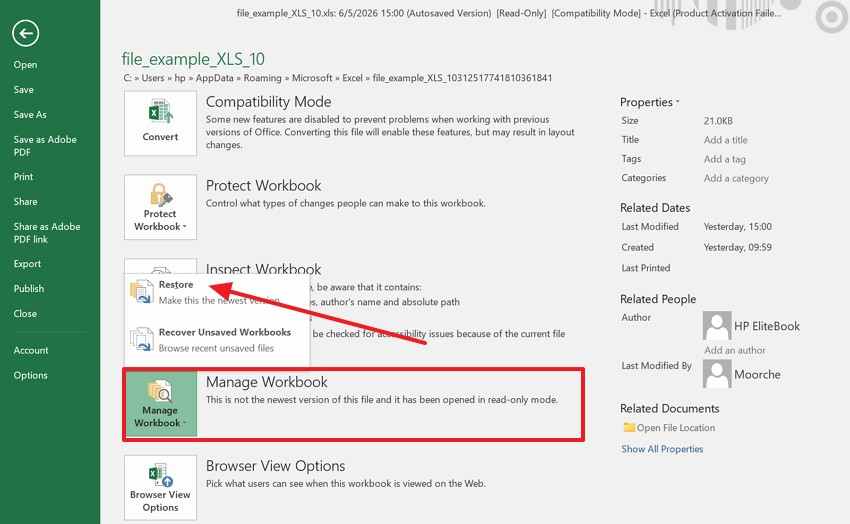
Manage Workbook works best when the Excel file still opens, but recent edits are missing. It may show recovered versions linked to that workbook. Therefore, users can check whether Excel kept a newer copy before the final close. This method helps recover Excel files directly inside the Excel application. Follow the instructions below to check available workbook versions safely:
- Go to "File > Info > Manage Workbook," select the available recovered version, and click "Restore" to make it the newest workbook version.
Way 4. Check AutoRecover Files and Excel Temp Locations
Some workbook drafts remain inside AutoRecover or temporary Excel folders instead of appearing in menus. These locations are useful after crashes, forced restarts, or missed recovery prompts. While recovering unsaved Excel workbooks, users should compare file dates carefully. The guided steps below show how to check these locations without changing the original file:
For AutoRecover Files
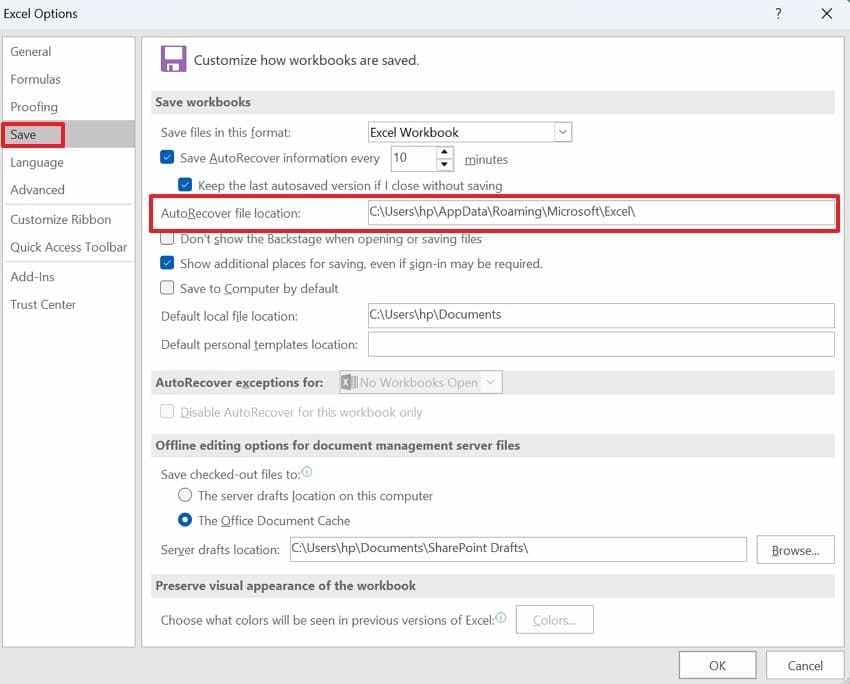
- In Excel, go to "File > Options > Save" and copy the "AutoRecover File Location." Then, paste that path into File Explorer to access Excel's recovery folder.
- After that, look for workbook files matching the missing file name, date, or editing time.
- Next, copy the most relevant file elsewhere before opening or renaming it.
For Excel Temp Location
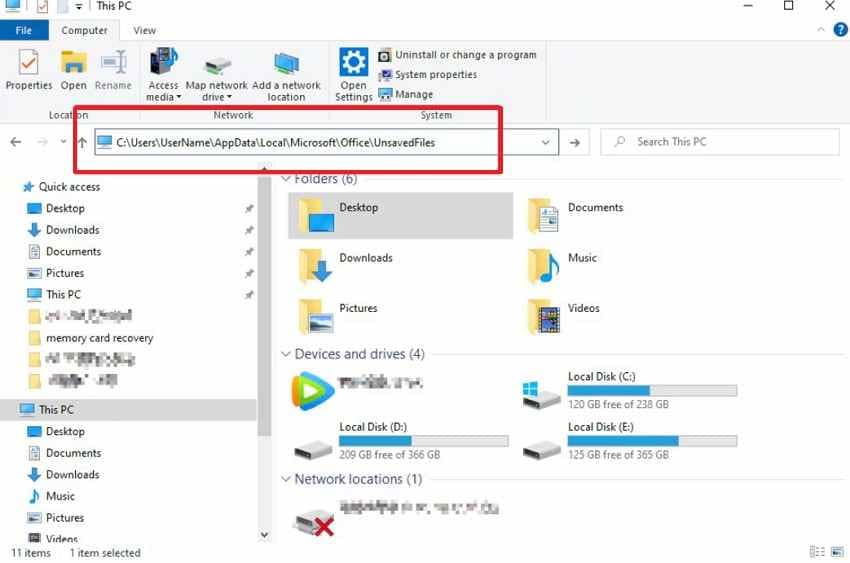
- Open File Explorer and go to "C:\Users\[username]\AppData\Local\Microsoft\Office\UnsavedFiles." This folder may contain temporary Excel workbook drafts.
- Next, find the file closest to the missing workbook's time or name. Open it in Excel, then save it immediately with a new filename.
Way 5. Search the Windows Temp Folder
Windows may store temporary Excel traces after sudden shutdowns, failed saves, or frozen sessions. These files often have unclear names, so modified dates and file sizes become important. This method can help recover unsaved Excel workbook content when Excel's own options show nothing. Use the instructions below to inspect possible matches carefully:
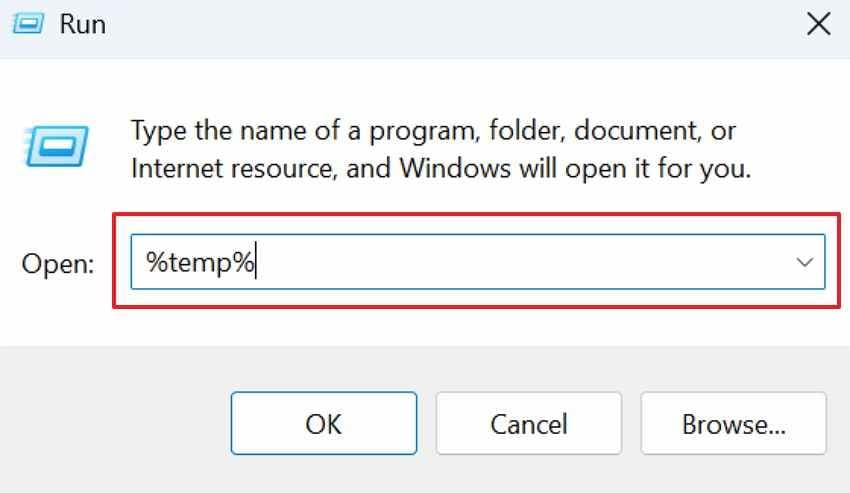
- Press "Windows + R," type "%temp%," and press "Enter" to access the folder that may contain temporary Excel files from interrupted editing sessions.
- After that, search for recent files with .tmp, .xls, .xlsx, or similar Excel-related names.
- Copy likely matches elsewhere before renaming or testing them in Excel.
Way 6. Restore from OneDrive Version History
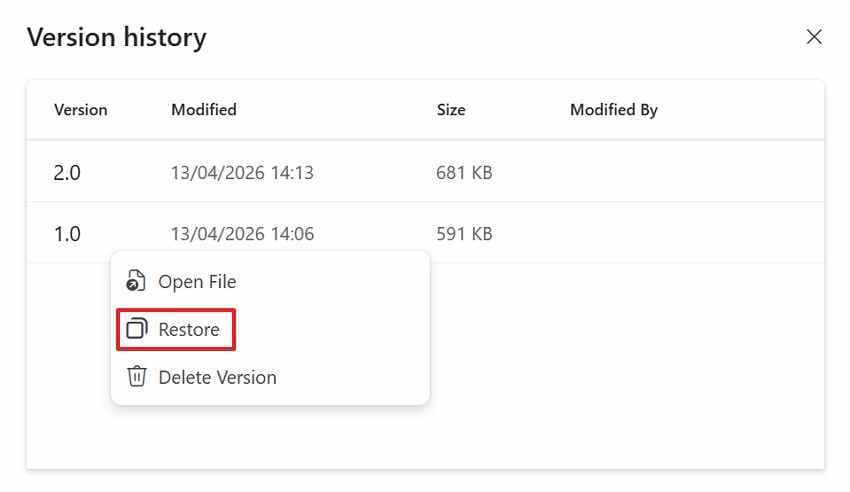
A workbook saved in OneDrive may keep older versions even after unwanted edits or overwriting. Version History lets users return to a previous copy without depending on local recovery folders. Moreover, it is useful when the latest synced file looks wrong. The OneDrive guide below explains how to restore the right version:
Step 1. Upon accessing the OneDrive, locate the workbook that has lost important changes. Next, right-click the file and choose "Version History" from the menu.
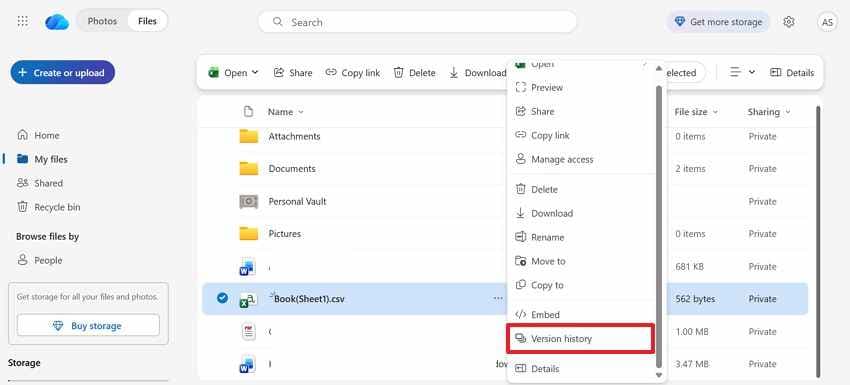
Step 2. Afterward, compare the available versions by date, time, and editor details. Next, choose "Restore" to bring back the correct version or download a copy for safer checking.
Way 7. Use Windows File History or Previous Versions
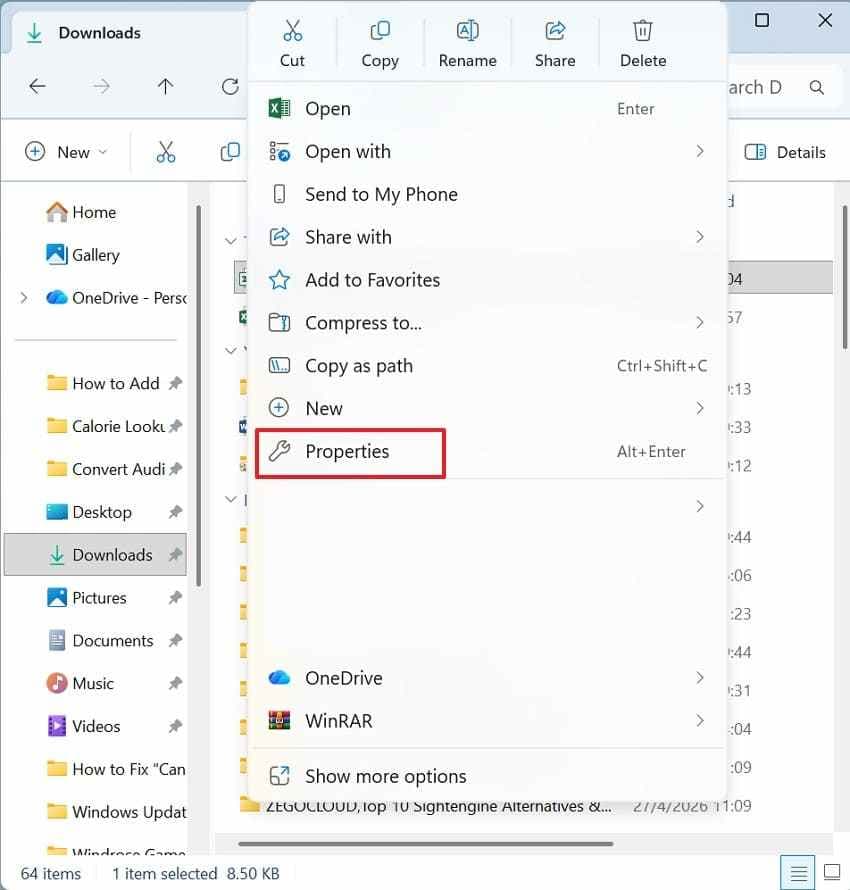
Windows File History and Previous Versions can help when a saved workbook was deleted, replaced, or changed later. This method supports Excel workbook recovery if backup or system protection was active earlier. Check the available dates before restoring any older copy. Follow the practical guide below to review previous workbook versions safely:
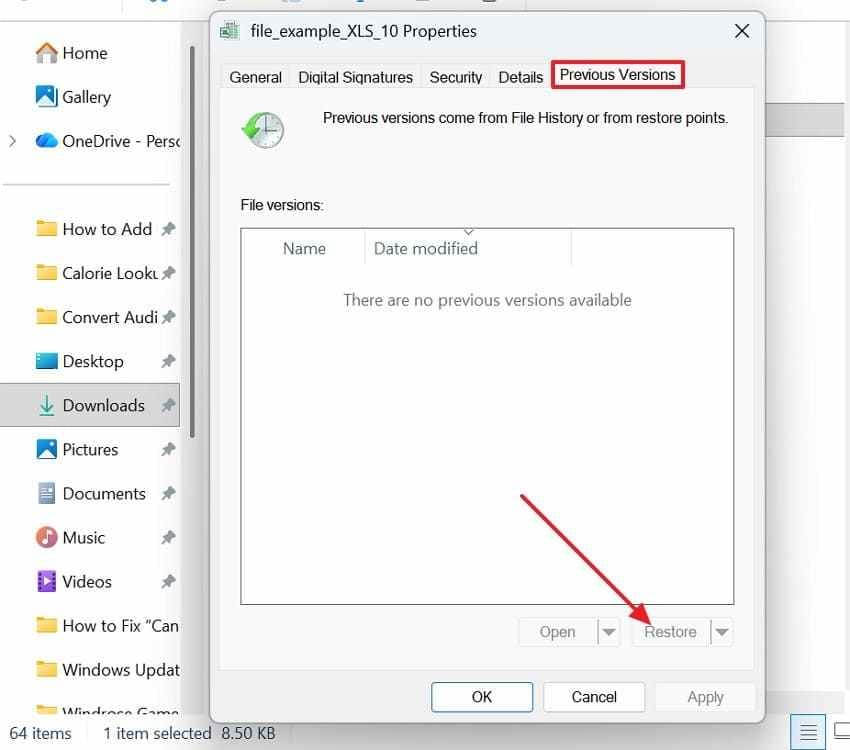
Step 1. Go to the folder where the workbook was stored earlier, right-click the folder or file, and select "Properties > Previous Versions."
Step 2. Next, choose a version from the available versions and press the "Restore" button.
Way 8. Recover from Cloud or Synced Copies
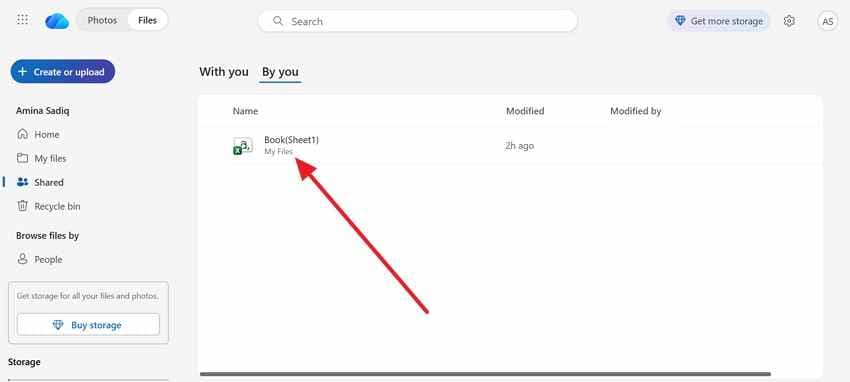
Cloud or synced copies may exist across OneDrive, SharePoint, Google Drive, Dropbox, or another connected device. These copies can help when the local workbook is missing, changed, or unavailable. Since syncing may create duplicates, compare names and timestamps carefully. Adhere to the instructions mentioned below to recover from cloud or synced copies:
- Open OneDrive and check "Shared > By You" or other synced locations for workbook copies.
- Next, compare the file name and modified time, then open the closest matching Excel file and save a separate copy.
Way 9. Use Recoverit when built-in recovery is not enough
At this stage, Excel's standard recovery checks have already failed to help. Document Recovery shows nothing, and Manage Workbook offers no usable version today. AutoRecover folders may now contain broken, incomplete, or unrelated workbook files. Deleted, formatted, overwritten, or corrupted data often needs deeper storage scanning. Office tools cannot rebuild files when their recovery records are missing.
Recoverit Excel Recovery becomes relevant because it scans beyond Excel's own recovery layer carefully. Instead of depending on Office snapshots, it checks selected storage locations. Users can scan a drive, folder, desktop, or external storage device. This supports Excel workbook recovery when normal routes reveal no usable copy.
Key Features
- Deep Storage Scan: Scans drives, folders, and external devices for Excel files that are completely missing from built-in recovery paths.
- Formatted Drive Recovery: Searches formatted, deleted, or inaccessible storage to safely recover important Excel workbooks that may still be recoverable.
- Filtered File Results: Narrows results by file type, date, or location to find relevant workbooks faster during recovery.
If Excel's built-in recovery options show no usable workbook, deeper storage recovery becomes necessary. The steps below explain how Recoverit can help locate and restore lost Excel files safely:
Step 1. Select the Workbook's Last Location
From "Hard Drives and Locations," choose the hard drive, Desktop, folder, USB drive, or storage area where the Excel workbook was last available.

Step 2. Narrow Down Excel File Results
Once the scan starts, let Recoverit search the selected location for recoverable files. Then, apply "File Location" or "File Type" filters to locate Excel workbooks more quickly.

Step 3. Preview and Export the Workbook
Check the workbook name, date, size, or preview to confirm the correct file. After that, press "Recover" and save the restored workbook to another secure location.

Part 4. When Recoverit Makes More Sense Than Built-In Excel Recovery
Built-in Excel recovery works best when Office still has usable recovery records. The table below describes situations where Recoverit becomes more practical than built-in Excel recovery:
| Situation | Why Recoverit Makes More Sense |
| Document Recovery Does Not Appear | Excel may have closed without creating a visible recovery pane. Recoverit can scan storage instead of relying on Excel prompts. |
| Recover Unsaved Workbooks: Finds Nothing | The office may remove temporary workbook drafts after the session closes. Recoverit searches beyond Excel's unsaved file folder for files. |
| Workbook is Corrupted or Overwritten | Excel may fail to open damaged or replaced versions of workbooks. Recoverit helps locate earlier recoverable copies from storage. |
| Sync Issues Caused Workbook Loss | Cloud sync can unexpectedly replace, duplicate, or hide workbook versions. Recoverit supports local scanning when synced copies become unreliable. |
Part 5. Best Ways to Prevent Excel Workbook Loss and Errors
Prevention becomes easier when saving habits stay consistent during daily workbook tasks. The tips below reduce workbook loss, corruption, and repeated recovery pressure issues:
- Turn On AutoRecover: Frequent background saving protects longer Excel sessions from sudden interruptions. Shorter intervals reduce damage when crashes, freezes, or shutdowns happen unexpectedly.
- Use Cloud Saving: OneDrive or SharePoint keeps active workbooks connected with safer version tracking. Earlier copies may help after overwrites, sync conflicts, or accidental changes.
- Create New Versions: Separate file versions are useful before formulas, charts, or large datasets change. A clean copy gives users a safer return point after mistakes.
- Back Up First: Extra workbook copies matter before formatting drives, moving folders, or updating systems. This habit protects important data when storage changes go wrong unexpectedly.
- Avoid Temp Dependence: Temporary files are emergency traces, not dependable workbook protection planning. Manual saving and backups remain safer than relying on temporary copies to survive.
Conclusion
To conclude, Excel workbook recovery works best when users first identify the exact type of loss. Checking drafts, versions, backups, and synced copies reduces unnecessary recovery risks. Safe handling also prevents overwriting workbook data that may still exist. If built-in options fail, deeper scanning becomes the more practical direction. In that case, Recoverit can help restore lost workbooks more safely.
Frequently Asked Questions
-
How can I recover an unsaved Excel workbook quickly?
Open Excel, choose Manage Workbook, then select Recover Unsaved Workbooks carefully from there. Save the recovered draft immediately before editing, renaming, or closing anything again safely. -
Why can't I find my unsaved Excel workbook?
The draft may disappear when AutoRecover is disabled during the editing session. The office may also clear temporary files after normal closing or failed recovery. -
Can OneDrive recover an overwritten Excel workbook?
Yes, OneDrive Version History can restore earlier workbook versions after unwanted changes. Access the version history, compare available copies, then restore the most accurate file. -
When should users try Recoverit to recover Excel workbooks?
Try Recoverit when Excel recovery options, backups, and cloud history show nothing. It can scan storage locations for deleted, formatted, or inaccessible workbook files.


