 TL;DR:
Word document password recovery requires first identifying if the lock prevents opening the file or just restricts formatting, as this determines whether you need a decryption tool or a simple file modification workaround.
● Online tools like Password-Find and LostMyPass Pro can help recover forgotten opening passwords for standard DOC and DOCX files, but highly sensitive documents should use offline software like Dr.Fone DocPassRemover to avoid server upload privacy risks.
● If the document opens but blocks changes, you can bypass editing restrictions manually by saving the file as a Word XML Document and removing the w:enforcement protection entry, or by converting it to Rich Text Format (RTF).
● If a protected file is lost due to deletion or a system crash, Recoverit must be used to restore the missing document from the drive first, though it cannot decrypt the file or reveal the actual password.
Ask AI for a summary
 ChatGPT
 Perplexity
 Gemini
 Claude
 Grok
Grok
TL;DR
- Check the Lock Type: Opening passwords block access, while editing restrictions mainly limit changes.
- Use Online Tools Carefully: Online tools may help, but sensitive documents need privacy checks.
- Use Dr.Fone Offline: DocPassRemover can help recover forgotten Word passwords without uploading private files.
- Test Restriction Workarounds: XML, RTF, and Google Docs may help with editing restrictions.
- Try Recoverit for Lost Files: Recoverit helps restore missing Word files before password recovery continues.
Quick Answer: Word document password recovery starts by identifying the lock type. Online tools can help with forgotten opening passwords, while Dr.Fone offers offline recovery. XML, RTF, and Google Docs mainly help with editing restrictions. If the document is missing, Recoverit can restore the file before password recovery continues safely.
Password-protected Word files are useful until the password is forgotten. A locked document can delay submissions, approvals, edits, or shared office work, especially when the file is needed urgently. Still, recovery depends on one important detail: Whether the password blocks opening the file or only limits editing permissions.
With that difference clear, this guide explains Word document password recovery through online and offline routes. Instead of jumping into complicated tools first, it starts with simpler options and then moves toward more advanced methods. So, readers can choose a safer approach for their file and privacy needs.
In this article
Part 1. Can Password-Protected Word Documents Be Unlocked?
Before trying recovery, check whether the locked Word file can be unlocked. Moreover, the protection type shows what is actually blocking access.
What Happens When You Password-Protect a Word File?
A Word file that is secured with a password will only allow access if it is secured under a particular security setting. Some passwords do not permit the user to open the file, while others will only prevent the user from editing, copying, or formatting the file. Therefore, users must identify the protection type first before choosing any method to recover the Word DOC password safely and correctly.
Types of Password Protection in Microsoft Word
| Type of Password Protection | What It Does | Access Impact |
|---|---|---|
| Password to Open | Locks the whole Word document before it opens. | The file cannot be viewed without the correct password. |
| Password to Modify | Allows the file to open but restricts editing. | Readers can view the content, but changes need permission. |
| Restrict Editing Protection | Controls formatting, editing, or selected document sections. | Only approved areas may remain editable. |
| Read-Only Recommendation | Suggests opening the file without making changes. | Editing is still possible, but Word shows a warning first. |
| Digital Rights Protection | Manages permissions for viewing, copying, printing, or sharing. | Access depends on the document owner's permission settings. |
Difference Between DOC and DOCX Password Encryption
After identifying the lock type, the file format also needs attention. DOC and DOCX files secure content differently, which can affect recovery difficulty. Below are the key differences between DOC and DOCX password encryption:
| Aspects | DOC Password Encryption | DOCX Password Encryption |
|---|---|---|
| File Format | Older binary Word format used in Word 97--2003 files. | A newer XML-based format used in Word 2007 and later versions. |
| Encryption Strength | Usually weaker, especially in older Office versions. | Generally stronger because newer Word versions support improved encryption. |
| Recovery Difficulty | Easier to test with older password recovery methods. | More difficult when protected with a strong password. |
| File Structure | Stores data in a closed binary structure. | Stores document parts inside a compressed XML package. |
| Compatibility | Works better with older Microsoft Word versions. | Works better with modern Word features and security settings. |
| Best Recovery Approach | Offline recovery tools may handle older encryption more quickly. | Advanced recovery tools may need more time and stronger processing. |
Can Every Word Password Be Recovered?
Not every Word password can be recovered, and that matters before choosing a method. If the file uses modern encryption and a long, unknown password, access may remain difficult. However, editing locks, older DOC files, or partly remembered passwords give better chances to recover Word file passwords without risky shortcuts.
Is It Legal to Recover a Word Document Password?
Yes, it is legal to recover a password for a Word document when it belongs to the user or the owner has authorized you to do so. Accessing protected files without permission could be a privacy, workplace, or cybercrime violation. Hence, password recovery should only be employed for authorized access, business continuity, or file restoration.
Part 2. How to Recover a Word Document Password Online?
Can online tools unlock encrypted DOCX files? Sometimes, but success depends on encryption strength, password complexity, and the tool's recovery method. This section explains how online Word password recovery works, when it is suitable, and what privacy risks users should check before uploading sensitive documents:
Tool 1. Recover Word Password Online with Password-Find
Password-Find helps users try online password recovery for Word without installing software. It handles Word and other Office files through an upload process. However, the result depends on protection type, encryption strength, and password complexity. This option suits non-confidential documents needing a quick browser recovery attempt. Next, follow these steps to test Password-Find without confusing recovery options:
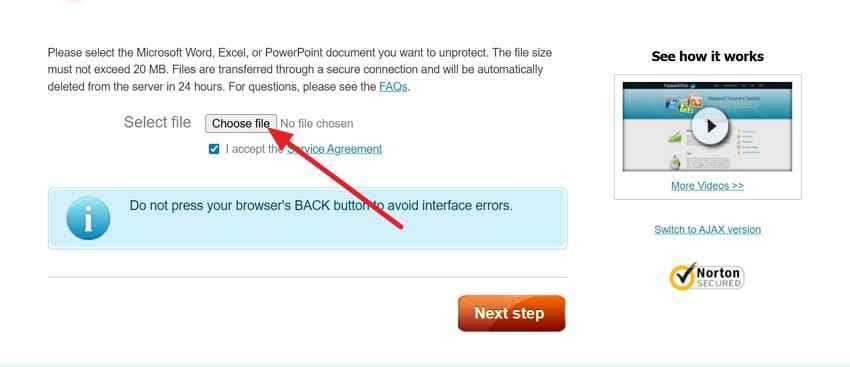
Step 1. Click "Choose File" to select the protected Word document from your device. Next, tick the service agreement box, then press "Next Step" to continue.
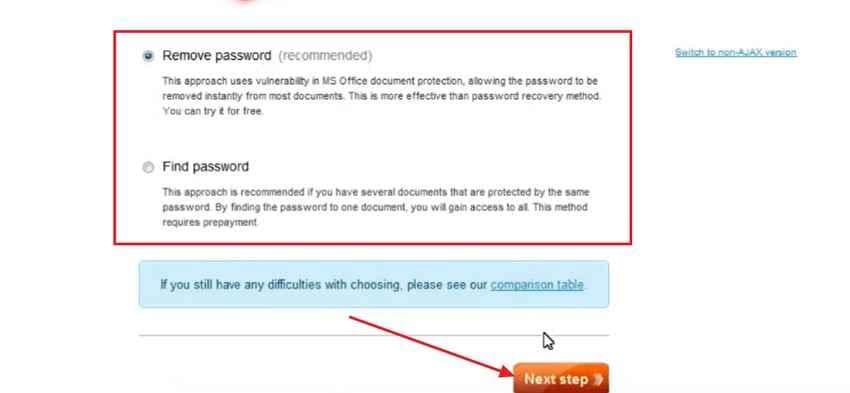
Step 2. Afterward, choose "Remove Password" if you want the tool to unlock the document directly. Moreover, select "Find Password" to recover the original password, then click "Next Step."
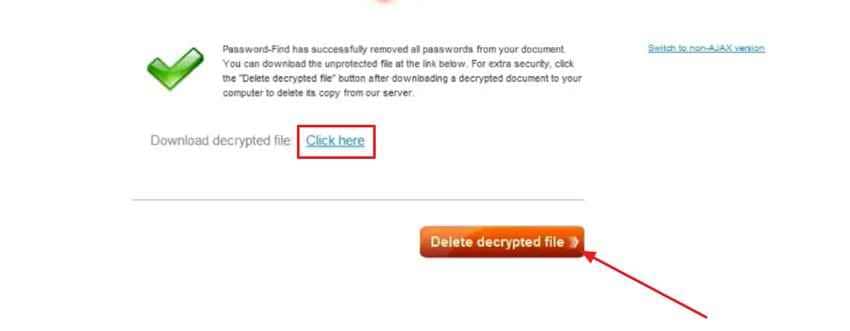
Step 3. Once the process finishes, press "Click here" to download the file. After downloading, use "Delete Decrypted File" to remove the processed copy from the server.
Pros
- Supports Word, Excel, PowerPoint, and VBA password issues.
- Offers file deletion from its server after recovery processing.
Cons
- Strong DOCX protection cannot be guaranteed in every case.
- Full access may require buying a paid license.
Tool 2. Use Password-Online for Word Password Recovery
For encrypted DOCX files, this service supports Microsoft Word password recovery online. It helps when users have completely forgotten the original password. Instead of removing known protection, it checks the locked file for recovery. Processing may take longer when passwords are complex, layered, or difficult. Now, use the steps below to try Password-Online for Word password recovery:
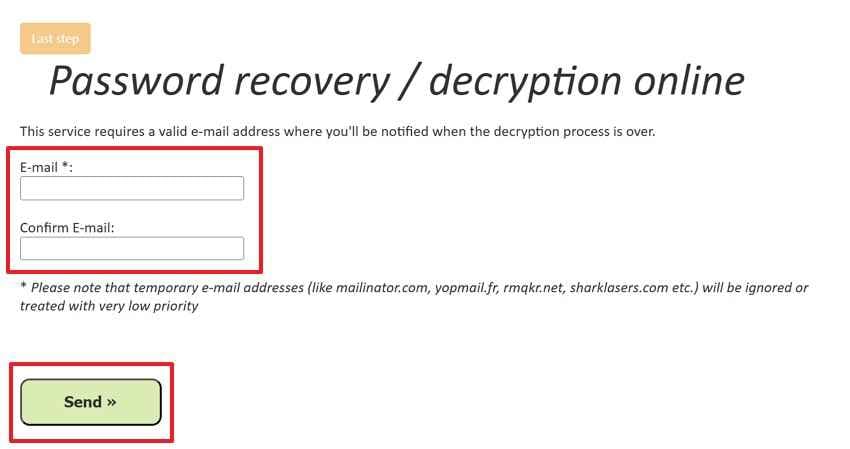
Step 1. Open Password-Online and choose "Upload Your Encrypted File" to add the locked DOC or DOCX document.

Step 2. Next, type a valid email address in the "E-mail" and "Confirm E-mail" fields. Then, click "Send" to submit the request and receive updates when the recovery process is complete.
Pros
- Payment applies only after successful decryption confirmation, reducing risk.
- Preserves the original document format after the decryption service is completed.
Cons
- Retrieved files may be deleted after seven days.
- The original password may not always be recovered by the service.
Tool 3. Try LostMyPass Pro for Word Password Recovery
LostMyPass Pro helps recover forgotten passwords for opening DOC or DOCX files through secure online processing. It analyzes the uploaded file, identifies encryption details, and runs server-based password matching before sharing successful recovery results by email. Follow these steps to use LostMyPass Pro online safely and correctly:
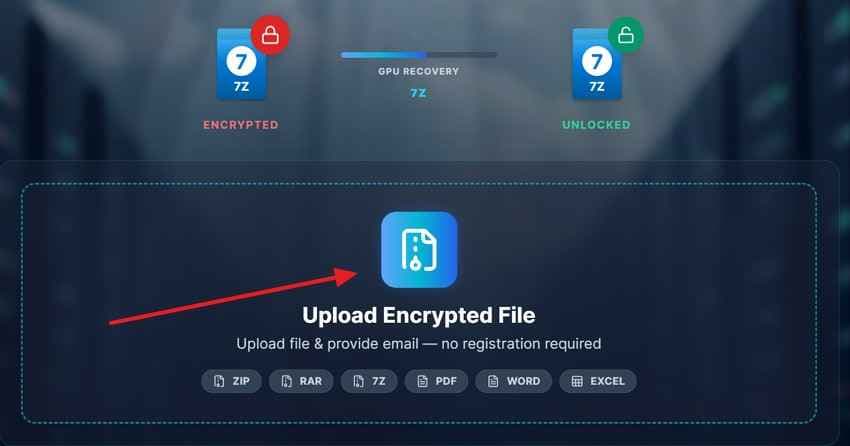
Step 1. Firstly, click "Upload Encrypted File," select your locked Word document, and wait until the upload completes.
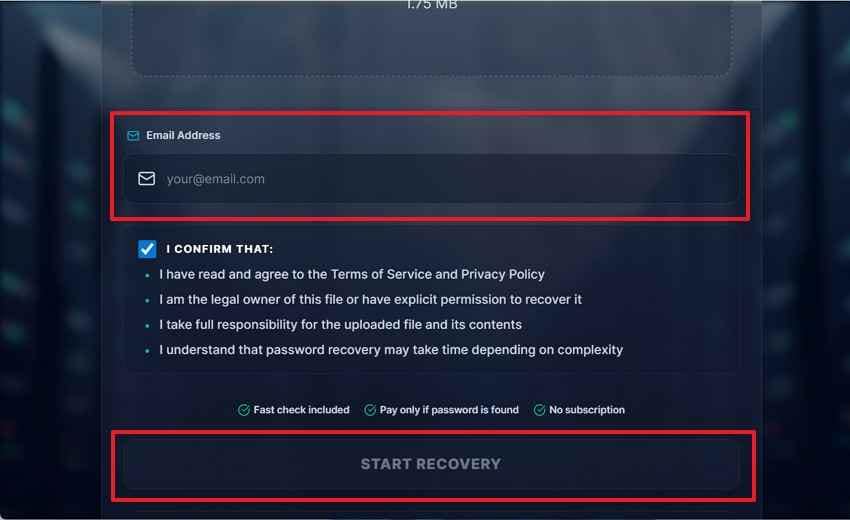
Step 2. Enter your email, confirm ownership terms, then select "Start Recovery" to begin processing securely.
Pros
- No registration is needed before submitting a recovery request.
- Supports Word versions from Office 97 to Office 365.
Cons
- Recovery is not guaranteed for complex, random passwords.
- Free checks mainly test common passwords and patterns.
Tips for Using Online Recovery Tools Safely
Online recovery tools can be helpful, but safe use matters before any file upload. The following tips explain how users can protect private data, avoid risky platforms, and recover Word documents more responsibly:
- Check File Sensitivity: Sensitive files need caution when they include contracts, IDs, or bank details. Such documents are safer with offline recovery instead of upload-based online services.
- Confirm Access Rights: Recover only documents you own or have permission to access legally. This keeps the process ethical and avoids serious privacy-related problems later.
- Read Privacy Terms: Privacy pages explain how uploaded files are handled, stored, or deleted. Skip any platform that hides these details or uses unclear language.
- Keep a Backup Copy: Always save the original file before trying any recovery website online. A backup protects the document if processing fails or formatting changes.
- Avoid Public Wi-Fi: Use a private internet connection when uploading protected Word documents online. Public networks may expose file transfers to unwanted security risks easily.
- Secure the New Password: After recovery, create a stronger password and store it securely. A trusted password manager prevents the same problem from happening again.
Part 3. Alternative Ways to Recover or Access Locked Word Documents
After trying online tools, users can test these safer access methods. Some work for editing restrictions, while others help when the opening password is forgotten.
Method 1. Unlock Word Files with Dr.Fone DocPassRemover --- Offline
Dr.Fone DocPassRemover is useful when users need to recover Word doc password access without uploading private files online. Moreover, it supports Word formats like DOC, DOCX, DOT, DOCM, and DOTX, with recovery modes using hints, patterns, dictionaries, or brute-force attempts. Now, follow the steps below to try Dr.Fone DocPassRemover:
Step 1. Upon accessing Dr.Fone DocPassRemover, click "Select the File" to import the protected Word document.
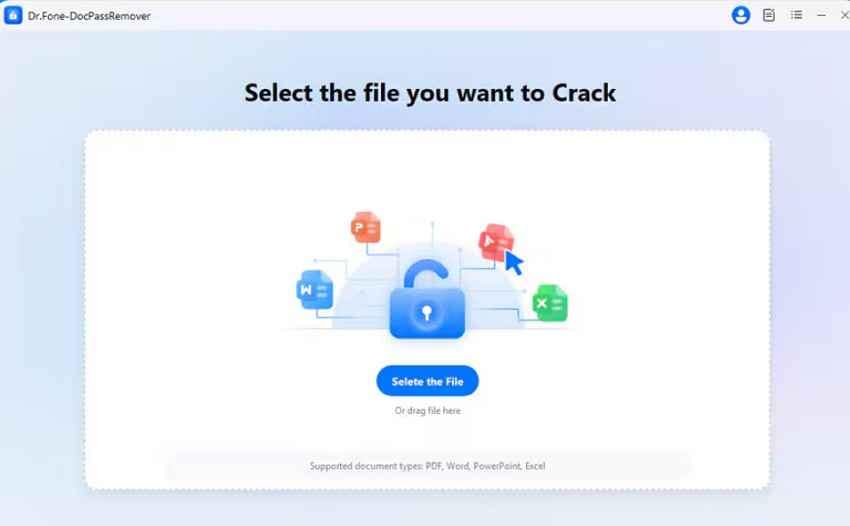
Step 2. Select the relevant password information option, such as known length, possible characters, common password, or no password details. Then, press the "Next" button to start the recovery process.
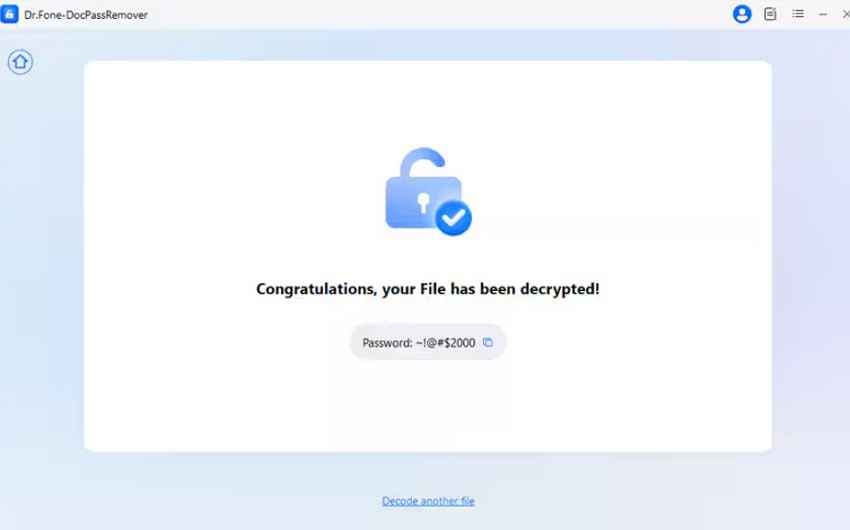
Step 3. Once the file is decrypted, Dr.Fone displays the recovered password on the screen. Next, copy the "Password" and use it to open the locked Word document.
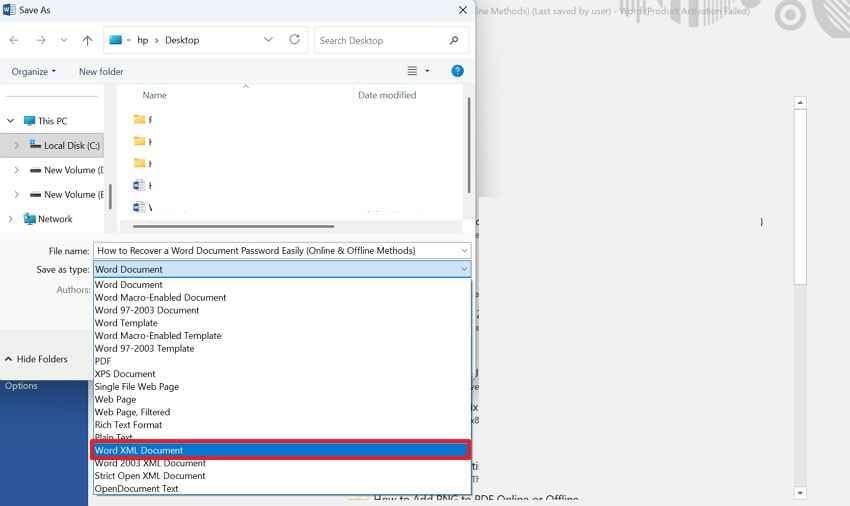
Method 2. Modify Editing Protection Through Word XML --- Offline
Alternatively, XML editing suits Word files that open but still block changes through document protection. It exposes restriction settings inside the file structure, helping authorized users remove editing locks. However, it cannot recover Word file password access for encrypted documents. Next, walk through the steps below to try this method:
Step 1. Access the restricted Word file, choose "Save As," then select "Word XML Document."
Step 2. Afterward, open the XML file in Notepad and search for w: enforcement or w:documentProtection. Carefully remove that protection entry or change w:enforcement="1" to w:enforcement="0." Next, open the edited XML file in Word, check editing access, then save it again as a "DOCX" file.
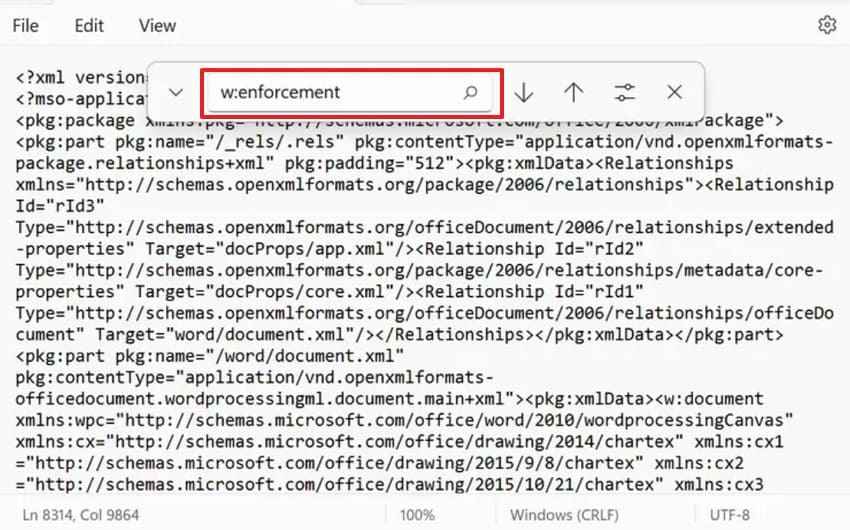
Method 3. Save the Word File as RTF --- Offline
The RTF method can help users recover Word file password access in limited cases where the file opens, but editing remains blocked. It works by converting the document into Rich Text Format and testing whether restrictions still apply. After that, try these steps on a duplicate copy only:
Step 1. Open the restricted Word file, navigate to "Save As," then select "Rich Text Format."
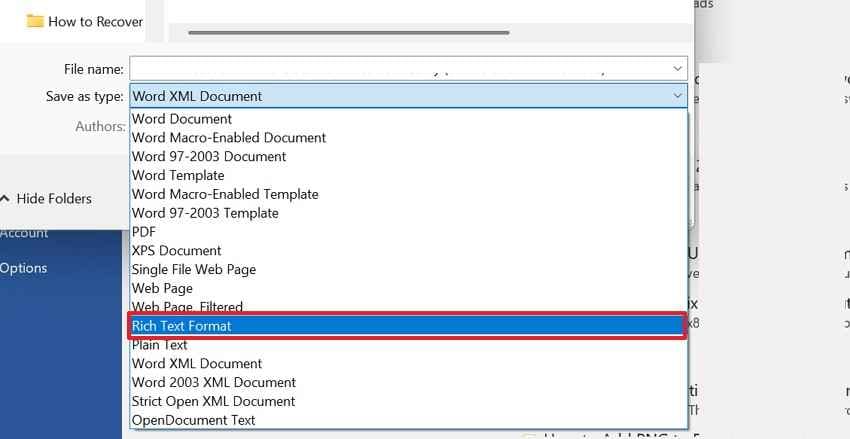
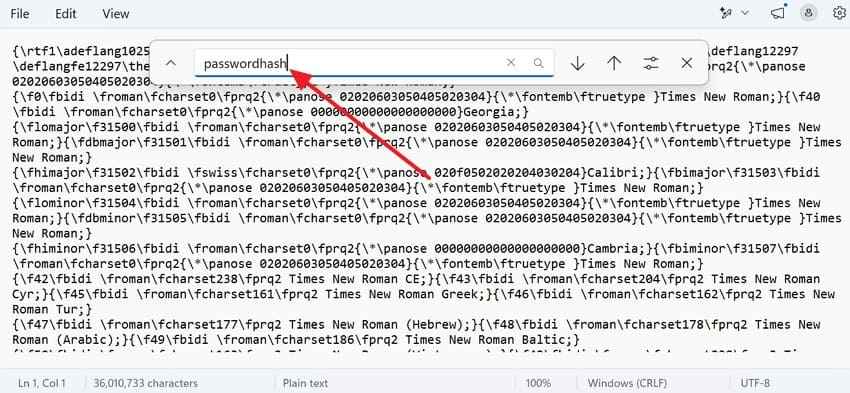
Step 2. Next, access the RTF copy in Notepad, search for "passwordhash," and remove the restriction code carefully. Later, open the edited RTF file in Word, check editing access, then save it as DOCX.
Method 4. Access the File to Google Docs --- Online
Google Docs may help when a Word file opens, but it remains difficult to edit locally. However, this method is only suitable for editing restrictions and cannot unlock a fully encrypted document that requires an opening password. Then, follow these steps to test editable access through Google Docs:
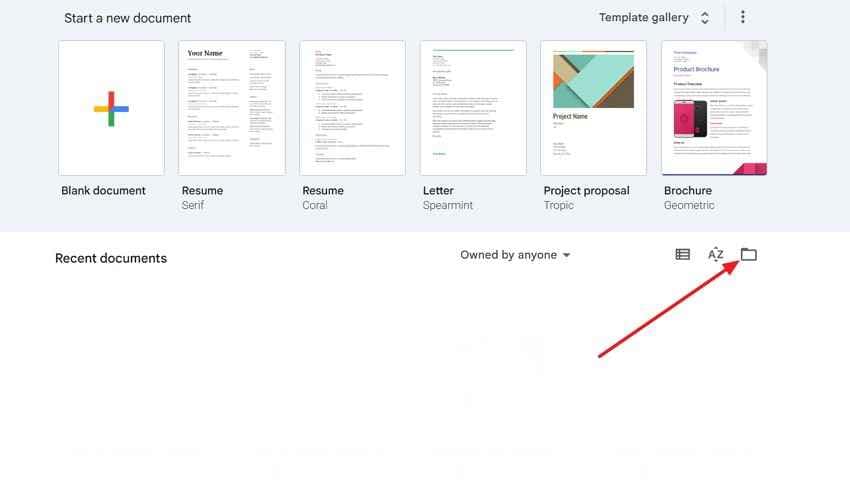
Step 1. Navigate to Google Docs and choose the "Folder" icon to add the restricted Word document.
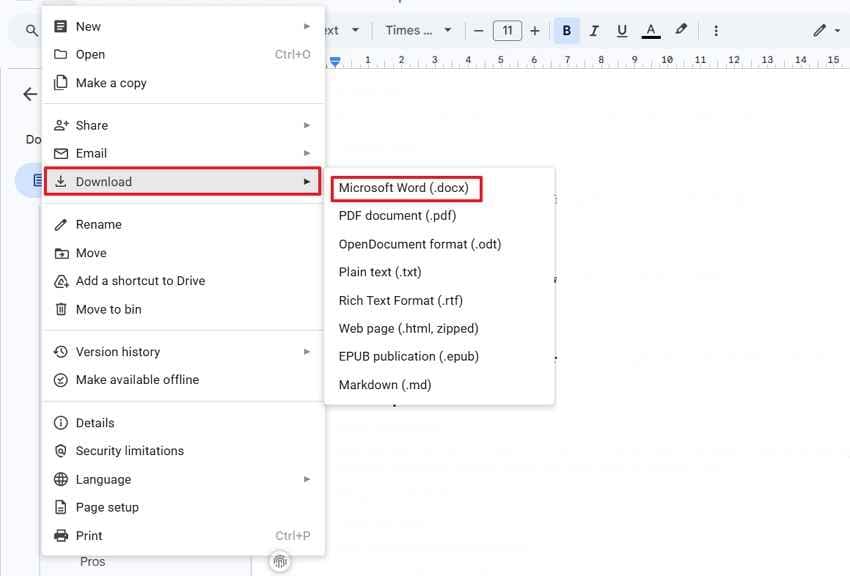
Step 2. After checking editable access, select "File > Download," then "Microsoft Word (.docx)."
Pro Tip. How Recoverit Helps Recover Deleted or Lost Word Files
A locked Word file can create two problems when it disappears suddenly. Users may know the password, yet still cannot locate the original document. For example, deletion, formatting, crashes, or drive errors can quickly remove access. Therefore, recovering the missing DOC or DOCX file should always come first. Only after restoration can password unlocking finally become useful again.
Recoverit Word Recovery fits this stage because it helps users find missing Word documents. It can scan selected folders, drives, USBs, and external storage locations. Moreover, users can preview recoverable files before saving the right document. After restoration, the user may continue with a suitable Microsoft Word password recovery method.
Key Features
- Broader Format Recovery: Handles less common Word-related formats when DOC or DOCX is not the only document type.
- Older Word File Recovery: Support recovering files created across newer and older Microsoft Word releases during document recovery tasks.
- File Filtering Option: Helps users narrow scan results by file type, date, and size, making document selection quicker.
Simple Tutorial to Recover Lost Word Files with Recoverit
Once users understand why Recoverit helps with missing Word files, they can follow a simple recovery process. The steps below show how to locate, preview, and restore lost Word documents safely:
Step 1. From the main screen, choose the "Hard Drives and Locations" option, and select the storage area where the file disappeared.

Step 2. During the scan, open the "Filter" panel or use the search field. Next, enter DOC or DOCX to separate Word documents from unrelated files.

Step 3. Select the correct Word file after checking its name, size, or date. Then, press the "Recover" button and save the document to a different safe location.
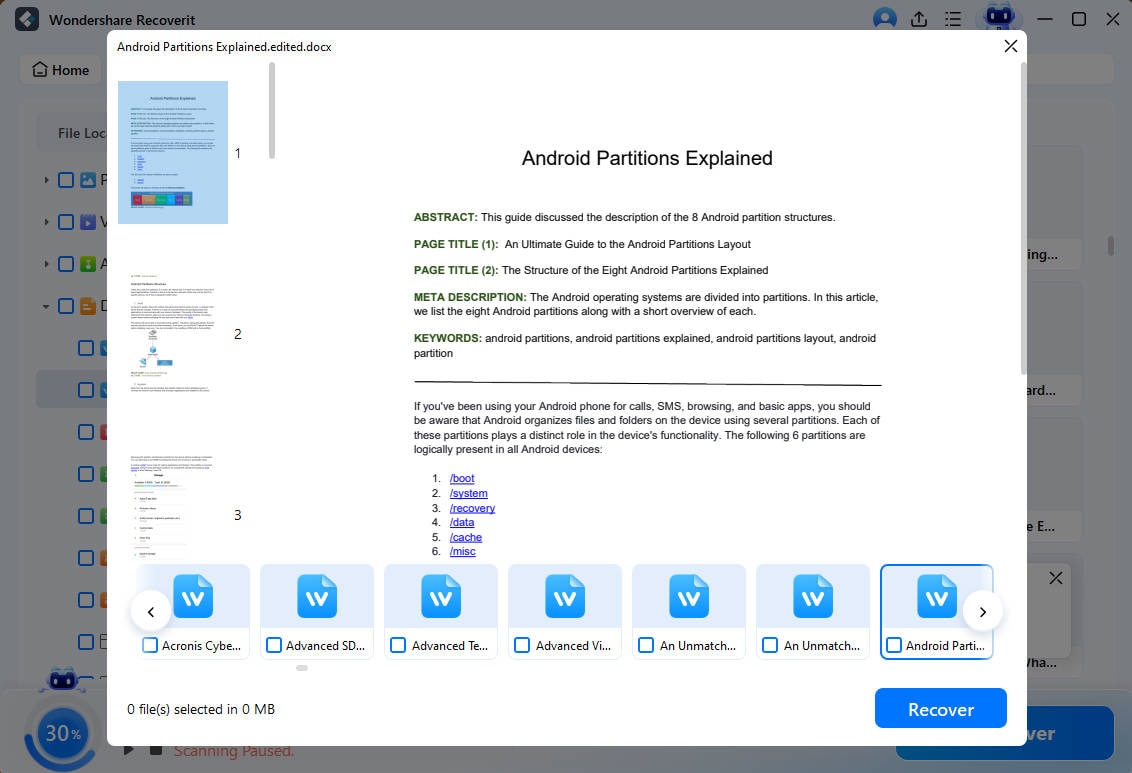
Note: Recoverit does not remove Word passwords or reveal forgotten passwords. It restores missing or deleted Word files first. After recovery, users still need the correct password or a separate Microsoft Word password-recovery method to safely open protected documents afterward.
Part 4. 7 Smart Ways to Protect Word Documents Safely
Once access is restored, the next priority is preventing the same issue from happening again. Good file habits below can reduce the need for Word document password recovery and keep important documents manageable:
- Create Strong Passphrases: Build passwords from uncommon phrases, mixed symbols, and numbers you remember easily. Skip birthdays, pet names, keyboard patterns, and repeated words in every document.
- Keep Passwords in a Manager: Password managers store sensitive details securely instead of relying on scattered notebooks. Add recovery hints carefully, so authorized people can identify the right file.
- Separate Backups from Main Files: Keep backups outside the main folder, cloud account, or shared workspace locations. This protects documents when one device, account, or folder becomes unavailable suddenly.
- Use Editing Restrictions Wisely: Apply editing restrictions when readers only need comments, signatures, or limited changes. Full opening passwords should stay reserved for files containing confidential information only.
- Share Files Through Trusted Channels: Secure links offer better control than random attachments sent through messaging apps. Set expiry dates when temporary reviewers need short-term access to documents.
- Update Word Before Locking Files: Updated Word versions handle protection settings more reliably during saving and sharing. Older builds may create compatibility issues when protected files move between devices.
- Review Access After Projects End: Remove old permissions once teams, clients, or project responsibilities change formally. Regular reviews prevent forgotten access from becoming a future document security risk.
Conclusion
To conclude, Word document password recovery works best when users first identify the protection type. Online tools can help with simple unlocking, known passwords, or encrypted DOCX access. However, missing files need recovery before any password method becomes useful. For deleted or lost protected documents, Recoverit is a practical option for restoring the file before password recovery begins.
Frequently Asked Questions
-
Can every Word document password be recovered?
No, recovery depends on encryption strength, password complexity, and the chosen recovery method. Older DOC files are usually easier than strongly encrypted modern DOCX documents today. -
Is online Word password recovery safe?
Online recovery can be safe when users choose trusted and transparent platforms carefully. Avoid uploading sensitive contracts, bank records, client files, or personal identification documents. -
What should users do if a password-protected Word file is missing?
Users should restore the missing DOC or DOCX file before attempting password recovery. Once the document is recovered, they can use the correct password or a suitable Word password recovery method to regain access safely. -
Does Recoverit recover Word document passwords?
No, Recoverit restores deleted or missing Word files from storage locations first. After recovery, users need the password or another suitable recovery method afterward.



