Have you deleted hundreds of photos and files but found that your iPhone storage is still full? Some deleted items may remain in separate Trash or Recently Deleted folders. iOS has no single system-wide Trash, so you must clear these folders individually in each app.
This guide explains how to empty the trash on iPhone across six common apps: Photos, Files, Mail, Notes, Messages, and Voice Memos. It also covers how permanent deletion affects iCloud and device storage, and warns that iCloud-synced deletions can propagate across devices.
In This Article
-
- Method 1. Empty Recently Deleted in the iPhone Photos App
- Method 2. Clear Recently Deleted Files in the Files App
- Method 3. Empty the Trash Folder in the iPhone Mail App
- Method 4. Permanently Delete Notes From Recently Deleted
- Method 5. Clear Recently Deleted Messages on iPhone
- Method 6. Empty Recently Deleted Recordings in Voice Memos
Part 1. How to Empty Trash on iPhone in 6 Different Apps
The process of emptying trash on iPhone varies by app and content type. Some apps automatically remove deleted items after a set retention period, while others follow account-specific deletion policies. The table below outlines the trash locations, permanent deletion methods, and retention periods across six common iPhone apps.
| App | Trash Location | Permanent Deletion Method | Retention Period |
| Photos | Collections > Utilities > Recently Deleted | Select > More > Delete All | 30 days |
| Files | Browse > Locations > Recently Deleted | Select > Delete All | 30 days |
| Account-specific Trash mailbox | Select All > Delete in List View | Varies by account | |
| Notes | Folders > Recently Deleted | Select notes > Delete | 30 days |
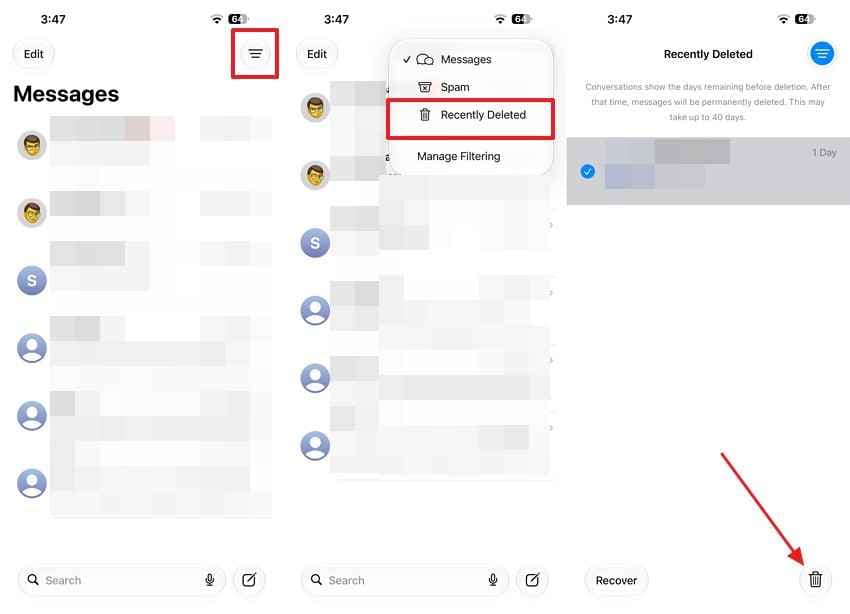
| Messages | Filters > Recently Deleted | Select conversations > Delete | About 30 days |
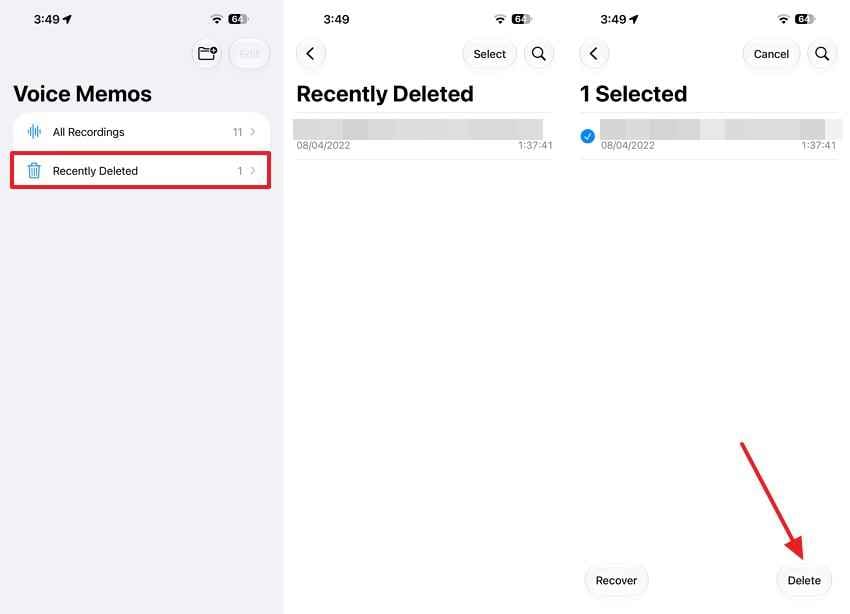
| Voice Memos | Recently Deleted | Select > Delete All | 30 days by default |
Method 1. Empty Recently Deleted in the iPhone Photos App
Since iOS 16, the Recently Deleted album requires Face ID or Touch ID authentication by default, with device passcode as a fallback. Shared Albums handle deletions differently from the personal library: according to Apple, removing shared photos immediately deletes them from the shared album. Save important shared pictures to your personal library first.
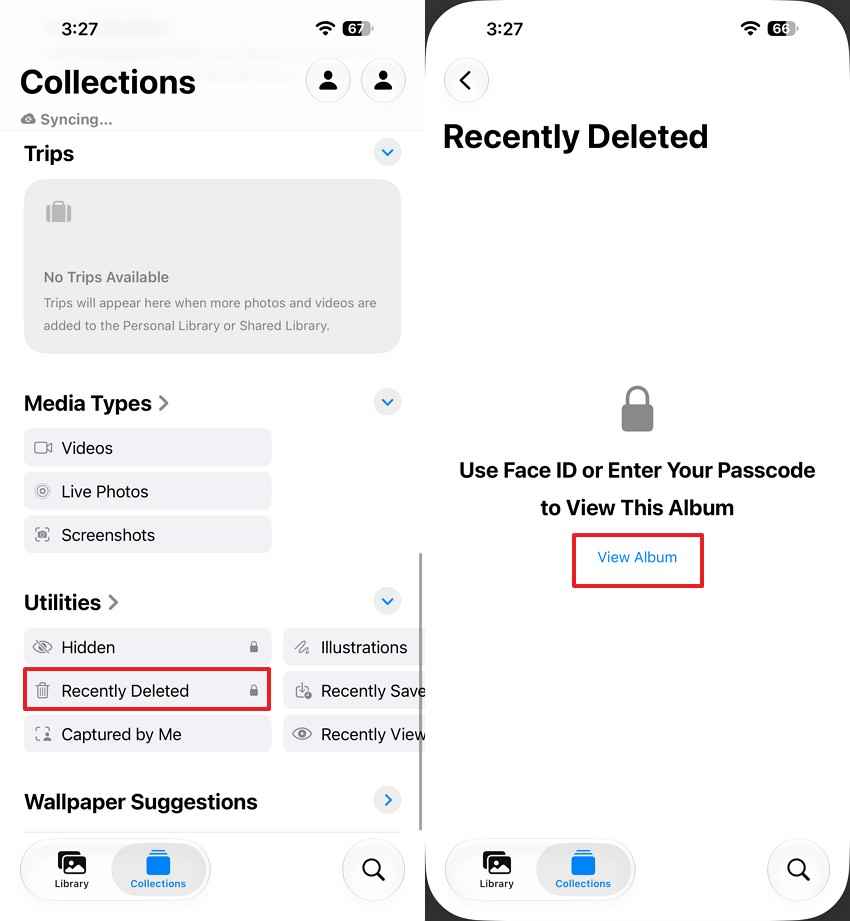
Step 1. Open Recently Deleted. Open Photos, navigate to Collections, locate Recently Deleted under Utilities, and tap View Album. Authenticate using Face ID, Touch ID, or your passcode if prompted.
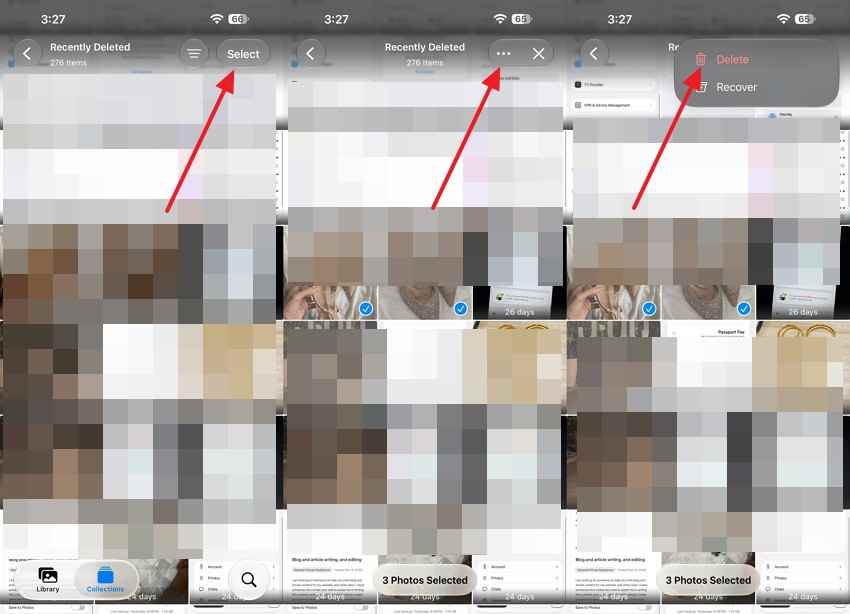
Step 2. Delete permanently. Tap Select, then More > Delete All to empty the album. Alternatively, select individual photos and videos, choose Delete, and confirm. Only use Delete All if you truly want every item gone, because permanently removed photos cannot be restored through the same folder.
Note: If you exceed your iCloud storage limit, deleted photos and videos may be removed immediately and cannot be recovered from Recently Deleted.
Method 2. Clear Recently Deleted Files in the Files App
The Files app is where you remove unwanted documents and downloads. According to Apple’s Files guide, removing files from Recently Deleted makes them permanently unavailable through the app. Check whether a file lives under On My iPhone or iCloud Drive, because iCloud Drive deletions sync across devices.
If you only need storage, use Remove Download instead of deleting an iCloud Drive file; that preserves the cloud copy while removing the local download.
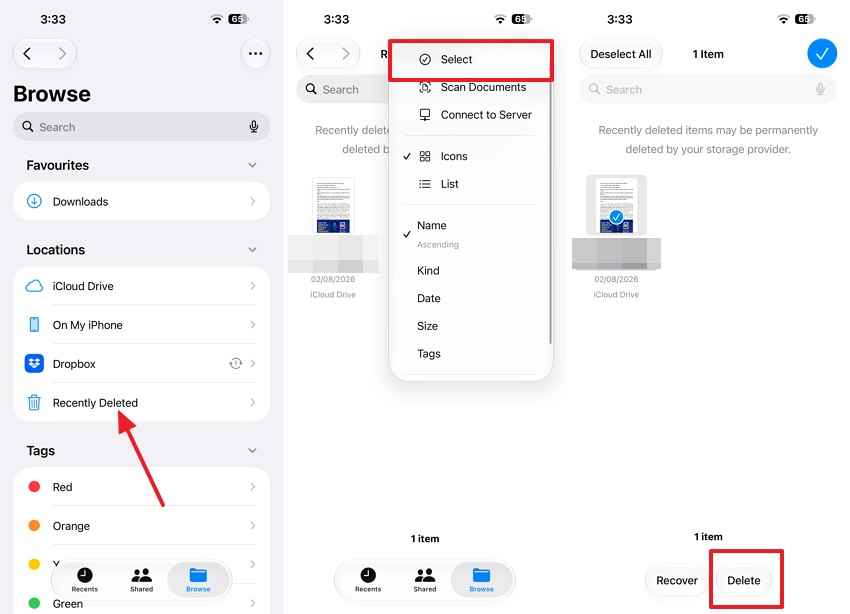
Instructions. Open Files, tap Browse, and select Recently Deleted under Locations. Tap More > Select, then Delete All to empty the folder. Alternatively, select individual files, tap Delete, and confirm.
Method 3. Empty the Trash Folder in the iPhone Mail App
Mail manages deleted emails by account, and some accounts archive messages by default instead of moving them to Trash. Apple supports bulk deletion through List View. Retention varies by email provider and account settings, so do not assume a universal Select All works for every account.
For iCloud Mail, deleted emails remain recoverable for up to 30 days unless permanently removed earlier.
Step 1. Open the Trash mailbox. Access Mail, navigate to Mailboxes, and open the Trash or Bin mailbox under the relevant account. Tap More > Select to choose individual emails.
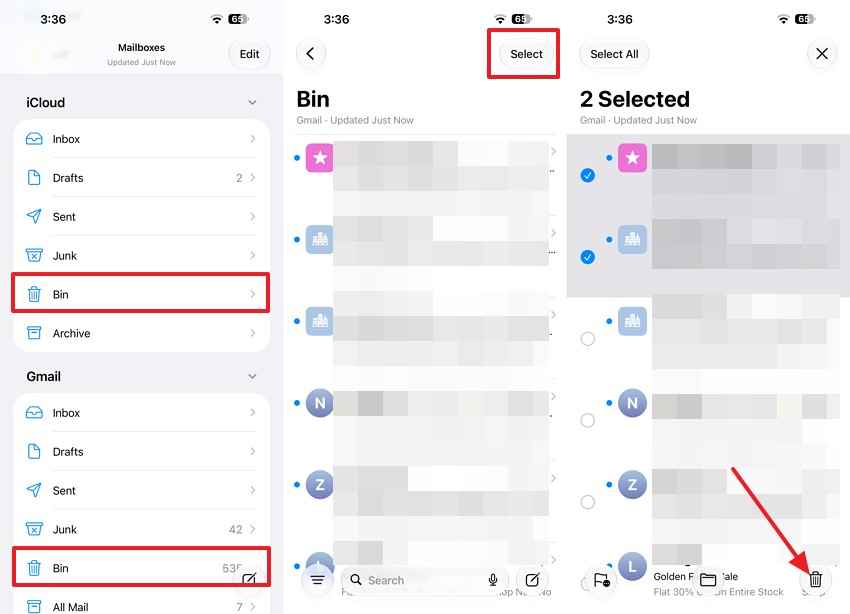
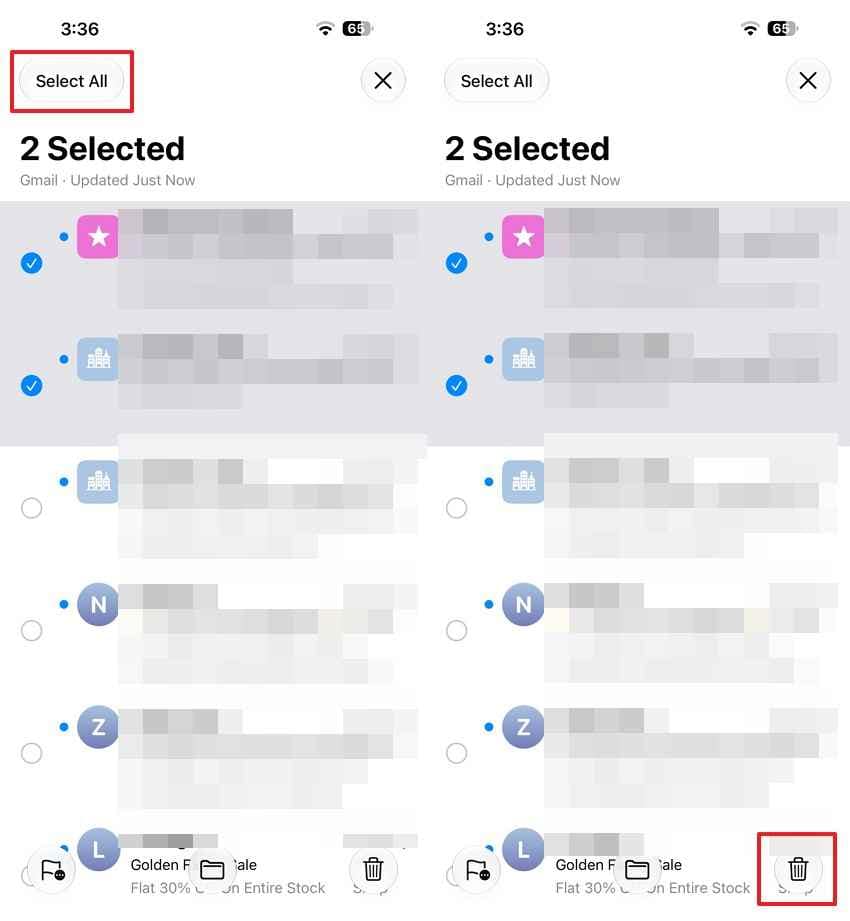
Step 2. Empty the mailbox. Switch to List View and enter selection mode. Tap Select All, then Delete, and confirm if prompted.
Method 4. Permanently Delete Notes From Recently Deleted
Notes manages deleted content according to the account where each note was stored. According to Apple, deleted iCloud notes remain recoverable for up to 30 days. Notes associated with certain email accounts may appear in Mail’s Trash instead. Removing a shared note owned by someone else does not delete the original from their account.
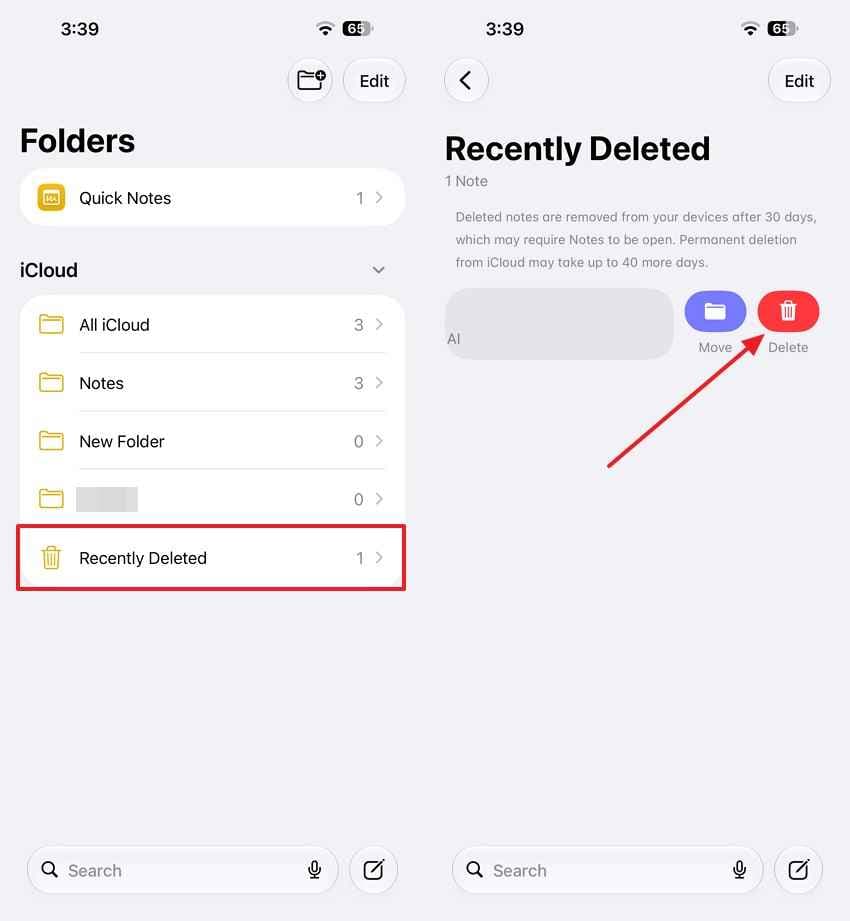
Step 1. Delete individual notes. Open Notes, return to Folders, and access Recently Deleted under the relevant account. Swipe left on an unwanted note, tap Delete, and confirm.
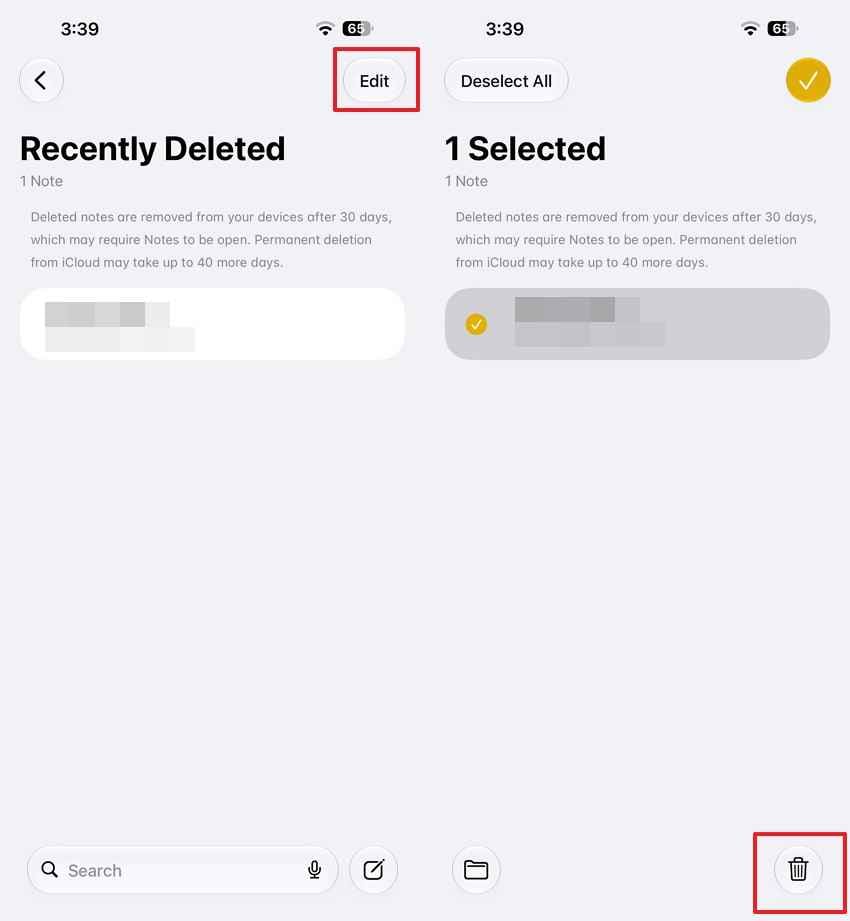
Step 2. Bulk delete. Tap Edit, select the unwanted notes, and choose Delete. To empty the folder, use Delete All. Repeat for other accounts if necessary.
Method 5. Clear Recently Deleted Messages on iPhone
Since iOS 16, deleted text messages and their attachments remain temporarily accessible in Recently Deleted. Apple’s user guide specifies a retention period of about 30 days, while its recovery article mentions a recovery window of 30 to 40 days. Treat the shorter period as the safe assumption.
Permanently removing conversations also deletes their associated attachments, including photos and videos.
Instructions. Open Messages and tap Filters or Edit, depending on your iOS version. Access Recently Deleted or Show Recently Deleted and select the unwanted conversations. Tap Delete and confirm. To empty the entire section, choose Delete All.
Method 6. Empty Recently Deleted Recordings in Voice Memos
Voice Memos lets you configure automatic deletion of removed recordings through Settings > Apps > Voice Memos > Clear Deleted.
Step 1. Delete individual recordings. Launch Voice Memos, return to the folder list, and access Recently Deleted. Select an unwanted recording, tap Delete, and confirm.
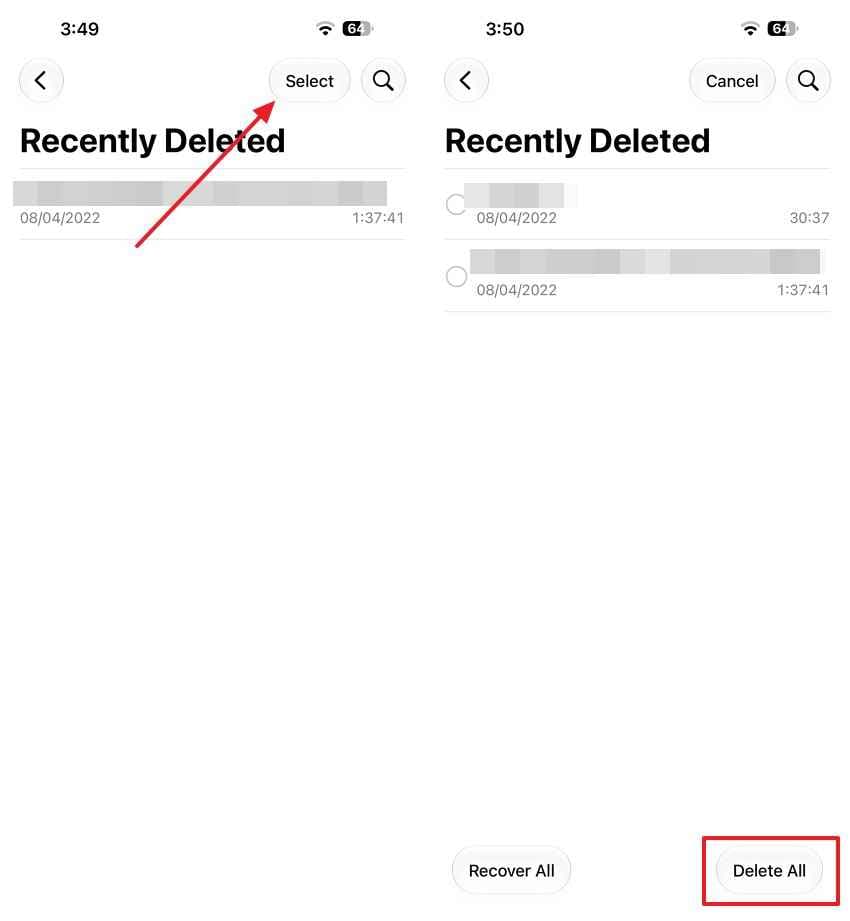
Step 2. Empty the folder. Tap Select without choosing individual recordings, then select Delete All and confirm.
Note: The Clear Deleted setting offers five options: Immediately, After 1 Day, After 7 Days, After 30 Days, and Never.
Part 2. What Happens After You Empty Trash on iPhone?
Before you empty the trash on an iPhone, consider where the deleted content was originally stored, because its location determines the impact of permanent deletion.
| Area | What Emptying Changes | What to Watch |
| Local storage | Permanently removes locally stored items and frees device space | Storage totals may take time to refresh |
| iCloud synchronization | Permanently removes deleted items across devices with iCloud syncing enabled | The initial deletion also affects synced devices |
| Third-party services | Permanently removes items from the respective service’s trash | Gmail and Google Photos follow their own retention and sync rules |
1. Are Files Permanently Deleted After Emptying Trash?
Yes. Emptying Recently Deleted or Trash removes the app’s built-in recovery option. Photos, Files, and Notes generally retain deleted items for 30 days; Messages for about 30 days (Apple’s recovery article cites 30 to 40); and Voice Memos use a configurable retention period. Mail retention varies by email provider.
After you permanently clear an item, it is no longer recoverable through its original deleted-items folder. Apple’s Platform Security guide explains that individual encryption keys protect files on the device, which makes direct recovery of permanently removed iPhone internal data impractical for consumer tools. Check important content before you confirm permanent deletion.
2. Does Emptying Trash on iPhone Free Up Storage?
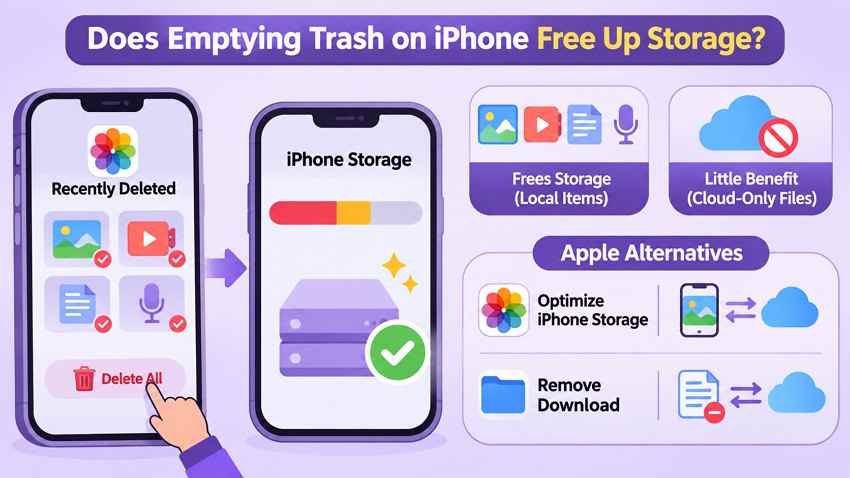
Emptying trash can free up storage when the deleted items occupy local device space. The amount reclaimed depends on the size of the removed photos, videos, documents, and recordings. Deleting cloud-only files offers little or no local storage benefit.
After emptying, check Settings > General > iPhone Storage to review available space. If storage remains limited, Apple provides two alternatives: Optimize iPhone Storage (keeps smaller local versions, full-resolution originals in iCloud) and Remove Download (removes downloaded iCloud Drive files without deleting their cloud copies).
3. Does Emptying Trash Also Delete Files From iCloud?
Clearing Recently Deleted in iCloud Photos or iCloud Drive permanently removes those items from iCloud and from other devices using the same Apple Account. Deleting files stored only under On My iPhone does not affect independent cloud copies.
Check your iCloud synchronization settings before permanent deletion. iCloud synchronization is not the same as an independent backup, and disabling synchronization afterward will not restore removed content. Third-party apps, including Gmail and Google Photos, follow their own trash and synchronization rules.
Pro Tip. Recover Accidentally Deleted Photos Using Recoverit
Important photos, videos, and documents may have copies on a computer or external storage device. Even after deletion from those devices, the underlying data can remain recoverable until overwritten. If your iPhone photos were previously copied or exported to a Windows PC, Mac, or compatible removable storage, and those copies were later deleted, Recoverit Photo Recovery can help.
Recoverit helps retrieve lost files from accidental deletion, formatting, or file system corruption on computers, external hard drives, USB flash drives, and memory cards. It recognizes many file formats, including HEIC, MP4, PDF, and M4A, and lets you preview supported files before recovering them to a separate location. Recovery depends on whether the deleted data remains accessible and has not been overwritten, and Recoverit cannot directly recover deleted photos from modern iPhone internal storage or reverse iCloud Photos deletions.
Key features:
- Partition recovery: retrieves files from lost or deleted partitions.
- BitLocker data recovery: retrieves files from supported BitLocker-encrypted drives when valid credentials are available.
- Time Machine recovery: detects and scans Time Machine backup disks on Mac.
- AI enhancement: sharpens recovered photos and videos, supporting output up to 8K.
- Corrupted file repair: repairs supported corrupted photos and documents.
How to Recover Deleted iPhone Photos With Recoverit
If your iPhone photos were exported to a computer or external drive and then deleted, follow these steps to recover them.
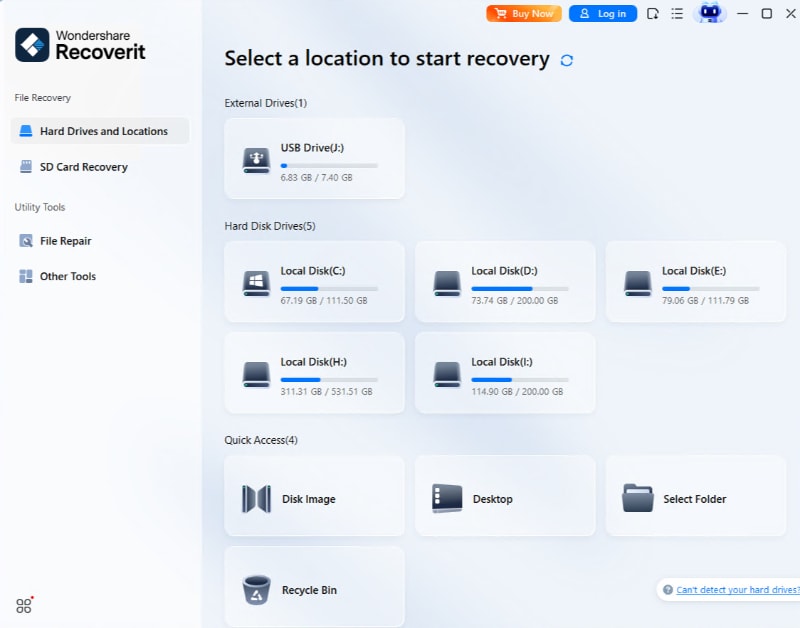
Step 1. Select the source drive. Connect the device containing your lost iPhone exports and open Recoverit. From Hard Drives and Locations, choose the relevant drive or folder. For memory cards, switch to SD Card Recovery.
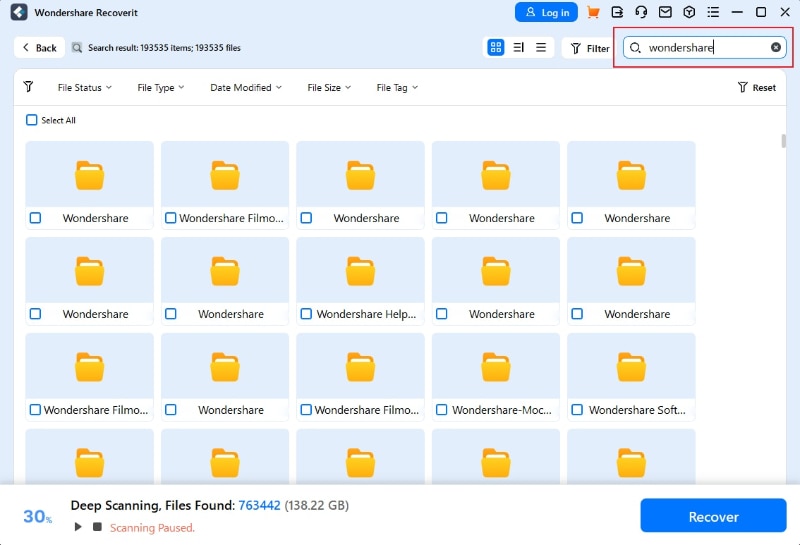
Step 2. Scan and locate. Recoverit displays discovered files as the scan progresses. Narrow results using file filters or enter descriptions into AI Search.
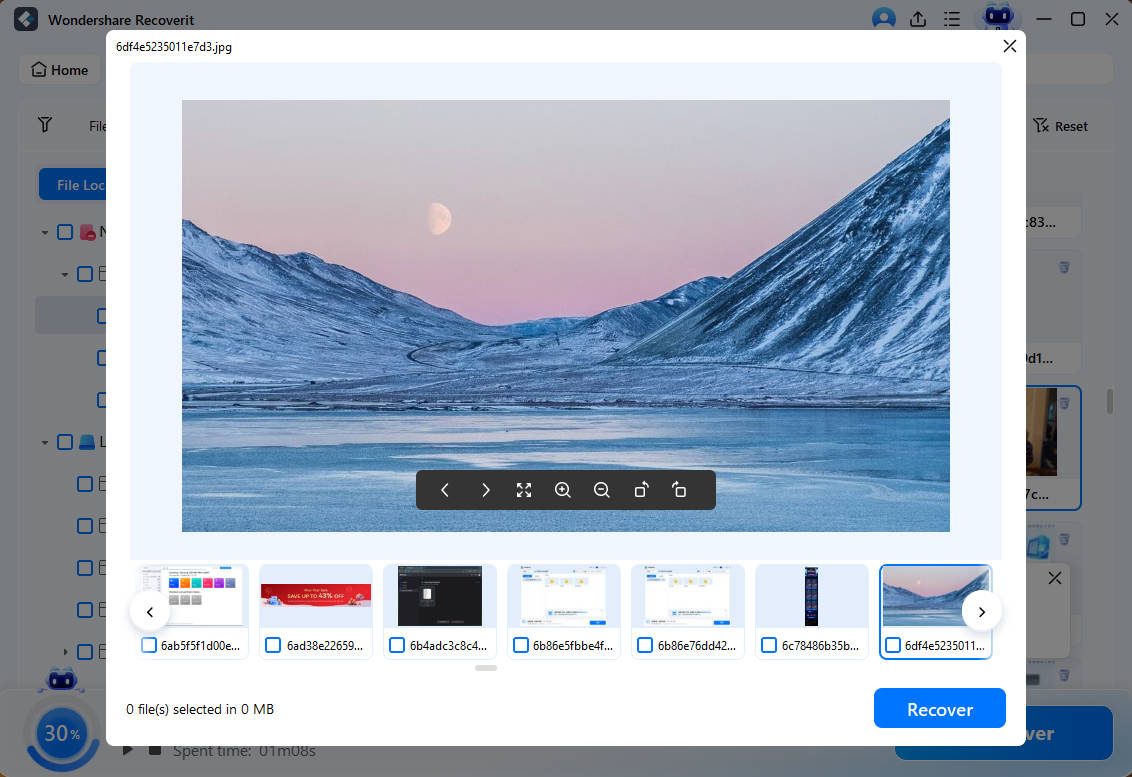
Step 3. Preview and recover. Double-click a recovered file to examine it before restoring. Mark the required files and click Recover, then choose a different drive as the destination to avoid overwriting data.
Conclusion
iOS has no universal trash folder, so each app requires individual attention. Confirm each relevant app bin is empty, then check iPhone Storage and any iCloud-synced devices, because permanent deletion can affect more than one device.
For iPhone photos you exported to a Mac, PC, or removable storage and then accidentally deleted, Recoverit Photo Recovery can help retrieve those copies. It does not scan encrypted iPhone internal storage directly.
FAQ
-
Where is the Trash or Recycle Bin on an iPhone?
An iPhone has no universal Trash or Recycle Bin. Apps such as Photos, Files, Notes, Messages, Voice Memos, and Freeform have separate Recently Deleted sections, while the Mail app uses a Trash or Bin mailbox for each account. -
How do I empty all trash on my iPhone at once?
iOS does not offer a universal option to empty trash across all apps simultaneously. Photos, Files, and Voice Memos provide a Delete All option within their Recently Deleted sections, while other apps require selecting and deleting items separately. -
Why is my iPhone storage still full after emptying trash?
Emptying trash provides little benefit if the deleted items occupied minimal device space. Installed apps, cached files, and system data also consume storage, and iOS may take time to update available storage figures after large deletions. -
Can I recover photos after emptying Recently Deleted on iPhone?
Once photos are permanently deleted, Apple’s Photos app provides no built-in recovery option. Separate copies may still exist on computers, external drives, or other cloud services, and an earlier iPhone backup may contain the photos if iCloud Photos was disabled during backup. Restoring a full backup replaces the device’s current data.


