If your Windows 10 photo viewer is not working, first check which app is failing and whether the same picture opens in Paint. If Paint can open a known-good JPG but Microsoft Photos cannot, start with the Photos app or its default-file settings. If JPG files work but HEIC or camera RAW files do not, check the format extensions instead. If the same image fails in multiple compatible viewers, investigate the image file before changing Windows.
Windows 10 may have Microsoft Photos, Photos Legacy, or the older Windows Photo Viewer, and the fixes are not interchangeable. Work through the low-risk checks below before resetting apps or changing system settings. A viewer problem alone does not mean your photos have been lost.
In This Article
-
- Windows 10 Support Ended in October 2025: What Still Works?
- Fix 1. Set Microsoft Photos as the Default Photo Viewer
- Fix 2. Repair or Reset the Microsoft Photos App
- Fix 3. Update Microsoft Photos Through the Microsoft Store
- Fix 4. Reinstall Microsoft Photos From Its Official Store Listing
- Fix 5. Install the Correct Extension for HEIC, HEIF, or Camera RAW
- Fix 6. Run the Windows Store Apps Troubleshooter If It Is Available
- If the Store Troubleshooter Is Missing, Check the Store Cache and App Settings
-
- Fix 1. Check Whether Classic Windows Photo Viewer Is Available
- Fix 2. Correct Broken Windows Photo Viewer File Associations
- Fix 3. Check Color Management Only for Relevant Classic Viewer Errors
- Avoid Unverified Registry Hacks for Enabling the Legacy Viewer
- When an Image Cannot Open Anywhere, Diagnose the File Instead
Part 1. Which Windows 10 Photo Viewer Is Not Working? Identify the App and File Type
The first question is whether the app itself will not launch, one particular format will not open, or the old Windows Photo Viewer is missing from the Open With list. Identifying the difference can save you from reinstalling the wrong program.
Distinguish Microsoft Photos, Photos Legacy, and Classic Windows Photo Viewer
The names sound similar, but they refer to different programs. You might have only one or two of them installed. Microsoft documents the modern Photos app and the separately available Photos Legacy app, which retains older album and video-editing features. Microsoft explains Photos Legacy here.
| Viewer | How to identify it | What to check first |
| Microsoft Photos | Newer gallery interface with folder navigation and media editing | Repair or update the Microsoft Store app if a known-good JPG fails |
| Photos Legacy | Older Collections, Albums, People, and Video Editor interface | Open Photos Legacy directly; check its availability and app-specific settings |
| Windows Photo Viewer | Classic desktop viewer with basic print and viewing controls | Check whether it is offered in Open With for the image format |
To identify the app, search for Photos and Photos Legacy separately from Start. If the issue occurs only after double-clicking a file, right-click it and select "Open with" to see which program Windows is trying to launch.
Test the Same Image in Paint or Another Trusted App Before Reinstalling Anything
Use a local JPG that previously opened correctly, if possible. This is a diagnostic test, not a file repair. Paint opening one picture does not prove that every HEIC or RAW file should work there.
Step 1. Right-click the problem image, choose "Open with > Paint", and see whether its contents display. If Paint opens it, keep the original file unchanged and troubleshoot the intended viewer.
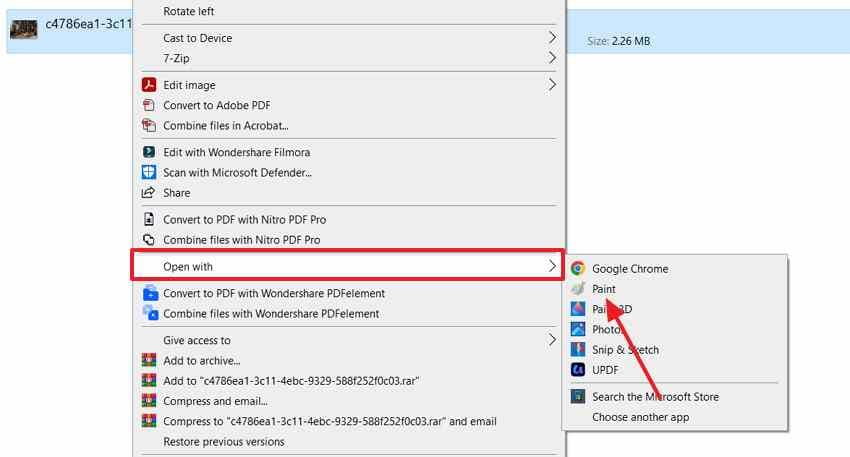
Step 2. Try a separate, known-good JPG in the affected viewer. If that JPG also fails while Paint opens it, focus on the viewer app or file association. If only the original image fails, check its format and source copy.
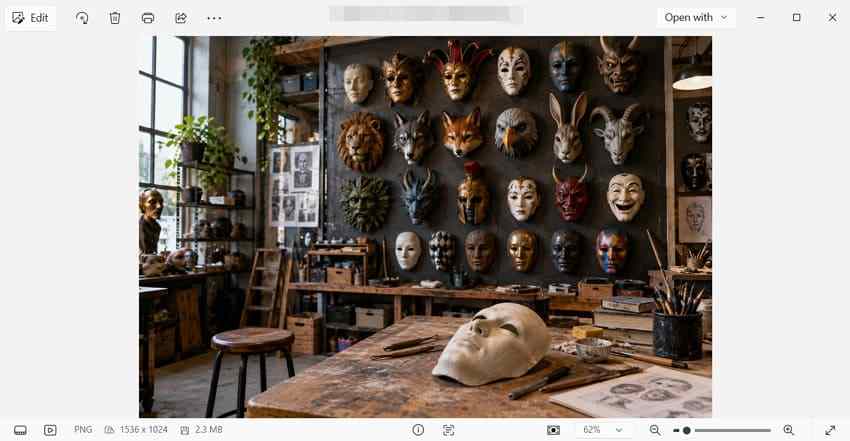
If the app will not launch even from Start, move to Part 2. If only the classic viewer fails, use Part 3. If just one image is affected, do not uninstall the Photos app yet.
Recognize Codec Errors, Damaged Images, and Broken File Associations
| What you see | Likely area to investigate | Best next step |
| JPG works, but .heic or .heif asks for an extension | HEIF/HEVC format support may be missing | Use the relevant Microsoft Store image extensions in Part 2 |
| JPG works, but a camera RAW file fails | The camera format may require RAW support or a compatible viewer | Check Raw Image Extension and camera compatibility |
| The image opens in Paint but not in Photos | Photos app, settings, or association problem | Try Photos Repair, updates, then Reset only if necessary |
| Open with works, but double-clicking fails | Incorrect file association | Assign an available viewer to that file type |
| One image fails in several compatible apps | Damaged, incomplete, or misidentified file is possible | Check file size, backup, and original device copy |
Note: A file extension is a clue, not proof that the data is valid. A renamed .heic file does not become a JPG, and an unreadable file is not automatically recoverable.
Part 2. Fix Microsoft Photos Not Opening or Showing Photos on Windows 10
Use these fixes if Microsoft Photos opens a blank window, closes immediately, or cannot display a known-good image that works in another compatible app. Try the least disruptive options first. Photos Legacy is a separate app, so confirm you are repairing the version that actually fails.
Windows 10 Support Ended in October 2025: What Still Works?
Microsoft ended standard Windows 10 support on October 14, 2025. The operating system continues to run, and apps already installed can still work. Eligible Windows 10 version 22H2 personal devices enrolled in Extended Security Updates (ESU) can receive critical and important security patches through October 12, 2027, but ESU does not provide general Photos bug fixes or new Windows features. See Microsoft's Windows 10 ESU terms.
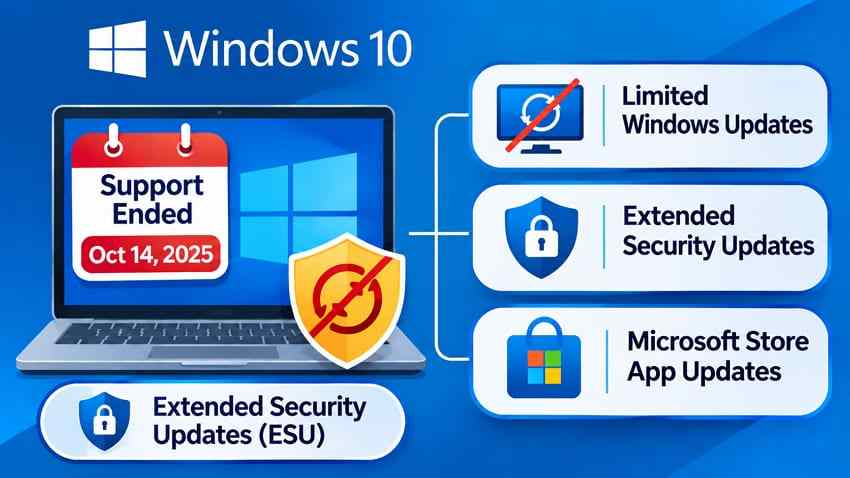
Continue with the available app-level fixes below, and plan a move to a supported Windows release when your hardware and workflow permit. Microsoft Store app availability may vary as software requirements change.
Fix 1. Set Microsoft Photos as the Default Photo Viewer
Choose this method if the image opens correctly through "Open with" but fails on a double-click, or another program launches instead. Changing the default app does not modify the picture file.
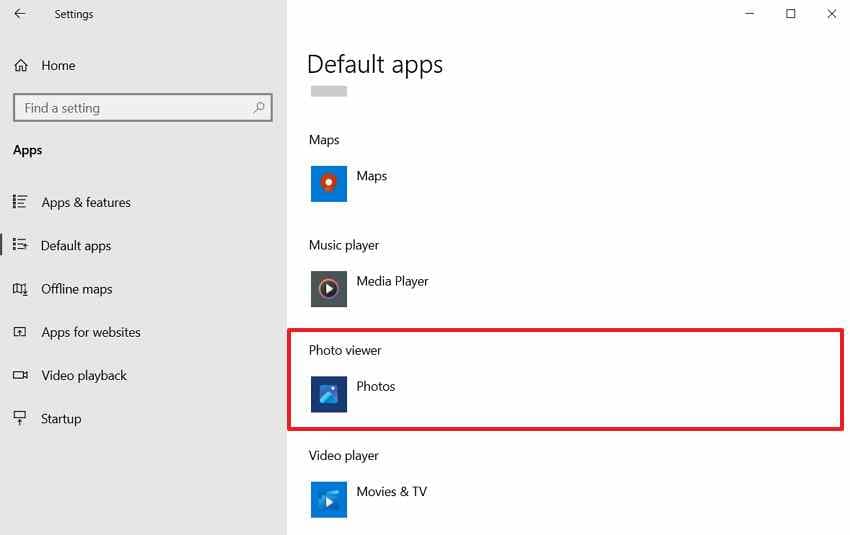
Step 1. Open "Settings > Apps > Default apps". Under "Photo viewer", select Photos, if it is installed and available.
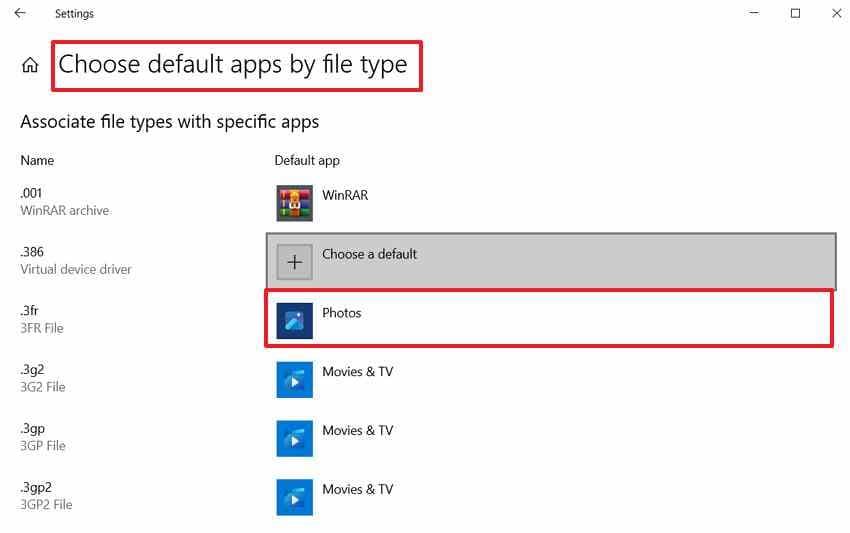
Step 2. For a specific extension, select "Choose default apps by file type", find .jpg or .png, and select Photos. Open a known-good image again to confirm that the selected app starts normally.
If Photos still fails when launched directly from Start, continue to Fix 2. Microsoft also describes changing default apps in Windows.
Fix 2. Repair or Reset the Microsoft Photos App
Use Repair first when Photos opens to a blank screen, freezes, or exits unexpectedly. Microsoft recommends Repair before Reset because Reset can remove app-specific data and preferences. Photos stored as ordinary files in your Pictures or other folders are separate from those application settings.
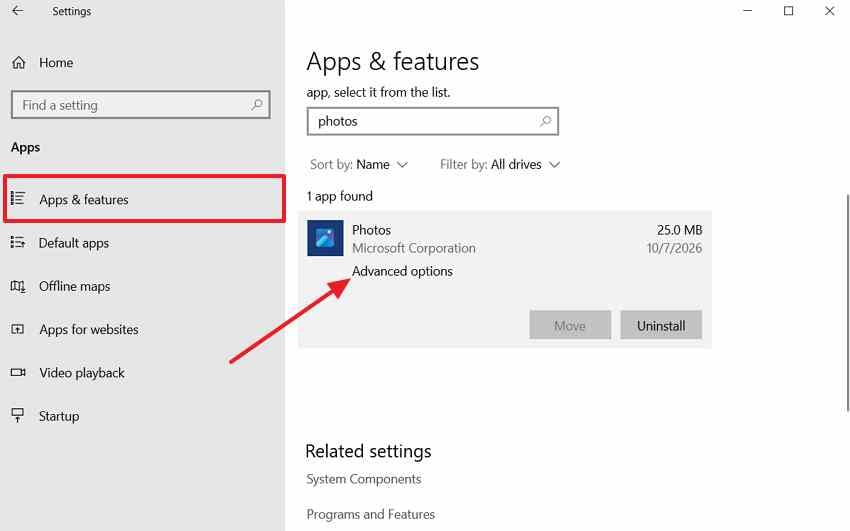
Step 1. Open "Settings > Apps > Apps & features" on Windows 10. Select Microsoft Photos, then "Advanced options" if that control is available.
Step 2. Select "Repair". Reopen Photos and test a known-good JPG. If Repair fails, back up any important application-specific work and select "Reset". Test the same file again after Photos starts.
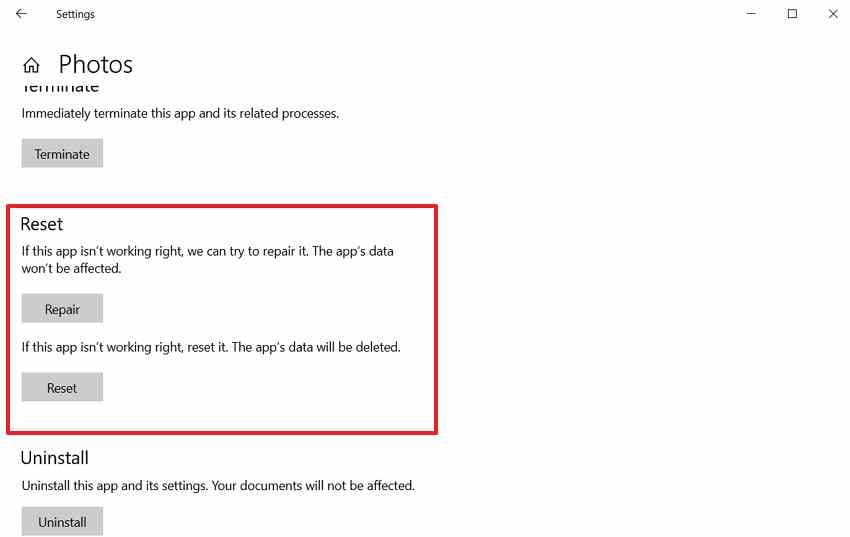
Note: Reset does not intentionally delete original picture files stored outside the app. However, it can remove local app preferences or other app data, so check saved projects and work in progress first. If Repair or Reset is unavailable, move to the Store update and reinstall options.
Fix 3. Update Microsoft Photos Through the Microsoft Store
If Photos was recently updated incorrectly or an older app version keeps failing, check whether an applicable Store update is available. An update is not guaranteed to fix the issue, particularly if the installed app version no longer supports your Windows build.
Step 1. Open Microsoft Store. Depending on the Store interface, open "Library" or "Downloads". Older versions of the Windows 10 Store may show "Downloads and updates".
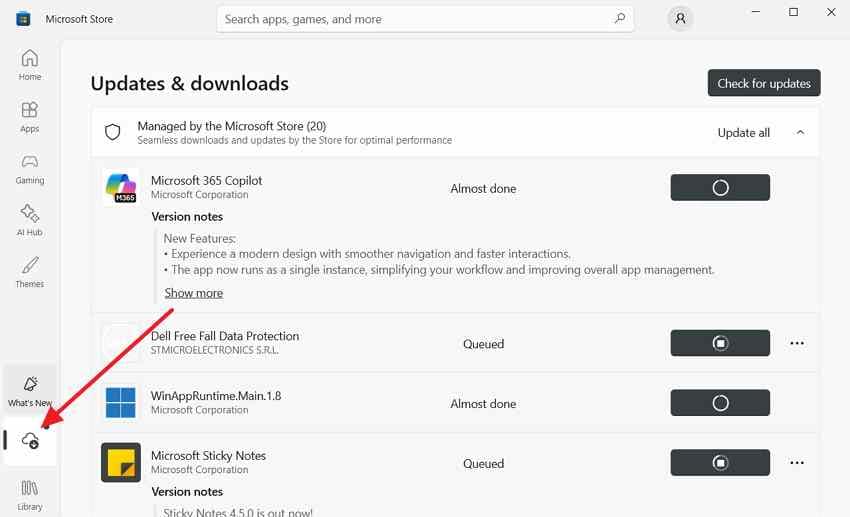
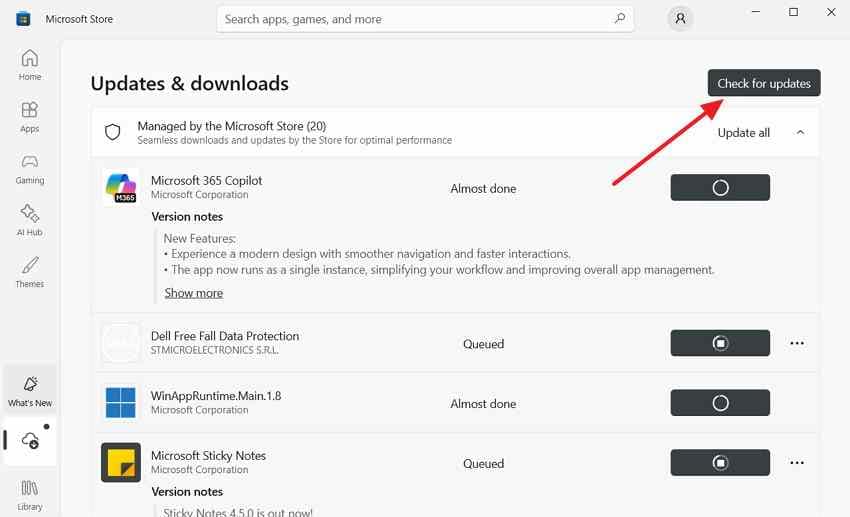
Step 2. Choose "Get updates" or "Check for updates" where available. Install a Microsoft Photos update if one is offered, then close and reopen Photos to test the image again.
If Microsoft Store itself will not open, use the Store troubleshooting alternative later in this section rather than downloading an unofficial Photos installer.
Fix 4. Reinstall Microsoft Photos From Its Official Store Listing
If repairing and updating the app do not help, reinstalling Photos can replace damaged application files. This should be a later step because reinstalling may reset app-local settings and projects. You do not need to delete image folders to reinstall the viewing app.
Step 1. Save any work in progress, then open "Settings > Apps > Apps & features". If Uninstall is available for the affected Photos app, remove that app only. If Windows does not offer Uninstall, do not force it by using an unverified removal script.
Step 2. Open the official Microsoft Photos Store listing and install the compatible version offered for your PC. Restart Photos and test a known-good JPG.
Note: Do not remove Pictures, Camera Roll, OneDrive folders, or imported source photos. If Store installation fails, try the Store troubleshooting options below before attempting advanced app-package commands.
Fix 5. Install the Correct Extension for HEIC, HEIF, or Camera RAW
A photo format problem is not the same as a broken Photos application. If ordinary JPG files open but an iPhone .heic file or camera RAW image does not, check the image format and Microsoft's supported extensions first. Microsoft explains that HEIF photos may require HEIF Image Extensions and HEVC Video Extensions; supported camera RAW files may require Raw Image Extension. Some codecs are already installed by the device manufacturer.
| Image extension | What to check | Important limit |
| .heic / .heif | HEIF Image Extensions and, when required, HEVC Video Extensions from Microsoft Store | Availability, price, and hardware requirements depend on the device and market |
| Camera RAW such as .cr3 | Raw Image Extension or a camera-maker-supported viewer | Not every camera model or RAW variant is supported |
| .jpg / .jpeg / .png | These common formats normally need no separate HEIF/RAW extension | If only one file fails, investigate that file instead |
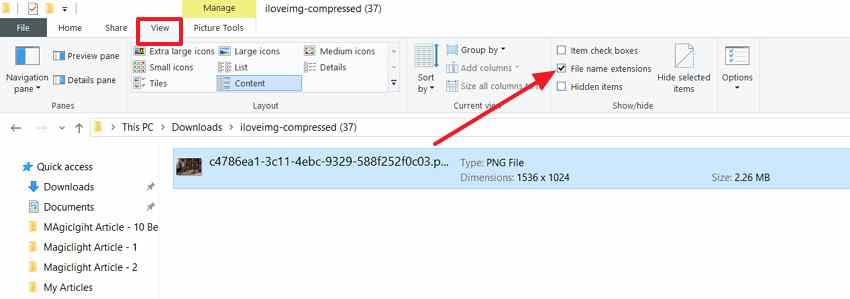
Step 1. In File Explorer, show filename extensions, then check whether the file ends in .heic, .heif, a supported camera RAW extension, or an ordinary JPG/PNG extension.
Step 2. In Microsoft Store, search for the relevant extension and confirm the publisher is Microsoft Corporation. Install only the extension your format requires, following any prerequisites on its listing.
Step 3. Close and reopen Photos. Try the image again; if it still fails, check the camera or phone's original file and whether another trusted, format-compatible viewer can read it.
Read Microsoft's HEIF/HEVC explanation before paying for a codec or trying a third-party codec pack. Renaming a file extension does not convert its format.
Fix 6. Run the Windows Store Apps Troubleshooter If It Is Available
Some Windows 10 installations still include a Windows Store Apps troubleshooter. It is an optional check for Store-app components, not a fix for damaged photo files. Microsoft has retired or redirected many legacy troubleshooters on newer Windows versions, so this exact option may not appear on every PC.
Step 1. On Windows 10, open "Settings > Update & Security > Troubleshoot > Additional troubleshooters", if available.
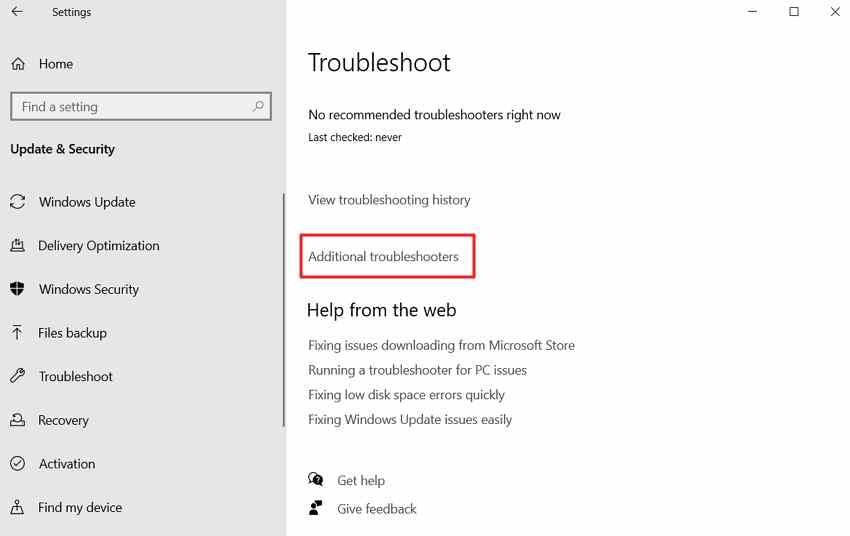
Step 2. Choose "Windows Store Apps" and run the troubleshooter if it is listed. Review the reported findings, apply only relevant changes, and reopen Microsoft Photos to test your JPG.
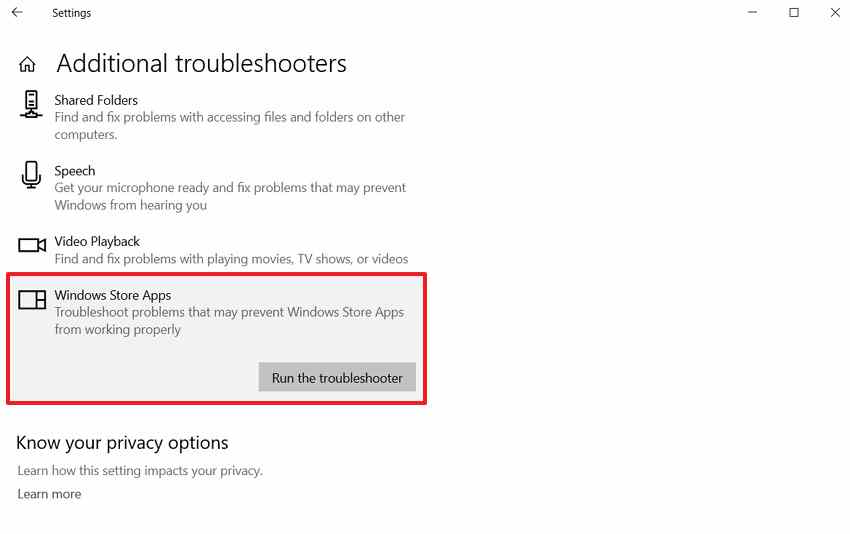
Note: If the entry is missing or an administrator has disabled it, skip this method. Do not install third-party tools claiming to recreate retired Windows troubleshooters. See Microsoft's Store app repair guidance.
If the Store Troubleshooter Is Missing, Check the Store Cache and App Settings
Use this branch only if Microsoft Store cannot load, download, or reinstall Photos. If the Store works normally, its cache is unlikely to explain a single photo refusing to open.
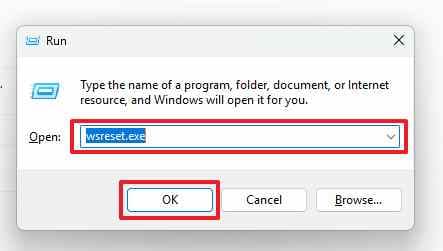
Step 1. Press Win + R, type wsreset.exe, and select OK. Let the command finish; Microsoft Store may reopen automatically.
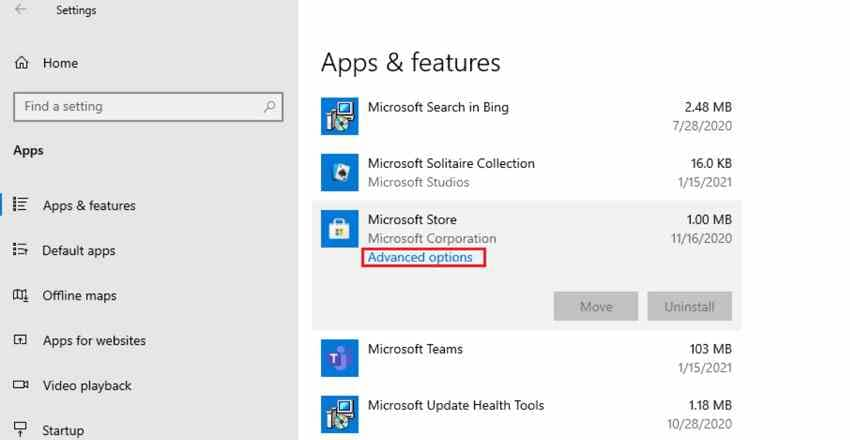
Step 2. If the Store is still broken, open "Settings > Apps > Apps & features", select Microsoft Store, and open "Advanced options" if available. Try Repair before Reset; a Store reset may clear its local data or sign-in state.
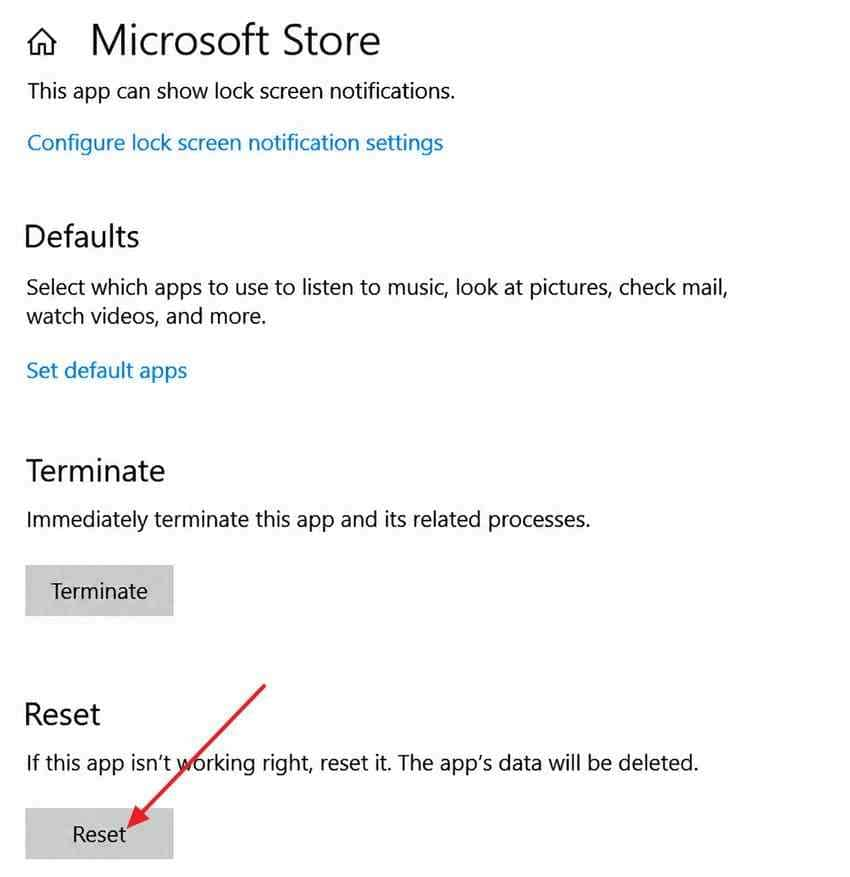
Once Store downloads work, retry the official Photos installation. If your computer is managed by a company or school, contact IT rather than overriding its Store policies.
Part 3. Fix Classic Windows Photo Viewer Not Working on Windows 10
Classic Windows Photo Viewer is different from the modern Microsoft Photos app. On some Windows 10 installations it is available only for a limited set of file types, or is not shown in the Open With menu. First check availability and existing associations. Avoid registry modifications simply to enable an older viewer.
Fix 1. Check Whether Classic Windows Photo Viewer Is Available
Use this check if you specifically want the older Windows Photo Viewer interface, not Microsoft Photos. A computer upgraded from an earlier Windows version may still offer the classic viewer; a clean installation might not expose it for JPG or PNG.
Step 1. Right-click a standard .jpg image and select "Open with > Choose another app".
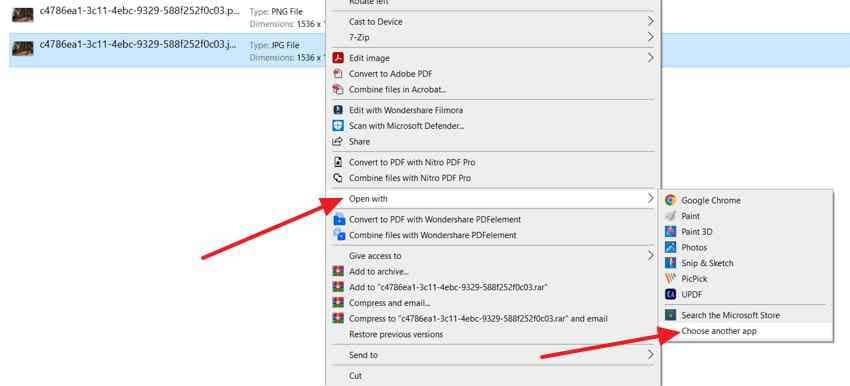
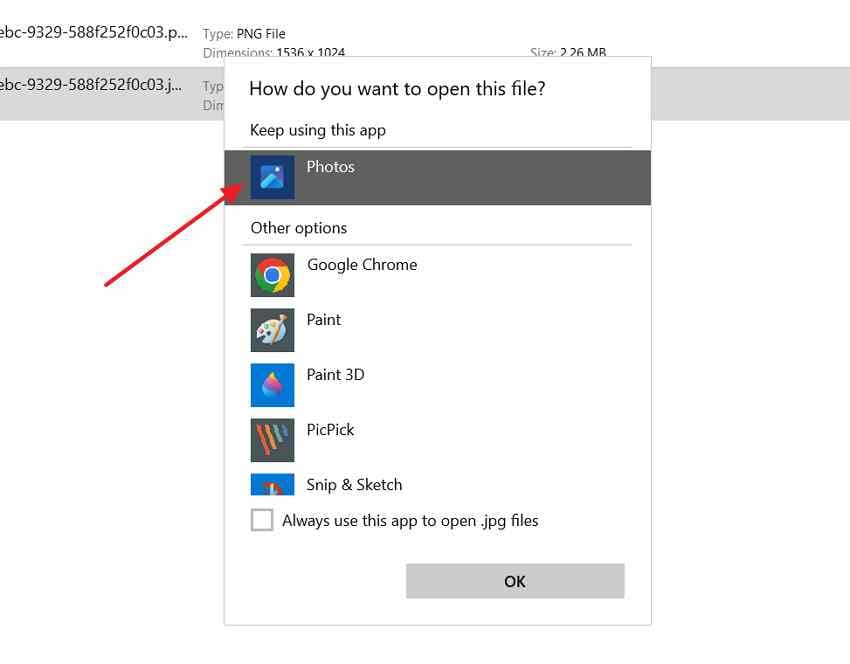
Step 2. Look for Windows Photo Viewer. If it is listed, choose it for a test image. If it is absent, use Photos or Photos Legacy rather than importing an unknown registry file.
For a separate discussion of the older viewer's availability, see Recoverit's existing guide to restoring Windows Photo Viewer.
Fix 2. Correct Broken Windows Photo Viewer File Associations
If the classic viewer opens successfully through Open with but double-clicking a JPG launches something else, change that file type's default app. This does not reinstall the old viewer or add missing codec support.
Step 1. Right-click the affected file, choose "Open with > Choose another app", and select Windows Photo Viewer only if Windows offers it.
Step 2. Select "Always use this app to open .jpg files" if available, then click OK. Repeat for .jpeg, .png, or another supported format only as needed.
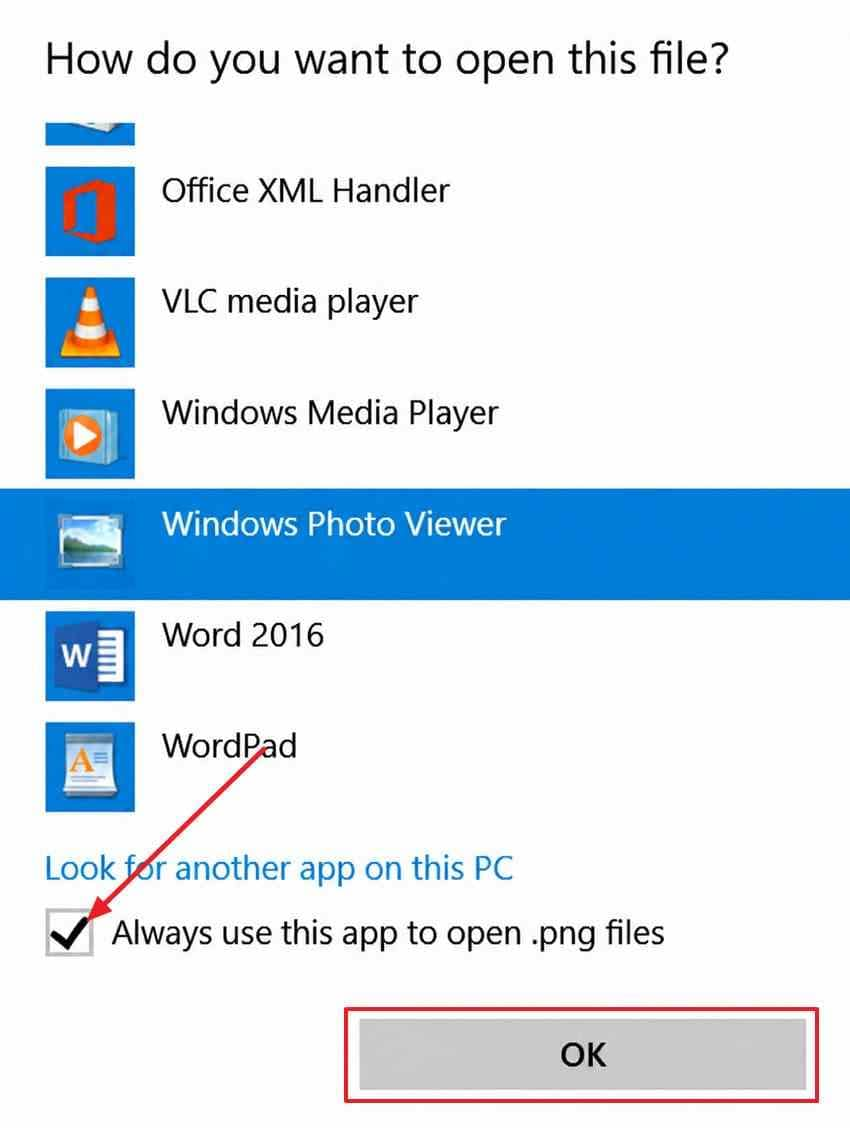
If the viewer is not listed, do not treat that absence as an image-file failure. The safer next step is to use an available Microsoft Photos version or another trusted supported viewer.
Fix 3. Check Color Management Only for Relevant Classic Viewer Errors
This is an advanced, conditional step. A few Windows Photo Viewer reports of "not enough memory" errors involve display color-profile settings rather than actual RAM shortages. The evidence is limited to particular configurations; changing a color profile is not a universal solution. If multiple images display normally in other apps and the classic viewer reports a memory error, you can test the display profile cautiously.
Step 1. Search for and open Color Management. Under "Devices", select the affected display and record its current default profile. If the monitor is professionally calibrated, save or document its profile before making any change.
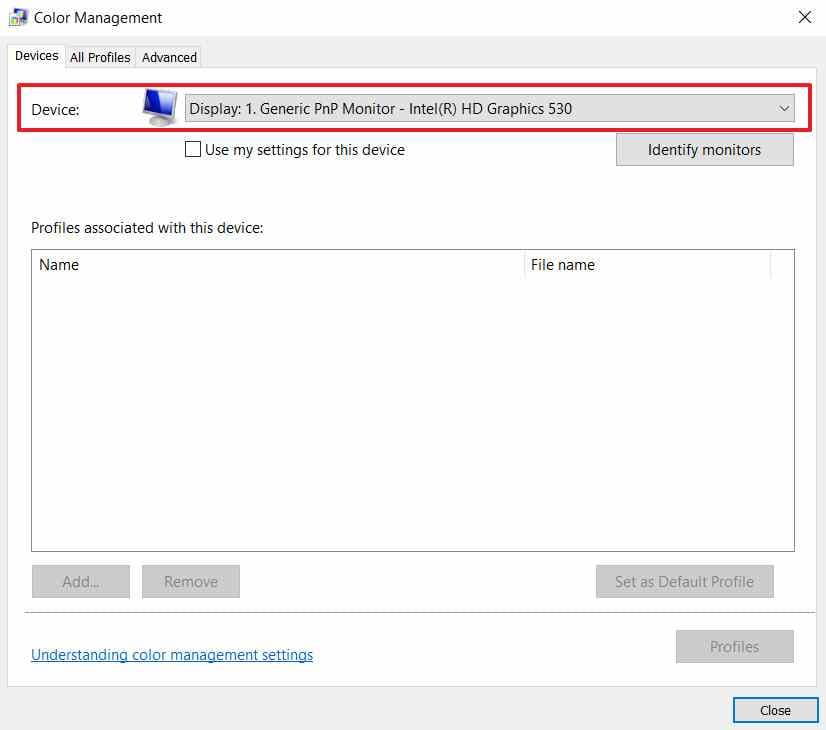
Step 2. For a temporary comparison, check "Use my settings for this device" and add a standard sRGB IEC61966-2.1 profile only if appropriate for the display. Do not remove the original profile.
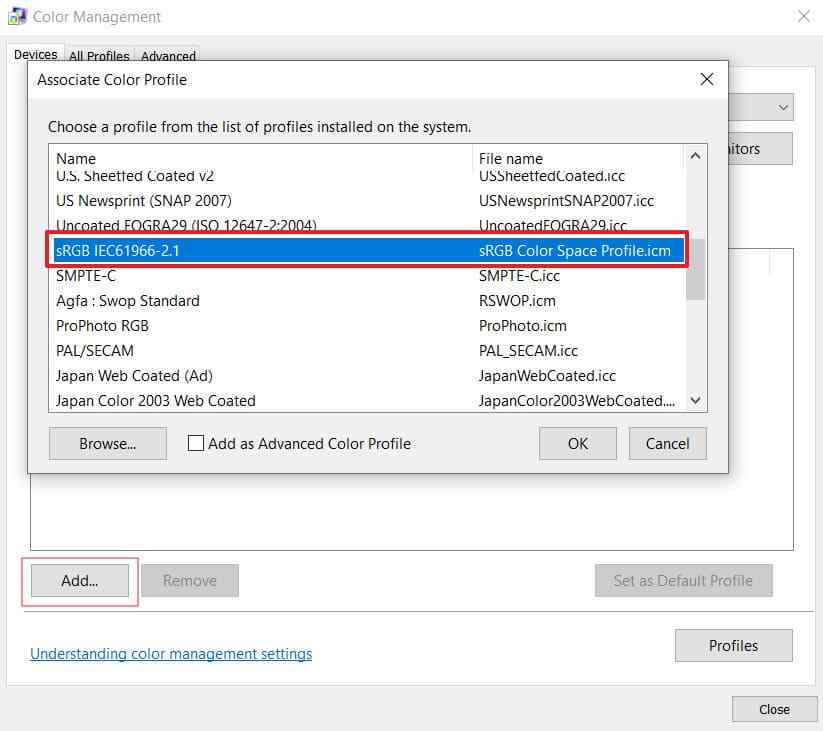
Step 3. Temporarily set the test profile as the default, reopen the same JPG in Windows Photo Viewer, and observe the result. Restore the original calibrated profile immediately after the test, especially if color accuracy is important.
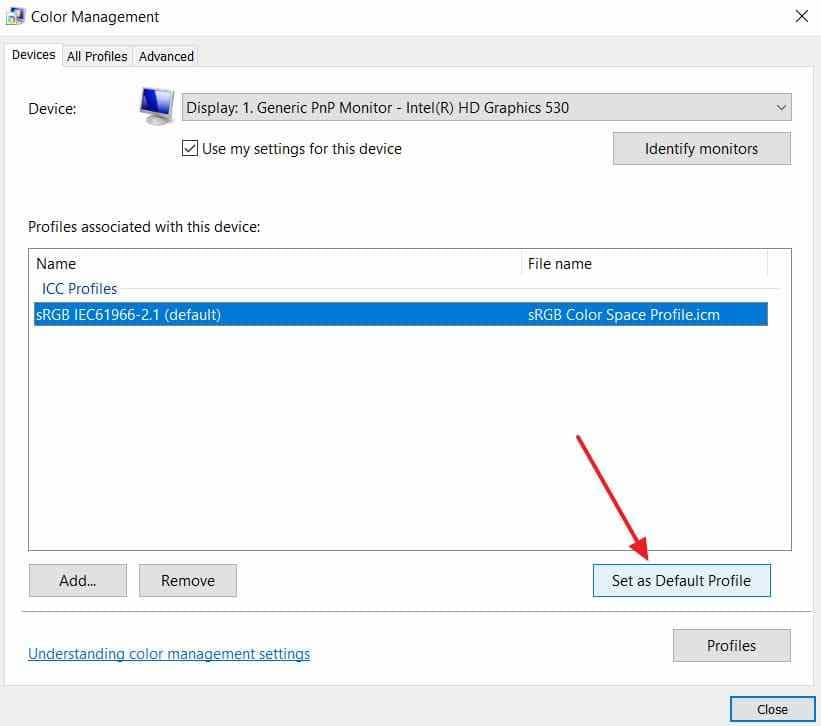
Note: If the memory warning persists, restore the original profile and seek targeted display or application support. A color profile should never be changed permanently on the strength of the stop message alone.
Avoid Unverified Registry Hacks for Enabling the Legacy Viewer
Some websites provide .reg files that register the classic viewer for additional extensions. Registry files may also contain unrelated changes, and a downloaded script can affect more than image associations. Because Microsoft Photos and Photos Legacy provide supported alternatives, there is usually no need to make registry edits just to view JPG or PNG pictures.
- Safer first choice: Use Microsoft Photos or Photos Legacy for everyday viewing.
- When the classic viewer already exists: Set its default file association using the normal Open With interface.
- Managed PCs: Ask your IT team before changing associations or registry policies.
When an Image Cannot Open Anywhere, Diagnose the File Instead
If one image fails in Paint, Photos, and other viewers that support its actual format, further Photos app repairs are unlikely to help. Look for a damaged transfer, an incomplete download, an unsupported variant, or a file that contains no usable image data. A viewer failure by itself is not evidence that your photo has been deleted.
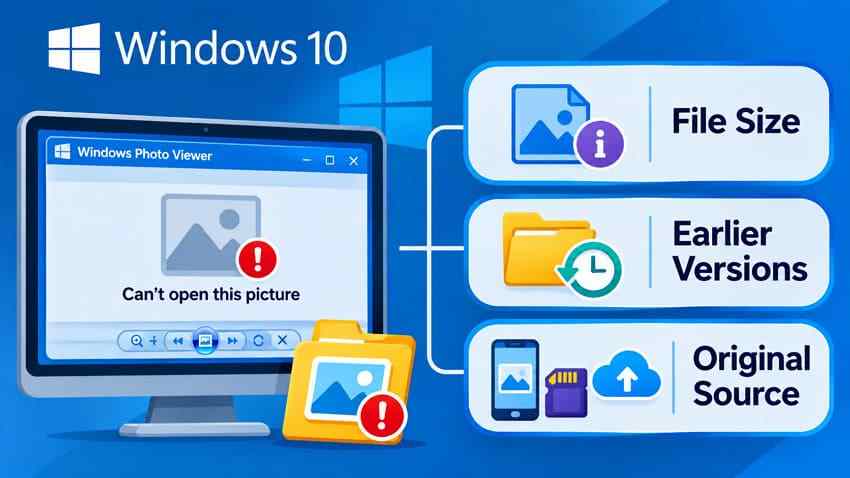
- File size: Right-click the file and select Properties. A zero-byte file contains no image data. An unusually small copy may indicate an interrupted transfer.
- Original source: Check whether the image still opens on the camera, phone, memory card, cloud account, or original computer. Copy the original again to a different destination if it is intact.
- Backups and older versions: Check File History, Previous Versions when available, OneDrive version history, or another backup before altering the suspect file.
- Unsupported formats: If the image type is uncommon, use a trusted viewer that explicitly supports that file rather than changing its extension.
For a more detailed file-focused discussion, see how to investigate unreadable pictures. If the files have actually gone missing and Windows no longer starts, Recoverit Windows System Recovery describes a bootable workflow that may help recover files from a still-detectable, stable system drive before reinstalling Windows. It is not a way to fix Photos, unlock encrypted drives, or repair corrupted image files.
Note: Do not save recovered files to their original affected storage. SSD TRIM, overwritten data, and physical failure can limit or prevent recovery; a drive that is physically undetectable needs professional assessment.
Conclusion
If Microsoft Photos on Windows 10 will not open, first test a known-good JPG in Paint and check the default viewer. When the JPG works elsewhere, try Photos Repair, then a Store update, Reset, or an official reinstall as needed. For HEIC or camera RAW files, identify the format and install only the required trusted extensions.
If classic Windows Photo Viewer is the problem, check whether it is available and correct its file associations without unnecessary registry changes. If a picture cannot open in multiple format-compatible apps, investigate its original file and available backup instead. For long-term security, consider moving from Windows 10 to a supported Windows release when practical.
FAQ
-
Why does Windows 10 Photos show a blank screen or close immediately?
The app may have damaged settings, an incompatible update, or another application-level problem. Test a known-good JPG in Paint first. If it opens there but not in Photos, try Repair under Photos Advanced options, update Photos through Microsoft Store, then Reset if the earlier checks fail. Reinstall only if needed. -
Is classic Windows Photo Viewer the same as Microsoft Photos?
No. Microsoft Photos is the modern Store-based picture app, while Photos Legacy offers older gallery features. Windows Photo Viewer is a separate, older desktop viewer that might be available through Open With for certain file types. Each has different settings and troubleshooting options. -
Why will JPG files open but HEIC or RAW photos will not?
JPG is broadly supported. HEIC/HEIF files may require Microsoft HEIF Image Extensions and an applicable HEVC codec, while some camera RAW files need Raw Image Extension or camera-specific software. Check the extension and device compatibility before assuming that Photos or the photo is damaged. -
Will repairing or resetting Microsoft Photos delete my picture files?
Repair and Reset target the Photos application, not normal JPG and PNG files saved in your Pictures and other folders. However, Reset can clear app-specific settings or data, and reinstalling can affect unfinished app work. Back up important projects before resetting, and do not delete any original photo folders.


