 TL;DR:
For Android phone storage in 2026, the SanDisk Extreme microSDXC is the best overall choice for 4K video and apps due to its U3/V30/A2 ratings, while the Samsung EVO Select offers the best value for everyday media storage.
● Format the microSD card as portable storage rather than internal or adoptable storage to ensure files remain recoverable via PC software and transferable between devices, as internal mode permanently encrypts the card to a single phone.
● Match the card's specifications to your primary usage by selecting an A2 rating for running mobile games or app data, and U3 or V30 speed classes for sustaining the write speeds required for 4K video recording.
● If Android displays a corruption error, do not format the card or save new files; tools like Recoverit Memory Card Recovery can only retrieve missing data from readable, unoverwritten portable cards connected through a computer card reader.
Ask AI for a summary
 ChatGPT
 Perplexity
 Gemini
 Claude
 Grok
Grok
"I have a Samsung A73 with a SanDisk Extreme Pro microSD card. Lately every image I save to the SD card gets corrupted. I tried repairing it, but the issue is still the same."
The best micro SD card for Android phone storage in 2026 is not just the card with the biggest number on the package. You need to match your phone's slot support, capacity limit, storage mode, app performance rating, video speed class, and the way you actually use the card.
This buying guide explains whether your Android phone still supports microSD, why "mini SD card for Android phone" usually means microSD today, which card specs matter, which cards are worth shortlisting in 2026, and how to recover files with Recoverit Memory Card Recovery before formatting or replacing a problem card.
In this article
-
- Best Overall: SanDisk Extreme microSDXC
- Best Value: Samsung EVO Select microSDXC
- Best for Fast Transfers: Lexar Professional SILVER PLUS microSDXC
- Best High-Capacity Value: PNY PRO Elite Prime microSDXC
- Best for Creators: Samsung PRO Plus microSDXC
- Best for Travel and Action Use: Kingston Canvas Go! Plus microSDXC
- Best Budget Pick: SanDisk Ultra microSDXC
Part 1. Do Android Phones Still Support MicroSD Cards in 2026?
Yes, some Android phones still support microSD cards in 2026, but support is model-specific. Many budget and mid-range phones still include expandable storage. Many flagship phones do not. Before buying a memory card for Android phone storage, check your exact model's specifications and supported maximum card capacity.
How to Check Whether Your Phone Has a MicroSD Slot
- Check the phone's official specifications page for "microSD," "expandable storage," or "card slot."
- Open the SIM tray with the ejector pin and look for a second slot labeled microSD or a hybrid SIM/microSD slot.
- Open Settings > Storage and check whether Android lists an SD card option after insertion.
- Check your phone's manual before buying 1TB, 1.5TB, or 2TB cards, because not every phone supports every capacity.
MicroSD vs. MiniSD vs. Standard SD Card
If you searched for a mini SD card for Android phone, you almost certainly need a microSD card instead. MiniSD was a mid-size legacy format and is not used by modern Android phones.
| Format | Physical size | Where it is used | Android phone fit |
| Standard SD | Largest | Cameras, laptops, and card readers | No, unless used through an adapter or reader |
| MiniSD | Mid-size legacy format | Older devices | No, not for modern Android phones |
| MicroSD | Smallest | Android phones, tablets, drones, action cameras, handheld gaming devices | Yes, if your phone has a slot |
Portable Storage vs. Adoptable or Internal Storage
When you set up an SD card, Android may offer portable storage or internal storage. Portable storage keeps the card removable and useful across devices. Internal storage, also called adoptable storage on supported devices, ties the card to one phone.
| Storage mode | How it works | Best for | Data recovery warning |
| Portable storage | The card stays separate from phone storage and can be moved between compatible devices. | Photos, videos, music, documents, and file transfer. | Files may be recoverable from a readable card through a PC card reader if not overwritten. |
| Internal or adoptable storage | Android formats and encrypts the card so it works with that phone. | Apps and private app data on phones that support the feature. | PC recovery software cannot decrypt the card after it is removed from the phone. |
The Android Open Source Project explains that when external media is adopted, it is formatted and encrypted to work with a single Android device. Choose portable storage if you want easier transfer and recovery options.
What to Do If Your Android Phone Has No MicroSD Slot
- Use a USB-C flash drive or USB-C card reader for temporary external storage.
- Move photos and videos to cloud storage such as Google Photos, Google Drive, OneDrive, or Dropbox.
- Transfer large files to a computer or external drive on a regular schedule.
- Choose a phone with advertised expandable storage next time if removable storage is important.
Part 2. What Specs Matter for an Android Phone MicroSD Card?
Two cards can have the same capacity and still behave very differently in an Android phone. The best microSD for Android phone use should match your capacity needs, random app performance, sustained write speed, and durability expectations.
1. Capacity: 64GB, 128GB, 256GB, 512GB, 1TB, or Higher
Most users should start with 128GB or 256GB. These capacities are affordable and large enough for photos, videos, downloads, music, and offline maps. Choose 512GB, 1TB, or higher only if your phone supports it and you store large video files, games, or media libraries.
| Capacity | Best for | Buying note |
| 64GB | Basic photos, documents, and music | Cheap, but fills quickly with video. |
| 128GB | Everyday Android storage | Good entry point for most users. |
| 256GB | Photos, videos, apps, and travel storage | Best value range for many buyers. |
| 512GB | Heavy media users and offline libraries | Check phone support and choose a reliable brand. |
| 1TB or higher | Large video libraries, creators, and long trips | Buy only if your phone officially supports the capacity. |
2. A1 vs. A2 Application Performance Class
The SD Association Application Performance Class rating matters when you want apps or app data to run from the card. A1 requires at least 1,500 random read IOPS and 500 random write IOPS. A2 raises that to 4,000 random read IOPS and 2,000 random write IOPS under the SD standard's test conditions.
Choose A2 if your phone supports running apps from the card or if you use the card for mobile games and large app data. Choose A1 if you mostly store photos, videos, music, and documents.
3. Speed Class, UHS Class, and Video Speed Class
Speed ratings can be confusing because several symbols appear on one card. The SD Association Speed Class system defines minimum sustained write performance for recording video and other continuous writes.
| Label | Meaning | Android phone buying advice |
| Class 10 or C10 | Older minimum speed rating for Full HD use. | Acceptable for simple storage, but not enough alone for demanding use. |
| U1 | Minimum 10MB/s sustained write under UHS conditions. | Fine for basic photos and Full HD video. |
| U3 | Minimum 30MB/s sustained write under UHS conditions. | Better for 4K video, burst photos, and faster transfer. |
| V30 | Video Speed Class 30, designed for 30MB/s sustained video writes. | Recommended for 4K video and creator use. |
| A1 or A2 | Random read/write app performance rating. | Important if apps, games, or app data use the card. |
4. Read Speed vs. Write Speed
Read speed affects how quickly files copy from the card to your phone or computer. Write speed affects how reliably the phone saves photos, videos, downloads, and app data to the card. For Android video recording, write speed and V30/U3 ratings matter more than a high advertised read speed.
Also remember that many maximum speeds require a compatible card reader or host device. If the phone's card slot is slower, the card will run at the phone's supported speed.
5. Durability, Warranty, and Brand Reliability
Reliable cards from established brands usually include protection claims such as water resistance, temperature resistance, shock resistance, X-ray resistance, or wear protection. These claims help, but they do not replace backup. A removable card can still fail, corrupt files, or be lost.
How to Avoid Fake MicroSD Cards
- Buy from the brand's official store or a trusted retailer.
- Avoid listings that are far cheaper than every other seller for the same capacity.
- Check packaging quality, serial numbers, and warranty registration options.
- Test new cards with capacity-verification tools such as H2testw on Windows or F3 on macOS/Linux before storing important files.
- Do not trust unknown-brand 1TB or 2TB cards sold at suspiciously low prices.
Part 3. Best MicroSD Cards for Android Phones in 2026
The cards below were selected for Android phone users based on official capacity ranges, A1/A2 ratings, U3/V30 support, durability claims, and real-world buying fit. Availability, packaging, and exact speeds can vary by country and capacity, so check the model number before buying.
Best Overall: SanDisk Extreme microSDXC
The SanDisk Extreme microSDXC is the safest overall recommendation for many Android users. It offers a strong mix of capacity, A2 app performance, U3/V30 ratings, and high transfer speeds when used with compatible readers and devices.
Choose it if you shoot lots of photos, record 4K video, move files often, or want a card that can also work well in action cameras and drones.
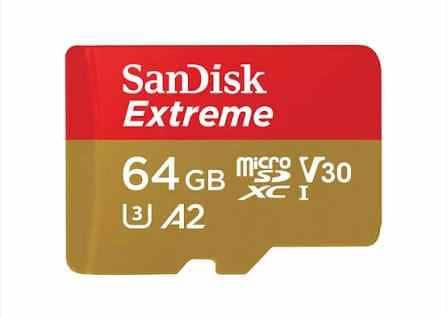
- Best for: all-around Android phone storage, 4K video, and mixed media.
- Key ratings: A2, U3, V30 on current high-capacity models.
- Capacity note: current listings include high-capacity options, but phone compatibility still matters.
- Watch out for: maximum advertised speeds may require a compatible SanDisk reader or host device.
Best Value: Samsung EVO Select microSDXC
The Samsung EVO Select microSDXC is a strong value pick for everyday Android storage. Samsung's 2024 update brought up to 1TB options and up to 160MB/s read performance on current models, with ratings designed for phones, tablets, gaming handhelds, and general storage.
Choose it if you want reliable daily storage for photos, offline videos, downloads, music, and casual app data without paying for the fastest creator card.
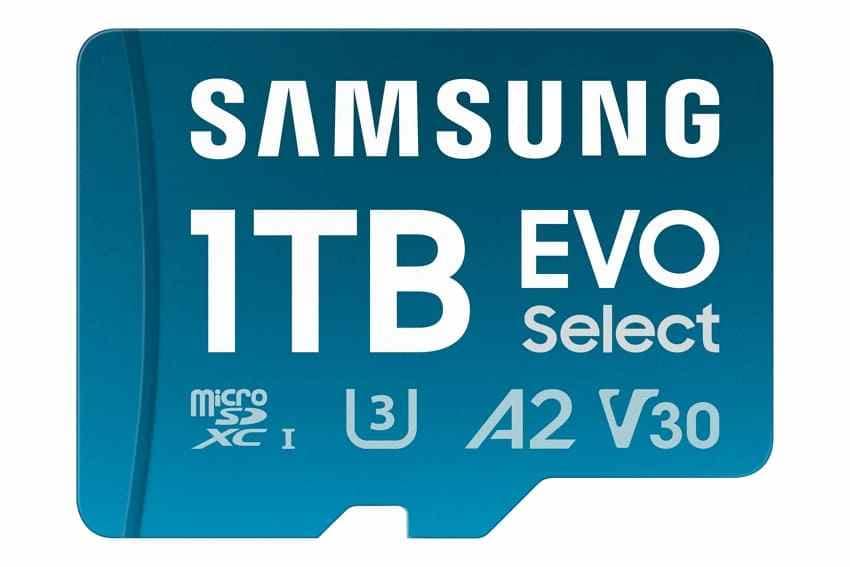
- Best for: everyday Android phone storage and value-focused buyers.
- Key ratings: current high-capacity EVO Select models include U3, V30, and A2, while older or lower-capacity versions may differ.
- Capacity note: Samsung lists 64GB through 1TB options for EVO Select.
- Watch out for: confirm the exact model year and rating printed on the card.
Best for Fast Transfers: Lexar Professional SILVER PLUS microSDXC
The Lexar Professional SILVER PLUS microSDXC is a good pick when file transfer speed matters. Lexar lists up to 205MB/s read and up to 150MB/s write performance on supported capacities and compatible readers, plus V30 and A2 ratings.
Choose it if you often copy large files between your Android phone, camera, drone, handheld console, and computer.
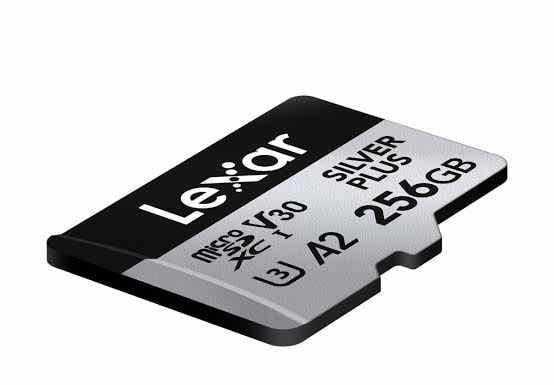
- Best for: fast file transfers and 4K-ready removable storage.
- Key ratings: V30 and A2 on current models.
- Capacity note: availability varies by region and capacity.
- Watch out for: peak speeds require a compatible reader and may not be reached inside every phone.
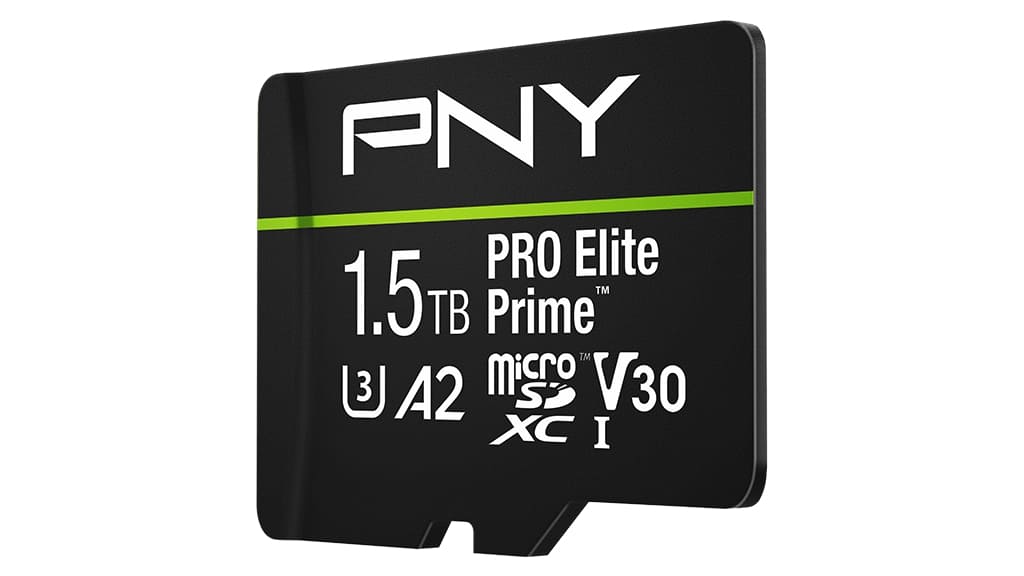
Best High-Capacity Value: PNY PRO Elite Prime microSDXC
The PNY PRO Elite Prime microSDXC is a practical high-capacity option for users with big photo, video, and media libraries. PNY lists capacities up to 1.5TB and ratings including U3, V30, and A2 on the PRO Elite Prime line.
Choose it if your phone supports large microSDXC cards and you want a lot of removable storage for travel, media, and content creation.
- Best for: high-capacity Android storage at a competitive value.
- Key ratings: U3, V30, A2 on the PRO Elite Prime product line.
- Capacity note: 64GB through 1.5TB options are listed by PNY.
- Watch out for: top speeds require the compatible PNY Performance Prime reader and supported host conditions.
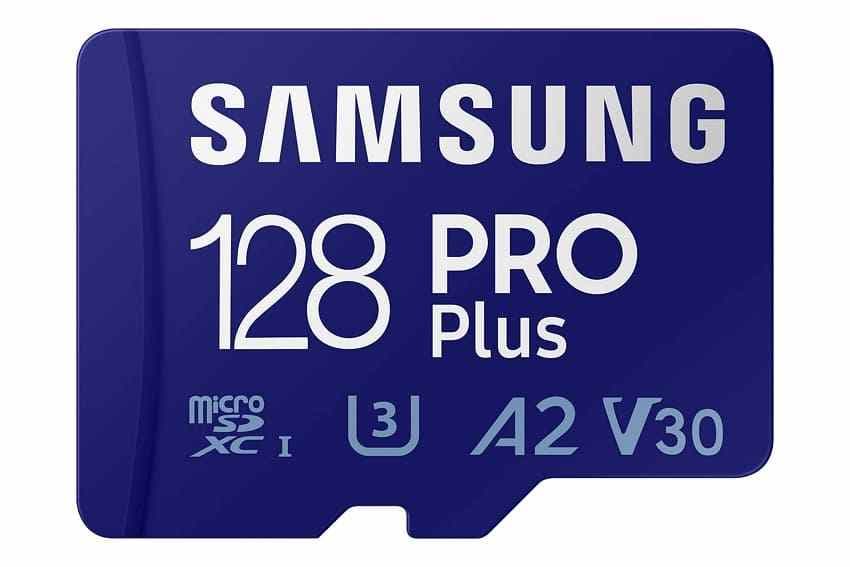
Best for Creators: Samsung PRO Plus microSDXC
The Samsung PRO Plus microSDXC is better suited to creators than the EVO Select line. Samsung lists up to 180MB/s read and up to 130MB/s write on current PRO Plus models, with U3, V30, and A2 ratings.
Choose it if you record video, shoot many photos, transfer large files, or want a card that can move between supported Android devices, action cameras, drones, gaming devices, and laptops.
- Best for: creators, 4K video, and faster photo/video workflows.
- Key ratings: U3, V30, A2, Class 10.
- Capacity note: current PRO Plus listings include 128GB through 1TB options.
- Watch out for: Samsung's warranty excludes some write-intensive uses such as surveillance according to regional terms.
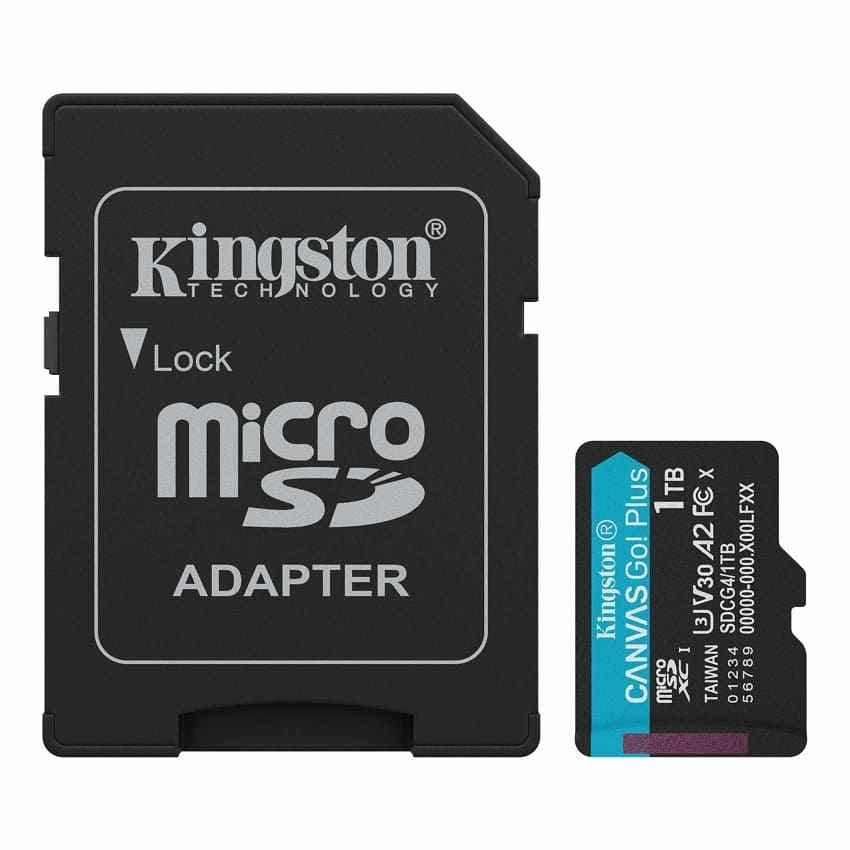
Best for Travel and Action Use: Kingston Canvas Go! Plus microSDXC
The Kingston Canvas Go! Plus microSDXC is a good travel card because it targets Android devices, mobile gaming, drones, and action cameras. Kingston lists U3, V30, and A2 ratings, with up to 200MB/s read performance and capacity options up to 1TB.
Choose it if your Android card will also move between travel cameras, drones, handheld consoles, and a computer.
- Best for: travel, action cameras, drones, mobile gaming, and Android storage.
- Key ratings: U3, V30, A2.
- Capacity note: Kingston lists 64GB through 1TB options.
- Watch out for: write speed varies by capacity.
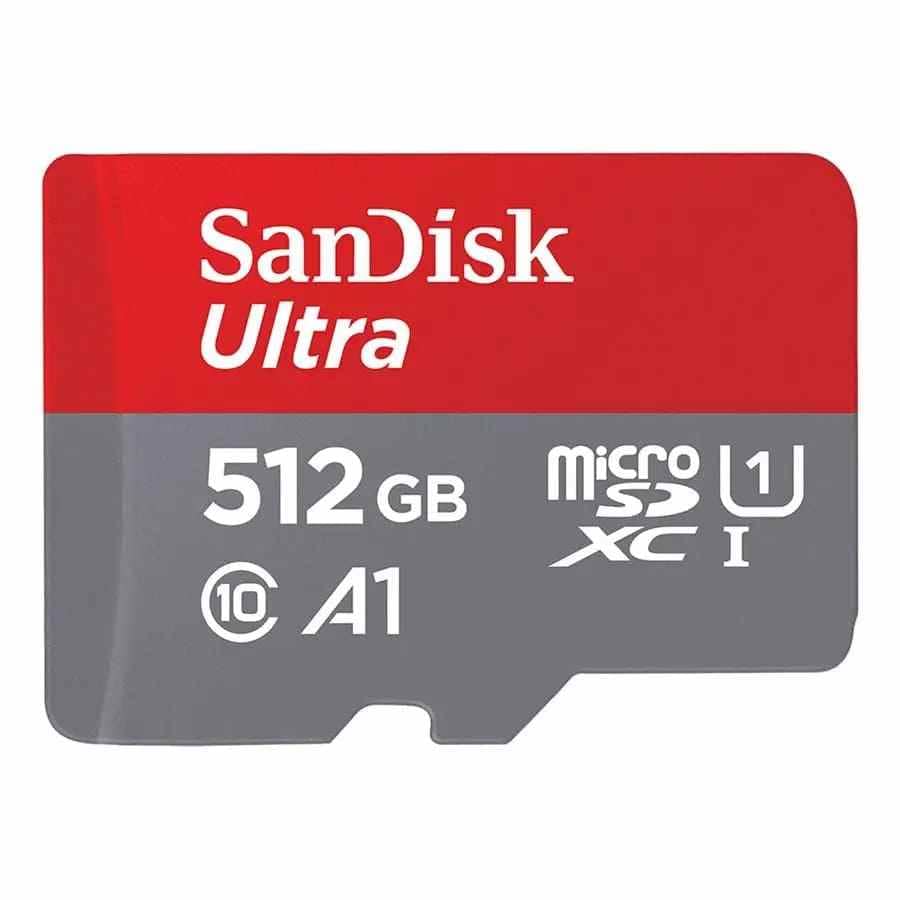
Best Budget Pick: SanDisk Ultra microSDXC
The SanDisk Ultra microSDXC is the budget-friendly choice for simple phone storage. It is built for Android smartphones and tablets, offers A1-rated performance, and lists up to 150MB/s read speeds on current high-capacity models.
Choose it if you mostly store photos, music, documents, downloaded videos, and backups. For heavy 4K recording or app-heavy usage, step up to a U3/V30/A2 card instead.
- Best for: low-cost everyday storage.
- Key ratings: A1 on current models.
- Capacity note: current SanDisk Ultra listings include high-capacity options up to 1.5TB.
- Watch out for: write speeds are lower than read speeds and this is not the best card for demanding 4K workflows.
Part 4. MicroSD Card Comparison Table for Android Phones
Use this table to compare the best SD card for Android phone use at a glance. The listed speeds are manufacturer-stated maximums under supported host or reader conditions, so real phone speed may be lower.
| Card | Capacity range | Key ratings | Manufacturer-stated speed | Best use case |
| SanDisk Extreme microSDXC | High-capacity options including up to 2TB listings | A2, U3, V30 on current high-capacity models | Up to 190MB/s read and up to 130MB/s write on selected capacities with compatible hardware | Best overall Android phone storage |
| Samsung EVO Select microSDXC | 64GB to 1TB | U3, V30, A2 on current high-capacity models; older/lower versions may differ | Up to 160MB/s read on current models | Best value for everyday storage |
| Lexar Professional SILVER PLUS microSDXC | Varies by region and capacity | V30, A2 | Up to 205MB/s read and up to 150MB/s write on supported capacities | Best for fast transfer workflows |
| PNY PRO Elite Prime microSDXC | 64GB to 1.5TB | U3, V30, A2 | Up to 200MB/s read and up to 150MB/s write with compatible PNY reader on selected capacities | Best high-capacity value |
| Samsung PRO Plus microSDXC | 128GB to 1TB | U3, V30, A2, Class 10 | Up to 180MB/s read and up to 130MB/s write | Best for creators and 4K video |
| Kingston Canvas Go! Plus microSDXC | 64GB to 1TB | U3, V30, A2 | Up to 200MB/s read; write speed varies by capacity | Best for travel and action use |
| SanDisk Ultra microSDXC | 32GB to 1.5TB | A1 | Up to 150MB/s read on selected high-capacity models; write speeds lower | Best budget pick |
| User type | Recommended card type | Why |
| Basic Android user | 128GB or 256GB A1/A2 card from a major brand | Enough for photos, music, documents, and light video. |
| 4K video user | U3 and V30 card | Sustained write performance is more important than peak read speed. |
| Mobile gamer or app-heavy user | A2 card if your phone supports app storage | A2 improves random read/write performance under supported host conditions. |
| Traveler | 512GB or 1TB card with strong durability claims | More local space for offline maps, video, photos, and backups. |
| Creator | U3, V30, A2 card with higher write speed | Better for large files, burst shooting, and frequent transfers. |
Part 5. How to Install and Use a MicroSD Card on Android
Back up anything already on the card before setup. Formatting an SD card can erase existing files, and formatting it as internal storage can tie it to one phone.
Step 1. Insert and Format the Card
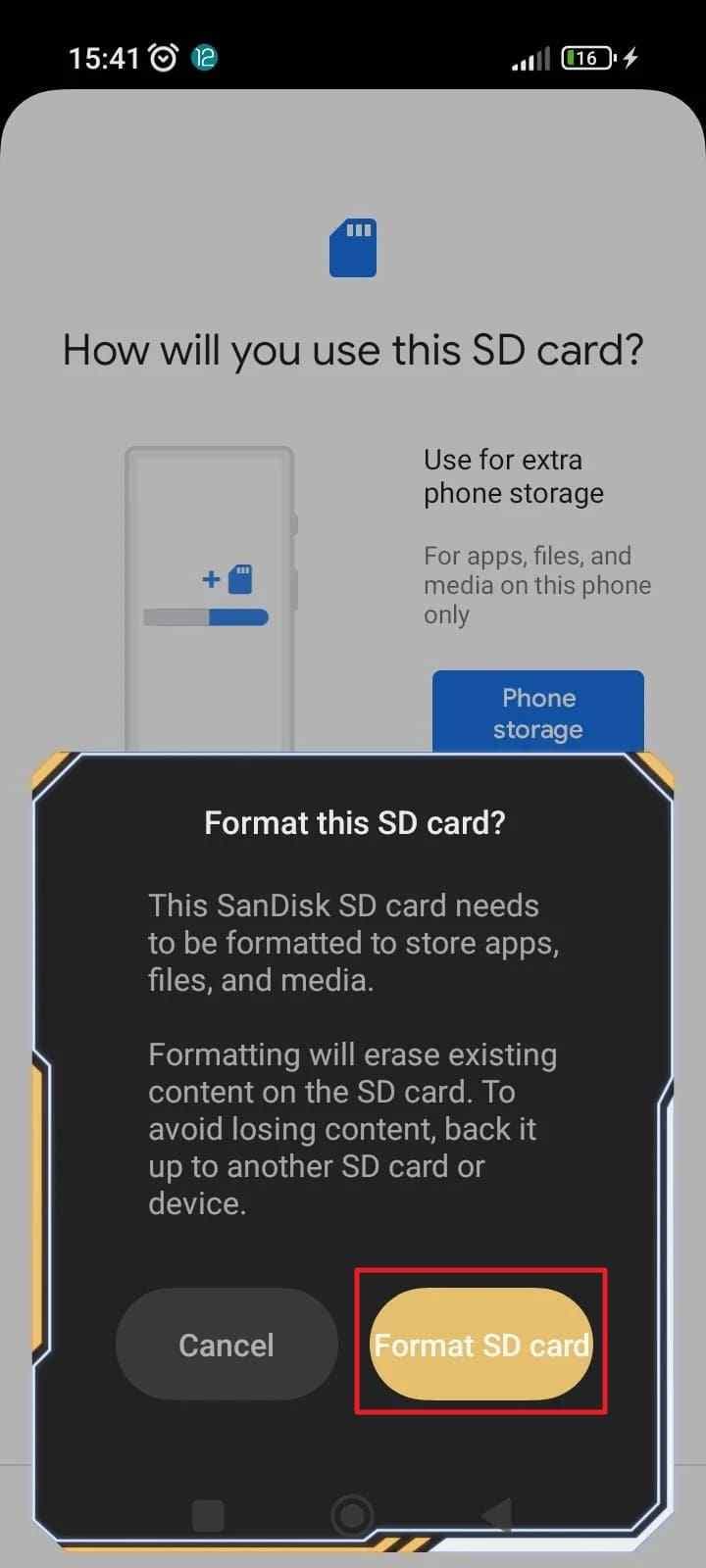
Turn off the phone if your model recommends it. Open the SIM tray, place the microSD card in the correct slot, reinsert the tray, and restart the phone. When Android detects the card, choose portable storage for removable media use or internal storage only if you understand the encryption and device-locking tradeoff.
Step 2. Move Files and Set the Camera Save Location
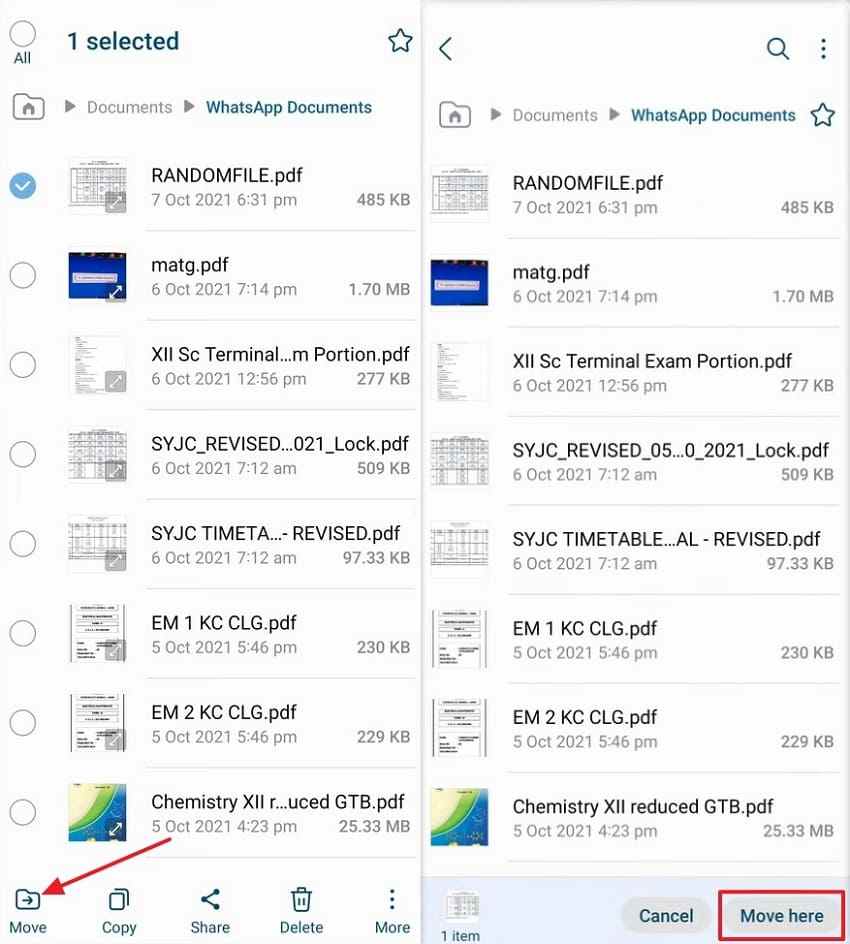
Open your phone's file manager, select photos, videos, downloads, or documents, tap Move, choose the SD card folder, and tap Move here. If your camera app supports it, open camera settings and set the storage location to the SD card.
Part 6. Recover Lost Files Before Formatting an Android MicroSD Card
If the Android phone says the card is corrupted, asks you to format it, or shows missing photos, recover important files before you repair or replace the card. Formatting, CHKDSK, and repeated writes can change the card and reduce recovery chances.
When Recoverit Can Help
Recoverit Memory Card Recovery can help recover files from a readable Android microSD card when the card is used as portable storage and can be detected by a Windows or Mac computer through a card reader.
- Readable portable cards: the card appears in Disk Management, File Explorer, Finder, or the recovery tool.
- Deleted or missing files: photos, videos, documents, and downloads may still be recoverable if not overwritten.
- Formatted or RAW cards: deep scanning may find files even when the file system is damaged.
- Preview before recovery: preview supported file types before saving them to another drive.
When Recoverit Cannot Help
Recoverit cannot repair a physically failed card, guarantee recovery, recover overwritten files, or decrypt an Android card that was formatted as internal or adoptable storage and removed from the phone. If the card is encrypted to one phone, try phone backups, cloud backups, or the original phone before scanning it on a PC.
How to Recover Files from an Android MicroSD Card
Connect the card to your computer with a reliable card reader. Then follow these steps.
Step 1. Select the SD card and start a scan. Open Recoverit, choose SD Card Recovery, select your card, and click Start Scan.

Step 2. Let Recoverit scan missing card files. Wait for the scan to finish, especially if the card was formatted, corrupted, or shows as RAW. Use filters to narrow results by file type or path.

Step 3. Preview and save the files. Preview recoverable files, click Recover, and save them to your computer or another external drive. Do not save files back to the same microSD card.

What Not to Do Before Recovery
- Do not format the card just because Android prompts you to format it.
- Do not save new photos, videos, apps, or downloads to the card.
- Do not save recovered files back to the same card.
- Do not run repair tools before copying important files elsewhere.
- Do not keep using a card that repeatedly corrupts photos or disconnects.
Part 7. Common Android MicroSD Card Problems and Fixes
Even a good microSD for Android phone use can develop problems. Start with low-risk checks, recover important files if the card contains data, and only then move to repair or formatting.
Phone Does Not Detect the SD Card
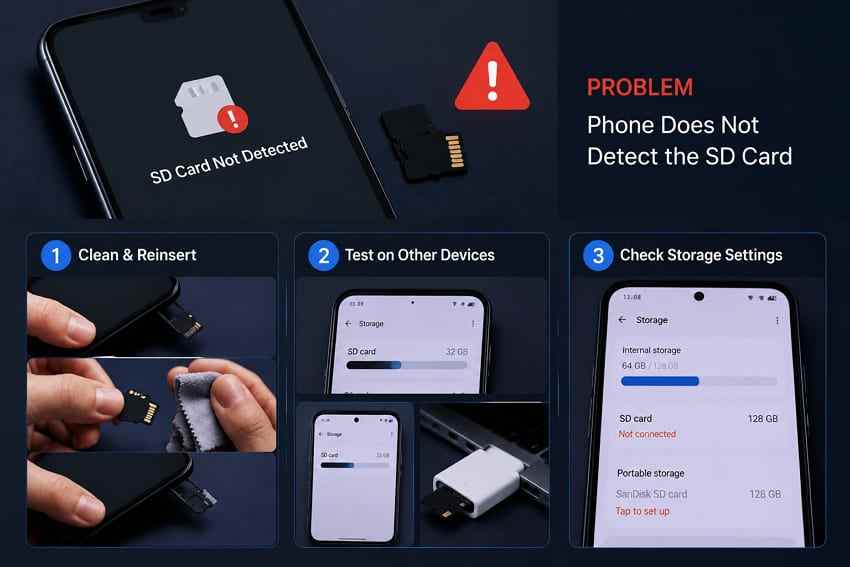
- Turn off the phone, remove the card, check the tray position, and reinsert it carefully.
- Clean dust from the tray and card contacts with a dry, soft cloth.
- Try another phone, computer, or USB card reader.
- Check Settings > Storage to see whether the card appears but is not mounted.
- If no device detects the card, software recovery may not work and a lab may be needed.
SD Card Keeps Disconnecting
- Back up or recover files immediately because repeated disconnects can point to a failing card.
- Test the card in another reader or phone to separate phone-slot issues from card issues.
- After recovery, format the card in the phone and test again.
- Replace the card if disconnects continue.
SD Card Is Slow
- Check whether the card is A1/A2, U1/U3, and V10/V30 as required by your use case.
- Leave free space on the card; a nearly full card can slow down and fragment writes.
- Move old media to a computer or cloud backup.
- Use a faster U3/V30/A2 card if you record video or use app storage.
SD Card Shows as Corrupted
- Do not tap format until your files are backed up or recovered.
- Connect the card to a computer through a card reader and check whether it is detected.
- Recover important files first if the card is readable.
- After recovery, format the card in Android or replace it if errors return.
You Cannot Move Apps to the SD Card
- Check whether the specific app allows storage changes in Android settings.
- Check whether your phone supports adoptable or internal storage.
- Use an A2 card if your phone and app support running app data from external storage.
- Accept that many system apps and some third-party apps cannot be moved.
Phone Storage Is Still Full After Adding a Card
- Move photos, videos, downloads, and offline media manually to the SD card.
- Change camera storage settings if your camera app supports saving to SD card.
- Clear app cache and uninstall apps you do not use.
- Check whether the card was set up as portable storage or internal storage.
Part 8. How to Make Your Android MicroSD Card Last Longer
A microSD card is removable flash storage, so it should be treated as convenient storage rather than your only backup. These habits reduce corruption and data loss risk.
- Buy from trusted sellers: counterfeit cards often fake capacity and fail quickly.
- Use the right speed class: choose U3/V30 for 4K video and A2 for app-heavy use where supported.
- Do not remove the card during writes: wait until transfers, camera saves, and app updates finish.
- Keep backups: copy important photos and videos to a computer, cloud account, or external drive.
- Leave free space: avoid filling the card completely.
- Format in the device that uses it: after backup or recovery, format the card in Android for normal phone use.
- Replace unreliable cards: repeated corruption, disconnects, and slow writes are warning signs.
Conclusion
For most people, the best micro SD card for Android phone storage is a 128GB or 256GB card from a reliable brand with at least A1 performance. If you shoot 4K video, move large files, or use the card across devices, choose a U3/V30/A2 card such as SanDisk Extreme, Samsung PRO Plus, Lexar SILVER PLUS, Kingston Canvas Go! Plus, or PNY PRO Elite Prime.
If your current Android microSD card is corrupted, missing files, or asking to be formatted, recover files before repair. Recoverit Memory Card Recovery can help recover files from a readable portable microSD card, but it cannot decrypt adopted internal storage or repair a physically failed card.
FAQ
-
What is the best microSD card for an Android phone in 2026?
SanDisk Extreme is the best overall pick for many Android users because it combines A2 app performance, U3/V30 ratings, high capacity options, and strong all-around speed. Samsung EVO Select is a better value pick for everyday storage. -
Is a mini SD card the same as a microSD card for Android phones?
No. MiniSD is an older mid-size card format and is not used by modern Android phones. If you searched for a mini SD card for Android phone storage, you most likely need a microSD or microSDXC card. -
Do I need an A2 microSD card for my Android phone?
You need A2 mainly if your phone supports app storage on the card or you use the card for mobile gaming and app data. For photos, videos, music, and documents, an A1 card can still be enough. -
Should I format my Android microSD card as portable or internal storage?
Portable storage is better for most users because the card can be moved between devices and is easier to back up or recover. Internal storage is useful for app space on supported phones, but Android formats and encrypts the card for one device. -
Can Recoverit recover files from an Android microSD card before formatting?
Yes, Recoverit can help recover files from a readable Android microSD card used as portable storage when it is connected to a computer through a card reader. It cannot decrypt a card formatted as Android internal storage or recover data from a card that no device can detect.



